Wasabi Cloud Storage Native Mobile is a production-ready Bubble Native plugin that allows users to upload files directly to Wasabi Technologies (S3-compatible object storage) using secure pre-signed URLs generated via backend authentication.
Access Key & Secret Key generated from your Wasabi console.
This plugin is designed specifically for the mobile version of the Bubble editor. To test the plugin on your mobile device, use the TestFlight app available at: https://testflight.apple.com/join/t65D5D6R
⚠️
Please note that the testing app is currently available for iOS only.

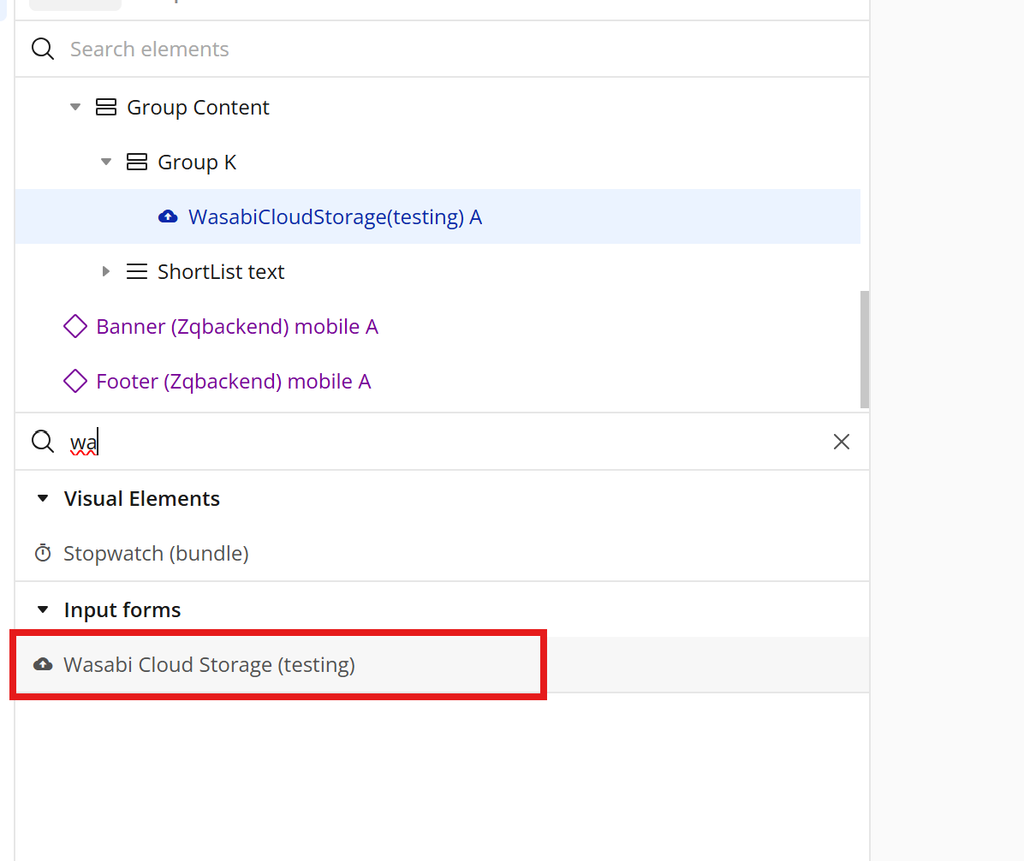
Search for the Wasabi Cloud Storage element in the Elements panel.
Drag and drop the element onto your job listing page.
Step 8 – Configure Properties
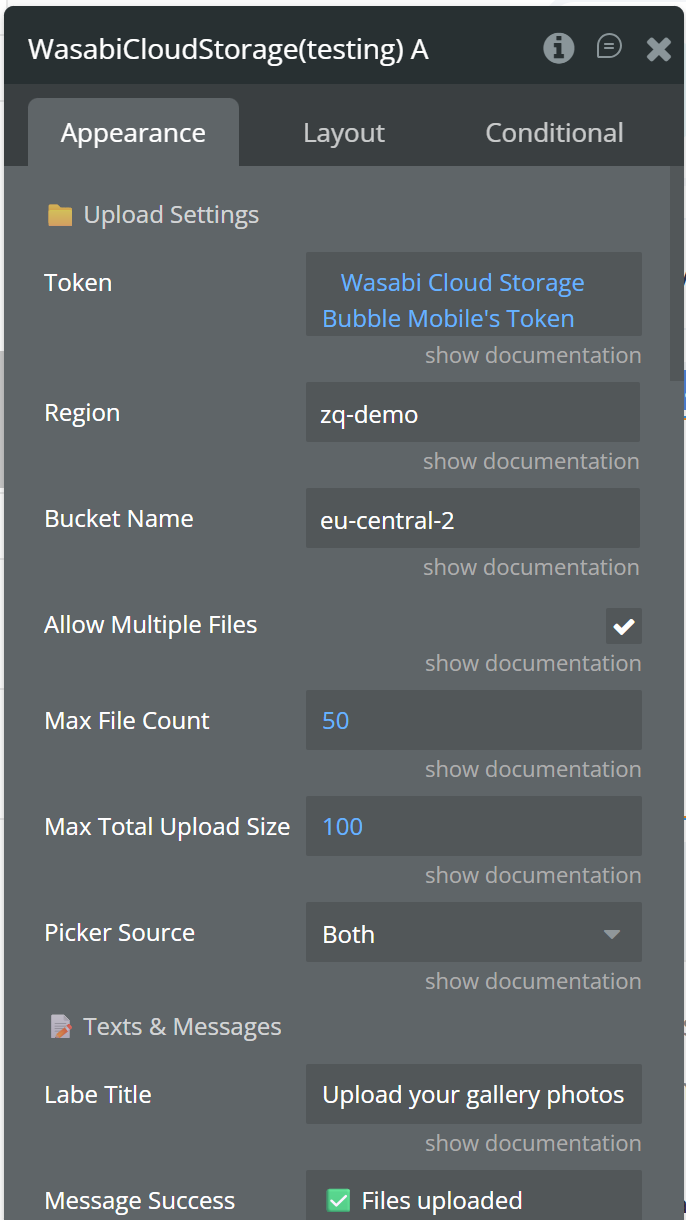
Select the element and configure its properties in the Property Editor. Each field maps to a required job posting attribute:
Generate and Set the Token (Required)
Before using the Wasabi Cloud Storage Native Mobile, you must generate a token using the plugin action Get Token and assign it to the uploader element.
⚠️ Important:
The uploader element does not generate the token automatically.
You must call the Get Token action manually from a workflow and pass the required keys.
How to configure the token
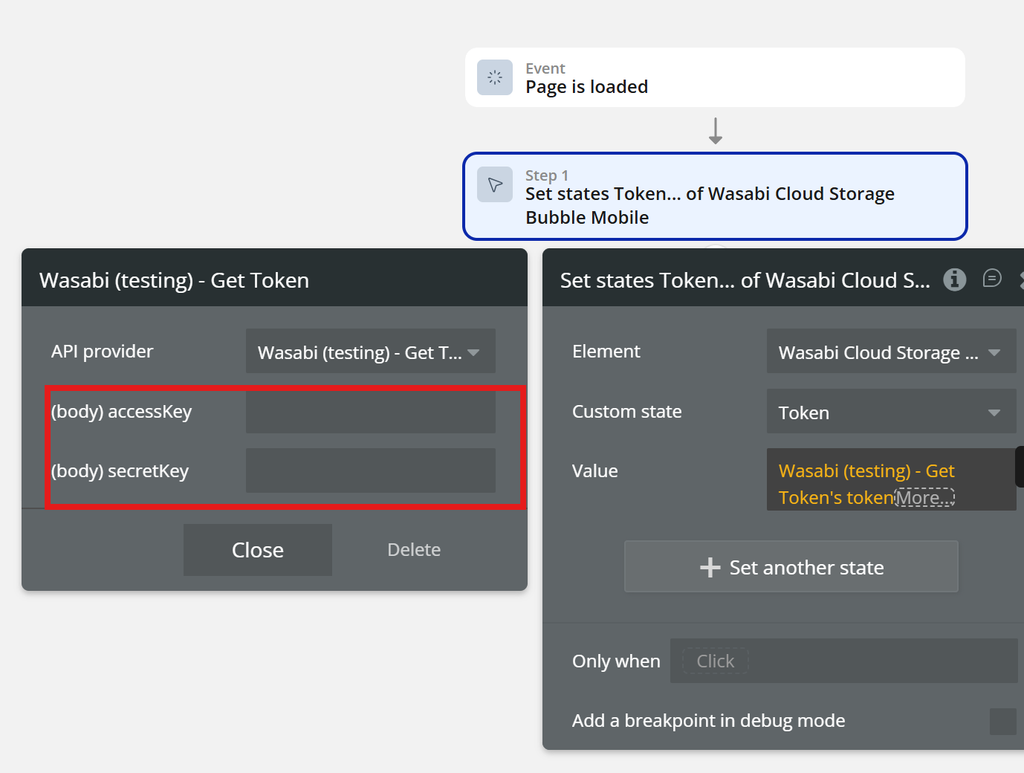
1. Call the plugin action Get Token
In a workflow (recommended: When page is loaded), add the action:
Action: Wasabi– Get Token
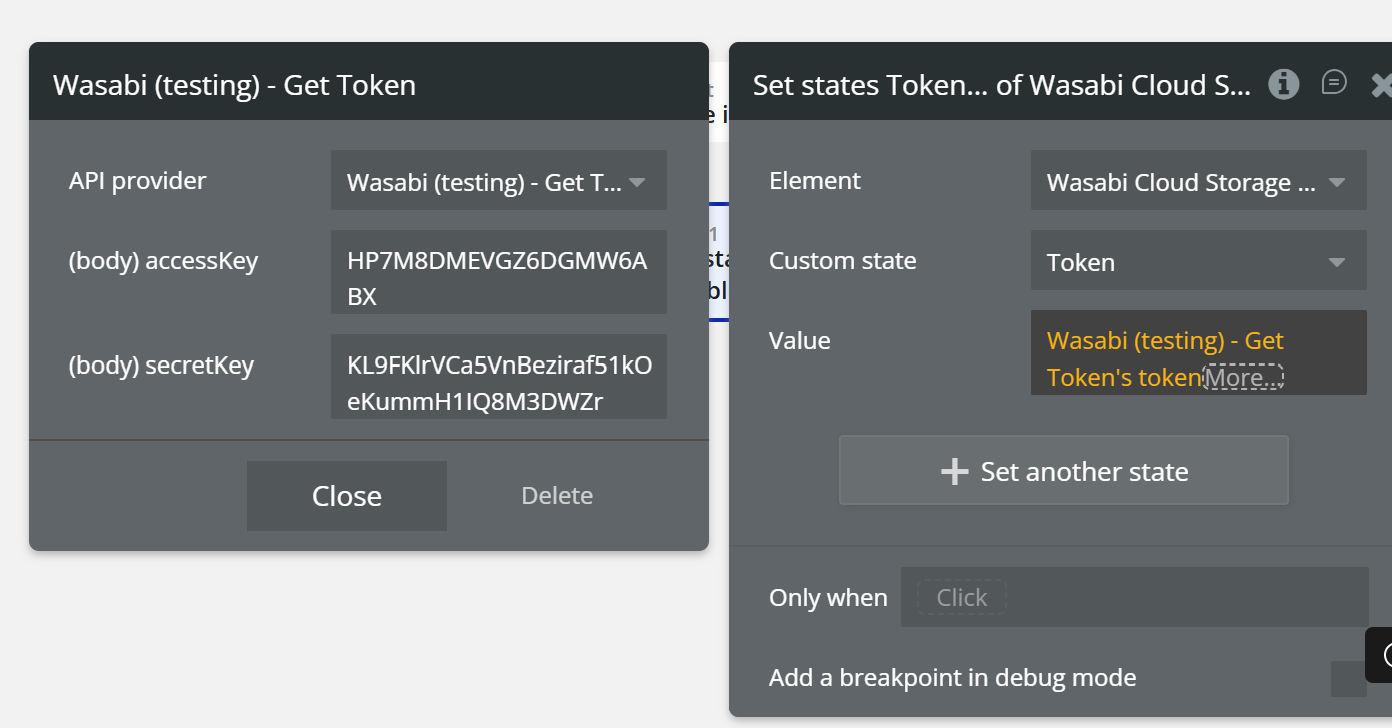
➡️ At this action, you must provide the required keys, exactly as shown in the screenshot:
Access Key
Secret Key
(any other required credentials returned by your setup)
These keys are sent to the backend to generate a valid token.
📌 The keys are entered directly in the action fields, not in the element.
Setting Token in Element
Required Element Configuration
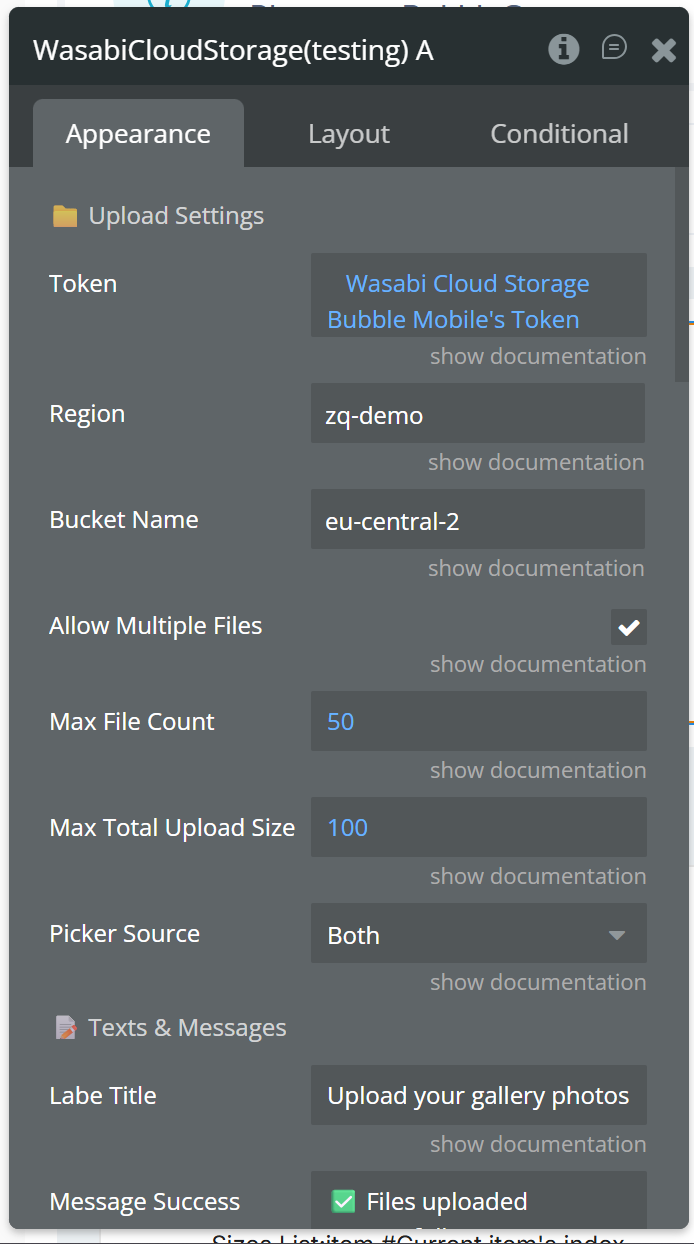
In the AWS S3 Native File Uploader element, you must set only the following three fields:
Token
Set the token that was previously generated and saved in the element’s state.
Region
Enter the Wasabi region where your S3 bucket is located.
Bucket Name
Enter the name of your S3 bucket.
These fields are mandatory.
If any of them is missing or incorrect, the upload will not work.
Plugin Element - Wasabi Cloud Storage
Wasabi Cloud Storage Native Mobile is a Bubble Native element that enables secure file uploads directly to Wasabi (S3-compatible storage) using pre-signed URLs. It supports multiple file selection, upload progress tracking, retry handling, and secure deletion. The element publishes uploaded file data and events, allowing full workflow integration inside your Bubble app.
Fields
Name
Description
Type
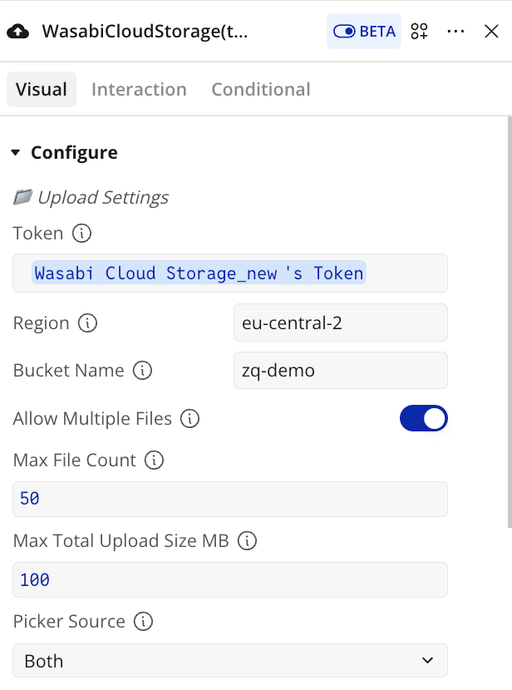
📁 Upload Settings
Section label (no value).
—
Token
Secure API token used to authenticate presign requests to your backend.
text
Region
Region where the bucket is hosted (e.g., us-east-1).
text
Bucket Name
Target Wasabi/S3 bucket name.
text
Allow Multiple Files
Allow selecting multiple files.
yesno
Max File Count
Maximum number of files allowed in total.
number
Max Total Upload Size MB
Maximum total file size (MB) allowed per upload batch.
number
Picker Source
Which picker opens on button press: Both, Gallery, File Manager.
text
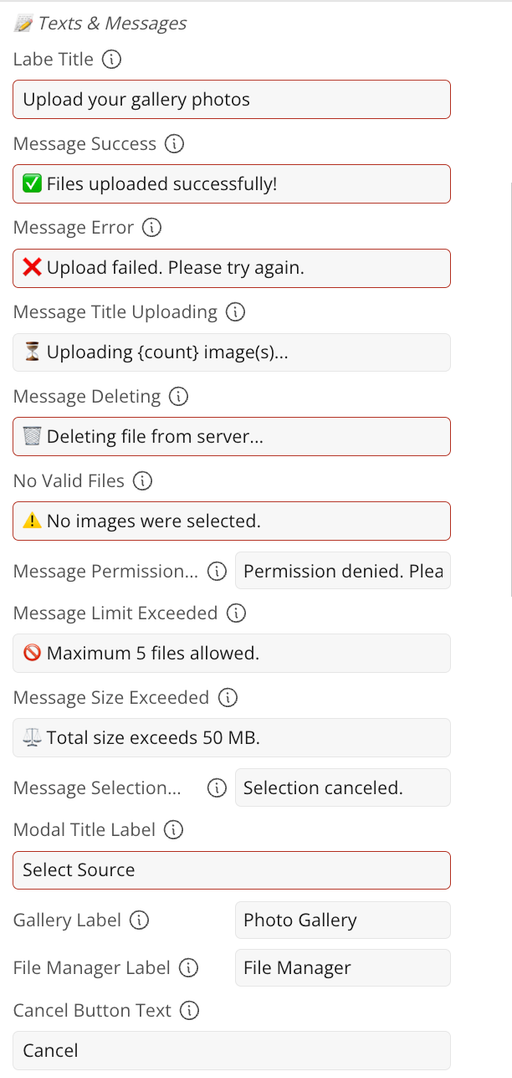
📝 Texts & Messages
Section label (no value).
—
Labe Title
Main title text shown in the UI.
text
Message Success
Shown when all uploads complete successfully.
text
Message Error
Generic error text when an upload fails.
text
Message Title Uploading
Status shown while uploading (supports {count}).
text
Message Deleting
Status shown while deleting from server.
text
No Valid Files
Error shown when selected files are invalid/corrupted.
text
Message Permission Denied
Shown when media/file permission is denied.
text
Message Selection Canceled
Shown/published when the picker is canceled.
text
Message Limit Exceeded
Shown when file count exceeds limit (supports {max_file_count}).
text
Message Size Exceeded
Shown when total size exceeds limit (supports {max_total_upload_size_mb}).
text
Modal Title Label
Title of the “Select Source” modal (when Picker Source = Both).
text
Gallery Label
Label for gallery option in the modal.
text
File Manager Label
Label for file manager option in the modal.
text
Cancel Button Text
Label/text for the modal cancel button (note: caption says “Cancel Button Text”).
text
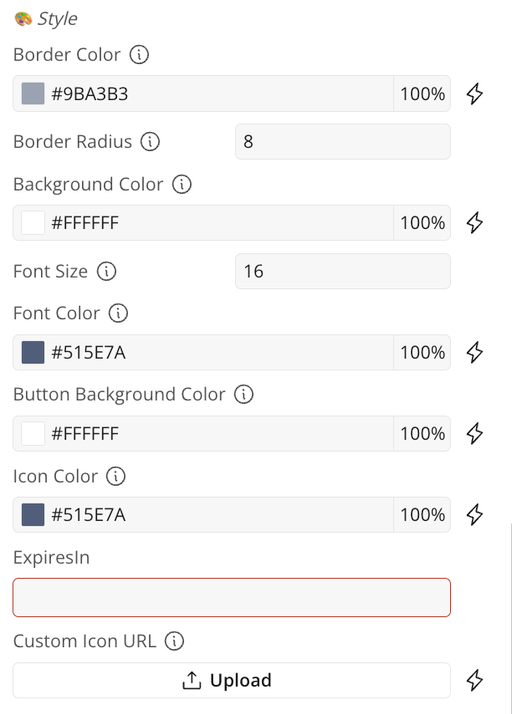
🎨 Style
Section label (no value).
—
Border Color
Upload container border color.
text
Border Radius
Upload container corner radius.
number
Background Color
Upload area background color.
text
Font Color
Main text color.
text
Font Size
Main text size.
number
Button Background Color
Icon button background color.
text
Icon Color
Upload icon color.
text
ExpiresIn
Signed URL expiration in seconds (used as `expiresIn
text
Exposed States
Name
Description
Type
Uploaded URLs List
Successfully uploaded file URLs
List of Text
File Names List
Uploaded file names
List of Text
File Sizes List
File sizes in MB
List of Number
File Types List
MIME types
List of Text
Deleted File URL
Recently deleted file URL
Text
Upload Status Text
Current upload status
Text
Element Events
Event
Description
Upload Finished
All uploads completed successfully
Upload Started
Upload process started
Upload Failed
Upload failed
Image Removed
File removed
Upload Limit Exceeded
Max limit exceeded
Plugin Data/Action Calls
Wasabi - Get Token
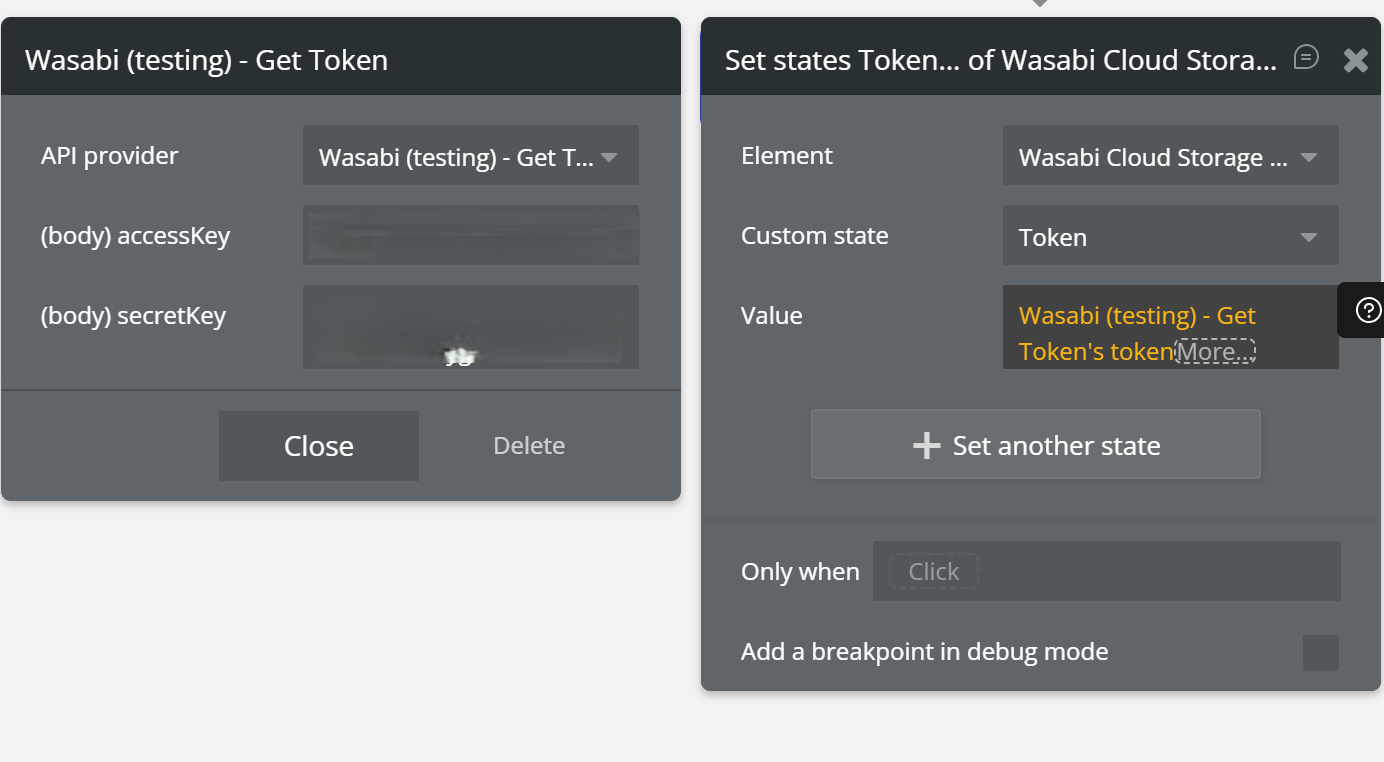
This action is designed to securely retrieve an authentication token from our server. It requires the user to provide valid credentials (accessKey and secretKey) to establish a secure connection. Once the call is successfully executed, the generated token is typically stored in a custom state to be used for subsequent file upload operations within the AWS File Uploader element.
Fields:
Name
Description
Type
accessKey
The access key ID provided by AWS for authentication.
Text
secretKey
The secret access key provided by AWS for authentication.
Text
Return values:
Name
Description
Type
token
The authentication token generated by AWS, used to authorize file uploads.
Text
Workflow example
Get Token Directly Into Element (On Page Load)
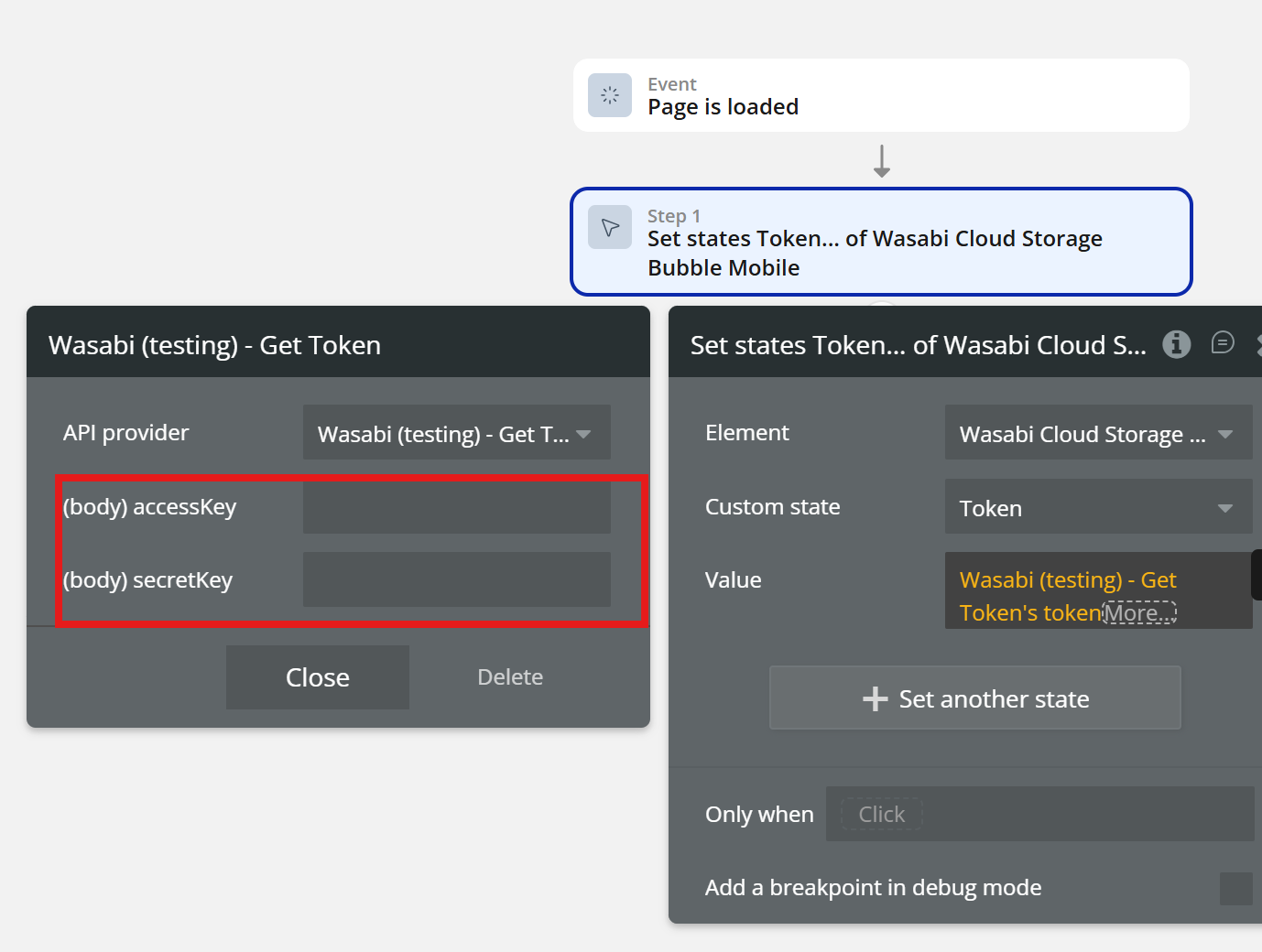
Step 1 — Get Token (API Call)
Action: Set state
Plugins → Wasabi (testing) - Get Token
Body Parameters:
accessKey = your Wasabi Access Key
secretKey = your Wasabi Secret Key
Step 2 — Set Token State in Element
Set state -> Element filde
Element: Wasabi Cloud Storage Native Mobile
Put the state saved in the first step into the Token field.