With this plugin, you can add the Google Rich Snippets to your Bubble application.
Rich snippets are additional pieces of structured data that help search engines better understand your page content and enhance how it’s presented to users - boosting visibility, credibility, and click-through rates.
How to setup
Step 1 – Install the Plugin
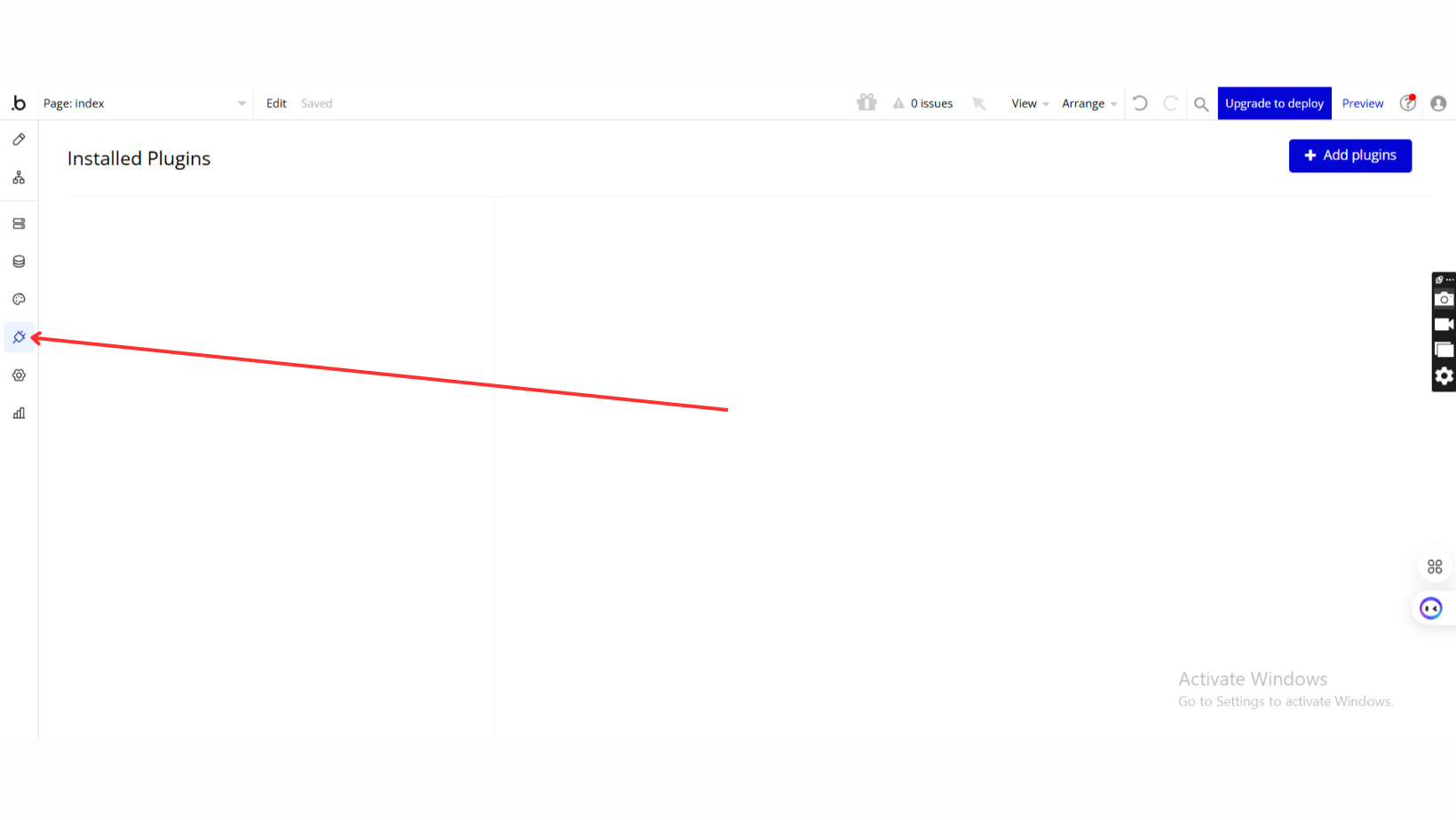
Go to the Plugin Tab
Open your Bubble Editor.
Navigate to the Plugins tab on the left panel.
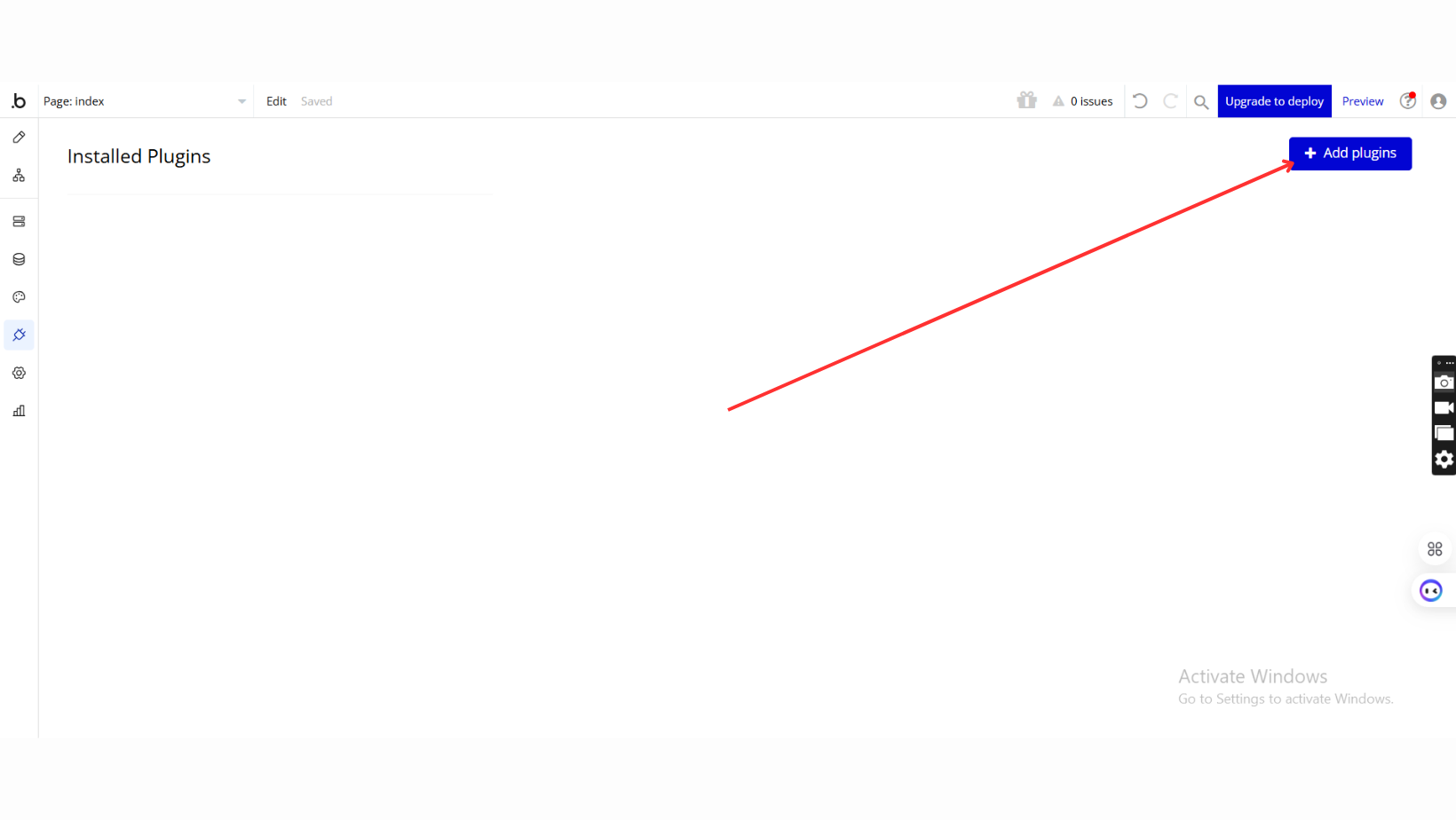
Add Plugins
Once in the Plugins tab, click the Add Plugins button.
Search for the Plugin
Use the search bar to type Google Rich Snippets Pack
Locate the plugin in the search results.
Install/Buy
Click Buy and follow the purchase instructions.
Charges will be added to your Bubble billing account.
Remember, if you unsubscribe from the plugin shortly after installation, charges will be prorated based on the days used.
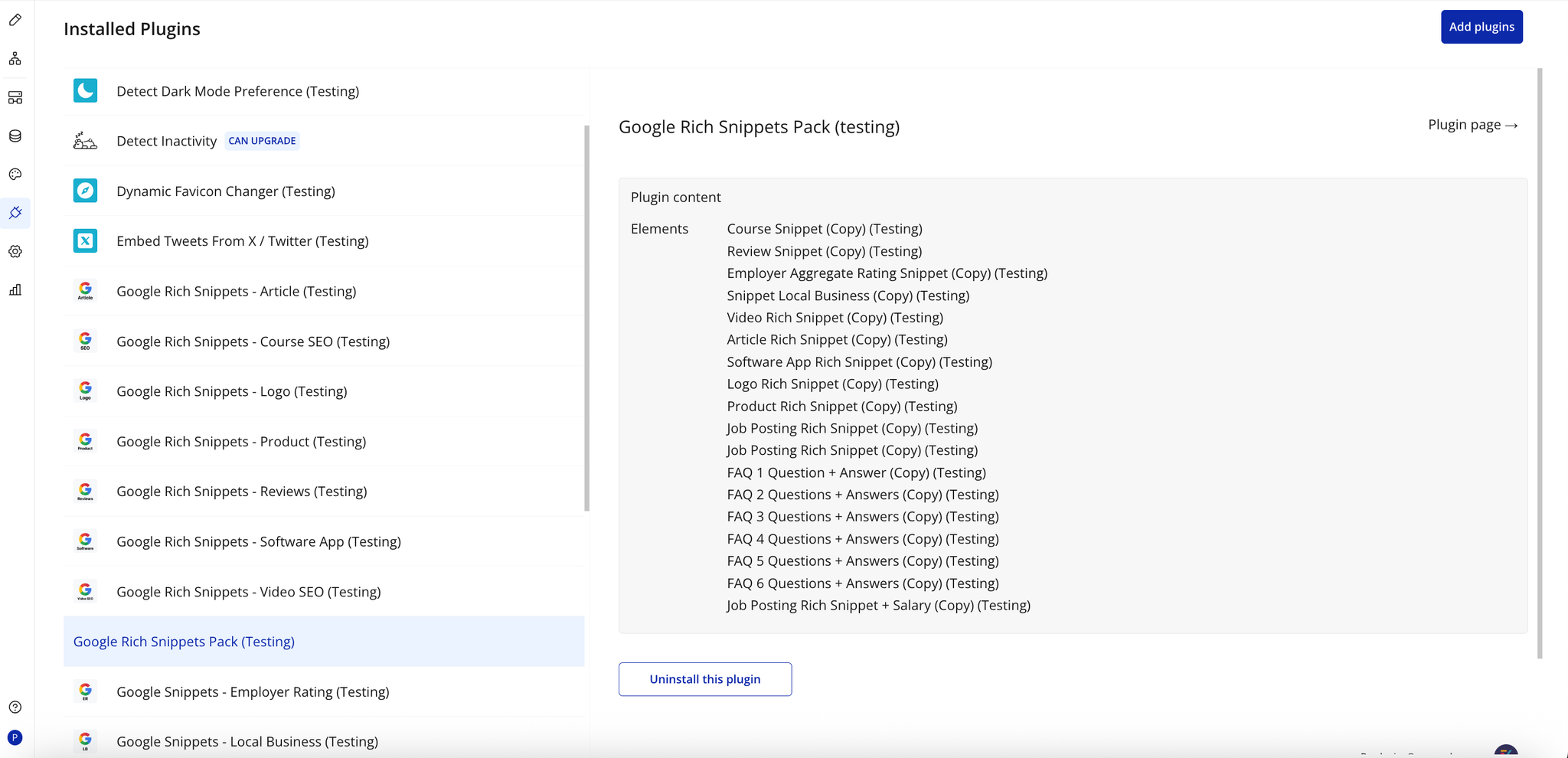
Plugin Installed
Once installed, the plugin will appear under the Installed Plugins list in your Bubble Editor.
Step 2 – Add the Plugin Element to Your Page
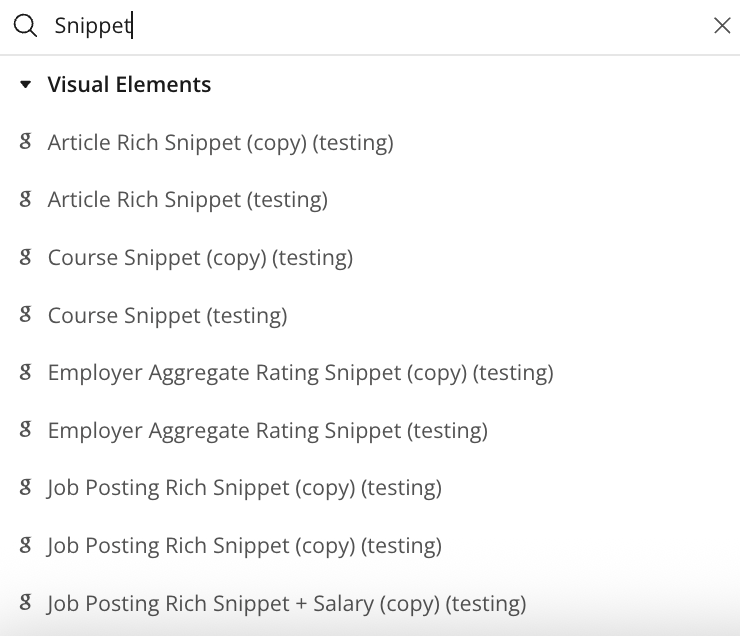
Open the Design tab in your Bubble editor.
Search for the Snippet elements in the Elements panel.
Drag and drop the desired elements onto your page.
Step 3 – Configure Properties
Select the placed Rich Snippet element and configure its properties in the Property Editor.
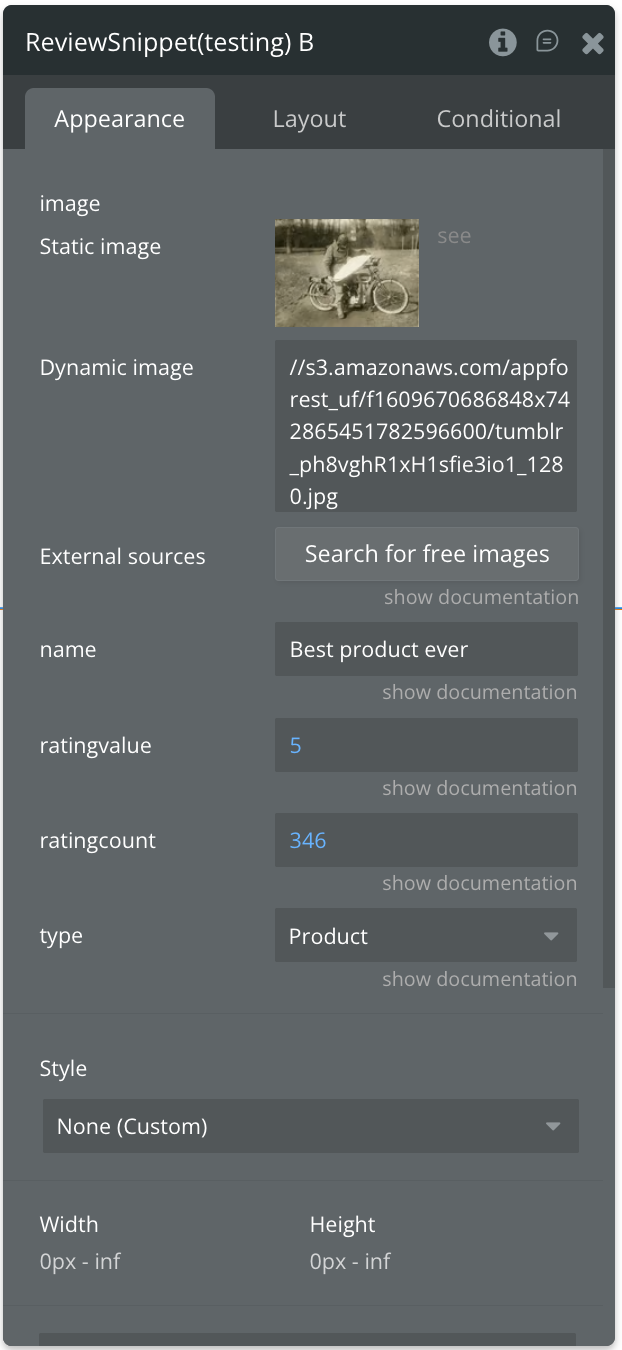
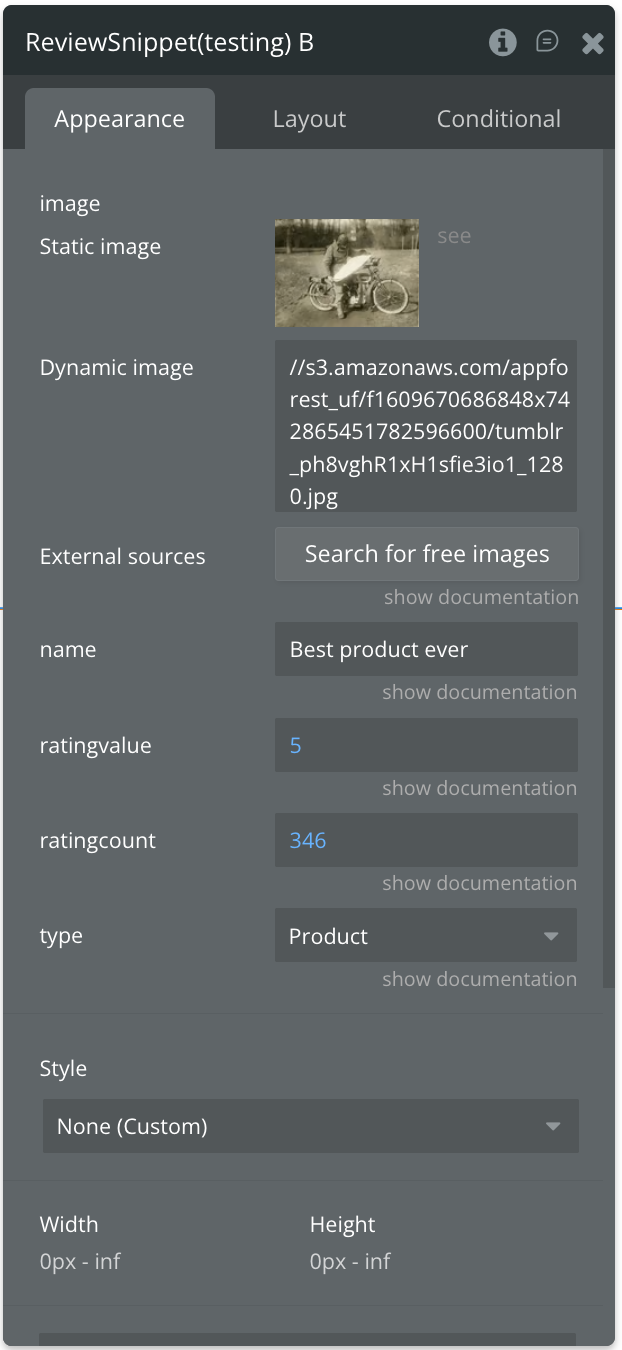
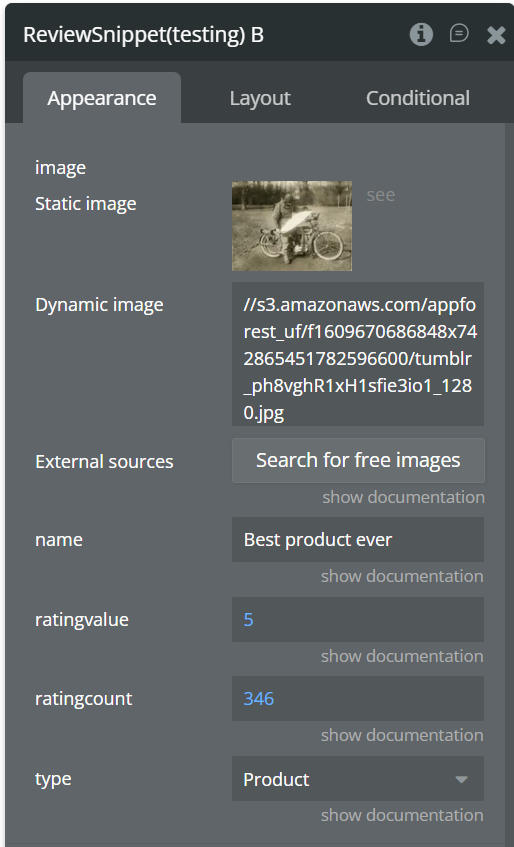
Plugin Element - Review Snippet
This element enables websites to display user ratings, review counts, and reviewer information directly within search results.structured data markup that enables websites to display user ratings, review counts, and reviewer information directly within search results.
Fields
Title
Description
Type
Image
Upload or dynamically assign an image that represents the product, service, or item being reviewed. This can be a static image or a dynamic one pulled from your database.
Image
Dynamic Image
Allows you to reference an image URL dynamically from your Bubble data source (e.g., a product’s featured image).
Dynamic value (image URL)
External Sources
Lets you search for and use free images from external image repositories, ideal for quickly adding visuals to your snippets.
Image picker
Name
The name or title of the product, course, service, or creative work being reviewed. This will appear as the reviewed item’s label in search results.
Text
Rating Value
The average star rating (e.g., 4.5 out of 5) for the reviewed item. This value is used by Google to display the star rating in the search snippet.
Number
Rating Count
The total number of ratings or reviews submitted for the product or service. This adds credibility to the star rating by showing review volume.
Number
Type
Specifies the type of item being reviewed (e.g., Book, Course, Episode, Event, Product, etc.). This helps Google understand what the review refers to and classify it correctly in search results.
Dropdown
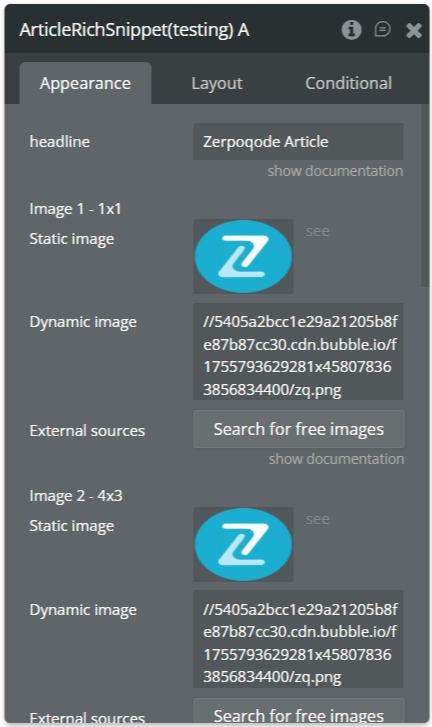
Plugin Element - Article Rich Snippet
This element automatically injects a properly formatted JSON-LD Article schema into your page’s HTML. It does not appear visually to users but greatly enhances your SEO metadata.
Fields
Title
Description
Type
Headline
The title or main headline of the article.
Text
Image 1 – 1×1
Image with 1×1 aspect ratio (small thumbnail).
Image
Image 2 – 4×3
Image with 4×3 aspect ratio (for article preview).
Image
Image 3 – 16×9
Image with 16×9 aspect ratio (for wide thumbnails).
Image
Date Published
The original publish date of the article.
Date
Date Modified
The last update date (if edited).
Date
Author Name
The writer or content creator’s name.
Text
Organization Name
The publisher or company that released the article.
Text
Organization Logo
The logo representing the organization or publisher.
Image
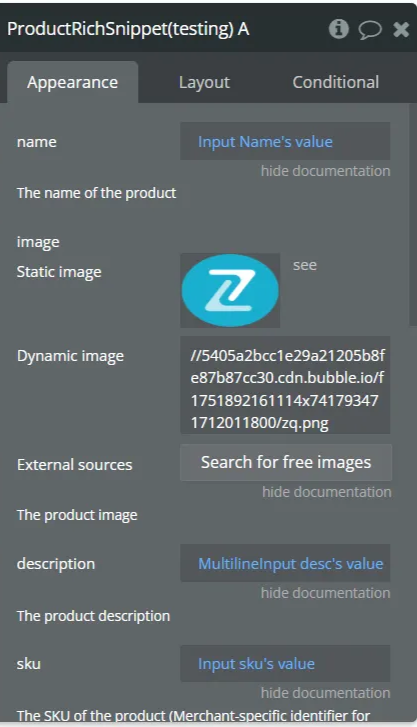
Plugin Element - Product Rich Snippet
This element allows websites to display detailed product information—such as price, availability, and customer ratings—alongside their search result on Google. This helps search engines better understand the product content on a page and enhances visibility in search results, potentially increasing click-through rates by making listings more informative and attractive to shoppers.
Fields:
Title
Description
Type
Name
The name of the product
Text
Image
The product image
Image
Description
The product description
Text
Sku
The SKU of the product (Merchant-specific identifier for product)
Text
Brand
The brand name
Text
Producturl
The url of the product
Text
Currency
The currency of the selling price
Text
Price
The price of the product
Number
Pricevaliduntil
Until when the price is valid
Date
Availability
The item availability Available options: https://schema.org/Discontinued, https://schema.org/InStock, https://schema.org/InStoreOnly, https://schema.org/LimitedAvailability, https://schema.org/OnlineOnly, https://schema.org/OutOfStock, https://schema.org/PreOrder, https://schema.org/PreSale, https://schema.org/SoldOut
Dropdown
Itemcondition
The condition of the item Available options: http://schema.org/NewCondition, https://schema.org/UsedCondition
Dropdown
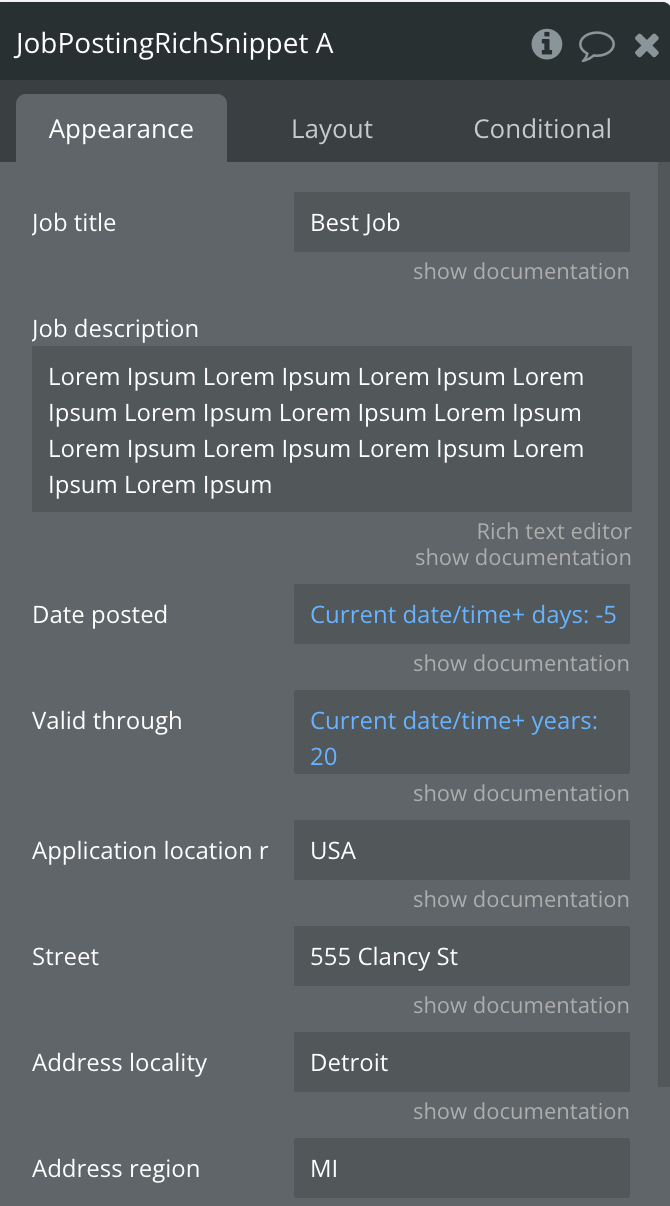
Plugin Element - Job Posting Rich Snippet
Define structured job posting details to improve visibility on Google search results.
Fields
Title
Description
Type
Job Title
Enter the official title of the job opening.
Text
Job Description
Provide a detailed description of the role, responsibilities, and requirements.
Text
Date Posted
Select the date when the job was published.
Date
Valid Through
Enter the closing date for applications (expiration date).
Date
Application Location Requirement: Country
Specify the country where applicants must reside to be eligible.
Text
Street
Enter the street address of the job location.
Text
AddressLocality
Enter the city where the job is located.
Text
AddressRegion
Enter the state or region of the job location.
Text
Postal Code
Provide the postal or ZIP code of the job location.
Text
AddressCountry
Enter the country of the job location.
Text
Employment Type
Choose the employment type (e.g., FULL_TIME, PART_TIME, CONTRACTOR, etc.).
Dropdown
Organization Name
Enter the name of the hiring organization.
Text
Organization Logo
Upload the logo of the hiring organization.
Image
Organization URL
Provide the official website URL of the organization.
Text
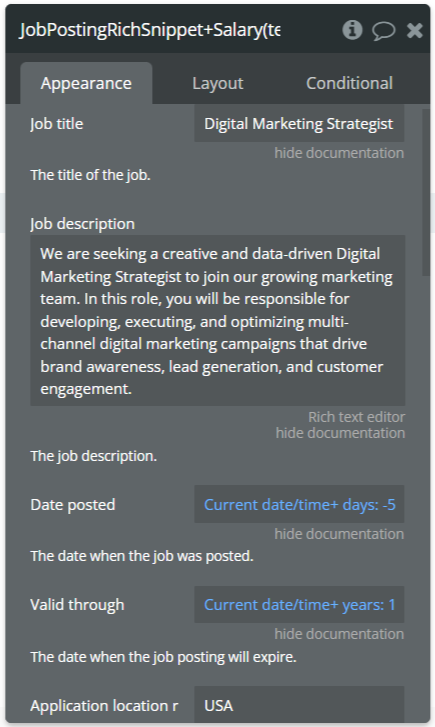
Plugin Element - Job Posting Rich Snippet + Salary
This includes all the fields above plus salary details, allowing you to showcase compensation information directly in Google search results.
Fields
Title
Description
Type
Job Title
The title of the job
Text
Job Description
The job description
Text
Date Posted
The date when the job was posted
Date
Valid Through
The date when the job posting will expire
Date
Application Location Requirement: Country
The country the applicant is required to live in order to apply
Text
Street
The street adress of the job location
Text
AddressLocality
The city of of the job location
Text
AddressRegion
The region of the job location
Text
Postal Code
The postal code of the job location
Text
AddressCountry
The country of the job location
Text
Employment Type
Specify the type of employment Available options: FULL_TIME, PART_TIME, CONTRACTOR, TEMPORARY, INTERN, VOLUNTEER, PER_DIEM, OTHER
Dropdown
Organizationname
The name of the organization that is hiring
Text
Organizationlogo
The logo of the organization that is hiring
Image
Organizationurl
The URL of the organization that is hiring
Text
Currency Salary
Specify the salary currency (e.g., USD, NGN, EUR).
Text
Salary value
Enter the numeric value of the salary (e.g., 50000).
Number
Salaryunit
Select the unit of payment (HOUR, DAY, WEEK, MONTH, YEAR).
Dropdown
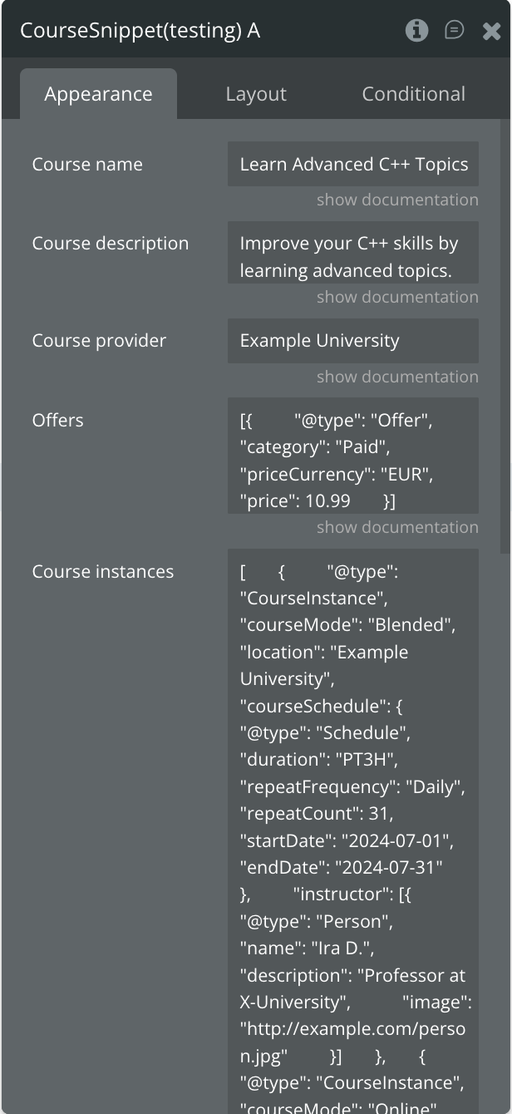
Plugin Element - Course Snippet
The Course SEO element allows you to add structured data markup to your Bubble application, enabling Google and other search engines to better understand and index your online courses.
Fields
Title
Description
Type
Course Name
The full name of the course as it should appear in search results.
Text
Course Description
A short summary describing the course. Maximum length: 500 characters.
Text
Course Provider
The name of the organization or individual offering the course.
Text
Offers
Details about the total price to complete the course, including any service fees. Follow the correct format as described in the plugin documentation: View Format Guide.
Text
Course Instances
Specifies individual course sessions or versions, including their schedule and format. Each course must have at least one instance. Follow the required format here: View Format Guide.
Text
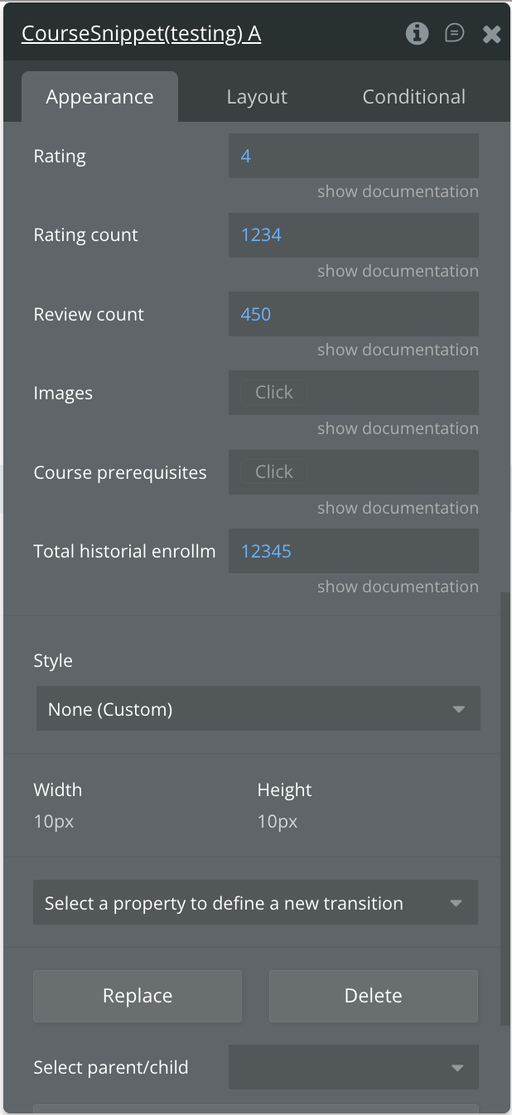
Rating (optional)
The average user rating for the course on a 5-point scale (1 = lowest, 5 = highest).
Number (optional)
RatingCount (optional)
The total number of individual ratings submitted. Either Rating Count or Review Count must be provided.
Number (optional)
ReviewCount (optional)
The number of users who submitted a review, with or without a numerical rating. Either Rating Count or Review Count must be provided.
Number (optional)
Images (optional)
One or more URLs linking to representative images of the course. Supports a list of text values.
Text (optional)
CoursePrerequisites (optional)
Any required background knowledge or prior experience needed to take the course. Supports a list of text values.
Text (optional)
TotalHistoricalEnrollment (optional)
The total number of users who have enrolled in the course since its launch.
Number (optional)
Helpful details
The “Offers” field stucture
The value in the Offers field should be formatted as a JSON array!
[{"@type":"CourseInstance","courseMode":"Blended","location":"Example University","courseSchedule":{"@type":"Schedule","duration":"PT3H","repeatFrequency":"Daily","repeatCount":31,"startDate":"2024-07-01","endDate":"2024-07-31"},"instructor":[{"@type":"Person","name":"Ira D.","description":"Professor at X-University","image":"http://example.com/person.jpg"}]},{"@type":"CourseInstance","courseMode":"Online","courseWorkload":"P2D"}]
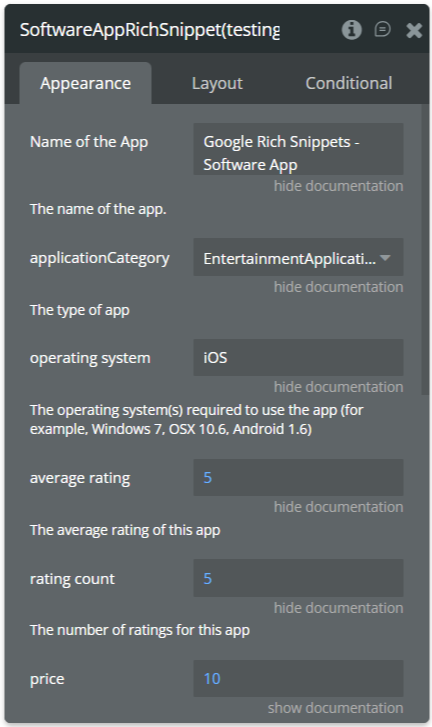
Plugin Element - Software App Rich Snippet
This element automatically generates JSON-LD markup for your app, using the data you provide in the property fields. Once added to the page, no visual changes occur - the markup is hidden from users but visible to search engines.
Fields
Title
Description
Type
Name of the App
The official name of your software application.
Text
Application Category
Defines the type of software. Available options include: GameApplication, SocialNetworkingApplication, TravelApplication, ShoppingApplication, SportsApplication, LifestyleApplication, BusinessApplication, DesignApplication, DeveloperApplication, DriverApplication, EducationalApplication, HealthApplication, FinanceApplication, SecurityApplication, BrowserApplication, CommunicationApplication, DesktopEnhancementApplication, EntertainmentApplication, MultimediaApplication, HomeApplication, UtilitiesApplication, ReferenceApplication.
Dropdown
Operating System
The operating system(s) the app supports (e.g. iOS, Android, Windows 7, OSX).
Text
Average Rating
The average user rating (e.g. 4.5).
Number
Rating Count
Total number of user ratings or reviews.
Number
Price
The current price of the app (numeric value only).
Number
Currency
Currency code for the app’s price (e.g. USD, EUR, NGN).
Text
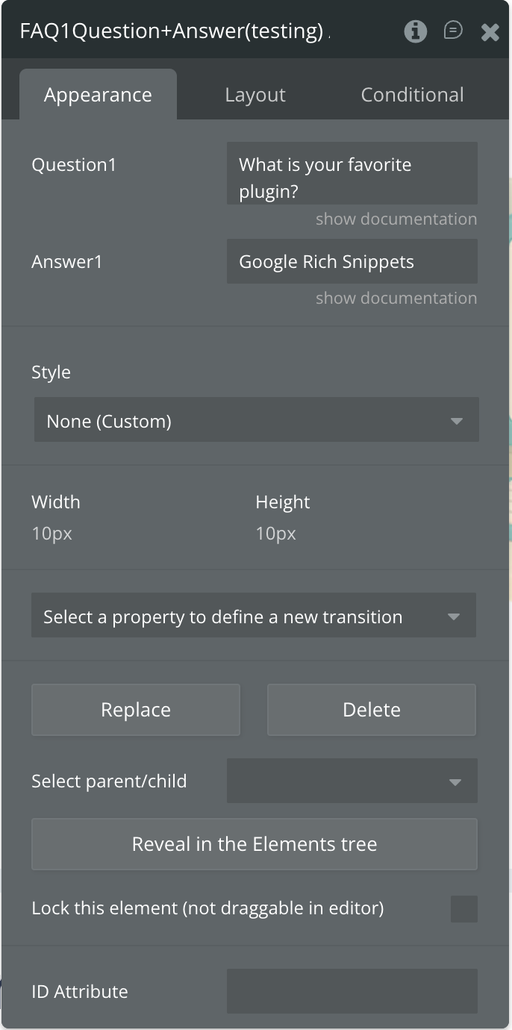
Plugin Element - FAQ 1 Question + Answer
This element allows search engines to display frequently asked questions and their answers directly within search results. This helps search engines better understand common user queries related to a page and enhances visibility by providing immediate, concise answers—often increasing click-through rates and improving user trust by addressing key concerns upfront.
Fields
Title
Description
Type
Question 1
Defines the first question displayed in the FAQ section.
Text
Answer 1
Provides the response or explanation to Question 1.
Text
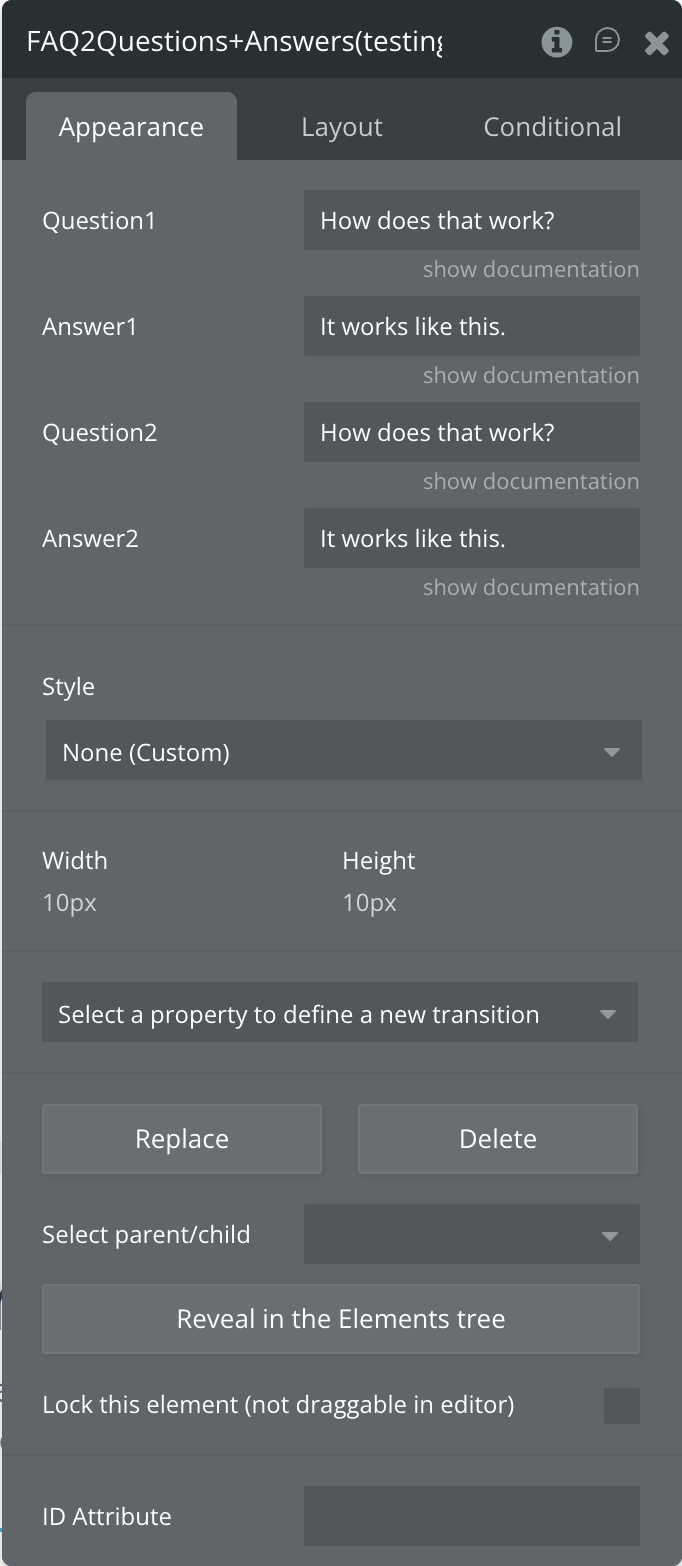
Plugin Element - FAQ 2 Questions + Answers
This element allows search engines to display frequently asked questions and their answers directly within search results. This helps search engines better understand common user queries related to a page and enhances visibility by providing immediate, concise answers—often increasing click-through rates and improving user trust by addressing key concerns upfront.
Fields
Title
Description
Type
Question 1
Defines the first question displayed in the FAQ section.
Text
Answer 1
Provides the response or explanation to Question 1.
Text
Question 2
Defines the second question displayed in the FAQ section.
Text
Answer 2
Provides the response or explanation to Question 2.
Text
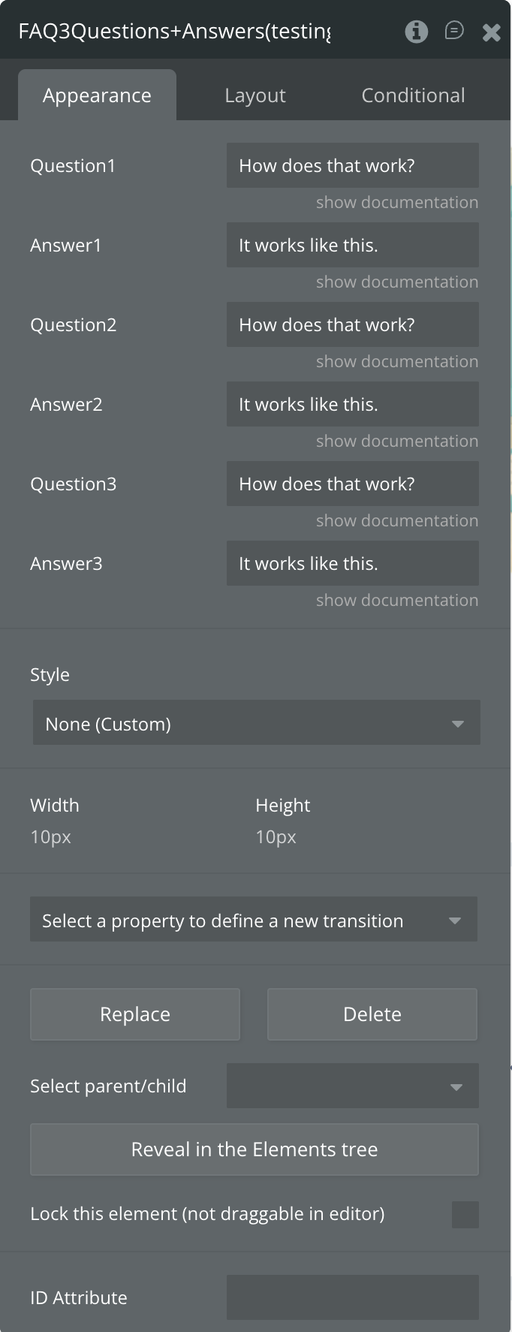
Plugin Element - FAQ 3 Questions + Answers
This element allows search engines to display frequently asked questions and their answers directly within search results. This helps search engines better understand common user queries related to a page and enhances visibility by providing immediate, concise answers—often increasing click-through rates and improving user trust by addressing key concerns upfront.
Fields
Title
Description
Type
Question 1
Defines the first question displayed in the FAQ section.
Text
Answer 1
Provides the response or explanation to Question 1.
Text
Question 2
Defines the second question displayed in the FAQ section.
Text
Answer 2
Provides the response or explanation to Question 2.
Text
Question 3
Defines the third question displayed in the FAQ section.
Text
Answer 3
Provides the response or explanation to Question 3.
Text
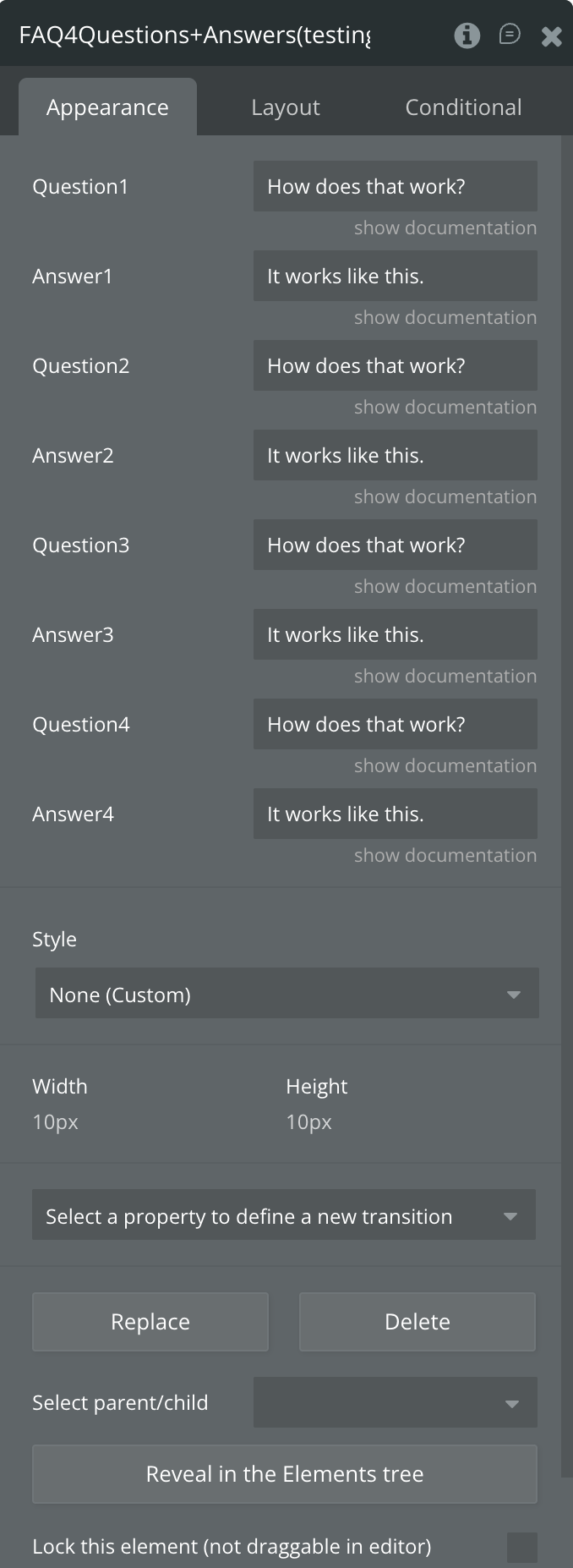
Plugin Element - FAQ 4 Questions + Answers
This element allows search engines to display frequently asked questions and their answers directly within search results. This helps search engines better understand common user queries related to a page and enhances visibility by providing immediate, concise answers—often increasing click-through rates and improving user trust by addressing key concerns upfront.
Fields
Title
Description
Type
Question 1
Defines the first question displayed in the FAQ section.
Text
Answer 1
Provides the response or explanation to Question 1.
Text
Question 2
Defines the second question displayed in the FAQ section.
Text
Answer 2
Provides the response or explanation to Question 2.
Text
Question 3
Defines the third question displayed in the FAQ section.
Text
Answer 3
Provides the response or explanation to Question 3.
Text
Question 4
Defines the fourth question displayed in the FAQ section.
Text
Answer 4
Provides the response or explanation to Question 4.
Text
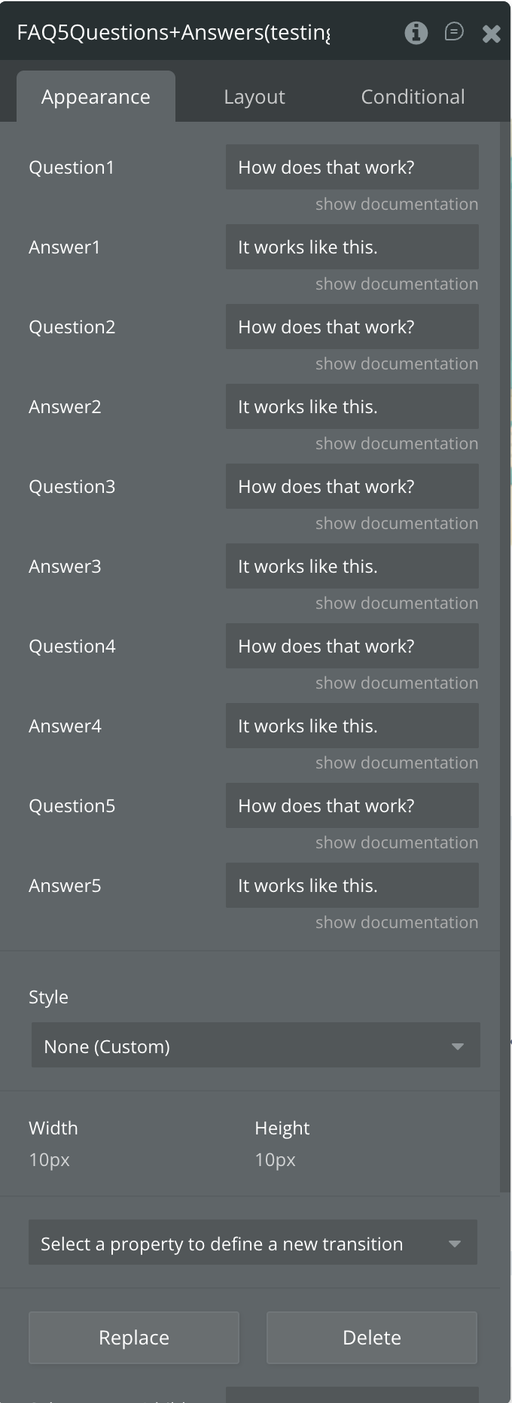
Plugin Element - FAQ 5 Questions + Answers
This element allows search engines to display frequently asked questions and their answers directly within search results. This helps search engines better understand common user queries related to a page and enhances visibility by providing immediate, concise answers—often increasing click-through rates and improving user trust by addressing key concerns upfront.
Fields
Title
Description
Type
Question 1
Defines the first question displayed in the FAQ section.
Text
Answer 1
Provides the response or explanation to Question 1.
Text
Question 2
Defines the second question displayed in the FAQ section.
Text
Answer 2
Provides the response or explanation to Question 2.
Text
Question 3
Defines the third question displayed in the FAQ section.
Text
Answer 3
Provides the response or explanation to Question 3.
Text
Question 4
Defines the fourth question displayed in the FAQ section.
Text
Answer 4
Provides the response or explanation to Question 4.
Text
Question 5
Defines the fifth question displayed in the FAQ section.
Text
Answer 5
Provides the response or explanation to Question 5.
Text
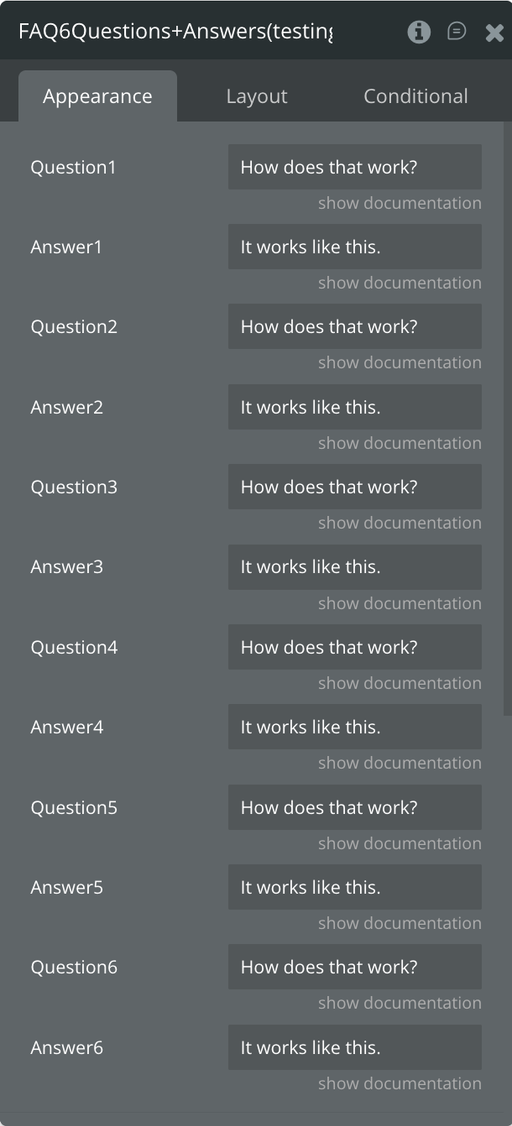
Plugin Element - FAQ 6 Questions + Answers
This element allows search engines to display frequently asked questions and their answers directly within search results. This helps search engines better understand common user queries related to a page and enhances visibility by providing immediate, concise answers—often increasing click-through rates and improving user trust by addressing key concerns upfront.
Fields
Title
Description
Type
Question 1
The first question in your FAQ section.
Text
Answer 1
The answer corresponding to Question 1.
Text
Question 2
The second question in your FAQ section.
Text
Answer 2
The answer corresponding to Question 2.
Text
Question 3
The third question in your FAQ section.
Text
Answer 3
The answer corresponding to Question 3.
Text
Question 4
The fourth question in your FAQ section.
Text
Answer 4
The answer corresponding to Question 4.
Text
Question 5
The fifth question in your FAQ section.
Text
Answer 5
The answer corresponding to Question 5.
Text
Question 6
The sixth question in your FAQ section.
Text
Answer 6
The answer corresponding to Question 6.
Text
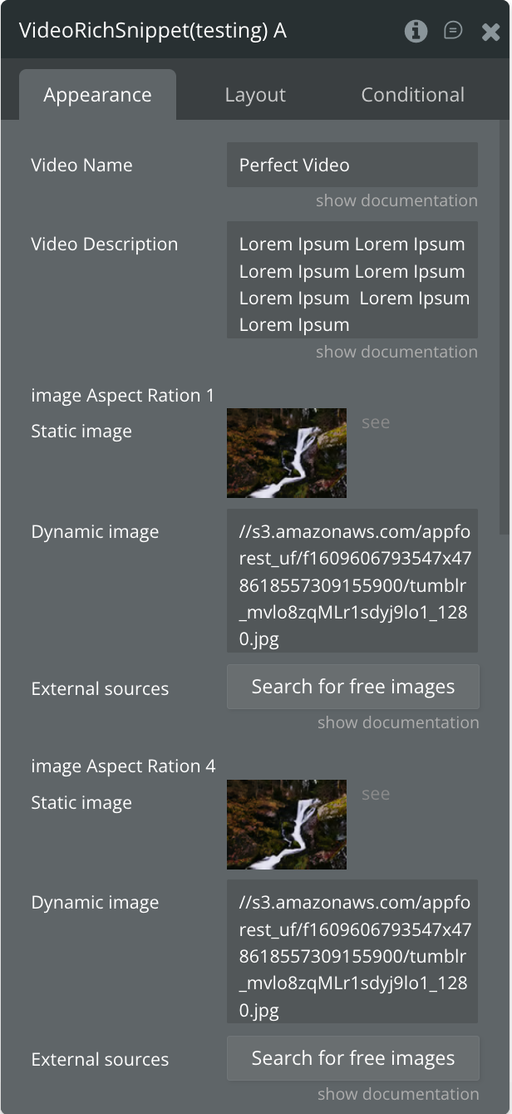
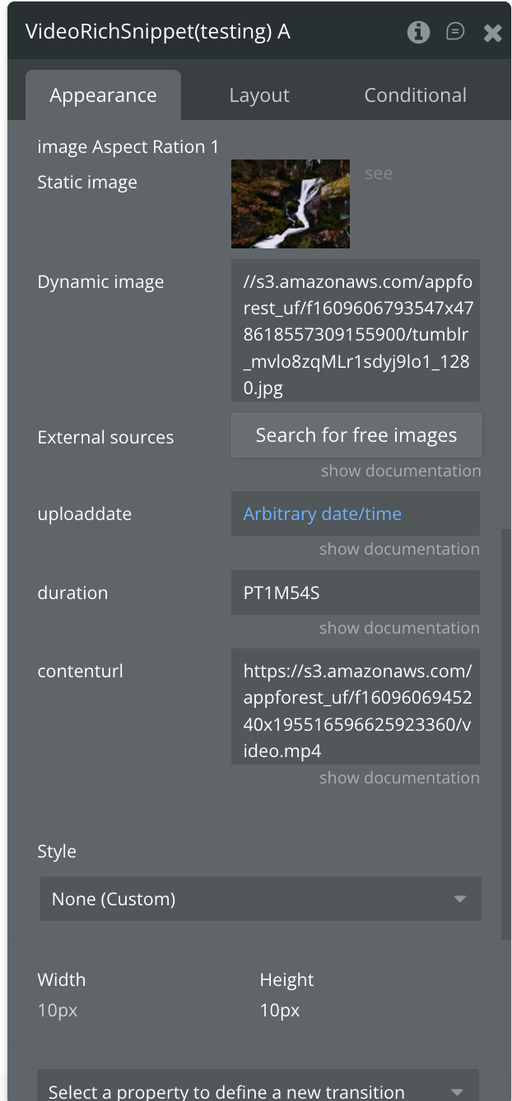
Plugin Element - Video Rich Snippet
This element is a structured data markup used to describe video content on a website, allowing search engines to display video-specific details—such as thumbnail images, duration, upload date, and creator—directly in search results. This helps search engines better understand video content and makes listings more visually engaging, increasing visibility and click-through rates by attracting users with rich, interactive previews.
Fields
Title
Description
Type
Video Name
The official title or name of your video. This is the text that appears in search results and helps Google identify your content.
Text
Video Description
A short summary or description of what the video is about. It helps search engines understand the video’s topic and improves SEO visibility.
Text
Image Aspect Ratio 1 x 1
Thumbnail image for the video in a 1:1 (square) ratio. Used by Google to display rich snippets.
Image
Image Aspect Ratio 4 x 3
Thumbnail image in a 4:3 (standard) ratio. This ensures compatibility with various display formats.
Image
Image Aspect Ratio 16 x 9
Thumbnail image in a 16:9 (widescreen) ratio. Ideal for modern video previews and search result cards.
Image
Uploaddate
The date and time when the video was first published or uploaded. This helps Google show freshness and relevance in search results.
Date
Duration
The length of the video written in ISO 8601 format, e.g., PT2M30S (for 2 minutes 30 seconds).
Text (optional)
Contenturl
The direct URL to the video file (e.g., MP4 or hosted video link). This tells search engines where the video content is located.
Text (optional)
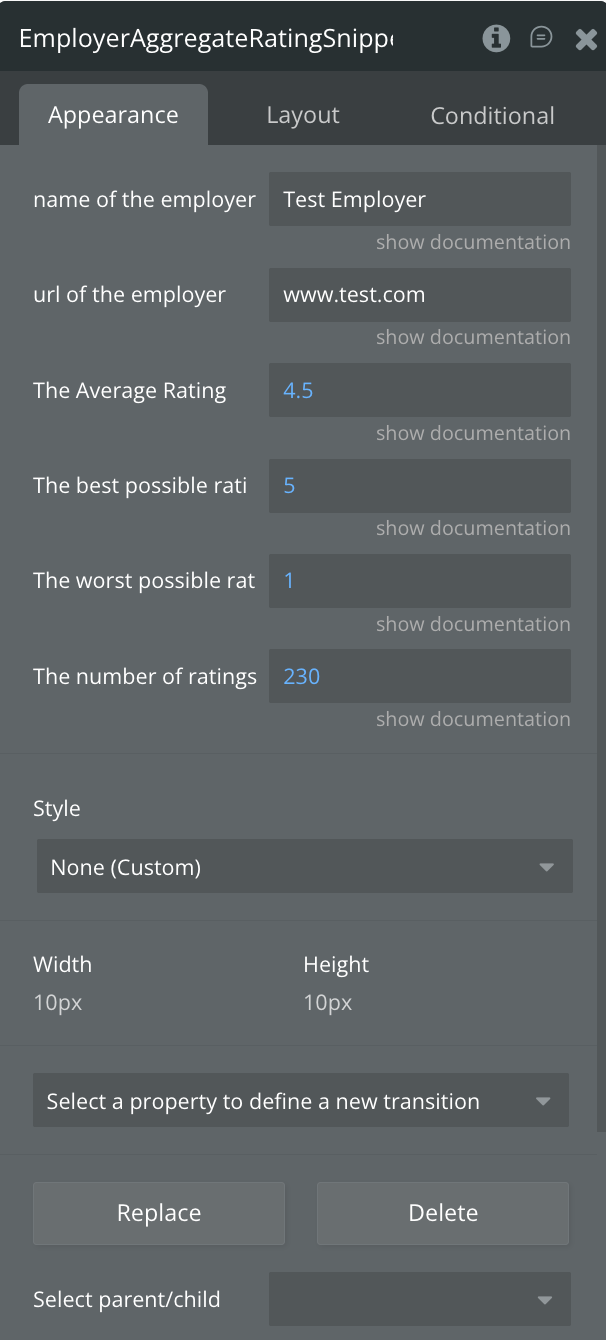
Plugin Element - Employer Aggregate Rating Snippet
This element is a structured data markup used to summarize overall employee ratings for an organization, typically based on multiple reviews, allowing search engines to display details such as the average rating, total number of reviews, and employer name directly in search results. This helps users quickly assess workplace reputation and credibility while improving the visibility and attractiveness of employer listings.
Fields
Title
Description
Type
Employer Name
The name of the employer being reviewed.
Text
Employer URL
The website URL of the employer.
Text
Average Rating
The employer’s average rating based on user reviews.
Number
Best Rating
The highest possible rating in the rating scale (e.g., 5).
Number
Worst Rating
The lowest possible rating in the rating scale (e.g., 1).
Number
Number of Ratings
The total count of ratings submitted for the employer.
Number
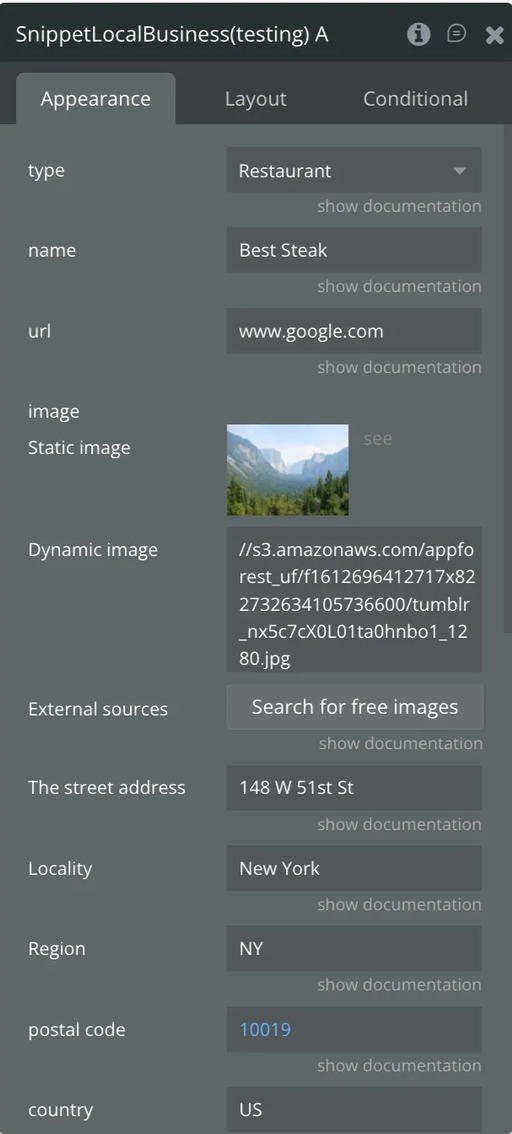
Plugin Element - Snippet Local Business
This element is a structured data markup used to describe a business’s key information on a website, allowing search engines to display essential details—such as the business name, address, phone number, opening hours, reviews, and location—directly in search results. This helps search engines better understand the business and makes listings more informative and prominent for nearby users, improving visibility, trust, and the likelihood of visits or inquiries.
Fields
Title
Description
Type
Type
The type of item being business available. Select from predefined options such as Restaurant, AnimalShelter, ArchiveOrganization, AutomotiveBusiness, ChildCare, Dentist DryCleaningOrLaundry, EmergencyService, EmploymentAgency, EntertainmentBusiness FinancialService, FoodEstablishment, GovernmentOffice, HealthAndBeautyBusiness, HomeAndConstructionBusiness, InternetCafe, LegalService, Library, LodgingBusiness, MedicalBusiness, ProfessionalService, RadioStation, RealEstateAgent, RecyclingCenter, SelfStorage, ShoppingCenter, SportsActivityLocation, Store, TelevisionStation, TouristInformationCenter, TravelAgency
Dropdown
Name
The name or title of the business (e.g., Best Steak Restaurant).
Text
URL
The web address where of the business.
Text
Image
An image representing the business this can be a static or dynamic image.
Image
Street Address
The street address of the business.
Text
Locality
The city or locality where the business is based.
Text
Region
The region, province, or state abbreviation (e.g., NY).
Text
Postal Code
The postal or ZIP code of the business or location.
Text
Country
The country code in ISO format (e.g., US, NG, GB).
Text
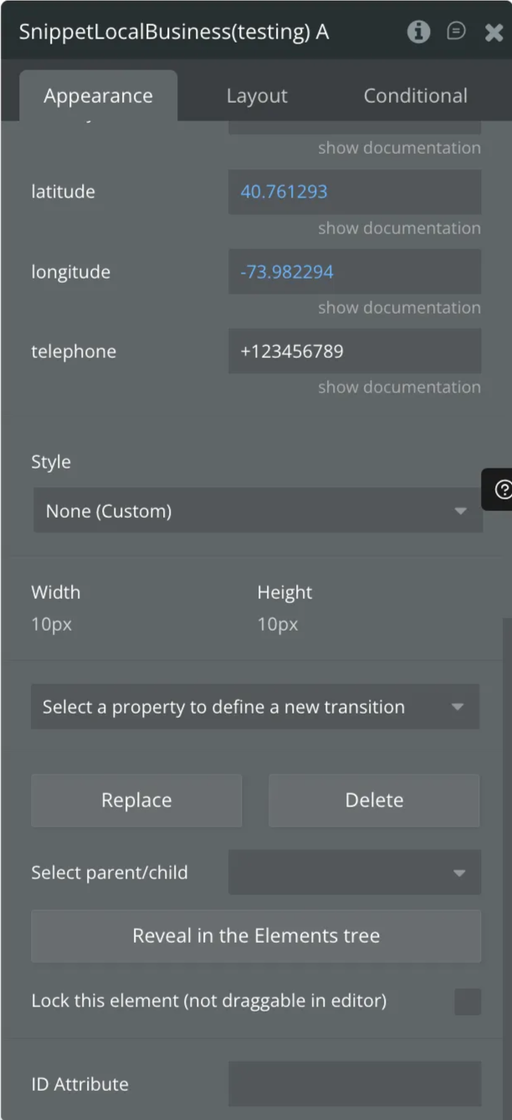
Latitude
The geographical latitude of the business location.
Number
Longitude
The geographical longitude of the business location.
Number
Telephone
The main contact phone number for the business.
Text
Plugin Element - Logo Rich Snippet
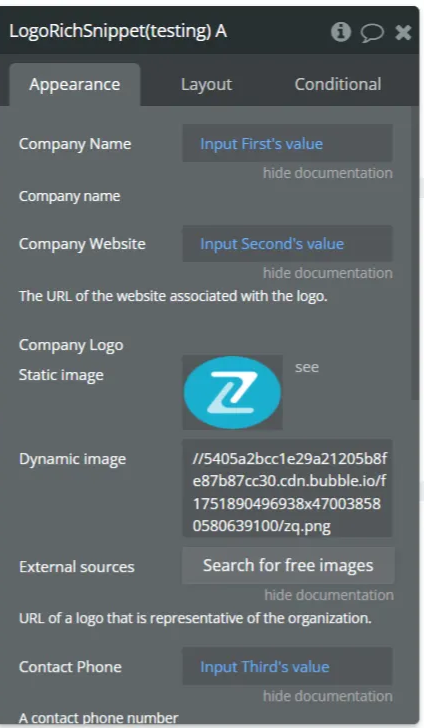
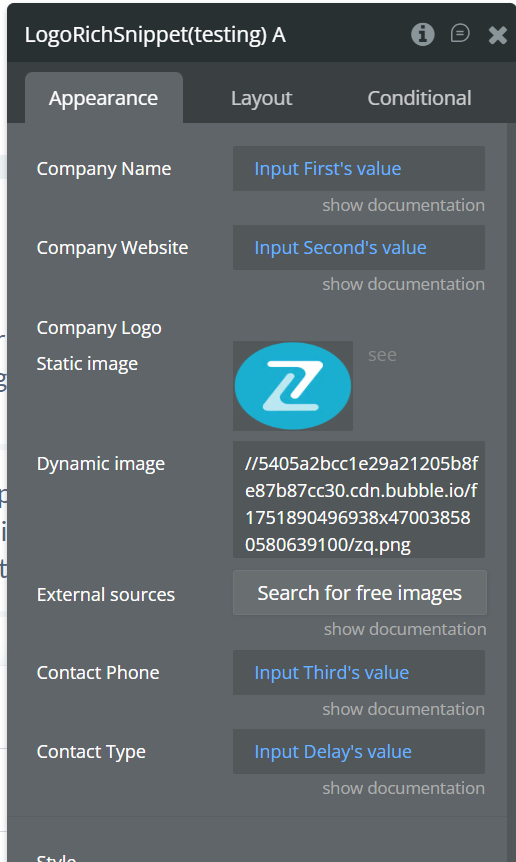
The Logo element allows you to integrate the Schema.org Logo structured data into your Bubble application. This helps Google correctly associate your company’s logo with your website and brand, increasing visibility and credibility in Google Search and the Knowledge Panel.
Fields
Title
Description
Type
Company Name
Company name
Text
Company Website
The URL of the website associated with the logo.
Text
Company Logo
URL of a logo that is representative of the organization.
Image
Contact Phone
A contact phone number
Text (optional)
Contact Type
Contact phone type
Text (optional)
Workflow Example
Organization Rich Snippet
Add the element to the page
Place the Organization / Logo Rich Snippet element on the page where you want the structured data to be applied (e.g. Home or About page).
Set the element properties
Fill in the required fields (Name, Website URL, Logo image, Phone, Contact type) using static or dynamic values that match the visible page content.
Publish & test
Publish the page and validate the snippet using Google Rich Results Test to ensure the Organization schema is detected correctly.
Review / Aggregate Rating Rich Snippet
Add the element to the page
Place the Review / Aggregate Rating Rich Snippet element on the page where the rated item is displayed (product, course, service, etc.).
Set the element properties
Provide the required values: item Name, Image, Rating Value, Rating Count, and select the correct Type (e.g. Product, Course, Book), using static or dynamic data.
Publish & validate
Publish the page and test it using Google Rich Results Test to confirm that the AggregateRating schema is detected correctly.
Troubleshooting & Tips
Important Notes & Limitations
Please note that adding Rich Snippets does not guarantee that Google will display them in search results.
Google decides whether to show rich results based on multiple factors, including:
content relevance and quality,
compliance with Google’s structured data guidelines,
page indexing and visibility,
overall website trust and authority.
This plugin’s role is to generate valid structured data (JSON-LD) according to schema.org standards.
The final appearance in search results is entirely controlled by Google.
How to Test & Validate Rich Snippets
After setting up a Rich Snippet element, we strongly recommend validating your page.
Step 1 – Publish your page
Rich Snippets can only be tested on live, publicly accessible pages.