
✅
Demo to preview the plugin:
✅
Introduction
This no-code plugin integrates Uploadcare into Bubble, enabling users to upload files from multiple sources including device storage, cloud platforms, and camera input. It supports large file uploads and returns a secure file URL that can be used inside workflows, databases, or UI elements.
Key Features
- Uploads images, videos, and large media files
- Supports uploads from multiple external sources
- Captures media directly from device camera
- Returns a hosted file URL after upload completes
- Works via widget or workflow-based integration
Prerequisites
Before using this plugin, you need:
- An active Uploadcare account (sign up at https://uploadcare.com)
- A valid Project Public Key from your Uploadcare dashboard
- (Optional) Secret Key if your workflow requires server-side operations
- Uploadcare project properly configured in the dashboard

How to setup
Step 1 – Install the Plugin
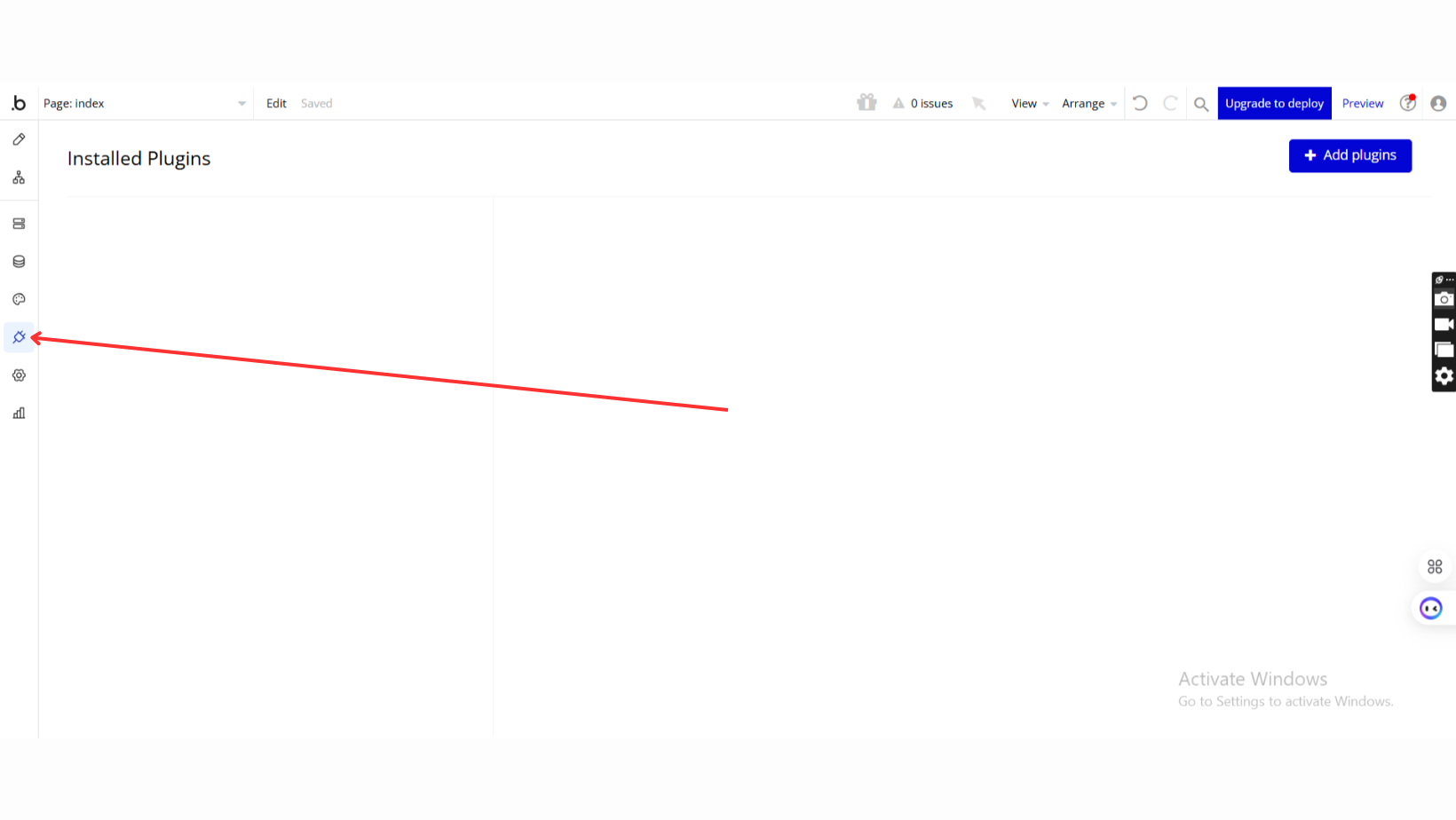
- Go to the Plugin Tab
- Open your Bubble Editor.
- Navigate to the Plugins tab on the left panel.
- Add Plugins
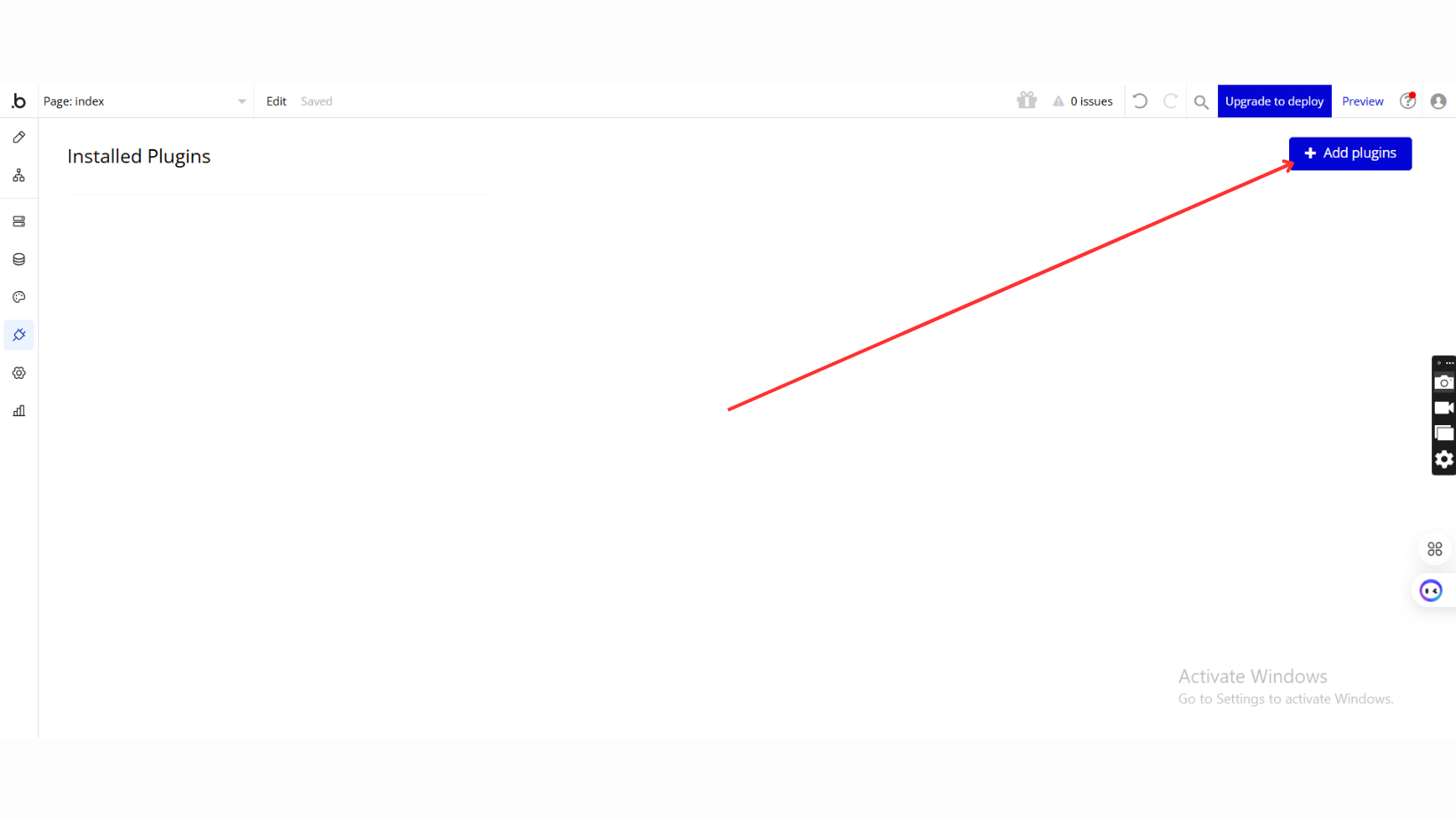
- Once in the Plugins tab, click the Add Plugins button.
- Search for the Plugin
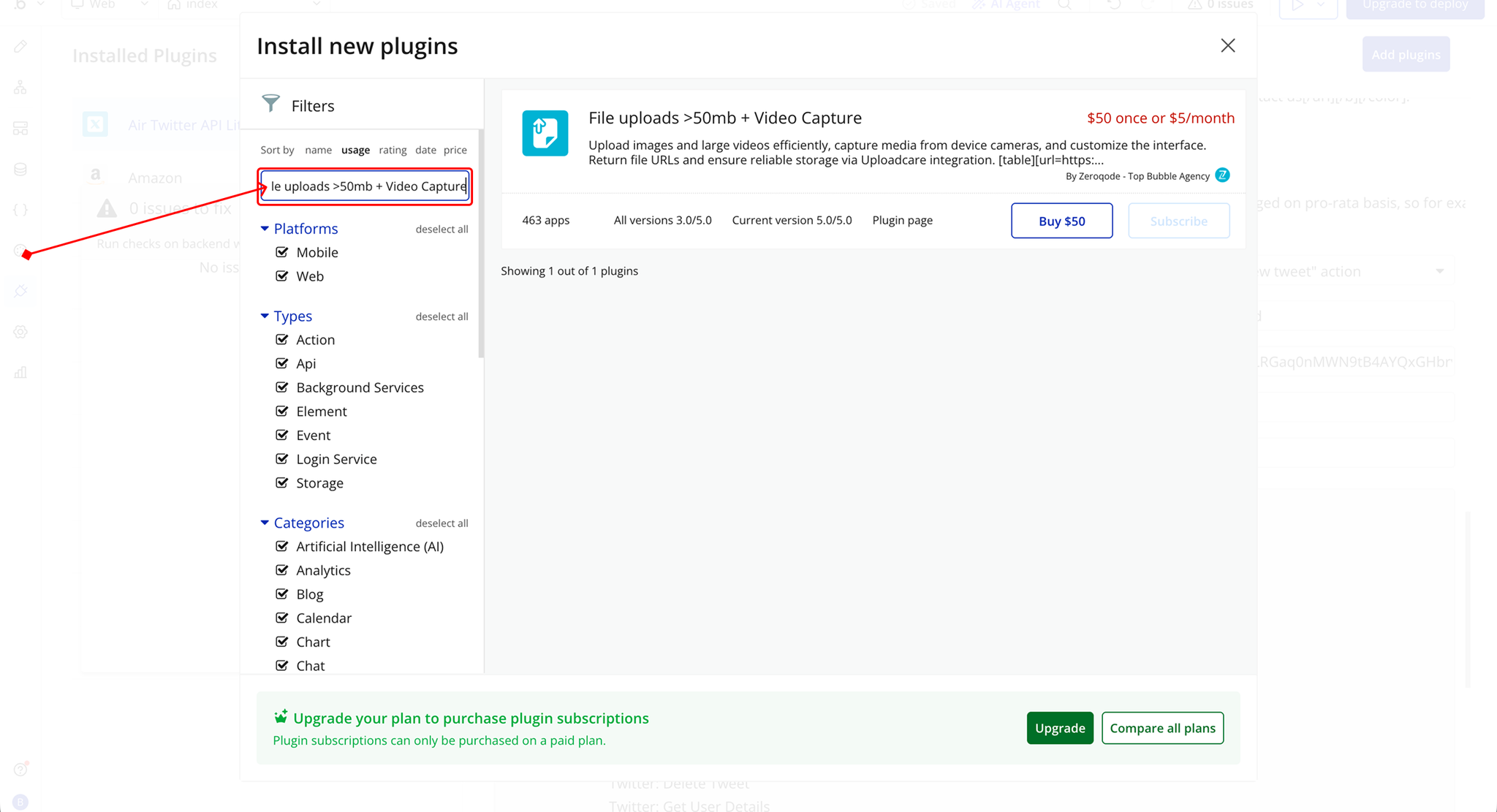
- Use the search bar to type File uploads >50mb + Video Capture.
- Locate the plugin in the search results.
- Install/Buy
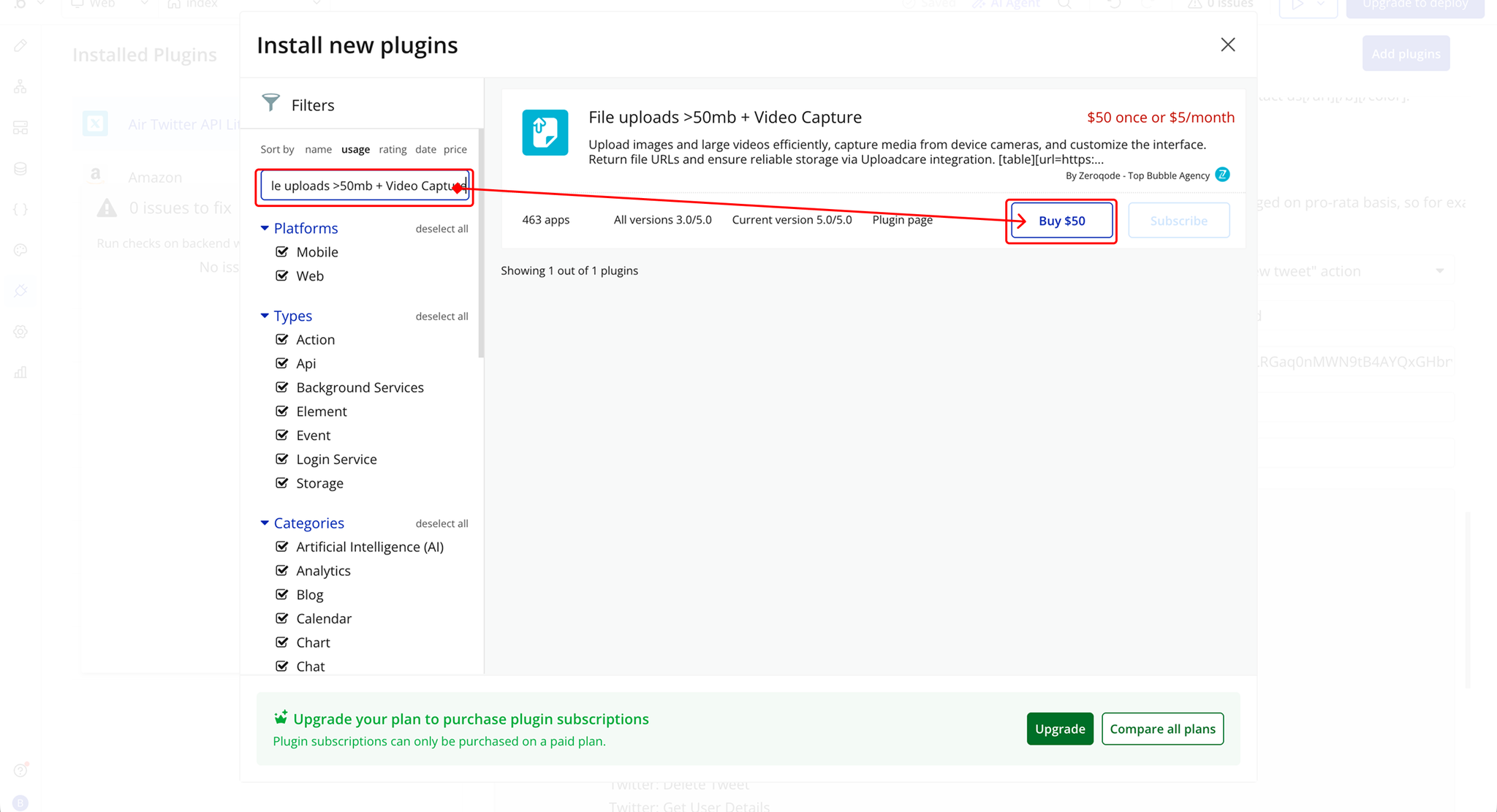
- If the plugin is free, click Install to add it to your application.
- For a paid plugin, click Buy and follow the purchase instructions.
- Payment Information (For Paid Plugins)
- If the plugin is a paid one, fill in your payment details and make payment.
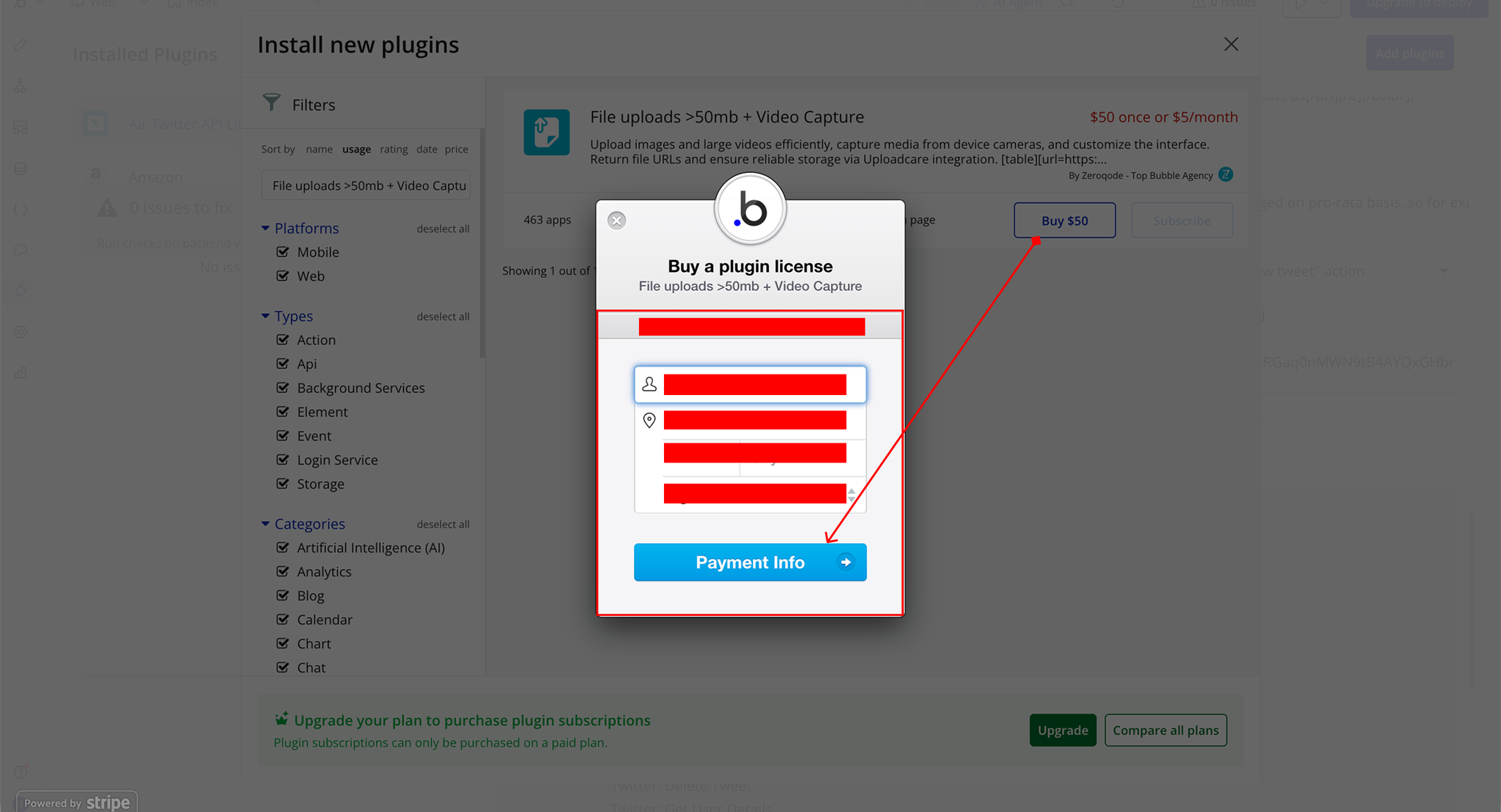
- Charges will be added to your Bubble billing account.
- Remember, if you unsubscribe from the plugin shortly after installation, charges will be prorated based on the days used.
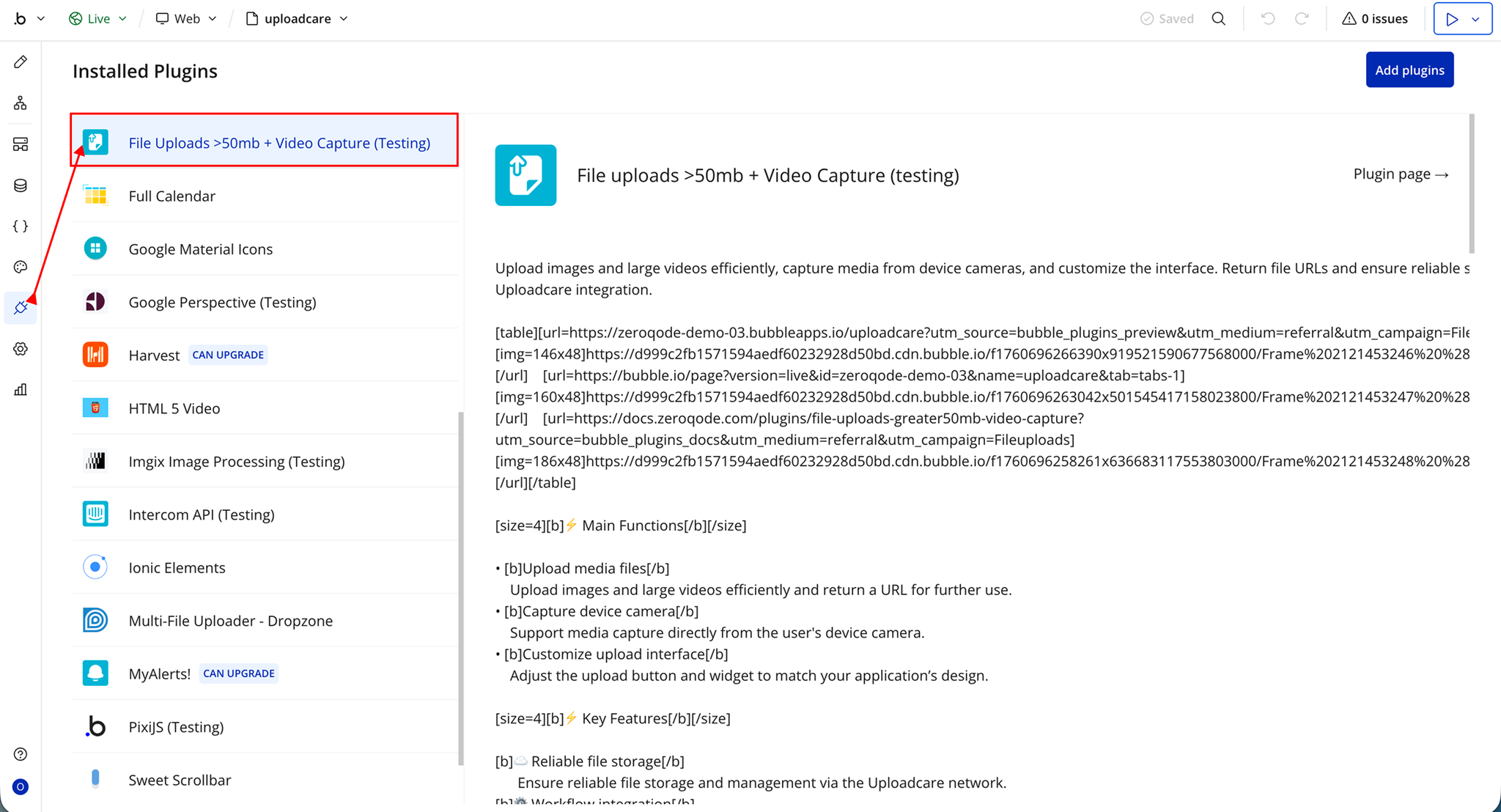
- Plugin Installed
- Once installed, the plugin will appear under the Installed Plugins list in your Bubble Editor.
Step 2 – Add the Plugin Element to Your Page
- Open the Design tab in your Bubble editor.
- Search for the Uploadcare element in the Elements panel.
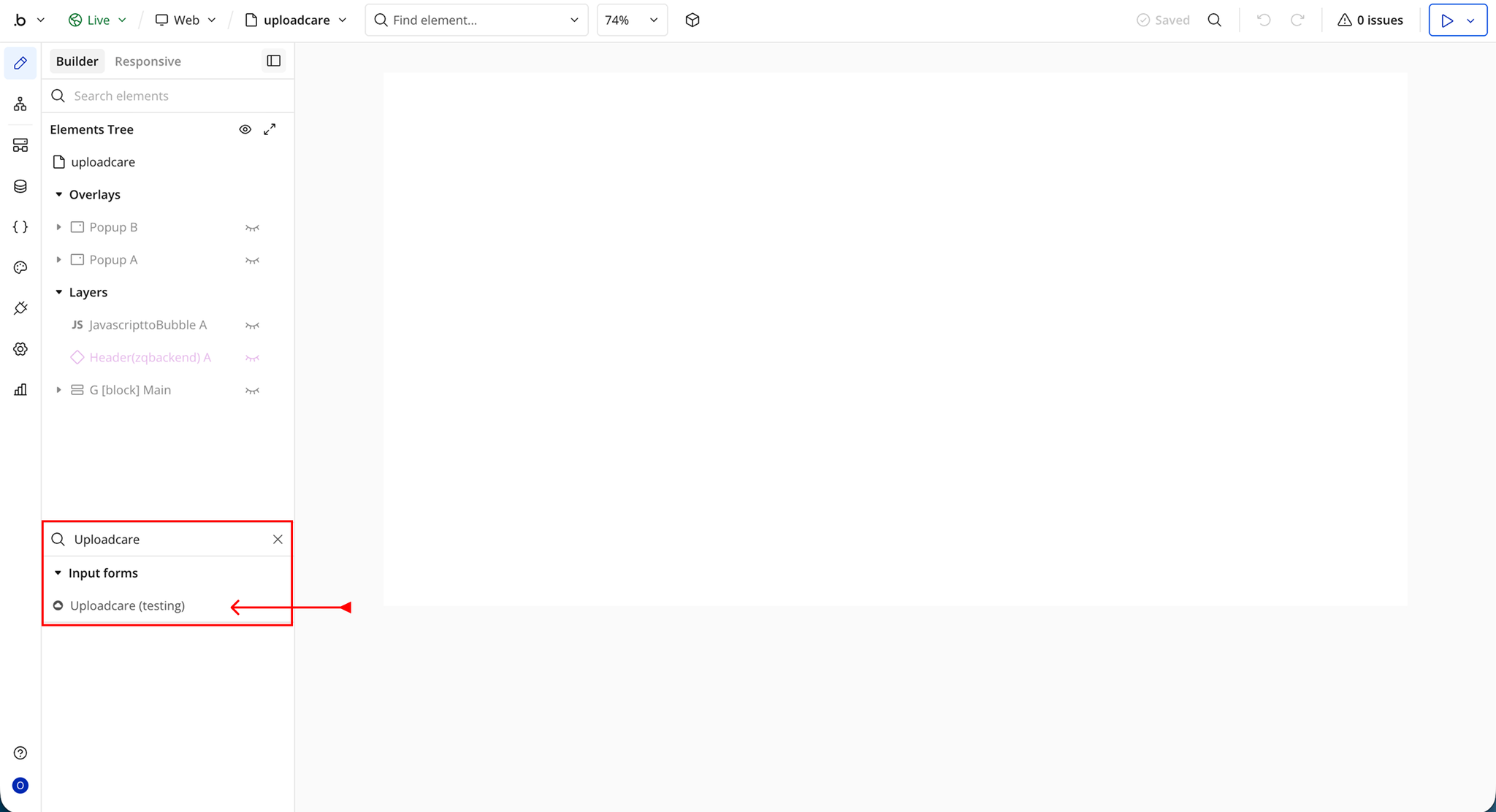
- You’ll see one option:
- Uploadcare
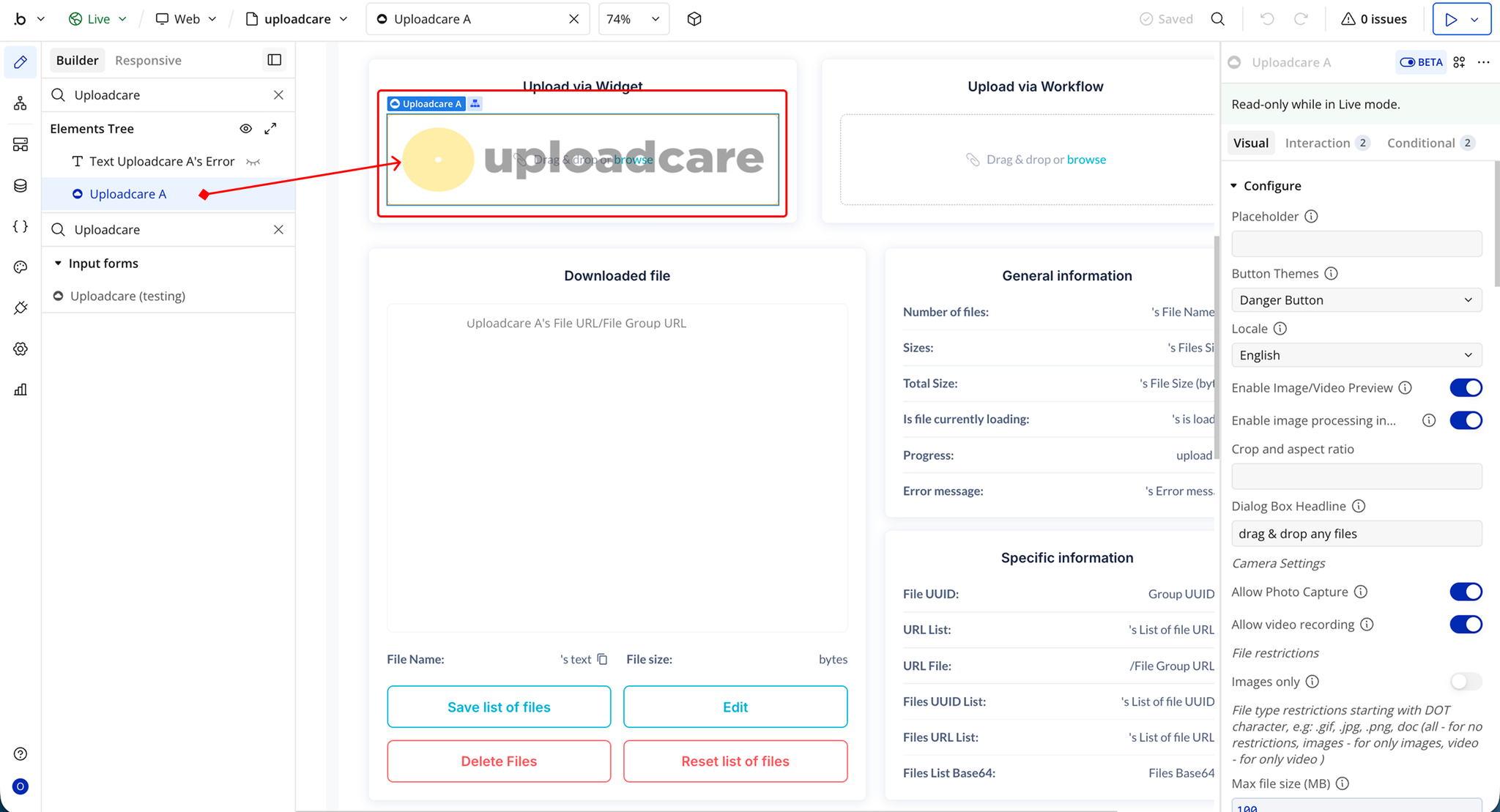
- Drag and drop the element onto your page.
Step 3 – Uploadcare Setup
- Go to the Uploadcare website: https://uploadcare.com
- Log in if you already have an account, or sign up for a new account
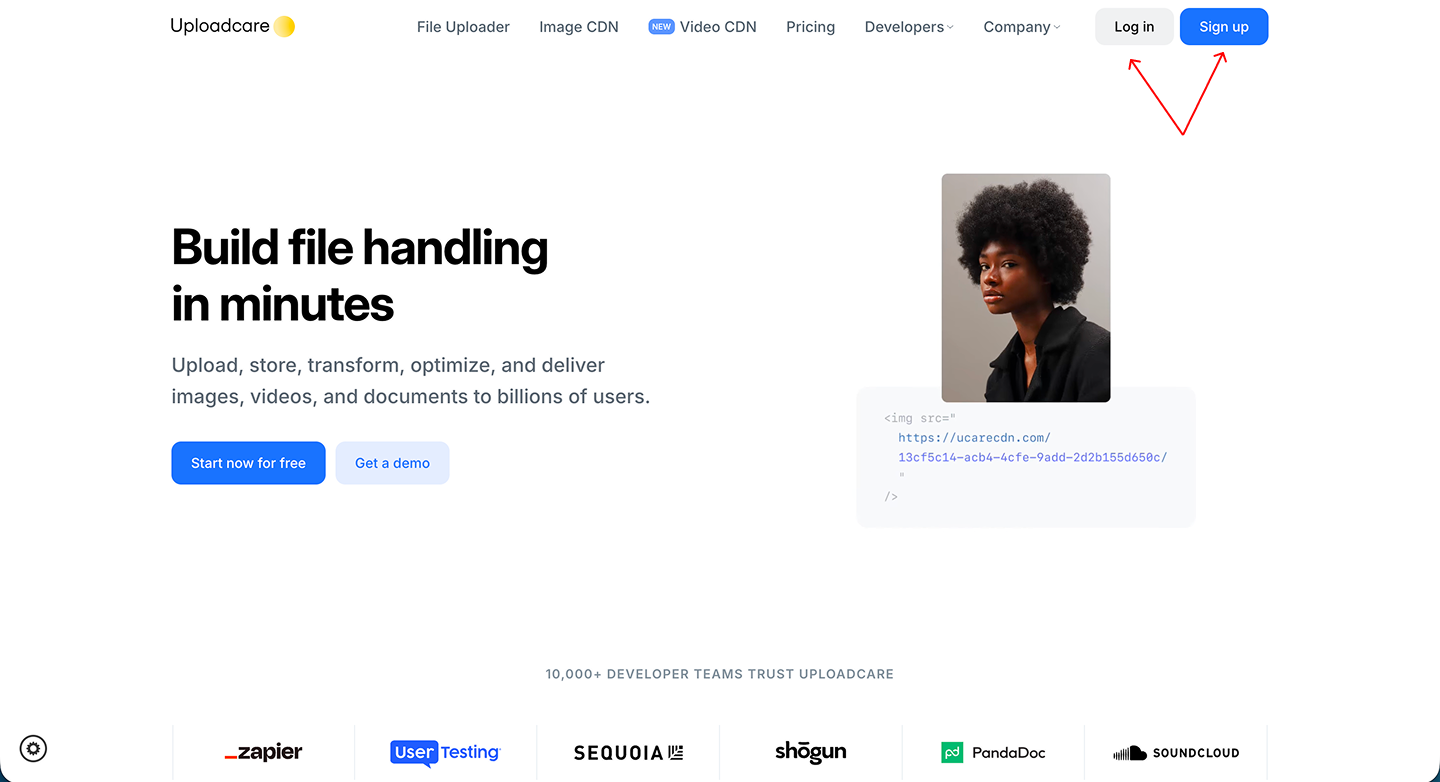
- Complete the signup and verification process
- Once logged in, you will land on the Uploadcare dashboard (Workspace)
- Create a new project or select an existing project
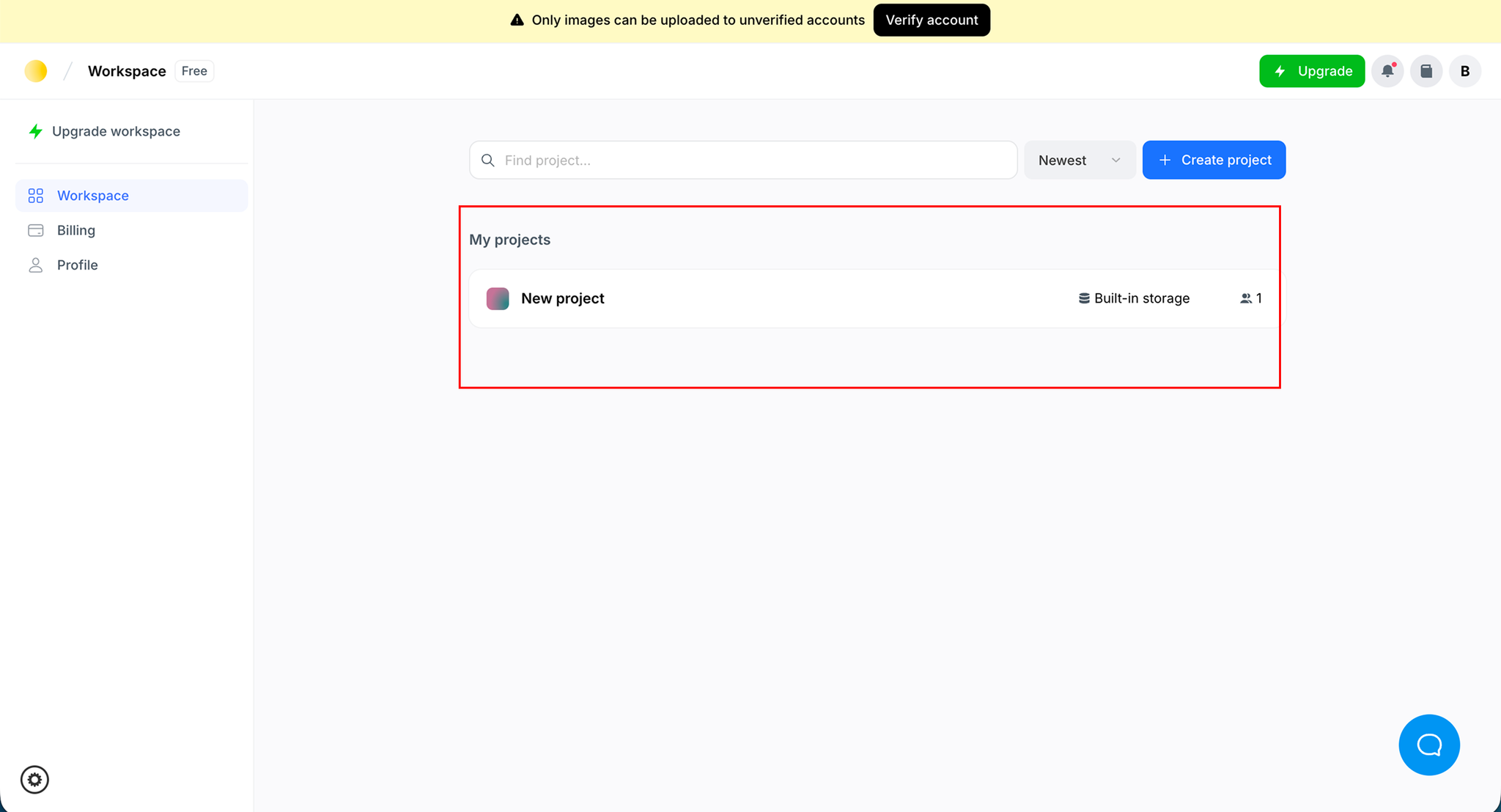
- Click on the project you want to use
- Inside the project, navigate to API Keys
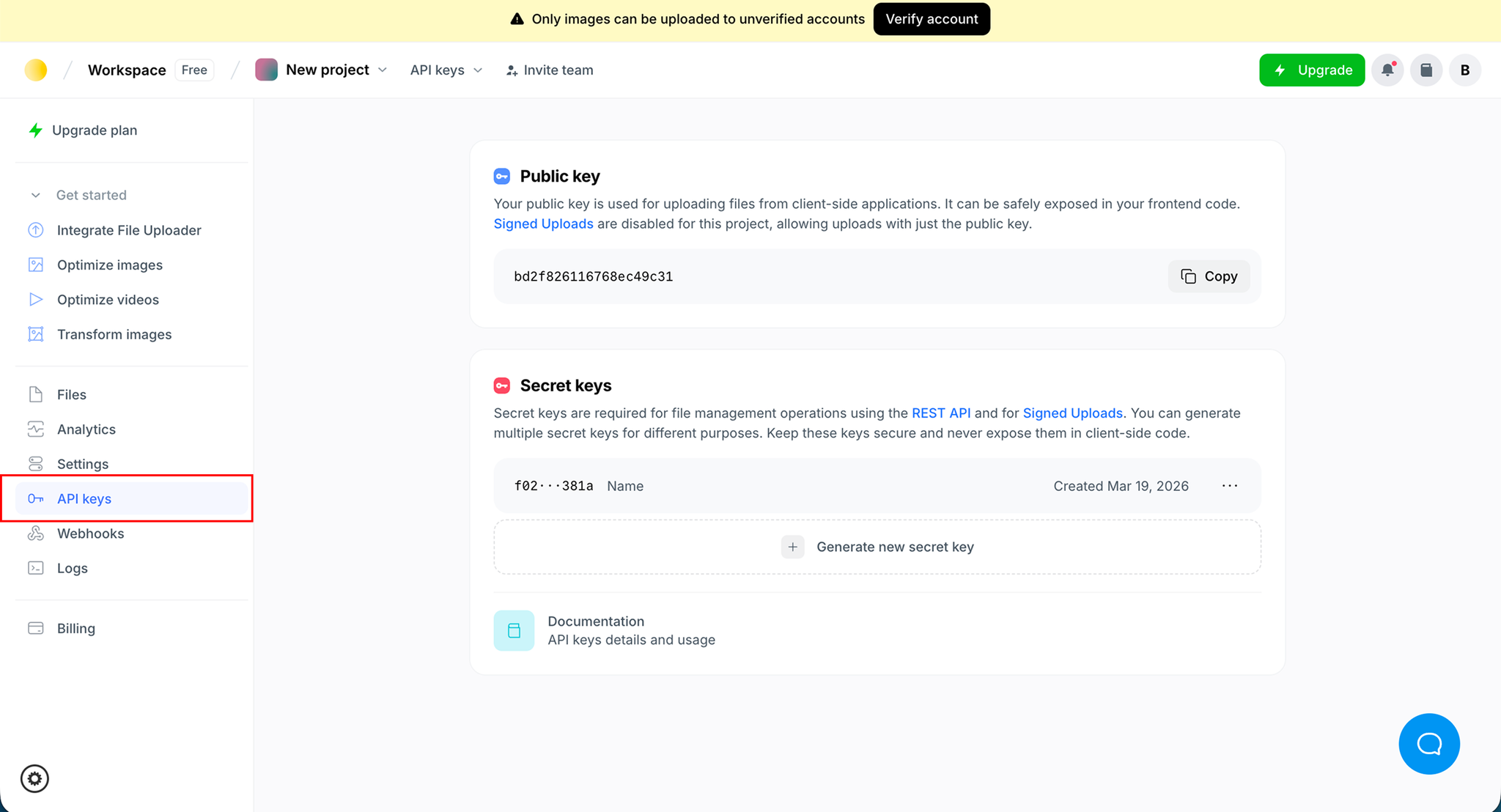
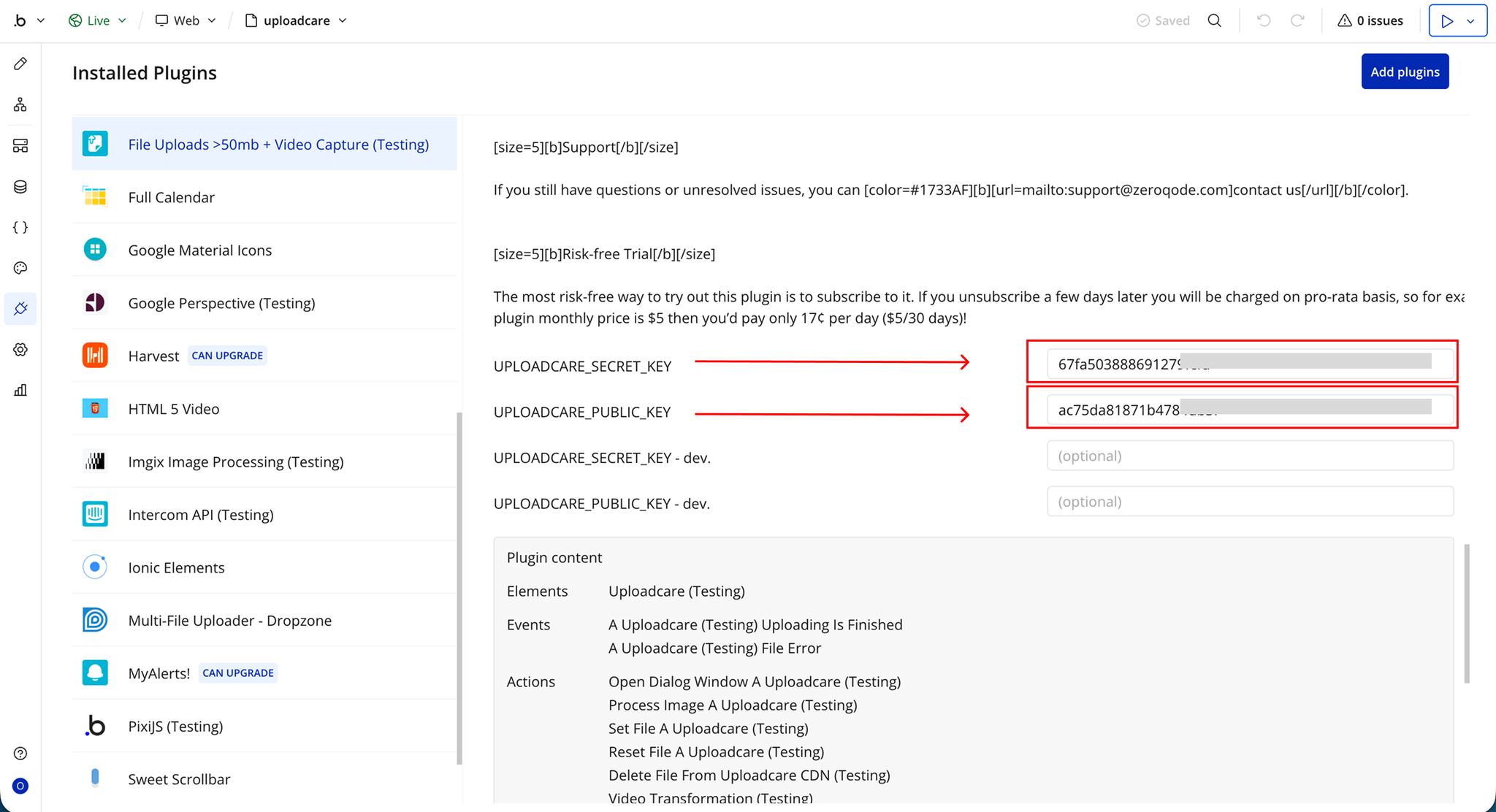
- Copy your Public Key
- If needed, generate a Secret Key by clicking “Generate new key”
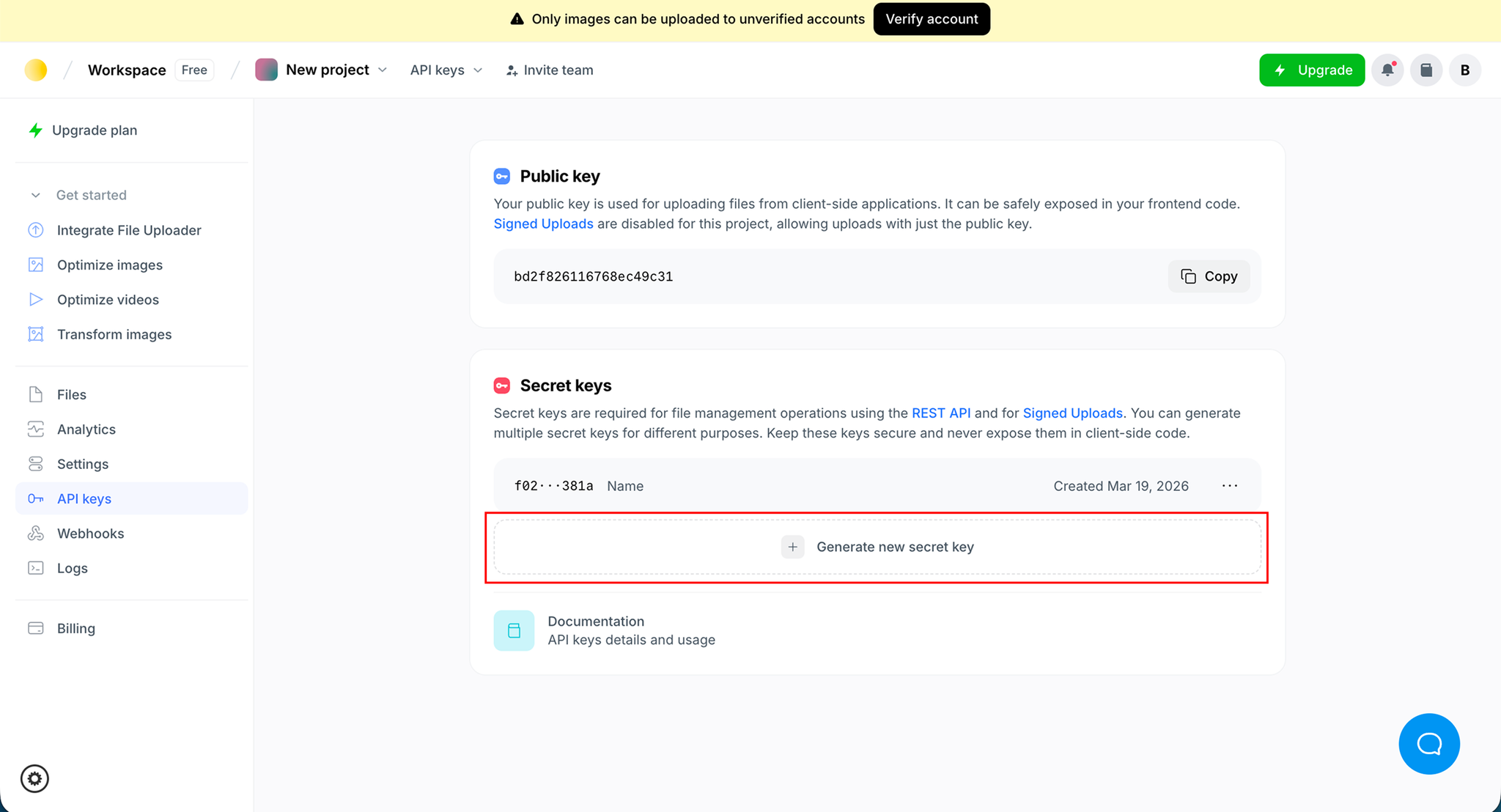
- Add the Public Key (and Secret Key if required) into your Bubble plugin settings
Plugin Element - Uploadcare
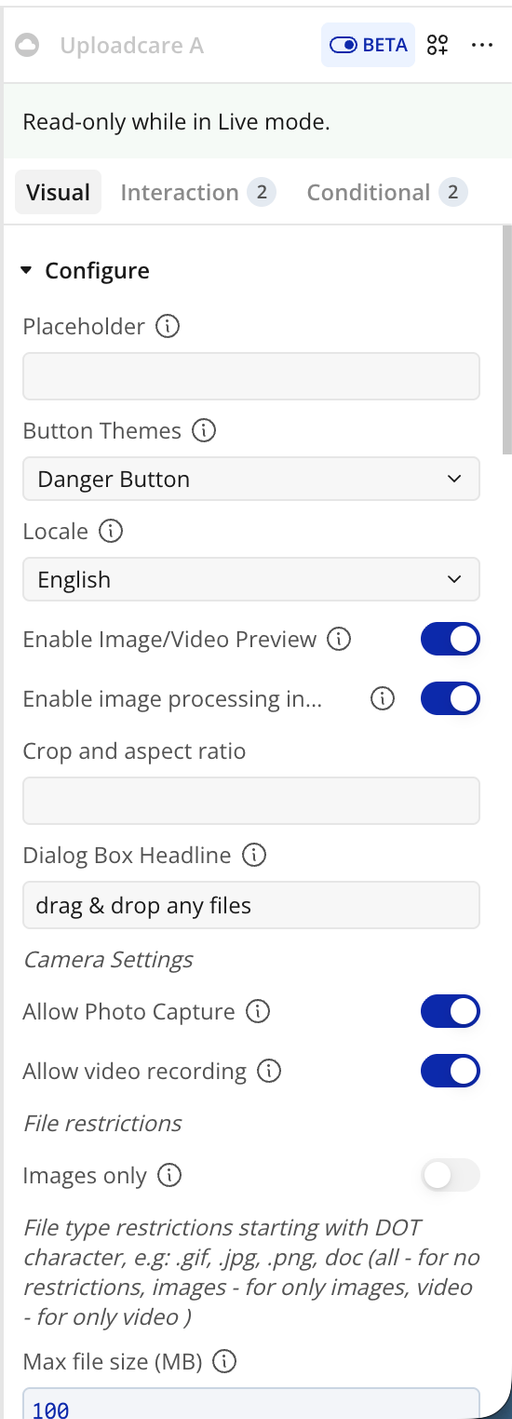
Fields
Name | Description | Type |
Placeholder | Placeholder text shown in the upload field. | Text |
Button Themes | Defines the visual theme of the upload button. | Text |
Locale | Sets the language/locale of the widget. | Text |
Enable Image/Video Preview | If enabled, users can preview files before upload; otherwise, upload completes immediately. | yes/no |
Enable image processing in preview | Allows image editing during preview stage. | yes/no |
Crop and aspect ratio | Defines cropping and aspect ratio settings. | Text |
Dialog Box Headline | Custom title for the upload dialog box. | Text |
Camera Settings | Configuration settings for camera usage. | Text |
Allow Photo Capture | Enables capturing photos via device camera. | yes/no |
Allow video recording | Enables video recording via device camera. | yes/no |
File restrictions | General file restriction rules. | Text |
Images only | Restricts uploads to images only. | yes/no |
File type restrictions starting with DOT character, e.g: .gif, .jpg, .png, doc (all - for no restrictions, images - for only images, video - for only video ) | Defines allowed file types. | Text |
Max file size (MB) | Maximum file size allowed for upload. | Number |
File extensions | Specifies allowed file extensions. | Text |
Batch uploading | Enables uploading multiple files at once. | yes/no |
Max files number | Maximum number of files allowed per upload session (0 = no limit). | Number |
Min files number | Minimum number of files required per upload (default is 1). | Number |
Uploaded images size | Controls image resizing while maintaining aspect ratio. | Text |
Image Quality | Adjusts image quality when resizing is applied. | Text |
Choose file which upload options you want to use | Defines enabled upload source options. | Text |
Local Storage | Enables upload from local device storage. | yes/no |
Camera | Enables camera upload option. | yes/no |
Cam Rec Seconds | Sets maximum recording duration for camera input. | Number |
From URL | Enables file upload via URL. | yes/no |
Facebook | Enables upload from Facebook. | yes/no |
Google Drive | Enables upload from Google Drive. | yes/no |
Google Photos | Enables upload from Google Photos. | yes/no |
Dropbox | Enables upload from Dropbox. | yes/no |
Instagram | Enables upload from Instagram. | yes/no |
Evernote | Enables upload from Evernote. | yes/no |
Flickr | Enables upload from Flickr. | yes/no |
SkyDrive | Enables upload from OneDrive (SkyDrive). | yes/no |
Box | Enables upload from Box. | yes/no |
VK | Enables upload from VK. | yes/no |
Huddle | Enables upload from Huddle. | yes/no |
Position (for each source) | Defines the position/order of each upload source in the widget. | Text |
Initial Files | Preloads already uploaded files using their UUID values. | Text |
This element ID | Unique ID assigned to the element. | Text |
Exposed States
Name | Description | Type |
File URL / File Group URL | File URL or File Group URL published by the element. | File |
is loading | Indicates whether a file is currently being uploaded. | yes/no |
Error message | Error message returned during upload. | Text |
Progress of a file upload (%) | Upload progress percentage. | Number |
File UUID / File Group UUID | Unique identifier for the uploaded file or file group. | Text |
File Size (bytes) | Size of the uploaded file in bytes. | Number |
List of file URL | List of uploaded file URLs. | Text |
File Name | Name of the uploaded file. | Text |
Output processed image | Processed image output (after transformations). | Text |
List of file UUID | List of file UUIDs. | Text |
List of file names | List of uploaded file names. | Text |
Files Sizes | Sizes of uploaded files. | Number |
Video Url To Play | Video URL for playback. | Text |
Selected Files Base64 | Base64 representation of selected files. | File |
Files | Uploaded files object. | File |
Files Type | Type of uploaded files. | Text |
Element Events
Name | Description | Type |
Uploading Is Finished | Triggered when the file upload process is completed successfully. | Event |
File Error | Triggered when an error occurs during file upload. | Event |
Element Actions
Open Dialog Window
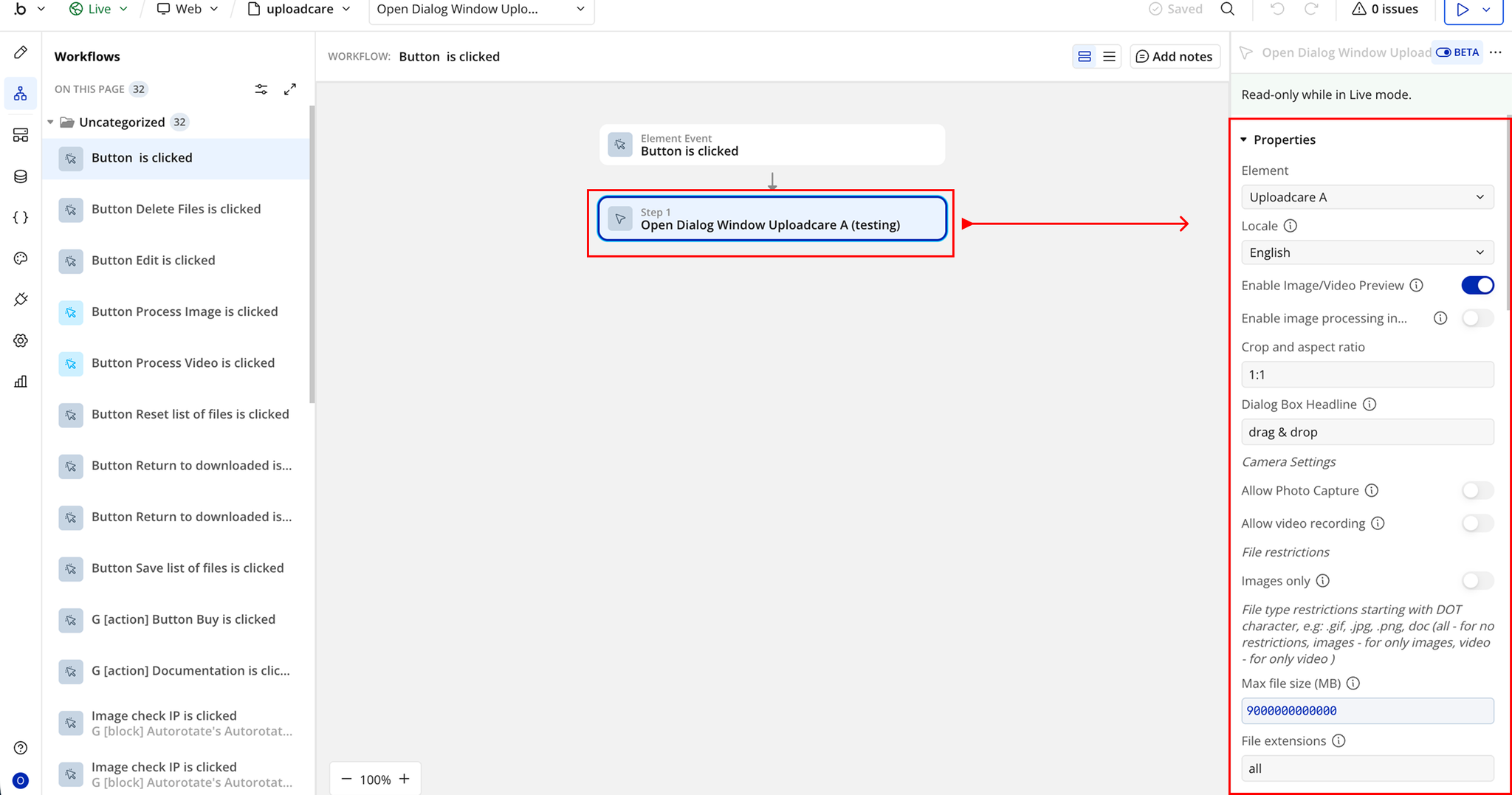
Open Dialog Window allows you to programmatically open the Uploadcare upload widget instead of relying on the default button click. This action uses the configured settings of the Uploadcare element, launches the upload dialog, and lets users select or capture files from the available sources. Once the upload is completed, the returned data can be used across your app through exposed states.
It is useful when you want to trigger the upload interface dynamically (for example, from a custom button or conditional workflow) rather than using the default widget UI.
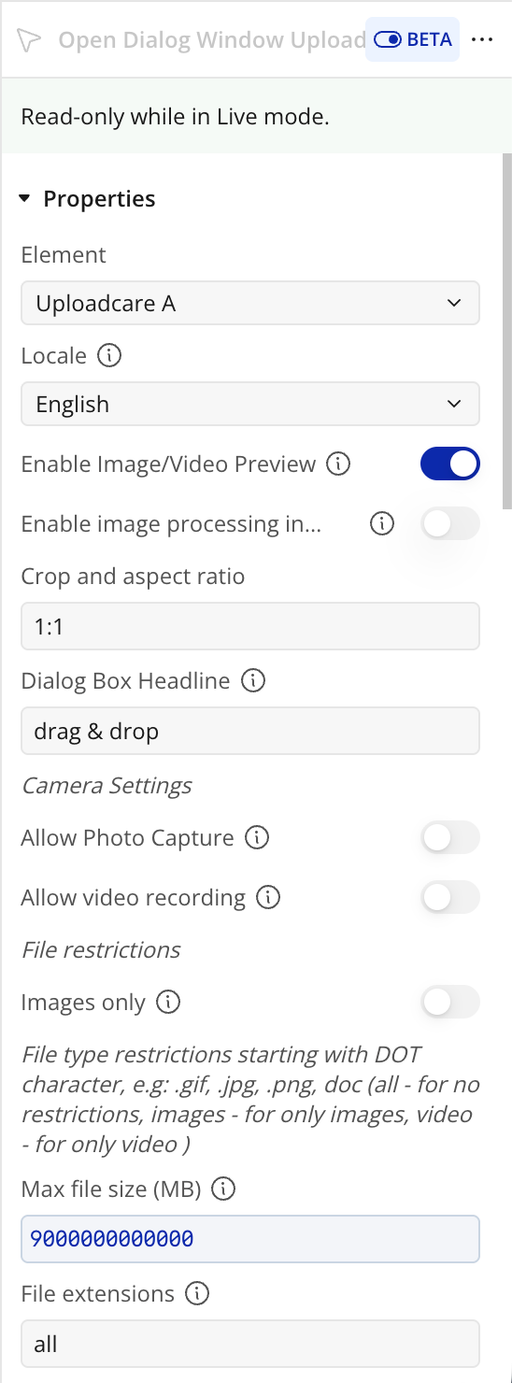
Name | Description | Type |
Locale | Sets the language/locale of the upload dialog. | Text |
Enable Image/Video Preview | If enabled, shows a preview step after file selection; otherwise closes dialog immediately after selection. | yes/no |
Enable image processing in preview | Allows image editing during the preview stage. | yes/no |
Crop and aspect ratio | Defines cropping rules and aspect ratio for uploaded images. | Text |
Dialog Box Headline | Custom title displayed at the top of the upload dialog. | Text |
Camera Settings | Configuration options for camera capture. | Text |
Allow Photo Capture | Enables taking photos directly from device camera. | yes/no |
Allow video recording | Enables recording videos from device camera. | yes/no |
File restrictions | General rules for allowed files. | Text |
Images only | Restricts uploads to image files only. | yes/no |
File type restrictions starting with DOT character (e.g. .gif, .jpg, .png, doc, all, images, video) | Defines allowed file types for upload. | Text |
Max file size (MB) | Maximum allowed file size per upload. | Number |
File extensions | Specifies allowed file extensions. | Text |
Many files | Enables multiple file upload in one session. | yes/no |
Max files number | Maximum number of files allowed per upload session (0 = no limit). | Number |
Min files number | Minimum number of files required per upload session. | Number |
Uploaded images size | Predefined image resizing option while preserving aspect ratio. | Text |
Image Quality | Adjusts image quality when resizing is applied. Only works if resizing is enabled. | Text |
Choose file which upload options you want to use | Selects which upload sources are enabled. | Text |
Local Storage | Enables upload from device storage. | yes/no |
Camera | Enables camera upload option. | yes/no |
From URL | Enables uploading via URL link. | yes/no |
Facebook | Enables Facebook file import. | yes/no |
Google Drive | Enables Google Drive file import. | yes/no |
Google Photos | Enables Google Photos file import. | yes/no |
Dropbox | Enables Dropbox file import. | yes/no |
Instagram | Enables Instagram file import. | yes/no |
Evernote | Enables Evernote file import. | yes/no |
Flickr | Enables Flickr file import. | yes/no |
SkyDrive | Enables OneDrive (SkyDrive) file import. | yes/no |
Box | Enables Box file import. | yes/no |
VK | Enables VK file import. | yes/no |
Huddle | Enables Huddle file import. | yes/no |
Position (for each source) | Defines ordering/placement of each upload source in the dialog. | Text |
Initial Files | Preloads previously uploaded files using UUIDs (e.g. 5b63266d-32b3-4a2b-b964-477b8c4cd663). | Text |
Process Image
Process Image allows you to apply image processing operations to uploaded files using Uploadcare. When triggered, it takes the selected image and applies the configured processing options (such as resizing, cropping, or quality adjustments), then returns the processed image data that can be used within your app.
It is useful when you need to dynamically transform images after upload, for example, optimizing images for performance, generating thumbnails, or preparing images for display or storage inside your Bubble app.
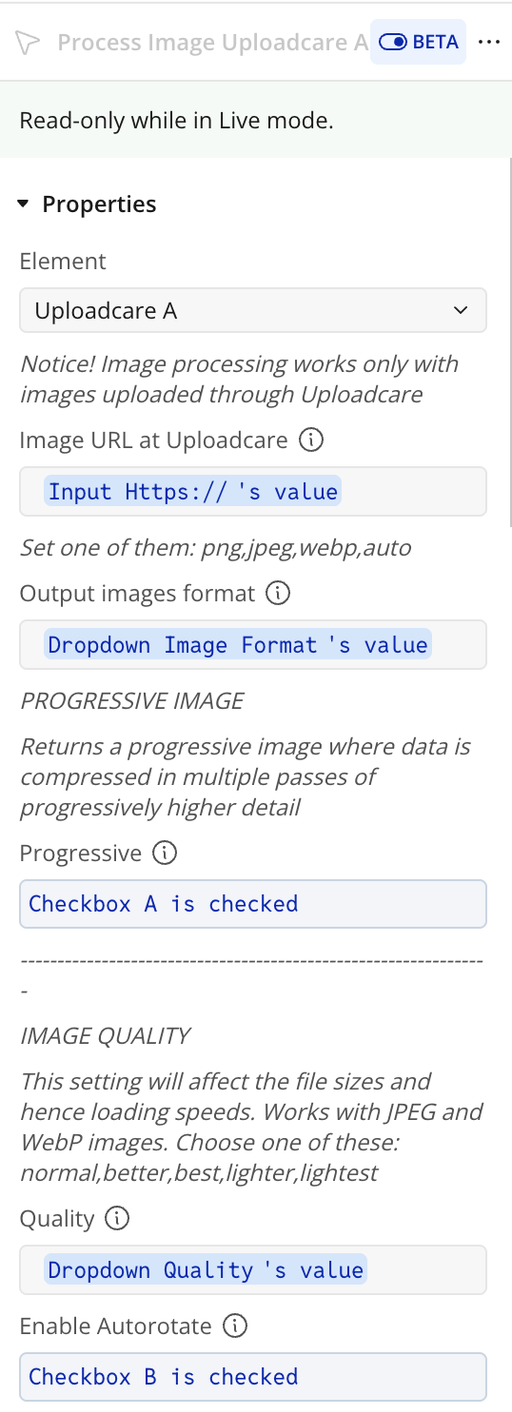
Name | Description | Type |
Notice! Image processing works only with images uploaded through Uploadcare | Restriction notice indicating only Uploadcare-hosted images are supported. | Text |
Image URL at Uploadcare | URL of the image stored in Uploadcare. | Text |
Set one of them: png, jpeg, webp, auto | Defines the output image format option. | Text |
Output images format | Final output format of the processed image. | Text |
PROGRESSIVE IMAGE | Configuration for progressive image rendering. | Text |
Returns a progressive image where data is compressed in multiple passes of progressively higher detail | Enables progressive loading image behavior. | Text |
Progressive | Enables or disables progressive image output. | yes/no |
IMAGE QUALITY | Image quality configuration section. | Text |
This setting will affect the file sizes and hence loading speeds. Works with JPEG and WebP images. Choose one of these: normal, better, best, lighter, lightest | Defines compression quality level for output images. | Text |
Quality | Selected quality preset for output image. | Text |
Enable Autorotate | Automatically rotates image based on EXIF data. | yes/no |
SIZE AND CROP OPTIONS | Image resizing and cropping configuration section. | Text |
Resize image proportionally to fit into given dimensions | Scales image proportionally within specified dimensions. | Text |
Reduces an image proportionally to fit within given pixel dimensions. Default limit is 2048x2048. | Ensures image fits within constraints while preserving aspect ratio. | Text |
Width | Target width for resizing. | Number |
Height | Target height for resizing. | Number |
Resize image to fit into specified dimensions | Forces image into specified dimensions while preserving aspect ratio when possible. | Text |
Resizes an image to fit within defined width/height boundaries. | Adjusts image to match target dimensions. | Text |
Crop image to specified dimensions using specified offsets | Crops image using defined width, height, and offset values. | Text |
Crops image starting from top-left or defined offset position. | Controls crop region of the image. | Text |
Width | Crop width value. | Number |
Height | Crop height value. | Number |
Center | Centers the crop area. | yes/no |
Scale image and crop it where needed | Scales image and crops overflow to fit exact dimensions. | Text |
Scales image before cropping to fill target dimensions completely. | Ensures full frame coverage by cropping excess areas. | Text |
Width | Target width for scale/crop operation. | Number |
Height | Target height for scale/crop operation. | Number |
Center | Centers image during scale/crop process. | yes/no |
Adjust resizing behavior | Defines behavior when source image is smaller than target size. | Text |
Sets resize rules for small images (stretch, fill, or prevent upscaling). | Controls how smaller images are handled. | Text |
Mode | Resize behavior mode (on, off, fill). | Text |
Set File
Set File is a plugin action that runs inside a Bubble workflow. It allows you to programmatically assign or update a file inside the Uploadcare widget or element. When triggered, it takes a file (usually a URL or Uploadcare UUID) and sets it as the active file in the uploader. This makes the file available for preview, processing, or further workflow actions within your app.
It is useful when you want to dynamically load an existing file into the uploader, for example, editing previously uploaded content, preloading images, or continuing a partially completed upload flow.
Reset File
Reset File is a plugin action that runs inside a Bubble workflow. It clears the current file state in the Uploadcare element. When triggered, it removes any selected, uploaded, or preloaded files from the widget, effectively returning the uploader to its initial empty state. This allows users to start a fresh upload session without any previously selected files.
It is useful when you need to reset the upload flow, for example, after a successful submission, when cancelling an upload, or when switching between different upload contexts in your app.
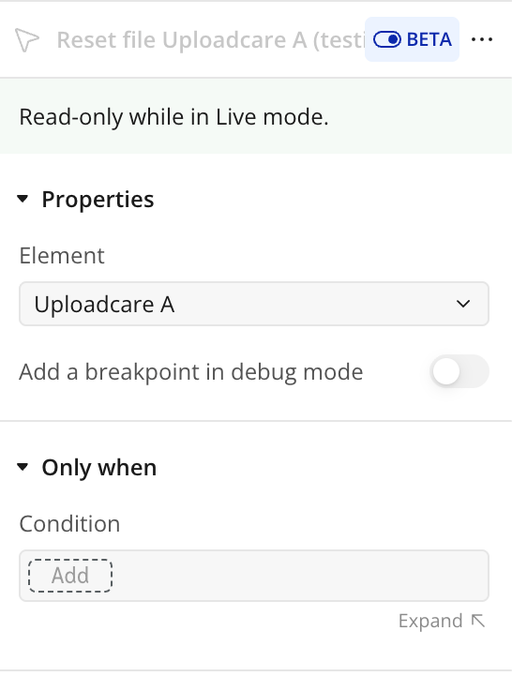
Delete File From Uploadcare CDN
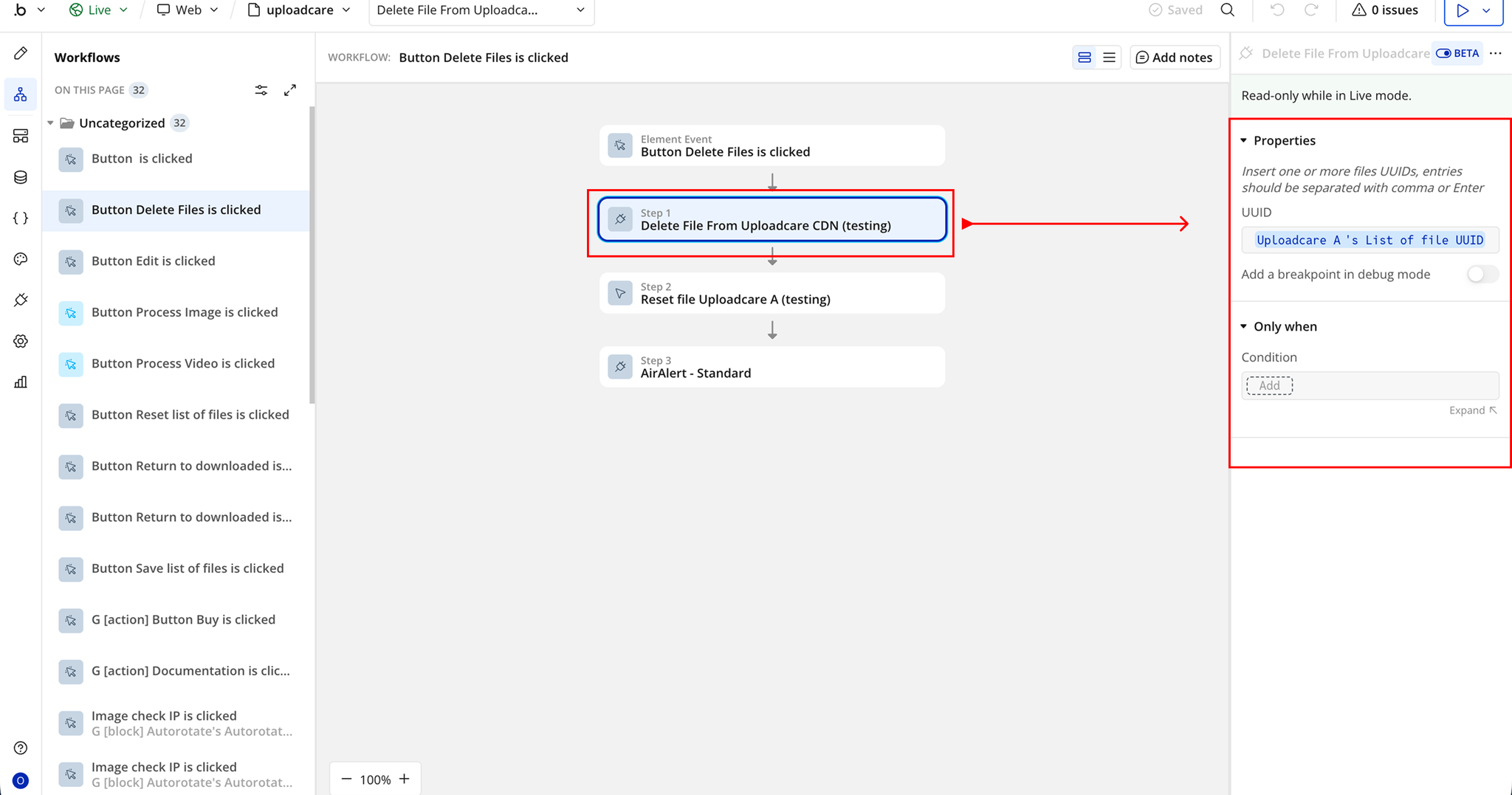
Delete File From Uploadcare CDN is a plugin action that runs inside a Bubble workflow. It allows you to permanently remove a file from the Uploadcare CDN using its file UUID or identifier. When triggered, it sends a request to Uploadcare to delete the specified file from storage, ensuring it is no longer accessible via its CDN URL. The result of the action can be used in your Bubble app to confirm deletion or handle errors.
It is useful when you need to manage storage cleanup, remove unused files, or implement user-driven file deletion workflows within your application.
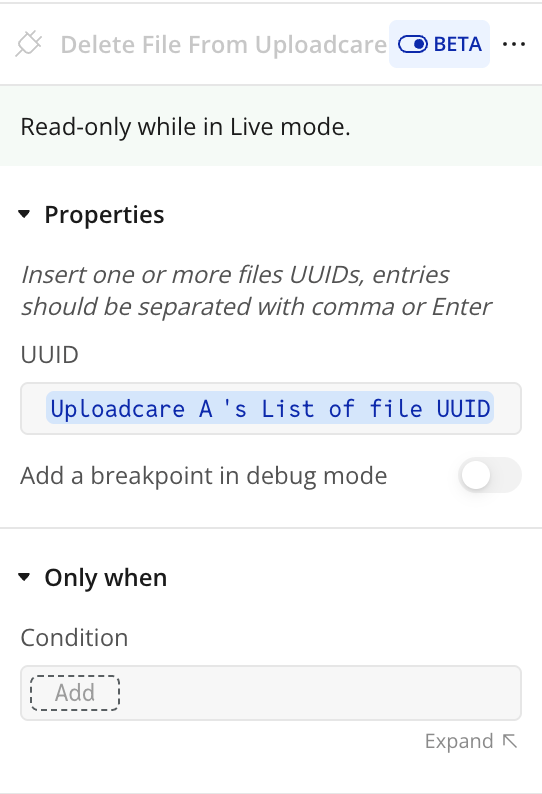
Name | Description | Type |
Insert one or more files UUIDs, entries should be separated with comma or Enter | Accepts one or multiple file UUIDs to be deleted from the Uploadcare CDN. Multiple values can be separated by comma or new line. | Text |
UUID | Single file UUID used to identify the file to be deleted from Uploadcare CDN. | Text |
Return values:
Name | Description | Type |
Error Message | Returns an error message if the file deletion fails. | Text |
Video Transformation
Video Transformation is a plugin action that runs inside a Bubble workflow. It allows you to process and transform video files that are stored in Uploadcare. When triggered, it takes a video file (usually via Uploadcare URL or UUID) and applies transformation settings such as format changes, optimization, or processing rules defined in the action. The processed video output can then be reused in your app via the returned data.
It is useful when you need to dynamically modify videos, for example, optimizing video playback, converting formats, or preparing media for streaming and display within your Bubble application.
Name | Description | Type |
Video UUID | Unique identifier of the video stored in Uploadcare. This UUID is used to locate and transform the target video file. | Text |
Process Video
Process Video is a plugin action that runs inside a Bubble workflow. It allows you to apply processing operations to video files stored in Uploadcare. When triggered, it takes a video (usually identified by its UUID) and processes it based on the configured settings such as optimization, transformation, or preparation for playback. The resulting processed video output is then returned and can be used within your Bubble app.
It is useful when you need to dynamically handle video files, for example, preparing videos for streaming, optimizing file size, or converting formats after upload.
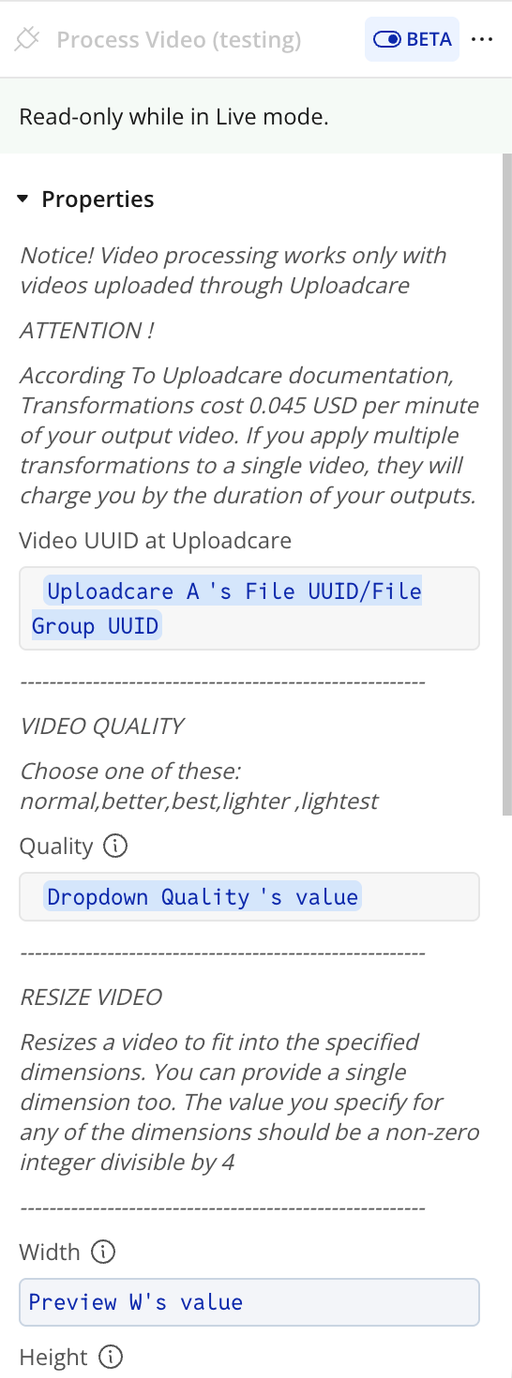
Name | Description | Type |
Notice! Video processing works only with videos uploaded through Uploadcare | Indicates that only Uploadcare-hosted videos can be processed. | Text |
ATTENTION ! | Warning section for pricing and processing rules. | Text |
According To Uploadcare documentation, Transformations cost 0.045 USD per minute of your output video. If you apply multiple transformations to a single video, they will charge you by the duration of your outputs. | Explains video processing cost based on output duration and transformations applied. | Text |
Video UUID at Uploadcare | Unique identifier of the video stored in Uploadcare. | Text |
VIDEO QUALITY | Section for selecting output video quality settings. | Text |
Choose one of these: normal, better, best, lighter, lightest | Available quality presets for video processing. | Text |
Quality | Defines video compression and output quality level. | Text |
RESIZE VIDEO | Section for resizing video dimensions. | Text |
Resizes a video to fit into the specified dimensions. You can provide a single dimension too. The value must be a non-zero integer divisible by 4 | Defines how video resizing is handled. | Text |
Width | Target width for video resize (must be divisible by 4). | Number |
Height | Target height for video resize (must be divisible by 4). | Number |
VIDEO FORMAT | Section for selecting output video format. | Text |
Set one of them: mp4, webm, ogg | Defines supported output formats. | Text |
Video Format | Specifies output video format (MP4, WebM, or Ogg). | Text |
VIDEO CUT | Section for trimming/cutting video duration. | Text |
Use following parameters | Defines format rules for specifying cut timestamps. | Text |
HHH:MM:SS.sss or SSS+.sss format rules | Timestamp format used for defining start and end cut points. | Text |
Cut Start Time | Start time for video trimming. Example: 2:30 (2 minutes 30 seconds). | Text |
Cut End Time | End time for video trimming. If empty, video runs until end. | Text |
Return values:
Name | Description | Type |
Output Processed Video | URL of the processed video returned after transformation. | Text |
Output Processed Video Original | Original video URL returned alongside the processed version. | Text |
Error Message | Error message returned if video processing fails. | Text |
Workflow example
Open Dialog Window
- Make sure the Uploadcare Element is on your page
- Place a Button on the page
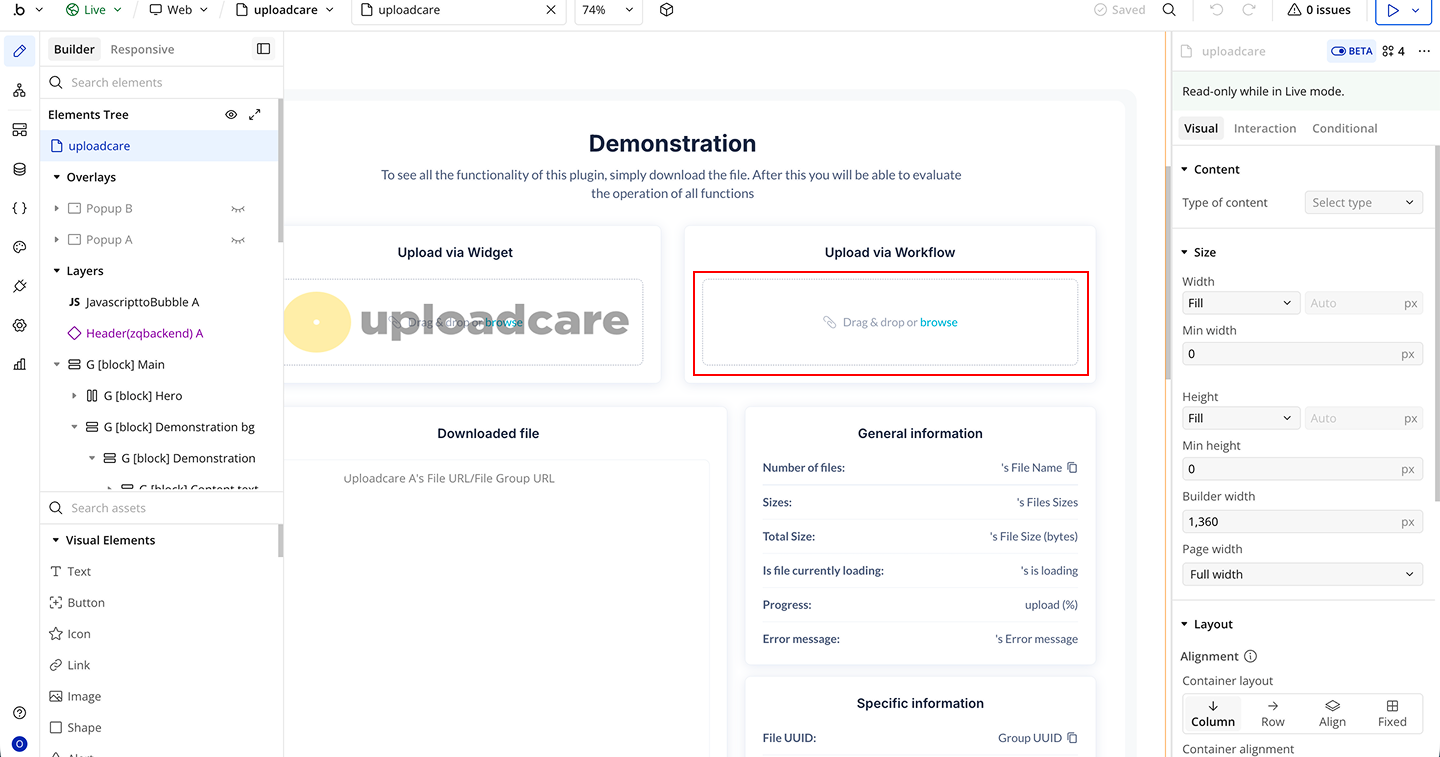
- Start a workflow on the button → When Button is clicked
- Click Add an Action inside the workflow
- Choose Uploadcare Plugin Action → Open Dialog Window Uploadcare
- Configure the required inputs
- This will open the Uploadcare upload dialog for the user
Delete File
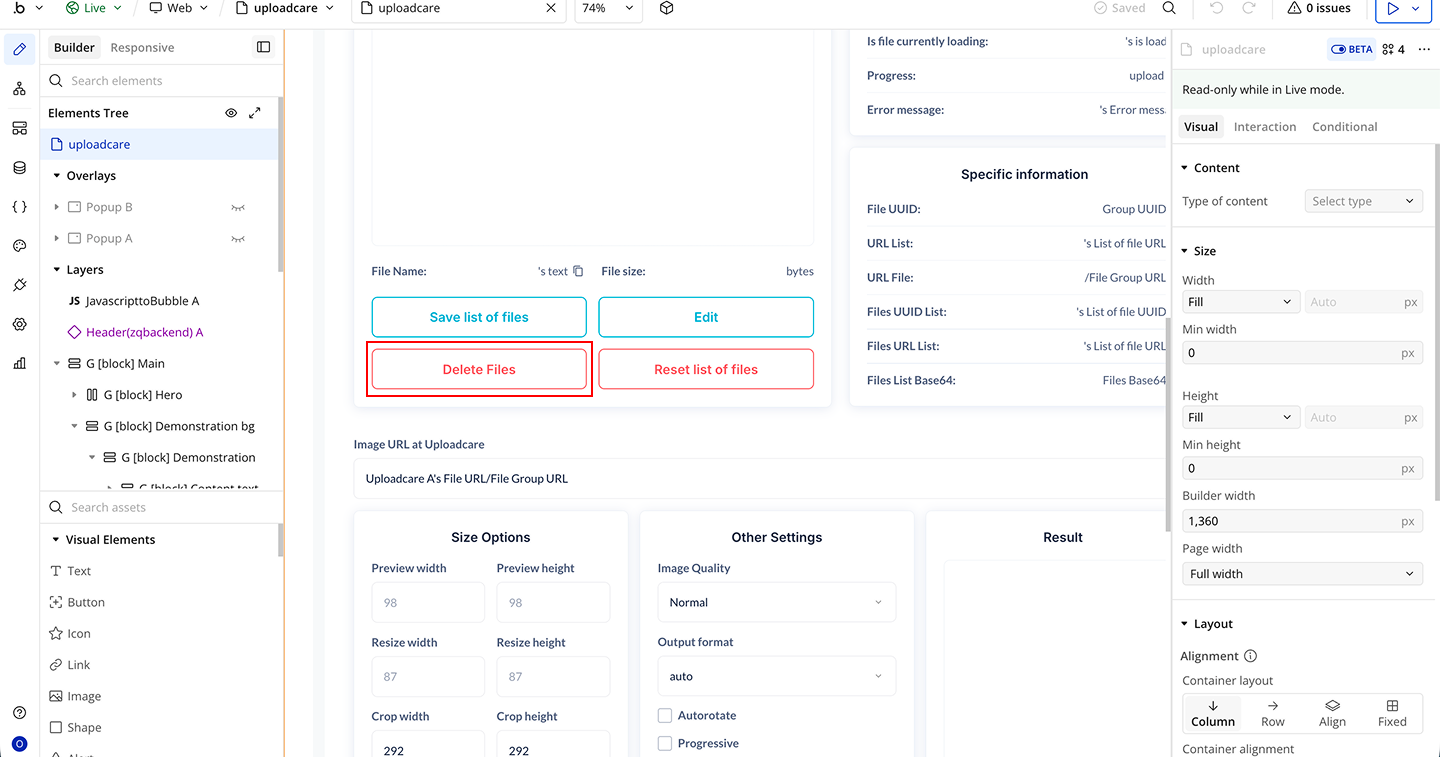
- Place a Delete File Button on the page
- Start a workflow on the Delete File button → When Button is clicked
- Click Add an Action inside the workflow
- Choose Uploadcare Plugin → Delete File From Uploadcare CDN
- Pass the File UUID of the file you want to delete
- This will permanently remove the file from Uploadcare CDN

Changelogs
Update 11.05.26 - Version 2.0.0
- Bubble Plugin Page Update (Docs).
Update 10.04.26 - Version 1.75.0
- Bubble Plugin Page Update (Buttons).
Update 10.04.26 - Version 1.74.0
- Bubble Plugin Page Update (Description).
Update 10.04.26 - Version 1.73.0
- Bubble Plugin Page Update (Tutorial).
Update 11.07.25 - Version 1.72.0
- Bubble Plugin Page Update (Logo).
Update 13.06.25 - Version 1.71.0
- Marketing update (minor change).
Update 27.02.25 - Version 1.70.0
- Secured plugin keys and moved "Process Video" action from element to action.
Update 28.11.24 - Version 1.69.0
- Minor update(Marketing update).
Update 14.10.24 - Version 1.68.0
- Replaced the deprecated 'DOMSubtreeModified' event listener with a MutationObserver.
Update 24.09.24 - Version 1.67.0
- Fixed font styles.
Update 23.07.24 - Version 1.66.0
- Minor update.
Update 13.06.24 - Version 1.65.0
- Updated demo/service links.
Update 19.10.23 - Version 1.64.0
- Updated description.
Update 18.09.23 - Version 1.63.0
- updated description.
Update 13.09.23 - Version 1.62.0
- minor updates.
Update 06.09.23 - Version 1.61.0
- Obfuscation.
Update 24.07.23 - Version 1.60.0
- Renamed "Many files" field to "Batch uploading".
Update 24.07.23 - Version 1.59.0
- Change log: Renamed "Many files" field to "Batch uploading".
Update 10.07.23 - Version 1.58.0
- updated description.
Update 16.06.23 - Version 1.57.0
- Updated the description .
Update 22.05.23 - Version 1.56.0
- Change log: Updated default value "Many files" field.
Update 05.05.23 - Version 1.55.0
- Fixed "Open dialog window" action when "Many files" field is unchecked.
Update 26.04.23 - Version 1.54.0
- Added field "Image Quality".
Update 21.04.23 - Version 1.53.0
- Added the field "Uploaded images size" to the "Open dialogue window" action.
Update 19.04.23 - Version 1.52.0
- Added field "Uploaded images size"..
Update 30.03.23 - Version 1.51.0
- Was eliminate a styles conflict.
Update 02.03.23 - Version 1.50.0
- Added state 'Files Type.
Update 23.02.23 - Version 1.49.0
- deleted the icons.
Update 21.02.23 - Version 1.48.0
- updated the description.
Update 26.10.22 - Version 1.47.0
- Minor fixies.
Update 07.07.22 - Version 1.46.0
- Updated description.
Update 03.07.22 - Version 1.45.0
- Updated description.
Update 01.07.22 - Version 1.44.0
- Updated description.
Update 12.05.22 - Version 1.43.0
- fixed problem with event "upload is finished".
Update 23.03.22 - Version 1.42.0
- fixed problem with disconnect options source.
Update 03.01.22 - Version 1.41.0
- fixed conflict with wasabi.
Update 15.07.21 - Version 1.40.0
- Updated icon.
Update 09.03.21 - Version 1.39.0
- Updated description.
Update 17.02.21 - Version 1.38.0
- Updated icon.
Update 12.02.21 - Version 1.37.0
- fixed problem uploading state.
Update 27.01.21 - Version 1.36.0
- Fixed duplicate event trigger.
Update 18.01.21 - Version 1.35.0
- fixed state and event "Uploadcare has finished uploading".
Update 05.11.20 - Version 1.34.0
- fixed action "process image", problem with extension and "many files" options.
Update 09.10.20 - Version 1.33.0
- fixed bug with states.
Update 16.03.20 - Version 1.32.0
- New feature - Reset file of the Uploadcare element.
Update 14.09.19 - Version 1.31.0
- Made the base64 state to work when using dragndrop..
Update 05.09.19 - Version 1.30.0
- New feature, get selected list of files before they are uploaded, find them in new list state named Selected Files Base64..
Update 27.08.19 - Version 1.29.0
- New Feature, set initial files. Will open file uploader window with previous uploaded files. New field, Initial Files - optional field, must be a list of UUID.
Update 26.08.19 - Version 1.28.0
- Removed Blue Border from transparent style.
Update 08.05.19 - Version 1.27.0
- Minor fixes.
Update 23.01.19 - Version 1.26.0
- Fixed enabling cropping and aspect restrictions when opening an upload dialog via a workflow..
Update 10.01.19 - Version 1.25.0
- minor fixes.
Update 25.12.18 - Version 1.24.0
- In action Process Video user can: Choose video quality (normal,better,best,lighter,lightest) Resize video Format video to: mp4, webm, ogg Cut video.
Update 25.12.18 - Version 1.23.0
- Hello, we have updated the plugin with the following improvementS: * Added new state: Output processed video * New action: Process Video * Added ability to choose video quality (normal,better,best,lighter ,lightest ).
Update 14.12.18 - Version 1.22.0
- added the option to limit the length of the uploaded video.
Update 11.11.18 - Version 1.21.0
- added "Files Sizes" state that returns the list of all uplaoded files' sizes.
Update 05.10.18 - Version 1.20.0
- Minor Improvements.
Update 03.10.18 - Version 1.19.0
- added the ability to limit the number of files that can be uploaded.
Update 27.09.18 - Version 1.18.0
- Added Image Crop and Aspect Ratio.
Update 08.08.18 - Version 1.17.0
- added the option to prevent file uploads greater than certain size.
Update 30.07.18 - Version 1.16.0
- fixed minor bugs.
Update 21.06.18 - Version 1.15.0
- added image processing options in image preview .
Update 16.06.18 - Version 1.14.0
- added state "List of file names".
Update 31.05.18 - Version 1.13.0
- fixed minor bugs.
Update 18.05.18 - Version 1.12.0
- New file restriction options.
Update 17.05.18 - Version 1.11.0
- bug fixes.
Update 04.05.18 - Version 1.10.0
- Bug fixes.
Update 03.05.18 - Version 1.9.0
- Returns list of UUIDs for multi file uploads, delete multiple files by indicating UUIDs..
Update 02.05.18 - Version 1.8.0
- bug fixes.
Update 02.05.18 - Version 1.7.0
- added upload options sorting, API action to delete file by UUID + bug fixes.
Update 19.04.18 - Version 1.6.0
- added next actions: open dialog, process image. added feature to change dialog box headline .
Update 05.04.18 - Version 1.5.0
- fixed multi uploading, added states: File Name, File URL List.
Update 29.03.18 - Version 1.4.0
- added next features : preview step, enable/disable capture , enable/disable video recording.
Update 23.03.18 - Version 1.3.0
- added next features: choosing widget language, uploading video, defining when uploading is finished, choosing files upload options.
Update 22.03.18 - Version 1.2.0
- fixed issue with public key.
Update 22.03.18 - Version 1.1.0
- Updated description.
Update 22.03.18 - Version 1.0.0
- Initial Build.