Link to the plugin page: https://zeroqode.com/plugin/1530095149203x337236498854707200
Demo to preview the plugin:
Introduction
Embed any Google document, such as Docs, Sheets, Forms, Slides, and Files, into your Bubble app. Simply place this no-code plugin on the page and configure the element properties.
Note: When working with spreadsheets, please go to File -> Publish to the web and then use the ID of the document from the link you obtain if you want to display sheets in the embedder. For Edit sheet mode, please use the sheet ID from the regular URL.
How to setup
- Adding the Google Embed Element
- Go to the Design tab.
- Drag the Google Embed element onto the page.
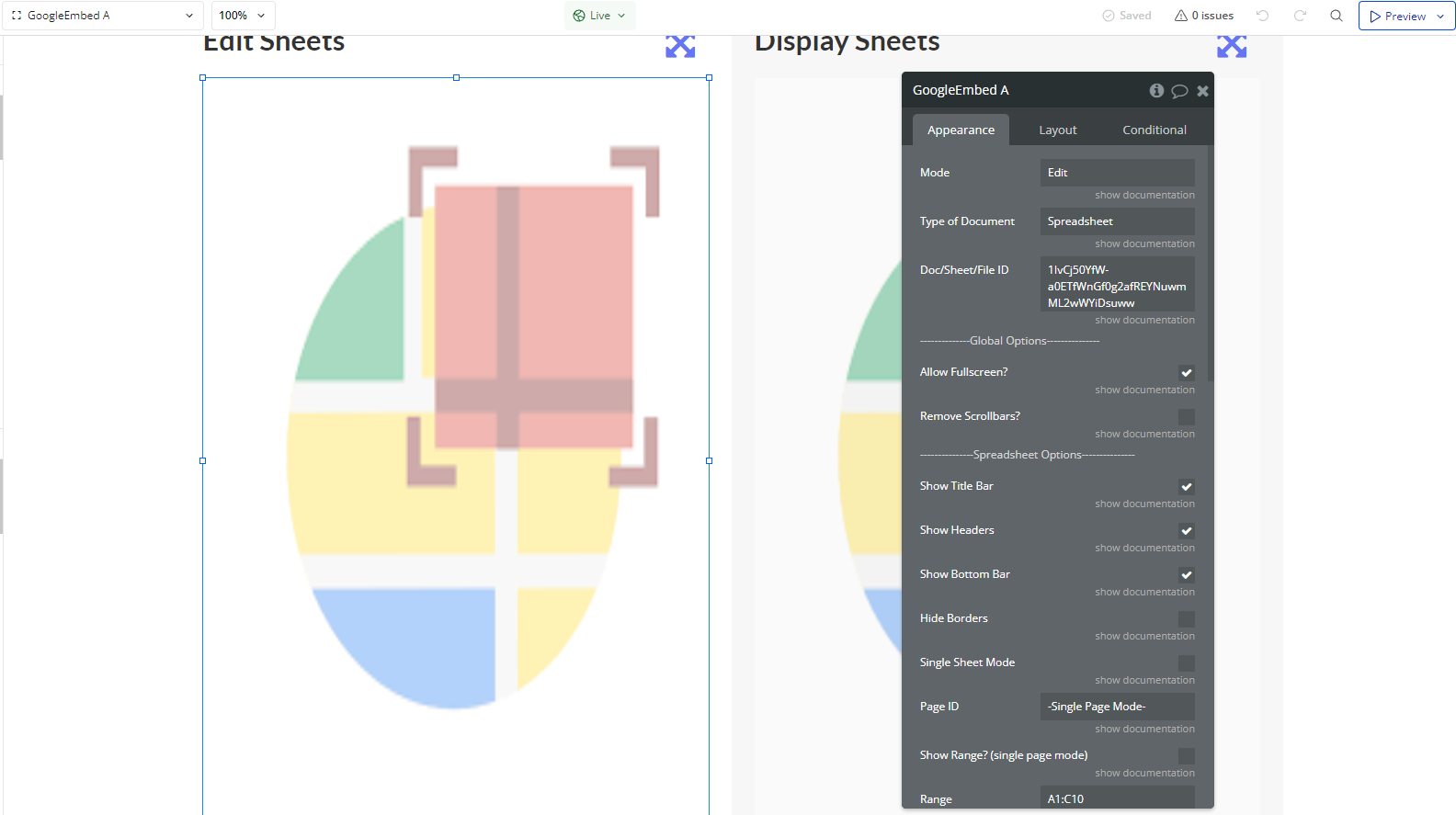
- In the element properties panel, configure the settings according to the type of content you want to embed.
- Configuring Google Embed
- Document → For Google Docs.
- Spreadsheet → For Google Sheets.
- Presentation → For Google Slides.
- Form → For Google Forms.
- Copy the URL of the Google document you want to embed.
- Extract only the document ID from the URL.
Choose the Document Type
In the properties panel, set the Type of Document according to the Google service you want to embed:
Add the Document ID
- Specific Configurations for Each Document Type
- Show Headers: Displays column headers (A, B, C, etc.).
- Show Bottom Bar: Shows the bottom navigation bar of Google Sheets.
- Range: Defines a specific cell range, e.g.,
A1:C10. - Single Sheet Mode: Displays only a single sheet.
- Auto Start?: Automatically starts the presentation.
- Seconds Between Slides: Sets the time between slides (e.g., 5 seconds).
- Loop Slides?: Enables looping of the presentation.
- Loading Message: Sets a custom message while the form is loading.
Google Sheets
Google Slides
Google Forms
- Enabling Fullscreen Mode (Optional)
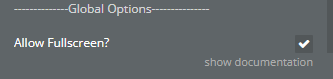
- In the Google Embed properties panel, check the Allow Fullscreen? option.
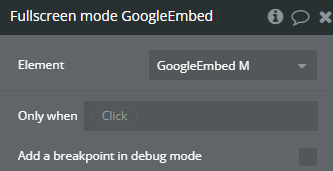
- Create a button to activate fullscreen via workflow.
- Go to the Workflow tab.
- Add a new event: When the button is clicked.
- Add the action: Fullscreen Mode
- Select the corresponding Google Embed element.
To allow fullscreen mode for the embedded content:
Creating the Workflow for Fullscreen Mode
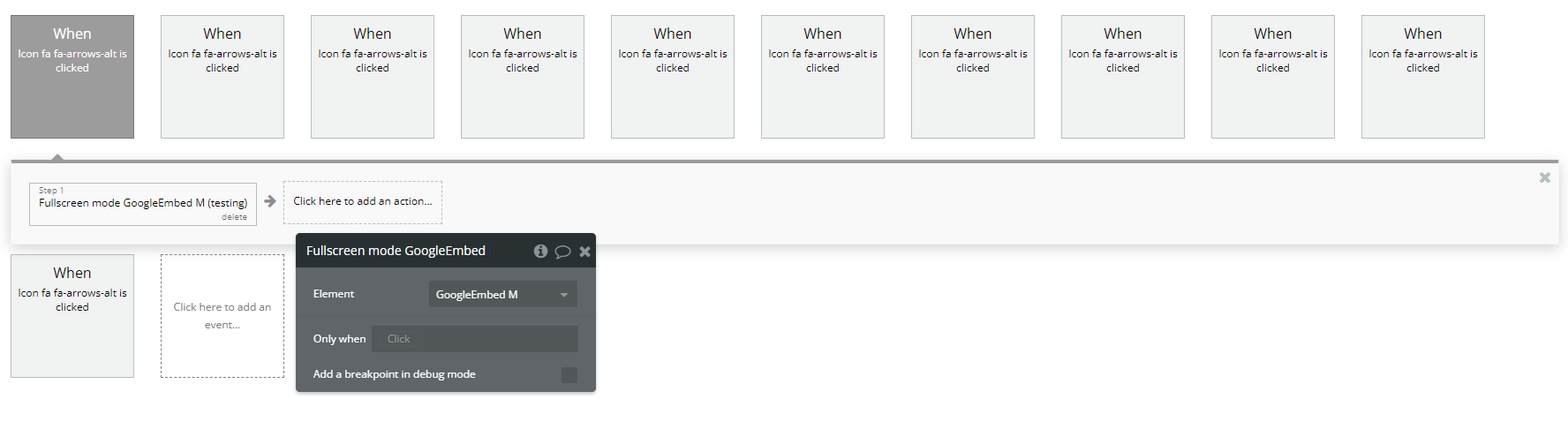
Now, when the user clicks the button, the document will be displayed in fullscreen mode.
Plugin Element Properties
Google Embed
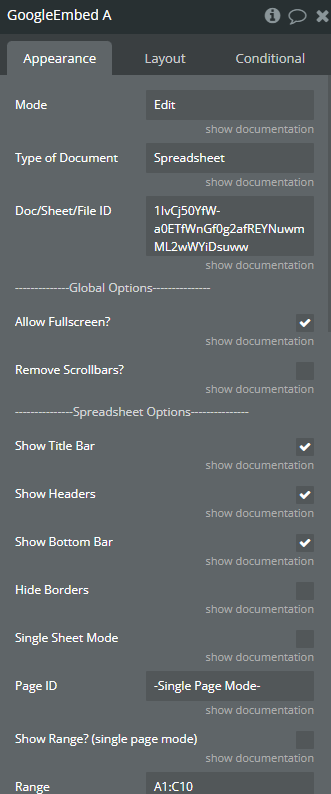
Fields:
Title | Description | Type |
Mode | Mode. Make sure to publish your document to the web if you want to use it in ‘Display’ mode. Available values: Display and Edit Available options: Display, Edit | Text |
Type of Document | Type of Document. Available values: Document, Spreadsheet, Presentation, File and Form Available options: Document, Spreadsheet, Presentation, File, Form | Text |
Doc/Sheet/File ID | This ID is taken from the URL. For ‘Display’ mode this should be the document id of the published to web. | Text (optional) |
————–Global Options————— | ||
Allow Fullscreen? | Allow Fullscreen | Checkbox (yes/no) |
Remove Scrollbars? | Remove Scrollbars | Checkbox (yes/no) |
—————Spreadsheet Options————— | ||
Show Title Bar | Show Title Bar | Checkbox (yes/no) |
Show Headers | Show Headers | Checkbox (yes/no) |
Show Bottom Bar | Show Bottom Bar | Checkbox (yes/no) |
Hide Borders | Hide Borders | Checkbox (yes/no) |
Single Sheet Mode | Single Page Mode | Checkbox (yes/no) |
Page ID | Page ID | Text (optional) |
Show Range? (single page mode) | Use Range Mode | Checkbox (yes/no) |
Range | Range | Text (optional) |
————— File Options ————— | ||
View | View Available options: grid, list | Dropdown (optional) |
—————Presentation Options————— | ||
Auto Start? | Auto Start | Checkbox (yes/no) |
Sec. Between Slides | Sec. Between Slides | Number |
Loop Slides? | Loop Slides | Checkbox (yes/no) |
—————Form Options————— | ||
Loading Message | Loading Message | Text |
Element Actions
- Fullscreen mode - Make element fullscreen