
Link to the plugin page: https://zeroqode.com/plugin/1531752584544x288312056348672000
Demo to preview the plugin:
Introduction
Enhance the mobile experience of your app with a no-code plugin that allows to assign customized swiping actions. You can track swipes across the entire page or on specific elements.
Swipe left to remove an order, swipe up for more details, or apply any of the countless cases where “swipe to action” makes using your app much more convenient. Simply assign an ID to a specific element and indicate it in the plugin’s element fields.

How to setup
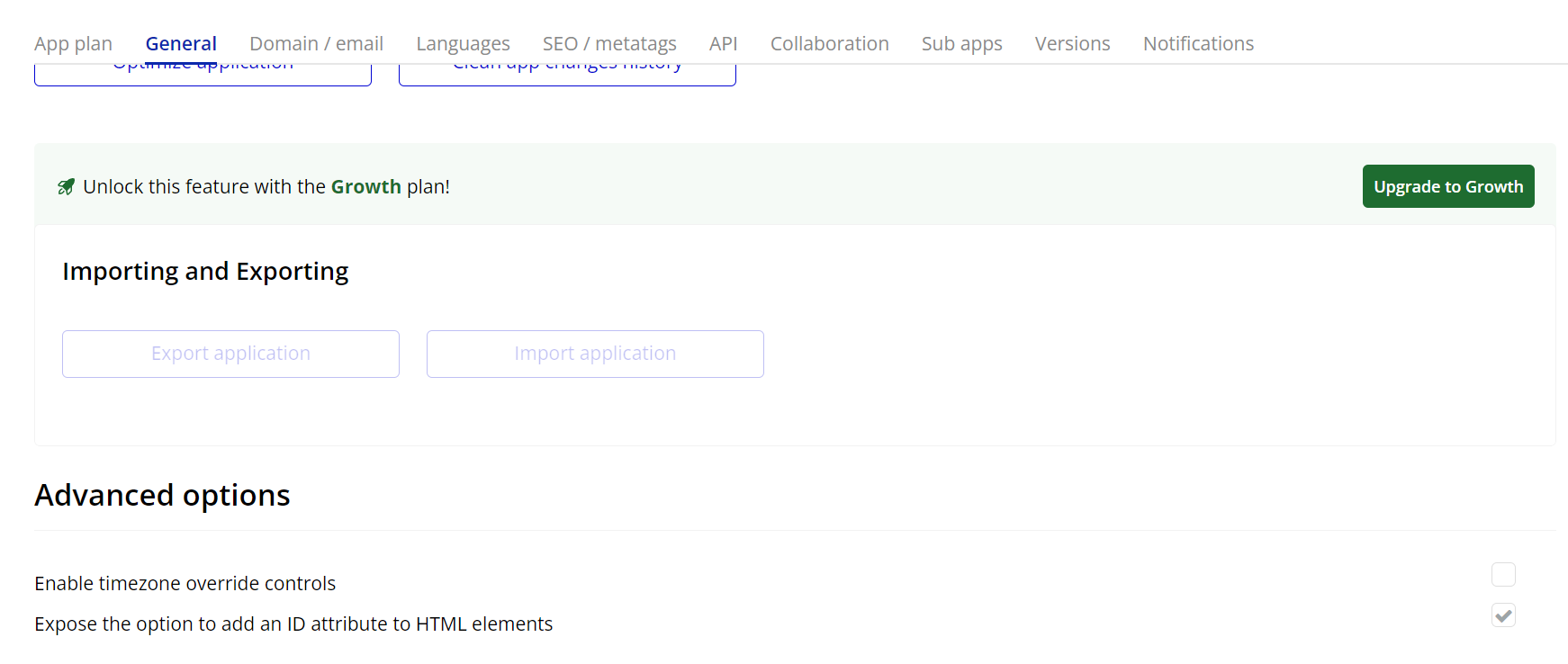
- Enable ID Attributes
Go to the settings page in your editor. Under the General tab click on the checkbox “Expose the option to add an ID attribute to HTML elements”
- Configuring the Elements
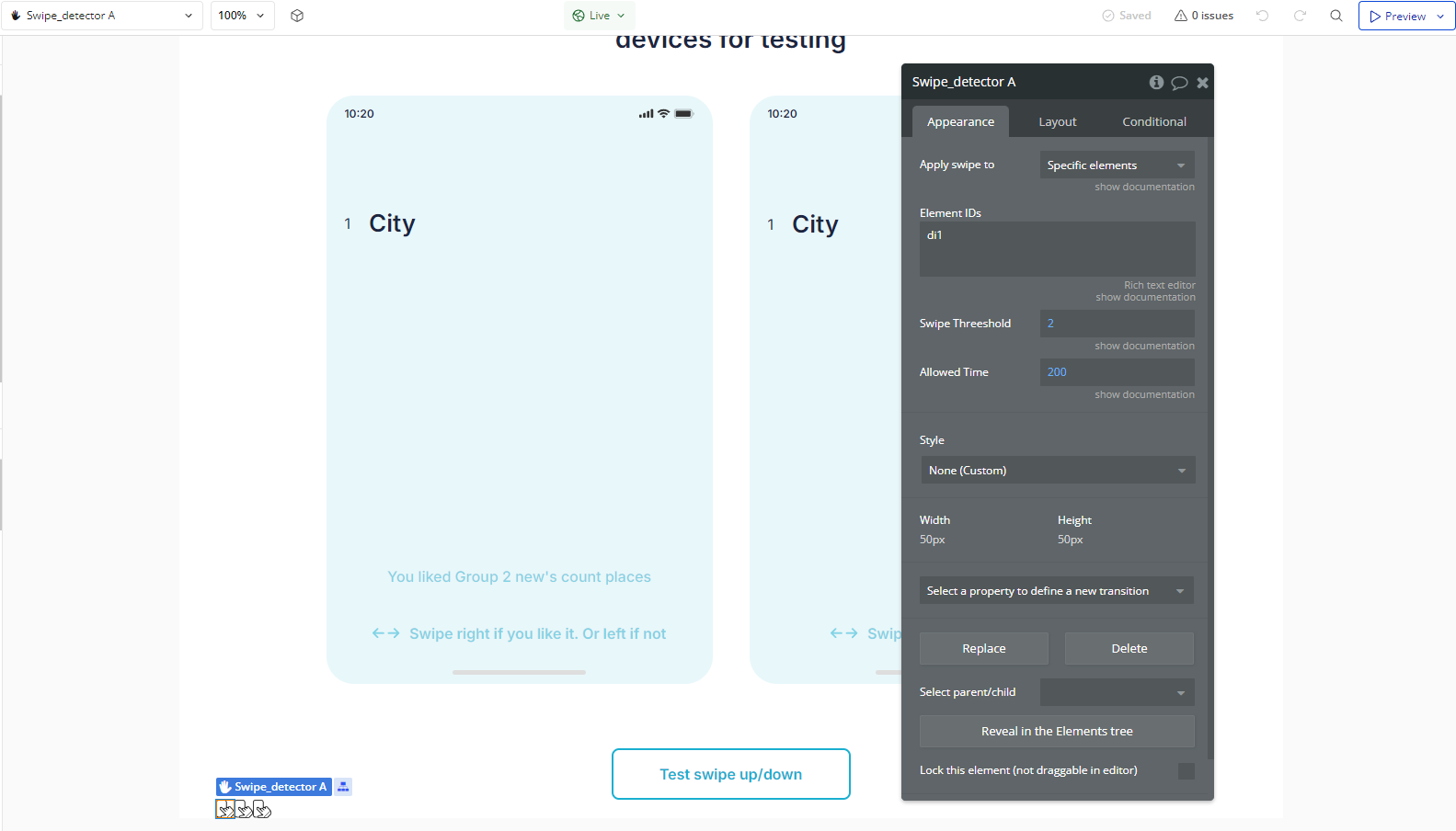
- Adding the "Swipe_detector" Element
- In the Bubble editor, go to the Design tab.
- Under Visual Elements, drag the Swipe_detector element onto the page where you want to detect swipe gestures.
- Position the element over the area where swipes should be detected.
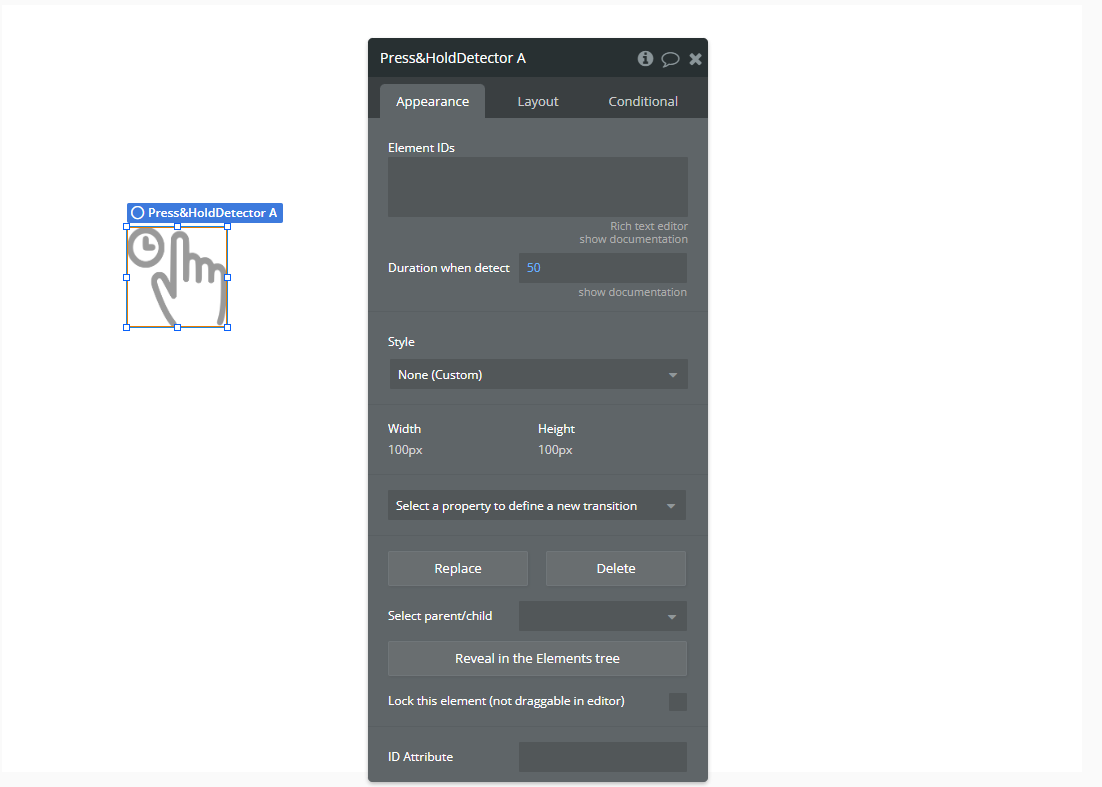
- Adding the "Press&Hold Detector" Element
- In the same Design tab, drag the Press&Hold Detector element onto the page.
- Place it over the element that should trigger the press & hold action.
- Creating Workflows
- Go to the Workflow tab.
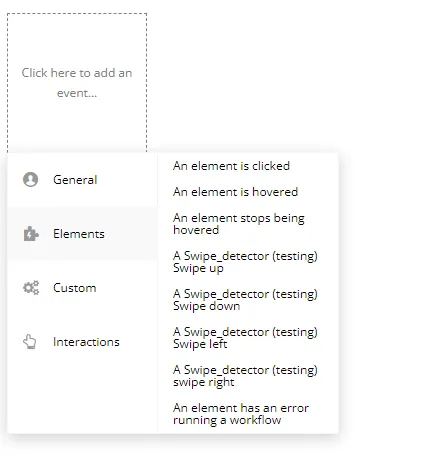
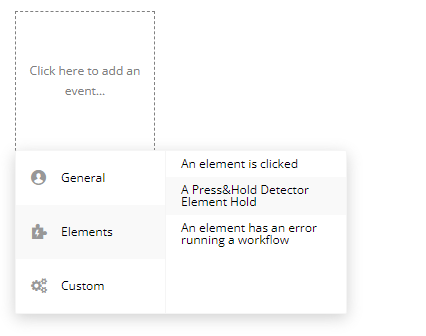
- To add a new event.
- Select one of the Swipe_detector events:
A Swipe_detector Swipe UpA Swipe_detector Swipe DownA Swipe_detector Swipe LeftA Swipe_detector Swipe Right- Add the action that should occur when the gesture is detected (e.g., navigating to another page, hiding a group, scrolling a list, etc.).
- Select the event "A Press&Hold Detector Element Hold".
- Define the action to be executed when the user presses and holds the element.
Creating Swipe Events
Creating a Press & Hold Event
Plugin Element Properties
Swipe_detector
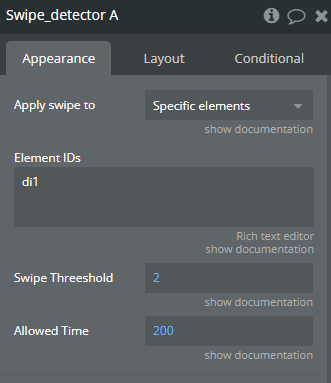
Fields:
Title | Description | Type |
Apply swipe to | If Whole Page selected, Elements IDs field is ignored by plugin. Available options: Whole page, Specific elements | Dropdown |
Element IDs | Element IDs separated by a comma. Ex: elem1, elem2, elem3, … | Text (optional) |
Swipe Threeshold | Required min distance traveled to be considered swipe. | Number |
Allowed Time | Maximum time allowed to travel the swipe distance. | Number |
Element Events
Title | Description |
Swipe up | Triggered when a user swipes upward on the selected element(s) or page. |
Swipe down | Triggered when a user swipes downward on the selected element(s) or page. |
Swipe left | Triggered when a user swipes leftward on the selected element(s) or page. |
swipe right | Triggered when a user swipes rightward on the selected element(s) or page. |
Press&Hold Detector
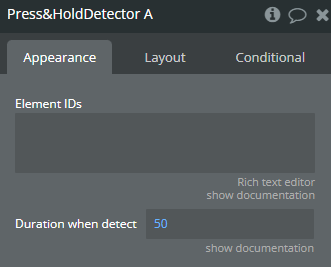
Fields:
Title | Description | Type |
Element IDs | Elements ID separated by a comma | Text |
Duration when detect | Increase or decrease value to adjust how long one should keep pressing down before the pressHold event fires | Number |
Element Events
Title | Description |
Element Hold | Triggered when a user presses and holds the specified element(s) for the configured duration. |