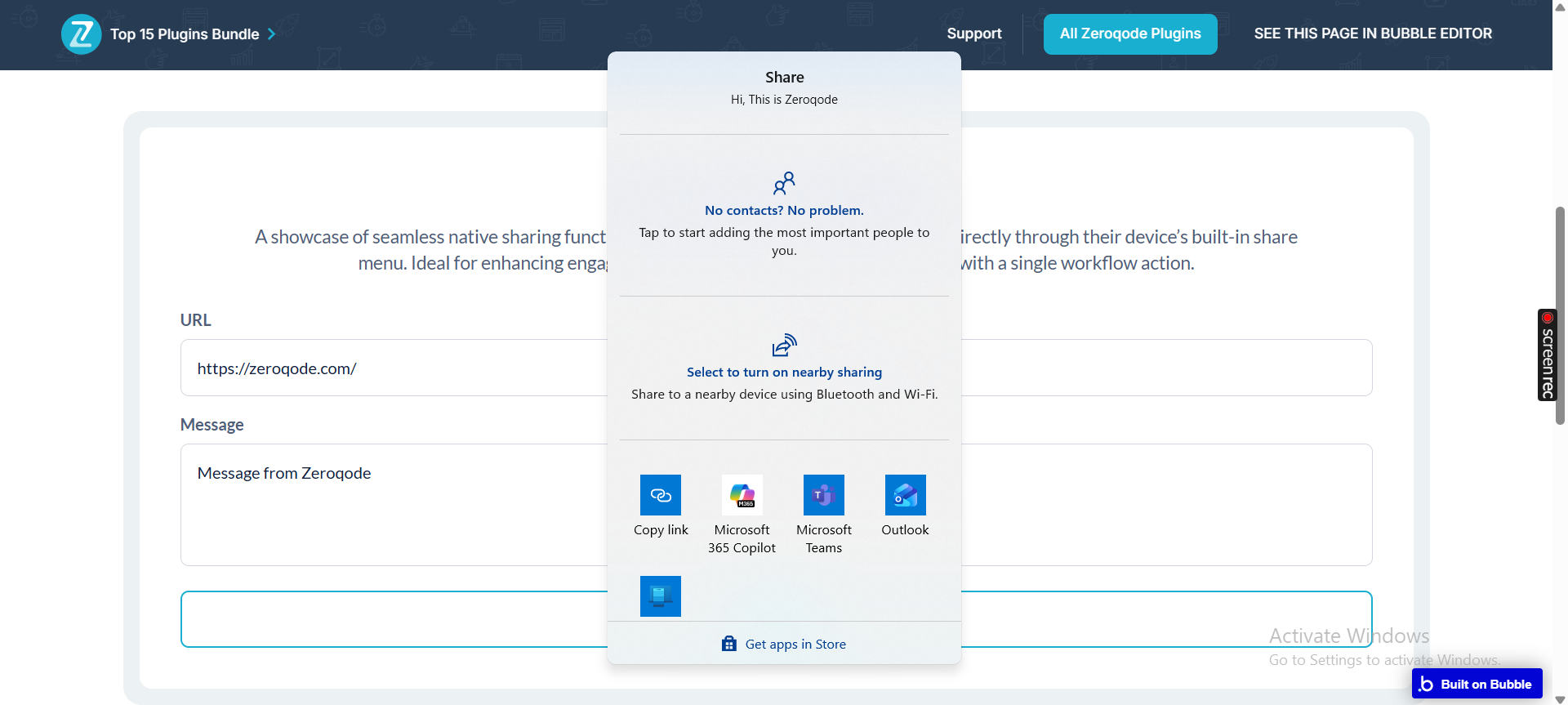
The Native Share (Web Share API) plugin lets you trigger your device’s built-in share dialog directly from Bubble workflows, allowing users to share text, URLs, or both with other apps (e.g., WhatsApp, Twitter, or Email).
It’s designed to make sharing content on mobile devices fast, intuitive, and native, without relying on external APIs or complicated integrations.
If a browser does not support the Web Share API, the plugin automatically triggers an event so you can run an alternative workflow (such as showing a “copy link” popup).
Key Features
Native Share Action – Invoke the device’s native share sheet directly from Bubble workflows.
Share Text & URLs – Send a message, a link, or both - dynamically or statically.
Workflow Integration – Add the share action to any Bubble workflow (e.g., on button click).
Cross-App Compatibility – Share to messaging, social, or email apps using native system options.
Dynamic Content Support – Customize shared text and URLs dynamically for each page or user.
Fallback Event Support – Detect unsupported browsers and trigger alternate workflows.
Mobile-Optimized – Works best on Android and iOS browsers that support the Web Share API.
Prerequisite(s)
Before using the plugin:
You must have a Bubble application set up.
Your users must be accessing your app via a browser that supports the Web Share API (e.g., Chrome, Safari, Edge on mobile).
How to setup
Step 1. Install the Plugin
Open your Bubble Editor.
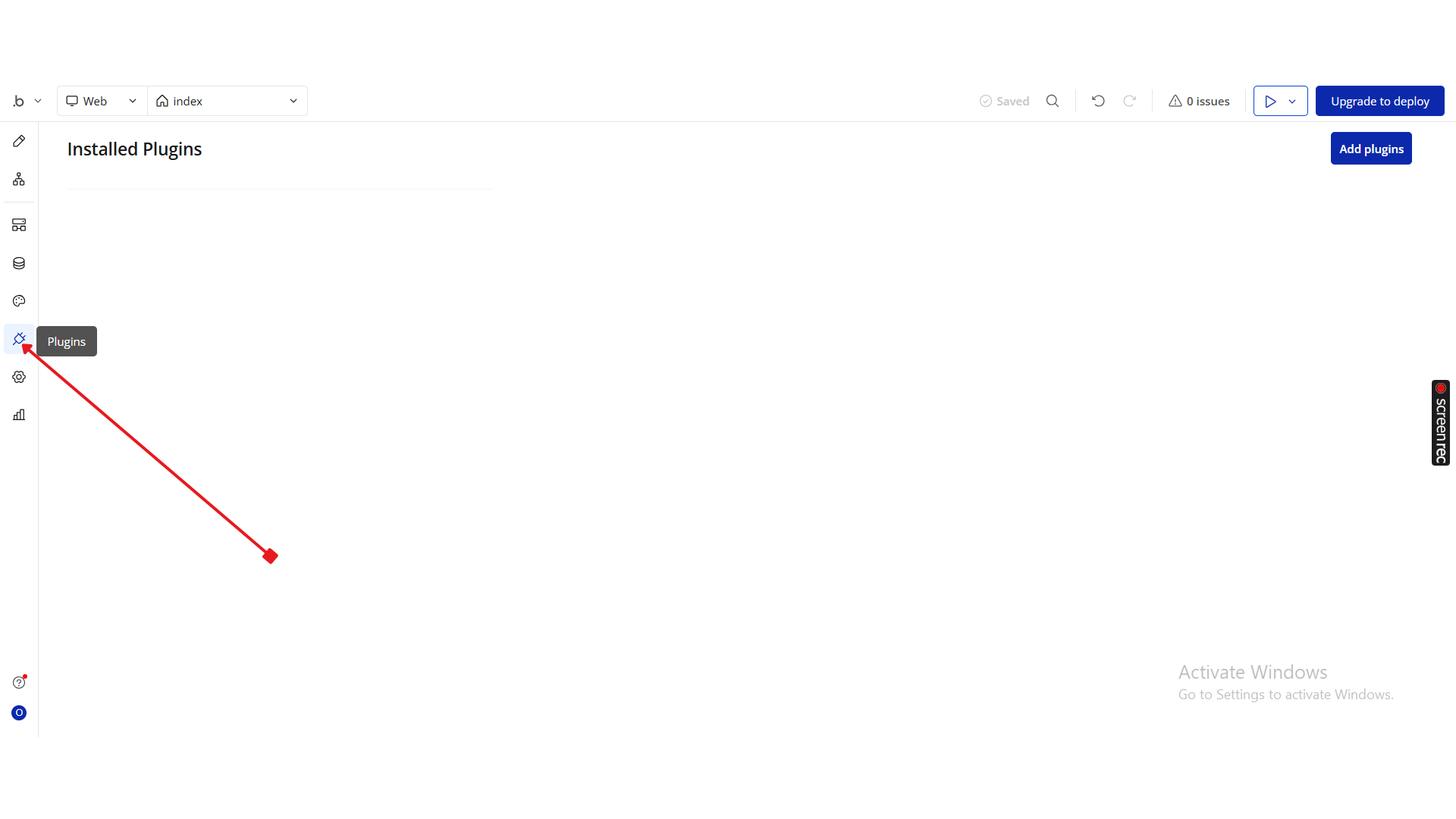
From the left sidebar, go to the Plugins tab.
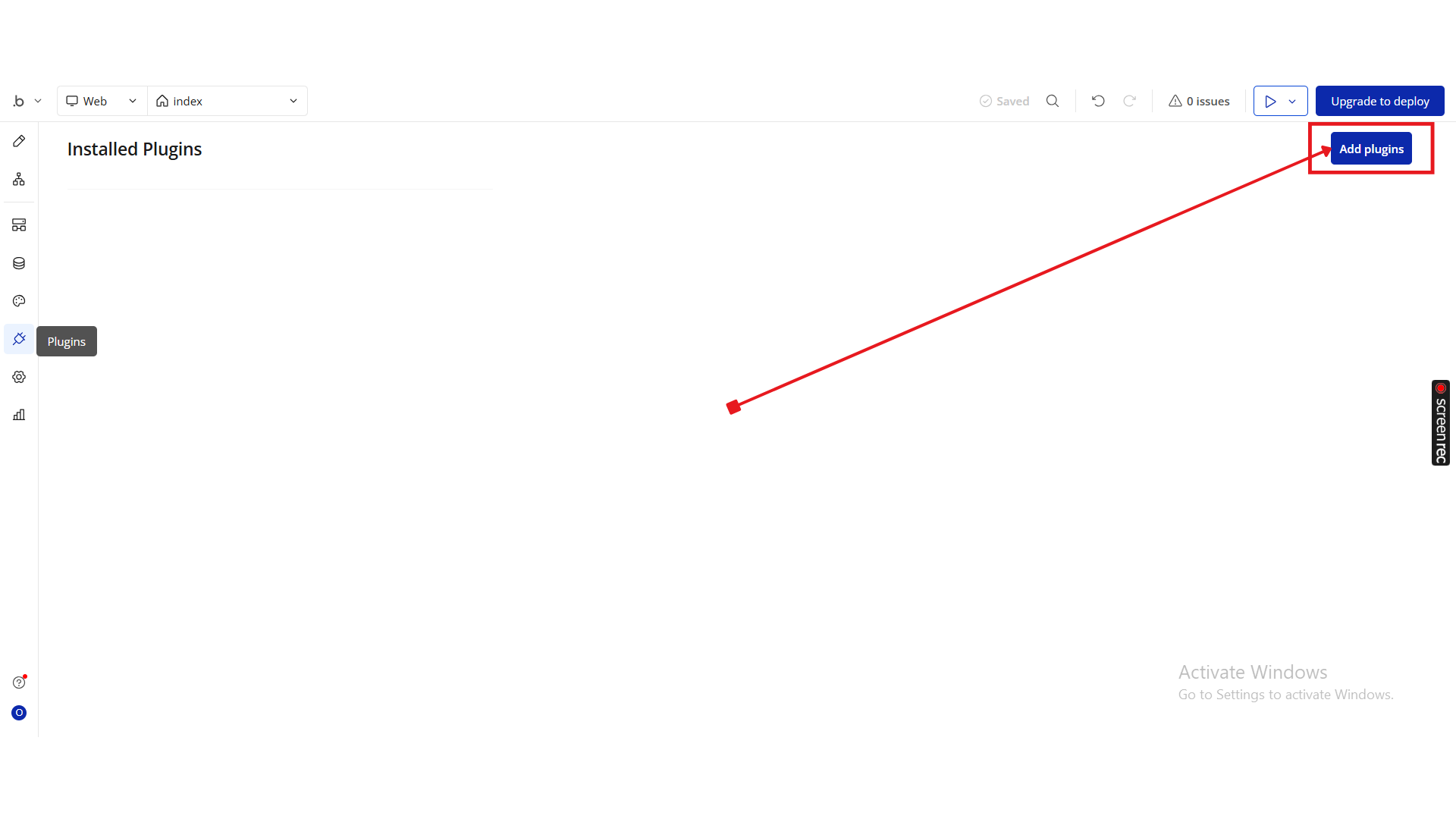
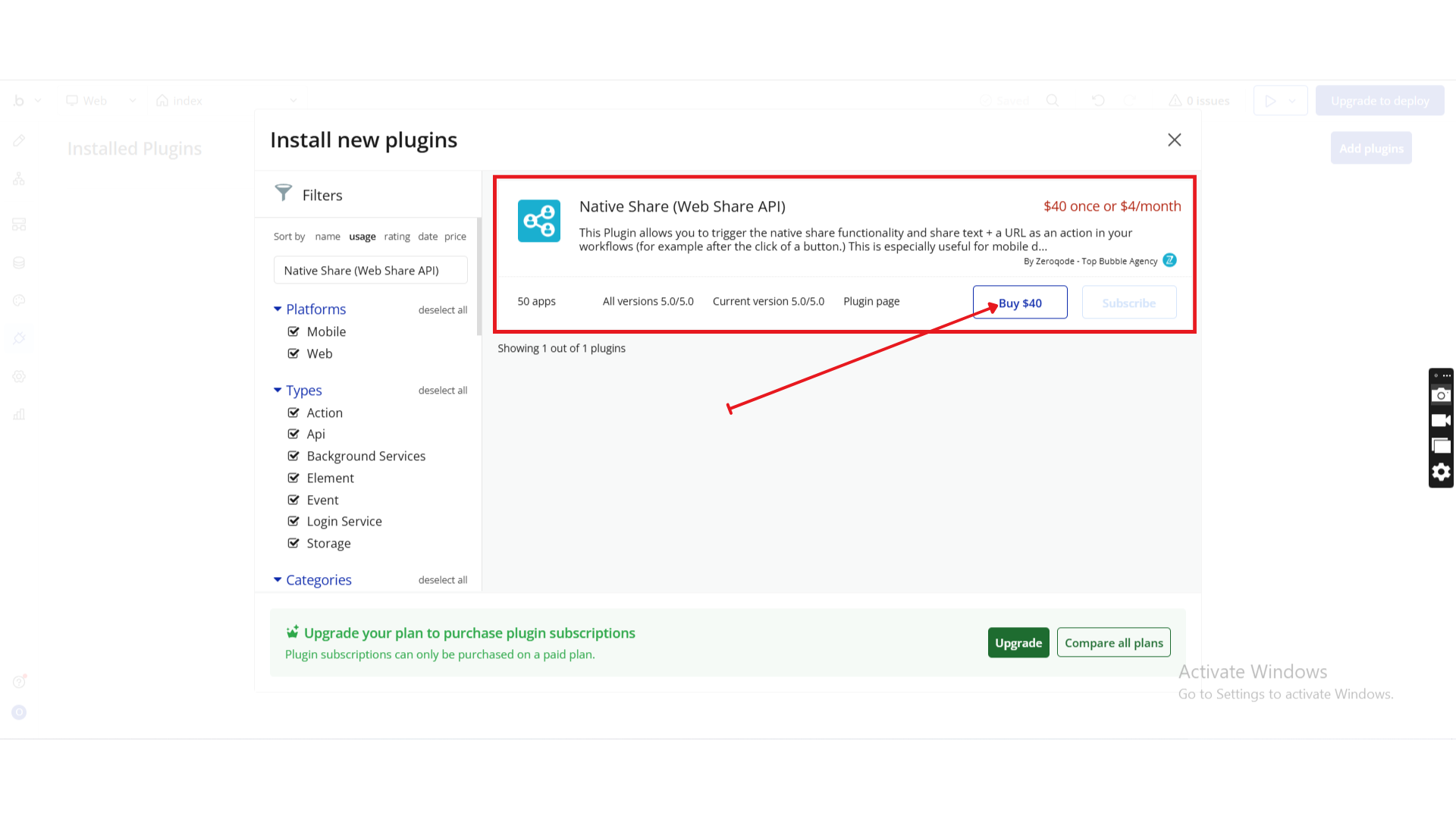
Click Add Plugins.
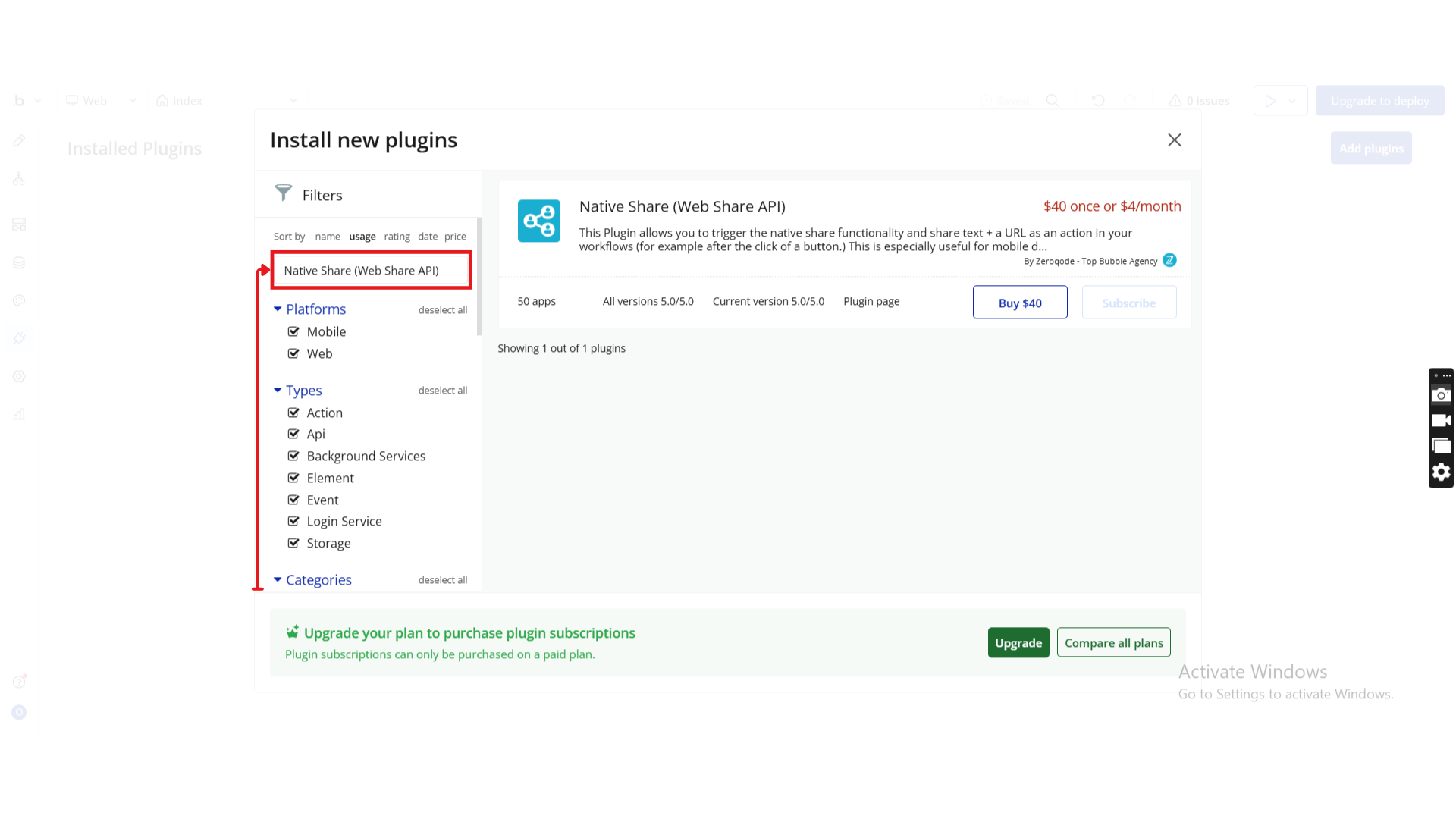
In the search bar, type Native Share (Web Share API).
Click Install (or Buy, if it’s a paid plugin).
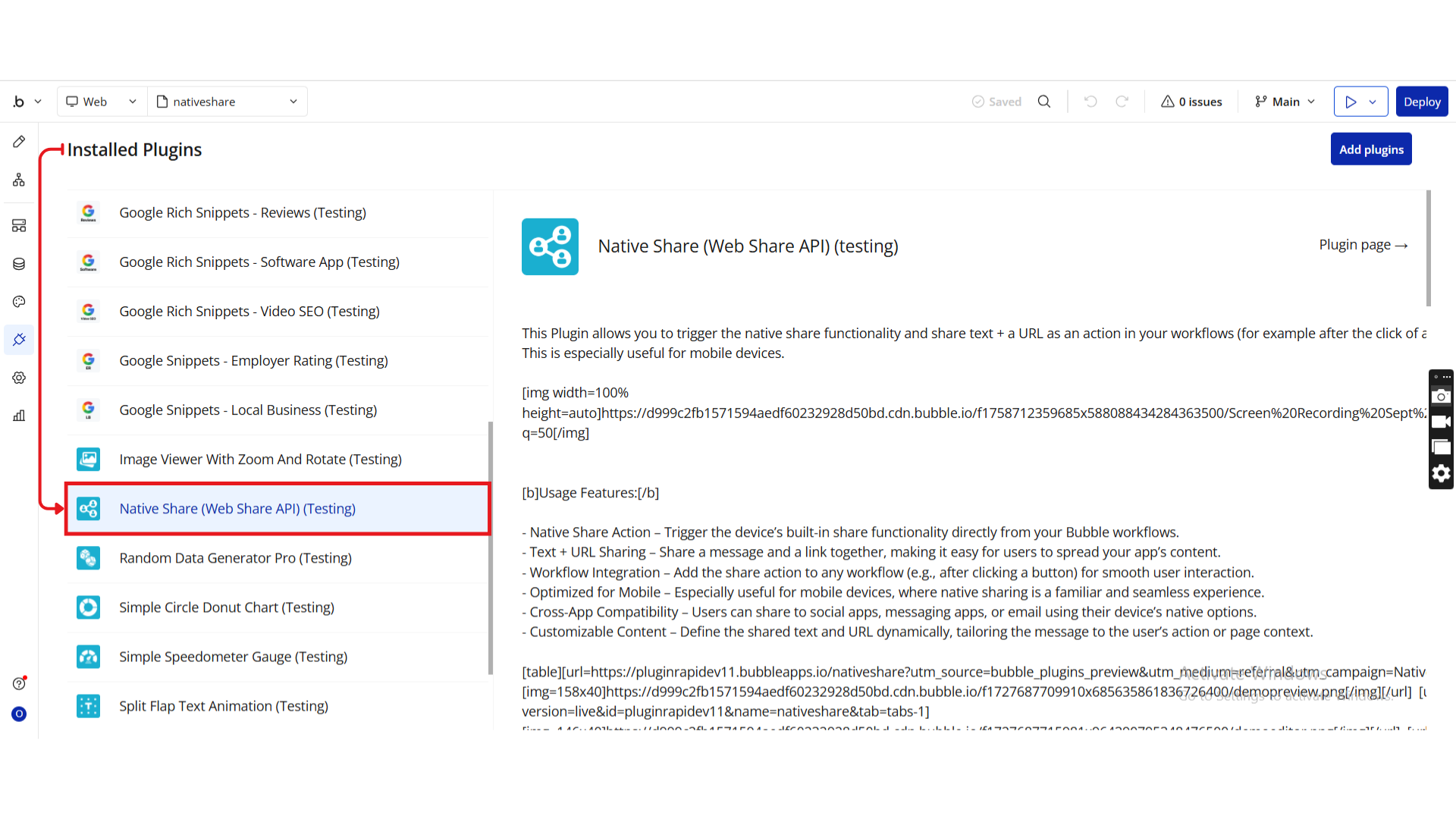
Once installed, you’ll see the plugin listed under Installed Plugins.
Step 2. Add the Plugin Element to Your Page
Open your Bubble Editor and navigate to the Design tab.
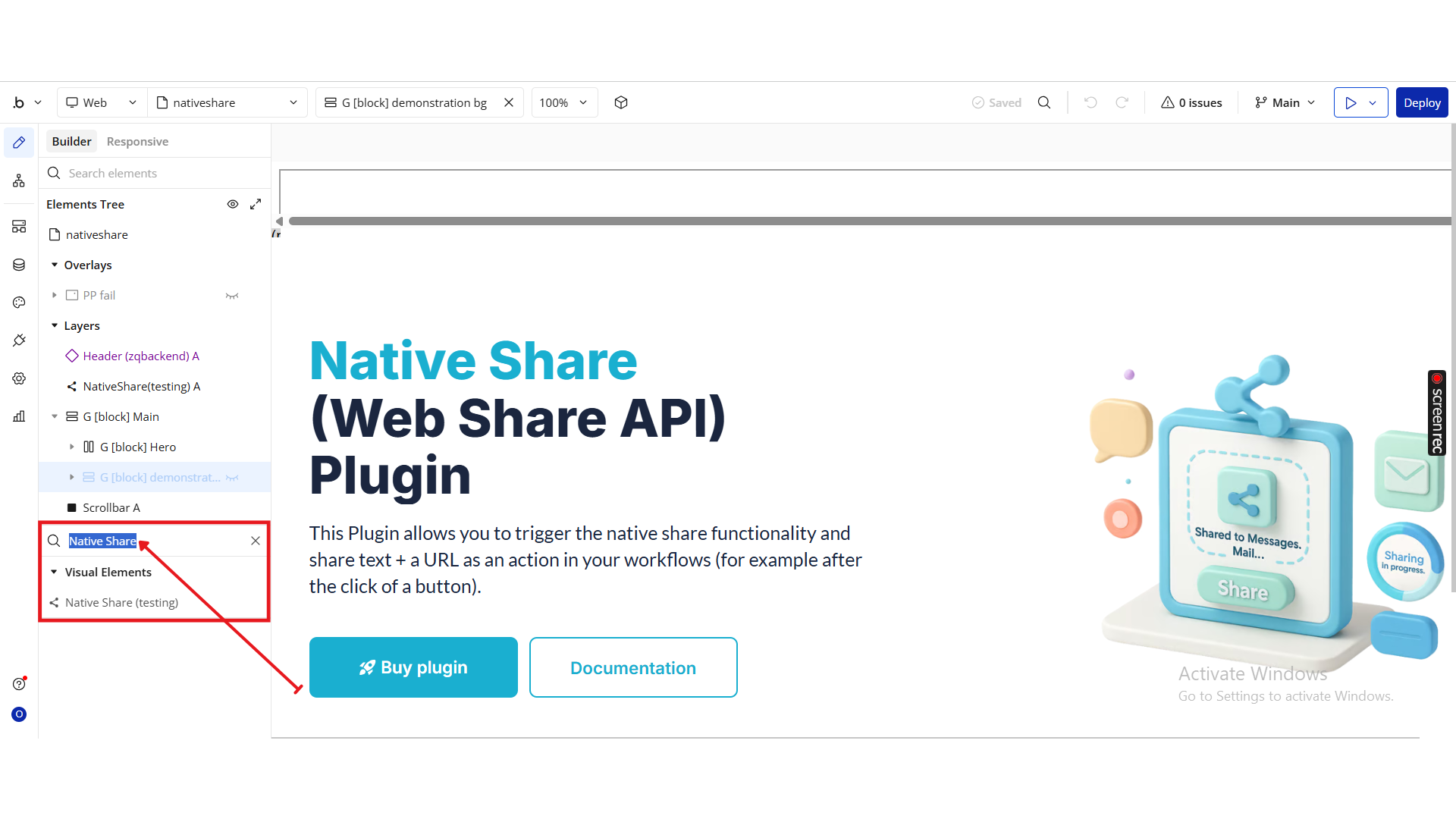
In the element search bar, type Native Share.
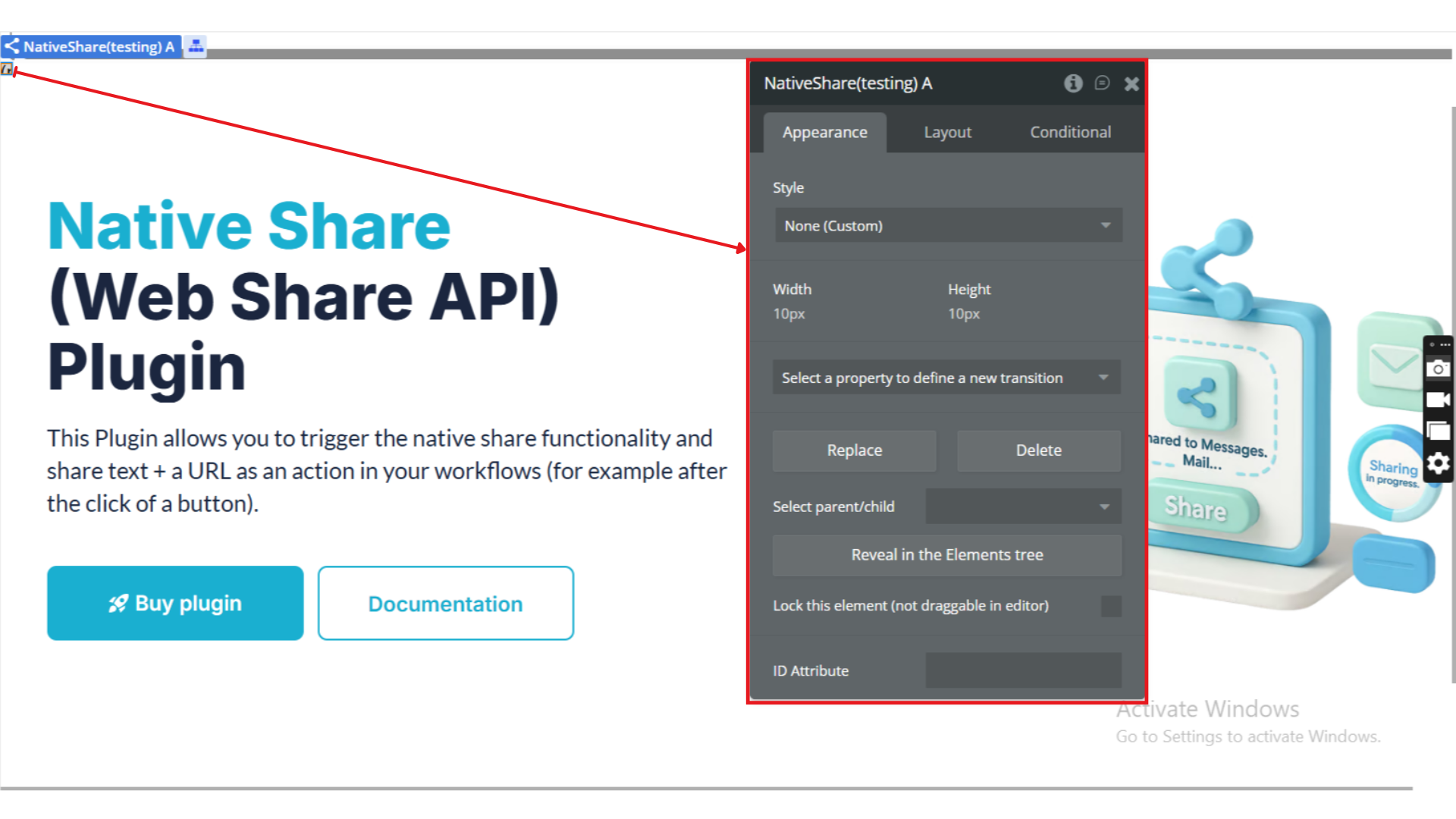
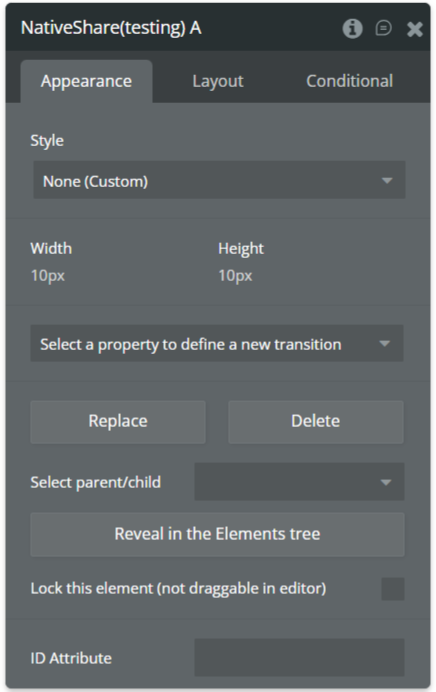
Drag and drop the Native Share element onto your page.
Position it appropriately — typically, this element doesn’t need to be visible to users. It will act as the functional component for triggering the native sharing workflow.
Step 3. Add the Action to Your Workflow
Use the workflow editor to connect your share button to the plugin’s action.
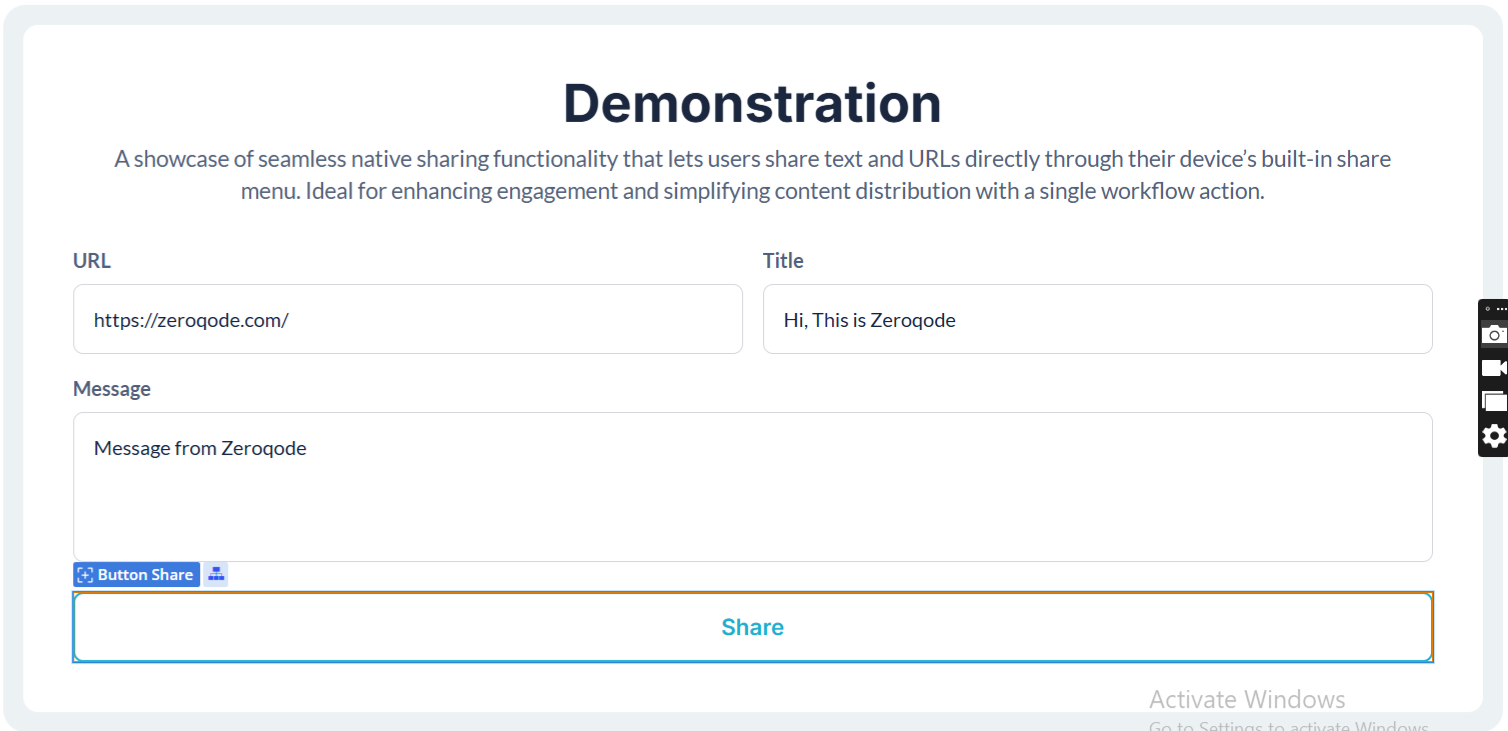
Refer to the demonstration below for guidance:
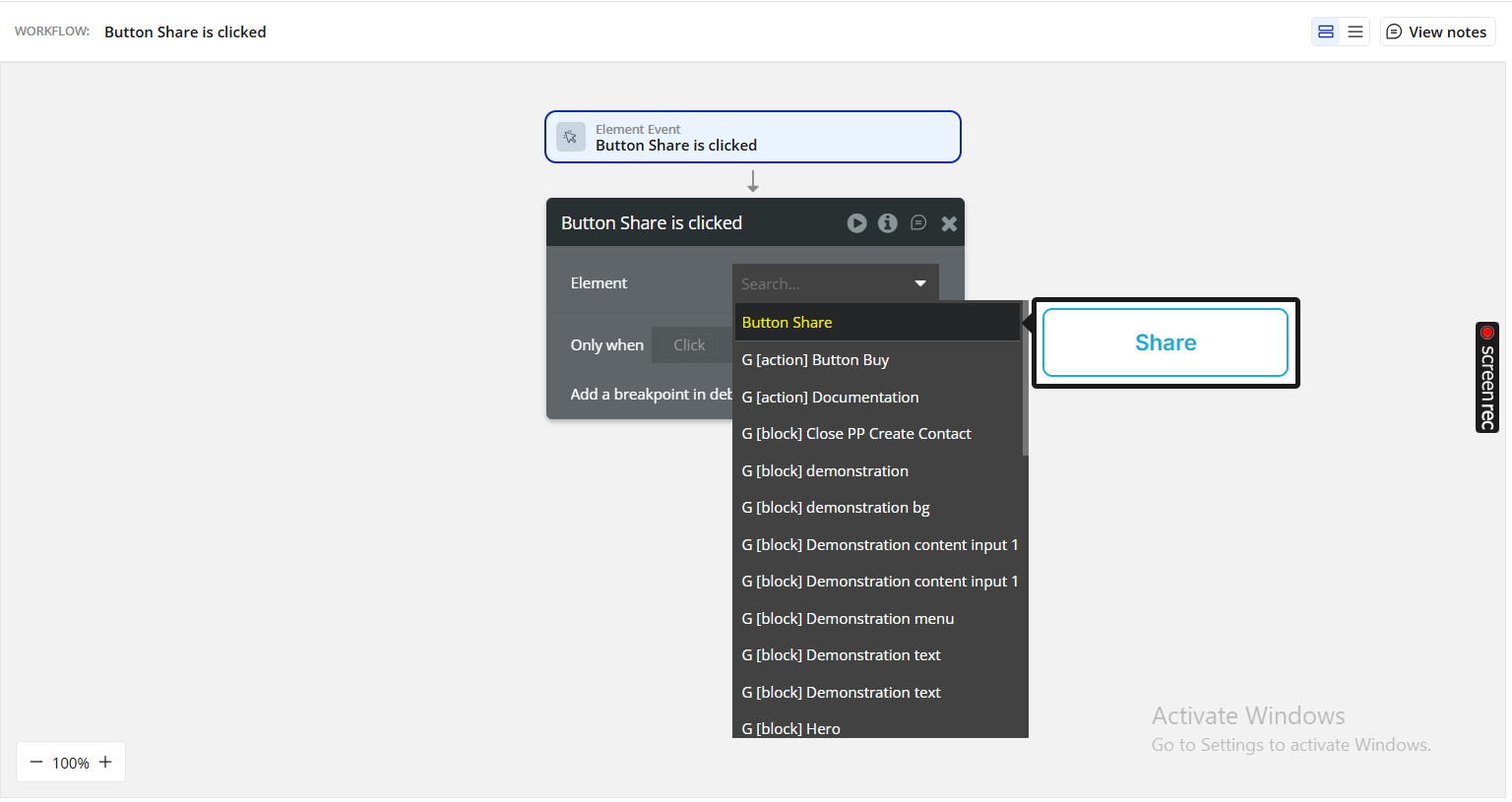
Go to the Workflow tab in your Bubble Editor.
Choose a trigger event (for example: When Button Share is clicked).
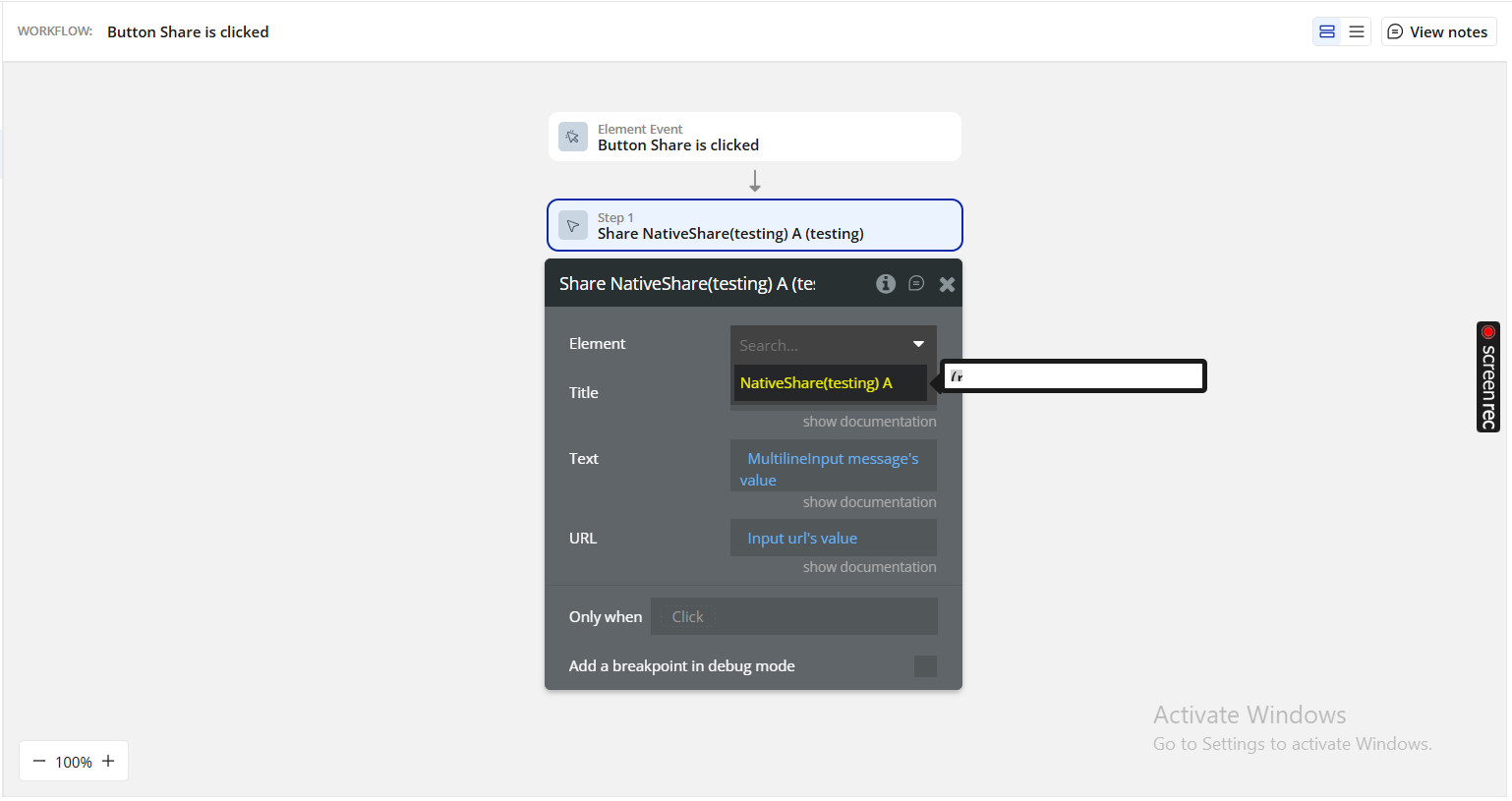
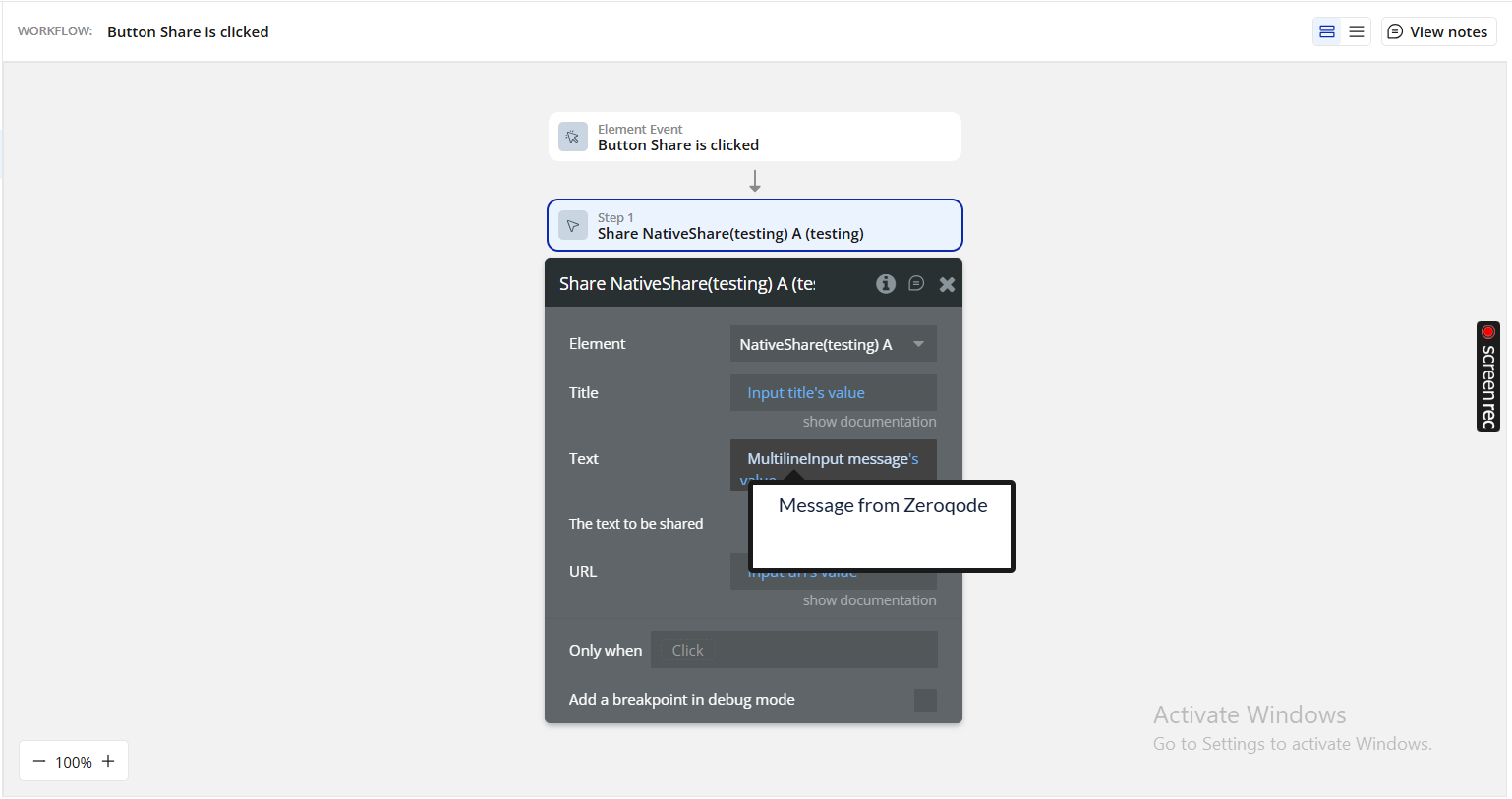
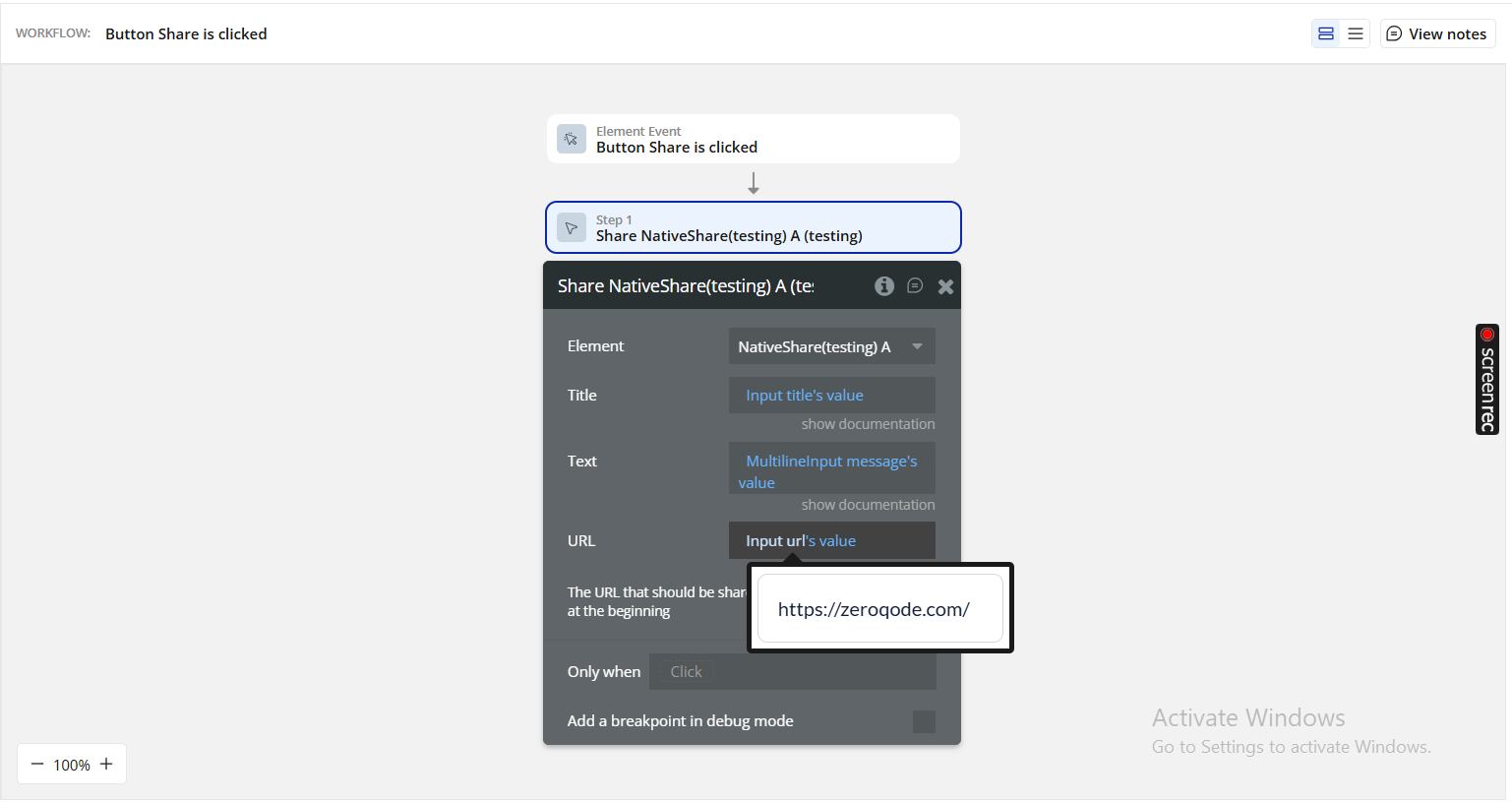
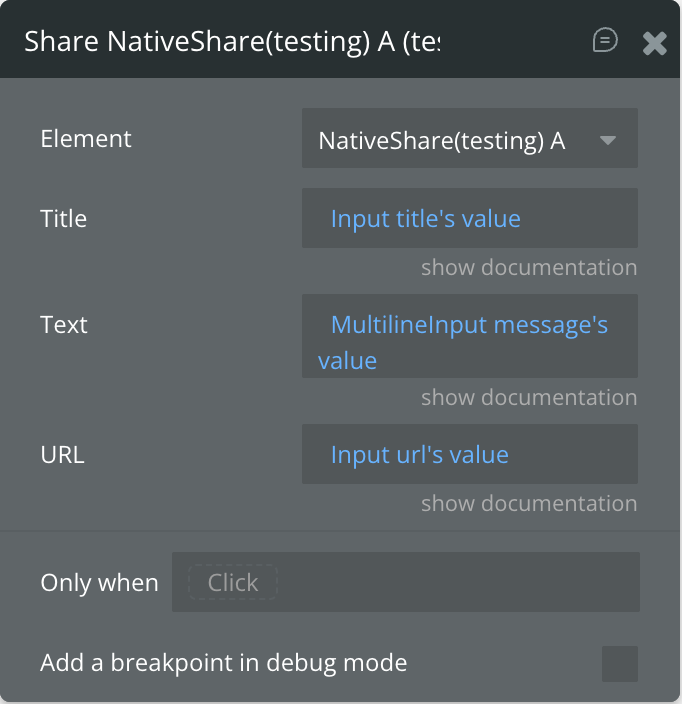
Add a new action → Plugins → Native Share – Share.
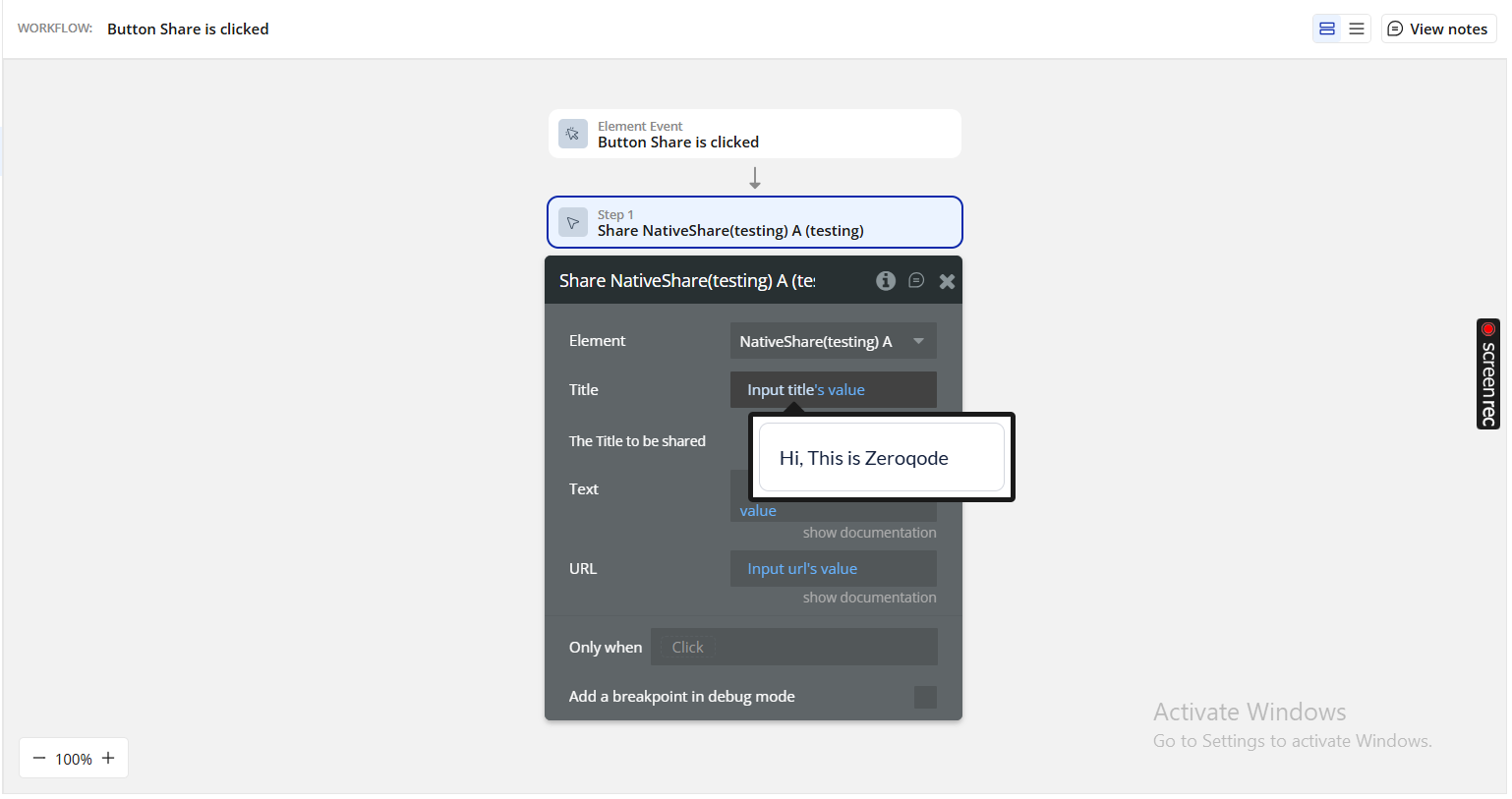
Fill in the following fields:
Title: The main title displayed in the share dialog.
Text: The message or description to be shared.
URL: The web link to be included. Ensure it starts with https://.
You can use static text (e.g., “Message from Zeroqode”) or dynamic data (e.g., Current Page's Title, Current Page's URL).
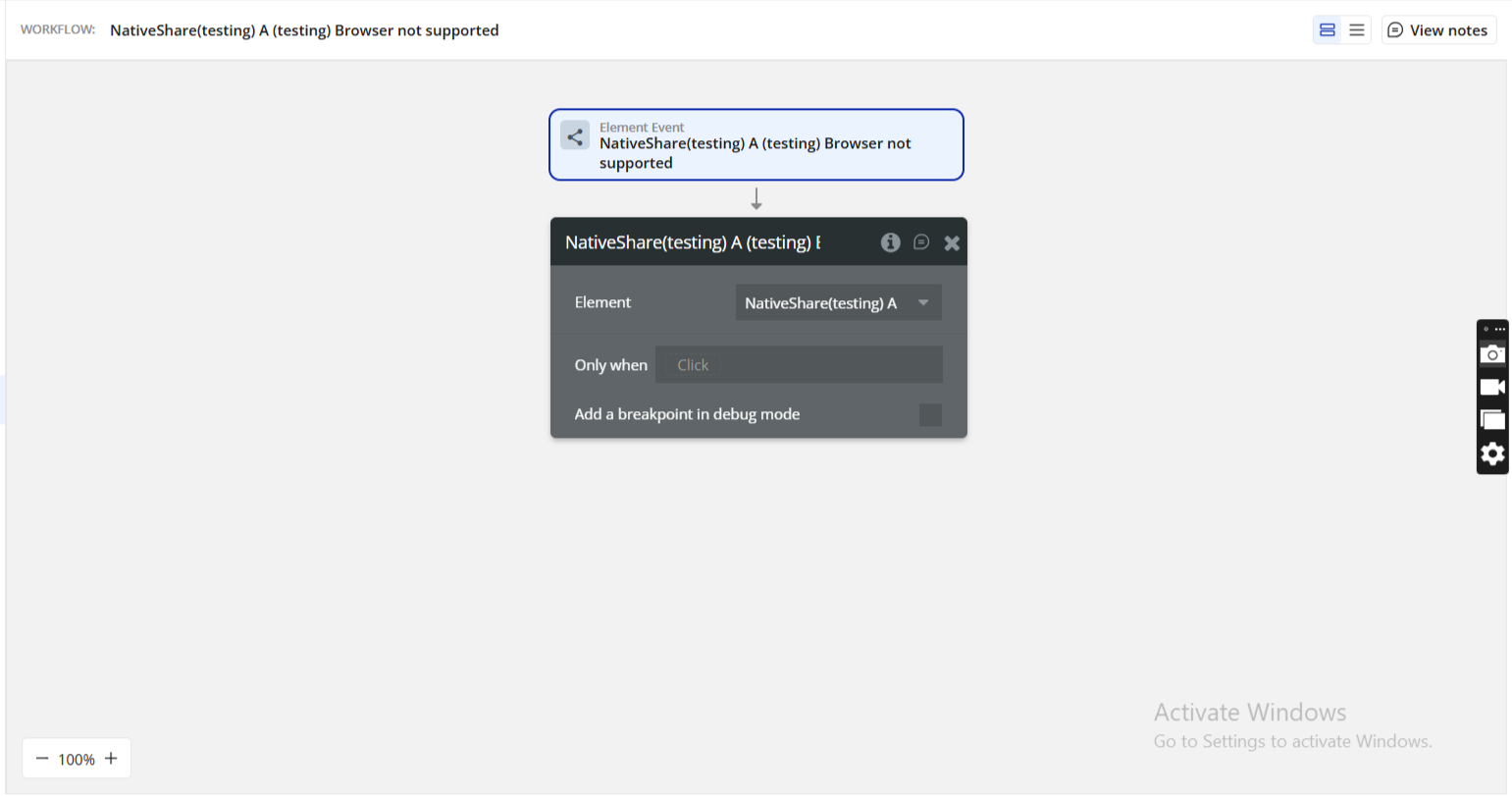
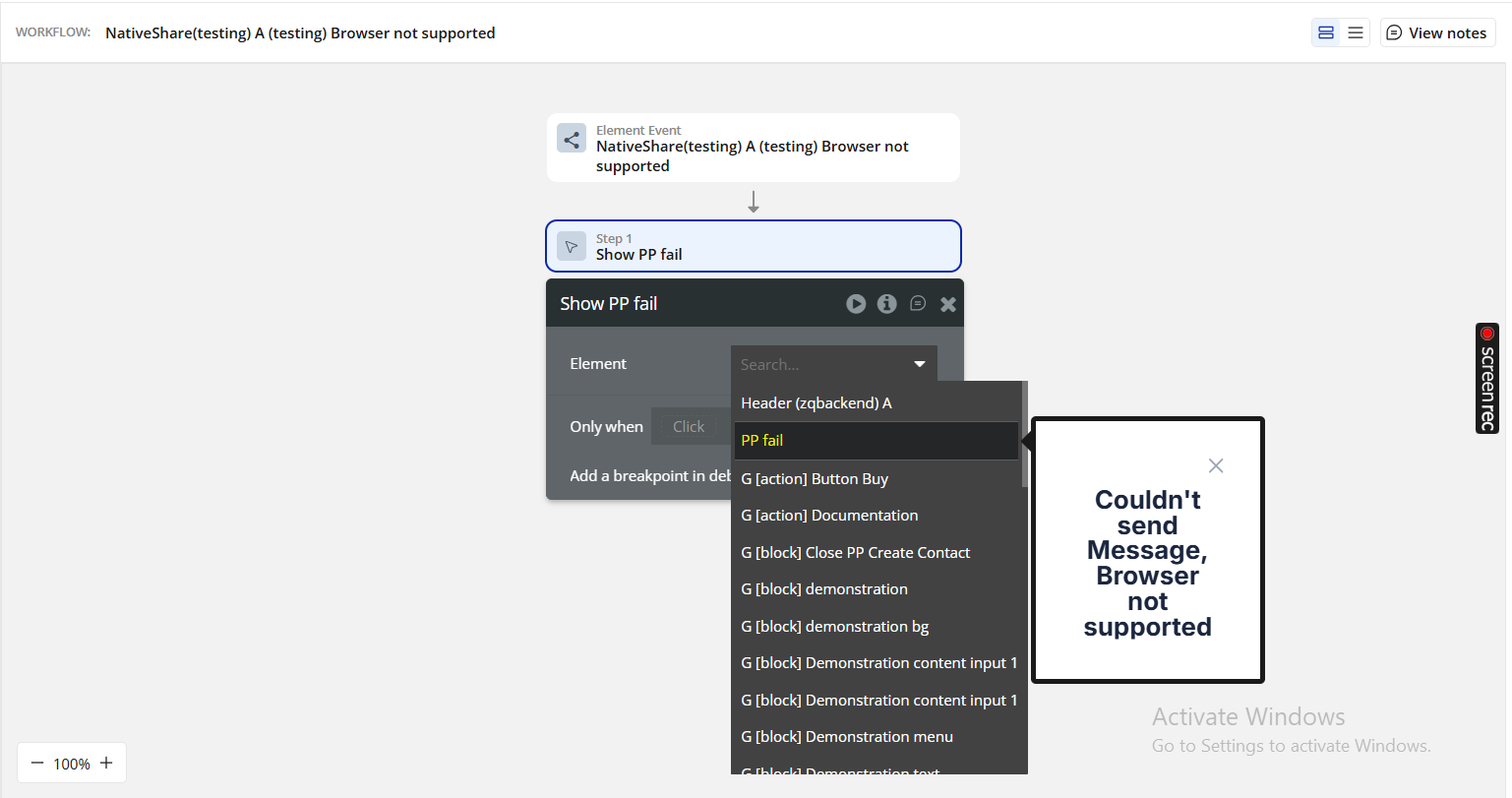
Optionally, add a fallback workflow that runs when the browser does not support the Web Share API — for example, showing a “Couldn't send Message, Browser not supported” popup.
Step 4. Preview and test
Click Preview in your Bubble Editor.
When you click the share button on a supported device, the native share dialog should appear.
Test on both Android and iOS devices for best results.
Plugin Element - Native Share
This plugin provides a single action (Share) that interacts directly with the browser’s Web Share API to send text, titles, and URLs to native sharing targets (social apps, messaging apps, email clients, etc.).
Element Actions
Available Action: Share
Title
Description
Type
Title
Defines the title displayed at the top of the native share sheet. This is optional but improves context (e.g., “Check this out!”).
Text
Text
The message or body text you want users to share. This can be static or dynamically generated (e.g., “Invite your friends to try our app!”).
Text
URL
The link you want shared. Important: Ensure it starts with https:// for browser compatibility. Can be dynamic, e.g., Current Page URL.
Text
Behavior:
The action calls the device’s native share interface.
On successful share, the “Content Shared successfully” event is triggered.
If unsupported (desktop browsers, older versions), the “Browser not supported” event fires, allowing you to show an alert or run alternative logic.
Element Events
Title
Description
Content Shared Successfully
Triggered when the content is successfully shared using the device’s native share sheet.
Browser Not Supported
Triggered when the user’s browser doesn’t support the Web Share API, enabling a fallback workflow (e.g., copy to clipboard, show message).
Changelogs
Update 21.09.26 - Version 2.2.0
Fixed share events firing before the user completes or cancels the share