
Link to component page: https://www.framer.com/marketplace/components/liquid-gradient-bg/
Introduction
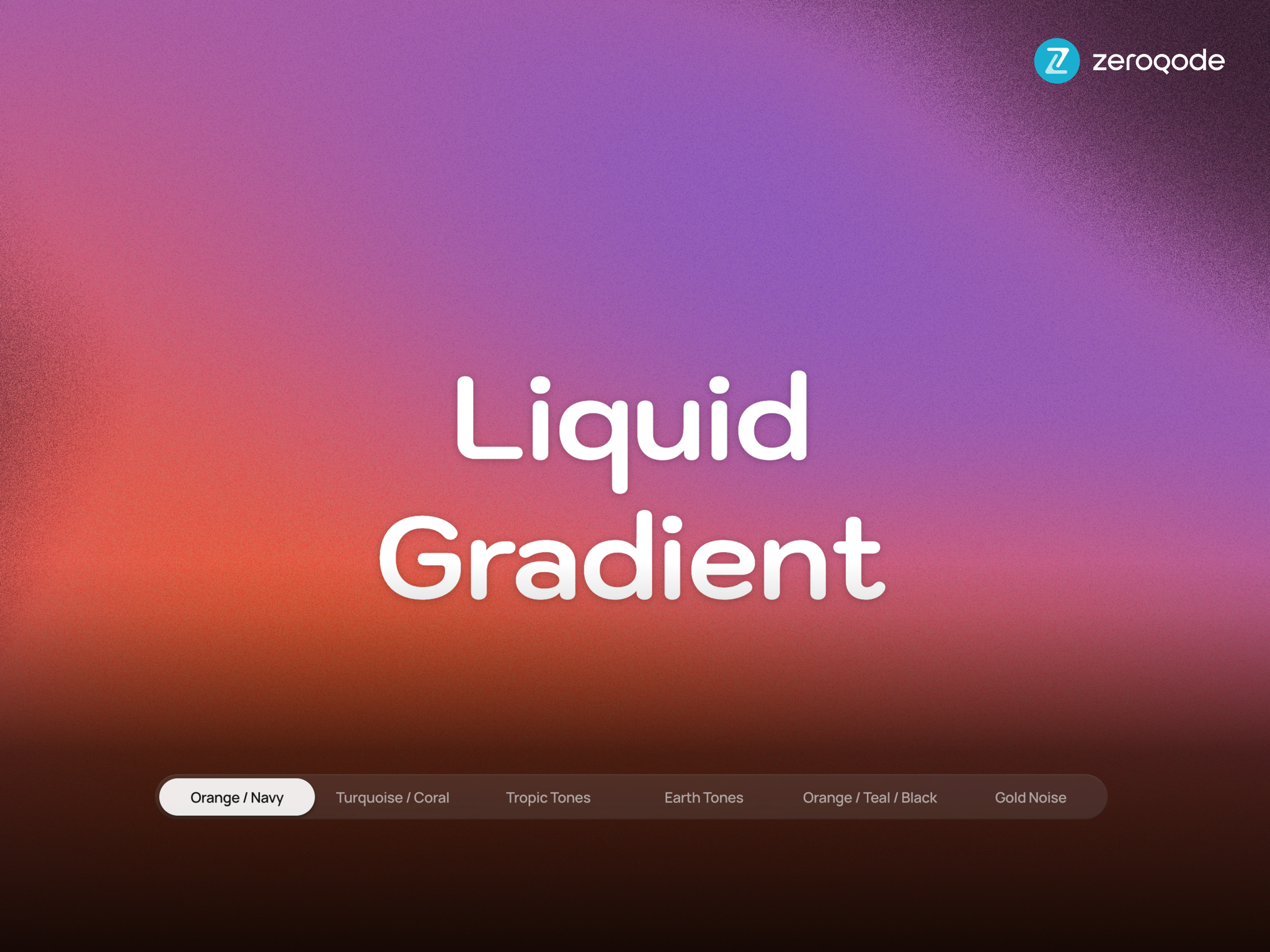
Liquid Gradient Background is an interactive WebGL backdrop component for Framer. It renders a fluid, animated gradient field that reacts to cursor movement with a water‑ripple distortion. The component ships with two visual engines and ten built‑in color presets:
- Liquid Gradient engine — up to 12 animated colour blobs orbiting around the canvas, blended with two radial overlays, gamma correction, film grain and cursor‑driven water distortion. Designed for hero sections, login screens and large feature areas.
- Gold Noise engine — a calm, premium 4D simplex noise field tinted with a single accent colour over a custom background, with an optional radial glow. Designed for footers, dark sections and luxury / financial brand contexts.
The component is SSR‑safe (gates WebGL behind a
mounted flag and RenderTarget check), respects the Framer canvas (renders a static CSS preview by default), tracks the container with a ResizeObserver rather than the window, and properly disposes all GL resources on unmount or preset switch.How to setup
- Drop the component onto the canvas — by default it fills its parent (
any-prefer-fixedfor both width and height) and shows the Orange / Navy preset
- In the property panel, pick a Scheme. Tweak Speed, Mouse FX and Radius to fit the frame
- To customise colours, set Scheme to Custom — six colour slots plus a base colour appear
- To use the noise look, pick 10 · Gold Noise — the panel swaps to noise‑specific controls (Noise colour, Background, Scale, Opacity, Glow…)
- Optional: enable Animate in Editor if you want the WebGL animation to run live on the Framer canvas (otherwise the editor shows a static CSS preview for performance)
- Preview
Component Properties
General
Title | Description | Type |
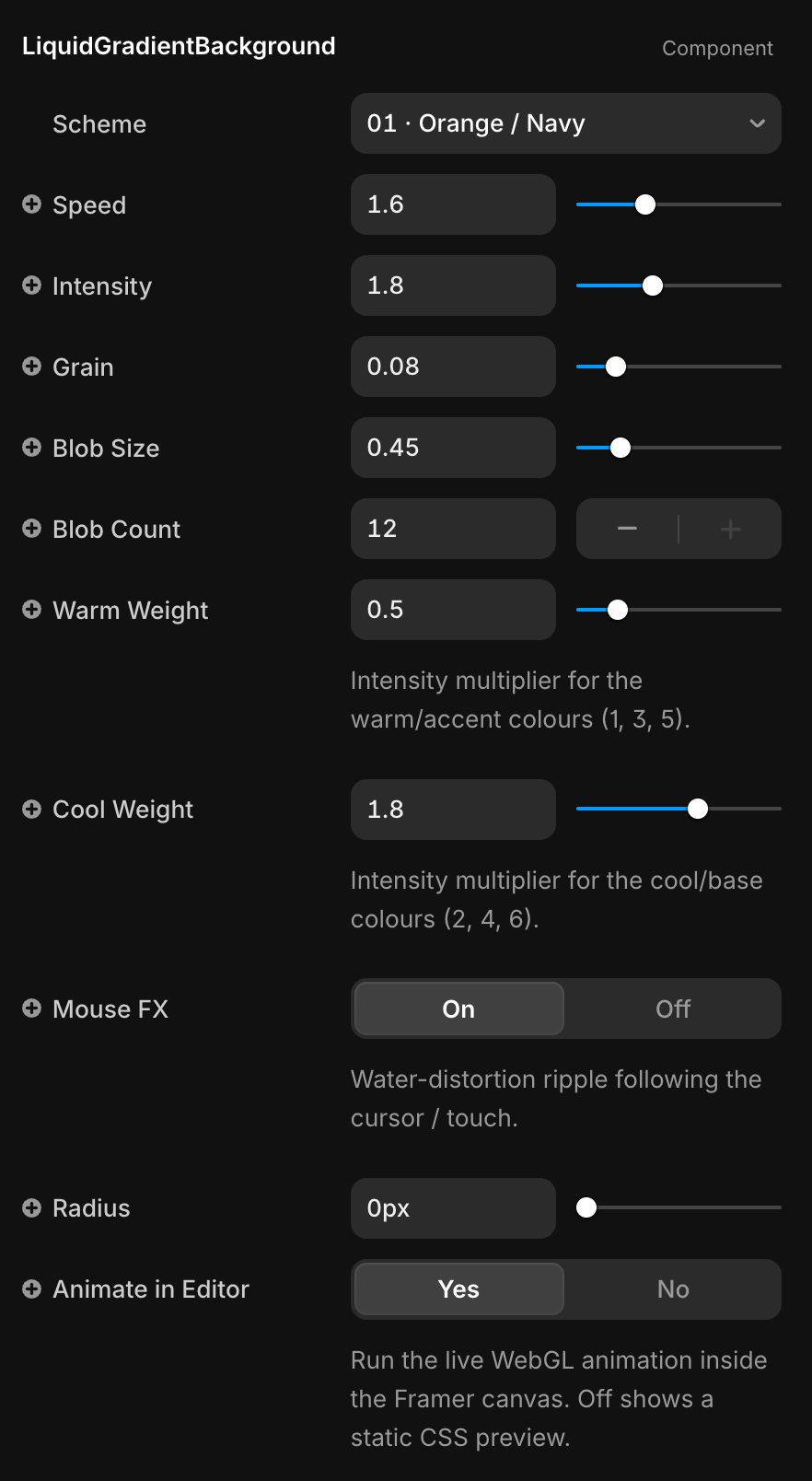
Scheme | Visual preset. Ten curated palettes plus Custom for manual colour control and Gold Noise for the alternative engine. | Enum |
Speed | Global animation speed multiplier. Applied to both the liquid blob motion and the noise field. | Number (0 – 5) |
Mouse FX | Toggles the cursor / touch water‑ripple distortion. Works in both Liquid and Gold Noise modes. | Boolean |
Radius | Border radius of the component container. Useful when used as a section background with rounded corners. | Number (px) |
Animate in Editor | Run the live WebGL animation inside the Framer canvas. When off, the editor shows a static CSS gradient preview to keep the editor responsive. The full animation still runs in Preview and on the published site. | Boolean |
Liquid Gradient mode (Scheme ≠ Gold Noise)
Title | Description | Type |
Color 1 – Color 6 | The six colours blended by the shader. Visible only when Scheme is set to Custom. Pattern depends on the preset — most presets use a warm, cool, warm, cool, warm, cool rhythm. | Color |
Base | Background colour shown where gradient blobs are sparse — also used as the floor of the brightness mix. Visible only when Scheme is Custom; presets ship with their own base. | Color |
Intensity | Final brightness multiplier applied after the colours are summed and clamped. Higher values push the gradient toward saturated highlights. | Number (0 – 5) |
Grain | Strength of the per‑pixel film‑grain overlay. Useful for masking colour banding on large flat areas. | Number (0 – 0.5) |
Blob Size | Radius of each colour centre — smaller values produce more defined, separated blobs, larger values smear them together. | Number (0.1 – 2) |
Blob Count | Number of orbiting colour centres (6, 8, 10 or 12). More centres mean denser, busier motion. | Number (6 – 12, step 2) |
Warm Weight | Intensity multiplier for the warm / accent colours (slots 1, 3, 5). Lower the value to push the look toward the cool colours. | Number (0 – 3) |
Cool Weight | Intensity multiplier for the cool / base colours (slots 2, 4, 6). Increase to deepen the dark / cool side of the gradient. | Number (0 – 3) |
Gold Noise mode (Scheme = Gold Noise)
Title | Description | Type |
Noise | Accent colour of the simplex‑noise field — the colour that “appears” inside the dark background. | Color |
Background | Solid background colour rendered behind the noise plane. | Color |
Scale | Noise pattern size. Lower values produce larger, softer blobs; higher values produce a finer, more textured grain. | Number (0.2 – 5) |
Opacity | Final alpha of the noise layer over the background. The original gold‑noise effect uses around 0.4. | Number (0 – 1) |
Glow | Toggles a soft radial glow placed at the top or bottom of the component, layered over the noise. | Boolean |
Glow Color | Colour of the radial glow. | Color |
Glow Size | Height of the glow as a percentage of the component height. | Number (5 – 100 %) |
Glow Position | Anchors the glow to the Bottom (default — matches the original footer use case) or the Top of the frame. | Enum |
Presets
# | Name | Vibe |
01 | Orange / Navy | Bold, energetic — the default look. Warm orange over deep navy. |
02 | Turquoise / Coral | Bright, tropical complementary pair. |
03 | Orange + Navy + Turquoise | Three‑colour variant of preset 01 with added turquoise pops. |
04 | Earth Tones | Muted coral / teal / peach. Warm, editorial. |
05 | Orange / Teal / Black | High‑contrast, almost graphic — orange punches over deep teal and black. |
06 | Cyberpunk | Neon magenta and electric blue over near‑black. |
07 | Iridescent | Soft lilac, mint and pink — holographic. |
08 | Midnight Galaxy | Indigo, violet and crimson over a near‑black space base. |
09 | Peach Cream | Warm peach / coral / cream over a deep brown — soft and editorial. |
10 | Gold Noise | Calm 4D simplex‑noise field tinted gold over black, with optional warm bottom glow. |
— | Custom | Manual control of all six colours and the base. |
Mouse FX
When Mouse FX is enabled, cursor movement (and touch movement on mobile) draws a trail into an internal 64×64 “touch texture”. This texture is sampled by the fragment shader to:
- Liquid mode: distort the gradient UVs (water ripple), add concentric sine ripples and waves around the cursor
- Gold Noise mode: distort the noise UVs, push the noise pattern locally forward in time, and slightly boost the colour brightness — so the cursor leaves a transient golden “spark” trail
The trail fades out automatically over ~64 frames. The effect is purely visual — it does not consume pointer events from elements stacked above the component.
Responsive Behavior
- The component fills its parent (
width: 100%; height: 100%) and uses@framerSupportedLayoutWidth/Height: any-prefer-fixed, so by default it stretches to fit the frame Framer gives it.
- An internal
ResizeObserverwatches the container and updates the WebGL viewport, shader resolution uniform and the underlying plane geometry whenever the frame is resized — so the gradient remains correctly proportioned across breakpoints.
- The component uses
Math.min(window.devicePixelRatio, 2)for the WebGL pixel ratio, capping the GPU cost on retina displays.
Performance Notes
- Editor: the live WebGL animation is disabled on the Framer canvas by default — the component shows a static CSS multi‑radial‑gradient preview so the editor stays responsive. Toggle Animate in Editor if you want the live shader inside the editor.
- SSR: published Framer sites are server‑rendered. The component gates all WebGL initialisation behind a
mountedflag (set inuseEffect) and aRenderTargetcheck, so the server snapshot and the first client render are identical — no hydration errors.
- Switching presets: changing between Liquid and Gold Noise tears down one engine and builds the other (different camera, shader, geometry). Within the same engine, prop changes (colours, speed, weights…) only update uniforms — no WebGL rebuild.