Demo to preview the plugin:
Introduction
The Image Zoom on Hover Pro plugin enhances user interaction by allowing images to magnify smoothly when hovered. This feature gives users an interactive way to inspect details - ideal for product displays, artwork, photography, portfolios, or any content requiring closer visual examination. The plugin supports both static and dynamic image sources and provides a high level of customization, including zoom strength, animation style, duration, and layout behavior.
Key Features
Prerequisites
Before using the Image Zoom on Hover Pro plugin, make sure the following setup requirements are completed:
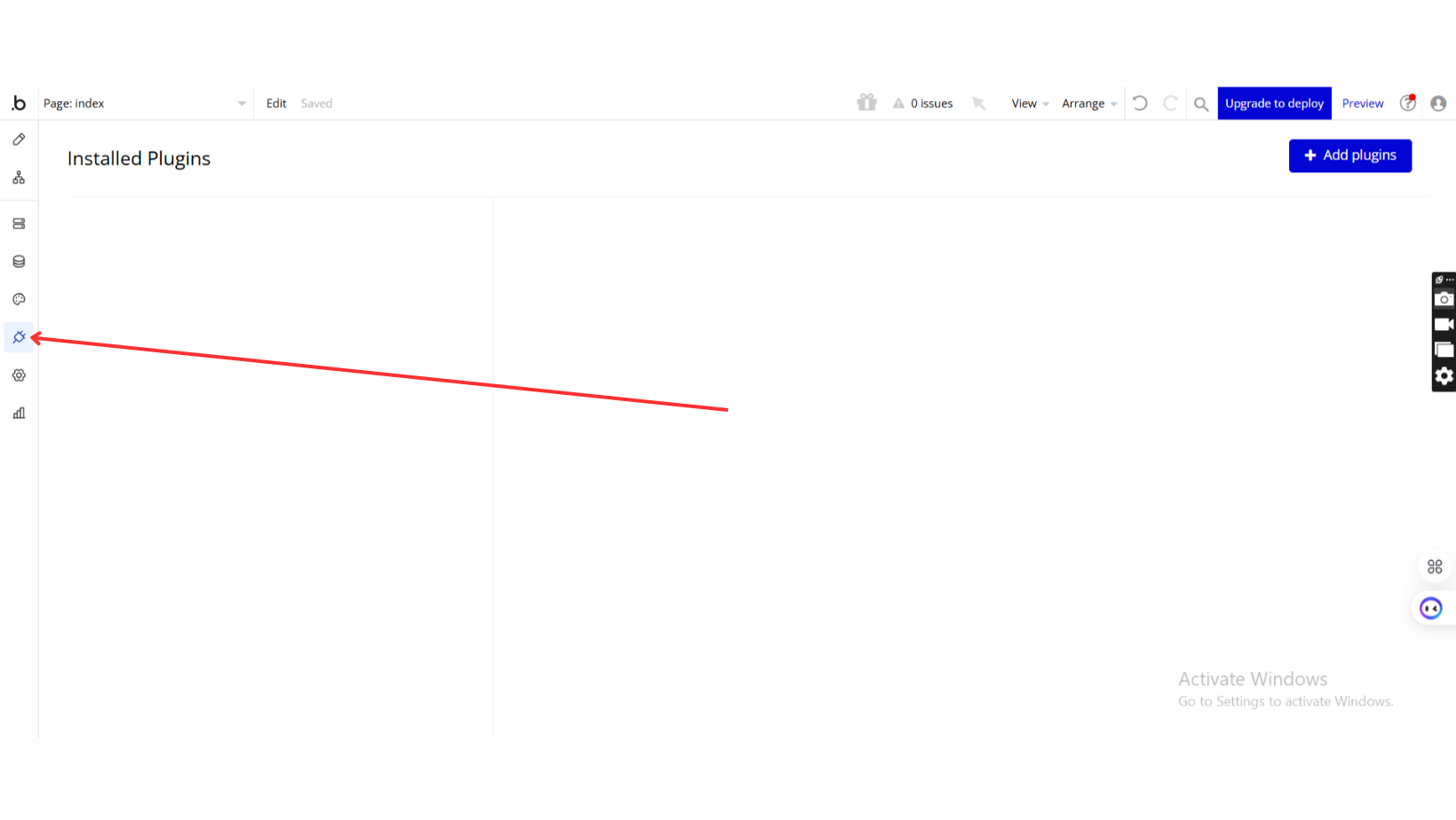
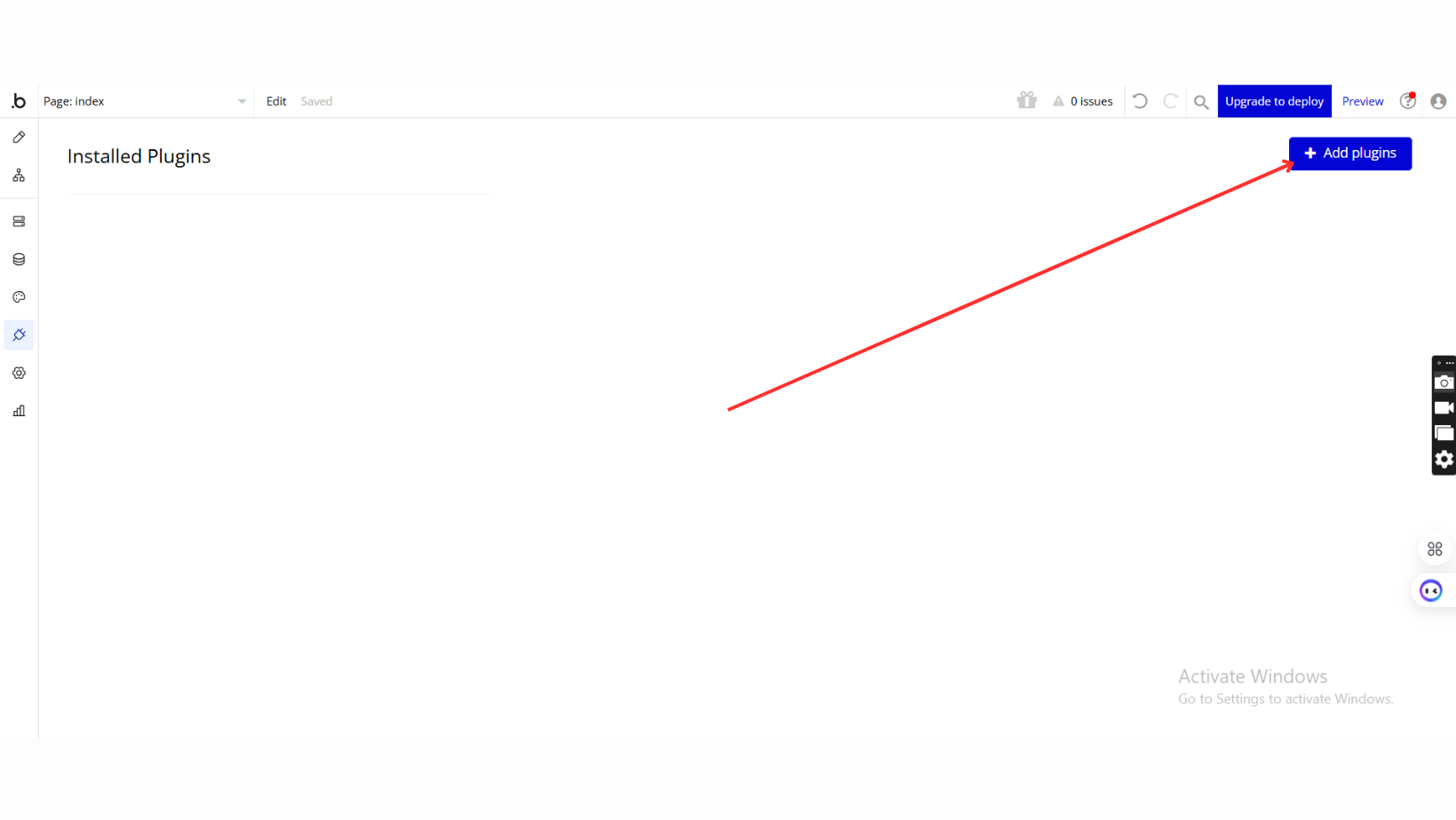
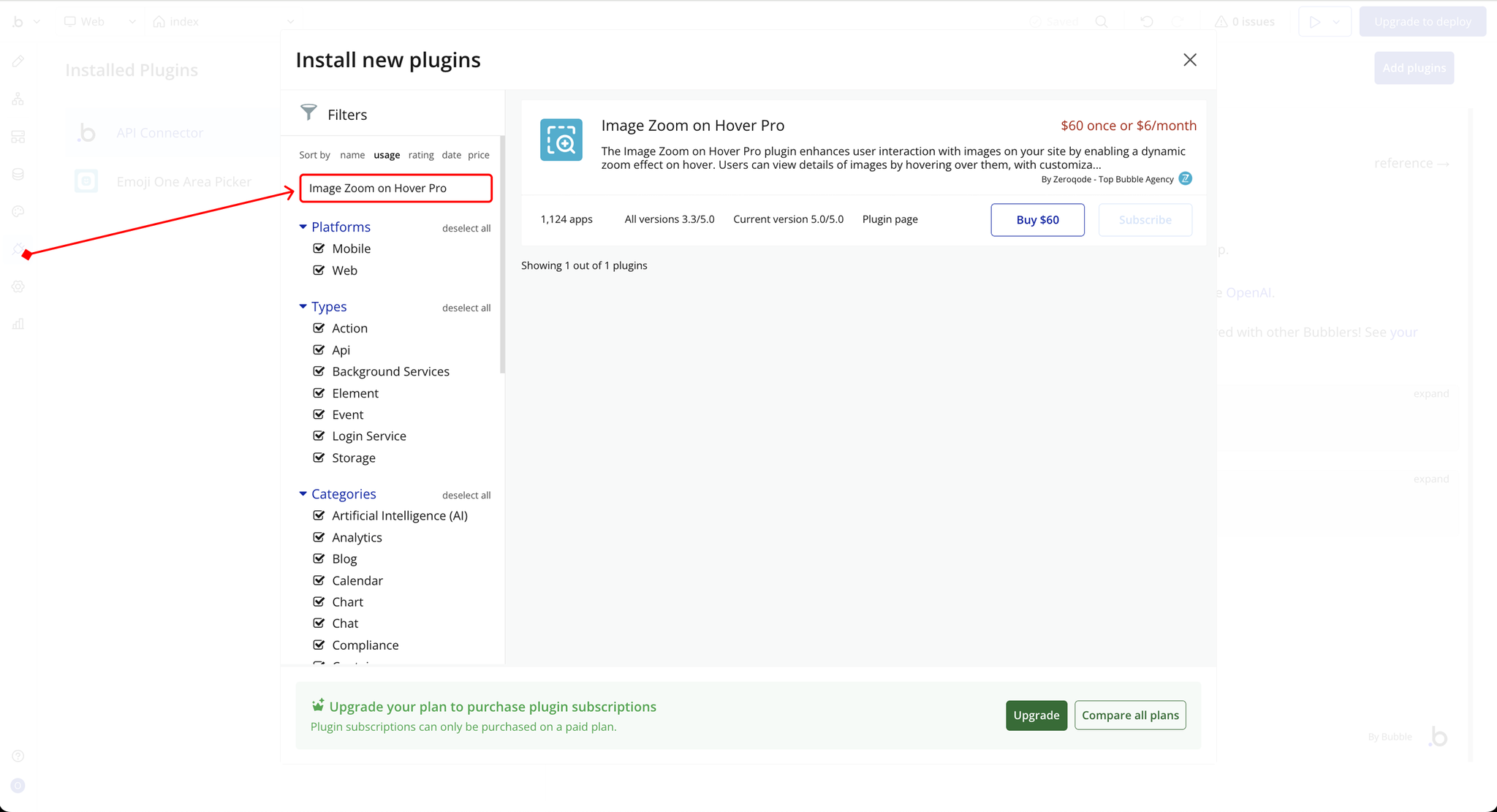
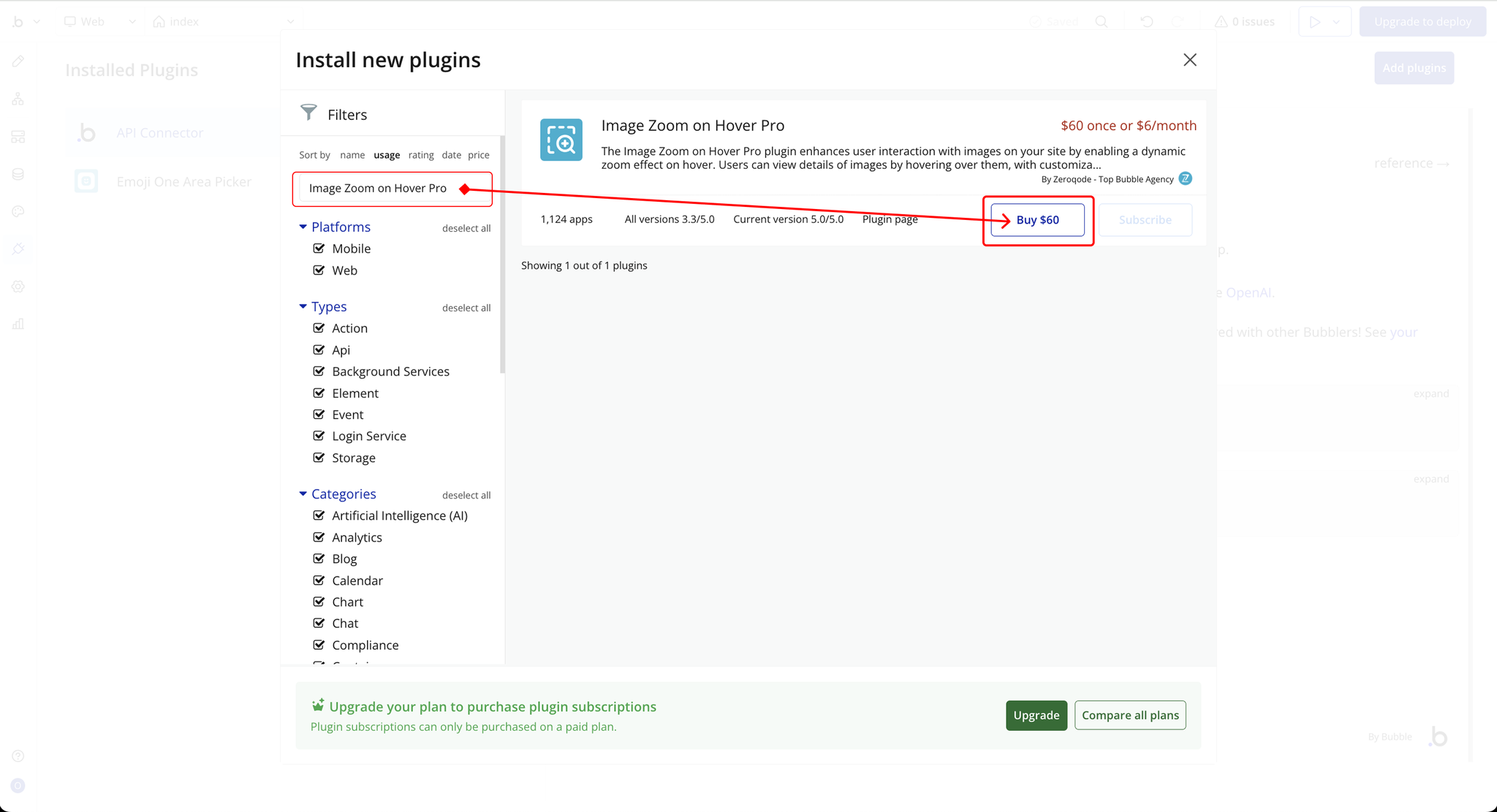
- Install the plugin from the Bubble Plugin Marketplace and ensure it is added to your application.
- Add a Bubble Image element to your page or group. This can be a static image or a dynamic image from your database.
- Ensure the parent container of the image is set up properly for responsive behavior, especially if the zoom effect will expand beyond the original image size.
- For clearer zoom results, use images with sufficiently high resolution.

How to setup
Step 1 – Install the Plugin
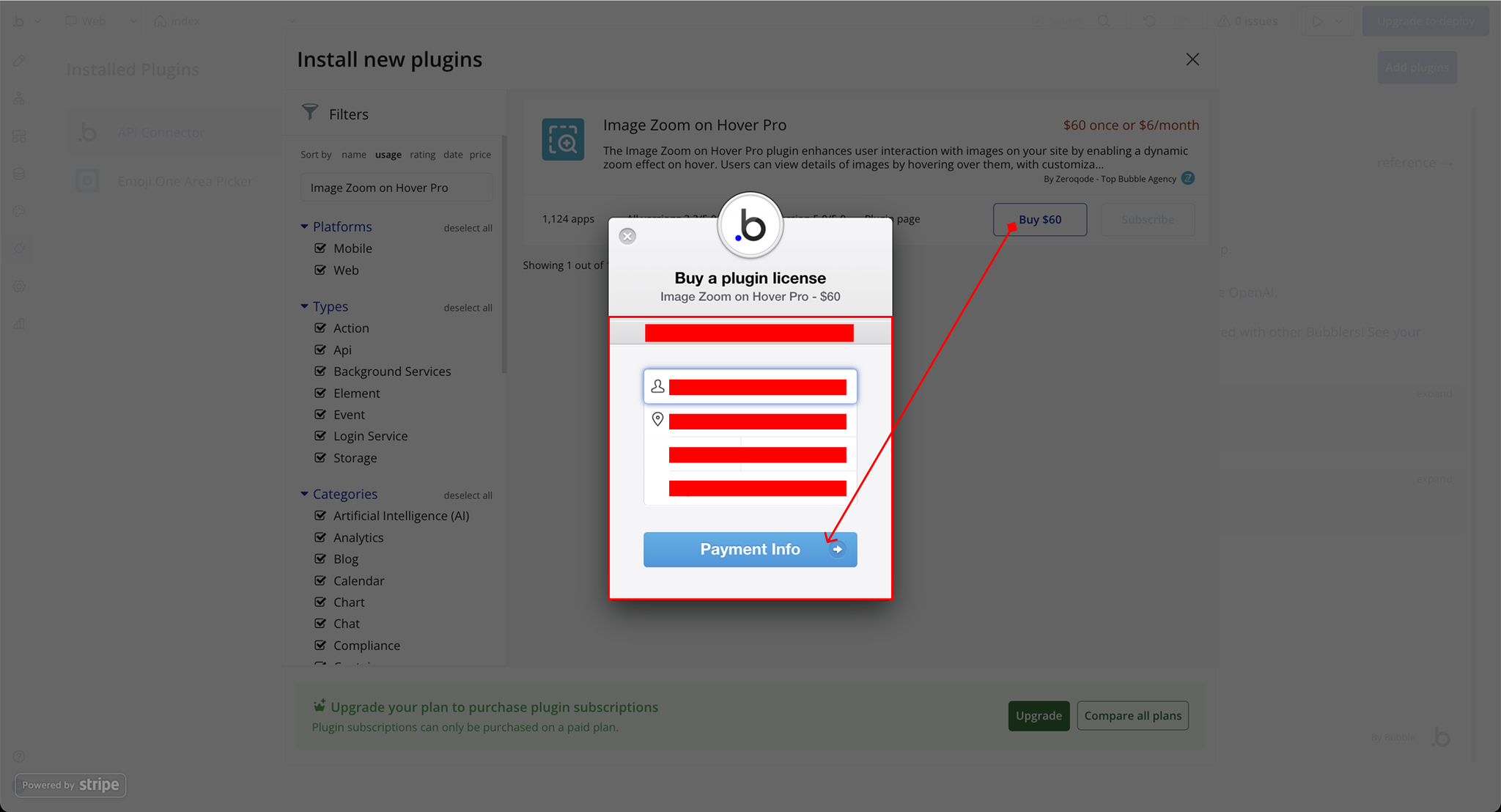
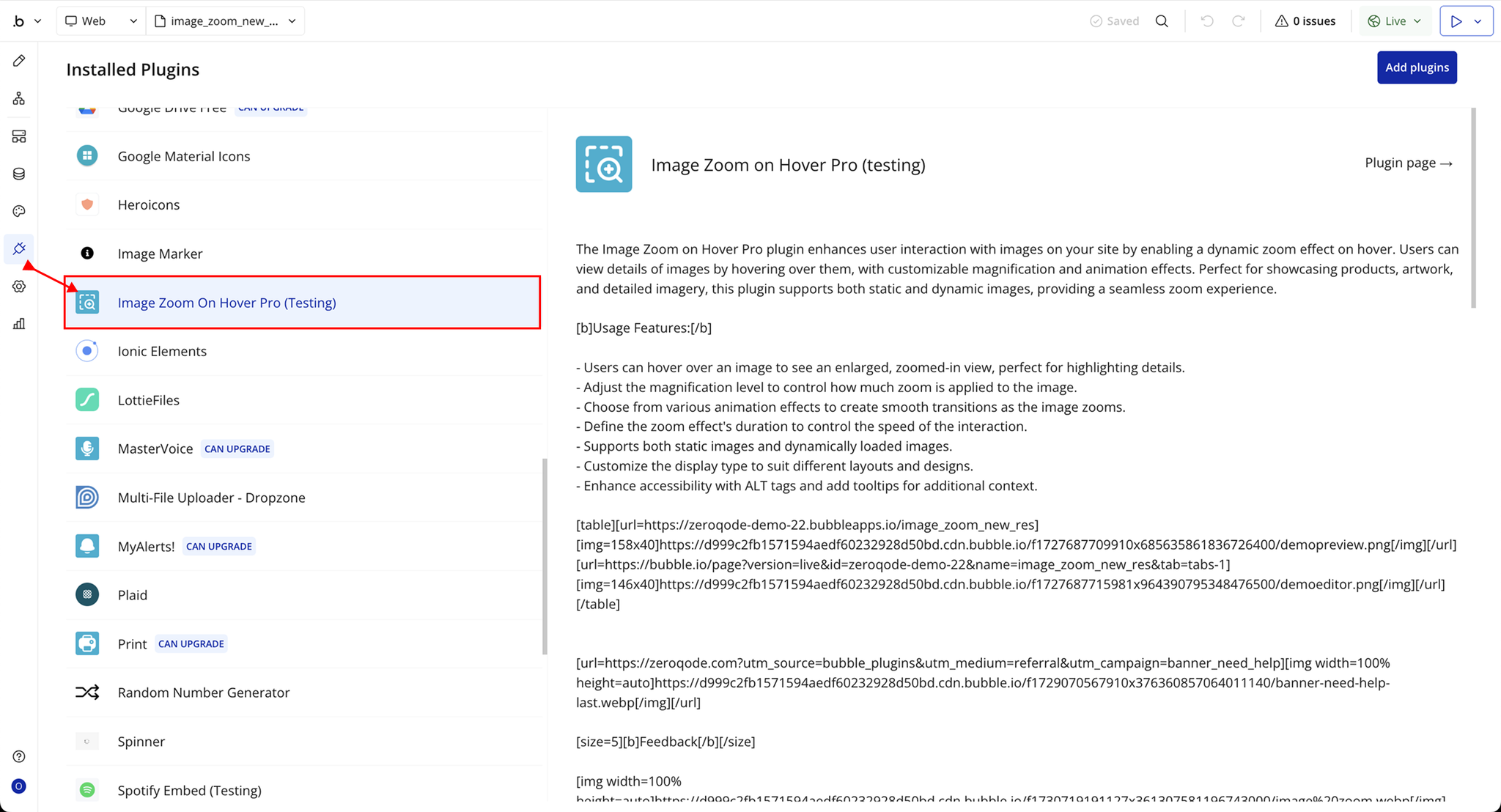
Step 2 – Add the Plugin Element to Your Page
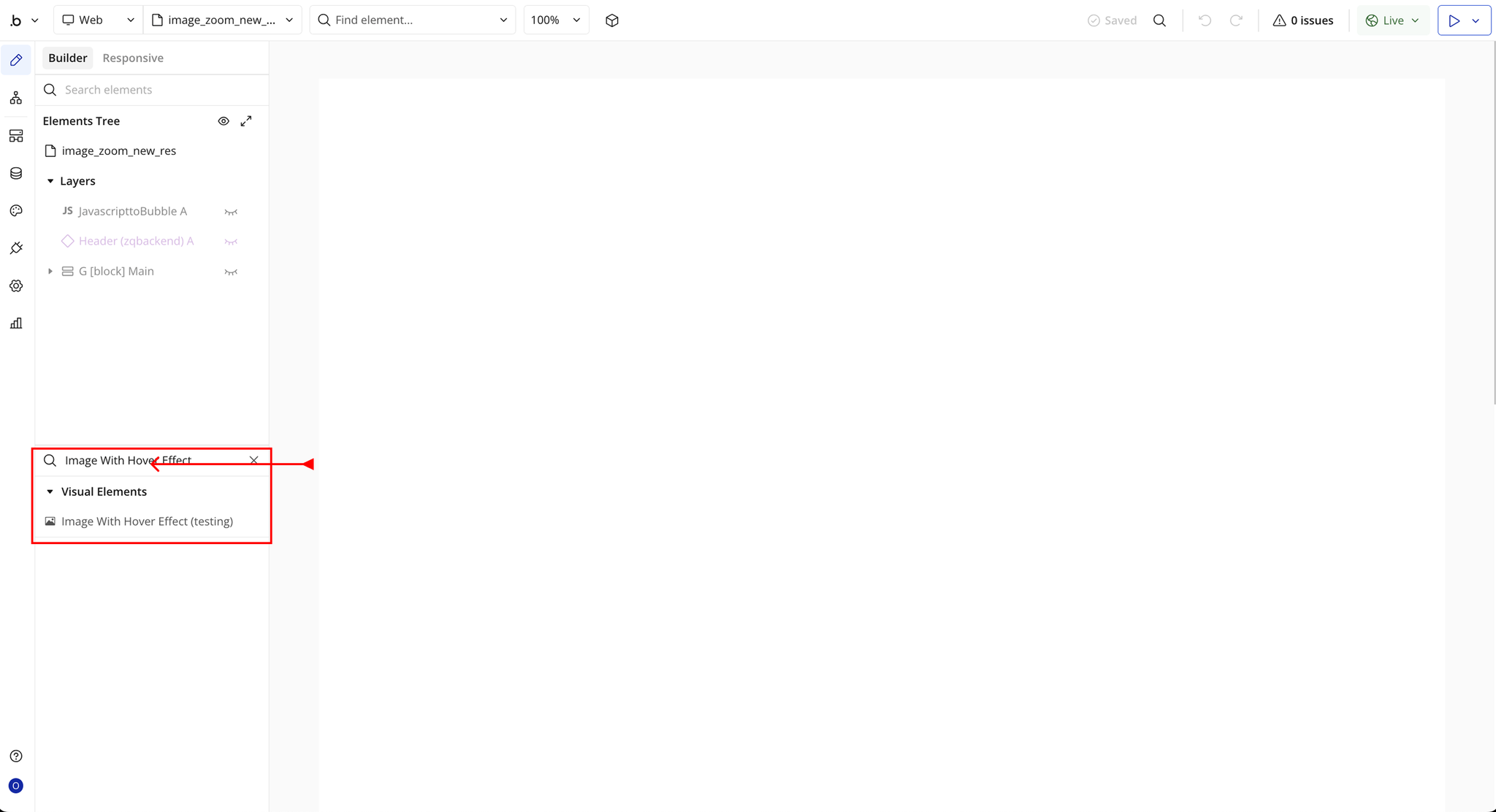
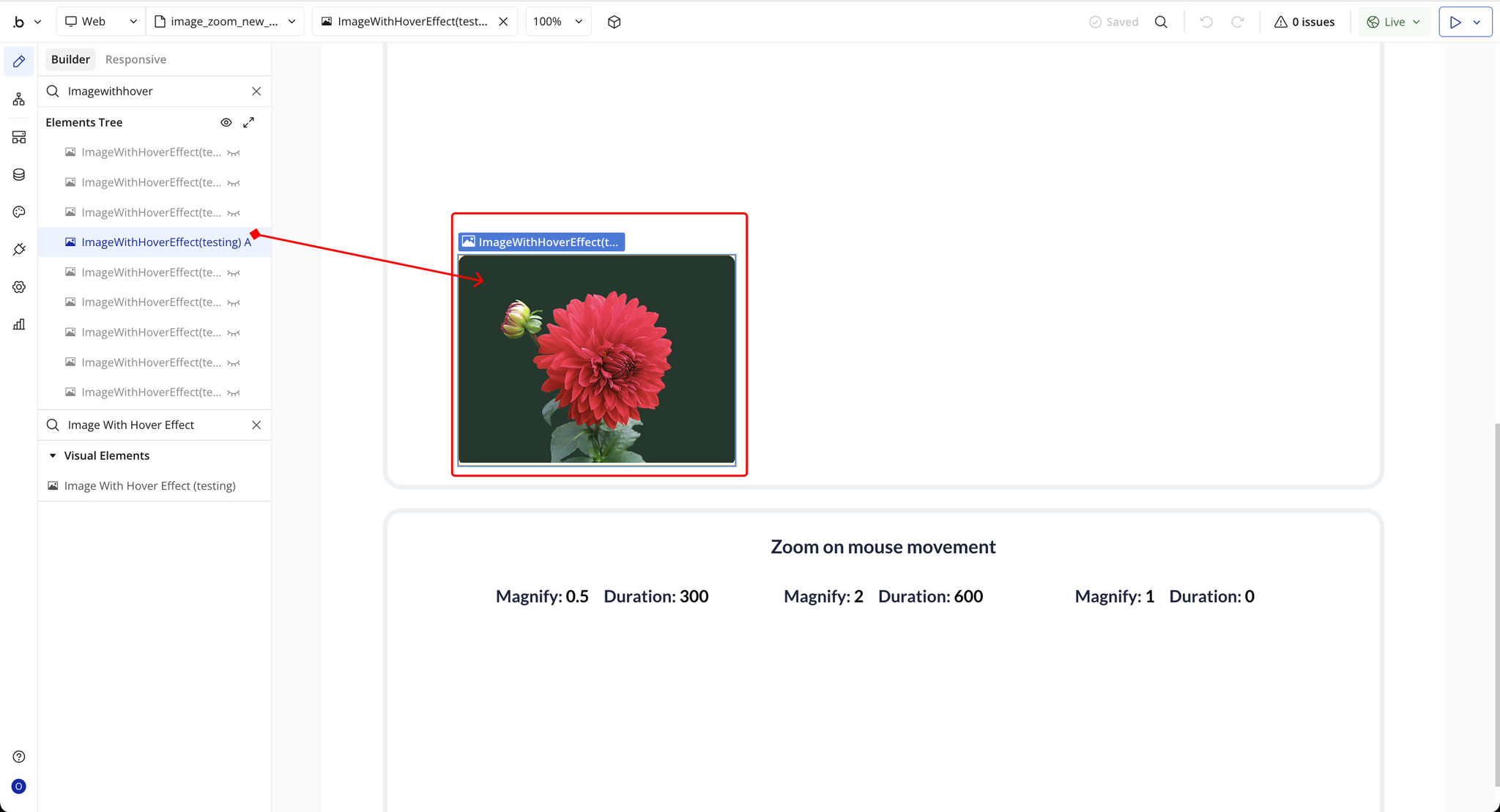
Step 3 – Configure Properties
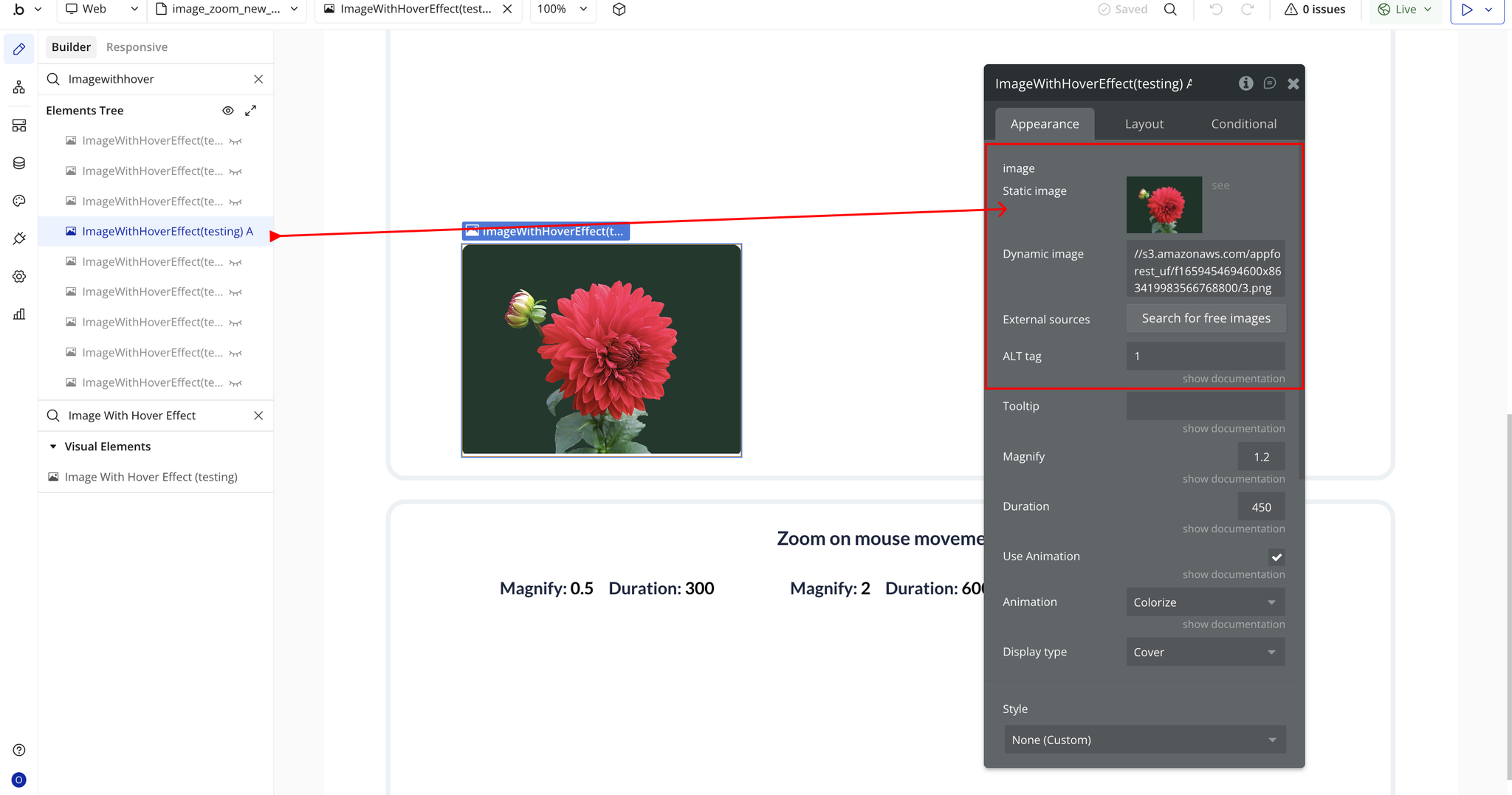
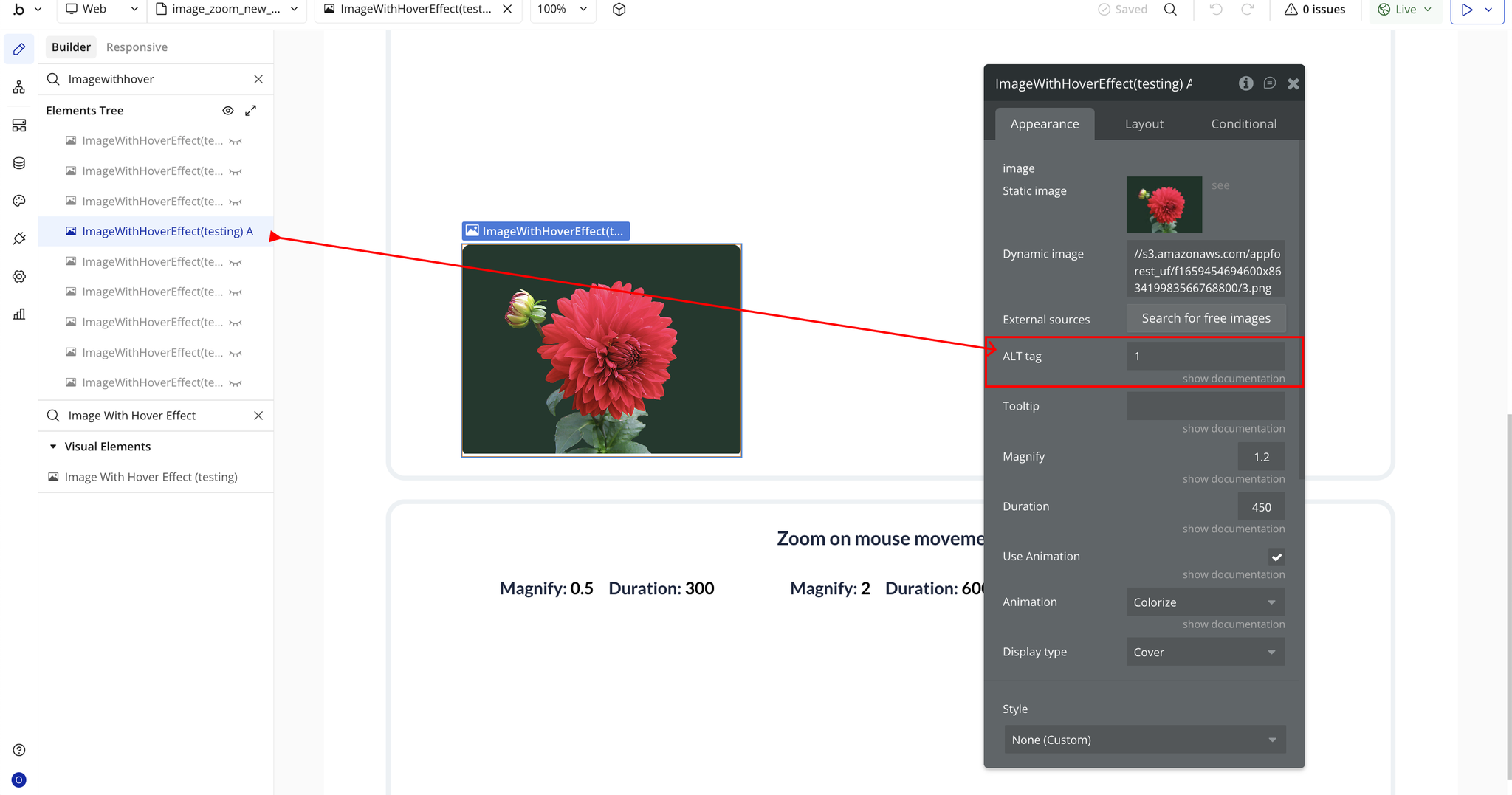
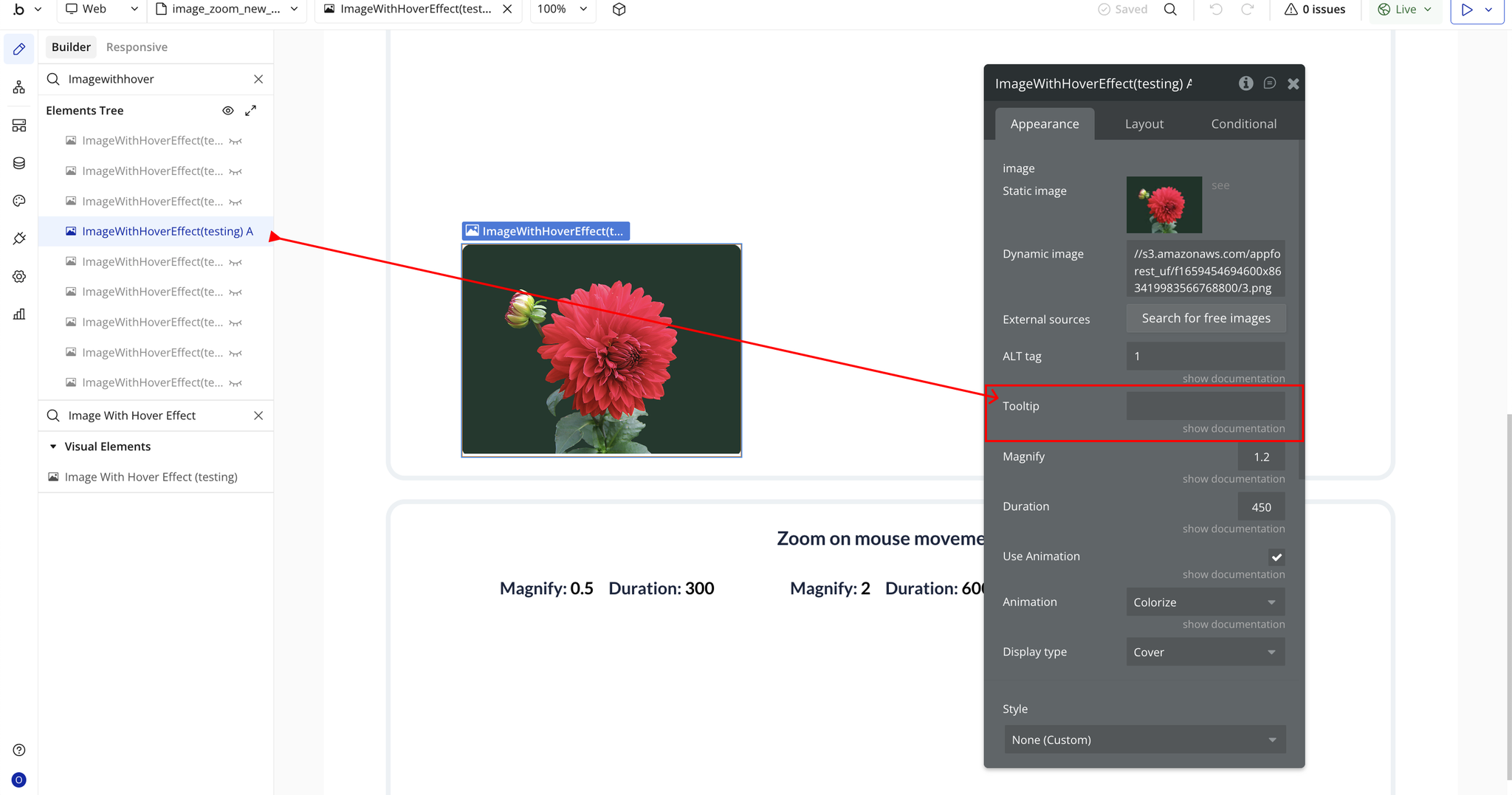
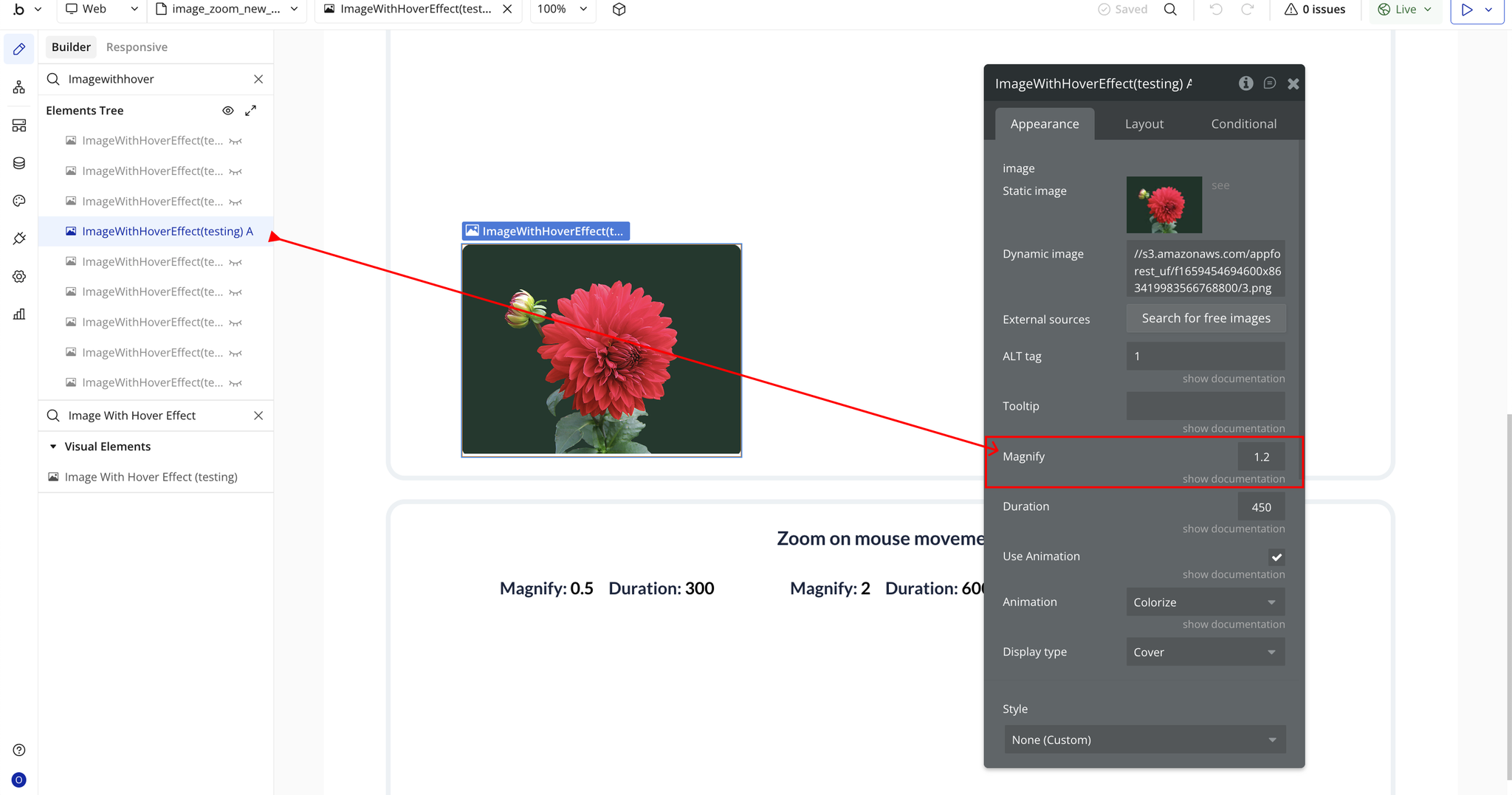
Plugin Element Properties - Image With Hover Effect
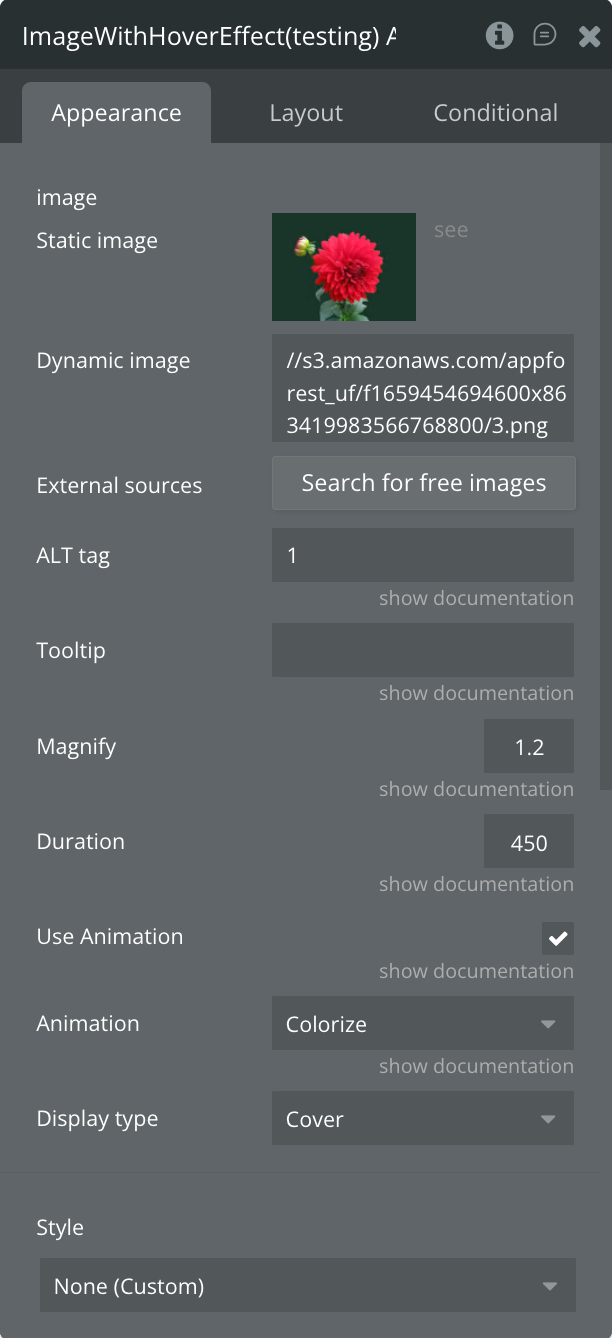
Fields
Title | Description | Type |
Image | The image element to which the zoom effect will be applied. | Image |
ALT Tag | Alternative text for the image, displayed if the image cannot load or for screen readers. | Text |
Tooltip | Optional text displayed when the user hovers over the image, providing extra information. | Text (optional) |
Magnify | The zoom level applied to the image. If “Fixed zoom” is selected, 1 represents the original size. | Number (optional) |
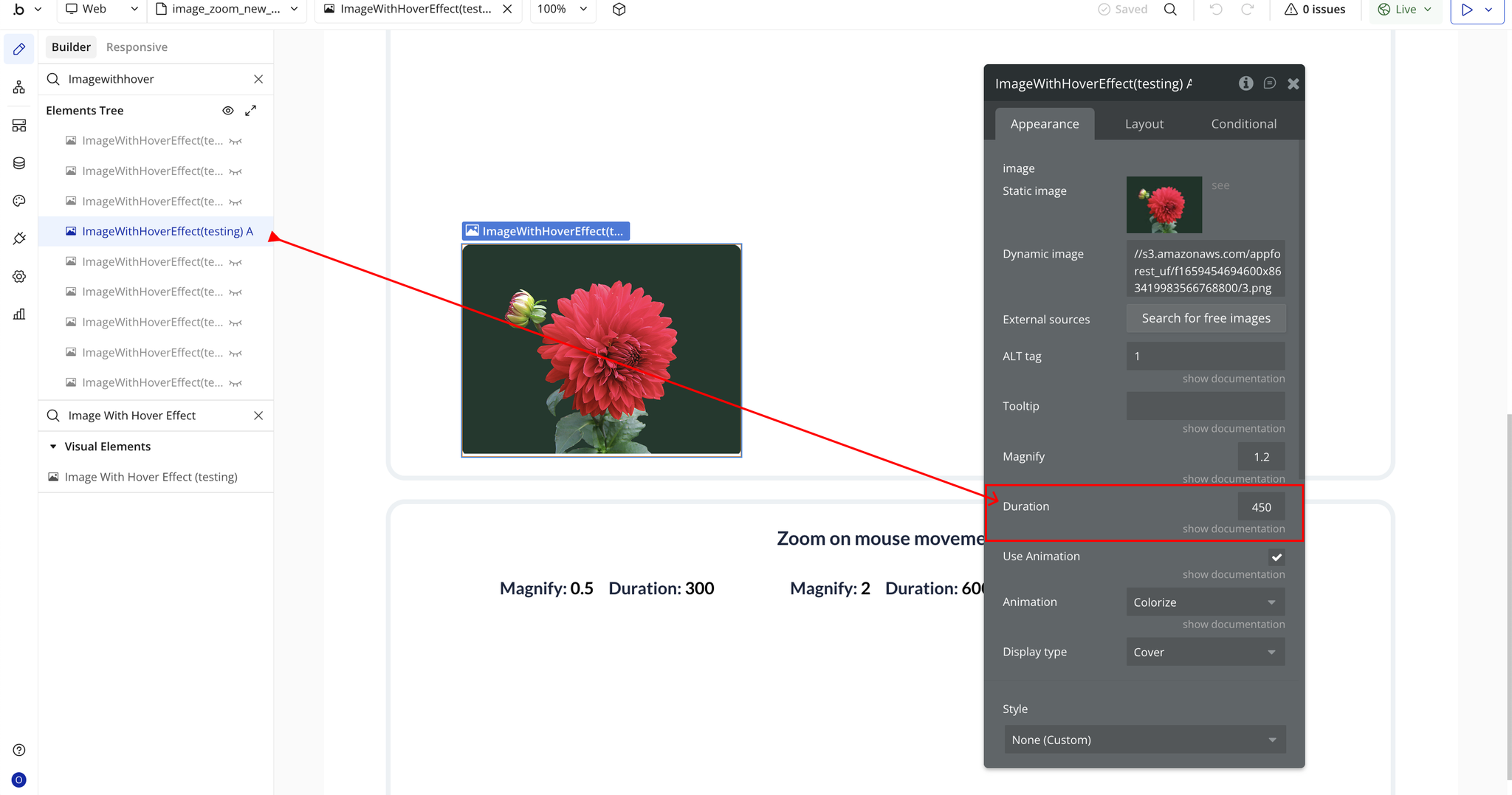
Duration | The time (in milliseconds) it takes for the image to return to its original state after hover. | Number (optional) |
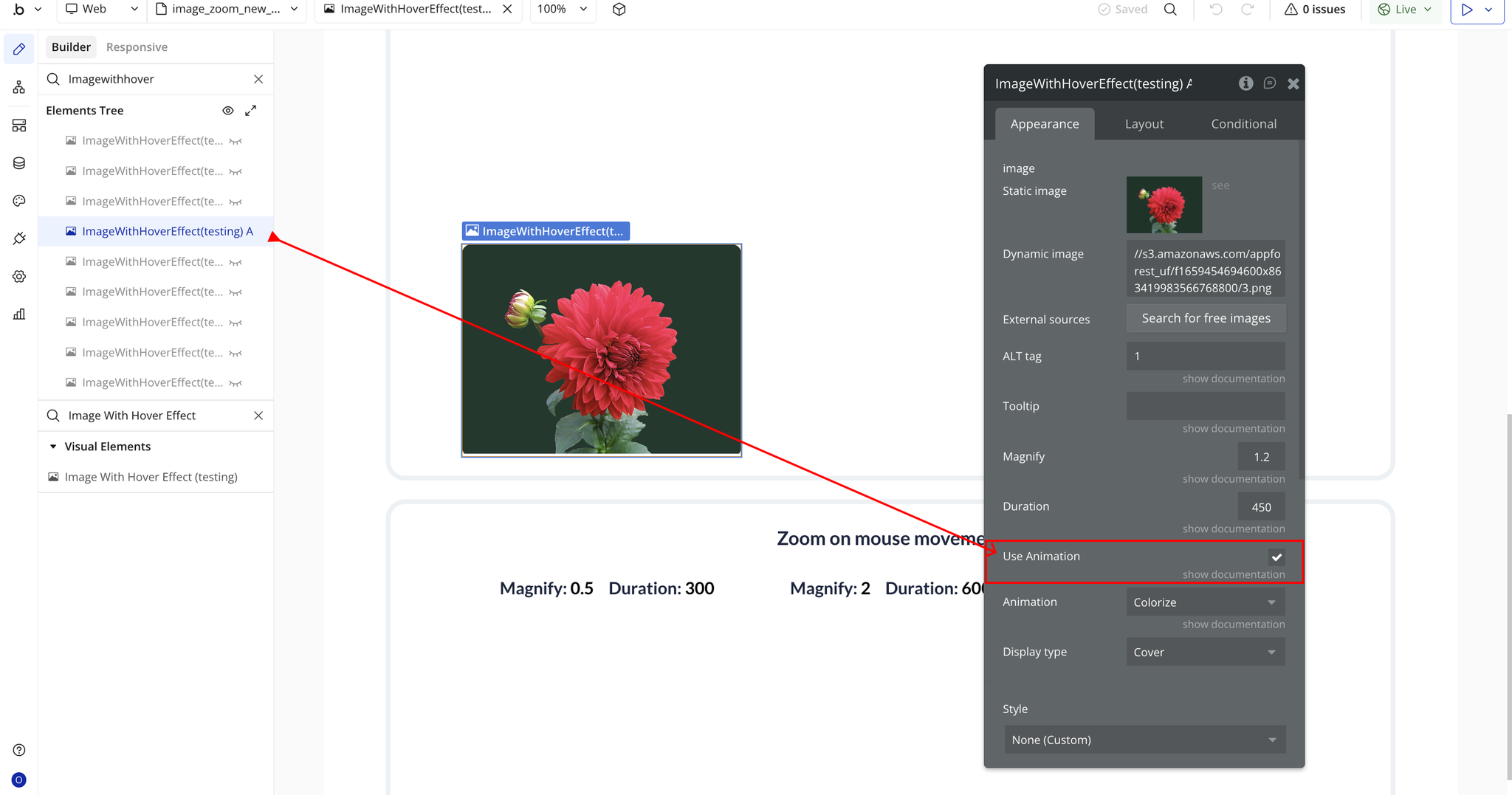
Use Animation | Enable or disable animations for the zoom effect. | Checkbox (yes/no) |
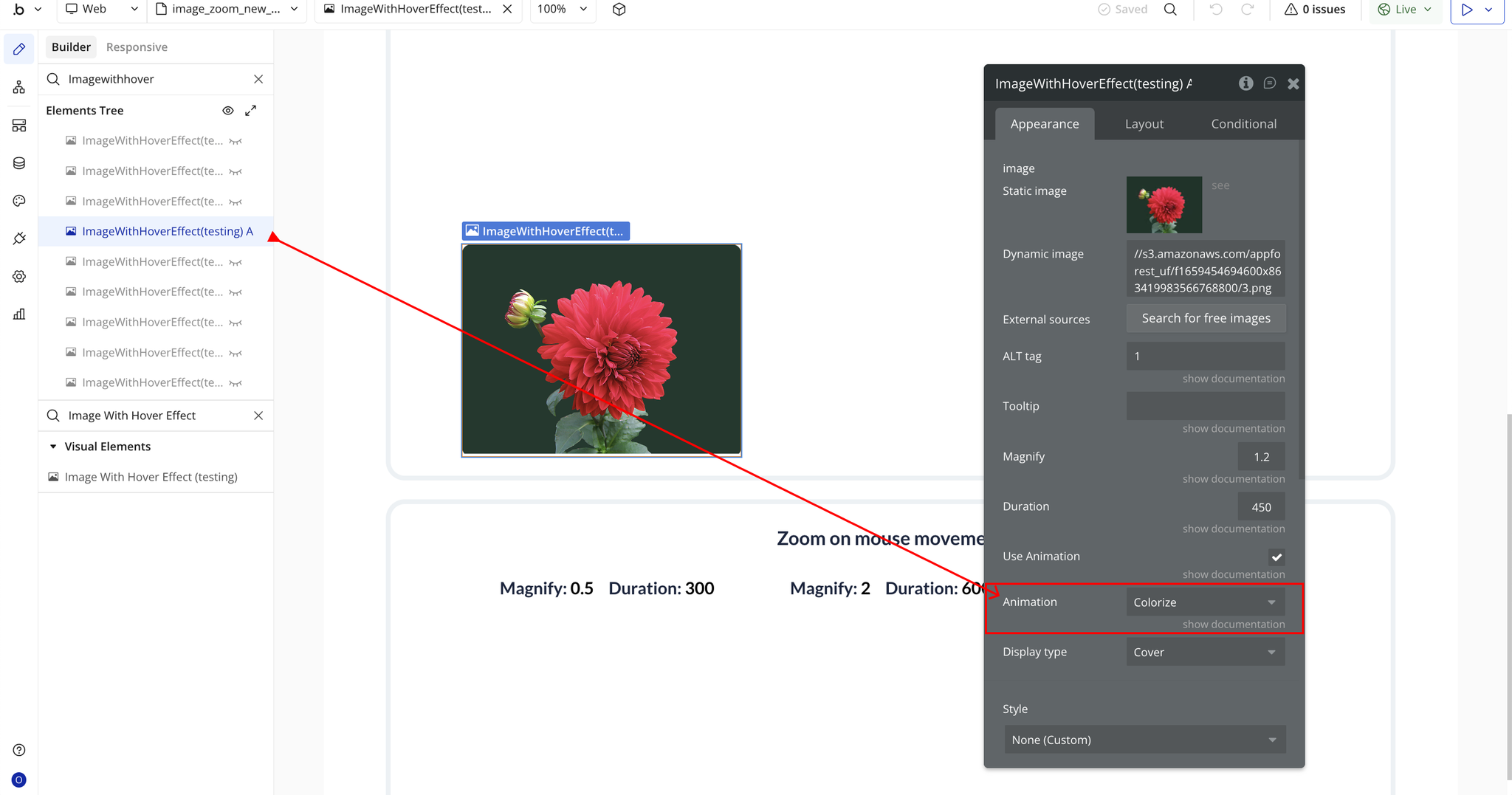
Animation | Type of animation applied during zoom.
Options:
Basic,
Zoom-n-Rotate,
Colorize,
Blur Zoom. | Dropdown (optional) |
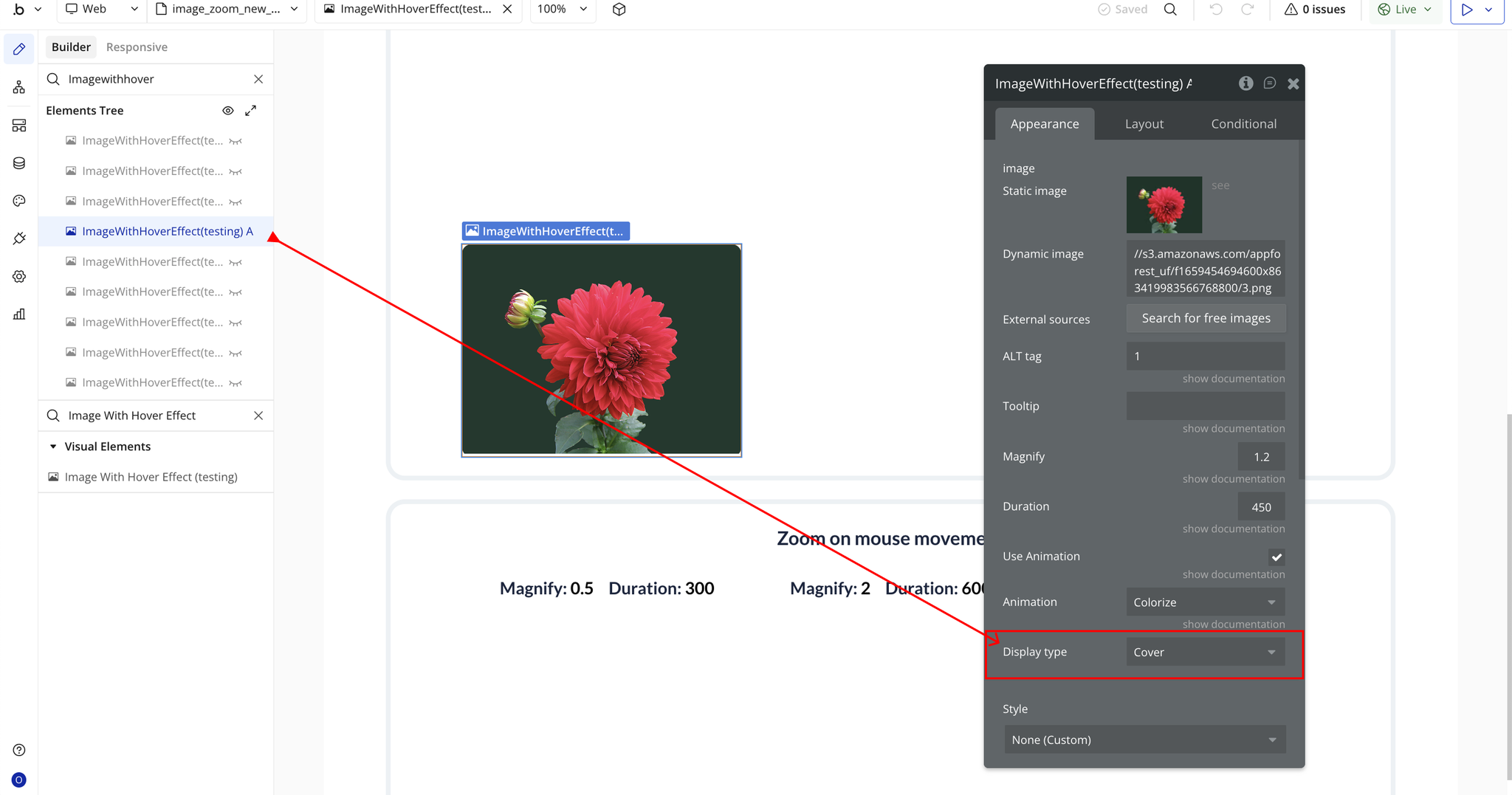
Display Type | How the zoomed image is displayed.
Options:
Cover (fills the container),
Keep Proportions (maintains original aspect ratio). | Dropdown |