Rich Postmark emails Bubble Mobile is a plugin built for the mobile version of the Bubble editor that lets you send transactional emails through the Postmark API directly from your mobile app — single emails, template-based emails, and batch emails to multiple recipients.
The plugin ships in two parts that work together:
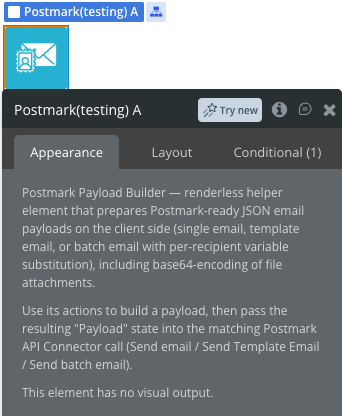
A renderless Postmark element that runs on the client to assemble a Postmark‑ready JSON payload (including file attachments converted to base64, unsubscribe headers, and per‑recipient variable substitution for batch sends).
Four ready‑to‑use API Connector‑style actions (Send email, Send email extended, Send Template Email, Send Batch Email) that call the Postmark API using your Server Token.
Typical usage is to run one of the Postmark element’s actions to build the payload, then feed the resulting JSON into the matching API action to actually send the email.
Prerequisites
You must have an account with Postmark to interact with the API. Create your account at: https://postmarkapp.com/
You will also need:
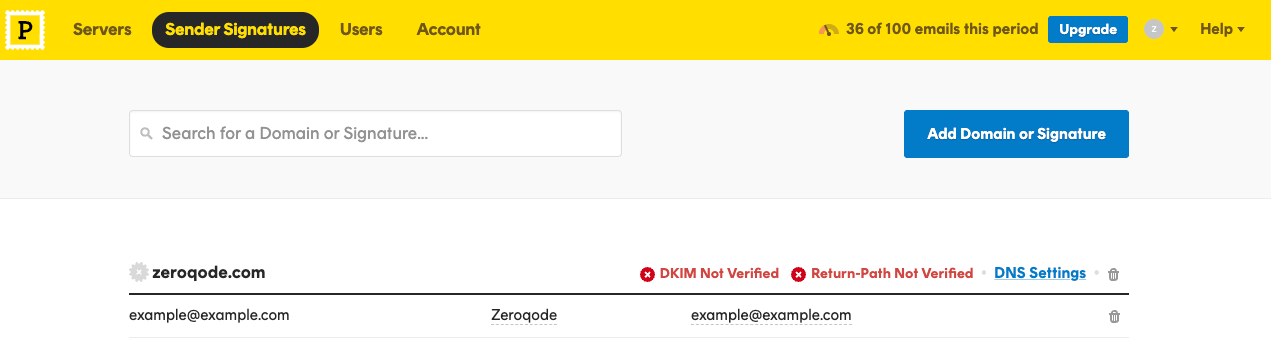
A verified Sender Signature (or verified sending domain) in Postmark for every “From” address you plan to use.
Your Server API Token, found in Postmark under your Server → API Tokens.
How to setup
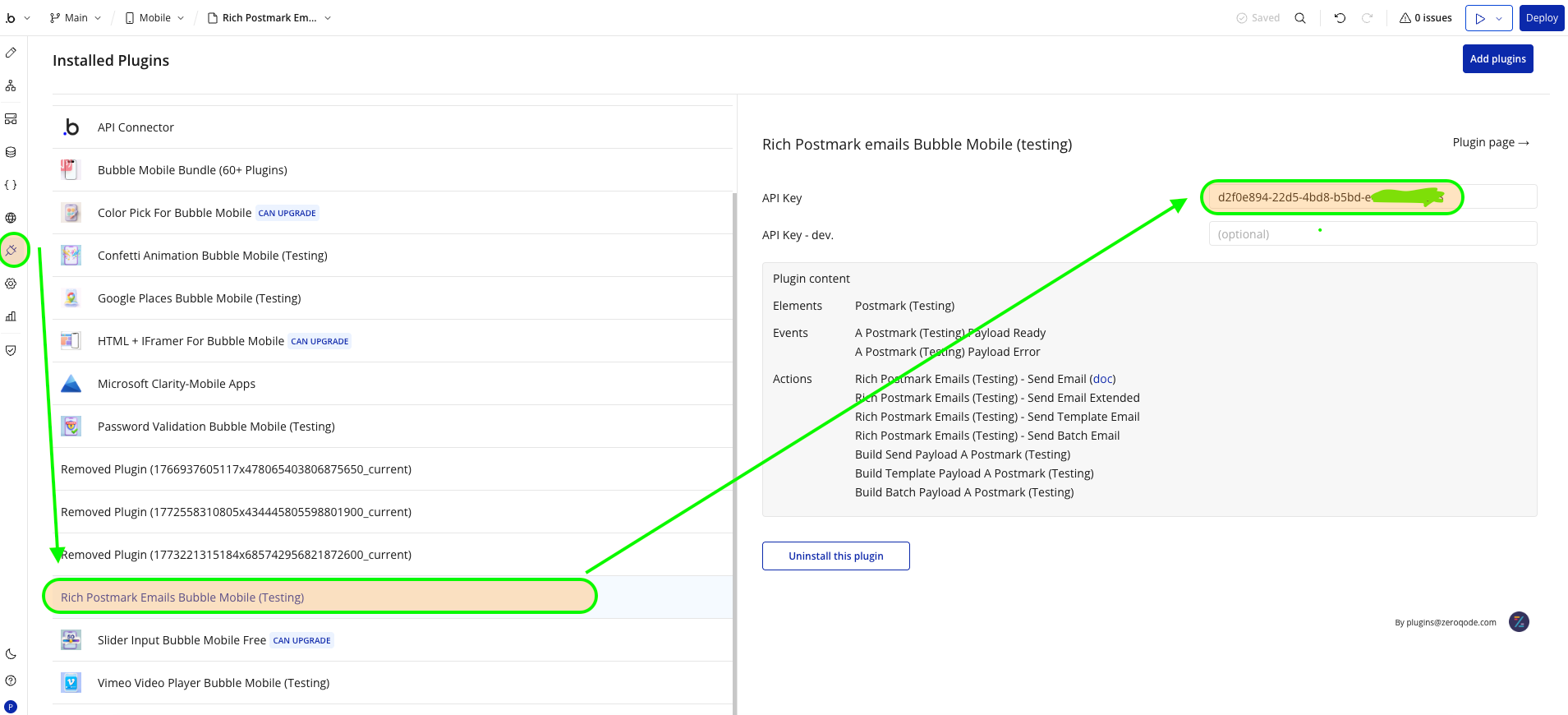
Create a Postmark account and a Server, then open Server → API Tokens and copy the Server API Token.
In the Bubble editor, open the plugin’s Plugin API / Connector tab and paste the token into the shared private key field (sent as the X-Postmark-Server-Token header on every API call).
In Postmark, verify the Sender Signature (or domain) for each “From” address you intend to use — Postmark rejects sends from unverified senders.
Drag the invisible Postmark element onto your mobile page — it has no visual output, it only needs to exist so its actions and states are available in your workflows.
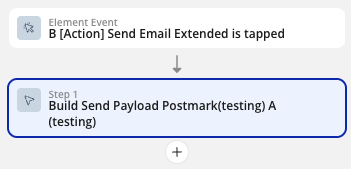
In a workflow, run one of the Postmark element’s actions (Build Send Payload, Build Template Payload, or Build Batch Payload) to assemble the JSON body.
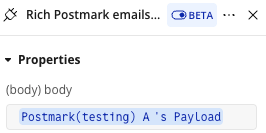
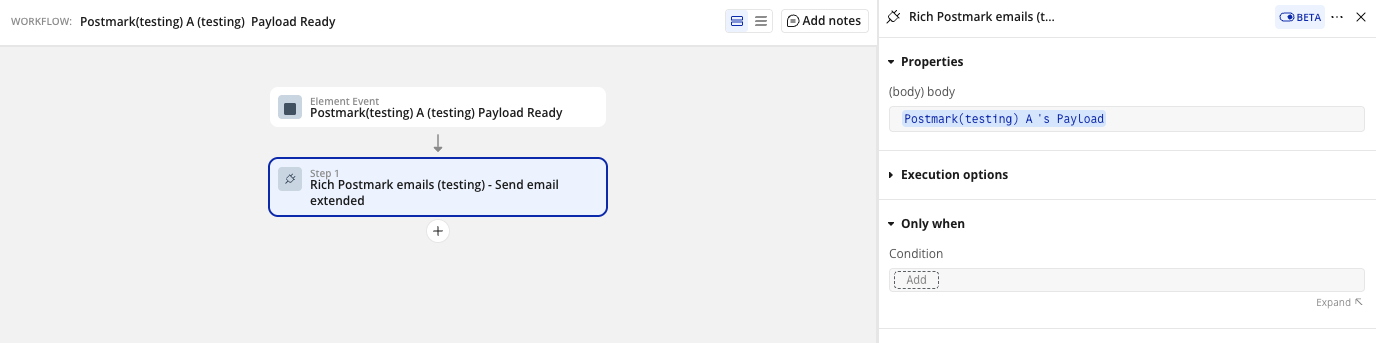
Listen for the Payload Ready event, then trigger the matching plugin API action (Send email, Send Template Email, or Send Batch Email) using the element’s Payload state as the request body.
Plugin Element - Postmark
The plugin contains one renderless visual element, Postmark, used to build the JSON payloads that are later sent through the plugin’s API actions.
Element Actions
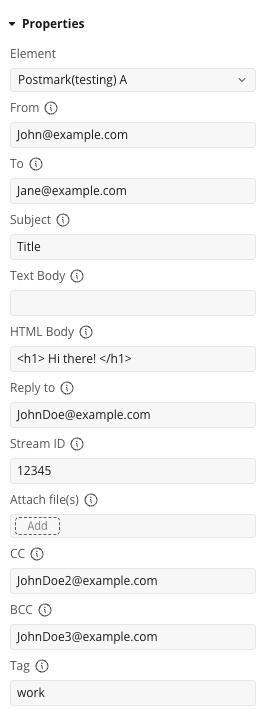
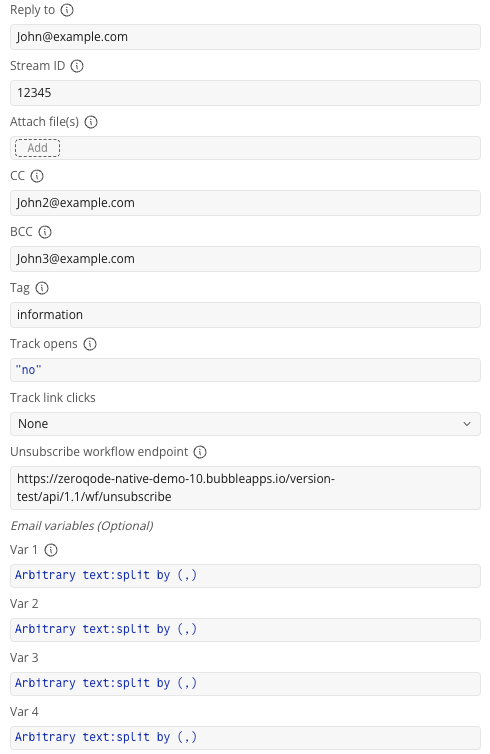
Build Send Payload
Assembles a ready-to-send Postmark JSON body for a single email, including downloading and base64‑encoding any attached files, and, if an unsubscribe workflow URL is provided, adding the List-Unsubscribe headers.
Fields:
Title
Description
Type
From
Sender email or “Name ”. Must match a verified Postmark Sender Signature.
Text
To
Recipient email(s), comma-separated. Max 50.
Text
Subject
Email subject line.
Text
Text Body
Plain text version of the email.
Text
HTML Body
HTML version of the email. Escape double quotes.
Text
Reply to
Optional reply-to address.
Text
Stream ID
Postmark Message Stream ID. Leave empty for the default transactional stream.
Text
Attach file(s)
List of files to attach. Max 10MB total after base64 encoding.
File (list)
CC
Cc address(es), comma-separated. Max 50.
Text
BCC
Bcc address(es), comma-separated. Max 50.
Text
Tag
Category tag for stats/filtering. Max 1000 chars.
Text
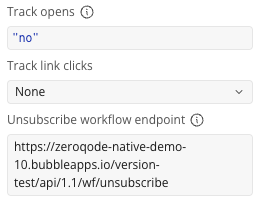
Track opens
Track when the email is opened.
Boolean
Track link clicks
Link click tracking mode: None, HtmlAndText, HtmlOnly, TextOnly.
Dropdown
Unsubscribe workflow endpoint
Backend workflow URL for unsubscribes. Adds List-Unsubscribe headers when filled.
Text
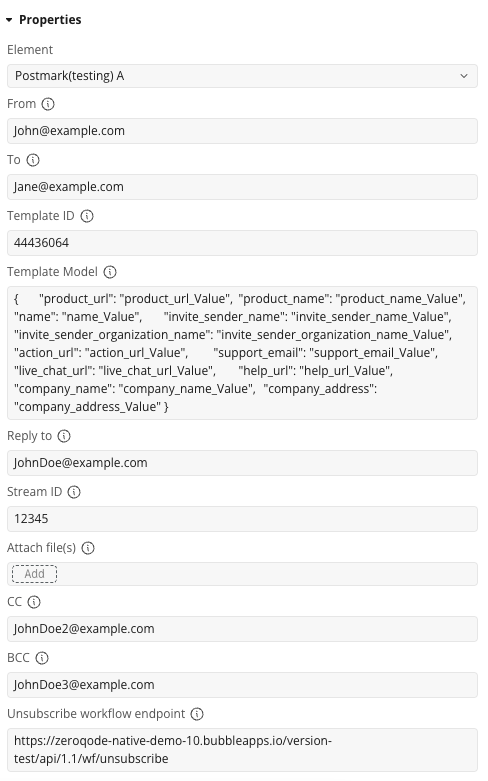
Build Template Payload
Assembles a ready-to-send Postmark JSON body for a template email, parsing the Template Model JSON and, like the standard send, handling attachments and optional unsubscribe headers.
Fields:
Title
Description
Type
From
Sender email or “Name ”. Must match a verified Postmark Sender Signature.
Text
To
Recipient email(s), comma-separated. Max 50.
Text
Template ID
ID of the Postmark template to use.
Text
Template Model
JSON object with the variables used inside the template.
Text
Reply to
Optional reply-to address.
Text
Stream ID
Postmark Message Stream ID. Leave empty for the default transactional stream.
Text
Attach file(s)
List of files to attach. Max 10MB total after base64 encoding.
File (list)
CC
Cc address(es), comma-separated. Max 50.
Text
BCC
Bcc address(es), comma-separated. Max 50.
Text
Unsubscribe workflow endpoint
Backend workflow URL for unsubscribes. Adds List-Unsubscribe headers when filled.
Text
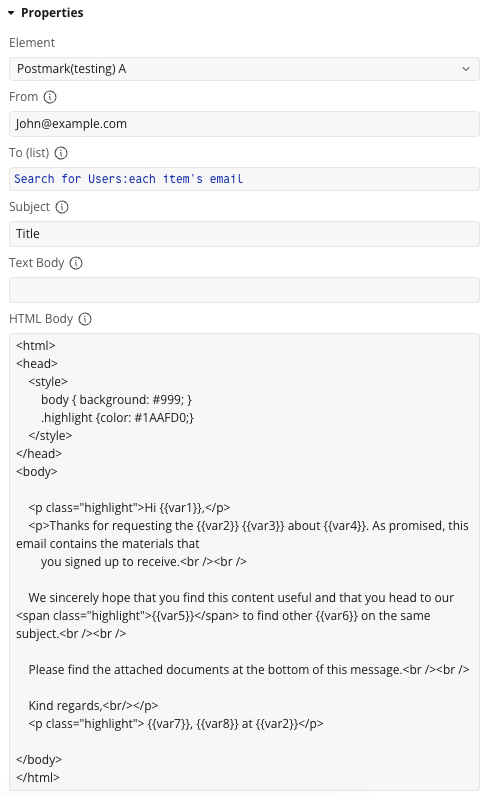
Build Batch Payload
Assembles a ready-to-send Postmark JSON array for sending an email to a list of recipients, with optional {{var1}}…{{var10}} placeholder substitution per recipient in the subject/body, attachments, and optional unsubscribe headers.
Fields:
Title
Description
Type
From
Sender email or “Name ”. Must match a verified Postmark Sender Signature.
Text
To (list)
List of recipient emails. Max 500, comma-separated.
Text (list)
Subject
Same subject for all recipients.
Text
Text Body
Plain text body. Supports {{var1}}…{{var10}} placeholders.
Text
HTML Body
HTML body. Supports {{var1}}…{{var10}} placeholders.
Text
Reply to
Optional reply-to address.
Text
Stream ID
Postmark Message Stream ID. Leave empty for the default transactional stream.
Text
Attach file(s)
List of files to attach. Max 10MB total after base64 encoding.
File (list)
CC
Cc address(es), comma-separated. Max 50.
Text
BCC
Bcc address(es), comma-separated. Max 50.
Text
Tag
Category tag for stats/filtering. Max 1000 chars.
Text
Track opens
Track when the email is opened.
Boolean
Track link clicks
Link click tracking mode: None, HtmlAndText, HtmlOnly, TextOnly.
Dropdown
Unsubscribe workflow endpoint
Backend workflow URL for unsubscribes. Adds List-Unsubscribe headers when filled.
Text
Var 1 … Var 10
Lists of values substituted into {{var1}}…{{var10}} placeholders, matched by recipient index. Accepts text, number, date, image, file, and yes/no (images/files are rendered as their URL text).
Text (list)
Exposed States
Name
Description
Type
Payload
Ready-to-send Postmark JSON body produced by the last Build action.
Text
Error
Empty if the last build succeeded, otherwise the failure reason.
Text
Is Building
True while the payload is being assembled (e.g. while attachments are downloading).
Boolean
Element Events
Name
Description
Payload Ready
Triggered when a payload has been built successfully.
Payload Error
Triggered when building the payload failed — check the Error state for details.
Plugin Action Calls
These actions call the Postmark API directly using your Server API Token (sent as the X-Postmark-Server-Token header).
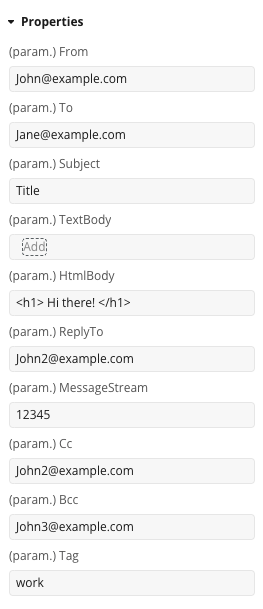
Send email
Sends a single transactional email through Postmark.
Fields:
Name
Description
Type
From
Sender email address.
Text
To
Recipient email address(es).
Text
Subject
Email subject line.
Text
TextBody
Plain text body. (optional)
Text
HtmlBody
HTML body. (optional)
Text
ReplyTo
Reply-to address. (optional)
Text
MessageStream
Postmark Message Stream ID. (optional)
Text
Cc
Cc address(es). (optional)
Text
Bcc
Bcc address(es). (optional)
Text
Tag
Category tag for stats/filtering. (optional)
Text
Return values:
Name
Description
Type
body ErrorCode
Postmark error code, 0 if successful.
Number
body Message
Status message returned by Postmark.
Text
body MessageID
Unique ID of the sent message.
Text
body SubmittedAt
Timestamp the message was submitted at.
Text
body To
Recipient the message was sent to.
Text
error status_code
HTTP status code of the response.
Number
error status_message
HTTP status message of the response.
Text
error body
Raw response body.
Text
returned_an_error
Whether the call returned an error.
Boolean
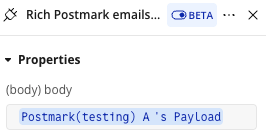
Send email extended
Sends a single transactional email through Postmark using a raw JSON body, giving access to every Postmark field (headers, attachments, metadata, link/open tracking) that isn’t exposed by the simplified Send email call.
Fields:
Name
Description
Type
body
Raw JSON body of the Postmark email request (From, To, Cc, Bcc, Subject, HtmlBody, TextBody, ReplyTo, Headers, TrackOpens, TrackLinks, Attachments, Metadata, MessageStream, etc.).
Text
Return values:
Name
Description
Type
body ErrorCode
Postmark error code, 0 if successful.
Number
body Message
Status message returned by Postmark.
Text
body MessageID
Unique ID of the sent message.
Text
body SubmittedAt
Timestamp the message was submitted at.
Text
body To
Recipient the message was sent to.
Text
error status_code
HTTP status code of the response.
Number
error status_message
HTTP status message of the response.
Text
error body
Raw response body.
Text
returned_an_error
Whether the call returned an error.
Boolean
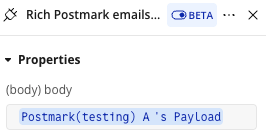
Send Template Email
Sends an email rendered from a Postmark template through the email/withTemplate endpoint.
Fields:
Name
Description
Type
body
Raw JSON body of the Postmark email/withTemplate request (From, To, Cc, Bcc, TemplateId or TemplateAlias, TemplateModel, InlineCss, ReplyTo, Headers, TrackOpens, TrackLinks, Attachments, Metadata, MessageStream, Tag, etc.).
Text
Return values:
Name
Description
Type
body ErrorCode
Postmark error code, 0 if successful.
Number
body Message
Status message returned by Postmark.
Text
body MessageID
Unique ID of the sent message.
Text
body SubmittedAt
Timestamp the message was submitted at.
Text
body To
Recipient the message was sent to.
Text
error status_code
HTTP status code of the response.
Number
error status_message
HTTP status message of the response.
Text
error body
Raw response body.
Text
returned_an_error
Whether the call returned an error.
Boolean
Send Batch Email
Sends multiple emails in a single request through the email/batch endpoint. Each item in the array is evaluated independently by Postmark, so some recipients can succeed while others fail.
Fields:
Name
Description
Type
body
Raw JSON array body for the Postmark email/batch request — each item follows the same structure as a single email request (From, To, Cc, Bcc, Subject, HtmlBody, TextBody, ReplyTo, Headers, TrackOpens, TrackLinks, Attachments, Metadata, MessageStream, etc.).
Text
Return values:
Name
Description
Type
body (list)
List of per-recipient results, each with ErrorCode, Message, MessageID, SubmittedAt, To.
List
error status_code
HTTP status code of the response.
Number
error status_message
HTTP status message of the response.
Text
error body
Raw response body.
Text
returned_an_error
Whether the call returned an error.
Boolean
Workflow example
Sending a single email
Add the Postmark element to your page.
On a button click, run Postmark’s Build Send Payload action with From, To, Subject, and Text/HTML Body filled in.
When the element’s Payload Ready event fires, run the plugin’s Send email (or Send email extended, for more control) API action, passing Postmark's Payload as the request body.
Use the returned MessageID / ErrorCode to confirm delivery, and show Postmark's Error state if Payload Error fires instead.
FAQ
How to use “Unsubscribe workflow endpoint” in the workflow
Providers like Gmail and Yahoo have stated that they’ll enforce the one-click method for unsubscribing starting in June 2024. To include a one-click unsubscribe method you need to first create a workflow that deletes or updates the subscribers that have unsubscribed.
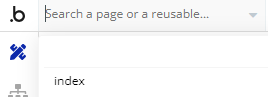
To create this endpoint head over to your bubble app and click the search bar at the top left.
2. At the bottom of the list click the 'Backend workflows' page.
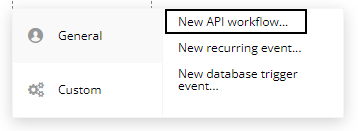
3. Create a new api workflow.
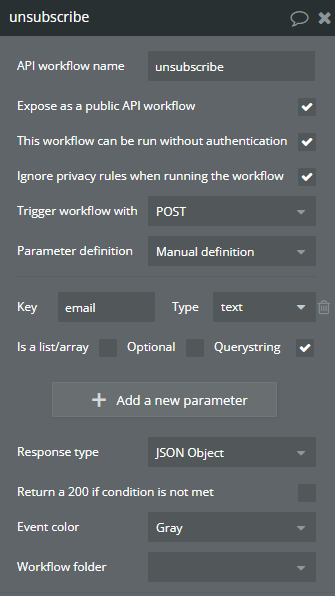
4. Give it a name and fill in the data as shown below:
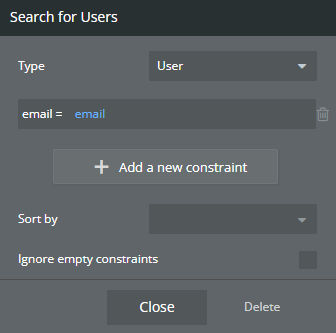
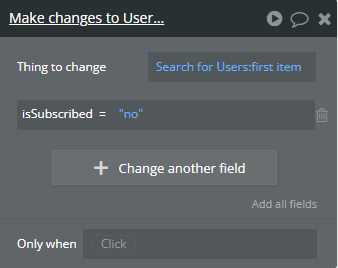
5. Add to it an action for updating or deleting a record in the database.
In this example I update the isSubscribed property of the user whose email comes into the workflow from outside.
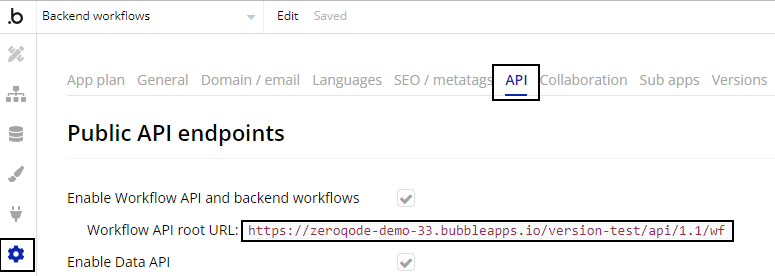
6. Then go to the Settings → Api page of your app.
There you will find the url of your workflow webhooks.
7. Copy the url, and append the name of the workflow you created previously to it. For example:
That's it. You can now pass this url to the Send email actions of of the plugin and the plugin will attach the necessary List-Unsubscribe-Post and List-Unsubscribe headers to your email.
💡
Unsubscribe headers do not assure you of getting the “Unsubscribe” button on top of your emails. That is button is displayed depending on every email provider conditions that have to be met for that purpose.
So we suggest you even with Unsubscribe headers in the email to keep the “Unsubscribe” link in your emails if you want to be sure the users will have that option.
💡
Usually unsubscribe is managed by Postmark, and if you want to implement your own Unsubscribe process as shown above, keep in mind that you have to get Postmark team approval for that.