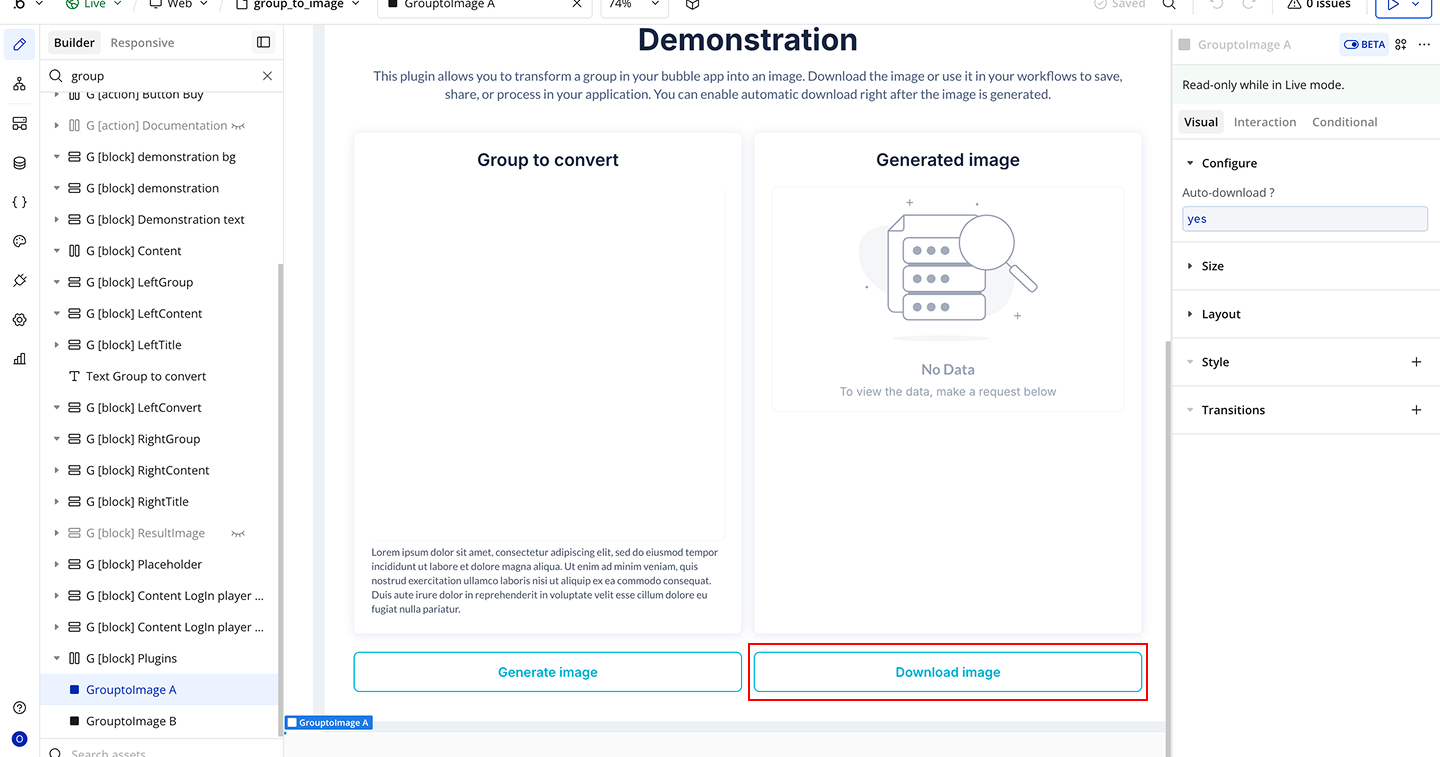
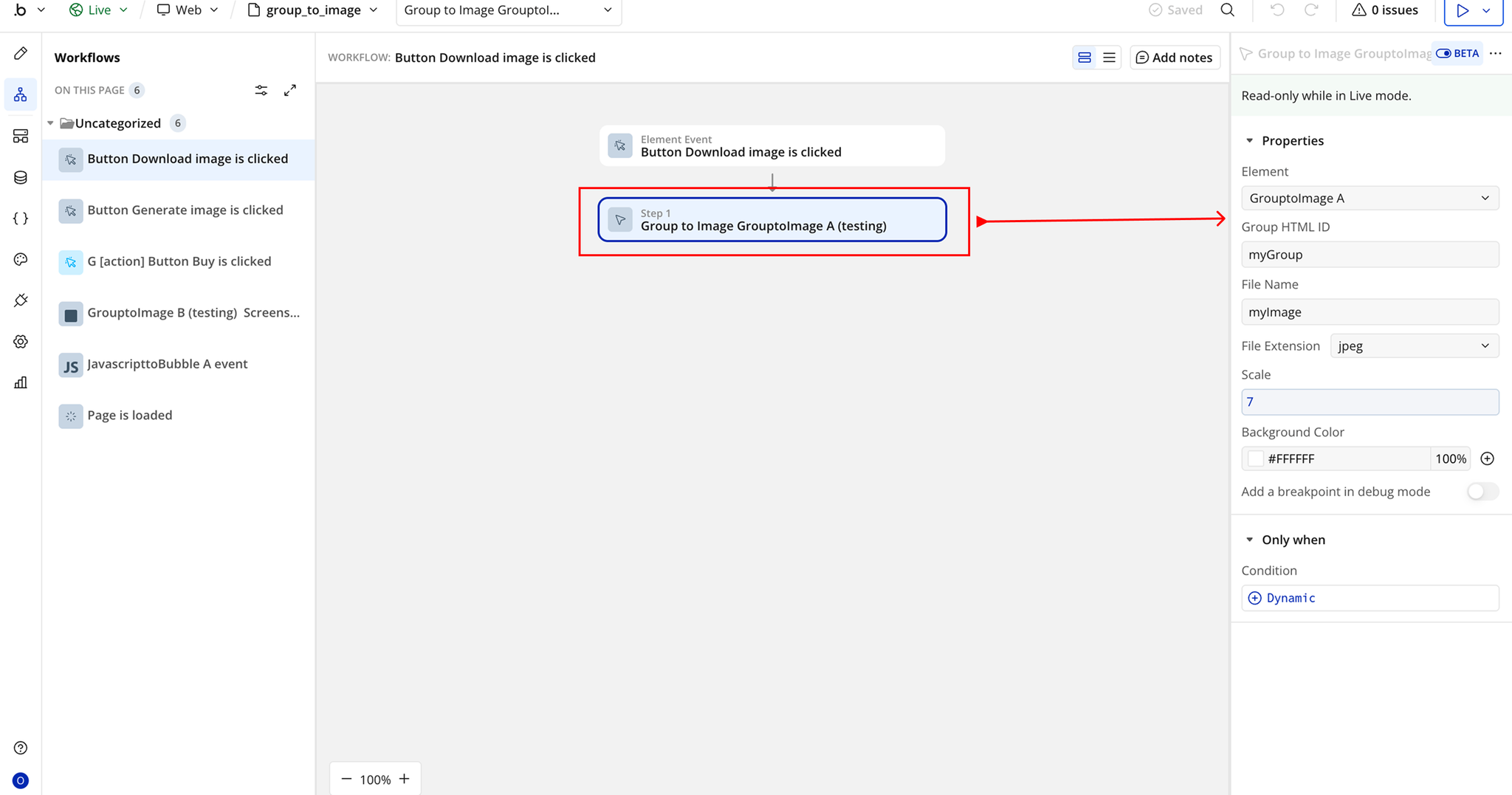
Demo to preview the plugin:
Introduction
The Group to Image Plugin allows you to convert any group element in your Bubble application into a downloadable image. This is useful for generating reports, visual summaries, certificates, or shareable content directly from your app.
The plugin uses html2canvas to capture the selected group and convert it into an image that can be downloaded automatically or accessed via a generated image URL. This makes it easy to integrate image generation into Bubble workflows.
Important: Because the plugin uses html2canvas, certain complex elements such as maps (e.g., Google Maps or Leaflet) cannot be captured. These elements will not appear in the generated image.
For projects requiring full page capture or support for complex elements, a server-side screenshot solution is recommended, as it provides better performance and improved image quality.
Key Features
Prerequisites
Before using the Group to Image Plugin, ensure the following requirements are met:
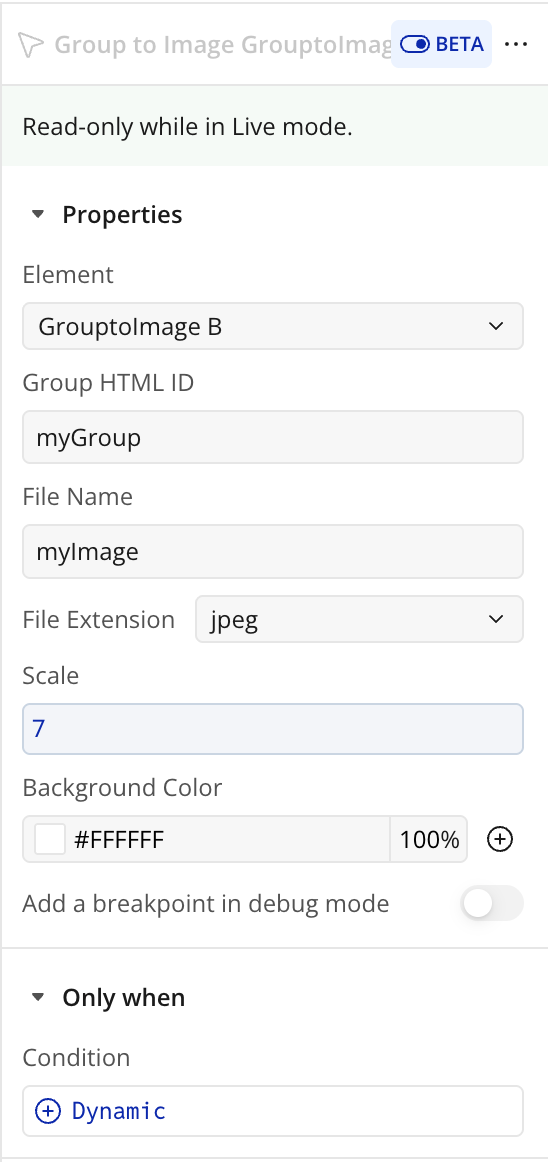
- Assign an ID Attribute to the Target Group : To do this, go to Settings → General → Expose the option to add an ID attribute to HTML elements, then assign an ID to the group element.
- Reference the Group ID in the Plugin: Enter the ID of the group element you want to capture in the plugin settings or workflow action.
- Ensure the Group is Fully Loaded: Make sure all elements inside the group (images, text, icons, etc.) are fully loaded before generating the image to avoid incomplete captures.
- Be Aware of html2canvas Limitations: Some complex elements such as maps (Google Maps, Leaflet), iframes, or external embedded content cannot be captured by the plugin.
How to setup
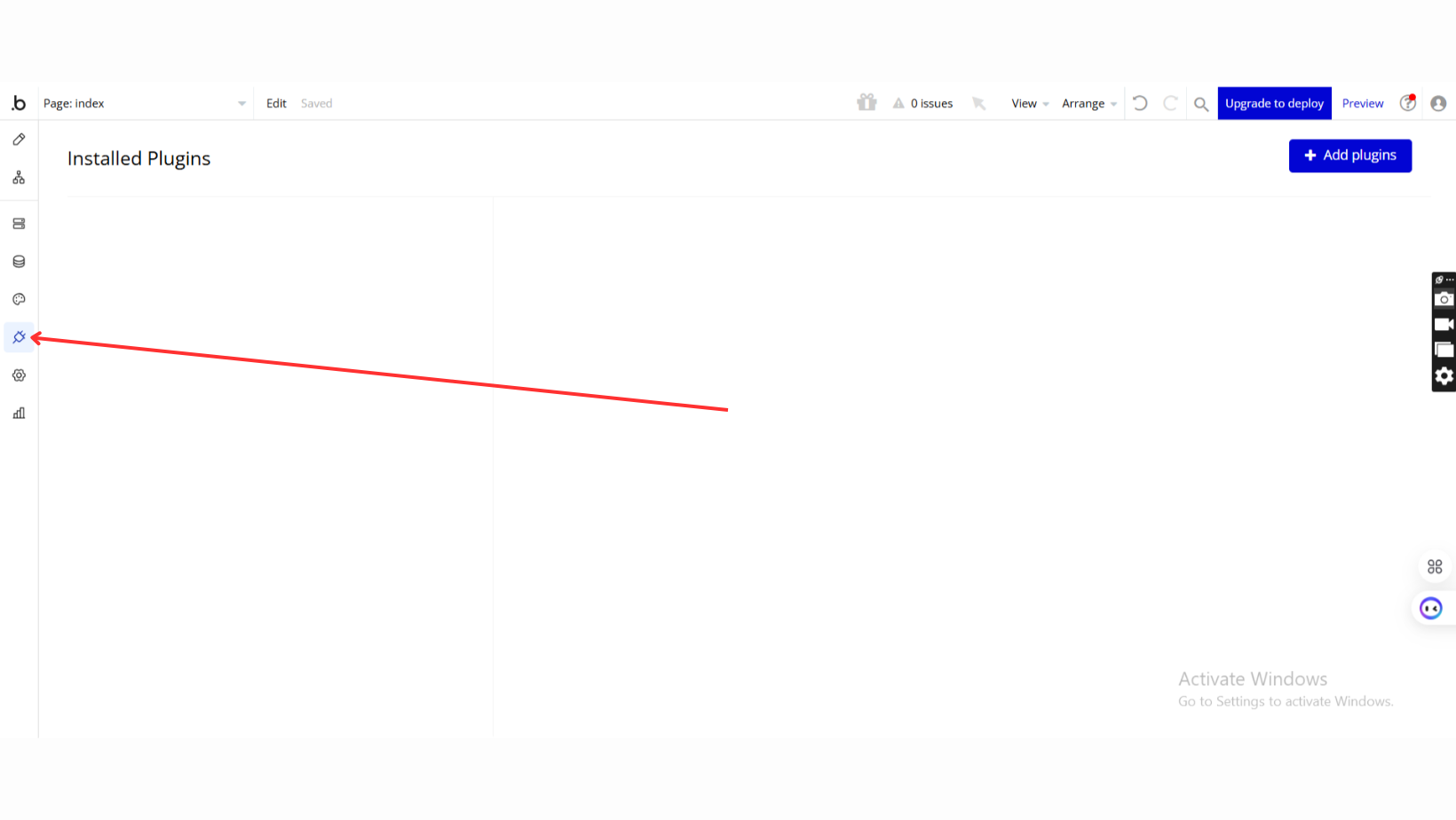
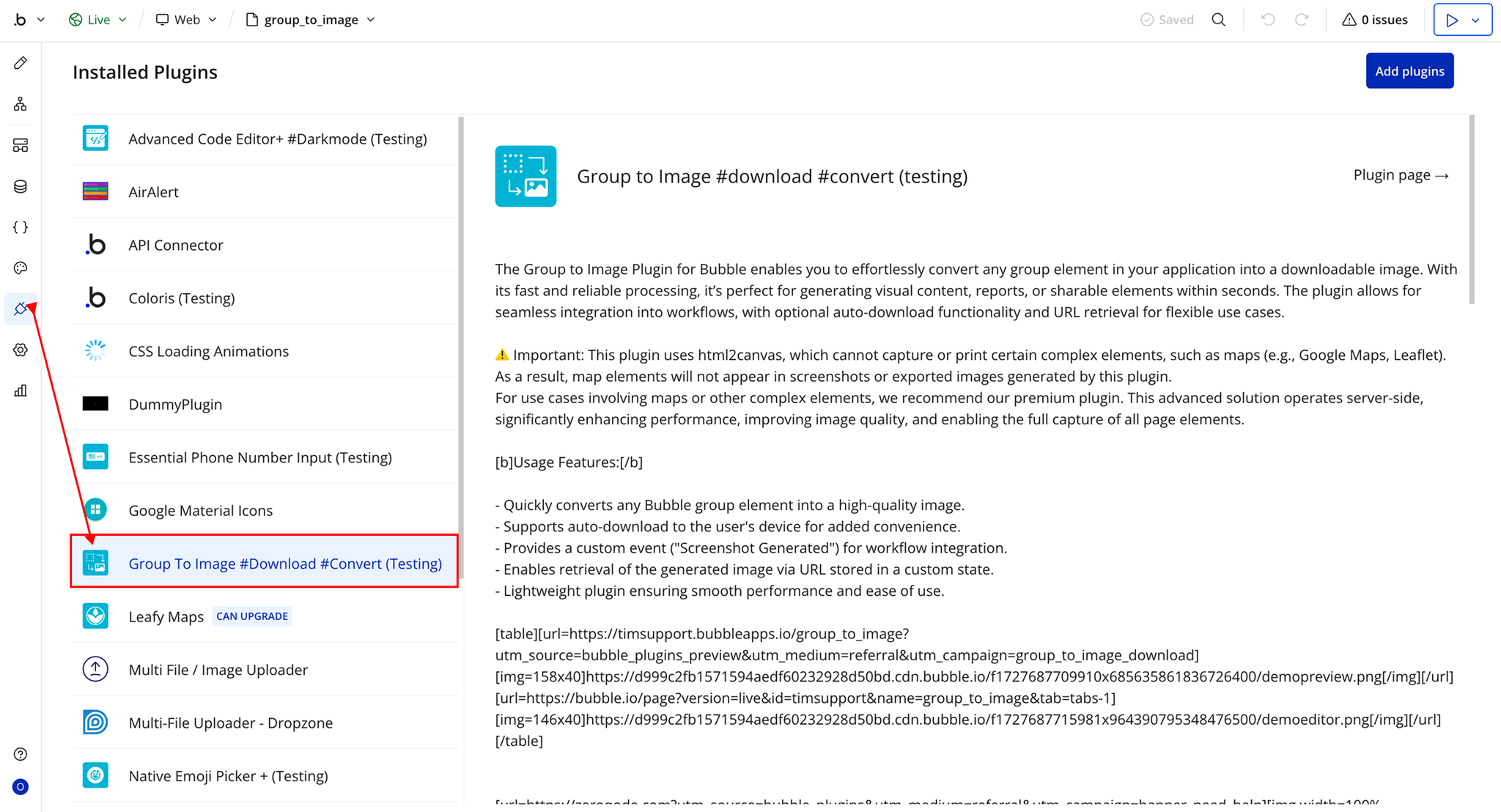
Step 1 – Install the Plugin
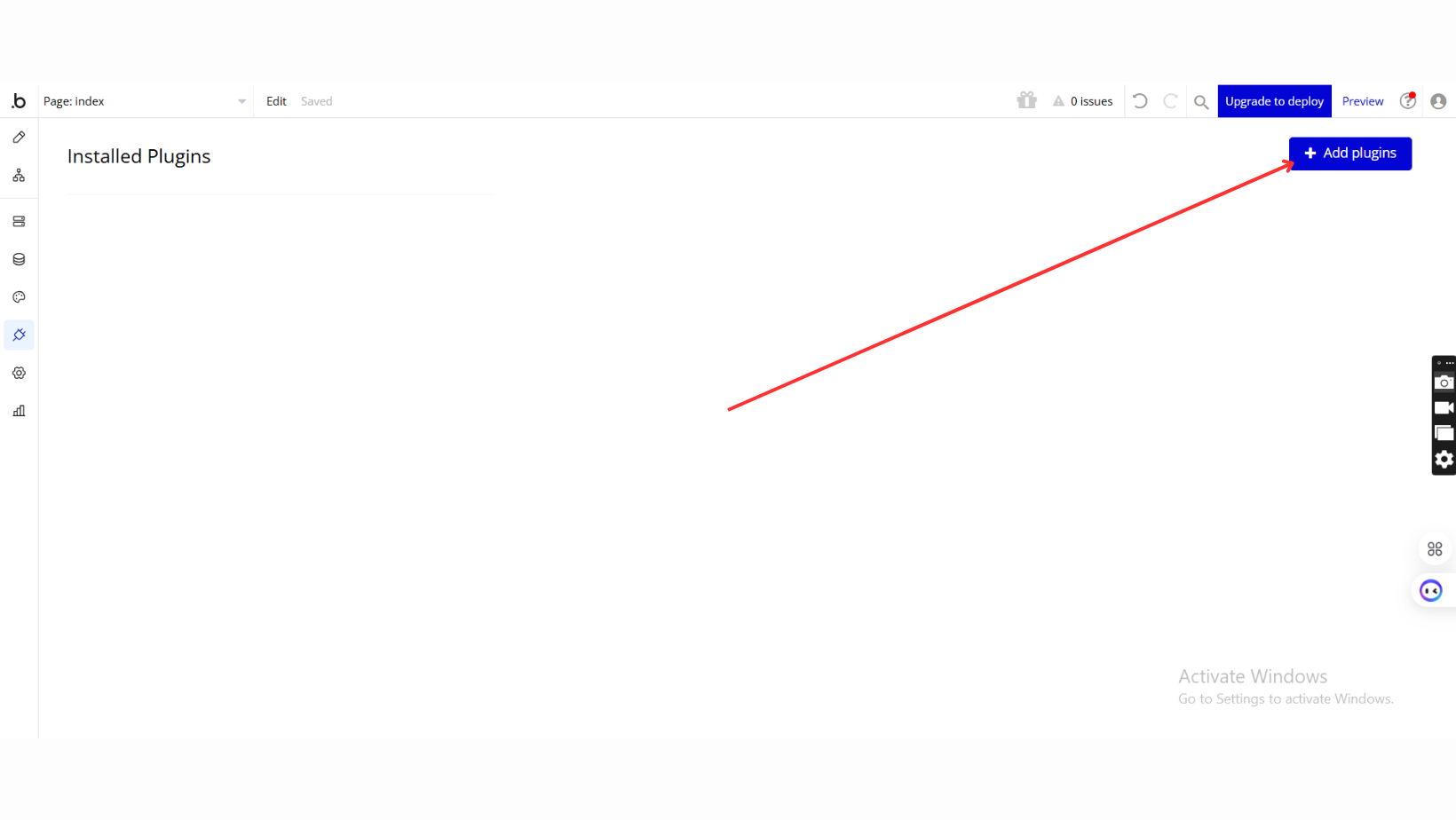
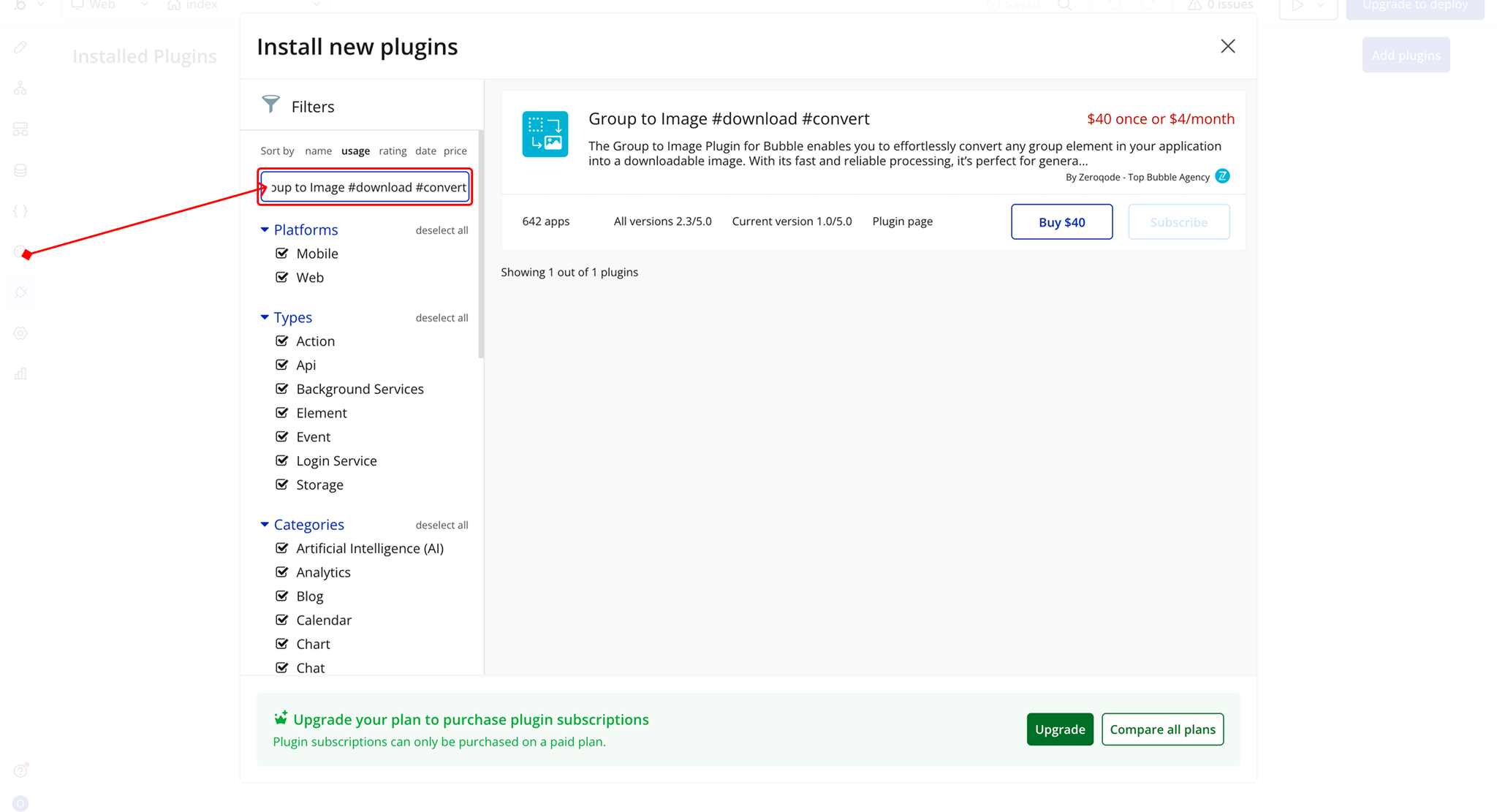
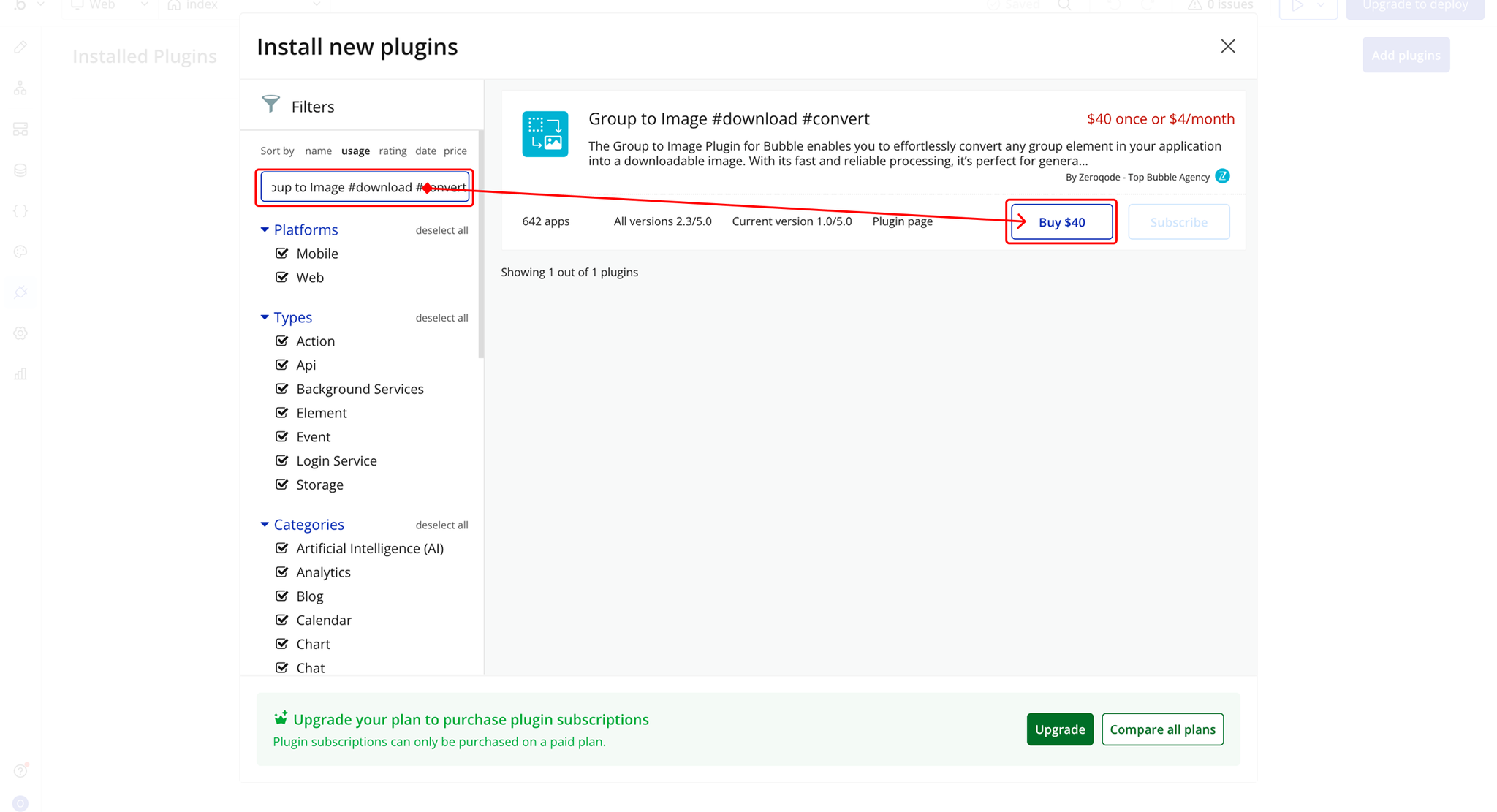
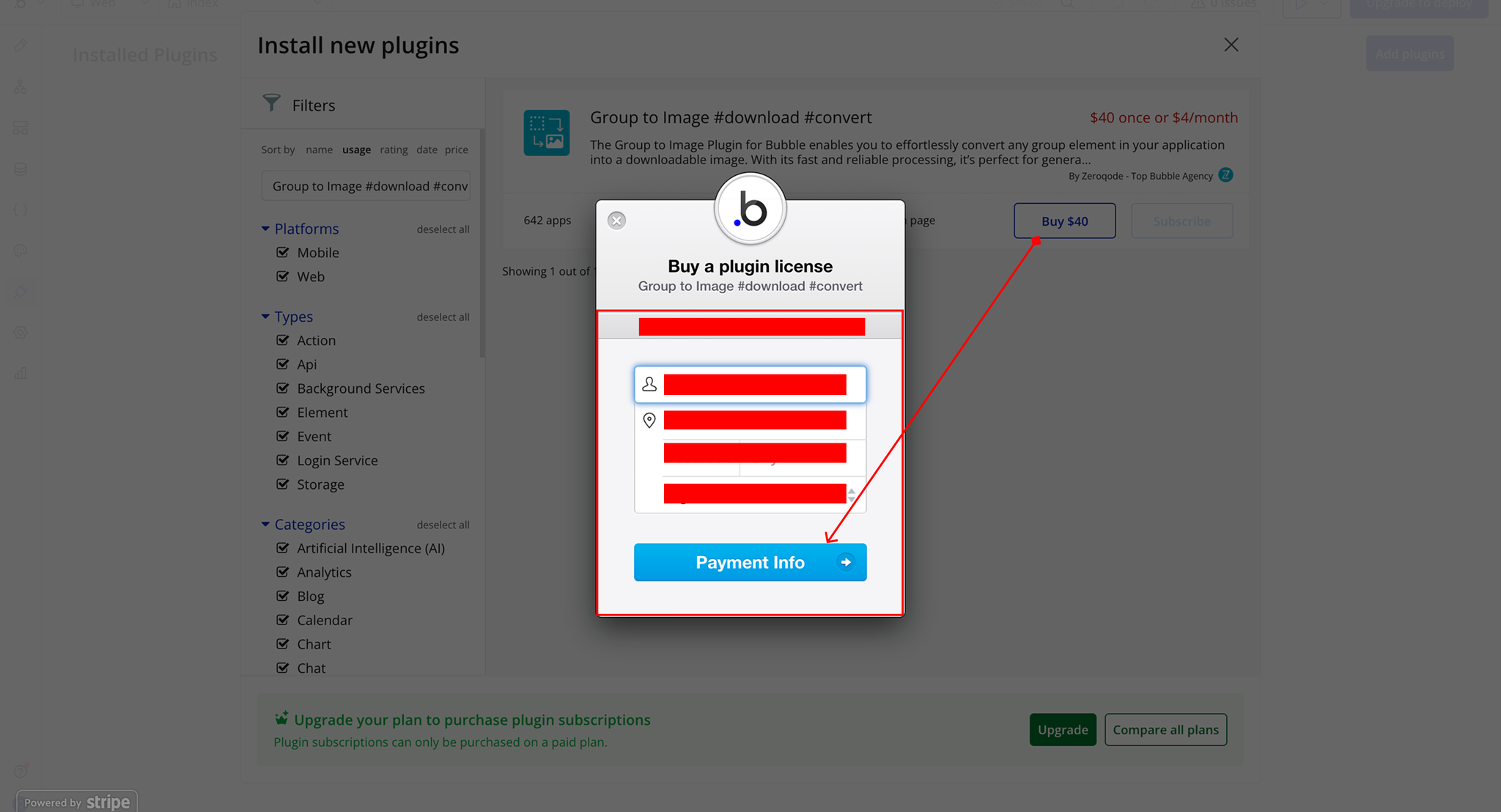
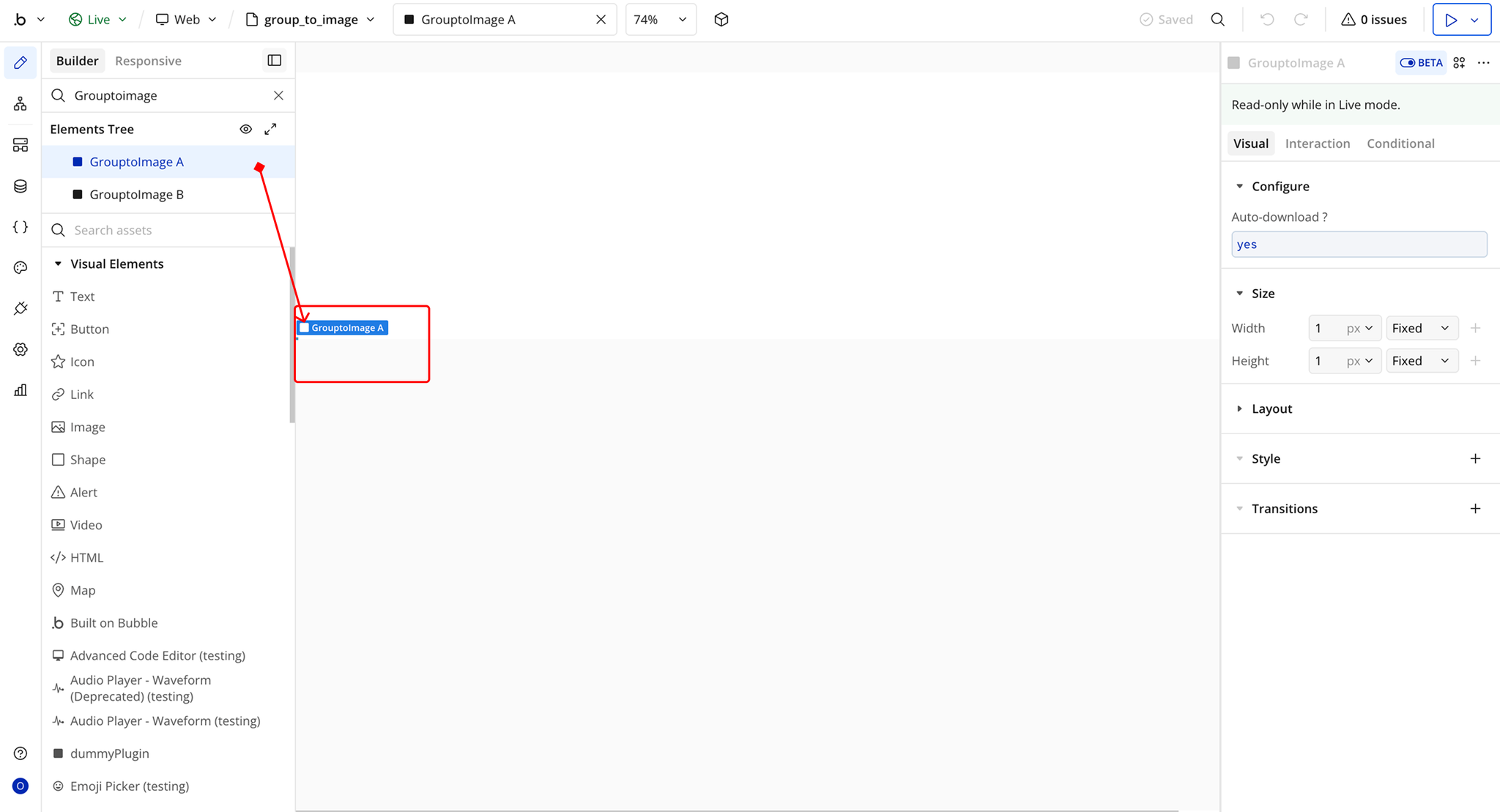
Step 2 – Add the Plugin Element to Your Page
Step 3 – Configure Properties
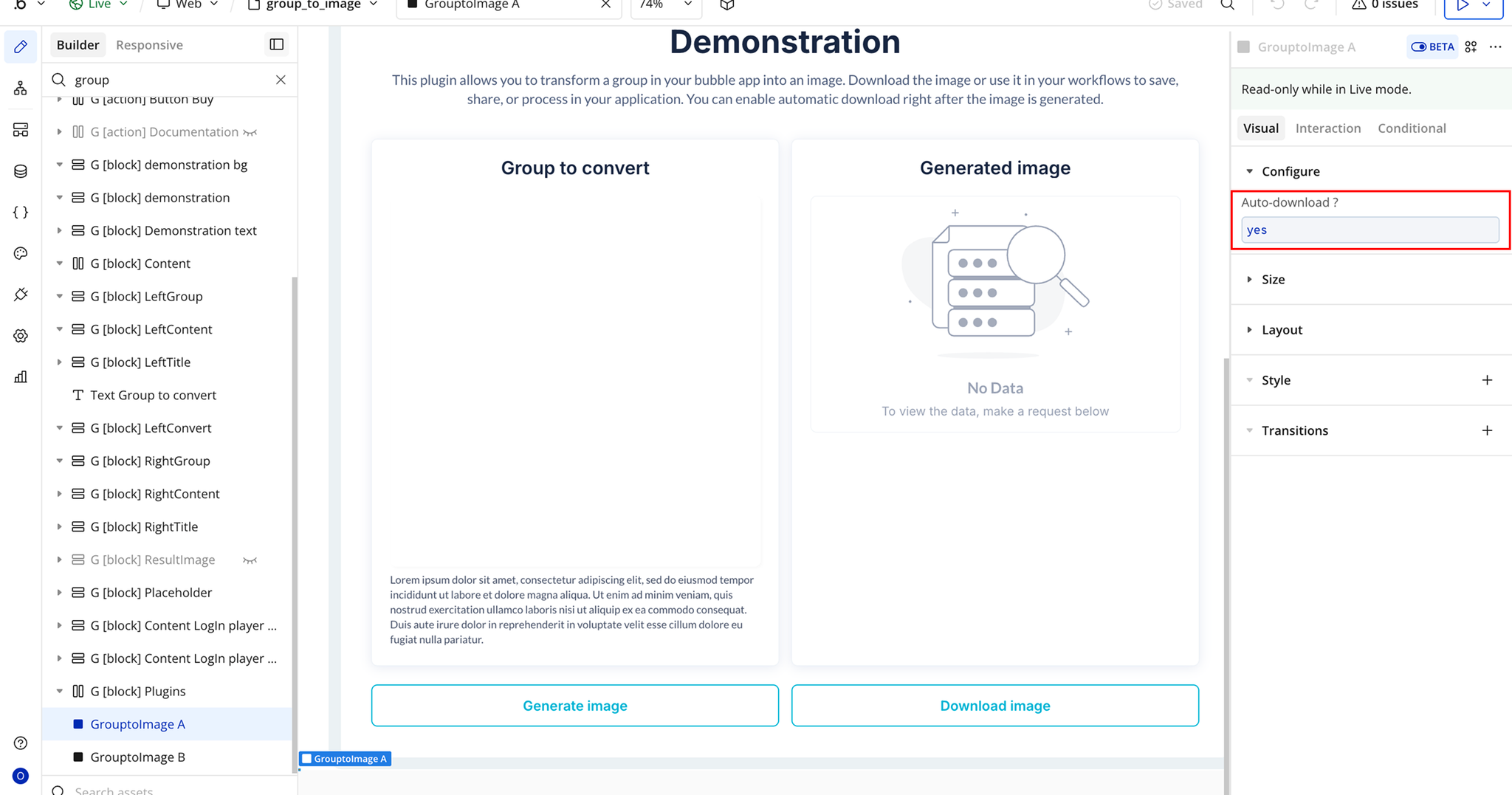
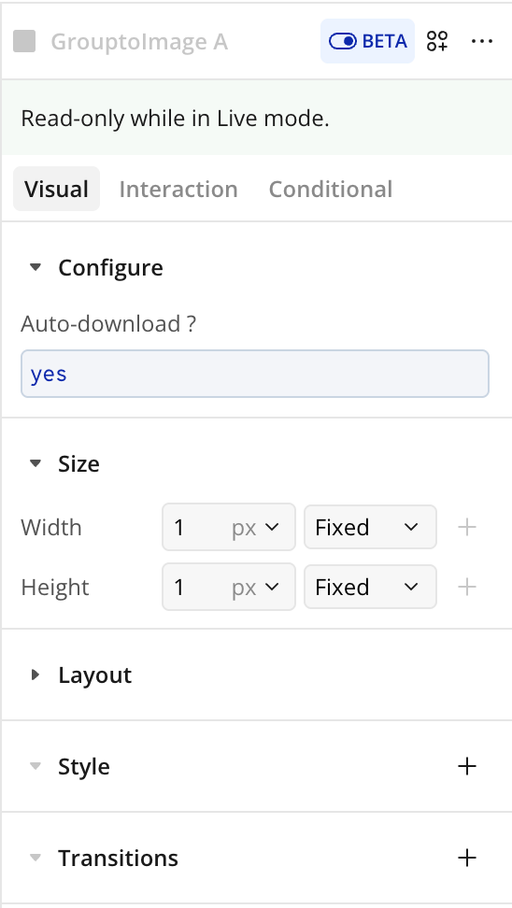
Plugin Element Properties - Group to Image
Fields
Title | Description | Type |
Auto-download? | Automatically downloads the generated image to the user’s device once the screenshot is created. If unchecked, the image will only be generated and made available via the plugin’s URL state. | Checkbox (yes/no) |
Element Actions
Exposed states
Element Events
Workflow example
Workflow 1: Download a Group as an Image