The Calendar Booking & Time Slots Mobile plugin is a powerful scheduling solution designed specifically for mobile applications built with Bubble’s mobile editor. This plugin enables you to dynamically generate available time slots based on customizable parameters such as date ranges, slot duration, intervals, and business hours for each day of the week.
Perfect for appointment booking systems, scheduling applications, and any mobile app that requires time slot management, this plugin automatically calculates available slots while accounting for existing bookings and business hour restrictions. The plugin offers flexible configuration options to accommodate various business models and scheduling requirements.
Prerequisites
This plugin is designed specifically for the mobile version of the Bubble editor. To test and use this plugin effectively:
Your application must be built using Bubble’s mobile editor
No external API keys or third-party services are required
The plugin works entirely client-side for optimal mobile performance
This plugin is designed specifically for the mobile version of the Bubble editor. To test the plugin on your mobile device, use the TestFlight app available at: https://testflight.apple.com/join/ArfXDQMZ
⚠️
Please note that the testing app is currently available for iOS only.
How to setup
Setting up the Time Slots for Bubble Mobile plugin is straightforward and requires no external configuration:
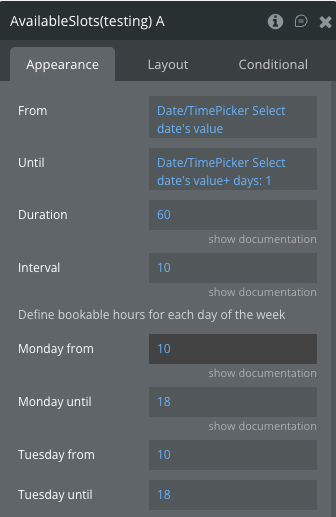
Add the Element: Drag and drop the “Available Slots” element onto your mobile page where you want the time slot functionality.
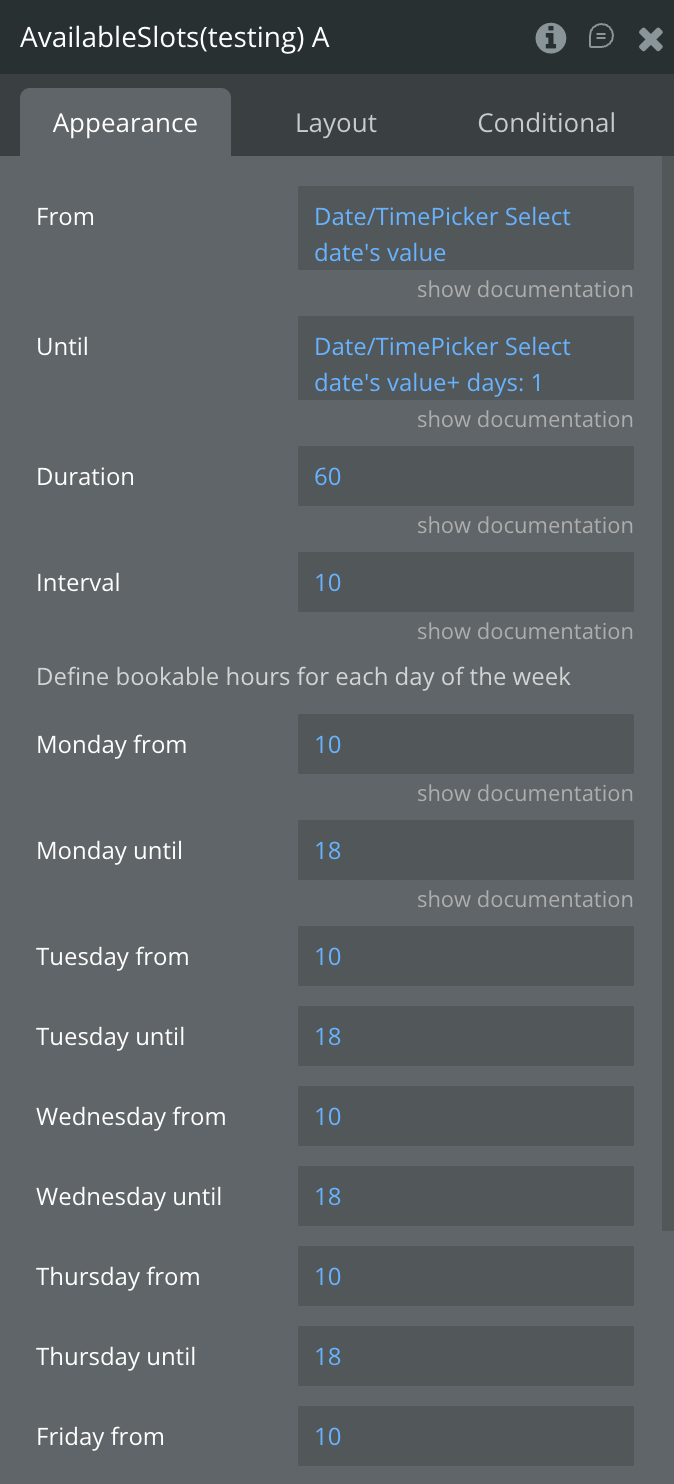
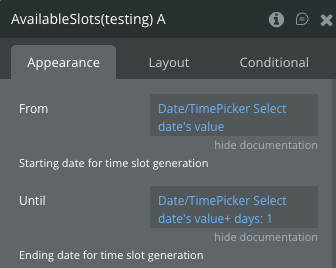
Configure Basic Parameters: Set the fundamental parameters:
From: Starting date for slot generation
Until: Ending date for slot generation
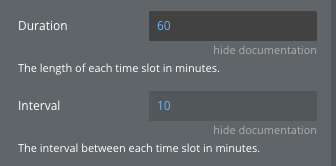
Duration: Length of each time slot (in minutes)
Interval: Time between each slot (in minutes)
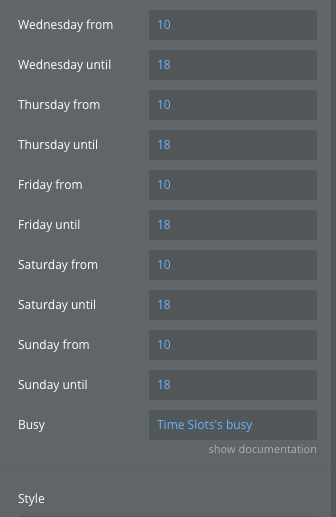
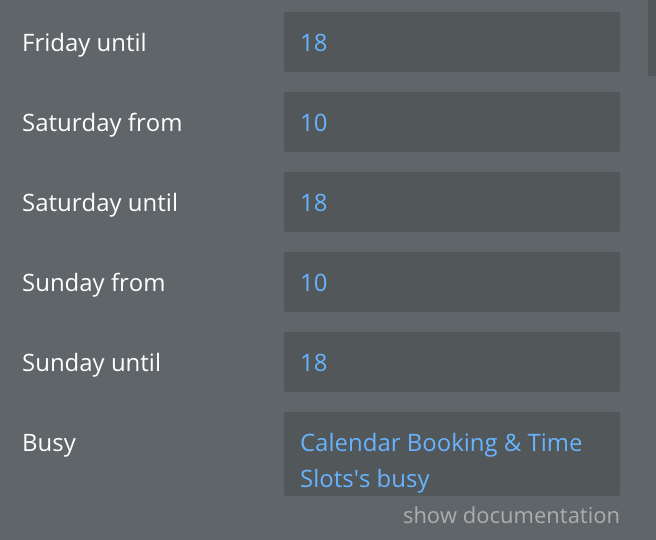
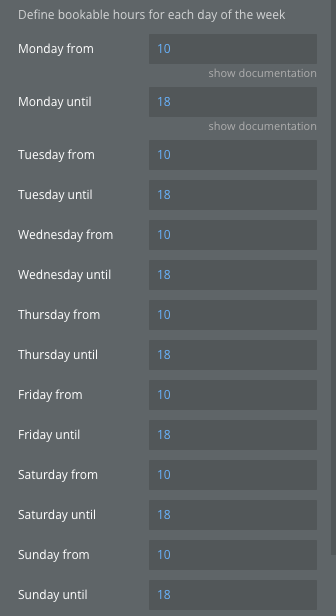
Set Business Hours: Define working hours for each day of the week by specifying the “from” and “until” hours (0-24 format) for Monday through Sunday.
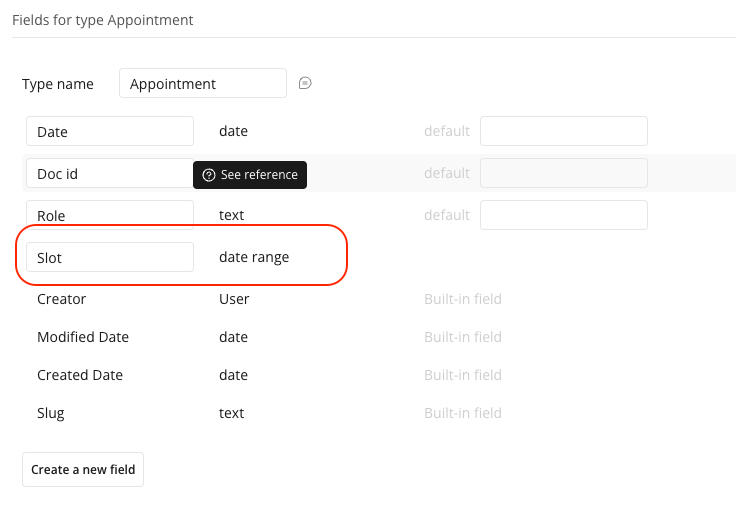
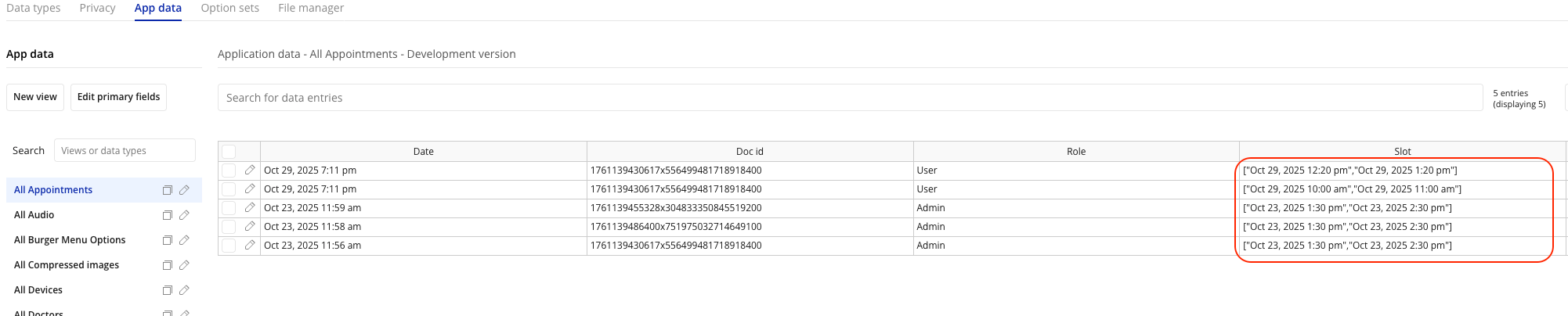
Add Busy Slots: If you have existing bookings, add them to the “Busy” field as a list of date ranges to exclude those times from availability.
Test Functionality: The element will automatically generate available slots based on your configuration and expose them through the “Available Slots” state.
Plugin Element Properties - Available Slots
The plugin contains one main visual element designed for mobile applications that handles all time slot generation functionality.
Fields
Title
Description
Type
From
Starting date for time slot generation
Date
Until
Ending date for time slot generation
Date
Duration
The length of each time slot in minutes
Number
Interval
The interval between each time slot in minutes
Number
Monday from
Bookable from hour for Monday (0 - 24)
Number
Monday until
Bookable until hour for Monday (0 - 24)
Number
Tuesday from
Bookable from hour for Tuesday (0 - 24)
Number
Tuesday until
Bookable until hour for Tuesday (0 - 24)
Number
Wednesday from
Bookable from hour for Wednesday (0 - 24)
Number
Wednesday until
Bookable until hour for Wednesday (0 - 24)
Number
Thursday from
Bookable from hour for Thursday (0 - 24)
Number
Thursday until
Bookable until hour for Thursday (0 - 24)
Number
Friday from
Bookable from hour for Friday (0 - 24)
Number
Friday until
Bookable until hour for Friday (0 - 24)
Number
Saturday from
Bookable from hour for Saturday (0 - 24)
Number
Saturday until
Bookable until hour for Saturday (0 - 24)
Number
Sunday from
Bookable from hour for Sunday (0 - 24)
Number
Sunday until
Bookable until hour for Sunday (0 - 24)
Number
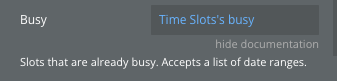
Busy
Slots that are already busy. Accepts a list of date ranges
Date Range (List)
Exposed states
Name
Description
Type
Available Slots
List of all generated available time slots as date ranges
Date Range (List)
Slots Count
Total number of available slots generated
Number
Is loading
Boolean indicator showing if the plugin is currently processing slot generation
Boolean
Element Events
Name
Description
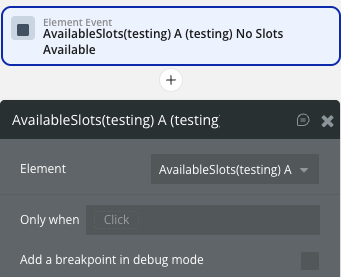
No Slots Available
Triggered when no available time slots can be generated based on the current parameters
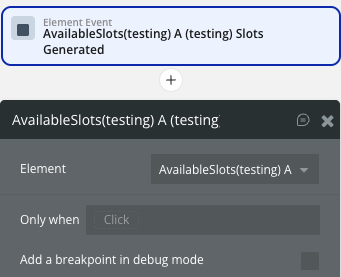
Slots Generated
Triggered when time slots have been successfully generated and are available in the states
Workflow example
Here are some basic workflow examples to help you get started with the Calendar Booking & Time Slots Mobile plugin:
Basic Time Slot Generation
Setup Element: Place the “Available Slots” element on your mobile page.
Configure Dates: Set the “From” and “Until” dates to define your booking window.
Set Duration: Configure slot duration (e.g., 60 minutes for 1-hour appointments).
Set Interval: Configure interval between slots (e.g., 15 minutes for buffer time).
Define Business Hours: Set working hours for each day of the week.
Use Generated Slots: Access the available slots through the “Available Slots” state.
Appointment Booking System
Initial Setup: Configure the element with your business parameters.
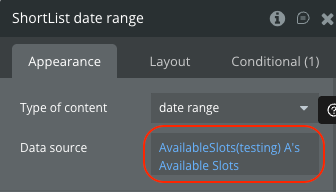
Display Available Slots: Create a ShortList showing the “Available Slots” state.
Handle Selection: Use the “Slots Generated” event to populate your booking interface.
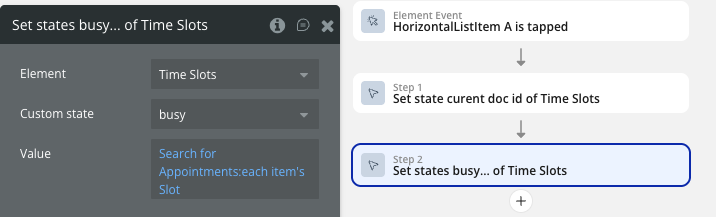
Update Busy Slots: When appointments are booked, add them to the “Busy” field.
Dynamic Schedule Management
Variable Business Hours: Use dynamic values for day-specific hours to accommodate changing schedules.
Conditional Availability: Set business hours to 0 for days when you’re closed.
Bulk Booking Prevention: Add existing bookings to the “Busy” field to prevent double-booking.
Event Handling: Use the “No Slots Available” event to show alternative dates or notify users.
Integration with Database
Load Existing Bookings: Query your database for existing appointments and format them as date ranges.
Pass to Busy Field: Set the “Busy” field with your existing booking data.
Handle New Bookings: When users select a slot, save it to your database and refresh the busy slots.
To manage always busy slots (for example, a break), use a separate field in the database (for example, the roles of user and admin).