The Waveform Audio Player Bubble Mobile plugin provides a powerful and interactive audio visualization experience specifically designed for mobile applications built with Bubble's mobile editor. This plugin creates beautiful waveform visualizations of audio files using the WaveSurfer.js library, allowing users to see audio patterns while playing, pausing, and scrubbing through tracks.
The plugin offers comprehensive playlist functionality, enabling users to add multiple songs, navigate between tracks, and manage their audio queue. With extensive customization options for waveform appearance, including colors, bar dimensions, and cursor styling, you can create visually appealing audio players that match your app's design.
Key features include real-time audio visualization, playlist management, playback controls, and responsive mobile-optimized interface that works seamlessly across iOS and Android devices.
Prerequisites
⚠️
This plugin is designed exclusively for mobile platforms and requires the Bubble mobile editor. The plugin does not support web deployment and will display an error message if used on web platforms!
This plugin is designed specifically for the mobile version of the Bubble editor. To test the plugin on your mobile device, use the TestFlight app available at: https://testflight.apple.com/join/ArfXDQMZ
⚠️
Please note that the testing app is currently available for iOS only.
How to setup
Setting up the Waveform Audio Player Bubble Mobile is straightforward and requires no external configuration:
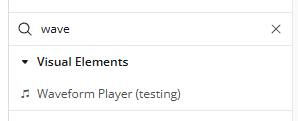
Add the Element: Drag and drop the Waveform Player element onto your mobile page from the visual elements section.
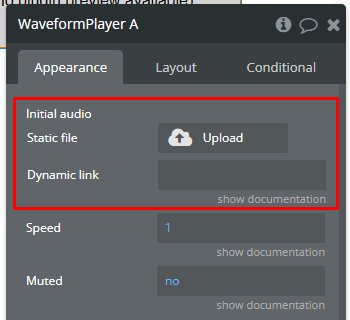
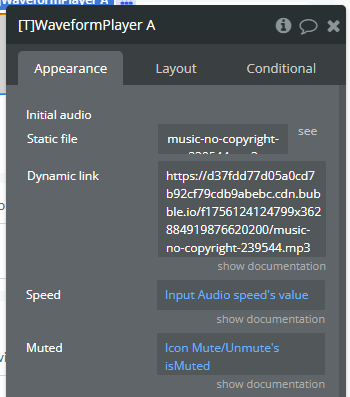
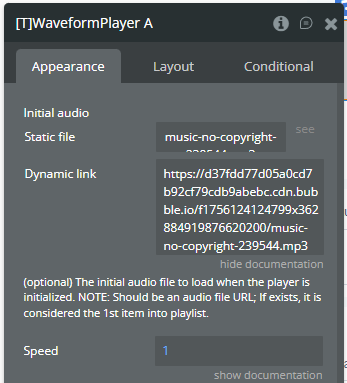
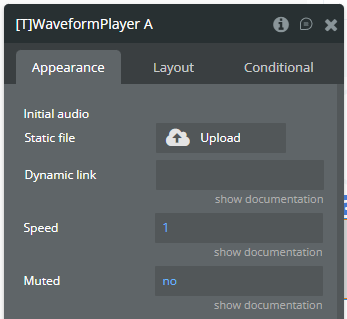
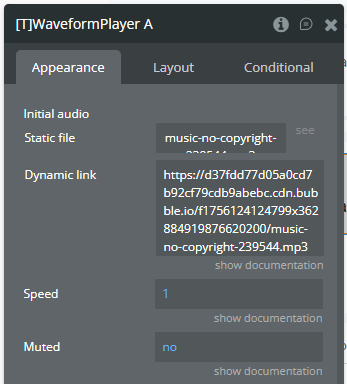
Configure Initial Audio: Set the "Initial audio" field to your desired audio file. This can be a static file or a dynamic value from your database.
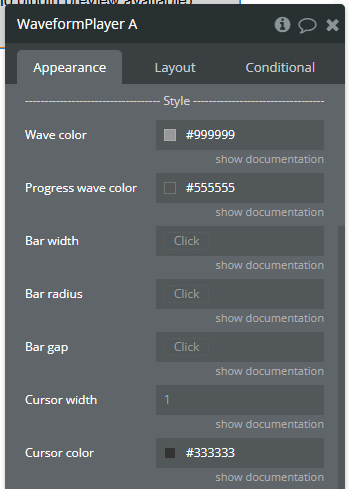
Customize Appearance: Configure the waveform colors, bar dimensions, and cursor styling according to your design preferences.
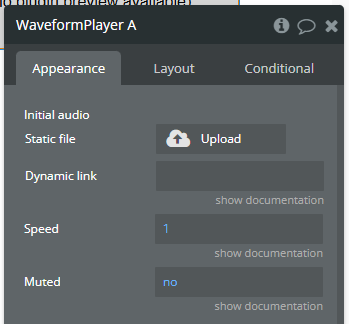
Set Playback Options: Adjust the playback speed, muted state, and control visibility as needed.
Plugin Element — Waveform Player
Element fields
Title
Description
Type
Initial audio
The initial audio file to load when the player is initialized. NOTE: Should be an audio file URL; If exists, it is considered the 1st item into playlist. Check more details here!
File (optional)
Speed
The playback speed multiplier for audio playback. NOTE: 1.0 = normal speed.
Number
Muted
Whether the audio should be muted.
Yes/No
—————-
Style
—————-
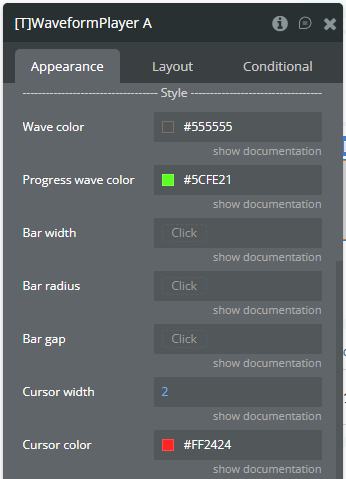
Wave color
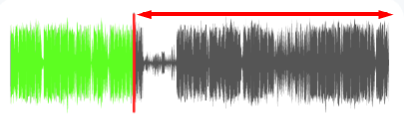
The color of the unplayed portion of the waveform.
Color
Progress wave color
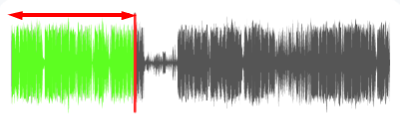
The color of the played/progress portion of the waveform.
Color
Bar width
The width of individual waveform bars in pixels.
Number (optional)
Bar radius
The border radius of waveform bars for rounded appearance.
Number (optional)
Bar gap
The spacing between individual waveform bars in pixels.
Number (optional)
Cursor width
The width of the playback cursor line in pixels.
Number
Cursor color
The color of the playback cursor line.
Color
—————-
Others
—————-
Allow controls
Whether to show built-in media controls for the audio player.
Checkbox
Bar height
(optional) The vertical scaling factor of waveform bars.
Number
Element actions
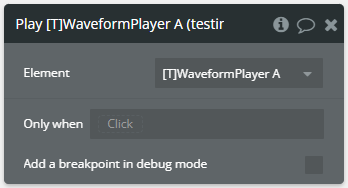
1. Play — Starts playback of the currently loaded audio file from the current position.
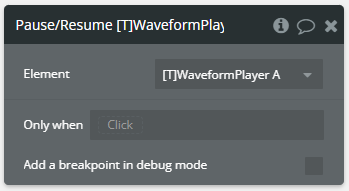
2. Pause/Resume — Toggles the playback state between paused and playing for the current audio.
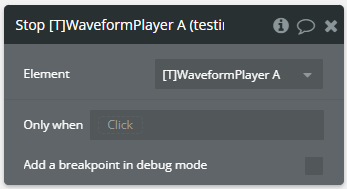
3. Stop — Stops the current audio playback and resets the playback position to the beginning.
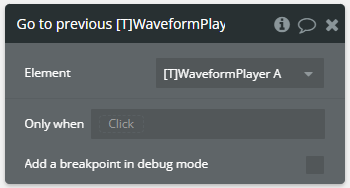
4. Go to previous — Navigates to and loads the previous song in the playlist queue.
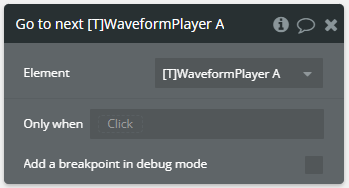
5. Go to next — Navigates to and loads the next song in the playlist queue.
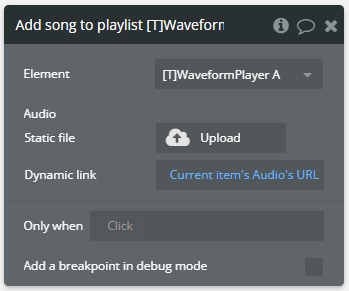
6. Add song to playlist — Adds a new audio file to the end of the current playlist queue.
Fields
Title
Description
Type
Audio
The audio file to add to the playlist queue.
file
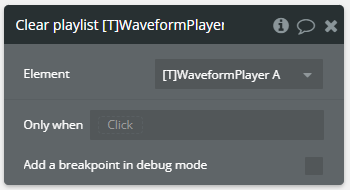
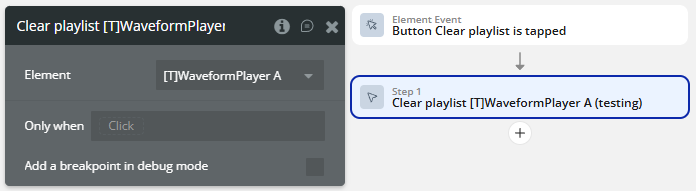
7. Clear playlist — Removes all songs from the playlist except the “Initial audio” if exists.
Element states
Name
Description
Type
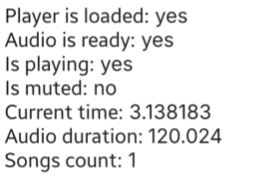
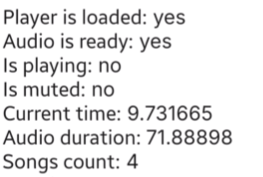
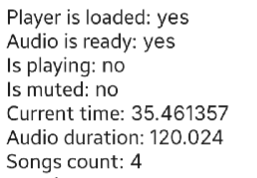
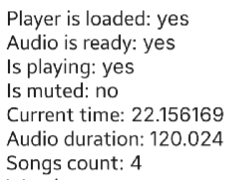
is loaded
Indicates whether the waveform player has been fully loaded and initialized.
Yes/No
audio is ready
Indicates whether the current audio file has been loaded and is ready for playback.
Yes/No
is playing
Indicates whether audio is currently playing.
Yes/No
is muted
Indicates whether the audio is currently muted.
Yes/No
current time
The current playback position in seconds.
Number
audio duration
The total duration of the currently loaded audio in seconds.
Number
songs count
The total number of songs currently in the playlist.
Number
warning message
Contains warning messages when non-critical issues occur.
Text
error message
Contains error messages when critical issues occur during playback.
Text
Element events
Name
Description
started playing
Triggered when audio playback begins or resumes.
stopped playing
Triggered when audio playback is paused or stopped.
audio muted
Triggered when the audio is muted.
audio unmuted
Triggered when the audio is unmuted.
was loaded
Triggered when the waveform player has been fully initialized.
audio is ready
Triggered when an audio file has been loaded and is ready for playback.
audio is not ready
Triggered when an audio file is being loaded or has failed to load.
warning occurred
Triggered when a non-critical warning occurs during operation.
error occurred
Triggered when a critical error occurs during operation.
songs list changed
Triggered when the playlist is modified (songs added, removed, or cleared).
Helpful details
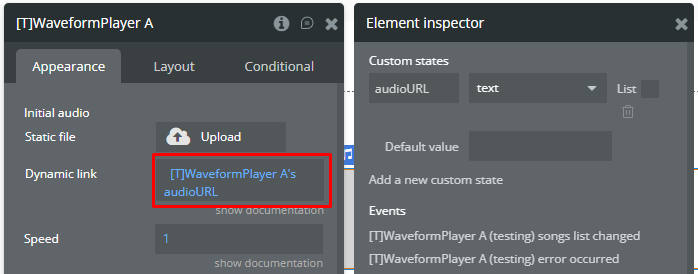
Initial audio song
The Initial audio field has a specific behavior that will be described below.
☝
Please mark that the Initial audio field is optional dynamic value field!
Load element with empty field
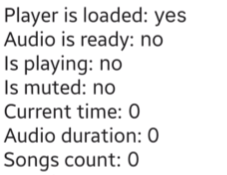
Because the Initial audio field is optional field, the element can be loaded on the page without song.
In this case, the plugin element is loaded on the page but can't interact with it because there are not audio! Please check the plugin element states!
Change field from empty to non-empty value
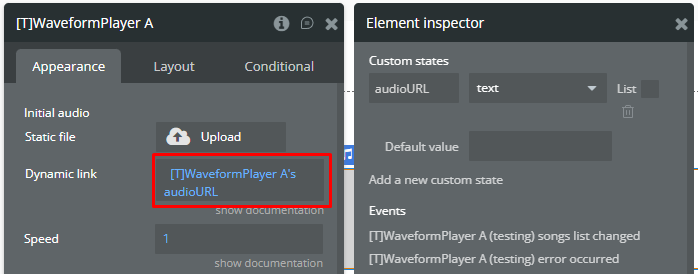
Because the Initial audio field is also dynamic field, the field can be changed dynamically.
When the custom state value is changed from empty to the non-empty value, the new value become the 1st song into playlist.
⚠️
When there are 2+ items into playlist, the Initial audio field value is considered the 1st item!
In this case, the plugin element is loaded on the page and can interact with it! Please check the plugin element states!
⚠️
If the Initial audio field has a non-empty value, the Clear playlist action will remove all playlist items except this value!
Change field from non-empty value to another value
Because the Initial audio field is also dynamic field, the field can be changed dynamically.
When the custom state value is changed from non-empty value to another non-empty value, the previous value will be replaced by the new one into playlist.
⚠️
When there are 2+ items into playlist, the Initial audio field value is considered the 1st item!
In this case, the plugin element is loaded on the page and can interact with it! Please check the plugin element states!
⚠️
If the Initial audio field has a non-empty value, the Clear playlist action will remove all playlist items except this value!
Autoplay on navigation
When the Go to previous or Go to next actions are called, the previous or next loaded audio will automatically play only if the is playing state of player was yes before action calling!
No autoplay example
The current song is loaded and ready to interact but is playing state is no.
The Go to next action is called.
The new song was loaded but it didn’t start to play.
Autoplay example
The current song is loaded and ready to interact and is playing state is yes.
The Go to previous action is called.
The new song was loaded and it started to play.
Workflow examples
Here are some setups that will help to understand the plugin better.
Basic player setup
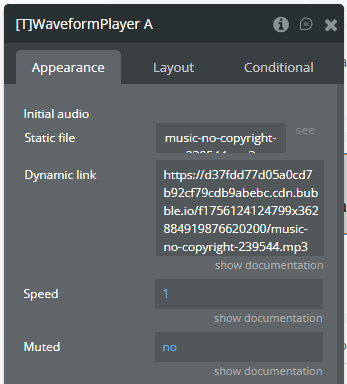
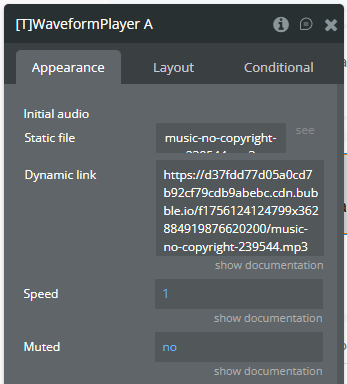
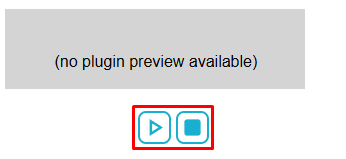
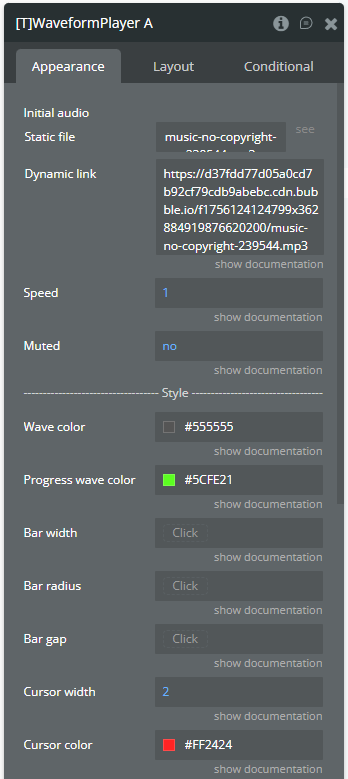
On the page is placed a plugin element with the following settings.
☝
The audio from the Initial audio field is considered the 1st song in the playlist!
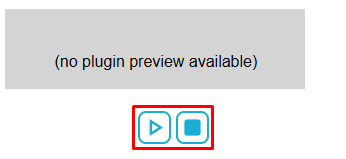
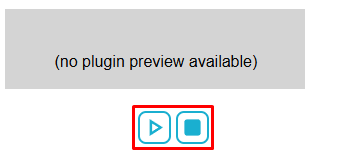
Bellow are placed 2 Icons to interact with audio playback.
ℹ️
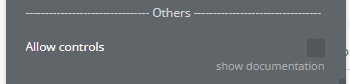
The Icons are used because the Allow controls field is unchecked. Otherwise, these are optional.
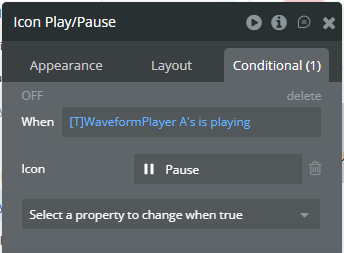
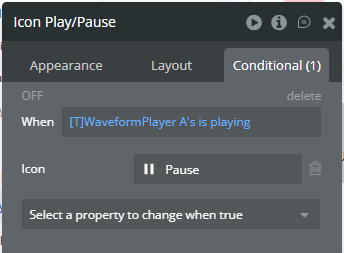
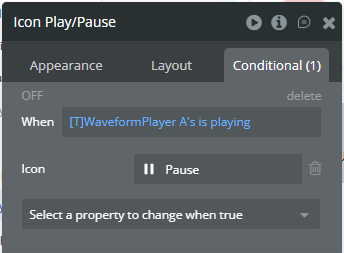
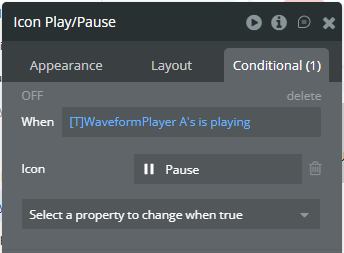
The Play/Pause icon has a Conditional that changes icon depending on is playing state of plugin element.
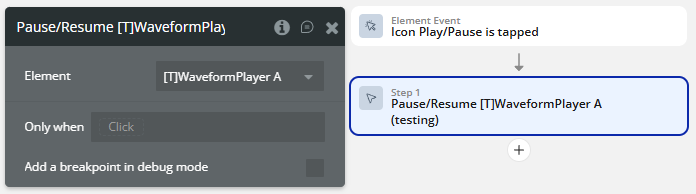
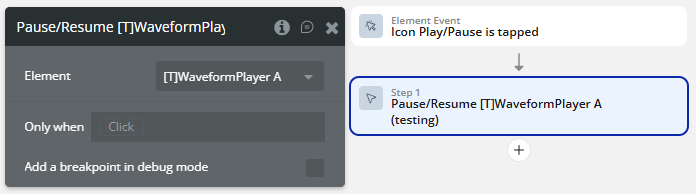
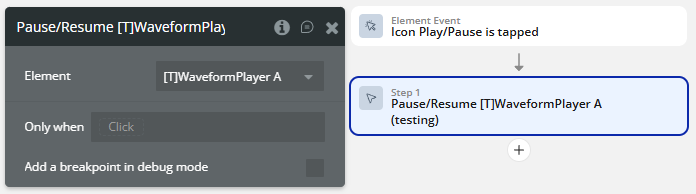
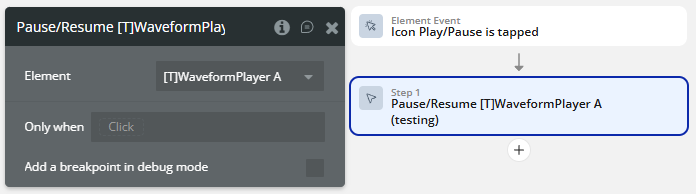
When the Play/Pause icon is tapped, the Pause/Resume action is called.
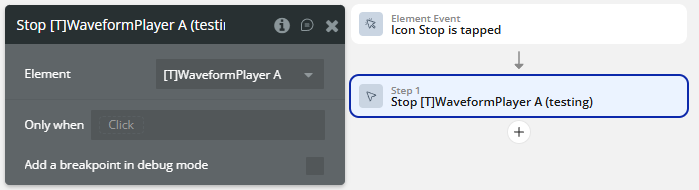
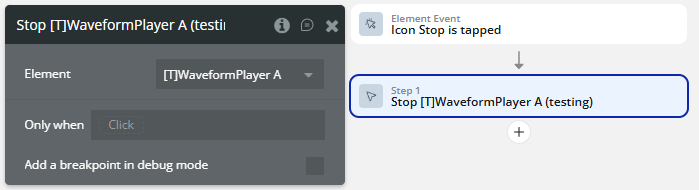
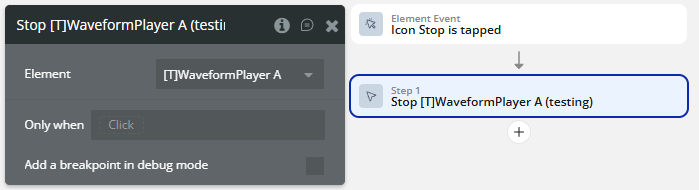
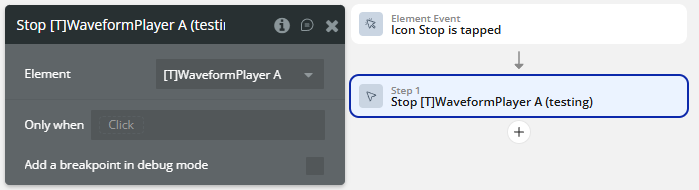
When the Stop icon is tapped, the Stop action is called.
Wave customization
On the page is placed a plugin element with the following settings.
☝
The audio from the Initial audio field is considered the 1st song in the playlist!
Bellow are placed 2 Icons to interact with audio playback.
ℹ️
The Icons are used because the Allow controls field is unchecked. Otherwise, these are optional.
The Play/Pause icon has a Conditional that changes icon depending on is playing state of plugin element.
When the Play/Pause icon is tapped, the Pause/Resume action is called.
When the Stop icon is tapped, the Stop action is called.
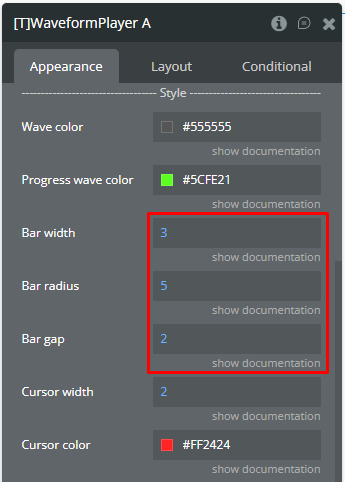
The Style section has the following settings.
The Wave color field refers to waves from unplayed portion of player.
The Progress wave color field refers to waves from played portion of player.
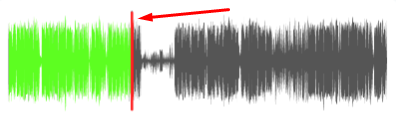
The Cursor width and Cursor color fields refer to vertical line that indicates end of played portion.
Bar customization
On the page is placed a plugin element with the following settings.
☝
The audio from the Initial audio field is considered the 1st song in the playlist!
Bellow are placed 2 Icons to interact with audio playback.
ℹ️
The Icons are used because the Allow controls field is unchecked. Otherwise, these are optional.
The Play/Pause icon has a Conditional that changes icon depending on is playing state of plugin element.
When the Play/Pause icon is tapped, the Pause/Resume action is called.
When the Stop icon is tapped, the Stop action is called.
The Style section has the following settings.
The Bar… fields will customize the wave individually.
Interaction with playlist
On the page is placed a plugin element with the following settings.
☝
The audio from the Initial audio field is considered the 1st song in the playlist!
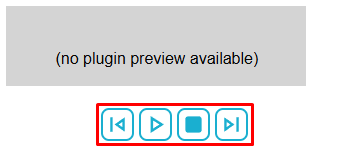
Bellow are placed Icons to interact with audio playback and playlist.
ℹ️
The Play/Pause and Stop Icons are used because the Allow controls field is unchecked.
The Play/Pause icon has a Conditional that changes icon depending on is playing state of plugin element.
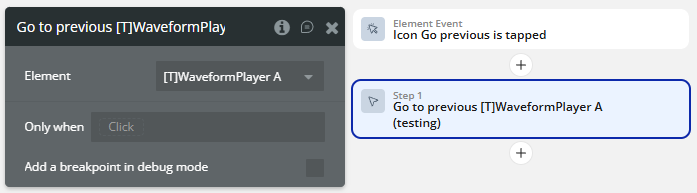
When the Previous icon is tapped, the Go to previous action is called.
When the Play/Pause icon is tapped, the Pause/Resume action is called.
When the Stop icon is tapped, the Stop action is called.
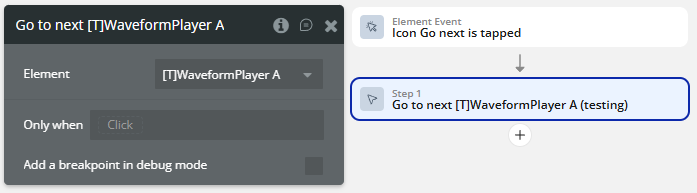
When the Next icon is tapped, the Go to next action is called.
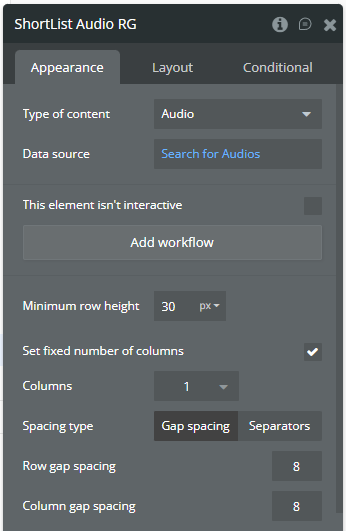
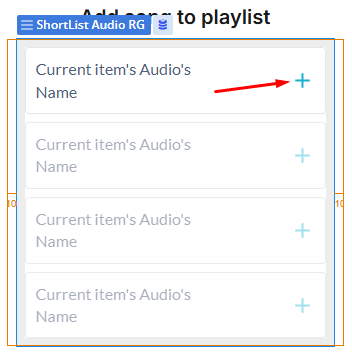
Next, a RG is placed on the page to enumerate some audios.
Each item has an Icon that will add the Current item into playlist.
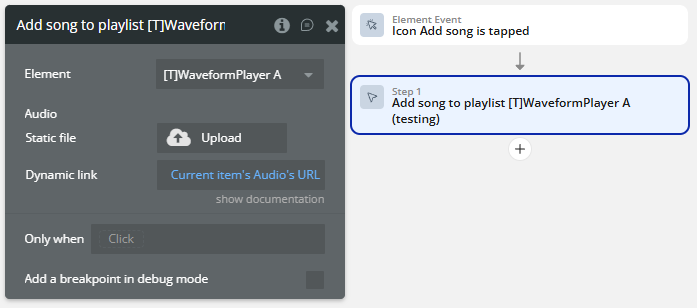
When the Add song icon is tapped, the Add song to playlist action is called with the following settings.
Additionally, a Button is added on the page to clear the playlist.
When the Clear playlist button is tapped, the Clear playlist action is called.
⚠️
The Clear playlist action removes all songs from the playlist except the “Initial audio” if exists! Check more details here!
Changelogs
Update 21.09.26 - Version 1.2.0
Fixed iOS inline audio playback and duplicated player commands.