
Demo to preview the plugin:
Introduction
The Countdown Timer Native plugin allows users to easily add countdown timers to their Bubble.io applications. This plugin provides a simple way to track time with a visual timer element that can be started, paused, and reset. Users can specify the countdown duration and even set a warning threshold to trigger events when the timer is about to expire.
This is a perfect solution for applications that require timed activities, such as quizzes, games, booking systems, or any other scenario where time tracking is essential.
Prerequisites
This plugin is designed specifically for the mobile version of the Bubble editor. To test the plugin on your mobile device, use the TestFlight app available at: https://testflight.apple.com/join/4fXUggud
Notes
- Use "Instance ID" when you have several Timer or Stopwatch elements, otherwise they share the same saved state.
- Actions called before the element is loaded (e.g. on "Page is loaded") are executed as soon as the element appears. Only the last such action is kept.
- In Web Preview, the timer state is not saved between reloads, and the circular ring may be shown as text only. On a real device both work fully.

How to setup
Setting up the Countdown Timer Native plugin is straightforward:
- Install the plugin from the Bubble.io plugin marketplace
- Add the “Timer” element to your page
- Configure the timer settings (countdown time and optional warning time)
- Use the provided actions to control the timer (Start, Pause, Reset)
- Optionally, set up workflows that respond to the timer events (Time Up, Time Warning)
No additional configuration or external APIs are required.
Plugin Element Properties - Timer
The plugin contains a visual Timer element that should be used on a page.
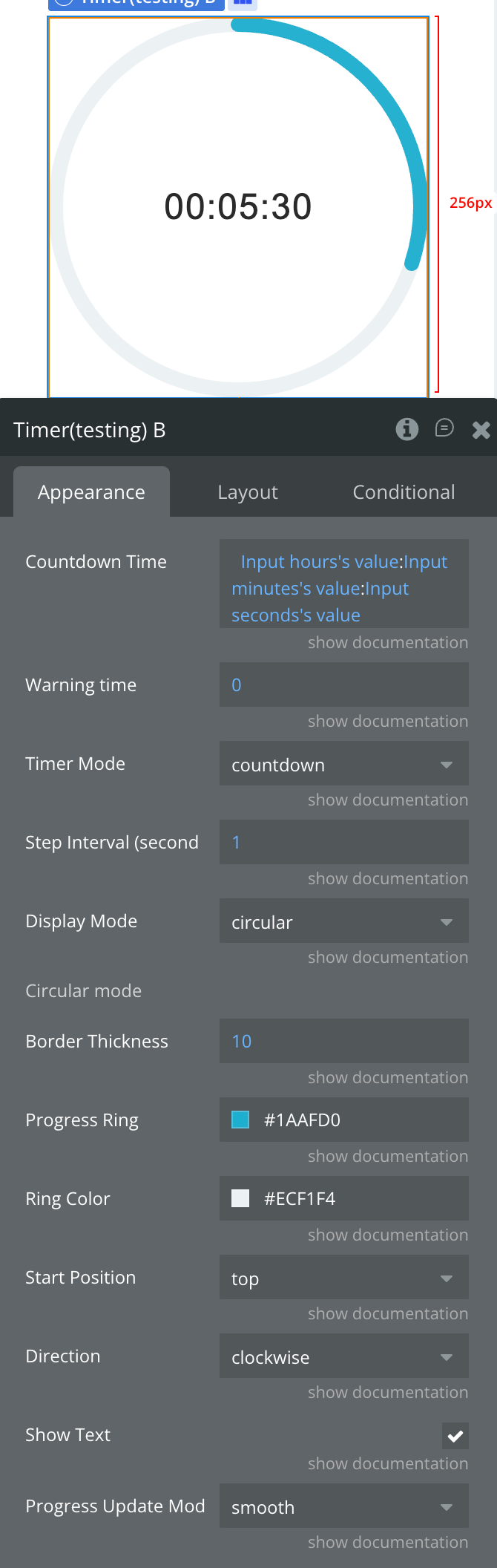
Fields
Title | Description | Type |
Countdown Time | Time in the format HH:MM:SS (MM:SS and SS are also accepted). Ignored if "Duration (ms)" is set | Text |
Warning time | The threshold in seconds until the timer ends (triggers the “Time Warning” event) | Number |
Timer Mode | Choose between
• countdown (from time to 0)
• count-up (from 0 to time) | Dropdown |
Step Interval (seconds) | Time interval for each step (e.g., 1 for every second, 2 for every 2 seconds) | Number |
Display Mode | Choose display style:
• headless (logic only)
• circular (visual timer with progress ring) | Dropdown |
Circular mode | ||
Border Thickness | Progress border width in pixels | Number |
Progress Ring | Progress ring color in hex format | Color |
Ring Color | Background circle color in hex format | Color |
Start Position | Starting position for progress animation | Dropdown |
Direction | Progress animation direction | Dropdown |
Show Text | Show/hide time text | Yes/No |
Progress Update Mode | • Instant: progress updates in steps.
• Smooth: progress updates continuously with linear animation | Dropdown |
Duration (ms) | Timer duration in milliseconds (e.g. 90000 = 1 min 30 sec). If set and greater than 0, overrides "Countdown Time" | Number |
Warning time (ms) | Warning threshold in milliseconds before the timer ends (triggers the "Time Warning" event). If set and greater than 0, overrides "Warning time" | Number |
Instance ID | Unique ID used to save the timer state between app sessions. Set a different value for each timer if you have more than one on a page | Text |
Element Actions
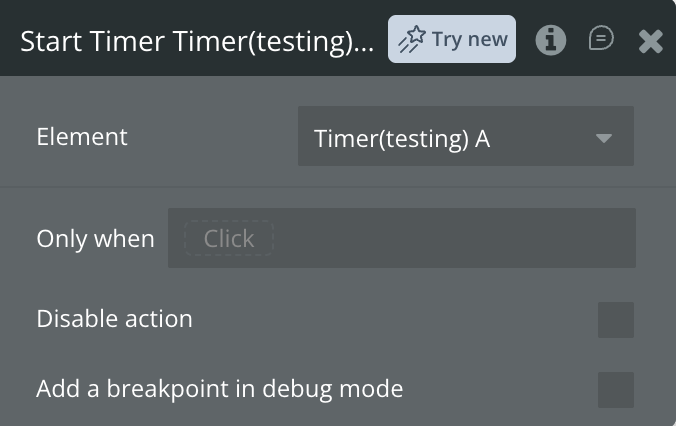
Start Timer
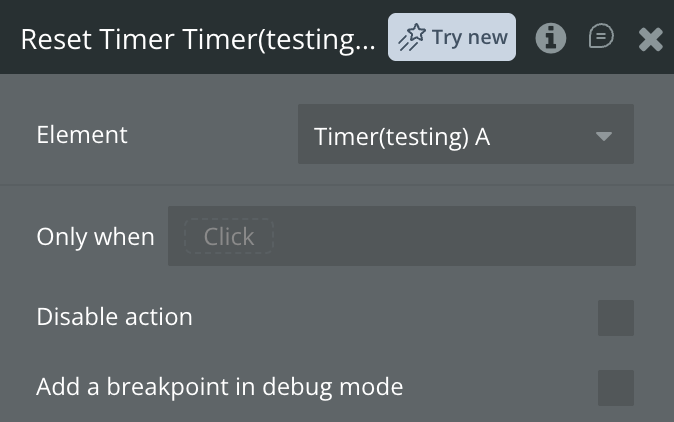
Reset Timer
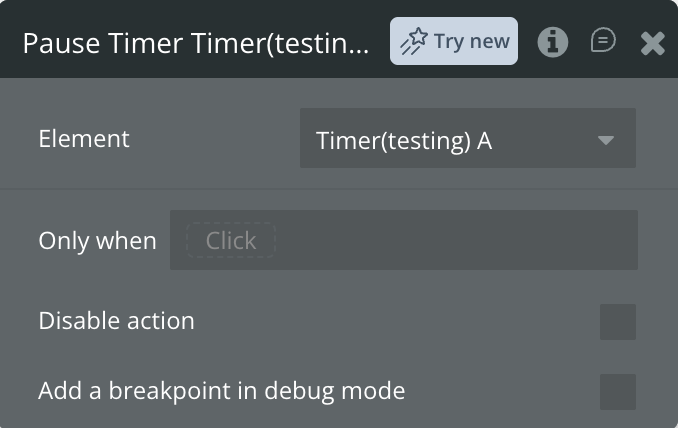
Pause Timer
Exposed states
Name | Description | Type |
Time Left | The remaining time displayed in format HH:MM:SS | Text |
Time Left Seconds | The remaining time in seconds (legacy, use "Time Left Ms" instead) | Number |
Time Left Ms | The remaining time in milliseconds (same unit as the Stopwatch). In count-up mode, the elapsed time | Number |
Element Events
Name | Description |
Time Up | Triggered when the countdown reaches zero (or, in count-up mode, when the target time is reached) |
Time Warning | Triggered when the remaining time reaches the warning threshold (countdown mode only) |
Plugin Element Properties - Stopwatch
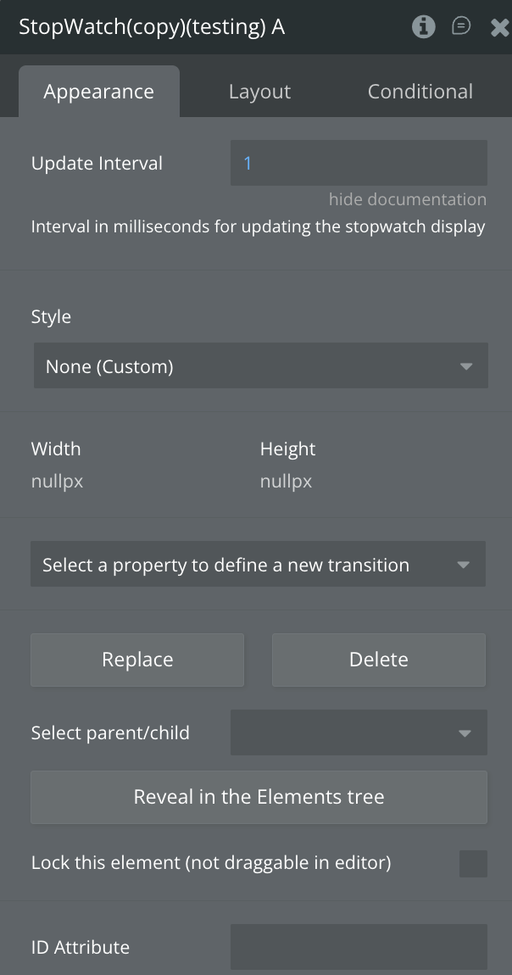
Fields
Title | Description | Type |
Update Interval | How often the stopwatch states are updated, in milliseconds. Default: 100. Minimum: 16 | Number |
Instance ID | Unique ID used to save the stopwatch state (time and laps) between app sessions. Set a different value for each stopwatch if you have more than one in the app | Text |
Element Actions
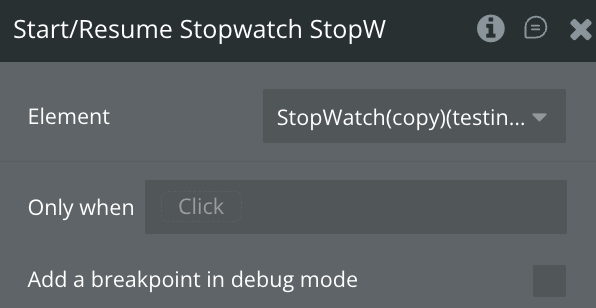
Start/Resume Stopwatch
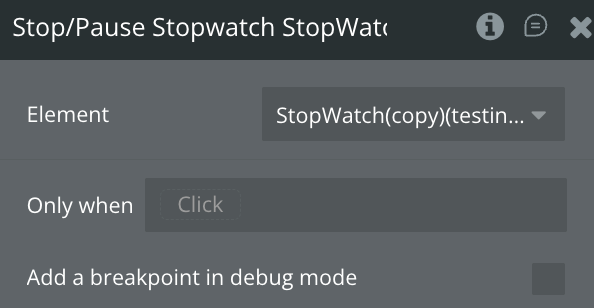
Stop/Pause Stopwatch
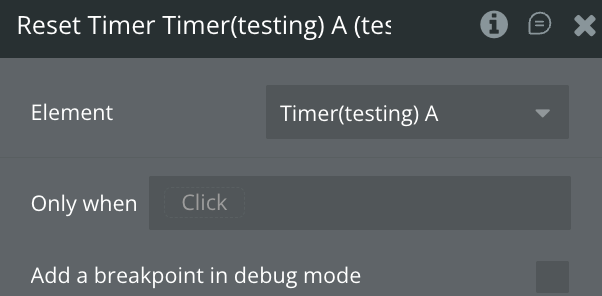
Reset Stopwatch
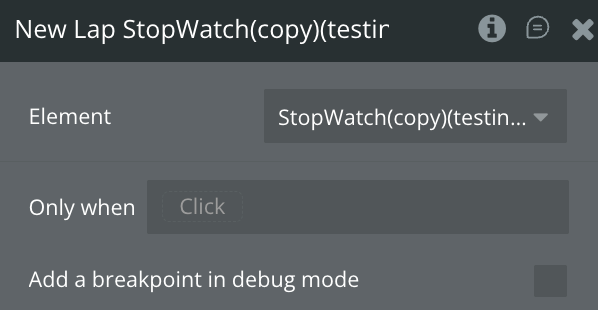
New Lap
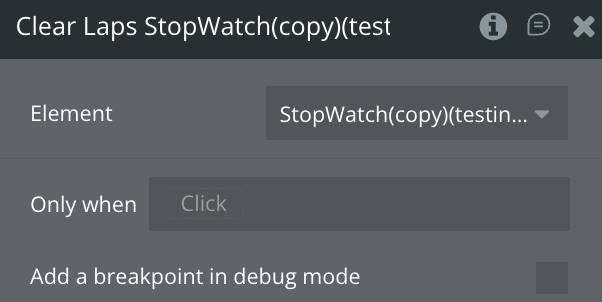
Clear Laps
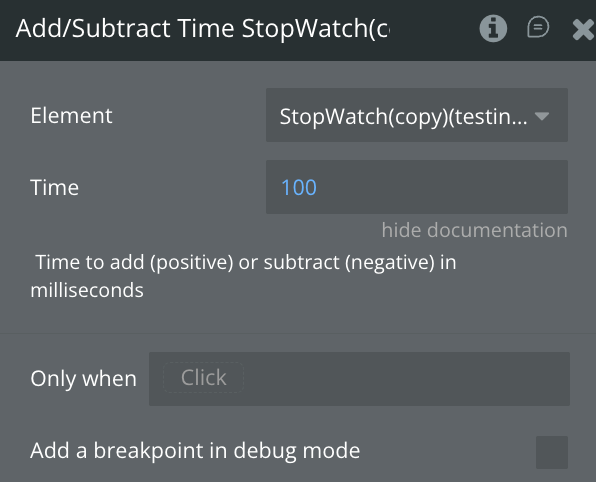
Add/Subtract Time
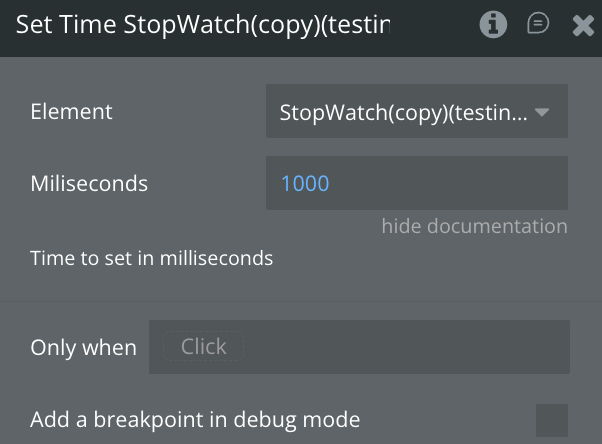
Set Time
Exposed states
Name | Description | Type |
Total Elapsed Time Ms | Total elapsed time in milliseconds | Number |
Formatted Total Elapsed Time | Formatted elapsed time as HH:MM:SS | Text |
Is Running | Whether the stopwatch is currently running | Yes/No |
Lap Times | Array of lap times in milliseconds | List of Number |
Lap Formatted Times | Array of formatted lap times (HH:MM:SS) | List of Text |
Current Lap Time | Current lap time in milliseconds | Number |
Current Lap Formatted Time | Current lap formatted time as HH:MM:SS | Text |
Element Events
Name | Description |
Stopwatch Started | Triggered When the stopwatch starts |
Stopwatch Stopped | Triggered When the stopwatch stops |
Registered New Lap | Triggered When a new lap is recorded |
Workflow example
Here’s an example of how you might use the Countdown Timer Native plugin in a quiz application:
- Setup the Quiz Timer:
- Add the Timer element to your quiz page
- Set the Countdown Time to “00:05:00” (5 minutes)
- Set the Warning Time to 60 (seconds)
- Start the Quiz:
- When the user clicks “Start Quiz,” use the “Start Timer” action
- Display the timer’s “Time Left” state to show the user how much time remains
- Configure Warning Event:
- When the “Time Warning” event triggers, change the timer’s appearance to red
- Show a message to the user: “1 minute remaining!”
- Handle Time Up Event:
- When the “Time Up” event triggers, automatically submit the quiz
- Display a message: “Time’s up! Your answers have been submitted.”
- Pause Functionality:
- Add a “Pause” button that triggers the “Pause Timer” action
- This could be useful if the user needs to temporarily stop the quiz