
Link to the plugin page: https://zeroqode.com/plugin/1543774555605x996018885702451200
Demo to preview the plugin:
Introduction
Are you looking for a tool to create image galleries? Add this no-code plugin to your Bubble app and create a cool-looking image gallery with a wide variety of animation effects.

How to setup
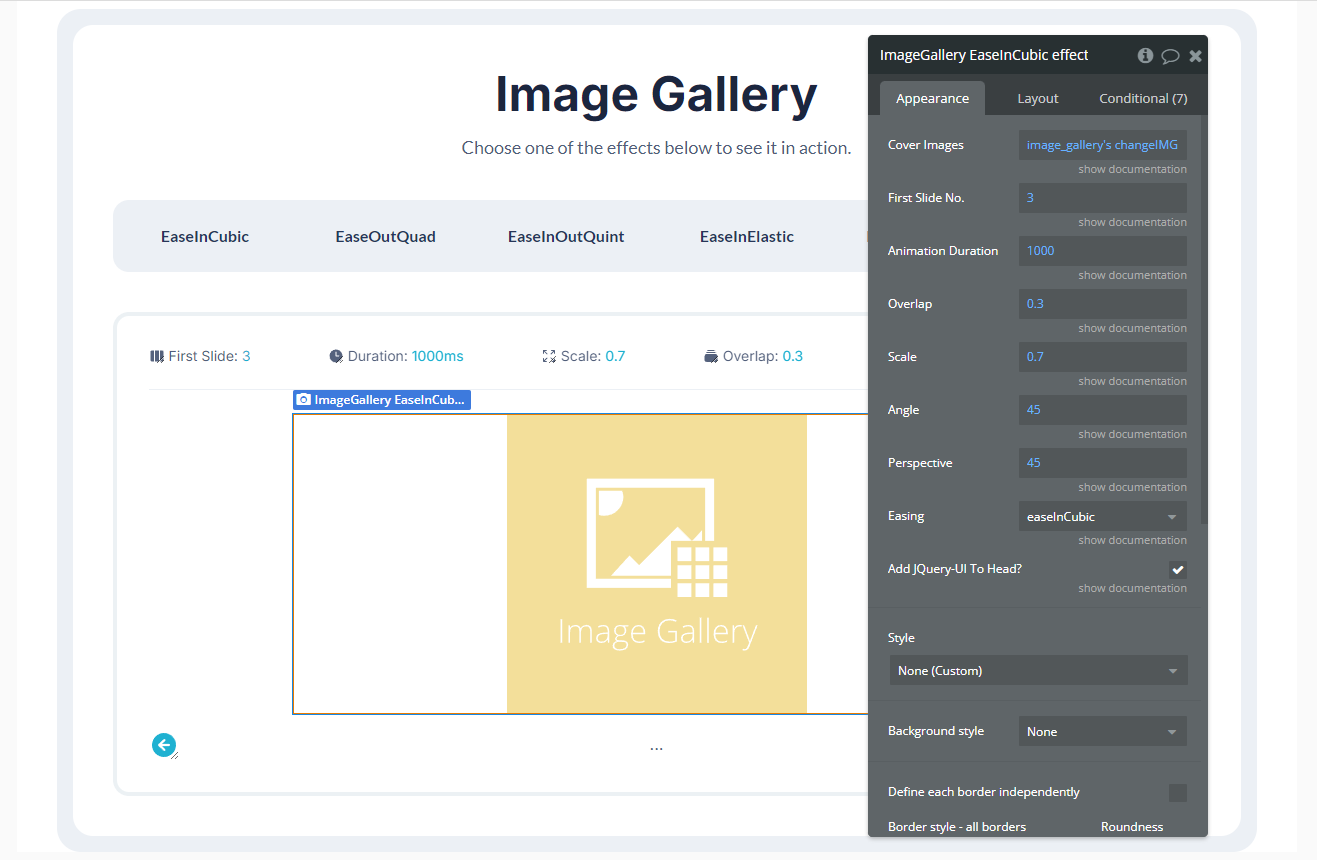
- Inserting the Image Gallery
- In the Design tab, drag and drop the Image Gallery element onto your page.
- In the element’s properties panel, set the data source to a list of images
- Configuring Gallery Interaction
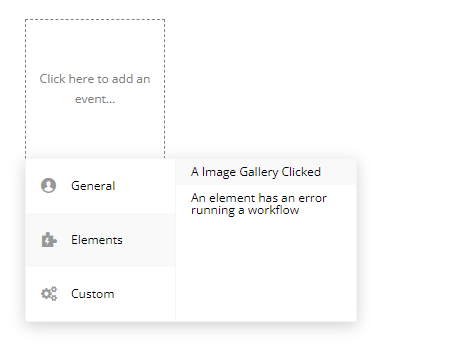
- Open the Workflow Editor, and add the "A Image Gallery Clicked" event to detect when a user clicks on an image.
- Choose an action to execute when an image is clicked (e.g., navigating to another page or displaying additional information).
- Adding Navigation Buttons (Optional)
- To allow users to manually navigate through the gallery, add buttons to your design.
- In the workflow, assign these buttons to the available actions:
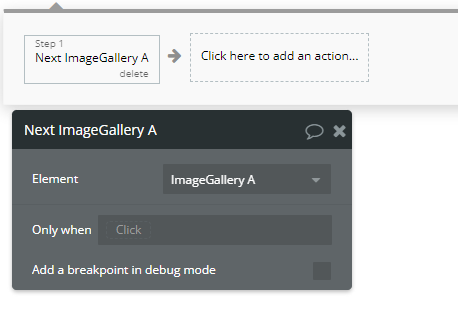
- Next A Image Gallery → Moves to the next image.
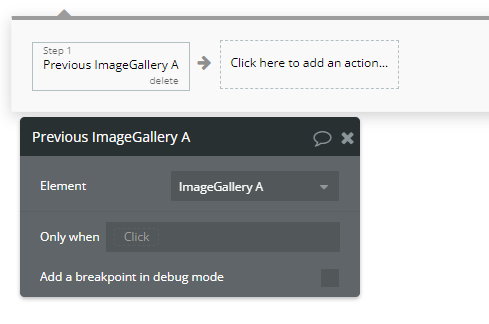
- Previous A Image Gallery → Moves to the previous image.
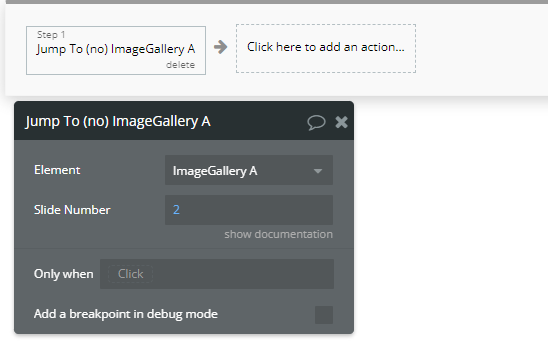
- Jump To (No) A Image Gallery → Jumps directly to a specific image.
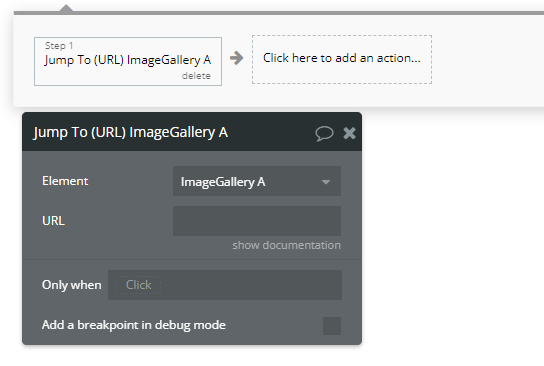
- Jump To (URL) A Image Gallery → Navigates to a URL associated with the current image.
Plugin Element Properties
Image Gallery
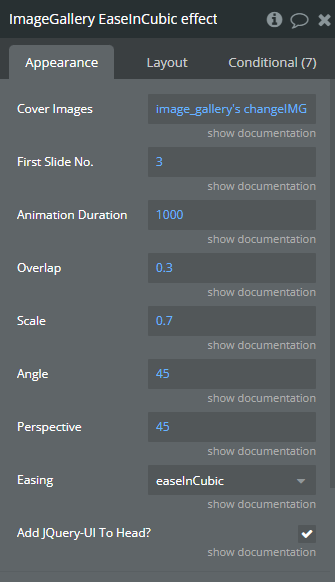
Fields:
Title | Description | Type |
Cover Images | Cover Images | Image |
First Slide No. | First Slide No. | Number |
Animation Duration | Animation Duration | Number |
Overlap | Overlap | Number |
Scale | Scale | Number |
Angle | Angle | Number |
Perspective | Perspective | Number |
Easing | Easing Available options: easeInQuad, easeInCubic, easeInQuart, easeInQuint, easeInSine, easeInExpo, easeInCirc, easeInBack, easeOutQuad, easeOutCubic, easeOutQuart, easeOutQuint, easeOutSine, easeOutExpo, easeOutCirc, easeOutBack, easeInOutQuad, easeInOutCubic, easeInOutQuart, easeInOutQuint, easeInOutSine, easeInOutExpo, easeInOutCirc, easeInOutBack, easeInElastic, easeOutElastic, easeInOutElastic, easeInBounce, easeOutBounce, easeInOutBounce | Dropdown |
Add JQuery-UI To Head? | Add Jquery-UI To Head? | Checkbox (yes/no) |
Element Actions
- Jump To (no) - Jump To
Title | Description | Type |
Slide Number | Slide Number | Number |
- Next - Next
- Previous - Previous
- Jump To (URL) - Jump to url
Title | Description | Type |
URL | Url | Text |
Exposed states
Title | Description | Type |
Slide Number | Slide Number | Number |
Image URL | Image URL | Text |
Element Events
Title | Description |
Clicked | Clicked |