This plugin allows you to trigger simple push notifications without using any outside services.
You can trigger a push notification within a workflow, and it will be shown to the current user.
You can specify the title, content, the duration and an icon to be displayed.
Does not work on mobile devices
How to setup
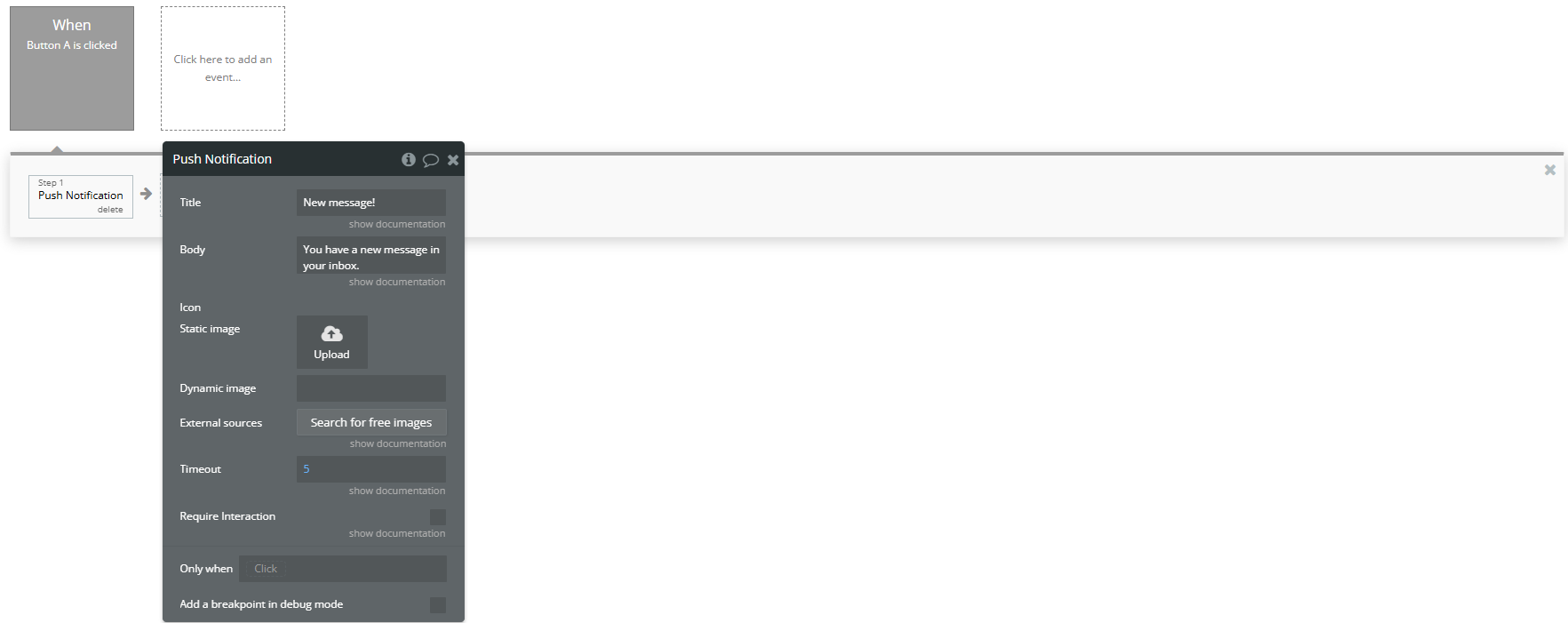
Add the “Push Notification” action to your workflow
In your workflow (e.g., "When Button is clicked"):
Add a new action: Plugins → Push Notification
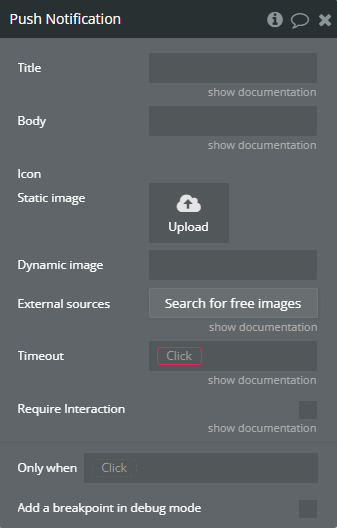
Configure the following fields:
Title
The title of the notification.
Example: "New message!"
Body
The main text content of the notification.
Example: "You have a new message in your inbox."
Icon
You can choose one of the following:
Static image: Upload a static icon image to be displayed.
Dynamic image: Provide a dynamic URL to the image.
External sources: Use Bubble’s image search to select an icon (optional).
Timeout
How long (in seconds) the notification should remain visible before disappearing.
Example: 5
Require Interaction
If enabled (checked), the notification will stay visible until the user interacts with it (clicks or closes it).
Workflow action → Push Notification.
Plugin Actions
Push Notification
A push notification is a message or alert sent from a server to a mobile device or web browser, prompting the user with relevant information without the need for the user to actively request it.
Workflow action → Push Notification.
Title
Description
Type
Title
Choose the title of the notification
Text
Body
Choose the body text of the notification
Text
Icon
Choose an icon that will be displayed within the notification
Image
Timeout
Choose the duration (in milliseconds) for which the push notification should be displayed. Does not apply when Require Interaction is set to true.
Number
Require Interaction
If this is checked, the notification will only close if the user interacts with it.