
✅
Link to the plugin page: https://zeroqode.com/plugin/1528978032696x958624210411847700
Demo to preview the plugin:
✅
Introduction
Need to transfer files from your Bubble app to Google Drive? Our no-code plugin effortlessly pushes files (in Base64 format) from your Bubble app to Google Drive using a Service Account.

NOTE: To use this plugin, you’ll need to obtain API credentials with a Private Key for Google.
All transferred files are stored within the Google Service account and can only be accessed via the API (e.g., Get Files). The files are not directly stored in Google Drive itself.

How to setup
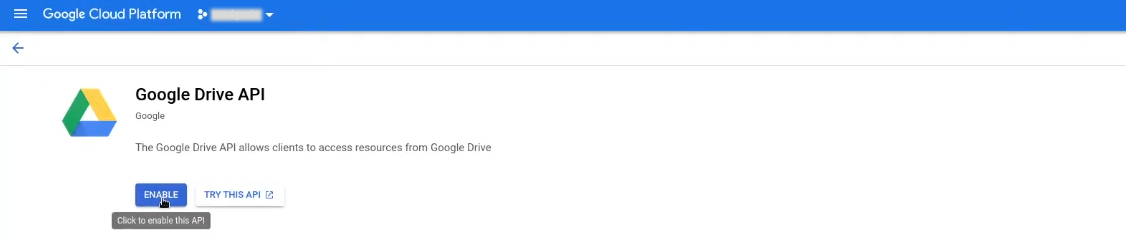
- Enable the Google Drive API
- Go to the Google Cloud Console.
- In the dashboard, enable the Google Drive API for the project you want to use.
- Create a Service Account
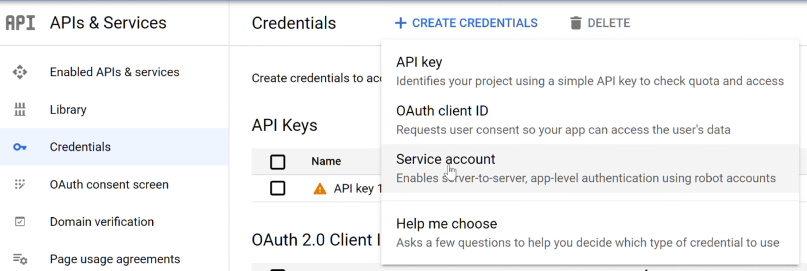
- In the Google Cloud Console, navigate to the Credentials section.
- Click on Create Credentials > Service Account.
- Fill in the required details and follow the setup steps.
- Once created, go to the Keys tab and generate a new JSON key file.
- Download and store this JSON file securely, as it contains the credentials needed to authenticate requests.
- Share Access with the Service Account
- In Google Drive, locate the files or folders you want to integrate with the plugin.
- Share access with the service account email (found in the JSON file). Make sure to grant the necessary permissions (read, write, etc.).
- Extract the Required Credentials from the JSON File
- The downloaded JSON file contains essential credentials for authentication.
- You will need the private_key and client_email from the file.
- Here’s an example JSON structure:
json{
 ...
  "private_key": "-----BEGIN PRIVATE KEY-----\nYOUR_PRIVATE_KEY\n-----END PRIVATE KEY-----\n",
  "client_email": "your-service-account@your-project-id.iam.gserviceaccount.com",
 ...
}
- Add the JSON Credentials to Your Bubble Application
- In your Bubble editor, install the Google Drive Service Account plugin.
- Locate the Plugin Settings in Bubble.
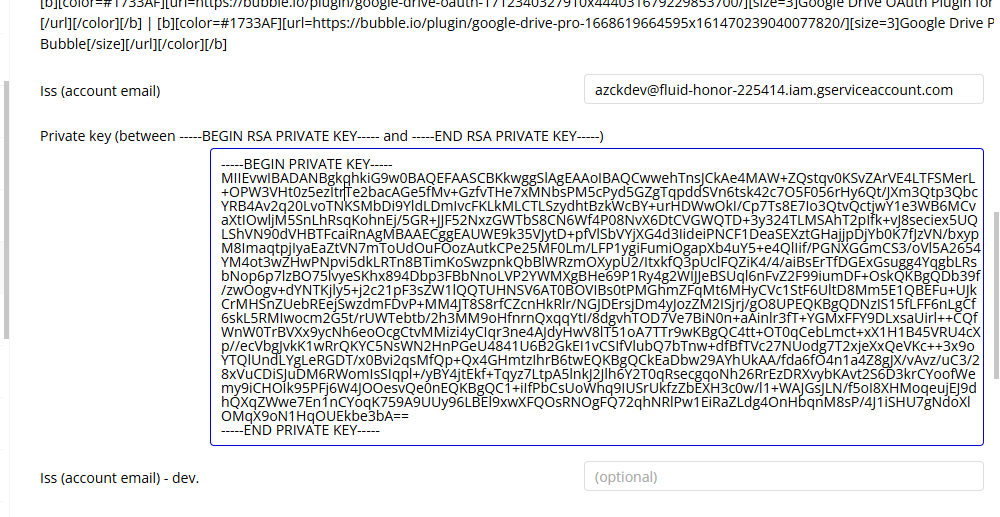
- Enter the Service Account Email (
client_emailfrom JSON). - Copy and paste the Private Key (
private_keyfrom JSON), ensuring you include everything between: - The setup in Bubble should look similar to the following:
vb.net-----BEGIN PRIVATE KEY-----
 (your key content)
-----END PRIVATE KEY-----
Plugin Data Calls
Search/Get Files
Retrieves a list of files from the authenticated Google Drive account, with the ability to filter results based on various parameters such as name, file type, last modified date, and sharing status. This API call allows users to search and fetch metadata related to stored files.
Name | Description | Type |
Name | Name of the file. | Text |
FullText | Full text of the file including name, description, content, and indexable text. | Text |
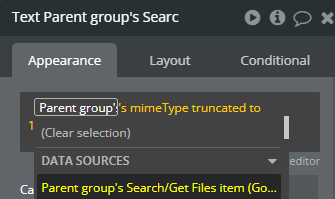
MimeType | MIME type of the file. | Text |
ModifiedTime | Date of the last modification of the file. | Text |
ViewedByMeTime | Date that the user last viewed a file. | Text |
Trashed | Whether the file is in the trash or not. | Text |
Starred | Whether the file is starred or not. | Text |
Parents | Whether the parents collection contains the specified ID. | Text |
Owners | Users who own the file. | Text |
Writers | Users who have permission to modify the file | Text |
Readers | Users who have permission to read the file. | Text |
SharedWithMe | Files that have been shared with the authorized user. | Text |
Properties | Custom file properties defined by the user. | Text |
AppProperties | Private custom file properties. | Text |
Visibility | Files that have not been shared with anyone or domains (only private, or shared with specific users or groups). | Text |
Return Values:
Return type: JSON
json{
  "kind": "text",
  "nextPageToken": "text",
  "incompleteSearch": "yes/no",
  "files": {
    "kind": "text",
    "id": "text",
    "name": "text",
    "mimeType": "text",
    "resourceKey": "text"
  }
}
Get Files API V2
Retrieves a list of files stored in Google Drive for the authenticated user. This API call enables searching for files using various filters such as file name, MIME type, modified date, and more.
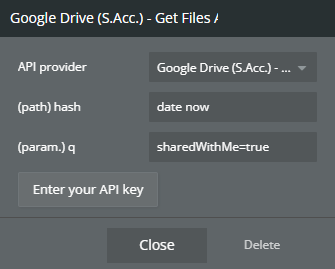
Name | Description | Type |
Hash | A timestamp or random string to prevent request caching issues (e.g., date now). | Text |
q | A query string to filter files (e.g., "sharedWithMe=true" to list files shared with the user). |
Return Values:
Return type: JSON
json{
  "kind": "text",
  "id": "text",
  "etag": "text",
  "selfLink": "text",
  "webContentLink": "text",
  "alternateLink": "text",
  "embedLink": "text",
  "iconLink": "text",
  "thumbnailLink": "text",
  "title": "text",
  "mimeType": "text",
  "labels starred": "yes/no",
  "labels hidden": "yes/no",
  "labels trashed": "yes/no",
  "labels restricted": "yes/no",
  "labels viewed": "yes/no",
  "copyRequiresWriterPermission": "yes/no",
  "createdDate": "text",
  "modifiedDate": "text",
  "lastViewedByMeDate": "text",
  "markedViewedByMeDate": "text",
  "sharedWithMeDate": "text",
  "version": "text",
  "parents": {
    "kind": "text",
    "id": "text",
    "selfLink": "text",
    "parentLink": "text",
    "isRoot": "yes/no"
  },
  "downloadUrl": "text",
  "userPermission kind": "text",
  "userPermission etag": "text",
  "userPermission id": "text",
  "userPermission selfLink": "text",
  "userPermission role": "text",
  "userPermission type": "text",
  "userPermission pendingOwner": "yes/no",
  "originalFilename": "text",
  "fileExtension": "text",
  "md5Checksum": "text",
  "fileSize": "text",
  "quotaBytesUsed": "text",
  "ownerNames": "undefined",
  "owners": {
    "kind": "text",
    "displayName": "text",
    "picture url": "text",
    "isAuthenticatedUser": "yes/no",
    "permissionId": "text",
    "emailAddress": "text"
  },
  "lastModifyingUserName": "text",
  "lastModifyingUser kind": "text",
  "lastModifyingUser displayName": "text",
  "lastModifyingUser picture url": "text",
  "lastModifyingUser isAuthenticatedUser": "yes/no",
  "lastModifyingUser permissionId": "text",
  "lastModifyingUser emailAddress": "text",
  "capabilities canCopy": "yes/no",
  "capabilities canEdit": "yes/no",
  "editable": "yes/no",
  "copyable": "yes/no",
  "writersCanShare": "yes/no",
  "shared": "yes/no",
  "explicitlyTrashed": "yes/no",
  "appDataContents": "yes/no",
  "headRevisionId": "text",
  "spaces": "undefined"
}
Get File Info
Retrieves detailed metadata about a specific file in Google Drive using its file ID. This API call provides information such as file name, MIME type, owner details, sharing permissions, download URLs, and other relevant attributes.
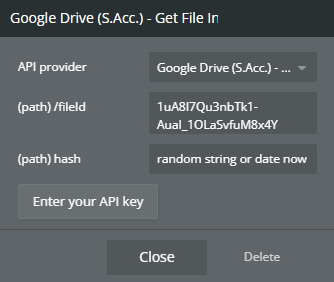
Name | Description | Type |
/fileId | The unique identifier of the file in Google Drive. Required to retrieve the file details. | Text |
Hash | A random string or a timestamp to prevent request caching issues. Example: current time or random string. | Text |
Return Values:
Return type: JSON
json{
  "kind": "text",
  "id": "text",
  "etag": "text",
  "selfLink": "text",
  "webContentLink": "text",
  "alternateLink": "text",
  "embedLink": "text",
  "iconLink": "text",
  "thumbnailLink": "text",
  "title": "text",
  "mimeType": "text",
  "labels starred": "yes/no",
  "labels hidden": "yes/no",
  "labels trashed": "yes/no",
  "labels restricted": "yes/no",
  "labels viewed": "yes/no",
  "copyRequiresWriterPermission": "yes/no",
  "createdDate": "text",
  "modifiedDate": "text",
  "lastViewedByMeDate": "text",
  "markedViewedByMeDate": "text",
  "sharedWithMeDate": "text",
  "version": "text",
  "parents": {
    "kind": "text",
    "id": "text",
    "selfLink": "text",
    "parentLink": "text",
    "isRoot": "yes/no"
  },
  "downloadUrl": "text",
  "userPermission kind": "text",
  "userPermission etag": "text",
  "userPermission id": "text",
  "userPermission selfLink": "text",
  "userPermission role": "text",
  "userPermission type": "text",
  "userPermission pendingOwner": "yes/no",
  "originalFilename": "text",
  "fileExtension": "text",
  "md5Checksum": "text",
  "fileSize": "text",
  "quotaBytesUsed": "text",
  "ownerNames": "undefined",
  "owners": {
    "kind": "text",
    "displayName": "text",
    "picture url": "text",
    "isAuthenticatedUser": "yes/no",
    "permissionId": "text",
    "emailAddress": "text"
  },
  "lastModifyingUserName": "text",
  "lastModifyingUser kind": "text",
  "lastModifyingUser displayName": "text",
  "lastModifyingUser picture url": "text",
  "lastModifyingUser isAuthenticatedUser": "yes/no",
  "lastModifyingUser permissionId": "text",
  "lastModifyingUser emailAddress": "text",
  "capabilities canCopy": "yes/no",
  "capabilities canEdit": "yes/no",
  "editable": "yes/no",
  "copyable": "yes/no",
  "writersCanShare": "yes/no",
  "shared": "yes/no",
  "explicitlyTrashed": "yes/no",
  "appDataContents": "yes/no",
  "headRevisionId": "text",
  "spaces": "undefined"
}
Get Image from Drive
Retrieves an image file stored in Google Drive using its file ID. This API call allows you to access and display images directly from Google Drive in your application. It supports standard image formats such as JPEG, PNG, GIF, BMP, and WebP.
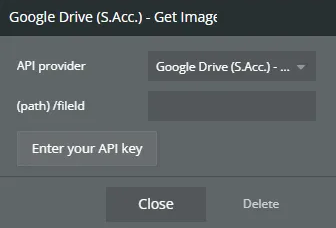
Name | Description | Type |
/fileId | The unique identifier of the image file in Google Drive. Required to retrieve the image. | Text |
Return Values:
Return type: image
Download File
Downloads a specific file from Google Drive using its file ID. This API call allows you to retrieve the binary content of the file and process it in your application.
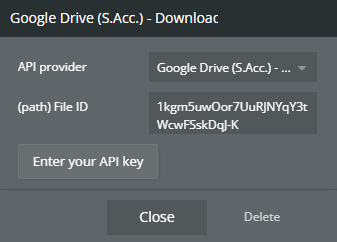
Name | Description | Type |
File ID | The unique identifier of the file to be downloaded. | Text |
Return Values:
Return type: file
Get Files (API V3) Extended
Retrieves a list of files stored in Google Drive, similar to the standard "Get Files" API call but with additional metadata and filtering capabilities.
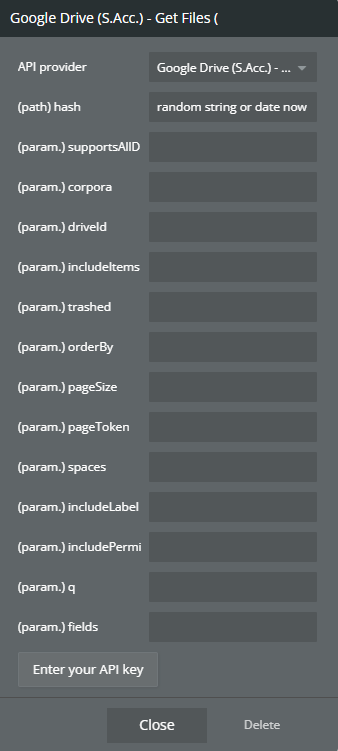
Name | Description | Type |
Hash | A random string or timestamp to prevent request caching issues. Example: current time or random string. | Text |
supportsAllDrives | Whether the API should include both shared and personal drives. | Yes/No |
corpora | The scope of the search, such as user, domain, or drive. | Text |
driveId | The ID of a shared drive to search in. Required if searching within a shared drive. | Text |
includeItemsFromAllDrives | Whether to include files from all shared drives in the search results. | Yes/No |
trashed | Whether to include trashed files in the results. | Yes/No |
orderBy | Specifies sorting criteria (e.g., "modifiedTime desc", "name asc"). | Text |
pageSize | Number of files to retrieve per request (pagination support). | Number |
pageToken | Token for retrieving the next set of results (for pagination). | Text |
spaces | The space to query, such as "drive" (default) or "photos". | Text |
includeLabels | Whether to include labels in the returned file metadata. | Yes/No |
includePermissionsForView | Whether to include permission details for the user. | Yes/No |
q | Query string to filter files (e.g., "name contains 'report'"). | Text |
fields | A comma-separated list of fields to include in the response (e.g., "files(id,name,mimeType)"). |
Return Values:
Return type: JSON
json{
  "kind": "text",
  "nextPageToken": "text",
  "files": [
    {
      "id": "text",
      "name": "text",
      "mimeType": "text",
      "createdTime": "text",
      "modifiedTime": "text",
      "size": "text",
      "parents": ["text"]
    }
  ]
}
Gets A Permission By ID
Retrieves details about a specific permission assigned to a file in Google Drive, using the file ID and permission ID.
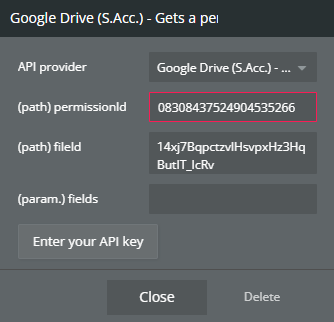
Name | Description | Type |
permissionId | The unique identifier of the file whose permission details are being retrieved. | Text |
fileId | The unique identifier of the file whose permission details are being retrieved. | Text |
fields | A comma-separated list of permission fields to include in the response (optional). | Text |
Return Values:
Return type: JSON
json{
  "id": "text",
  "type": "text",
  "role": "text",
  "emailAddress": "text",
  "domain": "text"
}
Get Permissions
Retrieves a list of all permissions assigned to a specific file in Google Drive. This API call provides detailed access control information.
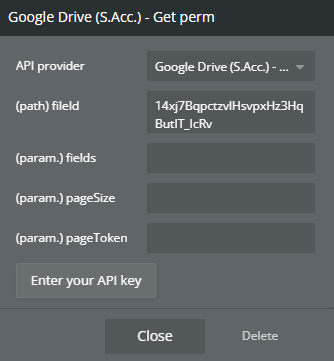
Name | Description | Type |
fileId | The unique identifier of the file for which permissions will be retrieved. | Text |
fields | A comma-separated list of permission fields to include in the response (optional). | Text |
pageSize | The maximum number of permissions to return per request (pagination support). | Number |
pageToken | Token for retrieving the next set of results (for pagination). | Text |
Return Values:
Return type: JSON
json{
  "permissions": [
    {
      "id": "text",
      "type": "text",
      "role": "text",
      "emailAddress": "text",
      "domain": "text"
    }
  ]
}
Plugin Action Calls
Upload a File (base64)
Uploads a file to Google Drive using its Base64-encoded content. This API call allows users to upload files dynamically by encoding their content in Base64 format, making it useful for applications that handle file storage without direct file selection from a user's local system.
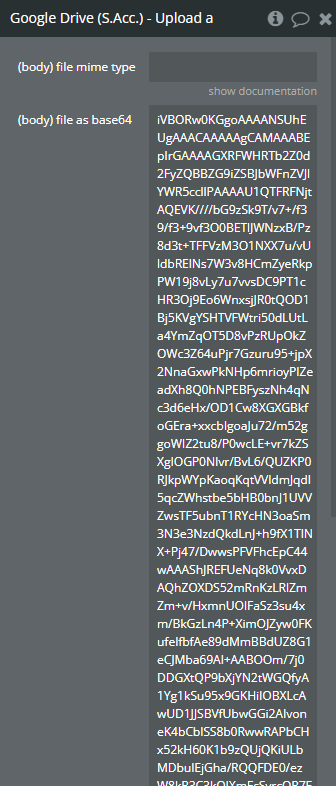
Name | Description | Type |
Mime type | The MIME type of the file. | Text |
File as base64 | The Base64-encoded string of the file content. | Text |
File name | The name of the file to be uploaded. | Text |
File mime type | The MIME type of the Base64-encoded file content. | Text |
File description | A short description of the file. | Text |
Return Values:
Return type: JSON
json{
  "kind": "text",
  "id": "text",
  "etag": "text",
  "selfLink": "text",
  "webContentLink": "text",
  "alternateLink": "text",
  "embedLink": "text",
  "iconLink": "text",
  "thumbnailLink": "text",
  "title": "text",
  "mimeType": "text",
  "description": "text",
  "labels starred": "yes/no",
  "labels hidden": "yes/no",
  "labels trashed": "yes/no",
  "labels restricted": "yes/no",
  "labels viewed": "yes/no",
  "copyRequiresWriterPermission": "yes/no",
  "createdDate": "text",
  "modifiedDate": "text",
  "modifiedByMeDate": "text",
  "lastViewedByMeDate": "text",
  "markedViewedByMeDate": "text",
  "version": "text",
  "parents": {
    "kind": "text",
    "id": "text",
    "selfLink": "text",
    "parentLink": "text",
    "isRoot": "yes/no"
  },
  "downloadUrl": "text",
  "userPermission kind": "text",
  "userPermission etag": "text",
  "userPermission id": "text",
  "userPermission selfLink": "text",
  "userPermission role": "text",
  "userPermission type": "text",
  "originalFilename": "text",
  "fileExtension": "text",
  "md5Checksum": "text",
  "fileSize": "text",
  "quotaBytesUsed": "text",
  "ownerNames": "undefined",
  "owners": {
    "kind": "text",
    "displayName": "text",
    "picture url": "text",
    "isAuthenticatedUser": "yes/no",
    "permissionId": "text",
    "emailAddress": "text"
  },
  "lastModifyingUserName": "text",
  "lastModifyingUser kind": "text",
  "lastModifyingUser displayName": "text",
  "lastModifyingUser picture url": "text",
  "lastModifyingUser isAuthenticatedUser": "yes/no",
  "lastModifyingUser permissionId": "text",
  "lastModifyingUser emailAddress": "text",
  "capabilities canCopy": "yes/no",
  "capabilities canEdit": "yes/no",
  "editable": "yes/no",
  "copyable": "yes/no",
  "writersCanShare": "yes/no",
  "shared": "yes/no",
  "explicitlyTrashed": "yes/no",
  "appDataContents": "yes/no",
  "headRevisionId": "text",
  "imageMediaMetadata width": "number",
  "imageMediaMetadata height": "number",
  "imageMediaMetadata rotation": "number",
  "spaces": "undefined"
}
Create A File
Creates a new blank file in Google Drive, optionally assigning it to a specific folder.
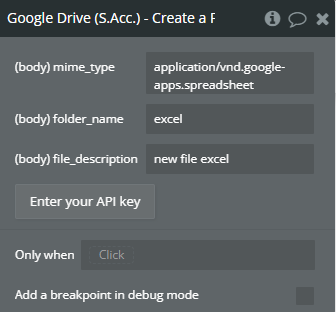
Name | Description | Type |
File Name | The name of the new file to be created. | Text |
Mime Type | The file format (e.g., application/vnd.google-apps.document). | Text |
Parent Folder ID | The ID of the parent folder where the file will be created (optional). | Text |
Return Values:
Return type: JSON
json{
  "id": "text",
  "name": "text",
  "mimeType": "text",
  "createdTime": "text"
}
Give Everyone Permission (Write)
Grants write access to anyone with the link for a specified file in Google Drive. This API call updates the file’s sharing settings to allow anyone (without signing in) to edit the file.
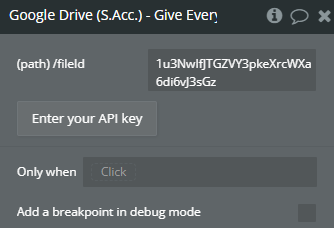
Name | Description | Type |
/fileId | The unique identifier of the file to which write permissions will be granted. | Text |
Return Values:
Return type: empty
Give Everyone Permission (Read)
Grants read access to anyone with the link for a specified file in Google Drive. This API call updates the file’s sharing settings, allowing any user (without signing in) to view the file.
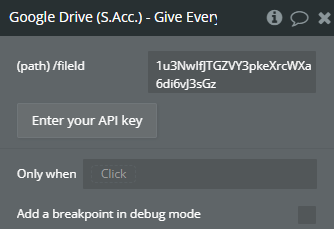
Name | Description | Type |
/fileId | The unique identifier of the file to which read permissions will be granted. | Text |
Return Values:
Return type: empty
Remove Everyone With Link Permission (Read)
Revokes read access from anyone with the link for a given file in Google Drive. This ensures that only explicitly assigned users retain access.
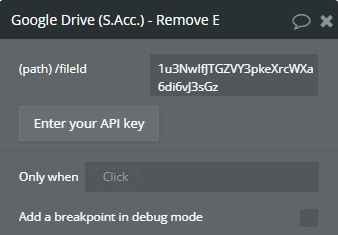
Name | Description | Type |
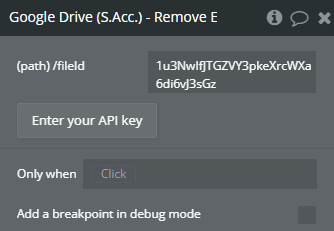
/fileId | The unique identifier of the file whose public read permission will be removed. | Text |
Remove Everyone With Link Permission (Write)
Revokes write access from anyone with the link for a specified file in Google Drive. This action ensures that public users can no longer edit the file, restricting modifications to explicitly assigned users.
Name | Description | Type |
/fileId | The unique identifier of the file from which public link permissions will be removed. | Text |
Return Values:
Return type: empty
Remove Permission Using ID
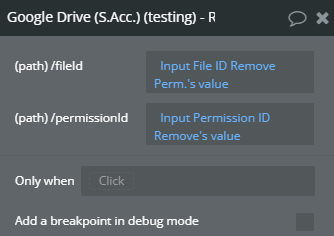
Removes a specific user or group's permission from a given file in Google Drive based on the permission ID. This API call allows fine-grained control over file access by revoking individual permissions without affecting other users.
Name | Description | Type |
/fileId | The unique identifier of the file from which the permission will be removed. | Text |
/permissionId | The unique identifier of the permission to be revoked. | Text |
Return Values:
Return type: empty
Give a User Permission (Write)
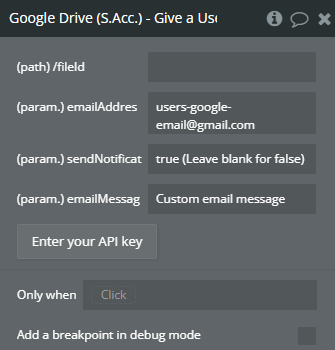
Grants write access to a specific user for a given file in Google Drive. This API call allows an application to dynamically assign editing permissions to an individual user based on their email address.
Name | Description | Type |
EmailAddress | The email address of the user to whom write permission will be granted. | Text |
SendNotificationEmail | (Leave blank for false) | Text |
EmailMessage | (Optional) A custom message to be included in the email notification, if SendNotificationEmail is enabled. | Text |
/fileId | The unique identifier of the file for which permissions will be granted. | Text |
Return Values:
Return type: JSON
json{
  "id": "text"
}
Give a User Permission (Read)
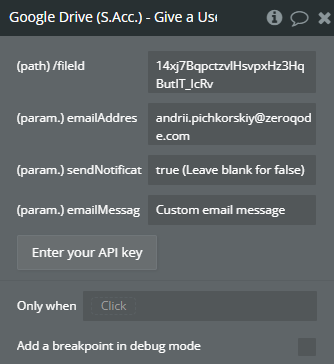
Grants read access to a specific user for a given file in Google Drive. This API call allows an application to dynamically assign view-only permissions to an individual user based on their email address.
Name | Description | Type |
EmailAddress | The email address of the user to whom read permission will be granted. | Text |
SendNotificationEmail | (Leave blank for false) | Text |
EmailMessage | (Optional) A custom message to be included in the email notification, if SendNotificationEmail is enabled. | Text |
/fileId | The unique identifier of the file for which read permissions will be granted. | Text |
Return Values:
Return type: JSON
json{
  "id": "text"
}
Update a User’s Permission (Write)
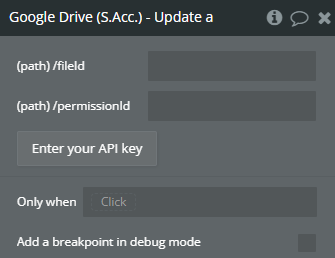
Updates a specific user’s permission for a given file in Google Drive, granting them write (edit) access. This API call allows an application to dynamically change a user’s role, upgrading their access from read-only or commenter to editor.
Name | Description | Type |
/fileId | The unique identifier of the file for which the user's permission will be updated. | Text |
/permissionId | The unique identifier of the permission to be updated (retrieved from the Get Permissions API call). | Text |
Return Values:
Return type: JSON
json{
  "id": "text"
}
Update a User’s Permission (Read)
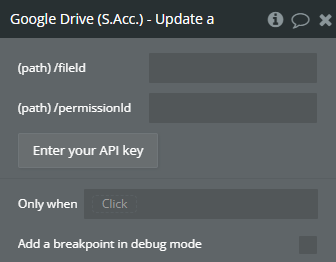
Updates a specific user’s permission for a given file in Google Drive, setting their access level to read-only. This API call allows an application to modify an existing permission, restricting a user’s ability to edit or comment on a file.
Name | Description | Type |
/fileId | The unique identifier of the file for which the user's permission will be updated. | Text |
/permissionId | The unique identifier of the permission to be updated (retrieved from the Get Permissions API call). | Text |
Return Values:
Return type: JSON
json{
  "id": "text"
}
Delete File
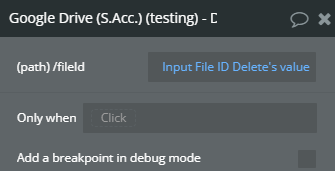
Deletes a specified file from Google Drive permanently. This action cannot be undone, and the file will not be moved to the trash—it will be removed completely from storage.
Name | Description | Type |
/fileId | The unique identifier of the file to be deleted. Required to target a specific file. | Text |
Return Values:
Return type: empty
Add File to Folder
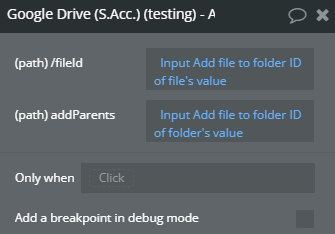
Moves a specified file into a designated folder within Google Drive. This API call allows users to organize files dynamically by assigning them to specific folders.
Name | Description | Type |
/fileId | The unique identifier of the file to be moved. Required to specify the file being added to the folder. | Text |
Folder ID | The unique identifier of the target folder where the file should be placed. | Text |
Return Values:
Return type: JSON
json{
  "isRoot": "yes/no"
}
Remove File From Folder
Removes a specified file from a designated folder in Google Drive. This action does not delete the file but simply detaches it from the folder while keeping it accessible in Drive.
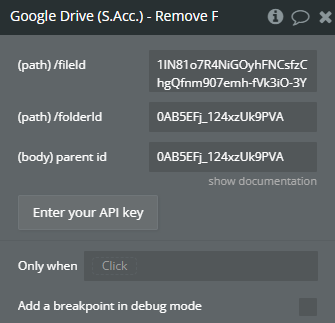
Name | Description | Type |
/fileId | The unique identifier of the file to be removed from the folder. | Text |
/folderId | The unique identifier of the folder from which the file will be removed. | Text |
Parent id | The ID of the current parent folder of the file (required if the file is in multiple folders). | Text |
Return Values:
Return type: empty
Rename file
Updates the name of a specific file in Google Drive. This API call allows an application to change a file's name dynamically without modifying its content, permissions, or location.
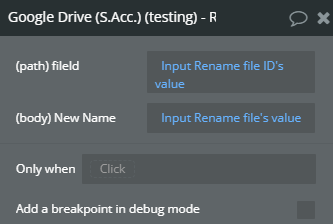
Name | Description | Type |
Content-Type | The type of content being sent in the request (e.g., application/json). Required for proper API processing. | Text |
Field | The new name for the file. This will replace the existing file name. | Text |
Return Values:
Return type: JSON
json{
  "kind": "text",
  "id": "text",
  "etag": "text",
  "selfLink": "text",
  "webContentLink": "text",
  "alternateLink": "text",
  "embedLink": "text",
  "iconLink": "text",
  "title": "text",
  "mimeType": "text",
  "labels starred": "yes/no",
  "labels hidden": "yes/no",
  "labels trashed": "yes/no",
  "labels restricted": "yes/no",
  "labels viewed": "yes/no",
  "copyRequiresWriterPermission": "yes/no",
  "createdDate": "text",
  "modifiedDate": "text",
  "modifiedByMeDate": "text",
  "lastViewedByMeDate": "text",
  "markedViewedByMeDate": "text",
  "version": "text",
  "parents": {
    "kind": "text",
    "id": "text",
    "selfLink": "text",
    "parentLink": "text",
    "isRoot": "yes/no"
  },
  "downloadUrl": "text",
  "userPermission kind": "text",
  "userPermission etag": "text",
  "userPermission id": "text",
  "userPermission selfLink": "text",
  "userPermission role": "text",
  "userPermission type": "text",
  "originalFilename": "text",
  "fileExtension": "text",
  "md5Checksum": "text",
  "fileSize": "text",
  "quotaBytesUsed": "text",
  "ownerNames": "undefined",
  "owners": {
    "kind": "text",
    "displayName": "text",
    "isAuthenticatedUser": "yes/no",
    "permissionId": "text",
    "emailAddress": "text"
  },
  "lastModifyingUserName": "text",
  "lastModifyingUser kind": "text",
  "lastModifyingUser displayName": "text",
  "lastModifyingUser isAuthenticatedUser": "yes/no",
  "lastModifyingUser permissionId": "text",
  "lastModifyingUser emailAddress": "text",
  "capabilities canCopy": "yes/no",
  "capabilities canEdit": "yes/no",
  "editable": "yes/no",
  "copyable": "yes/no",
  "writersCanShare": "yes/no",
  "shared": "yes/no",
  "explicitlyTrashed": "yes/no",
  "appDataContents": "yes/no",
  "headRevisionId": "text",
  "spaces": "undefined"
}
Export File
Exports a file from Google Drive in a specific format (e.g., converting Google Docs to PDF).
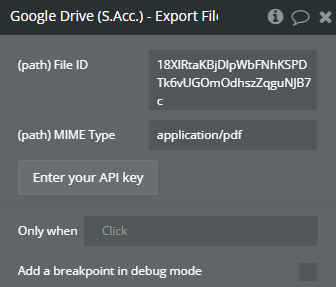
Name | Description | Type |
/fileId | The unique identifier of the file to be exported. | Text |
Mime Type | The desired export format (e.g., application/pdf, application/vnd.openxmlformats-officedocument.wordprocessingml.document). | Text |
Return Values:
Return type: empty
Generate Sort Query V2
Generates a sorting query string to be used in Google Drive file searches. This helps in structuring API calls dynamically.
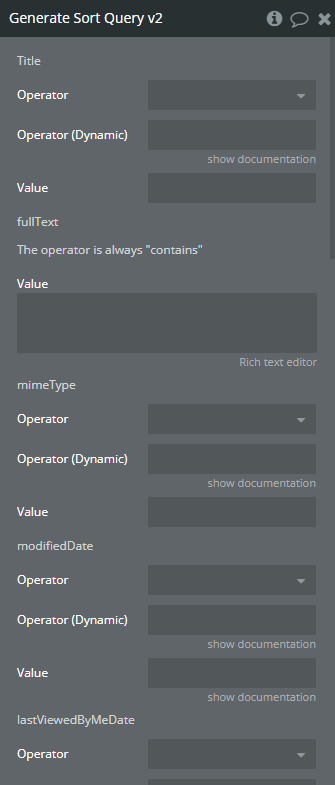
Name | Description | Type |
Sort By | The field to sort by (e.g., modifiedTime, name). | Text |
Order | The sorting order (asc or desc). | Text |
Return Values:
Return type: Text
Generate Sort Query V3
Similar to Generate Sort Query V2, but optimized for API V3 of Google Drive.
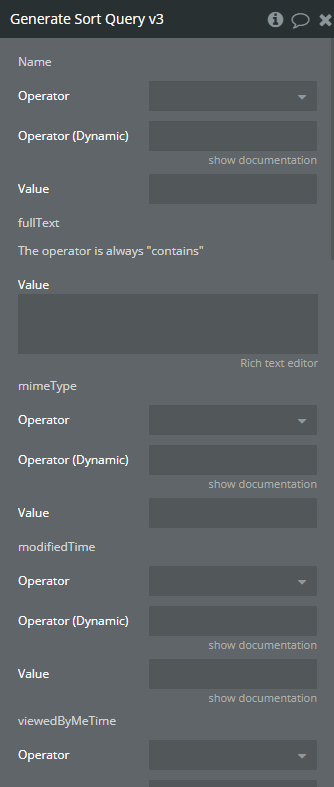
Name | Description | Type |
Sort By | The field to sort by (e.g., modifiedTime, name). | Text |
Order | The sorting order (asc or desc). | Text |
Return Values:
Return type: text

Changelogs
Update 21.04.26 - Version 1.4.0
- Bubble Plugin Page Update (Tutorial).
Update 13.06.25 - Version 1.3.0
- Marketing update (minor change).
Update 04.06.25 - Version 1.2.0
- Marketing update (minor change).
Update 17.07.24 - Version 1.1.0
- Minor update (Marketing update).
Update 28.06.24 - Version 1.0.0
- Plugin release.