
✅
Demo to preview the plugin:
✅
Live Demo: https://rd-plugins-new.bubbleapps.io/
✅
Introduction
Create amazing maps for your Bubble.io app! Do you need more features and customization options than the default Google Maps plugin? Then you try our enhanced version for Bubble.io!
This plugin extends the functionality of the Google Maps plugin and adds these features:
- Custom markers: You can customize the appearance of each marker by using your own images, icons, or SVGs. You can also use dynamic data fields to change the marker icons based on your app logic.
- Routes: You can draw routes on your map between two or more locations, using different modes of transportation, such as driving, walking, bicycling, or transit. You can also show the distance and duration of each route segment.
- Clusters: You can group nearby markers into clusters to improve the performance and readability of your map. You can also customize the cluster icons, labels, and colors. With the Google Maps Enhanced Plugin for Bubble.io, you can create powerful and beautiful maps for your app, such as:
- Location-based services, such as social networks, marketplaces, or delivery apps
- Travel and tourism apps, such as hotel booking, car rental, or flight tracking.
- Data visualization and analysis apps, such as heat maps, choropleth maps, or geospatial charts
- * To use this plugin, you need a Google Maps API key and a Google Places API key.

How to setup
- Add the Map Element to Your Page
- In the Bubble editor, go to the visual elements tab.
- Drag the
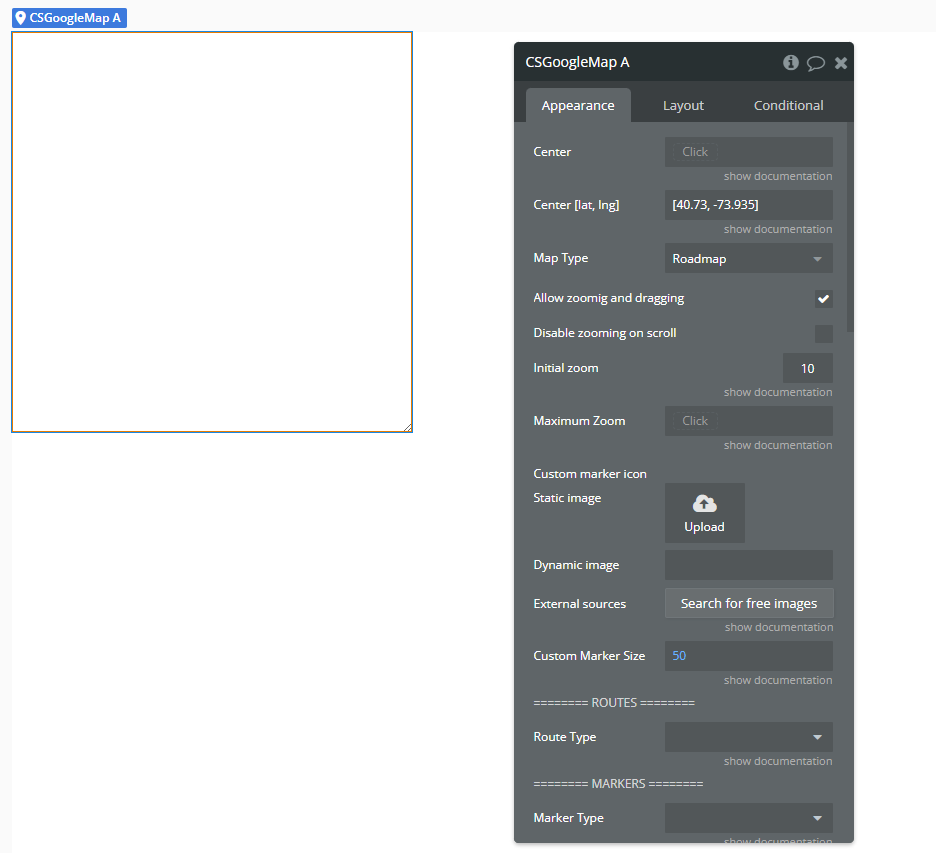
CS Google Mapelement onto your page.
- Configure the Map
- Center [lat, lng] – Initial center of the map.
- Initial Zoom – Zoom level when the map loads.
- Map Type – Choose between
Roadmap,Satellite,Hybrid, orTerrain. - Enable or disable zooming, dragging, controls (fullscreen, zoom, streetview, etc.).
- Upload a custom marker icon, define marker size, or use custom CSS styles.
In the property panel of the
CS Google Map element, you can set:- Add Markers Dynamically via Workflow
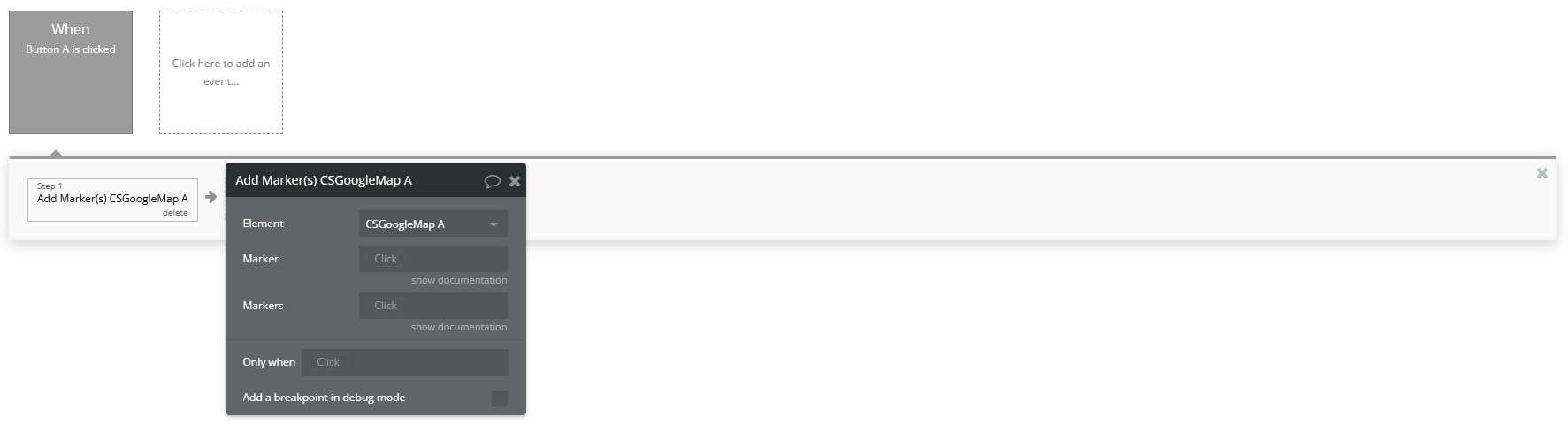
- Action: Add Marker(s) A CS Google Map
- Element → Select your map element (e.g.
CSGoogleMap A). - Marker → Add a single marker by providing a JSON object with:
latlngtitle(optional)icon(optional – custom icon URL)id(optional – to uniquely identify the marker)- Markers → Add multiple markers by providing a list of marker objects (e.g., from a database or custom state).
Use this workflow action:
Available Fields:
- Respond to Marker Clicks
- Event: A CS Google Map Marker Clicked
Create a workflow with this event:
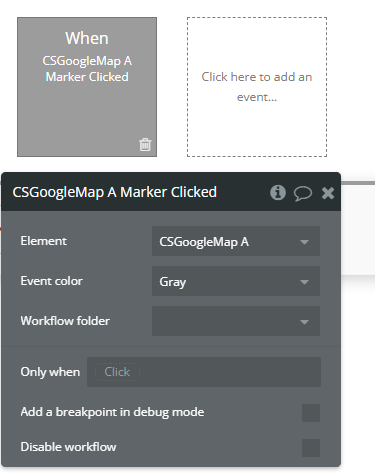
This allows you to get the clicked marker's data (like ID, title, lat/lng) and trigger workflows — such as showing a popup or updating a custom state.
- Draw a Route on the Map
- Action: Draw A Route A CS Google Map
Use this workflow action:
Element: Select the CS Google Map element (e.g.
CSGoogleMap A).Raute Type: A unique identifier for the route. Use a static text or dynamic value (e.g.
"route1" or Current cell's ID) to manage the route later (for removal, updates, etc).Route Source: Provide the origin, destination, and optional waypoints as a JSON object or dynamic expression.

- Other Useful Features
- Group markers into clusters:
Group Markers In Cluster
- Recenter and zoom:
Set Zoom/Center
- Remove markers or routes:
Remove Marker,Remove A Route,Remove AllRoutes
- Real-time tracking:
Start Track Location/Stop Track Location
Plugin Element Properties - CS Google Map
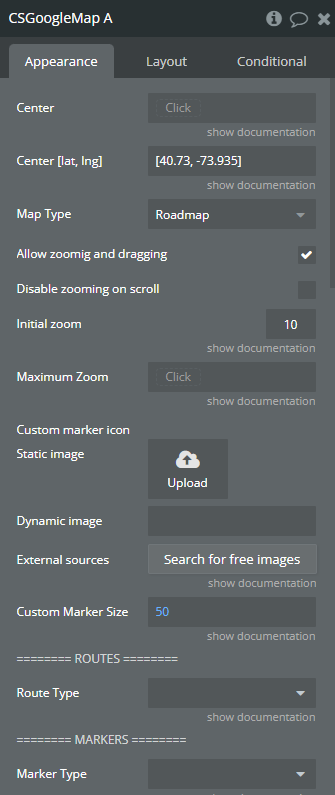
Fields
Title | Description | Type |
Center | A geographical address | Geographic Address (optional) |
Center [lat, lng] | Geographical coordinates [Lat, Lng]. This option will be used if “Center” field is empty. | Text (optional) |
Map Type | In the context of a software plugin or API, “Map Type” refers to the specific style or representation of a map, such as satellite, terrain, or hybrid views. Available options: Roadmap, Hybrid, Satellite, Terrain | Dropdown (optional) |
Allow zoomig and dragging | This feature enables users to zoom in and out as well as drag the content within the software plugin or API interface. | Checkbox (yes/no) |
Disable zooming on scroll | Prevent the ability to zoom in or out using the scroll wheel or touchpad gestures within the software plugin or API. | Checkbox (yes/no) |
Initial zoom | Zoom level can be set in range of 0 - 23 where 0 is the lowest zoom lvl | Number (optional) |
Maximum Zoom | Maximum zoom level. Zoom level can be set in range of 0 - 23 where 0 is the lowest zoom lvl | Number (optional) |
Custom marker icon | A image of jpg/png types | Image (optional) |
Custom Marker Size | Custom marker size. Size x Size. Could be adjusted by personal need range is from 0 to infinity | Number (optional) |
======== ROUTES ======== | ||
Route Type | A bubble type that will be used as a route for “Draw a Route” action. This type should have a field for start/end points as “geographical address”. | App Type (optional) |
======== MARKERS ======== | ||
Marker Type | Bubble type that will be used as marker | App Type (optional) |
Marker Source | A list of bubble things | Item representing Marker Type (optional) |
ID field | The object field that indicates the ID of object. | Field of Marker Type, represent Text, image or file |
Address Field | Marker address field | Field of Marker Type, represent Geographic Address (optional) |
Address Field [lat, lng] | Geographical coordinates [Lat, Lng]. This option will be used if “Address Field” field is empty. | Field of Marker Type, represent Text, image or file (optional) |
Icon Field | Custom marker icon field | Field of Marker Type, represent Text, image or file (optional) |
Title Field | Marker title field | Field of Marker Type, represent Text, image or file (optional) |
Label Field | Label for simple markers, useful when you want to show a number on a marker | Field of Marker Type, represent Text, image or file (optional) |
Information Window | Information window on marker click | Field of Marker Type, represent Text, image or file (optional) |
Size Field | Marker size field | Field of Marker Type, represent Number (optional) |
Show information window on click | Show marker’s information window on click | Checkbox (yes/no) |
* You need to have a “Radius” and “Color” fields on marker type if you want to draw a disc around a marker | ||
Radius | This field represents circle radius in meters around the marker (Type number) | Field of Marker Type, represent Number (optional) |
Color | This field represents the circle color around the marker (Type hex or rgba) | Field of Marker Type, represent Text, image or file (optional) |
##### CUSTOMIZATION ##### | ||
Use custom markers | When enabled uses styles below | Checkbox (yes/no) |
Marker border styles | Marker border styles refer to the various visual options available for customizing the border of markers, such as solid, dashed, or dotted lines, in a software plugin or API. | Text (optional) |
Marker icon styles | “Marker icon styles” refer to the visual appearance and design characteristics of icons used to represent markers on a map in a software plugin or API. | Text (optional) |
Custom Marker Border Styles | If you use custom styles for this marker | Field of Marker Type, represent Text, image or file (optional) |
Custom Marker Icon Styles | If you use custom styles for this marker icon | Field of Marker Type, represent Text, image or file (optional) |
##### UI CUSTOMIZATION ##### | ||
Fullscreen control | Enable fullscreen control button | Checkbox (yes/no) |
Streetview control | Enable streetview control button | Checkbox (yes/no) |
Maptype control | Enable maptype control button | Checkbox (yes/no) |
Zoom control | Enable zoom control buttons | Checkbox (yes/no) |
Custom Style - https://snazzymaps.com | Define a custom style for the map. More info see on https://snazzymaps.com Also keep in mind, you cannot use custom styles if you are using a “Google Map ID” in plugins tab, because using a google map id the styles then are managed in the google cloud console. | Text (optional) |
### Jittering ### slightly offset the markers by a small random amount to avoid stacking | ||
Enable Jittering | “Enabling jittering” in a software plugin or API introduces random variations to data or visuals to reduce aliasing artifacts. | Checkbox (yes/no) |
Offset value | Formula: (Lat/Lng) + (Math.random() - 0.5) * (Offset Value) | Number |
Info Window Style | Markers info window customization | Text (optional) |
Element Actions
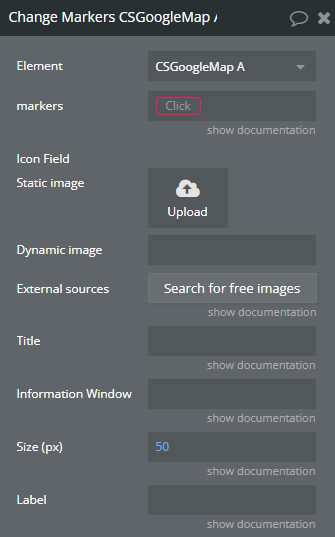
Change Markers
Title | Description | Type |
Markers | A list of markers already rendered on map (you can get it from “Rendered Markers” state) | Item representing Marker Type |
Icon Field | Markers icon | Image (optional) |
Title | Markers title | Text (optional) |
Information Window | Information window on marker click | Text (optional) |
Size (px) | Markers size. Default 50x50 pixels | Number (optional) |
Label | Marker label (it is used to show a letter or a number inside the standard markers) | Text (optional) |
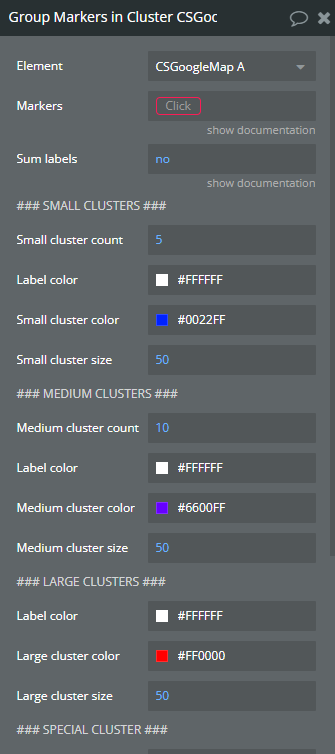
Group Markers in Cluster
Title | Description | Type |
Markers | A list of markers to be grouped | Item representing Marker Type |
Sum labels | When set to “yes” number represented as cluster label will be the sum of labels of markers that the cluster covers. | Checkbox (yes/no) |
### SMALL CLUSTERS ### | ||
Small cluster count | “Small cluster count” refers to the number of clusters or groups within a dataset that are below a predetermined size threshold. | Number |
Label color | “Label color” refers to the customizable color assigned to a label or tag within a software plugin or API interface. | Color |
Small cluster color | “Small cluster color” refers to a specific color within a limited set of colors used for clustering data points in a software plugin or API. | Color |
Small cluster size | “Small cluster size” refers to a configuration in which a limited number of interconnected nodes or servers are used in a software plugin or API deployment. | Number |
### MEDIUM CLUSTERS ### | ||
Medium cluster count | “Medium cluster count” refers to the number of clusters or groups of data points in a dataset that fall within a moderate range, typically defined by a specific parameter or threshold in clustering algorithms. | Number |
Label color | “Label color refers” to the specified color assigned to a label element in a software plugin or API for visual differentiation or categorization. | Color |
Medium cluster color | “Medium cluster color” refers to a specific shade within a color palette used in the software plugin or API. | Color |
Medium cluster size | “Medium cluster size” refers to a configuration setting in a software plugin or API that specifies a moderate number of interconnected nodes or instances within a cluster. | Number |
### LARGE CLUSTERS ### | ||
Label color | “Label color” refers to the customizable color assigned to a label or tag in a software plugin or API for visual organization and categorization. | Color |
Large cluster color | In software plugins or APIs, “large cluster color” refers to a set of colors used to represent data points or elements within a large cluster in a visual display. | Color |
Large cluster size | Large cluster size refers to the number of nodes or servers grouped together in a software system to handle data processing and storage at scale. | Number |
### SPECIAL CLUSTER ### | ||
Contains marker | “Contains marker” indicates that a specific element or value is present within the data structure or content being referenced in the software plugin or API. | Item representing Marker Type (optional) |
Contains markers | “Contains markers” refers to a feature within a software plugin or API that stores specific points of interest or references within a dataset or codebase. | Item representing Marker Type (optional) |
Label color | “Label color” refers to the customizable color assigned to a label within a software plugin or API for visual identification and organization purposes. | Color |
Cluster color | “Cluster color” refers to grouping similar colors together in an image processing algorithm or tool. | Color |
Cluster size | “Cluster size” refers to the number of data points or elements grouped together within a cluster in a software plugin or API. | Number |
Cluster id | Unique Cluster ID | Text |
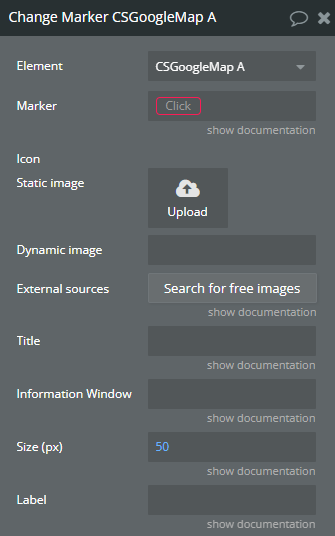
Change Marker
Title | Description | Type |
Marker | A rendered marker from map (you can get it from “Rendered Markers”, “Current Marker” states) | Item representing Marker Type |
Icon | Marker icon | Image (optional) |
Title | Marker title | Text (optional) |
Information Window | Information window on marker click | Text (optional) |
Size (px) | Set marker size. Default 50x50 pixels | Number (optional) |
Label | Marker label (it is used to show a letter or a number inside the standard markers) | Text (optional) |
[Iterator] Run Next
![Workflow action → [Iterator] Run Next](https://image-forwarder.notaku.so/aHR0cHM6Ly93d3cubm90aW9uLnNvL2ltYWdlL2F0dGFjaG1lbnQlM0E0Y2FjNDJkMS1hZWY1LTQ0NmMtOThjYy1mMTMyNWE0ZmRjZGQlM0FpbWFnZS5wbmc_dGFibGU9YmxvY2smc3BhY2VJZD0yNzFhZDM3ZS0xMDZhLTRjZWUtOTE1MC01NjEzZmE3NTI4MGMmaWQ9MWQxYzY2OWItMDBlZC04MTA0LThhNGYtZTMwZDliZjc1MTc4JmNhY2hlPXYyJndpZHRoPTY2OA==)
Title | Description | Type |
Reset iterator | If checked iterator will reset and start from initial marker again | Checkbox (yes/no) |
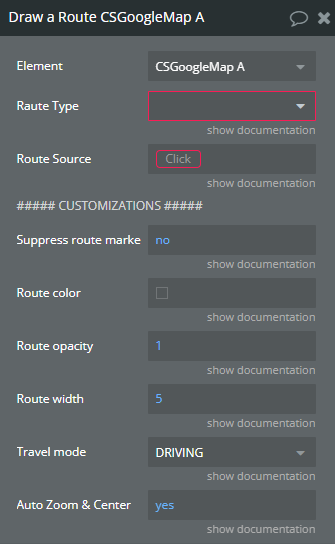
Draw a Route
Title | Description | Type |
Raute Type | The type should be the same as type selected in the element instance of the plugin | App Type |
Route Source | An object of selected route type | Item representing Route Type |
Start | Start point, should be a geographical address | Field of Raute Type, represent Geographic Address |
End | End point, should be a geographical address | Field of Raute Type, represent Geographic Address |
##### CUSTOMIZATIONS ##### | ||
Suppress route markers | Draw start/end markers or not | Checkbox (yes/no) (optional) |
Route color | Route color | Color (optional) |
Route opacity | Route opacity 0-1 | Number (optional) |
Route width | Route width. Default 5 | Number (optional) |
Travel mode | Travel mode to calculate the best route Available options: DRIVING, WALKING, BICYCLING, TRANSIT, TWO_WHEELER | Dropdown (optional) |
Auto Zoom & Center | You can set it to “yes” to prevent Google Maps from automatically centering and zooming to fit a route when it’s drawn. | Checkbox (yes/no) |
Set Zoom/Center
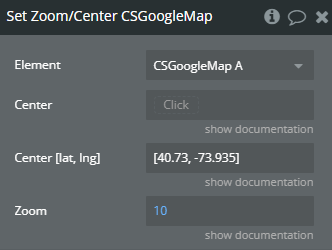
Title | Description | Type |
Center | A new center as geographical address | Geographic Address (optional) |
Center [lat, lng] | Geographical coordinates [Lat, Lng]. This option will be used if “Center” field is empty. | Text (optional) |
Zoom | Set a new zoom level | Number (optional) |
Remove a Route
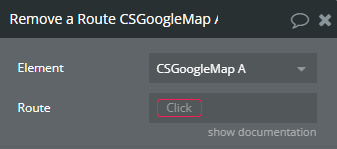
Title | Description | Type |
Route | Choose a route to be removed. All drawn routes are available in “Routes” state of the element | Item representing Route Type |
Remove all Routes
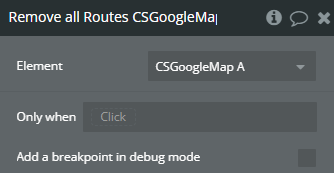
Draw a Route by Lat/Long

Title | Description | Type |
Route Type | In the context of a software plugin or API, “Route Type” refers to a classification or category of a specific route within a routing system, such as a public, private, or secure route. | App Type |
Route Source | An object of selected route type in the plugin element | Item representing Route Type |
Start Point | Start point, should be a number list. Ex: [lat, lng] | Field of Route Type, represent Number(list) |
End Point | End point, should be a number list. Ex: [lat, lng] | Field of Route Type, represent Number(list) |
##### CUSTOMIZATIONS ##### | ||
Suppress route markers | Draw start/end markers or not | Checkbox (yes/no) (optional) |
Route color | Route color | Color (optional) |
Route opacity | Route opacity 0-1 | Number (optional) |
Route width | Route width. Default 5 | Number (optional) |
Travel mode | Travel mode to calculate the best route Available options: DRIVING, WALKING, BICYCLING, TRANSIT, TWO_WHEELER | Dropdown (optional) |
Auto Zoom & Center | You can set it to “yes” to prevent Google Maps from automatically centering and zooming to fit a route when it’s drawn. | Checkbox (yes/no) |
Start Track Location
Start geolocation watch position
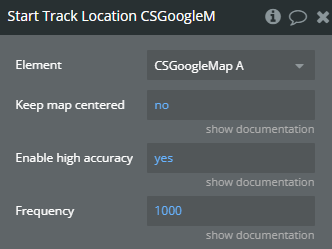
Title | Description | Type |
Keep map centered | If is set to “yes”, after location change the map will be centered on current location | Checkbox (yes/no) |
Enable high accuracy | If set to “yes” it can help improve the precision, though it might increase battery usage. | Checkbox (yes/no) |
Frequency | Position tracking frequency in milliseconds. Default 1000 | Number |
Stop Track Location
Stop geolocation watch position
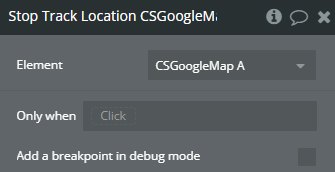
Add Marker(s)
Add a marker to the map
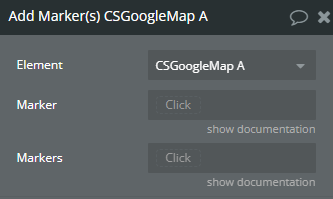
Title | Description | Type |
Marker | Marker type selected in the map element | Item representing Marker Type (optional) |
Markers | Marker type selected in the map element | Item representing Marker Type (optional) |
Remove Marker
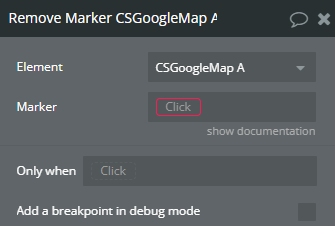
Title | Description | Type |
Marker | Marker type selected in the map element | Item representing Marker Type |
Clear cluster
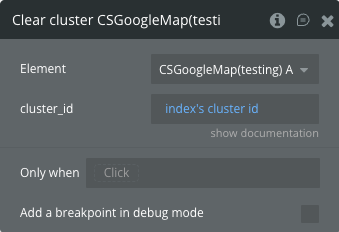
Title | Description | Type |
Cluster id | Unique Cluster ID | Text |
Clear all clusters
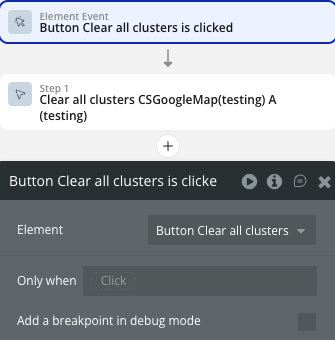
Exposed states
Title | Description | Type |
Rendered Markers | Rendered markers | List of Text |
Current Marker | Last clicked marker | Text |
[Iterator] Marker | Iterator marker | Text |
[Iterator] Markers | Iterator markers remained | List of Text |
Problem Markers | Returns a problematic list of markers | List of Text |
Routes | Returns rendered routes | List of Text |
Drawing Route | State of drawing route | Checkbox (yes/no) |
Center | Center of the map | Geographic Address |
Current Location | Current location if tracking is enabled | Geographic Address |
Is Tracking | Current status of tracking | Checkbox (yes/no) |
Click Coordinates | Clicked location coordinates | Geographic Address |
Click Environment | Clicked environment | Text |
Selected cluster id | Selected cluster id | Text |
Cluster ids list | List of clusters IDs | List of Text |
Zoom Level | Indicates the current zoom level of the map | Number |
Element Events
Title | Description |
Markers Rendered | Triggered when all markers are rendered |
Marker Clicked | Triggered when a marker is clicked |
[Iterator] Marker Ready | Triggered when next marker is ready |
Route Drawn | Triggered when a route is drawn |
Route Removed | Triggered when a route is removed |
All Routes Removed | Triggered after all routes were removed |
Map Dragged | Triggered when map has been dragged |
Zoom Level Changed | Triggered when map zoom changed |
Location Changed | Triggered when geolocation changed |
Ready | Triggered when map ready |
[Iterator] Finished | Triggered when iterator finished |
Map Clicked | Triggered when map clicked |
Cluster selected | Triggered when cluster selected |
Cluster clicked | Triggered when cluster clicked |
Workflow example
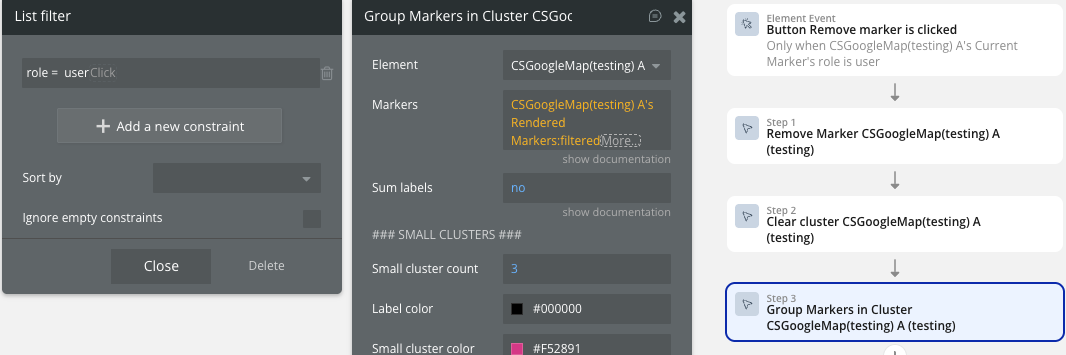
Settings for adding multiple clusters
- Database Parameters: In the marker database, create a separate field for grouping markers.
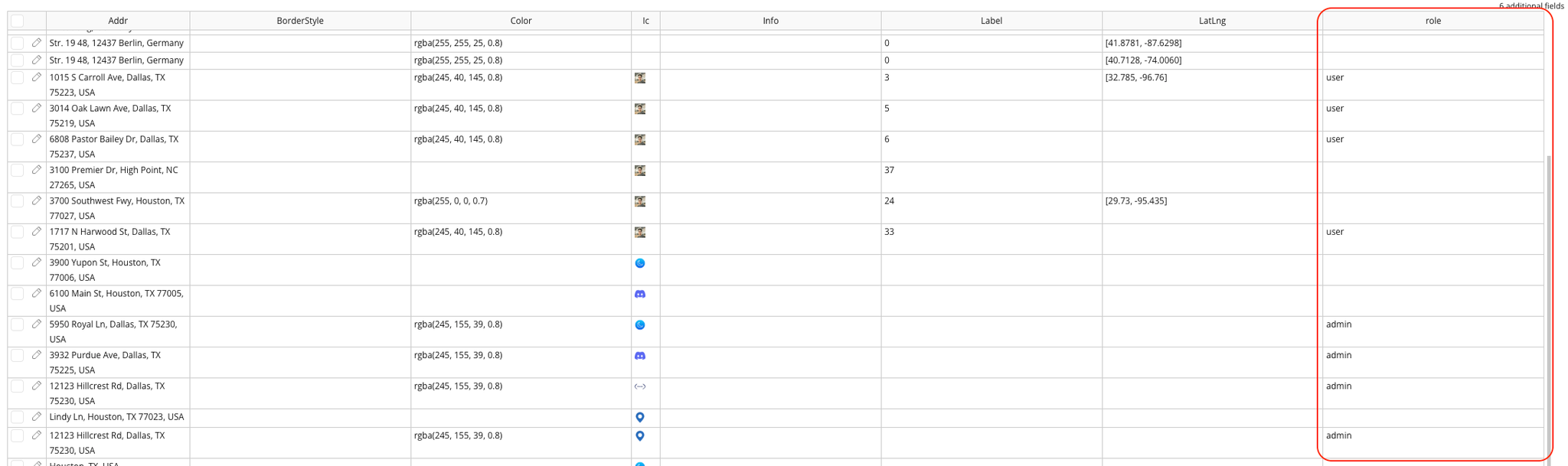
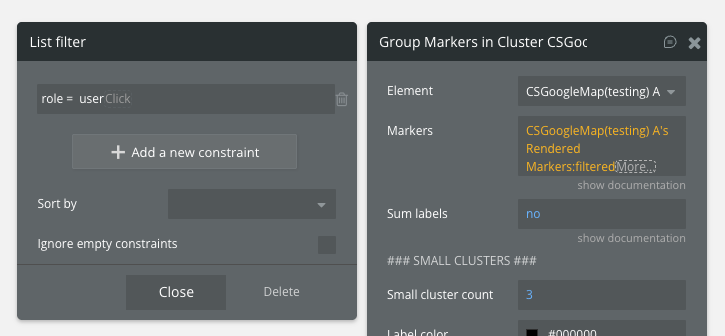
- Add Action Group Markers in Cluster: Set up action 'Group Markers in Cluster' for each group of markers. In the Markers field, we must use state 'Markers Rendered' as a data source and filter it by role, for example.
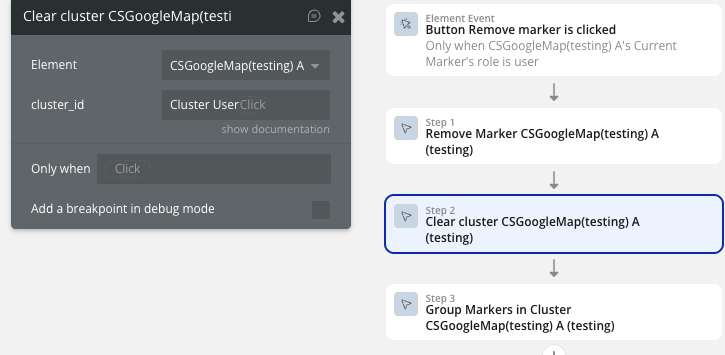
- Add Actions Clear cluster or Clear all clusters: If you need to delete or add a marker to a cluster, then you need to re-render the clusters - first clear them on the map using new actions Clear cluster or Clear all clusters, then render again. For example, you can use the conditions when calling action 'Remove a marker' to remove markers. When creating and clearing a cluster, you must specify a unique ID.
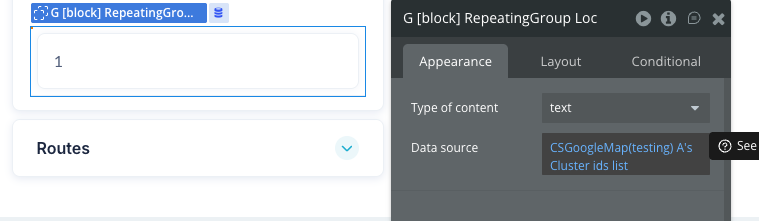
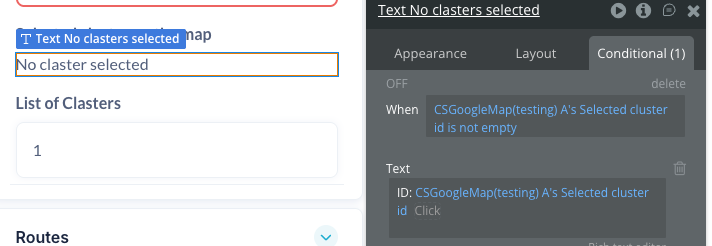
- Display Result: Use state “Cluster ids list” and “Selected cluster id” to interact with clusters.
Changelogs
Update 28.08.26 - Version 3.10.0
- Bubble Plugin Page Update (Sorting).
Update 24.03.26 - Version 3.9.0
- Fixed Clusters.
Update 20.03.26 - Version 3.8.0
- Fixed Location marker.
Update 16.03.26 - Version 3.7.0
- Fixed Start Track Location action.
Update 16.03.26 - Version 3.6.0
- New Zoom Level field & event.
Update 02.12.25 - Version 3.5.0
- added field 'Cluster id' in action 'Group Markers in Cluster' and actions Clear cluster, Clear all clusters.
Update 01.12.25 - Version 3.4.0
- Bubble Plugin Page Update (Description).
Update 14.11.25 - Version 3.3.0
- Bubble Plugin Page Update (Description).
Update 07.11.25 - Version 3.2.0
- Bubble Plugin Page Update (Description).
Update 04.09.25 - Version 3.1.0
- fixed geocoder feature.
Update 20.06.25 - Version 3.0.0
- Bubble Plugin Page Update (Docs link).
Update 10.06.25 - Version 2.29.0
- Marketing update (minor change).
Update 09.06.25 - Version 2.28.0
- Marketing update (minor change).
Update 04.06.25 - Version 2.27.0
- Fixed actions related to Markers.
- Change Marker
- Change Markers
- Group Markers in Cluster
- Remove Marker
Update 30.05.25 - Version 2.25.0
- Added new field "ID field" for "CS Google Map" element.
Update 17.02.25 - Version 2.24.0
- Minor update(Marketing update).
Update 17.02.25 - Version 2.23.0
- Acquired by Zeroqode.
Update 17.12.24 - Version 2.22.0
- Customizable info window.
Update 19.11.24 - Version 2.21.0
- Custom Marker icon - changed to dynamic field.
Update 18.11.24 - Version 2.20.3
- Marker clusters - extended conditionals.
Update 06.09.24 - Version 2.20.2
- Jittering for markers.
Update 22.08.24 - Version 2.20.1
- Apply custom styles before map is rendered initially.
Update 20.08.24 - Version 2.20.0
- Set Center/Zoom fixes III.
Update 20.08.24 - Version 2.19.0
- Set Center/Zoom fixes II.
Update 20.08.24 - Version 2.18.0
- Set Center/Zoom fixes.
Update 29.07.24 - Version 2.17.8
- Set Center/Zoom action refactor and issues handling.
Update 24.07.24 - Version 2.17.7
- Fixed radius redraw after marker source changed.
Update 23.07.24 - Version 2.17.6
- Fixes (Center/Zoom, Click, Remove Marker) actions.
Update 10.07.24 - Version 2.17.5
- Draw a radius around the markers.
Update 08.07.24 - Version 2.17.4
- Added actions to add/remove markers using workflows.
Update 01.07.24 - Version 2.17.3
- Record and expose click coordinates.
Update 25.06.24 - Version 2.17.2
- Lat/Lng option for map center and marker coordinates.
Update 10.06.24 - Version 2.17.1
- Fix of click listeners on markers & map.
Update 04.06.24 - Version 2.17.0
- Wait for Bubble data before render markers II.
Update 04.06.24 - Version 2.16.0
- Wait for Bubble data before render markers.
Update 04.06.24 - Version 2.15.0
- Check for marker thing before render V.
Update 04.06.24 - Version 2.14.0
- Check for marker thing before render IV.
Update 04.06.24 - Version 2.13.0
- Check for marker thing before render III.
Update 04.06.24 - Version 2.12.0
- Check for marker thing before render II.
Update 04.06.24 - Version 2.11.0
- Check for marker thing before render.
Update 29.05.24 - Version 2.10.2
- Customize cluster color by label sum.
Update 29.05.24 - Version 2.10.1
- Label calculation algorithm changes.
Update 29.05.24 - Version 2.10.0
- Autocomplete service fixed.
Update 29.05.24 - Version 2.9.0
- Autocomplete service included.
Update 22.05.24 - Version 2.8.0
- Fix Bubble conflict with Google Maps IV.
Update 22.05.24 - Version 2.7.0
- Fixed Bubble conflict with Google Maps III.
Update 22.05.24 - Version 2.6.0
- Fix Bubble conflict with Google Maps II.
Update 22.05.24 - Version 2.5.0
- Fix Bubble conflict with Google maps.
Update 21.05.24 - Version 2.4.2
- Load google API without conflicts.
Update 21.05.24 - Version 2.4.1
- Load google API without conflicts.
Update 20.05.24 - Version 2.4.0
- Google Maps Clicks Handler.
Update 17.05.24 - Version 2.3.3
- Cluster label as sum of marker labels.
Update 17.05.24 - Version 2.3.2
- Better gesture handling, clusters rendering fixes.
Update 02.05.24 - Version 2.3.1
- Customizable Clusters.
Update 01.05.24 - Version 2.3.0
- Custom styles for maps, Live tracking, Fixes.
Update 11.04.24 - Version 2.2.6
- Fixes: reference errors fixed.
Update 11.04.24 - Version 2.2.5
- Fixes.
Update 02.04.24 - Version 2.2.4
- Trigger events at the same time as states..
Update 01.04.24 - Version 2.2.3
- Fixed issue when parsing markers early..
Update 20.03.24 - Version 2.2.2
- Fixes.
Update 19.03.24 - Version 2.2.1
- Center state. Update center state after map drag/zoom.
Update 12.03.24 - Version 2.2.0
- Draw markers with label on.
Update 07.03.24 - Version 2.1.0
- Draw routes using lat/lng system. Change marker labels using Change marker action.
Update 31.01.24 - Version 2.0.1
- Added Documentation.
Update 30.01.24 - Version 2.0.0
- First Commercial Release.
Update 08.11.23 - Version 1.1.1
- Initialize google map 1s delayed.
Update 06.11.23 - Version 1.1.0
- UI Controls.
Update 06.11.23 - Version 1.0.3
- Hotfix, check for address availability.
Update 03.11.23 - Version 1.0.2
- Import Markers in both cases.
Update 26.10.23 - Version 1.0.1
- Google Map ID for Custom Markers.
Update 26.10.23 - Version 1.0.0
- Custom Markers.
Update 18.10.23 - Version 0.0.1
- ChurchSpace Private Copy.