Add a phone input with country selection and auto-formatting to your Bubble Native (mobile) app. Get clean, validated numbers with correct codes and flags.
Prerequisites
This plugin is designed specifically for the mobile version of the Bubble editor. To test the plugin on your mobile device, use the TestFlight app available at: https://testflight.apple.com/join/kW1puGu7
⚠️
Please note that the testing app is currently available for iOS only.
How to setup
Step 1 – Install the Plugin
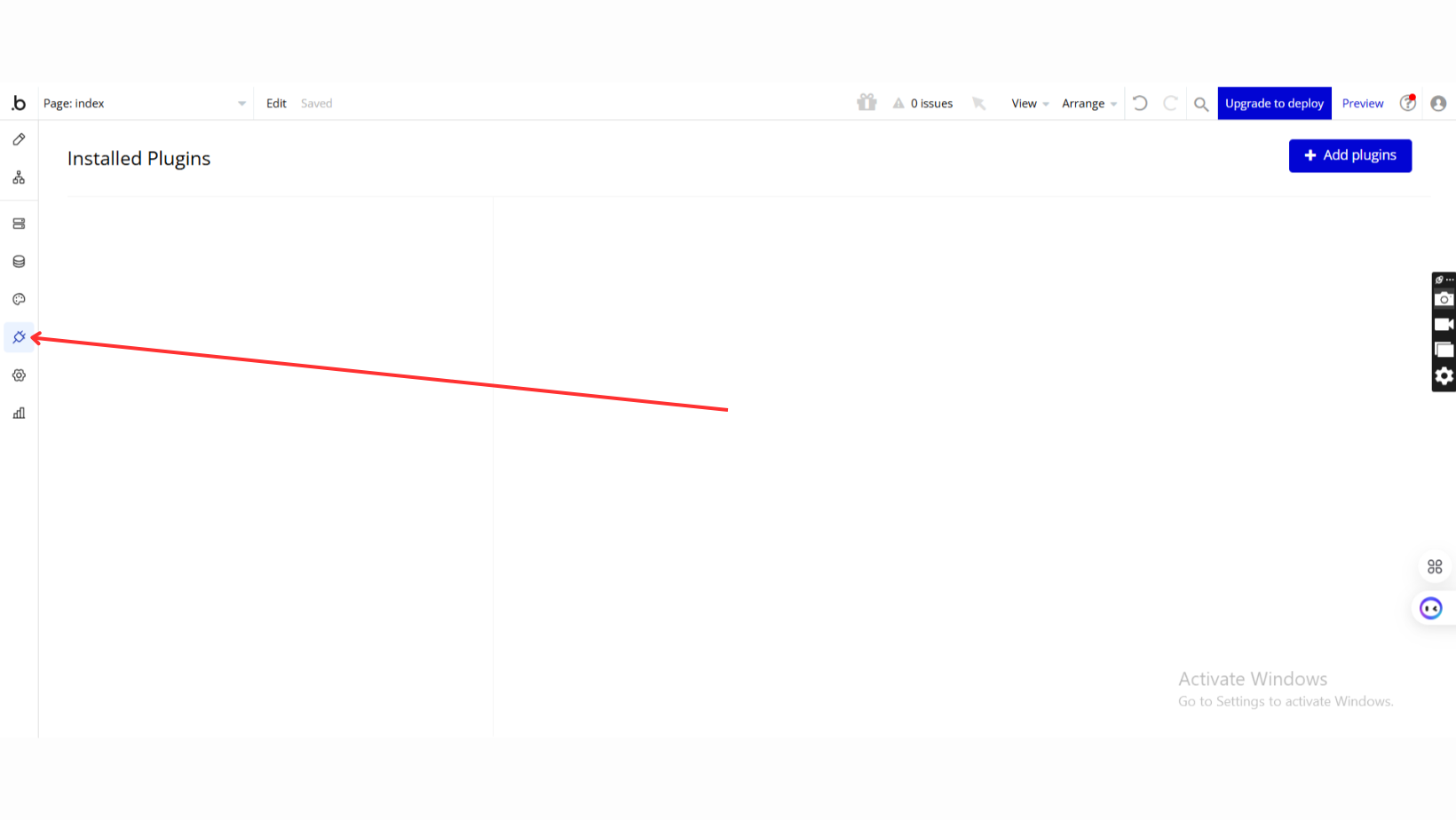
Go to the Plugin Tab
Open your Bubble Editor.
Navigate to the Plugins tab on the left panel.
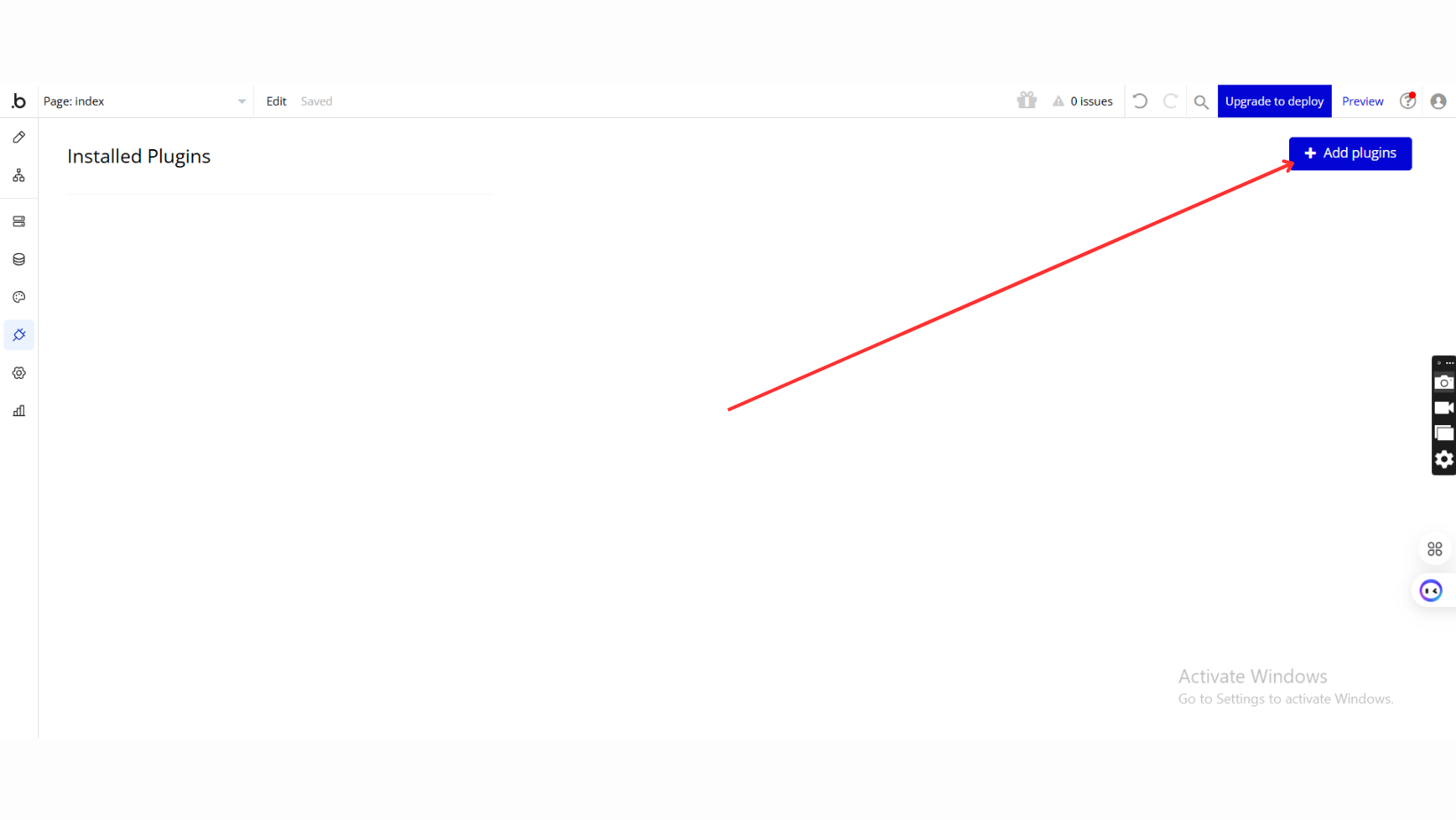
Add Plugins
Once in the Plugins tab, click the Add Plugins button.
Search for the Plugin
Use the search bar to type Phone Number Input Free.
Locate the plugin in the search results.
Install/Buy
If the plugin is free, click Install to add it to your application.
For a paid plugin, click Buy and follow the purchase instructions.
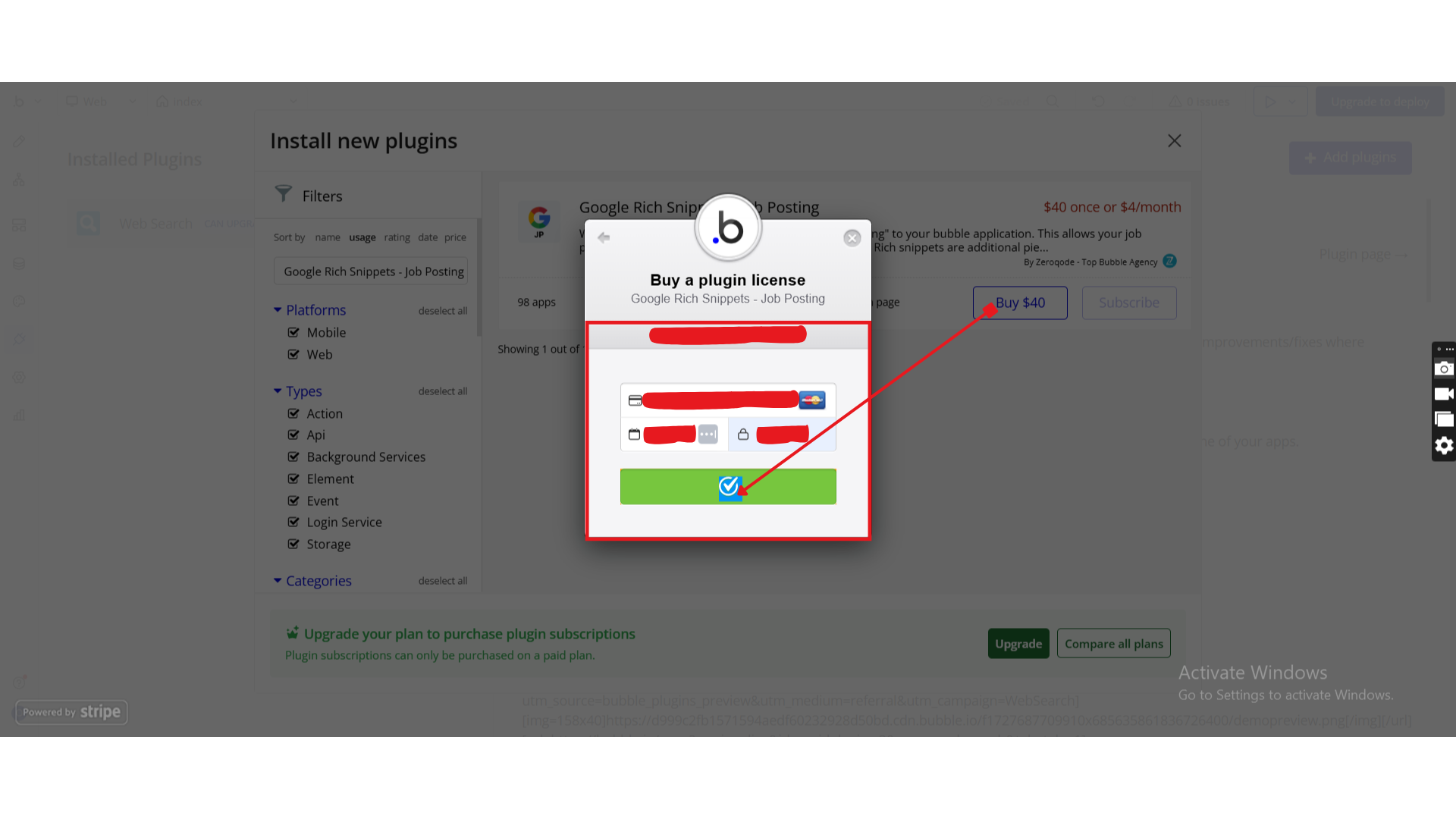
Payment Information (For Paid Plugins)
If the plugin is a paid one, fill in your payment details and make payment.
Charges will be added to your Bubble billing account.
Remember, if you unsubscribe from the plugin shortly after installation, charges will be prorated based on the days used.
Plugin Installed
Once installed, the plugin will appear under the Installed Plugins list in your Bubble Editor.
Step 2 – Add the Plugin Element to Your Page
Open the Design tab in your Bubble editor.
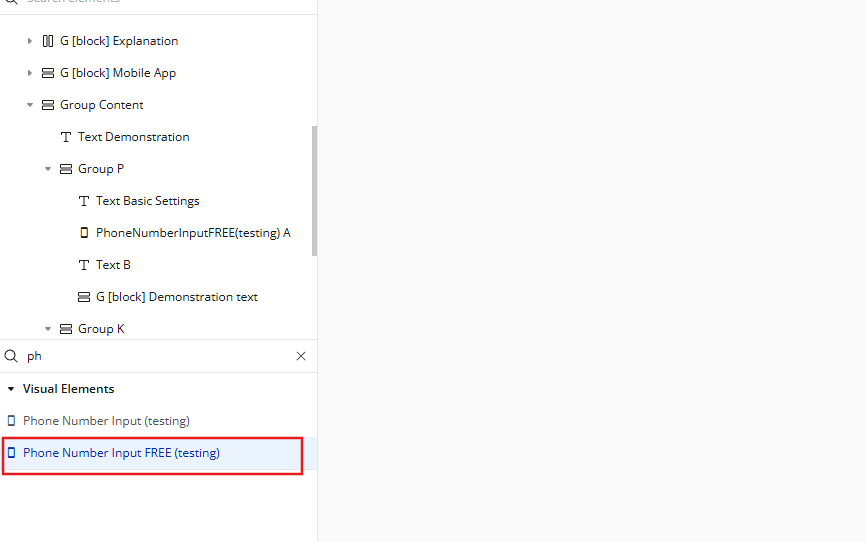
Search for the Phone Number Input element in the Elements panel.
Drag and drop the element onto your page.
Step 3 – Configure Properties
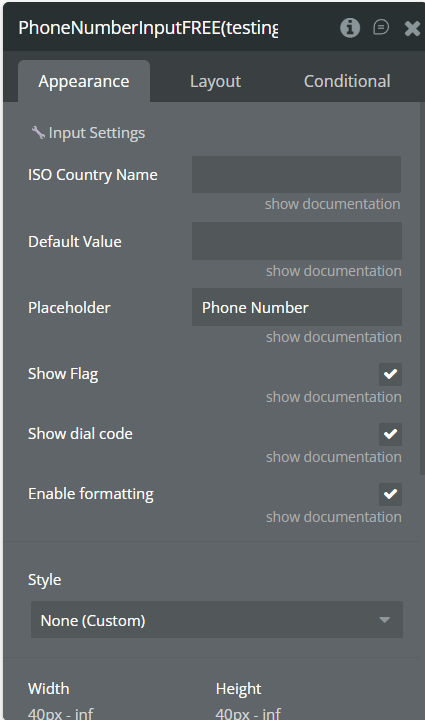
Setting Default ISO country code
This field allows you to set the initial country that the phone input should load when the page renders.
You can enter any ISO country code (e.g. AD, AF, AE, AL, US, CA).
When provided, the element will automatically:
select the matching country
display the correct flag
show the correct international dial code
apply the country’s phone number pattern
Example:
If you enter AD → the element loads Andorra (+376) as the default country.
Note: This must be the ISO Alpha-2 code, not the dial number.
Setting Default Value
This field allows you to preload a phone number inside the input when the element initializes.
You can enter either:
a raw number (digits only), or
a partially formatted number
The plugin will automatically:
strip non-digits
remove any prefix (if present)
format the number based on the selected country’s pattern
validate it instantly
Example:
If the default country is AD and the Default Value is:
12 3456 → The plugin formats it as:
12 3456
and outputs the full number:
+376 12 3456
☝
Combined Behavior (Important)
If both fields are provided, the plugin applies this logic:
ISO country Code → sets the initial country
Default Value → formats the number according to the country selected above
This ensures correct formatting and validation from the start.
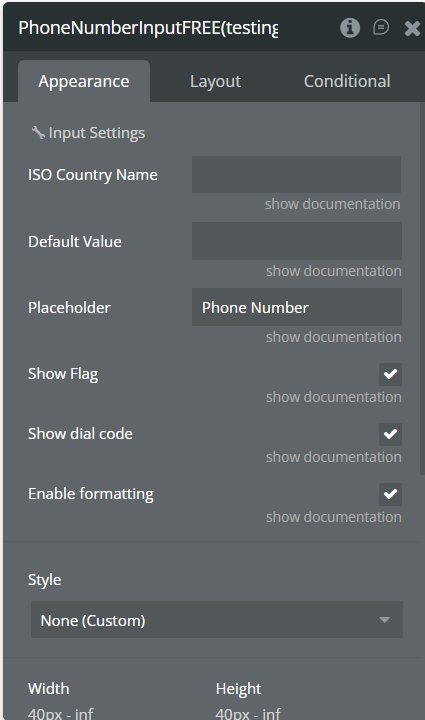
Plugin Element - Phone Number Input Free
The Phone Number Input FREE element provides a simple and intuitive way to capture international phone numbers in your Bubble application. It includes the essential features required to display a country selector, show the international dial code, and format phone numbers automatically based on the selected country.
Users can choose their country from a dropdown list, see the corresponding flag and dial code, and type their phone number with automatic spacing. You can also predefine a default country and a default phone value, making the element easy to integrate into signup forms, contact forms, checkout flows, or any page where a phone number input is required.
This FREE version focuses on simplicity and reliability, offering a clean UI and seamless user experience with minimal configuration.
Fields
Field Name
Description
Type
Default Dial Code
Sets the initial country using its ISO code (e.g. US, AD, AF).
text
Default Value
Preloads a phone number into the input. Automatically cleaned & formatted.
text
Preferred Country List
Restricts the dropdown to specific countries using ISO codes (list or comma).
text (list)
Show Flag
Displays the country flag inside the prefix selector.
yes / no
Show dial code
Shows or hides the international phone prefix (e.g. +1, +93).
yes / no
Enable formatting
Enables automatic formatting based on the selected country’s phone pattern.
yes / no
Placeholder Color
Defines the color used for all visible text in the phone input, including typed numbers and country details.
Color
Text Color
Specifies the color of the placeholder text shown in the input before the user types anything.
Color
Exposed states
Caption
Description
Type
Full Number
The complete formatted number, including the country prefix.
Text
Country Name
The name of the selected country.
Text
ISO Country Name
The ISO country code (e.g., AF, AE, AL).
Text
Dial Code
The country prefix (e.g., +93, +376).
Text
is focused
Becomes “yes” when the input is focused.
Yes / No
is valid
Indicates whether the number is valid according to the country pattern.
Yes / No
Error Message
The error message (optional, empty if none).
Text
Raw Number
The unformatted number (digits only).
Text
e164 Number
The phone number in E.164 international format.
No spaces or separators — digits only after the country code.
Standard format used by Twilio, WhatsApp, SMS APIs, and most telephony services.
Text
Element Events
Event Name
Description
Phone Changed
Triggered every time the user modifies the phone input value.
Phone Valid
Triggered when the phone number becomes valid according to the selected country’s pattern.
Phone Invalid
Triggered when the phone number becomes invalid (length or pattern mismatch).
Country Changed
Triggered after the user selects a different country from the dropdown modal.
Country Modal Opened
Triggered the moment the country selection modal becomes visible.
Country Modal Closed
Triggered when the country modal is closed.
Input Focused
Triggered when the phone input field receives focus.
Input Blurred
Triggered when the phone input loses focus.
Workflow example
Here are some basic workflow examples to get you started with the Phone Number Input Free For Bubble Mobile plugin:
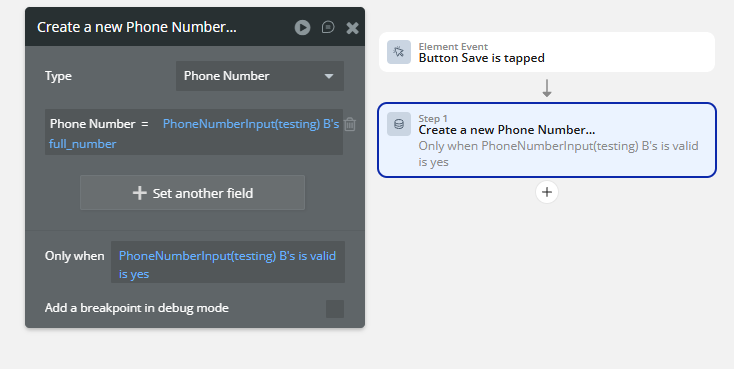
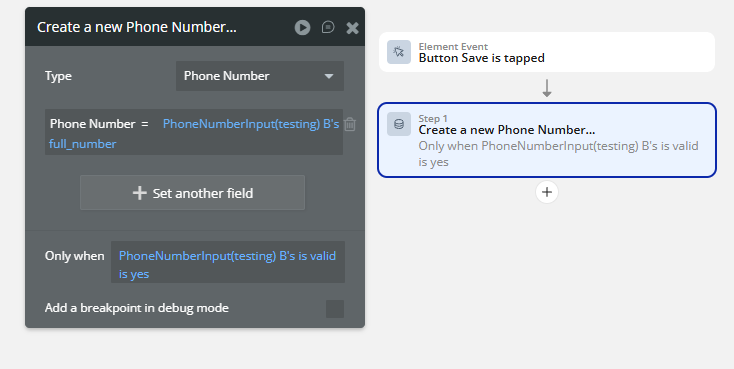
Saving a Valid Phone Number
Save the phone number to the User record only if the input is valid.
Step 1 — Add a Button
Step 2 — Create a Workflow
Go to: Workflow → When Button Submit Phone Number is clicked
Step 3 — Create a new Phone Number thing
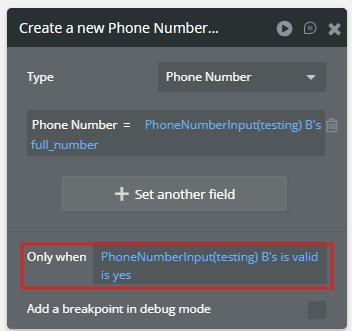
Step 4 Condition – Only when the number is valid
Changelogs
Update 18.06.26 - Version 1.6.0
Refactored to support Bubble's updated native library stack.
Update 17.03.26 - Version 1.5.0
Bug fixes.
Update 16.03.26 - Version 1.4.0
Padding fixes.
Update 10.03.26 - Version 1.3.0
Added E.164 Number State and Local Number (Trunk 0) Support.