
Link to the plugin page: https://zeroqode.com/plugin/qr--barcode-scanner-bubble-mobile-1757052222812x438482622697368600
Demo to preview the plugin:
Introduction
The QR/Barcode Scanner Bubble Mobile plugin provides a powerful visual element for scanning QR codes and barcodes directly within your Bubble mobile applications. This plugin leverages device camera capabilities to offer real-time scanning functionality with customizable scan area shapes, camera direction control, and continuous scanning modes. It’s specifically designed for mobile platforms and supports both QR codes and various barcode formats.
Prerequisites
This plugin is designed specifically for the mobile version of the Bubble editor. To test the plugin on your mobile device, use the TestFlight app available at: https://testflight.apple.com/join/njge8JcQ
Please note that the testing app is currently available for iOS only.

How to setup
To use this plugin:
- Install the QR/Barcode Scanner Bubble Mobile plugin from the Bubble Plugin store.
- Add the QR/Barcode Scanner element to your mobile page.

- Configure the scanner properties (camera facing, scan area shape, scan area color, continuous scanning).

- Set up workflows to handle the “Code Scanned” event.

- Test on mobile devices or in mobile preview mode.
The plugin automatically requests camera permission when the scanner element is displayed. If permission is denied, the Error Occurred event is triggered.
Plugin Element Properties
The plugin contains a QR/Barcode Scanner visual element that should be used on mobile pages.
QR/Barcode Scanner
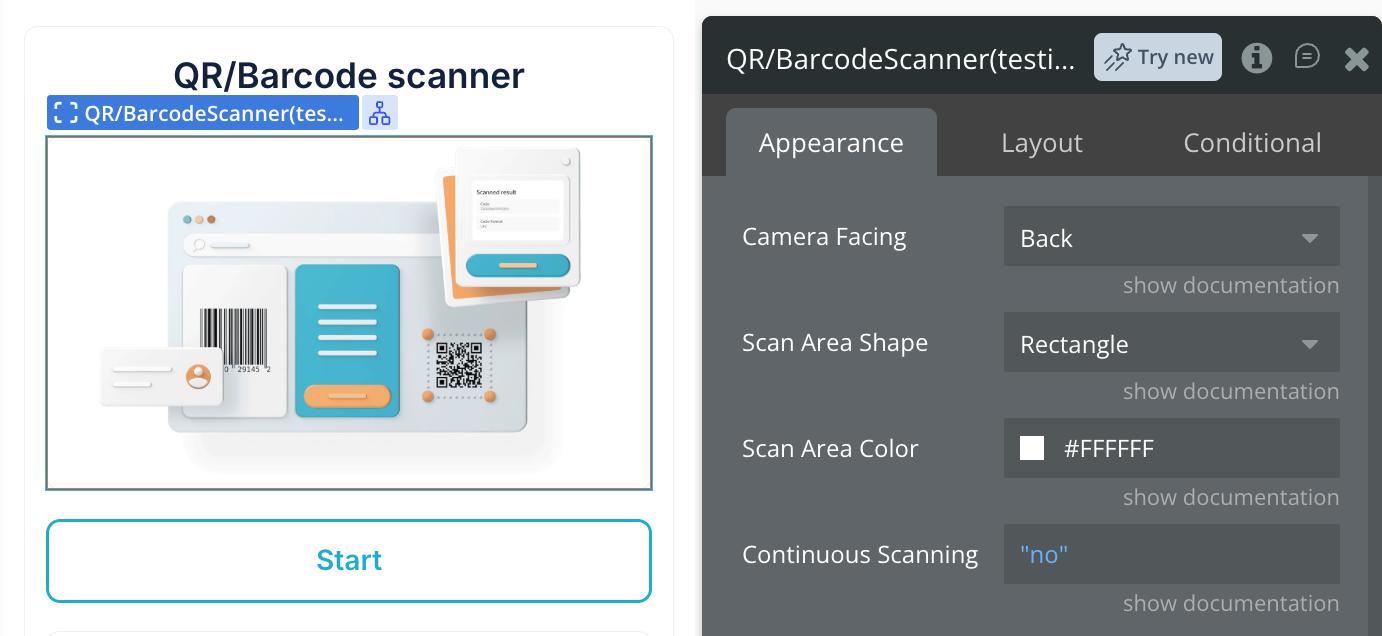
Fields:
Title | Description | Type |
Camera Facing | Which camera to use: Back or Front | Dropdown |
Scan Area Shape | Shape of the scanning area: Square or Rectangle | Dropdown |
Scan Area Color | Border color of the scanning area overlay. Default: semi-transparent white | Color |
Continuous Scanning | If enabled, the scanner keeps running after each scan; the same code is reported again only after it has left the frame for 2 seconds. If disabled, the scanner stops after the first successful scan | Boolean |
Element Actions
1. Start
Starts the QR/Barcode scanner and activates the camera for scanning.

2. Stop
Stops the QR/Barcode scanner and deactivates the camera.

3. Scan From Image
Scans a QR code or barcode from a provided image instead of using the camera.

Fields:
Title | Description | Type |
QR Image | Image containing the QR code or barcode to scan | Image |
Exposed states
Name | Description | Type |
Last Scanned Code | Data from the most recently scanned code, from either the camera or the Scan From Image action | Text |
Last Scanned Code From Image | Data from the last successful scan performed with the Scan From Image action. Not affected by camera scans | Text |
Is Scanner Active | Indicates whether the camera is currently running | Boolean |
Error | Text of the last error (camera permission denied, camera failure, no code found in the image, etc.). Cleared when the camera starts successfully or when Scan From Image runs | Text |
Element Events
Name | Description |
Code Scanned | Triggered when a QR code or barcode is successfully scanned and decoded |
Code Scanned From Image | Triggers when a code is successfully recognized in an image file via the Scan From Image action. Camera scans trigger the Code Scanned event instead. |
Error Occurred | Triggered when an error occurs: camera permission denied, camera failed to start, no code found in the image, image could not be loaded, etc. Use the Error state to get the error text |
Workflow example
Basic QR Code Scanning Workflow


Image-based Scanning Workflow

