
Demo to preview the plugin:
Introduction
The Simple Signature Pad / Sketchpad plugin allows you to add a drawing canvas to your Bubble application that works on both mobile and desktop devices. This plugin is perfect for collecting signatures, creating simple sketches, or enabling users to draw directly on your application. It provides a responsive canvas with customizable stroke color and width, and supports actions such as undo, redo, and clear. The plugin also offers functionality to save signatures as JSON for later restoration, and to export drawings as PNG images.

How to setup
- Install the “Simple Signature Pad / Sketchpad” plugin from the Bubble plugin marketplace.
- Add the Sketchpad element to your page from the “Input Forms” category in the element panel.
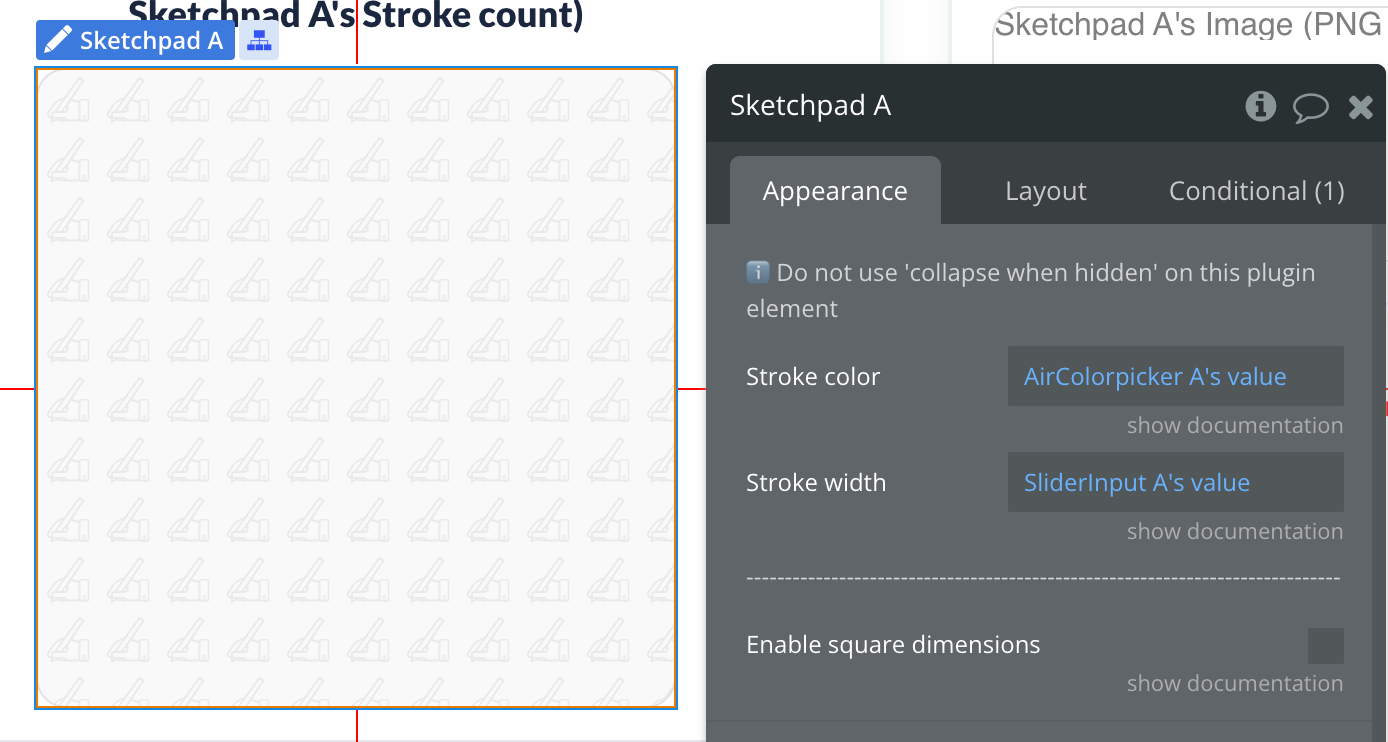
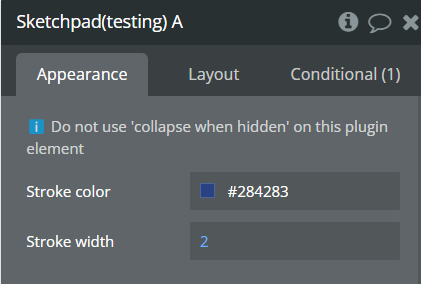
- Customize the appearance and behavior of the sketchpad using the element properties.
- The plugin automatically saves the content as an image that is accessible as a state: “Sketchpad’s Image”.
Important Note: Do not use the “collapse when hidden” option on this plugin element as it may interfere with proper rendering.
Plugin Element Properties
The plugin contains a Sketchpad visual element that should be used on a page.
Sketchpad
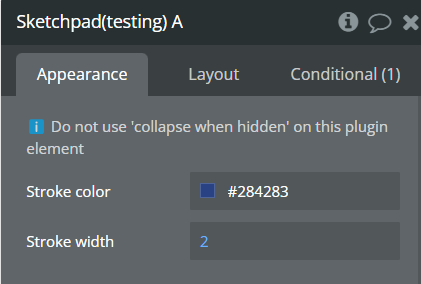
Fields:
Title | Description | Type |
Stroke color | The color of the pen/brush used for drawing | Color |
Stroke width | The width/thickness of the pen/brush strokes | Number |
Enable square dimensions | When enabled, forces the sketchpad to take on square dimensions, which improves responsiveness. If unchecked, make sure to set the element to ‘fixed width’. | Checkbox |
Element Actions
Undo
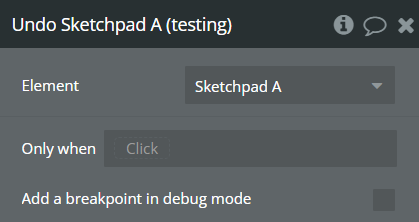
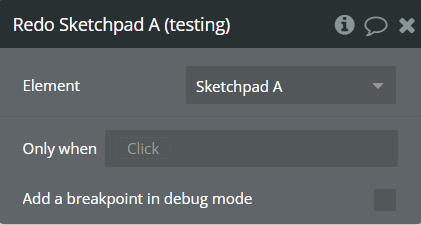
Redo
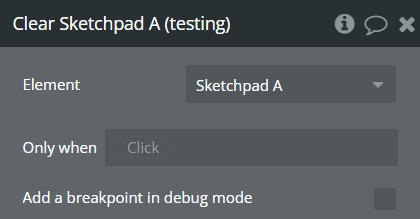
Clear
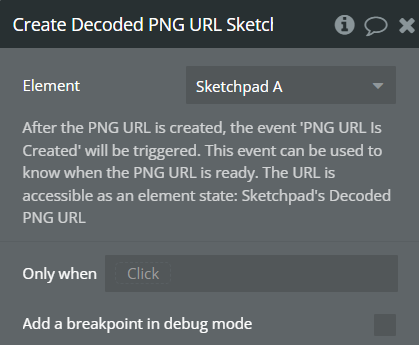
Create Decoded PNG URL
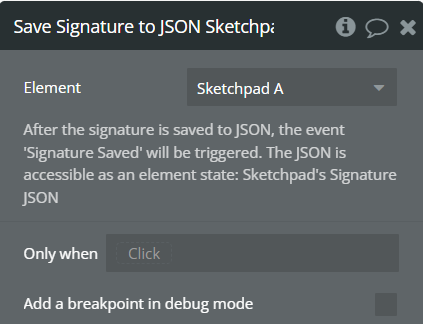
Save Signature to JSON
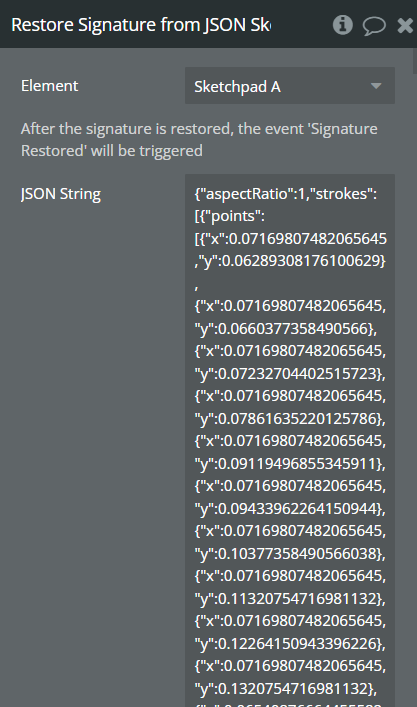
Restore Signature from JSON
Exposed states
Name | Description | Type |
Image (PNG BASE64 encoded) | The current drawing as a base64 encoded PNG image | Image |
Empty? | Boolean state indicating whether the drawing pad is empty or not | Boolean |
Stroke count | The number of strokes in the current drawing | Number |
Decoded PNG URL | The URL to the decoded PNG image after using the “Create Decoded PNG URL” action | Image |
Signature JSON | The JSON string representation of the signature after using the “Save Signature to JSON” action | Text |
Element Events
Name | Description |
PNG URL Is Created | Triggered after the “Create Decoded PNG URL” action completes successfully |
Signature Saved | Triggered after the “Save Signature to JSON” action completes successfully |
Signature Restored | Triggered after the “Restore Signature from JSON” action completes successfully |
Workflow example
Example 1: Basic Signature Capture and Save
Example 2: Signature with JSON Backup
Example 3: Drawing with Undo/Redo Functionality