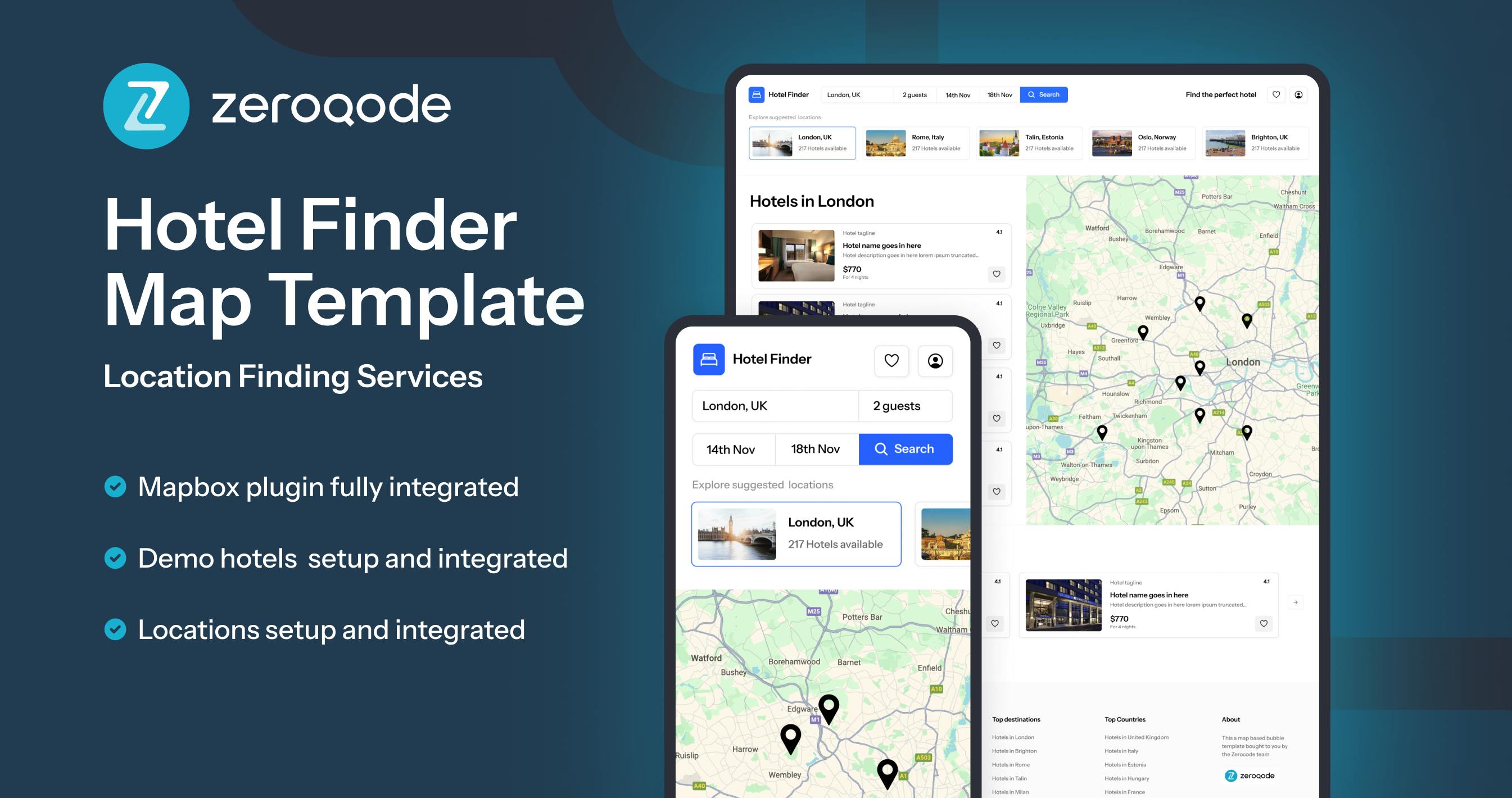
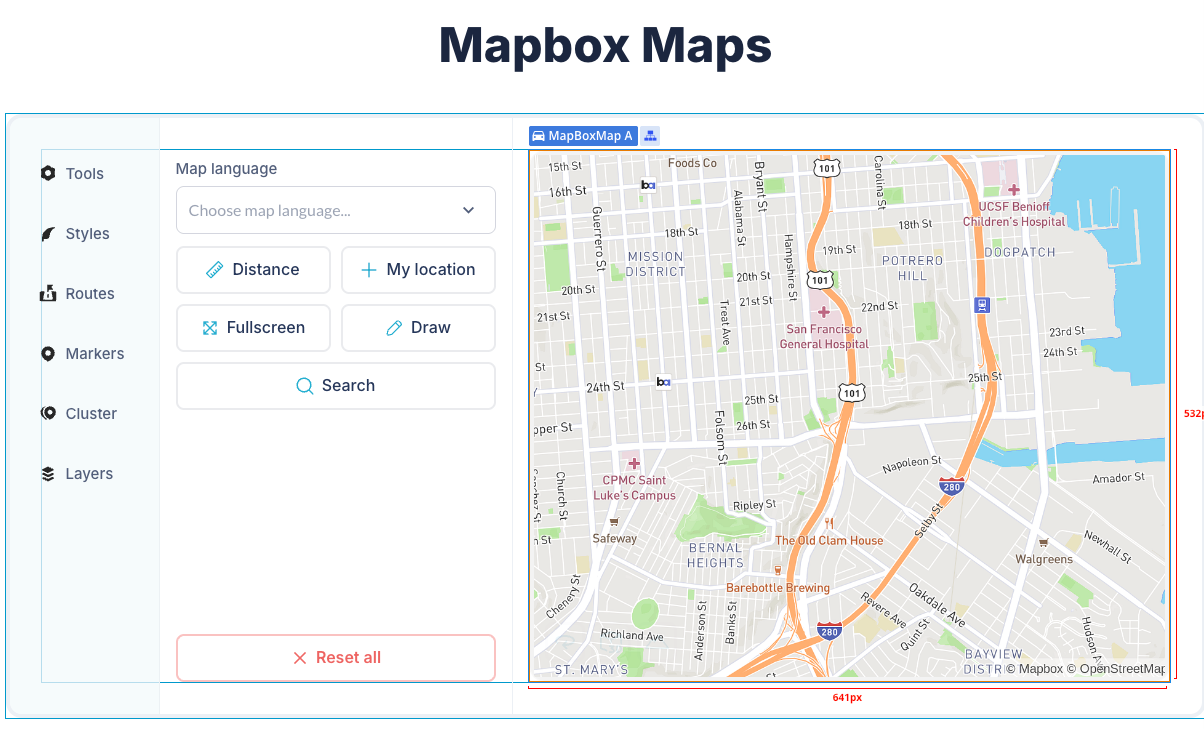
Show your own MapBox map styles & 3D buildings inside your bubble app. Live user tracking, Markers, FlyTo, Pitch, Bearing, Zoom & Coordinate Control. MapBox Direction, Scale & Movement Controls + Much More!
Use the MapBox element to show your maps in your own styles. Then give your map life using the element actions. On mouse click, the plugin returns states that contain Latitude & Longitude as well as address.
The plugin also returns states with a list of markers, map's center address and you can trigger workflows when a marker is clicked.
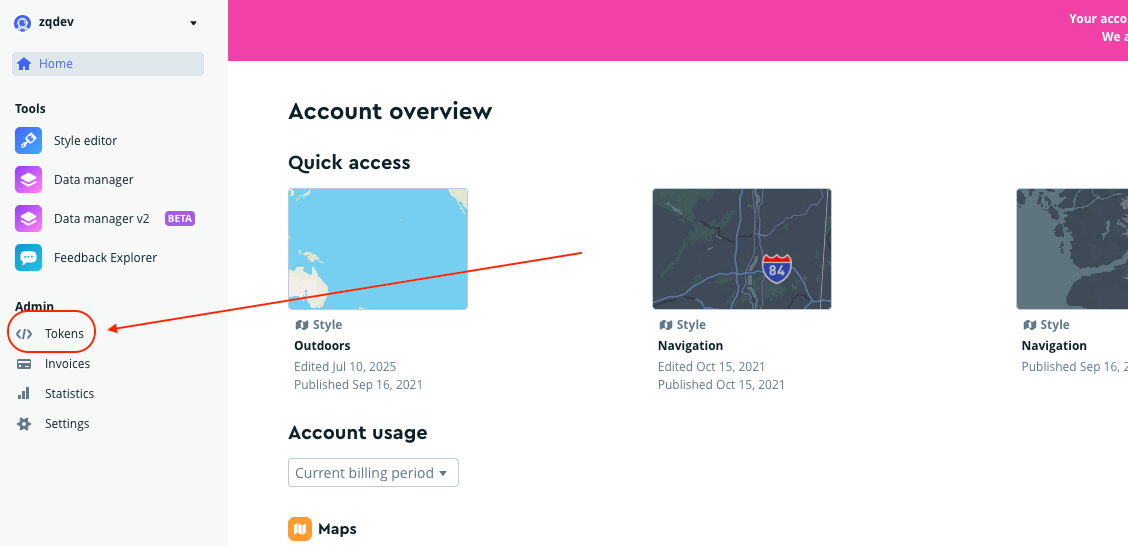
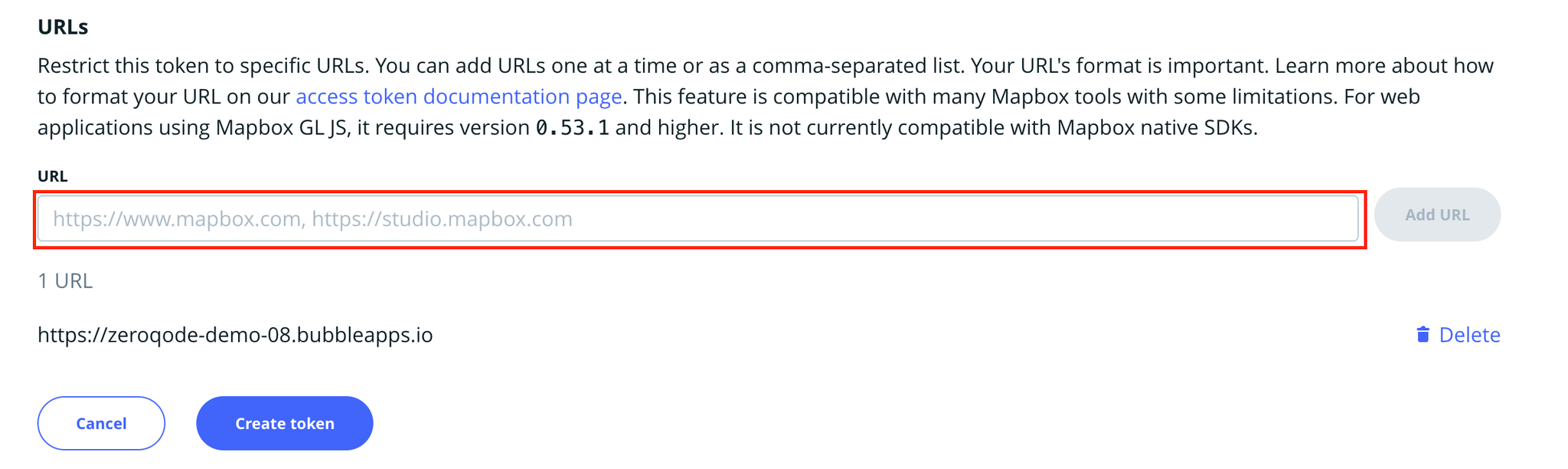
Note: This is a public Access token! You can access tokens more secure by adding URL restrictions. When you add a URL restriction to a token, that token will only work for requests that originate from the URLs you specify. Tokens without restrictions will work for requests originating from any URL.
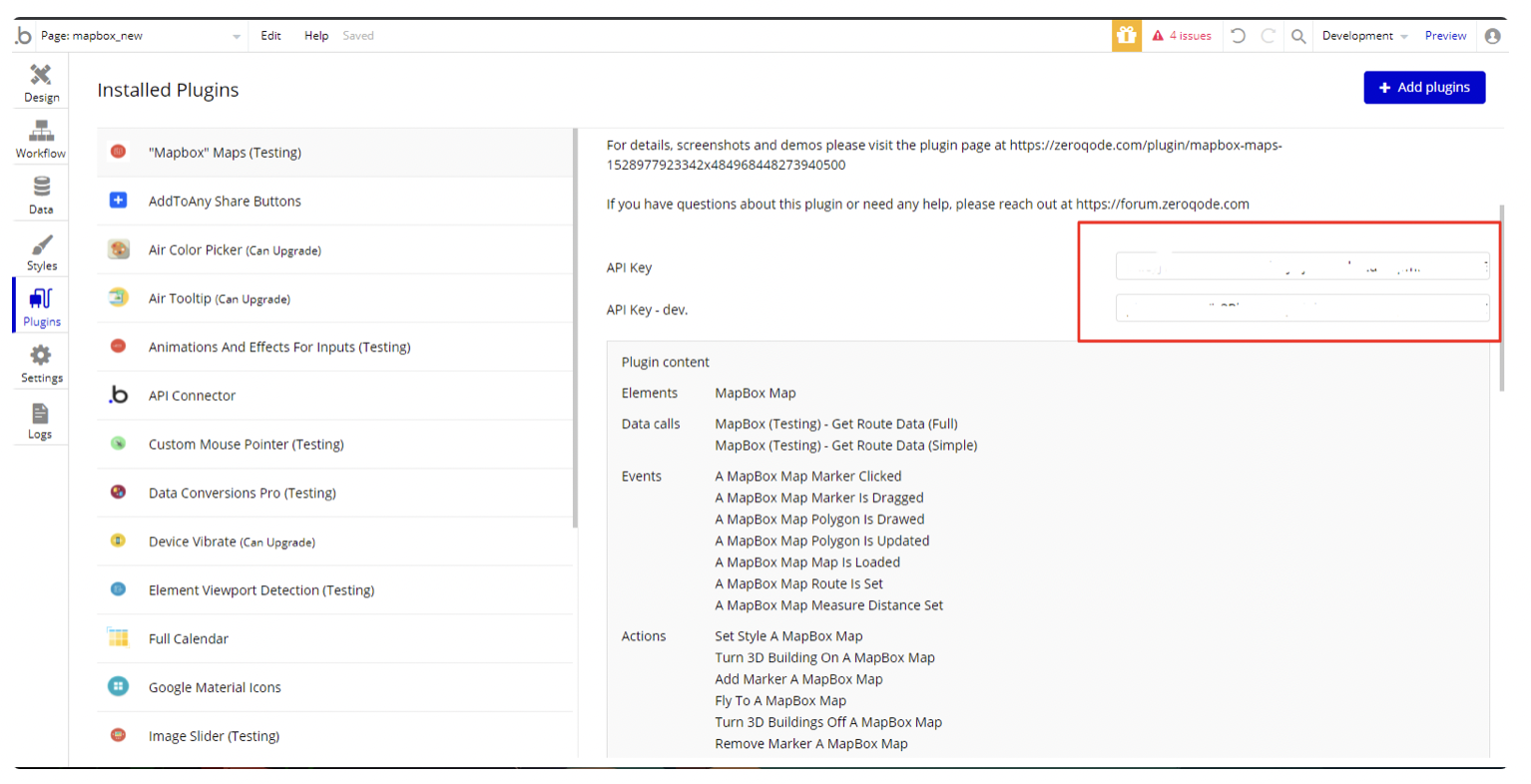
4. Put it in plugin fields
5. Place the MapBox Map element on the page
Plugin Element - Mapbox Map
Fields
Title
Description
Type
UI Position
Position on the map to which the control will be added. Valid values are 'top-left', 'top-right', 'bottom-left', and 'bottom-right'. Defaults to 'top-right'
Dropdown
Enable UI Map Inputs
Hide or display the inputs control (default true)
Checkbox
UI Map default tab
Default routing profile for directions
Dropdown
Enable UI Route Instructions
Hide or display the instructions control (default true)
Checkbox
Enable navigation controls
Hide or display navigation controls buttons
Checkbox
Nav controls position
Position for navigation controls on the map
Dropdown
Language
The language of returned turn-by-turn text instructions
Dropdown
Navigation language
Language for map navigation interface
Dropdown
Create route onClick
Enable/disable click-through route creation on map element
Checkbox
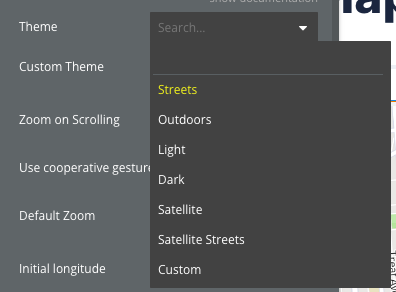
Theme
Map visual theme/style
Dropdown
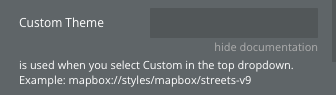
Custom Theme
Custom map style URL (used when "Custom" theme is selected). Example: mapbox://styles/mapbox/streets-v9
Text
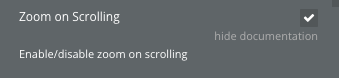
Zoom on Scrolling
Enable/disable zoom on scrolling
Checkbox
Use cooperative gestures
Set scroll-to-zoom using the control or command key while scrolling to zoom the map, and panning on touch devices requires using two fingers to pan the map
Checkbox
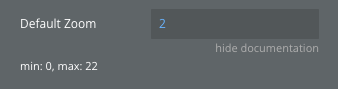
Default Zoom
Default zoom level (min: 0, max: 22)
Number
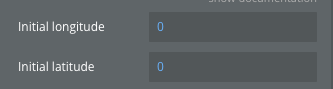
Initial longitude
Initial longitude coordinate for map center
Number
Initial latitude
Initial latitude coordinate for map center
Number
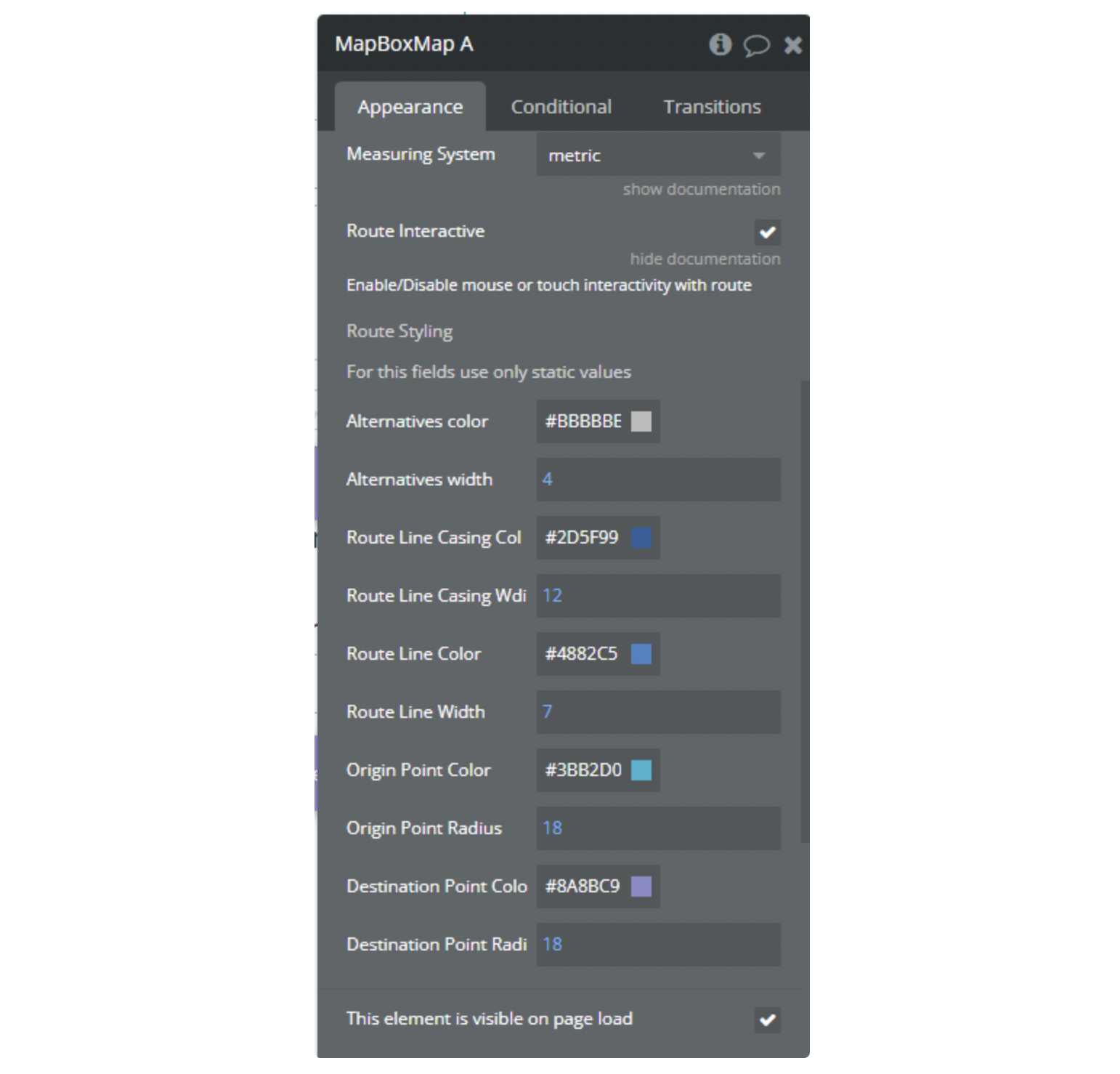
Measuring System
The measuring system of returned turn-by-turn text instructions
Dropdown
Route Interactive
Enable/Disable mouse or touch interactivity with route
Checkbox
Route Styling
Section label for route styling options
Label
Alternatives color
Color for alternative route lines
Color
Alternatives width
Width of alternative route lines
Number
Route Line Casing Color
Color for the route line casing/border
Color
Route Line Casing Width
Width of the route line casing/border
Number
Route Line Color
Main color of the selected route line
Color
Route Line Width
Width of the selected route line
Number
Origin Point Color
Color of the origin/starting point marker
Color
Origin Point Radius
Size radius of the origin point
Number
Destination Point Color
Color of the destination/ending point marker
Color
Destination Point Radius
Size radius of the destination point
Number
Hide point labels
Hides letter labels (A, B) at the start and end points of the route
Checkbox
Sky Style
Atmospheric sky style for the map
Dropdown
Live Tracking Type
Bubble App Type representing Users Positions for live tracking
Custom Type
Live Tracking Data
List of Users Positions for real-time tracking
Custom Data
Live Tracking ID
Field of App Type representing an ID
Text
Live Tracking Lat
Field of App Type representing Latitude
Number
Live Tracking Long
Field of App Type representing Longitude
Number
Live Tracking Image
Field of App Type representing marker Image
Image
Live Tracking Size
Field of App Type representing marker image size
Number
☝
Note: The "Navigation language" field is not dynamic. The route navigation language is set only when initializing the map or changing the style.
Element states
Title
Description
Type
GPS Current Position Lat
Current GPS position Latitude
Number
GPS Current Position Lng
Current GPS position Longitude
Number
GPS Accuracy
Accuracy of Current GPS position
Number
GPS Altitude
Current GPS Altitude
Number
Mouse Lng
Clicked position Longitude
Number
Mouse Lat
Clicked position Latitude
Number
GPS Enabled
Indicates if GPS is enabled
Yes/No
Tracking
Indicates if Tracking is enabled
Yes/No
Heading Supported
Indicates if Compass Heading is supported
Yes/No
Heading Character
Сardinal Point
Text
Heading
Heading
Number
Marker Lat
Clicked marker coordinates latitude
Number
Marker Lng
Clicked marker coordinates longitude
Number
Map Center Lng
Current map center coordinates longitude
Number
Map Center Lat
Current map center coordinates latitude
Number
Speed
Moving Speed
Number
Marker ID
Clicked Marker ID
Text
Map Center Address
Current map center address
Geographic Address
Line coordinates
Coordinates of line created by action Create Line
Text
Draggable Marker Longitude
Current Longitude of the draggable marker
Number
Draggable Marker Latitude
Current Latitude of the draggable marker
Number
Polygon Area (meters)
Area of polygon drawed by Draw polygon action
Number
Measure distances lenght
Length of line drawed by action Measure distance
Number
Filtred features
List of returned values from action Filter Features
List of Text
Directions A-point Longitude
Longitude of A-point of directions
Number
Directions A-point Latitude
Latitude of A-point of directions
Number
Directions B-point Longitude
Longitude of B-point of directions
Number
Directions B-point Latitude
Latitude of B-point of directions
Number
Drawed Polygons GeoJSON
GeoJSON of drawn polygons in text format
Text
Point is in polygon
Indicates whether the specified point falls within the first drawn polygon
Yes/No
Clicked line ID
Line ID
Text
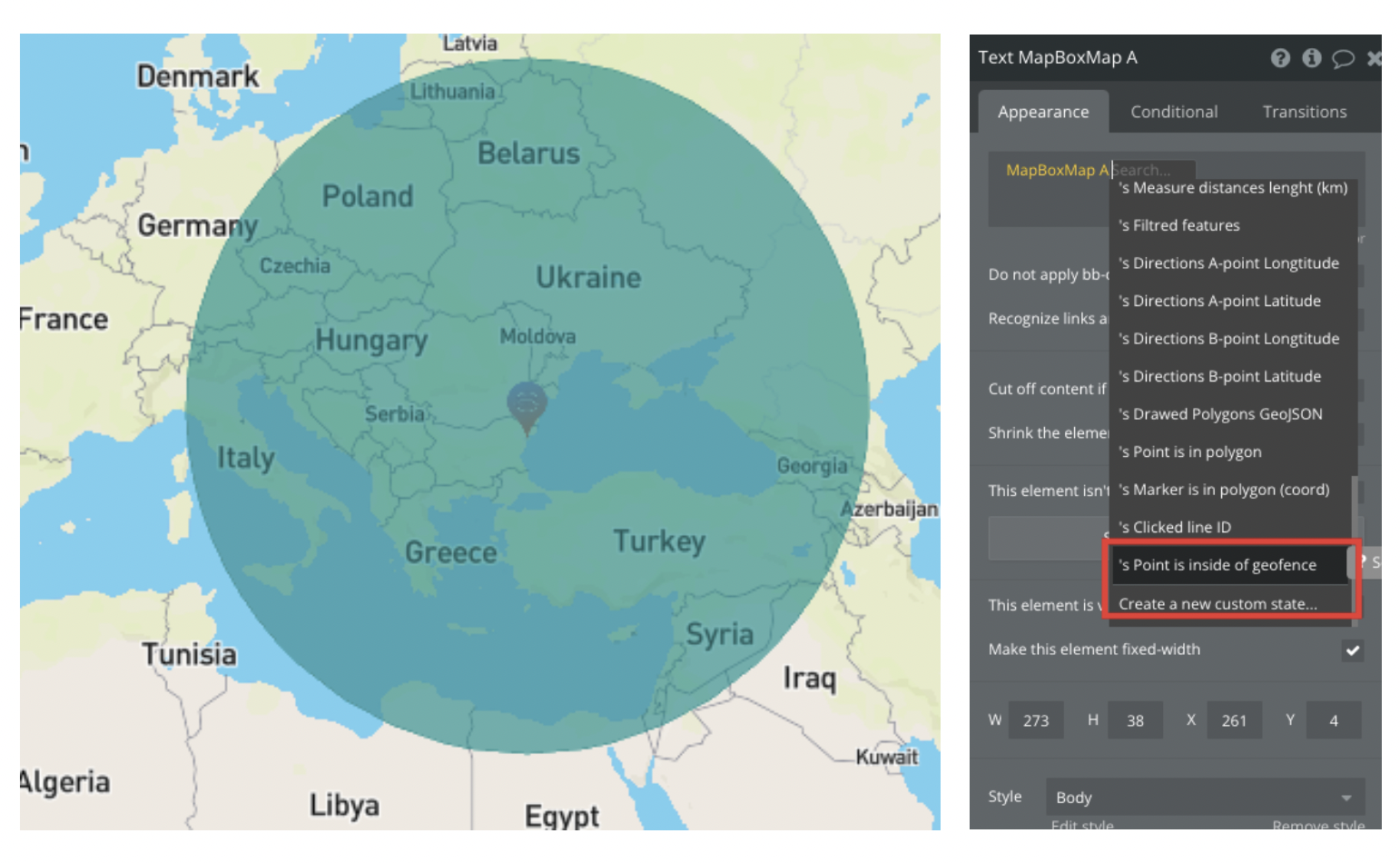
Point is inside of geofence
Indicates whether the specified point falls within the geofence
Yes/No
Clicked Cluster Data
Text
Zoom Level
Indicates zoom level
Number
Travel length (km)
Indicated distance in km
Number
Created line or polygon ID
ID of created Line/Polygon
Text
Created Cluster ID
ID of created Cluster
Text
GPS Current Position Address
Indicates GPS Current Position Address
Text
Bearing
Bearing
Number
Pitch
Pitch Pace
Number
Autofill From Value
Autofill text from input
Text
Autofill To Value
Autofill text to input
Text
Markers IDs in polygon
ID of marker inside polygon
Text
Draggable marker ID
ID of draggable marker
Text
Visible markers IDs
The ids of the markers that are visible on the map at the moment.
Text List
Zip code
Zip code when clicking on the zip code area in the USA
Text
Zip code area center Longitude
Longitude of the center of the zip code area in the USA
Number
Zip code area center Latitude
Latitude of the center of the zip code area in the USA
Number
Bounds NE Latitude
The latitude of the north-east (top-right) corner of the currently visible map area. Updates when the user finishes panning or zooming. Use together with the other three Bounds states to filter a Repeating Group by the visible viewport.
Number
Bounds NE Longitude
The longitude of the north-east (top-right) corner of the currently visible map area. Updates when the user finishes panning or zooming.
Number
Bounds SW Latitude
The latitude of the south-west (bottom-left) corner of the currently visible map area. Updates when the user finishes panning or zooming.
Number
Bounds SW Longitude
The longitude of the south-west (bottom-left) corner of the currently visible map area. Updates when the user finishes panning or zooming.
Number
Cluster Circles Layer ID
The ID of the circle layer that renders the cluster bubbles. Use it with "Filter features within map".
Text
Cluster Count Layer ID
The ID of the symbol layer that renders the number inside each cluster.
Text
Unclustered Point Layer ID
The ID of the layer that renders single (unclustered) markers. This is the layer to target with "Filter features within map".
Text
Cluster Source ID
The ID of the GeoJSON source that feeds the cluster layers.
Text
Element events
Title
Description
Marker Clicked
Triggers when an marker is clicked
Marker is dragged
Triggers when an draggable marker is moved
Polygon is drawed
Triggers when polygon is finished in draw tool
Polygon is updated
Triggers when polygon is updated in draw tool
Map is loaded
Triggers when map is loaded
Route is set
Triggers when an route is set
Measure Distance Set
Triggers when minimum 2 point is drawed in measure distance tool
Created line is clicked
Triggers when a created line is clicked
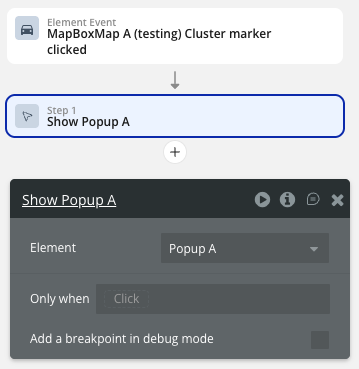
Cluster Clicked
Triggers when a cluster is clicked
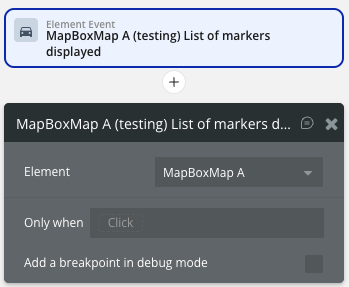
List of markers displayed
Triggers when a list of markers are displayed
Clusters were created
Triggers when clusters are created
Map is Clicked
Triggers when a map is clicked
Zip code area clicked
Triggers when a zip code area is clicked
Viewport changed
Fires after the user finishes panning or zooming the map (region change). The Bounds states are already updated by the time this event fires, so you can read them directly in the workflow.
Mapbox Map Element Actions
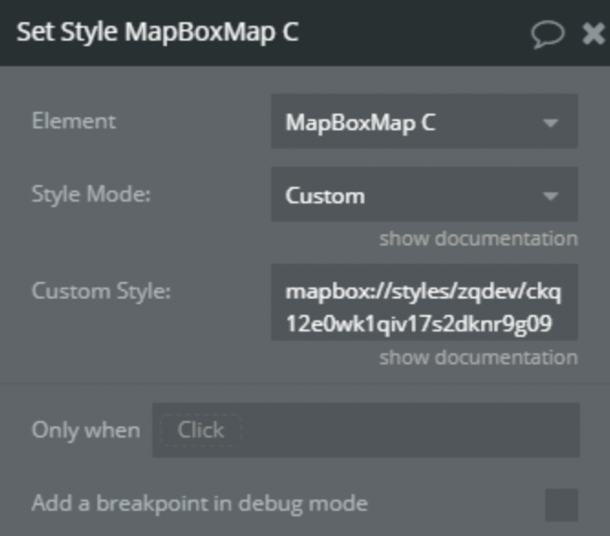
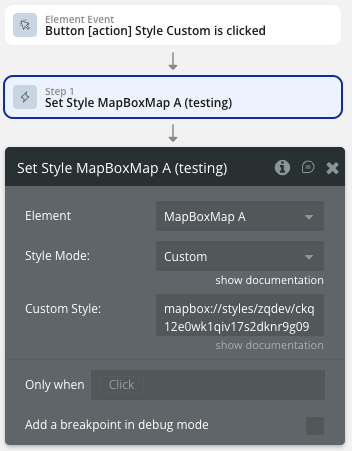
1) Set Style
Allows you to change the style of the map display. Including your own custom styles.
Title
Description
Type
Style Mode
One of the possible styles
Enum text, Required
Custom Style
Custom style url
Text, Optional
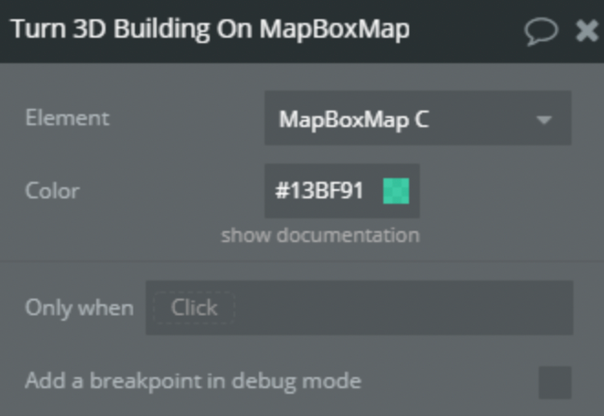
2) Turn 3D Building On
Enable layer that displays building heights in 3D.
Title
Description
Type
Color
Color of the buildings
Color, Required
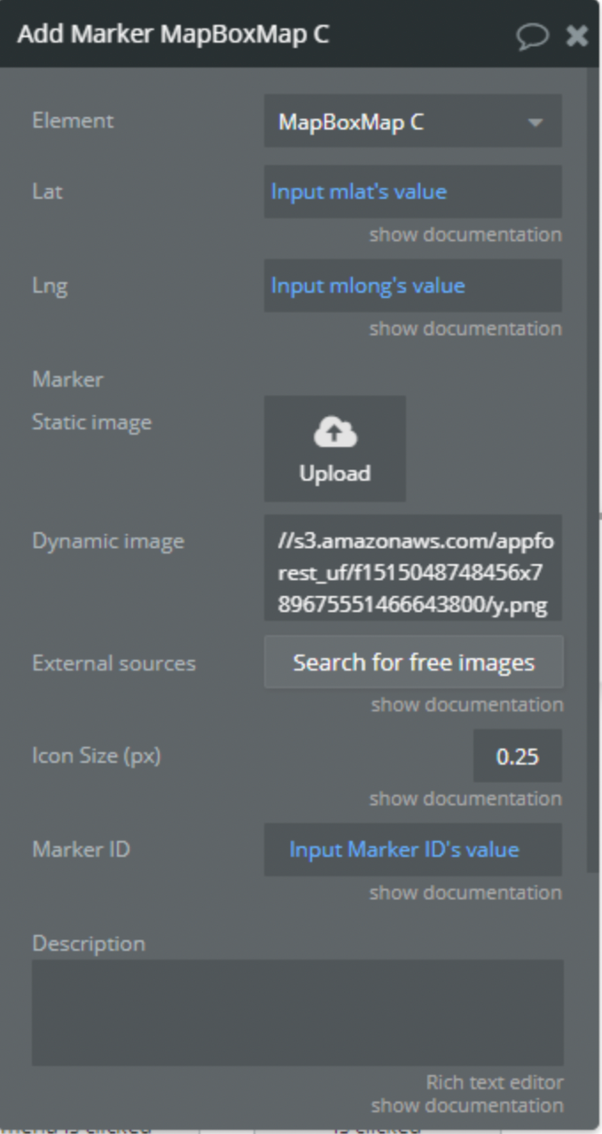
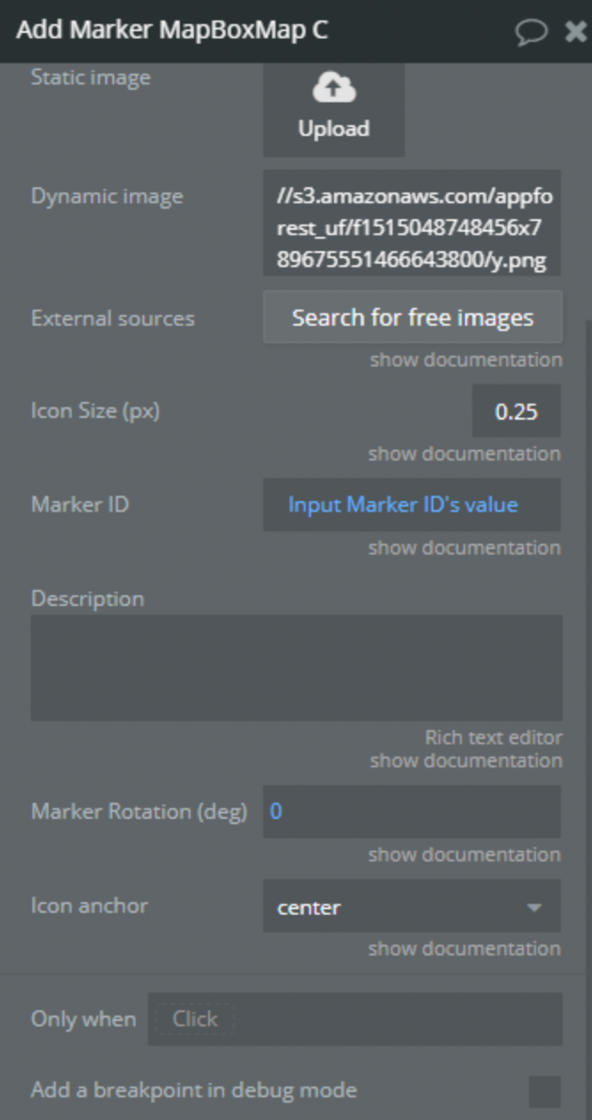
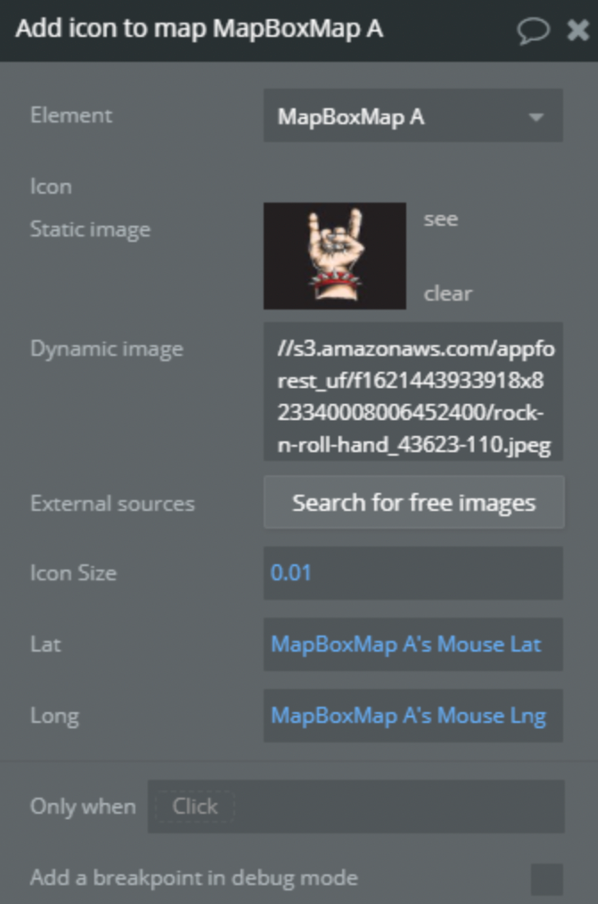
3) Add Marker
Add a single marker to the map
Title
Description
Type
Lat
Latitude of the marker position
Number
Lng
Longitude of the marker position
Number
Geographic Address
Geographic address of the marker position (alternative to Lat/Lng)
Geographic Address
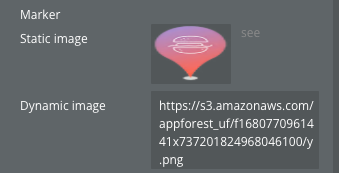
Marker
Custom marker icon image
Image
Icon Size (px)
Size of the marker icon. Default: 0.25
Number
Marker ID
Unique identifier for the marker. Default: “MyMarker”
Text
Description
An infowindow description displayed when clicking the marker
Text
Marker Rotation (deg)
Rotation degree of the marker icon. Default: 0
Number
Icon anchor
Part of the icon placed closest to the anchor: center, left, right, top, bottom, top-left, top-right, bottom-left, bottom-right
Dropdown
Popup content on hover
Text displayed in a popup when hovering over the marker
Text
Make Rich info card
Enables a rich card popup instead of a simple popup. Default: false
Boolean
Card Image
Image URL to display at the top of the rich card
Text
Card Title
Title of the rich card
Text
Card Subtitle
Subtitle displayed below the title
Text
Card Description
Detailed description text
Text
Card Rating
Star rating value (0-5)
Number
Card Review Count
Number of reviews displayed
Number
Card Distance
Distance description text
Text
Card Time
Time information (hours, ETA, etc.)
Text
Card Price
Price range or specific price
Number
Card Status
Status indicator text
Text
Show Popup
If checked, clicking on the marker will open a popup.
Boolean
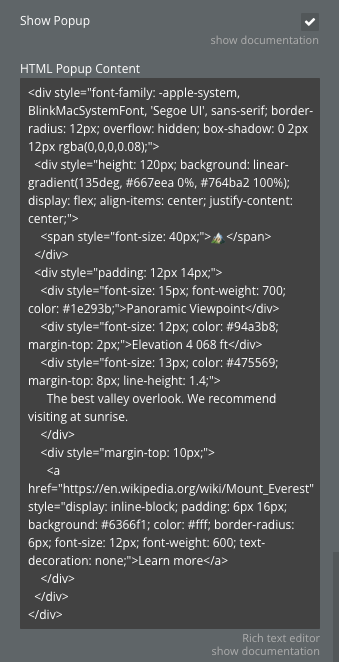
HTML Popup Content
Custom HTML content for the popup. If provided, this will be used instead of the Description field.
Text
Change icon on hover
If checked, the marker icon will change when the mouse hovers over it.
Boolean
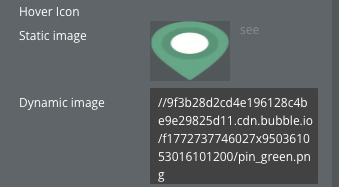
Hover Icon
Alternative icon image displayed when hovering over the marker.
Image
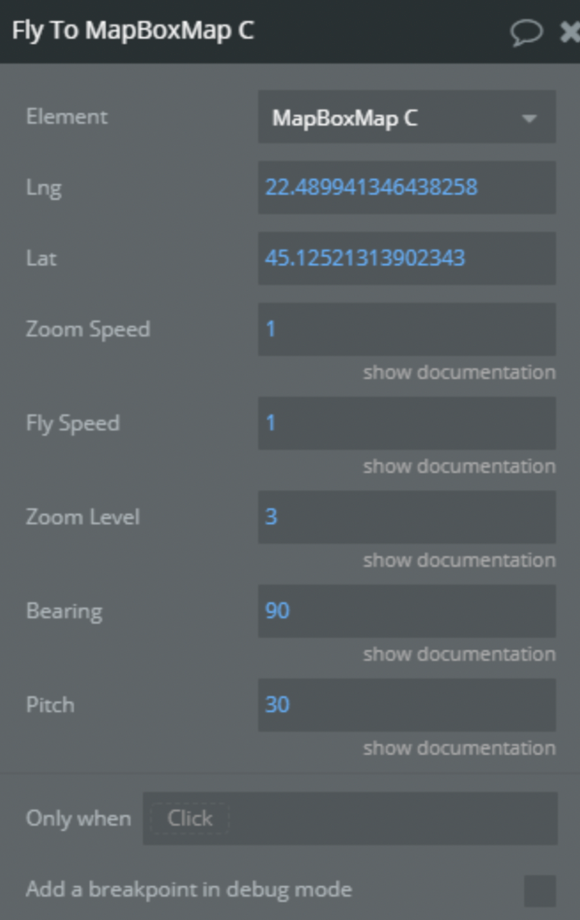
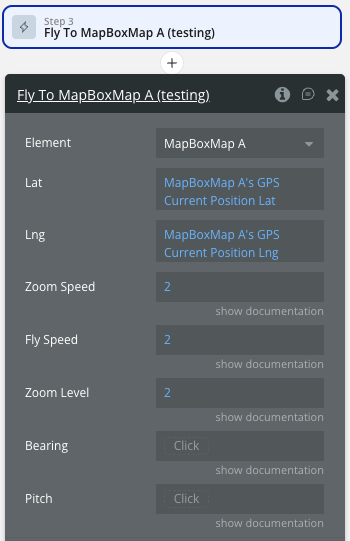
4) Fly To
Sets the map camera to a position simulating flight.
Title
Description
Type
Lng
Lontitude of the position
Number, Required
Lat
Latitude of the position
Number, Required
Zoom Speed
The average speed of the animation defined in relation to options.curve. A speed of 1.2 means that the map appears to move along the flight path by 1.2 times options.curve screenfuls every second
Number, Required
Fly Speed
The zooming "curve" that will occur along the flight path. A high value maximizes zooming for an exaggerated animation, while a low value minimizes zooming
Number, Required
Zoom Level
The desired zoom level
Number, Required
Bearing
The desired bearing in degrees. The bearing is the compass direction that is "up". For example, bearing: 90 orients the map so that east is up
Number, Required
Pitch
The desired pitch in degrees. The pitch is the angle towards the horizon measured in degrees with a range between 0 and 60 degrees
Number, Required
5) Turn 3D Buildings Off
Disable layer that displays building heights in 3D.
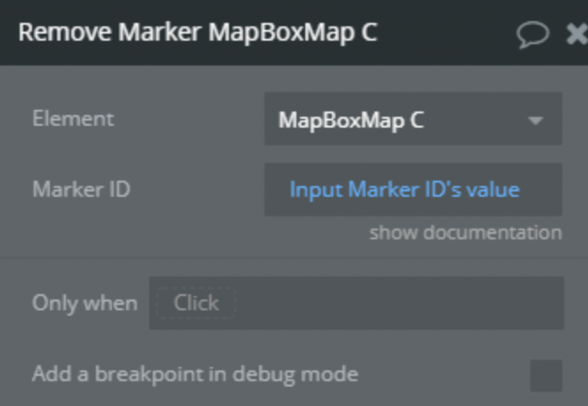
6) Remove Marker
Remove marker from map by it ID.
Title
Description
Type
Marker ID
ID of marker
Text, Required
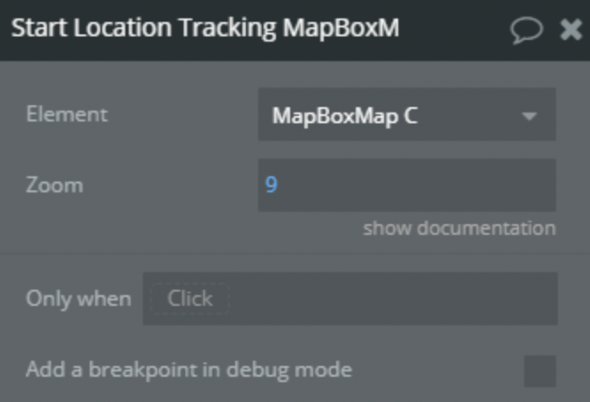
7) Start Location Tracking
Geolocate the user.
Title
Description
Type
Zoom
Specify zoom level on start location tracking
Number, Optional
8) Stop Location Tracking
Unregister user location.
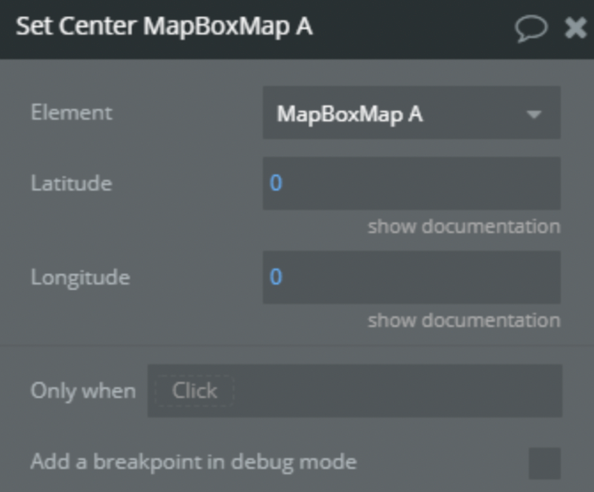
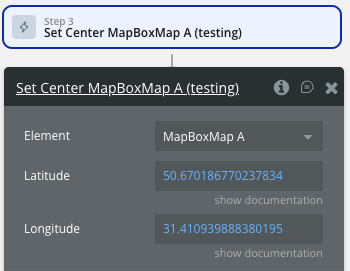
9) Set Center
Sets the map's geographical Centerpoint.
Title
Description
Type
Latitude
Latitude of center position
Number, Required
Longitude
Longitude of center position
Number, Required
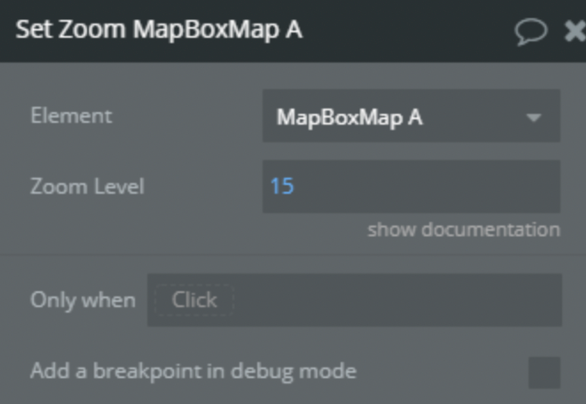
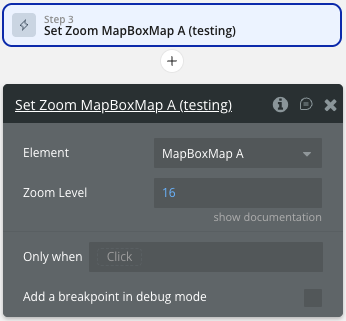
10) Set Zoom
Sets the map's zoom level.
Title
Description
Type
Zoom Level
The zoom level to set (0-20)
Number, Required
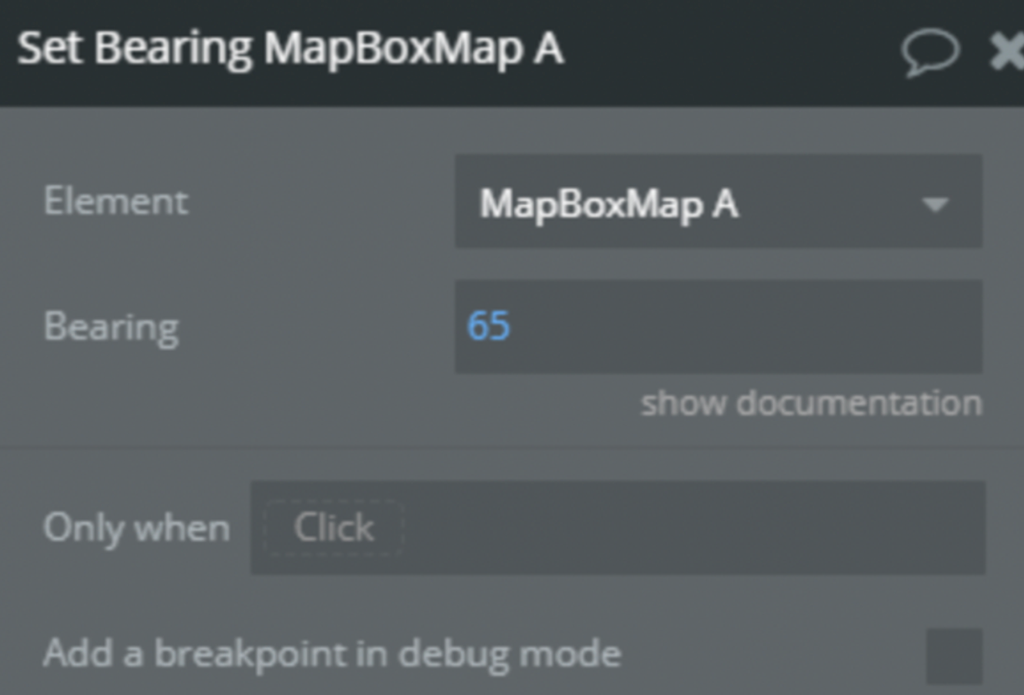
11) Set Bearing
Sets the map's bearing (rotation). The bearing is the compass direction that is "up"; for example, a bearing of 90° orients the map so that east is up.
Title
Description
Type
Bearing
The desired bearing
Number, Required
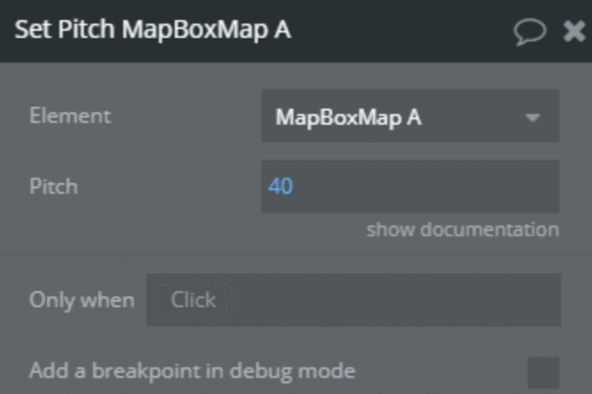
12) Set Pitch
Sets the map's pitch (tilt).
Title
Description
Type
Pitch
The pitch to set, measured in degrees away from the plane of the screen (0-60
Number, Required
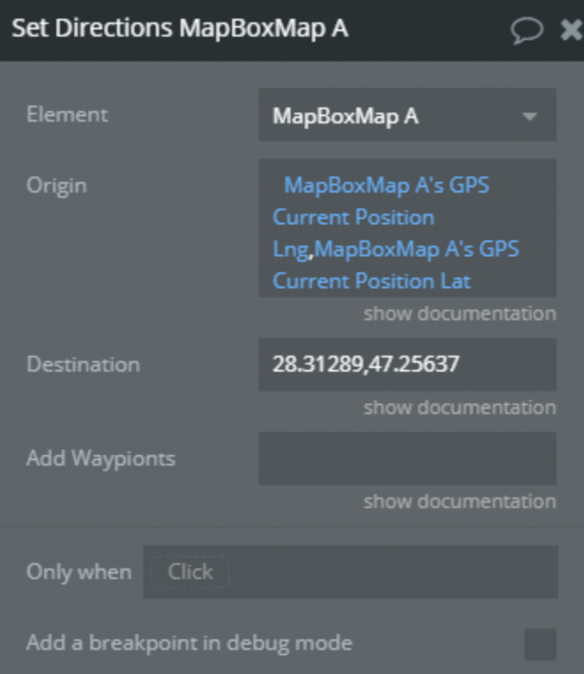
13) Set Directions
Set route in directions. Directions is a full-featured directions plugin for Mapbox GL JS using the Mapbox Directions API.
Title
Description
Type
Origin
If checked visible, invisible otherwise
Text, Required
Destination
Destination of the route. "Longitude,Latitude"
Text, Required
Add Waypoints
Waypoint of the route. String with coordinates of points separated by ;. "Longitude,Latitude;Longitude,Latitude;Longitude,Latitude”
Text, Optional
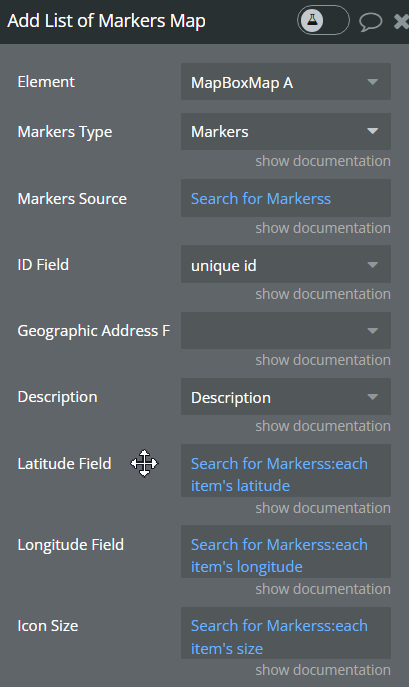
14) Add List of Markers
Adds a list of markers
Title
Description
Type
Markers Type
Indicate a type of markers from your database
App Type, Required
ID field
Tell the plugin what field is your marker ID
field of app type, Required
Geographic Address
geographic address of the marker
geographic address only
Longitude Field
Tell the plugin what field is your marker longitude
Field of app type Required
Latitude Field
Tell the plugin what field is your marker latitude
Field of app type Required
Description
Tell the plugin what field is your marker description
Field of app type Optional
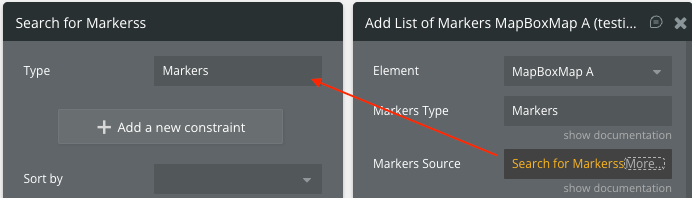
Markers Source
Source of markers. Use Do a search for..
List of app type Required
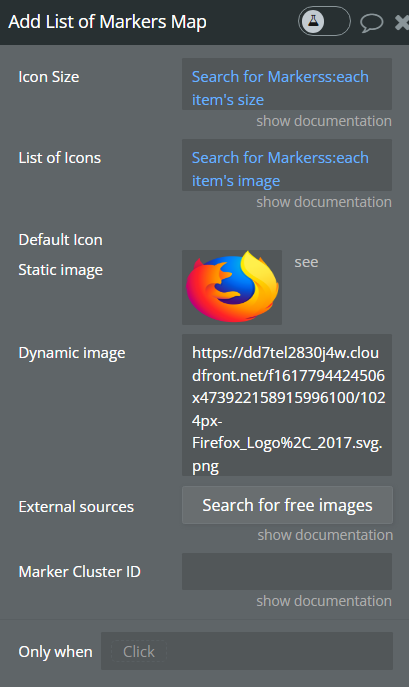
List of Icons
Source to list of images. Should contain a list of images in the same order as the added markers (supports .png, .webp and .jpg types of images )
List of Images, Optional
Icon Size
Icon size. Use Do a search for…
List of numbers, Required
Default Icon
Applies a default Icon image in case the "list of Icons" field is not specified
Image
Marker Cluster ID
Marker cluster id, used for removing entire markers cluster with Remove Marker action
Text, Required
Show Popup
If checked, clicking on the marker will open a popup.
Field of app type
HTML Popup Content
Custom HTML content for the popup. If provided, this will be used instead of the Description field.
Field of app type
Change icon on hover
If checked, the marker icon will change when the mouse hovers over it.
Boolean
Hover Icon
Alternative icon image displayed when hovering over the marker.
Field of app type
☝
Note: Each marker unique id is configured this way: 'mbxmarker-' + marker unique_id + Marker Cluster ID
Example: mbxmarker-123123124245452x1241532542522542ClusterID
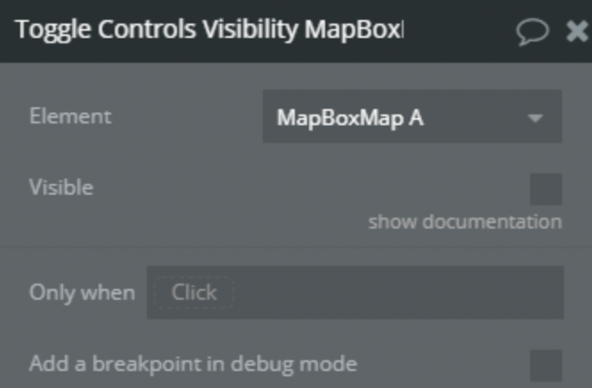
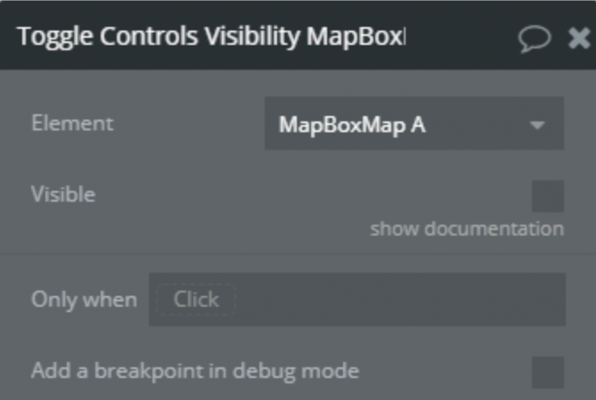
15) Toggle Controls Visibility
Title
Description
Type
Visible
If checked visible, invisible otherwise
Yes/No, Required
16) Remove Directions
Remove directions from map controls.
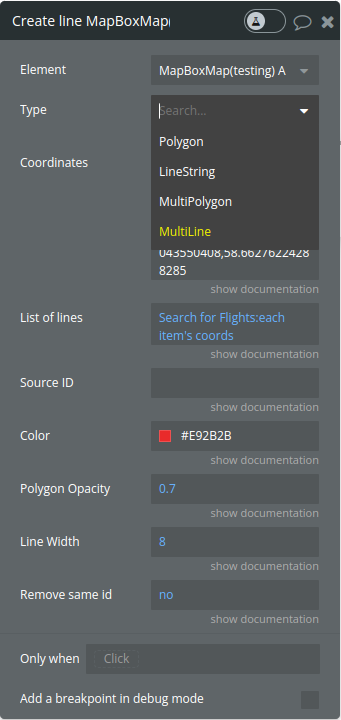
17) Create a line
Title
Description
Type
Type
A string indicating the type of geometry to be added to the map. Valid values are "LineString", "Polygon", “MultiPolygon” and "MultiLine".
Dropdown
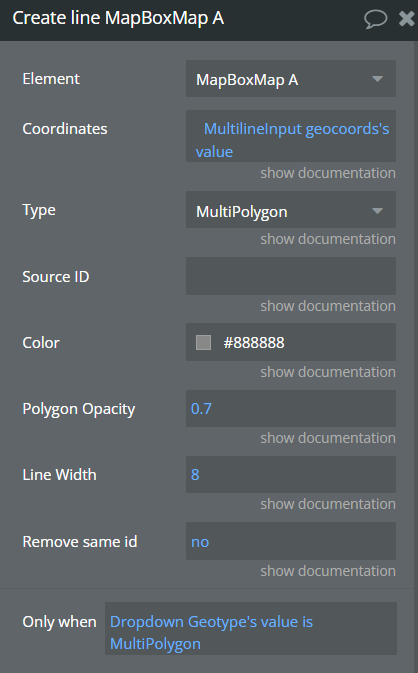
Coordinates
A string of comma-separated coordinates. Used for creating a single line,polygon or multipolygon. For multiplygon please see the example below
string
List of lines
A list of strings, where each string represents a line with comma-separated coordinates. This is used for drawing multiple lines (MultiLine).
List of strings
Source ID
A unique identifier for the source. If not provided, a random ID will be generated.
string
Color
The color used for the line or polygon fill.
color
Polygon Opacity
The opacity of the polygon fill (value between 0 and 1).
number
Line width
The width of the line. If not provided, a default value of 8px is used.
number
Remove same id
A boolean indicating whether to delete an existing line with the same source_id before drawing a new one.
yes/no
MyltiPolygon requires setting the coordinates and color. Here is an example of a Multipolygon JSON
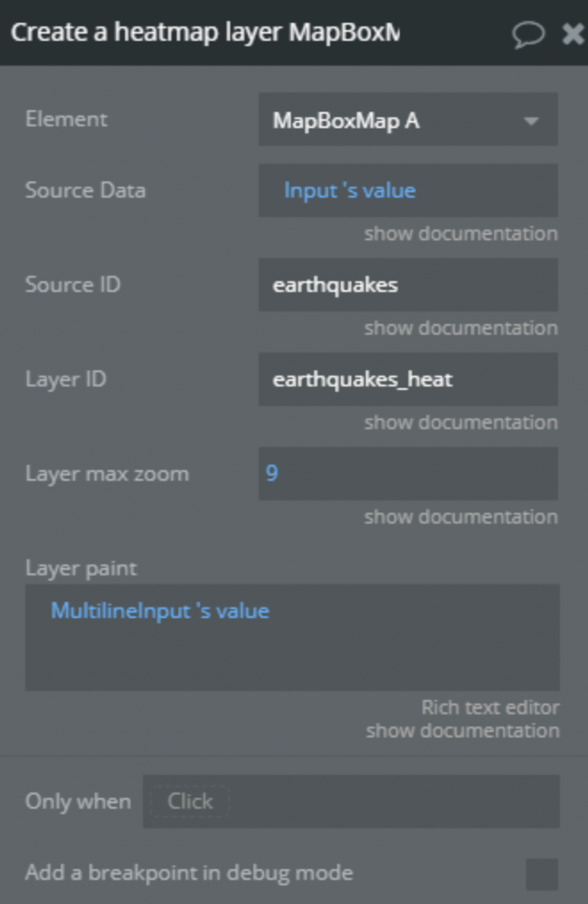
The maximum zoom level for the layer. At zoom levels equal to or greater than the max zoom, the layer will be hidden. The value can be any number between 0 and 24 (inclusive)
Scale for the default marker. Default height: 41px, width: 27px. Default: 1
Number
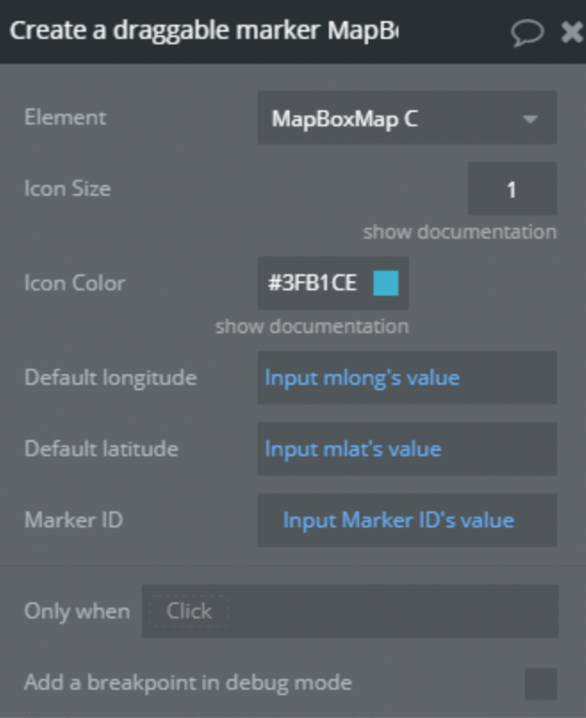
Icon Color
Color of the default marker
Color
Marker icon anchor
Position of the marker relative to coordinates: center, top, bottom, left, right, top-left, top-right, bottom-left, bottom-right
Dropdown
Default longitude
Initial longitude of the marker
Number
Default latitude
Initial latitude of the marker
Number
Marker ID
Unique identifier for the marker. Default: “DraggableMarker”
Text
Show Popup
Whether to show a popup on click. Default: false
Checkbox
Custom Popup Content
Text/HTML content displayed in the popup
Text
Use custom image
Use a custom image instead of the default pin marker. Default: false
Checkbox
Image
Custom image for the marker
Image
Image Height
Height of the custom image in pixels
Text
Image Width
Width of the custom image in pixels
Text
Popup content on hover
Text displayed in a popup when hovering over the marker
Text
Change icon on hover
If checked, the marker image will change when the mouse hovers over it. Only works with custom images.
Boolean
Hover Image
Alternative image displayed when hovering over the marker. Only works when 'Use custom image' is enabled.
Image
24) Toggle map rotation
Enable or disable the possibility to rotate the map.
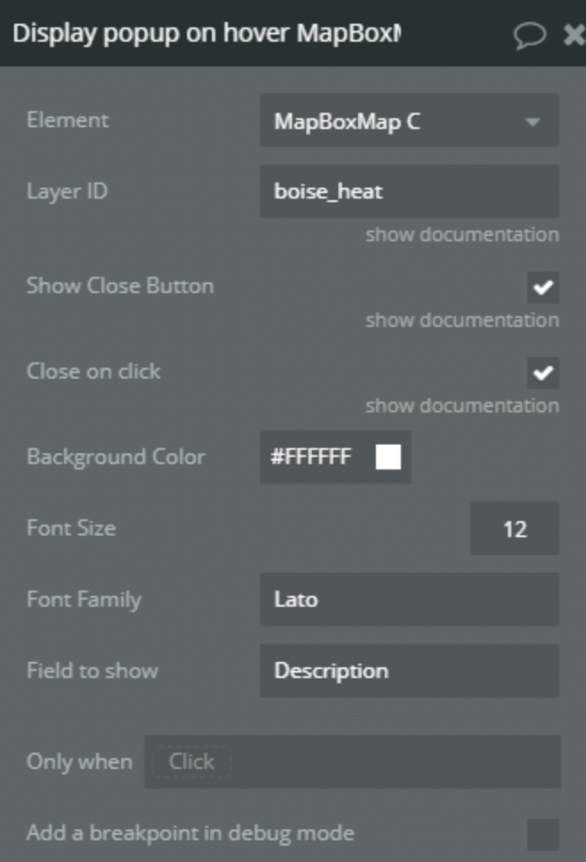
25) Display popup on hover
Displays a popup on hover
Title
Description
Type
Layer ID
Position of the button on the map
Text, Required
Show Close Button
Show cross button on top-right corner of the popup
Yes/No, Required
Close on click
Close popup onclick
Yes/No, Required
Background Color
Color of popup
Color, Required
Font Size
Font size of the text in popup
Number, Required
Font Family
Font family of text in popup
Text, Optional
Field to show
Field from there to get a text for a popup
Text, Required
💡
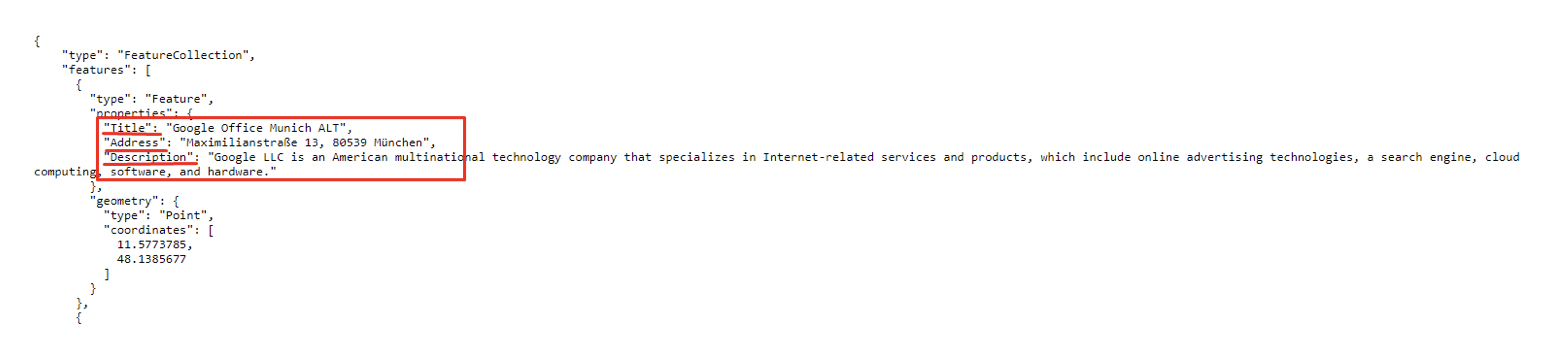
Tip: Field to show can be found in your GeoJson in properties
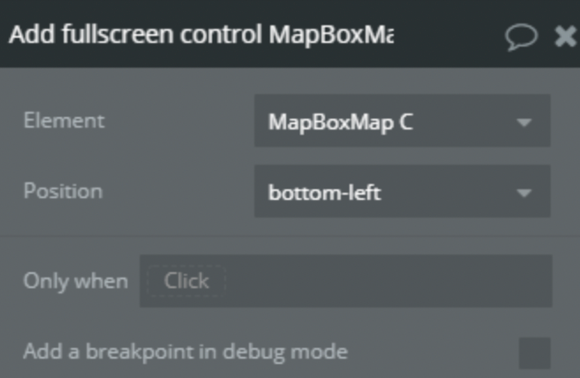
26) Add fullscreen control
Add to the map fullscreen button.
Title
Description
Type
Position
Position of the button on the map
Enum, Required
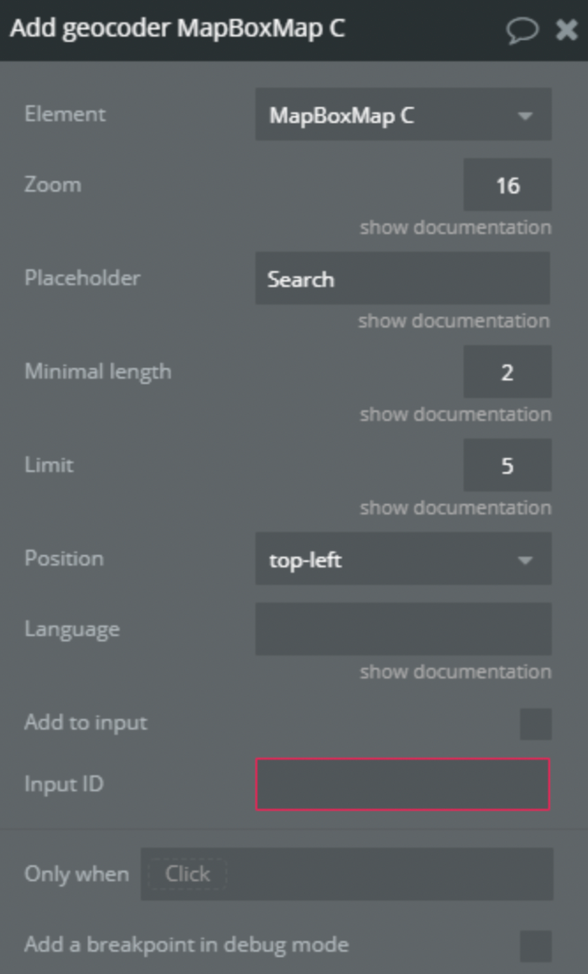
27) Add geocoder
Add to the map or in the Group geocoder.
Title
Description
Type
Zoom
On geocoded result what zoom level should the map animate to when a bbox isn't found in the response. If a bbox is found the map will fit the bbox
Number, Required
Placeholder
Placeholder text
Text, Required
Minimal length
Minimum number of characters to enter before results are shown
Number, Required
Limit
Maximum number of results to show
Number, Required
Position
Position of geocoder on the map
Enum, Required
Language
Specify the language to use for response text and query result weighting. Options are IETF language tags comprised of a mandatory ISO 639-1 language code and optionally one or more IETF subtags for country or script. More than one value can also be specified, separated by commas. Defaults to the browser's language settings
Text, Optional
Add to input
If it is checked geocoder has been added in a group with Input ID id attribute
Yes/No, Required
Input ID
Id of group where to add geocoder
Text, Optional
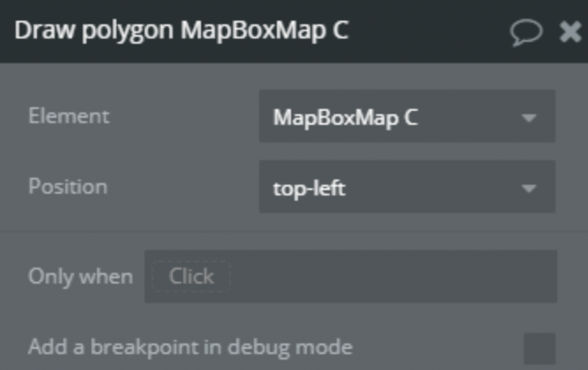
28) Draw polygon
Add to the map drawing tool.
Title
Description
Type
Position
et position of buttons for drawing on the map
Enum, Required
29) Enable measure distance
Activate tool for drawing a line with points on the map and return the length of this line.
30) Disable measure distance
Disable tool for drawing a line on the map.
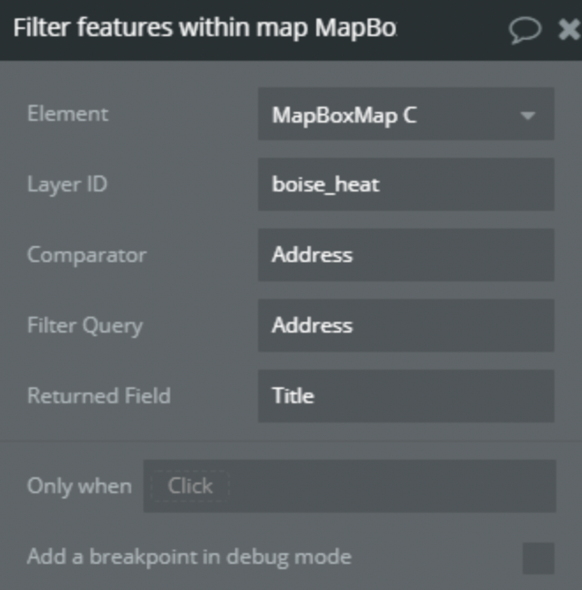
31) Filter features within map
Return a list of features from the layer filtered by visibility on the map.
Title
Description
Type
Layer ID
Set the Layer ID from there will be find features
Text, Required
Comparator
The field by which the uniqueness of features will be checked in order not to display duplicates
Text, Required
Filter Query
The field that features must have in order for it to be displayed
Text, Required
Returned Field
The field to be returned
Text, Required
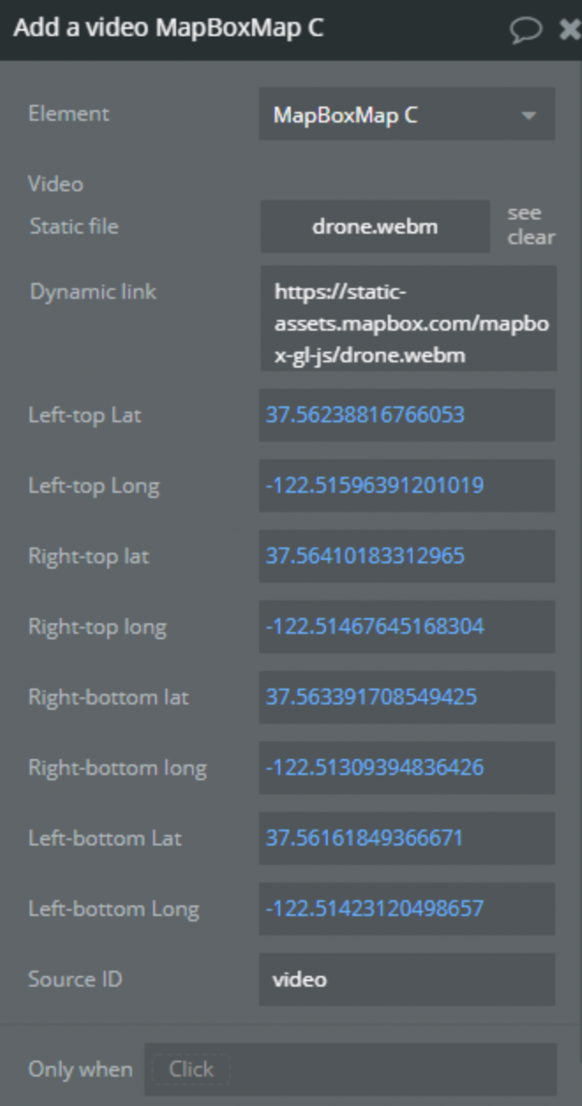
32) Add a video
Add a video to the map.
Title
Description
Type
Video
Video to add
File, Required
Left-top Lat
Latitude of the left-top corner
Number, Required
Left-top Long
Longitude of the left-top corner
Number, Required
Right-top Lat
Latitude of the right-top corner
Number, Required
Right-top Long
Longitude of the right-top corner
Number, Required
Right-bottom long
Longitude of the right-bottom corner
Number, Required
Right-bottom lat
Latitude of the right-bottom corner
Number, Required
Left-bottom lat
Latitude of the left-bottom corner
Number, Required
Left-bottom long
Longitude of the left-bottom corner
Number, Required
Source ID
Source ID of video layer
Text, Required
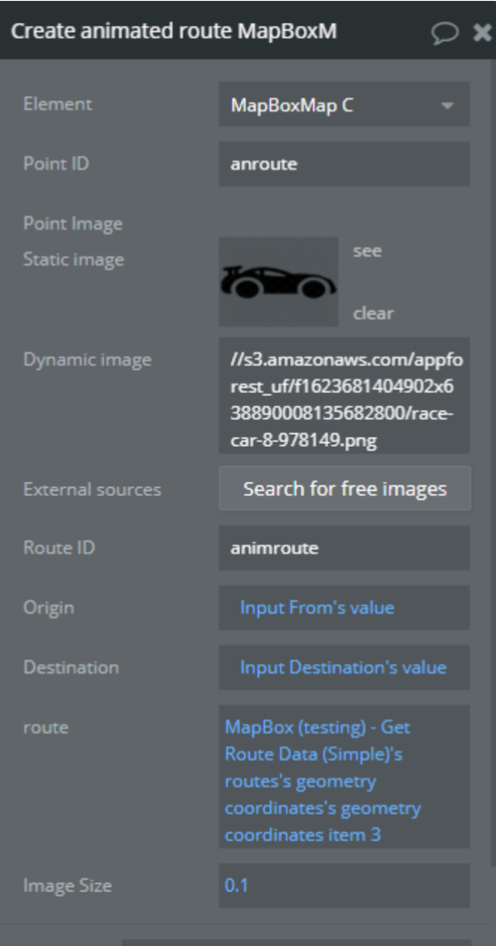
33) Create an animated route
Creates a line between two points and animates the moving of the icon along this path.
Title
Description
Type
Point ID
ID of the moving item
Text, Optional
Point Image
Image of the moving item
Image, Required
Route ID
Id of the line
Text, Required
Origin
Position of the route start
Text, Optional
Destination
Position of the route end
Text, Optional
Route
Route getted from MapBox Route API
Text, Optional
Image size
Size of the moving image
Number, Required
34) Add 3D terrain
It uses exaggeration to exaggerate the height of the terrain. It also adds a sky layer that shows when the map is highly pitched.
35) Remove 3D terrain
Disable 3D terrain
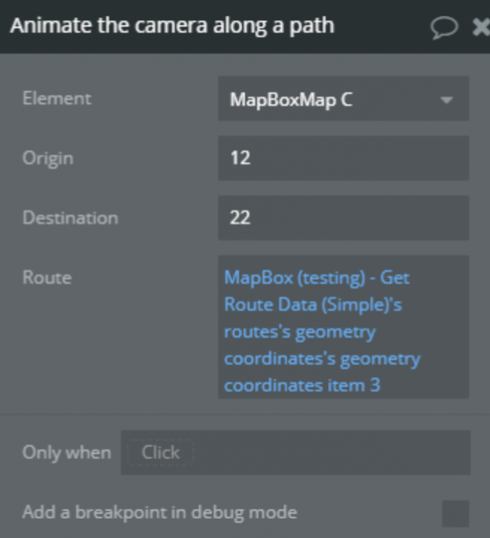
36) Animate the camera along a path
Animates the camera along a path
Title
Description
Type
Origin
Position of the start point
Text, Optional
Destination
Position of the end point
Text, Optional
Route
Route generated by MapBox API
Number, Optional
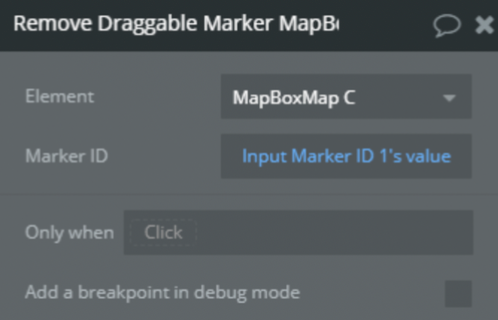
37) Remove HTML (draggable) marker
Remove draggable marker by its ID
Title
Description
Type
Marker ID
Draggable Marker ID
Text, Required
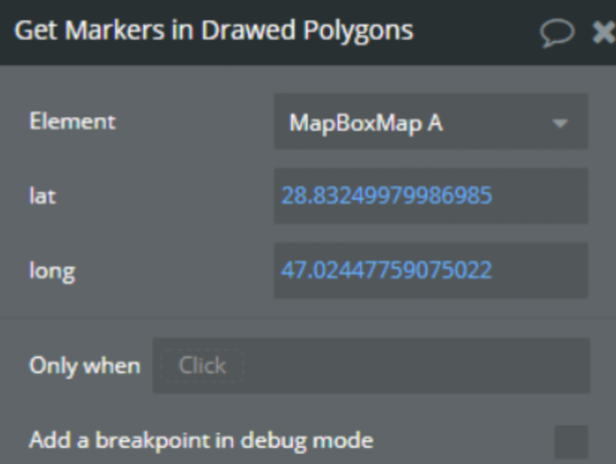
38) Get Markers in Drawed Polygons
Retrieves all markers drawed in polygons
Title
Description
Type
lat
Point latitude
Number, Required
long
Point longtitude
Number, Required
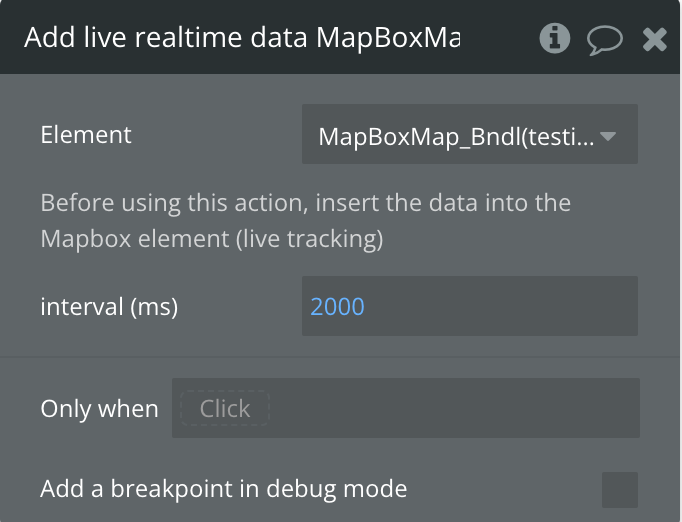
39) Add live realtime data
Use realtime location data streams to move a symbol (marker) on your map
Before using this action, insert the data into the Mapbox element (live tracking)
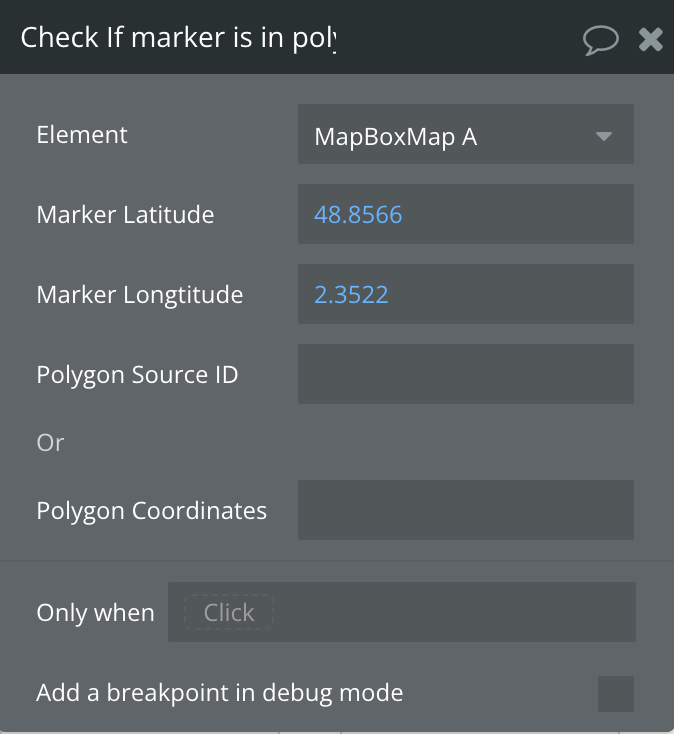
40) Check If marker is in polygon
Checks if a marker is inside a polygon
Title
Description
Type
Marker Latitude
Point latitude
Number, Required
Marker Longtitude
Point longtitude
Number, Required
Polygon Source ID
ID of polygon element
Text, Optional
Polygon Coordinates
Coordinates of the Polygon
Text, Optional
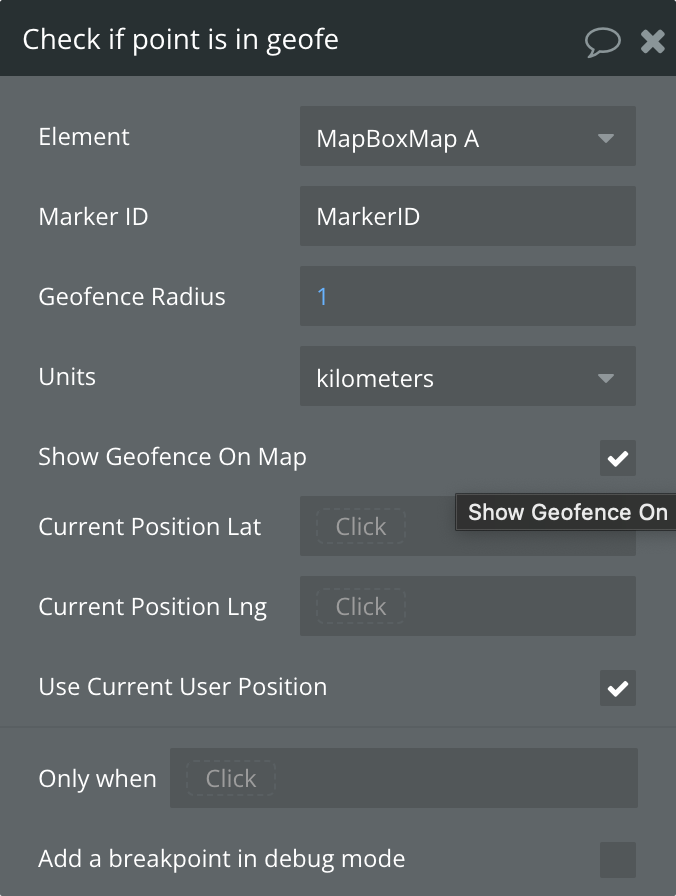
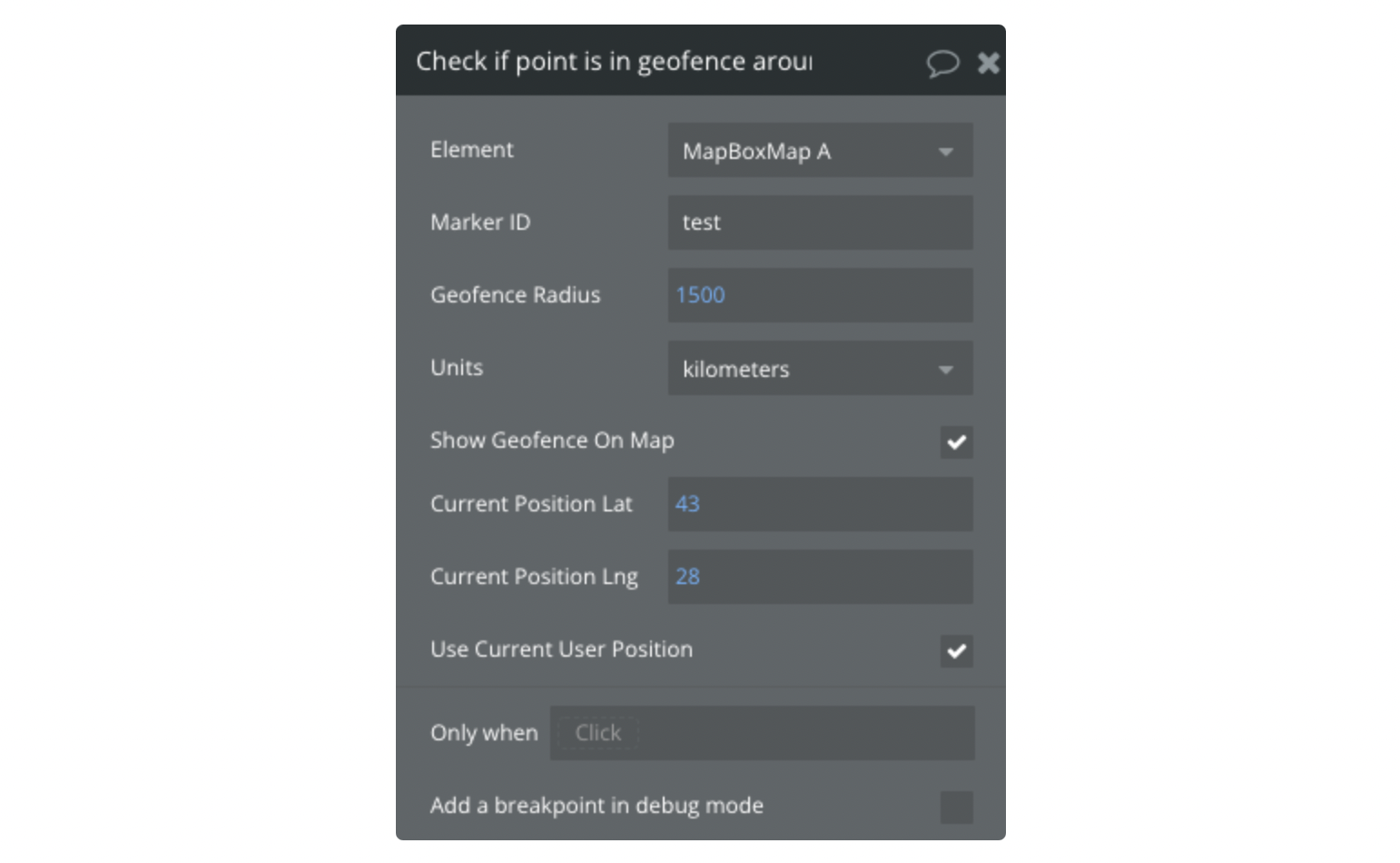
41) Check if point is in geofence around the marker
Checks if a point is inside geofence or around the marker
Title
Description
Type
Marker ID
ID of the marker to check around
Number, Required
Geofence Radius
Radius of area
Number, Required
Units
Distance measurement units
Text, Required
Show Geofence On Map
Show virtual fence around location
Checkbox
Current Position Lat
Position latitude
Number, Optional
Current Position Lng
Position longtitude
Number, Optional
Use Current User Position
Use Current User Position
Checkbox
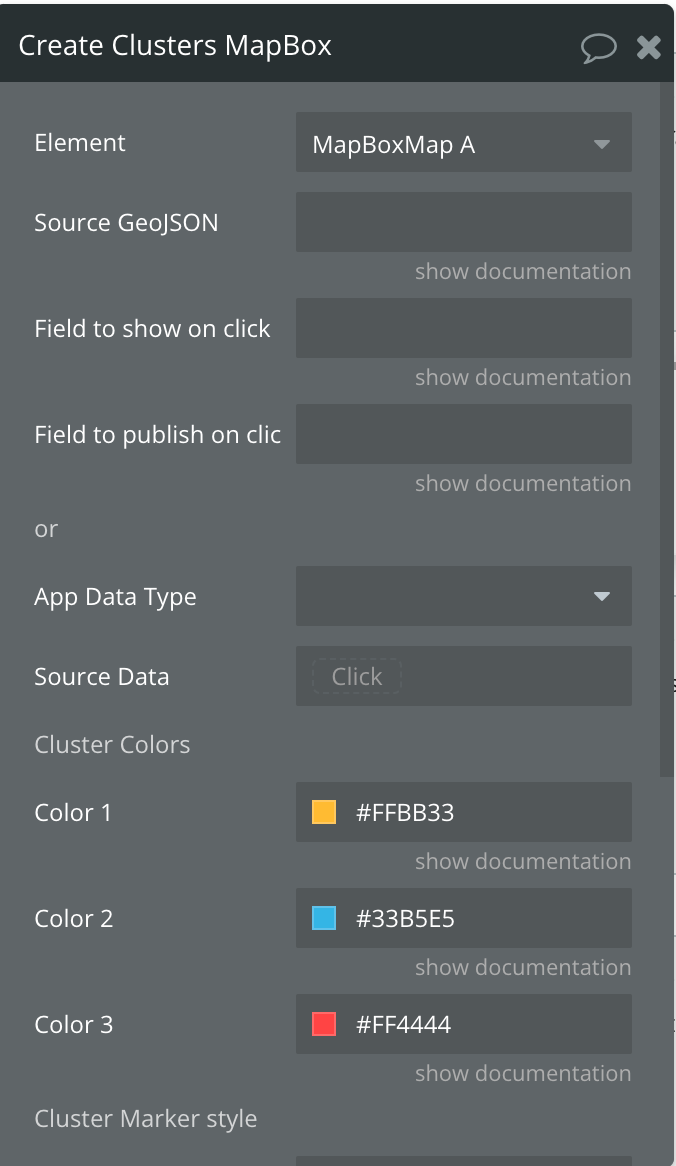
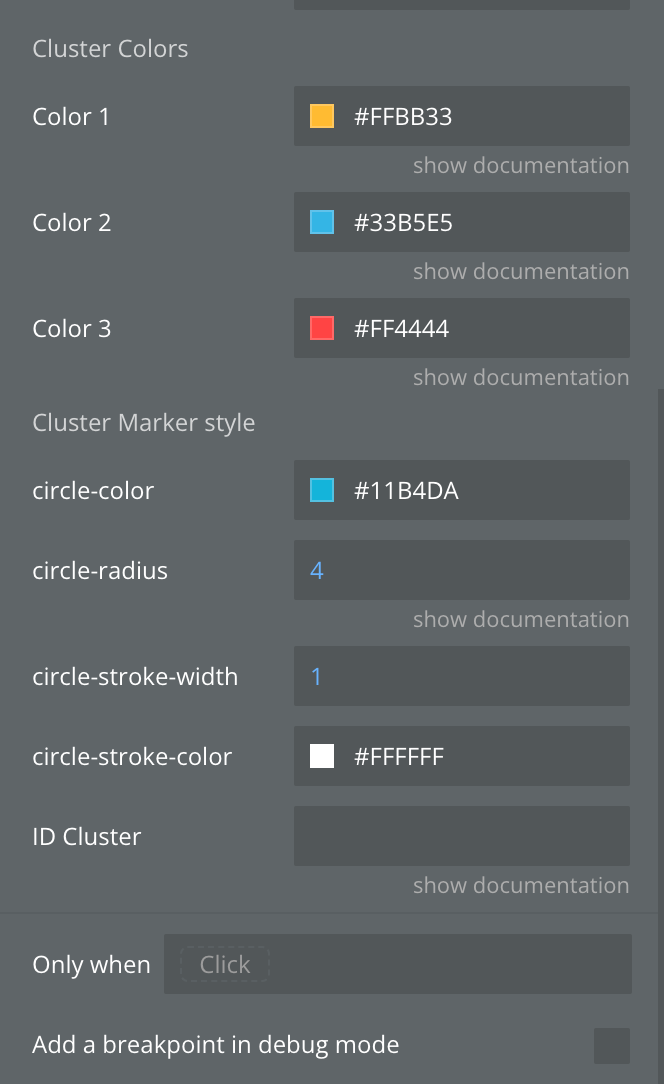
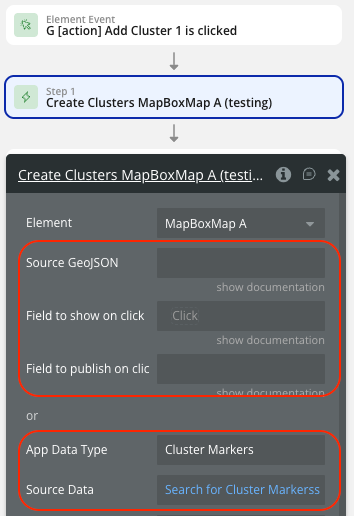
42) Create Clusters
Creates a cluster
Title
Description
Type
Source GeoJSON
ID of the marker to check around
Text, Optional
Field to show on click
Field from "properties" of marker to show in popup
Text, Optional
Field to publish on click
Field from "properties" of marker to return as state
Text, Optional
App Data Type
Show virtual fence around location
Optional
Source Data
Data Source
Data, Optional
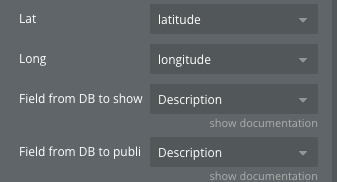
Lat
Latitude
Number, Required
Long
Longitude
Number, Required
Field from DB to show on click
Field from "Database" of marker to return as state
Optional
Field from DB to publish on click
Field from "Database" of marker to return as state
Optional
Color 1
Color of cluster with value < 100
Color, Required
Color 2
Color of cluster with value > 100 and < 750
Color, Required
Color 3
Color of cluster with value > 750
Color, Required
circle-color
Color of Circle
Color, Required
circle-radius
Circle Radius
Number, Required
circle-stroke-width
Stroke Width of Circle
Number, Required
circle-stroke-color
Stroke Color of Circle
Color, Required
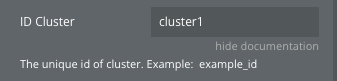
ID Cluste
The unique id of cluster. Example: example_id
Text, Optional
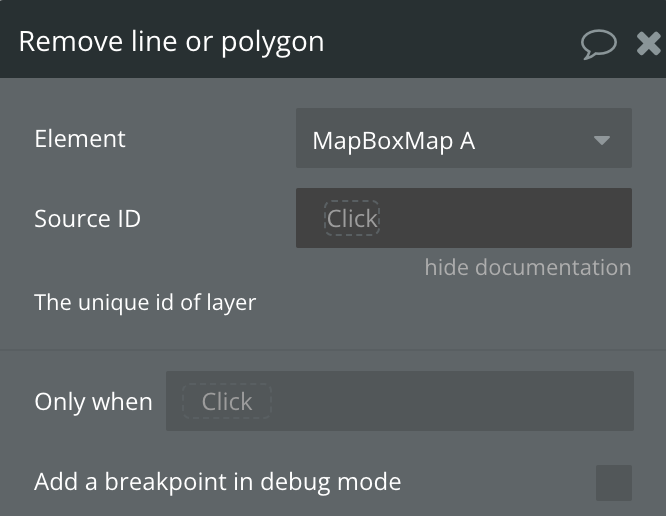
43) Remove Line or Polygon
Removes A Line or Polygon from Map
Title
Description
Type
Source ID
The unique id of layer
Text, Required
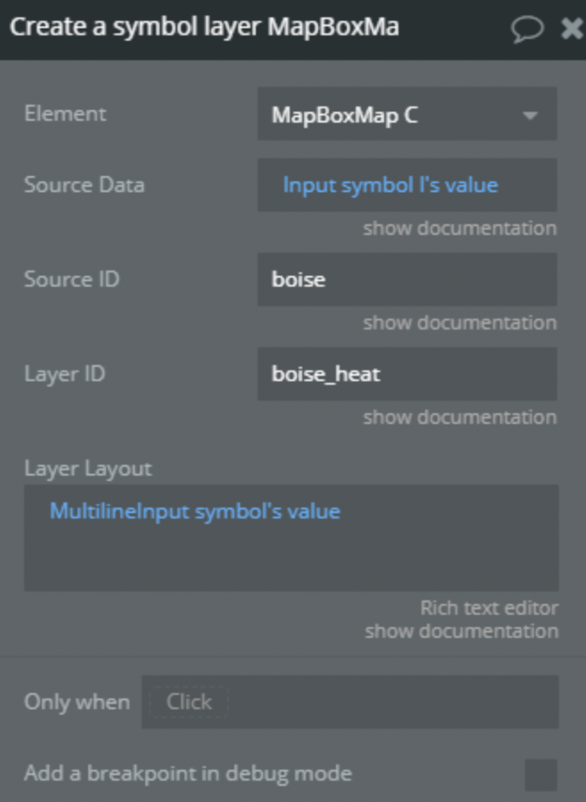
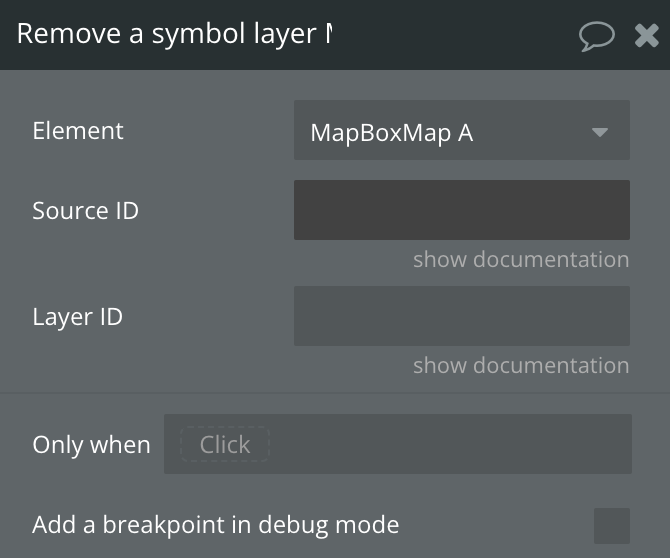
44) Remove a symbol layer
Removes a symbol layer from a source and ID
Title
Description
Type
Source ID
The unique id of source
Text, Required
Layer ID
The unique id of layer
Text, Required
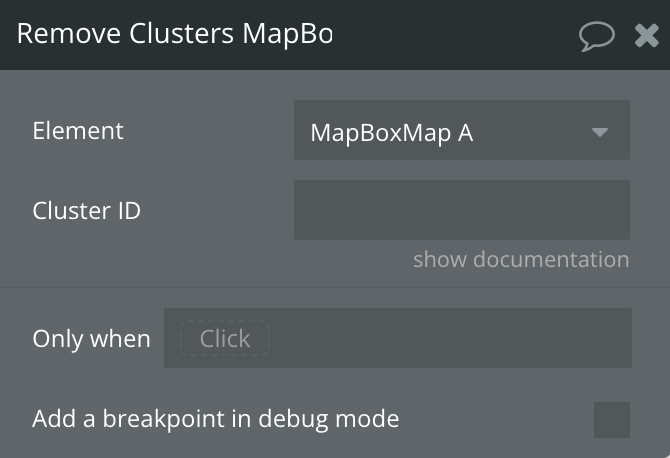
45) Remove Clusters
Remevos a Cluster by ID
Title
Description
Type
Clusters ID
The unique id of cluster
Text, Required
46) Remove live realtime data
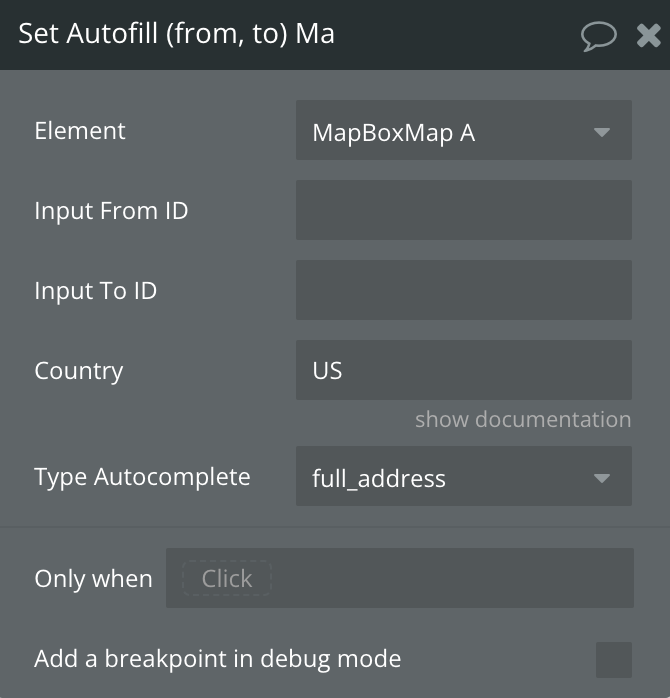
47) Set Autofill (from, to)
Autofill info form an input to another input
Title
Description
Type
Input From ID
Input ID from which to take info
Text, Required
Input To ID
Input ID in which to place info
Text, Required
Country
Country Name
Text, Optional
Type Autocomplete
Type to autocomplete
Text, Required
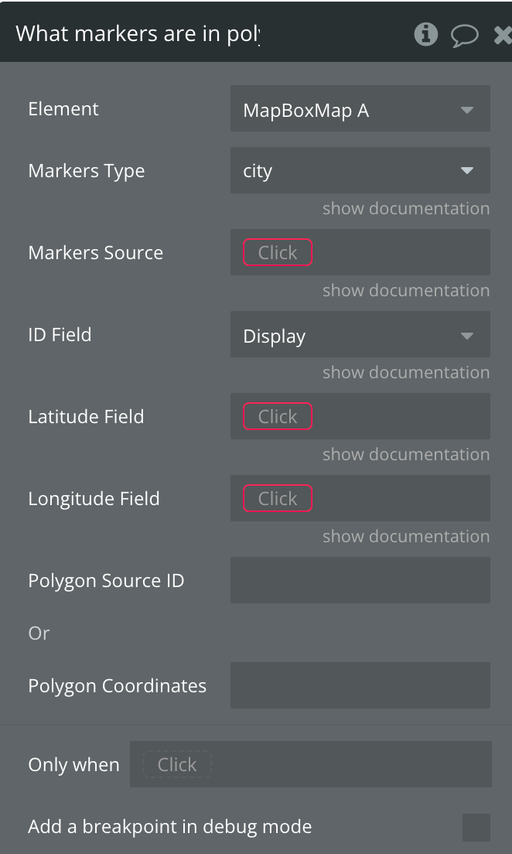
48) What markers are in polygon?
Returns what markers are inside a polygon
Title
Description
Type
Markers Type
Markers source Do a search for... or Get data from an External API
Data, Required
ID Field
Marker ID, a unique value of the marker
Text, Required
Latitude Field
Marker Latitude
Number, Optional
Longitude Field
Marker Longitude
Number, Optional
Polygon Source ID
Source ID of Polygon
Text, Optional
Polygon Coordinates
Polygon Coordinates
Text, Optional
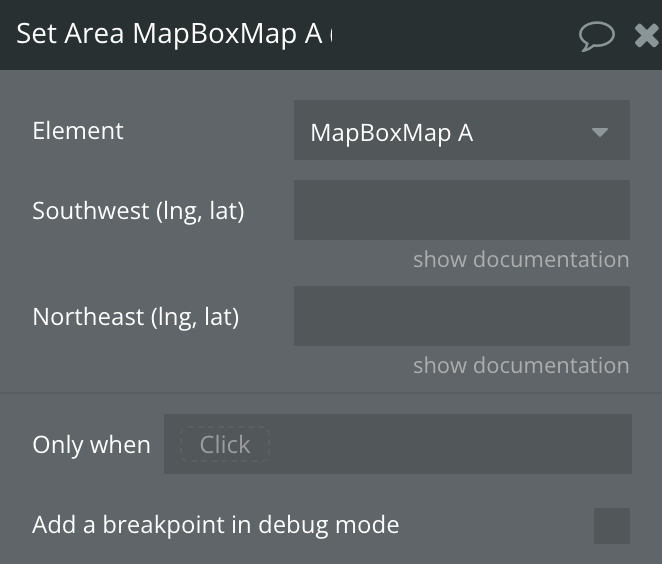
49) Set Area
Set area of map using Southwest and Northeast coordinates corners
Title
Description
Type
Southwest (lng, lat)
Coordinates of the southwest corner
Text, Required
Northeast (lng, lat)
Coordinates of the northeast corner
Text, Required
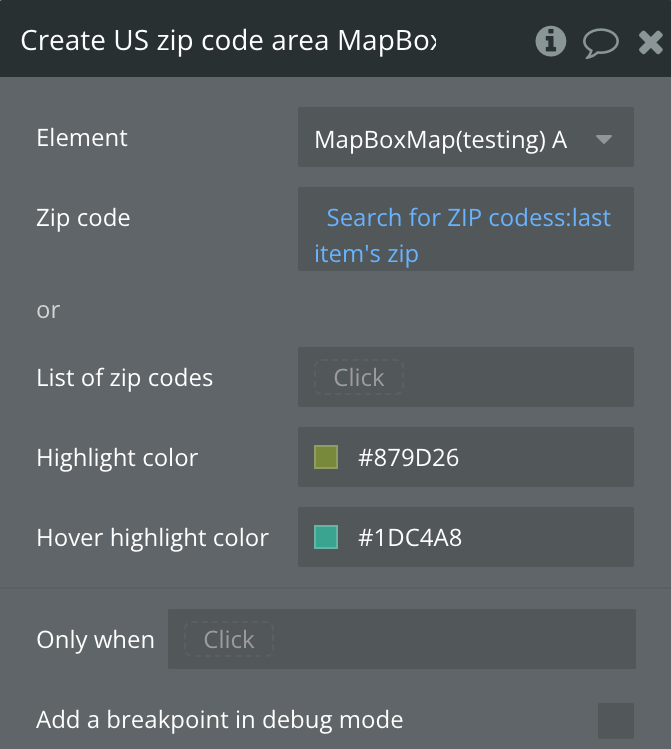
50) Create US zip code area
Sets one or more polygons in the US zip code area.
Title
Description
Type
Zip code
Zip code
Text
List of zip codes
List of zip codes
List of Text
Highlight color
Polygon fill color
Color
Hover highlight color
Polygon fill color on hover
Color
51) Remove zip code area
Removes all polygons of the zip code area from the map
51) Remove zip code area
Adds multiple HTML-based markers from a database source.
Title
Description
Type
Markers Type
Type of HTML markers from database or external API
Custom Type
Markers Source
Source list of markers
List (Custom Type)
Draggable
Database field (yes/no) for draggability
Custom Field
Icon Size
Database field (number) for marker scale
Custom Field
Icon Color
Database field (text) for marker color (#000000)
Custom Field
Marker icon anchor
Database field (text) for anchor position
Custom Field
Marker longitude
Database field (number) for longitude
Custom Field
Marker latitude
Database field (number) for latitude
Custom Field
Marker ID
Database field (text) for unique identifier
Custom Field
Show Popup
Database field (yes/no) for popup display
Custom Field
Custom Popup Content
Database field (text) for popup content
Custom Field
Use custom image
Use custom images instead of default pins. Default: false
Checkbox
Image
Database field (image) for custom marker image
Custom Field
Image Height
Database field (text) for image height
Custom Field
Image Width
Database field (text) for image width
Custom Field
Change icon on hover
If checked, the marker image will change when the mouse hovers over it. Only works with custom images.
Boolean
Hover Image
Database field (image). Alternative image displayed when hovering over the marker. Only works when 'Use custom image' is enabled.
Here are some setups that will help to understand the plugin better.
Selecting a default location
Select the MapBox Map element on your page
In the element properties, set Initial latitude and Initial longitude to your desired center point (e.g., 40.7128 and -74.0060 for New York City)
Alternatively, use the “Set Center” action in a workflow to change the center dynamically
You can also use “Fly To” for an animated transition to a new location
Setting a map style
In the element properties, choose a Theme from the dropdown: Streets, Outdoors, Light, Dark, Satellite, Satellite Streets, or Custom
If using “Custom”, provide your custom Mapbox style URL in the Custom Theme field (e.g., from Mapbox Studio)
To change the style dynamically, use the “Set Style” action in a workflow
Select Style Mode and optionally provide a Custom Style URL
Setting zoom levels
In the element properties, set Default Zoom to your preferred initial zoom level (0-22, where 0 is fully zoomed out)
To change zoom dynamically, use the “Set Zoom” action with a Zoom Level value
You can also use “Fly To” with a Zoom Level parameter for animated zoom changes
Enable/disable Zoom on Scrolling in the element properties to control scroll-wheel zoom behavior
Read the current zoom from the Zoom Level exposed state
Adding live tracking
This workflow example demonstrates how to set up real-time location tracking on your map using the Live Tracking feature. This is useful for displaying moving objects like delivery vehicles, users, or any dynamic markers that need to update their position in real-time.
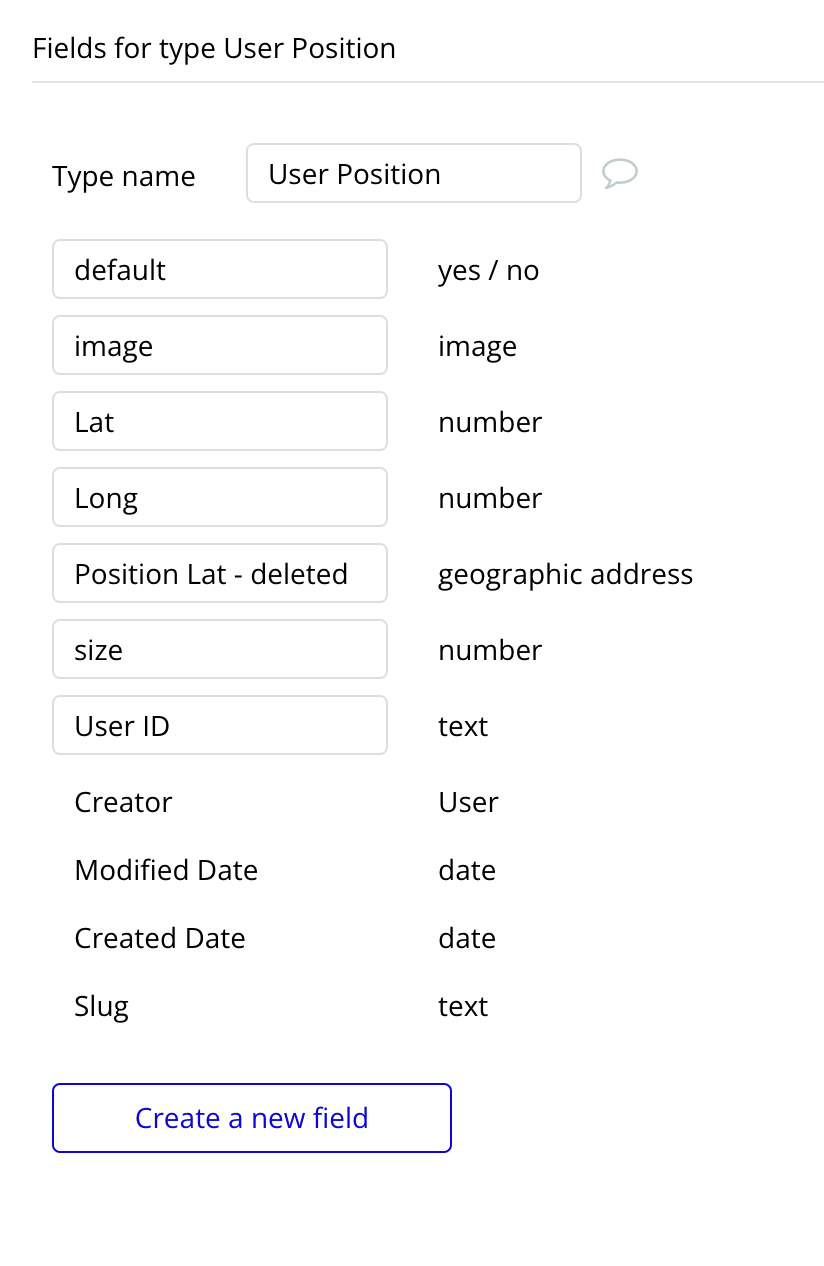
Step 1: Set Up Your Database
First, create a data type in your Bubble database to store the tracking data. For example, create a data type called "TrackedObject" with the following fields:
Field Name
Type
Description
object_id
Text
Unique identifier for the tracked object
latitude
Number
Current latitude of the object
longitude
Number
Current longitude of the object
icon
Image
Icon to display on the map
icon_size
Number
Size of the icon (e.g., 0.1)
Step 2: Configure the MapBox Map Element
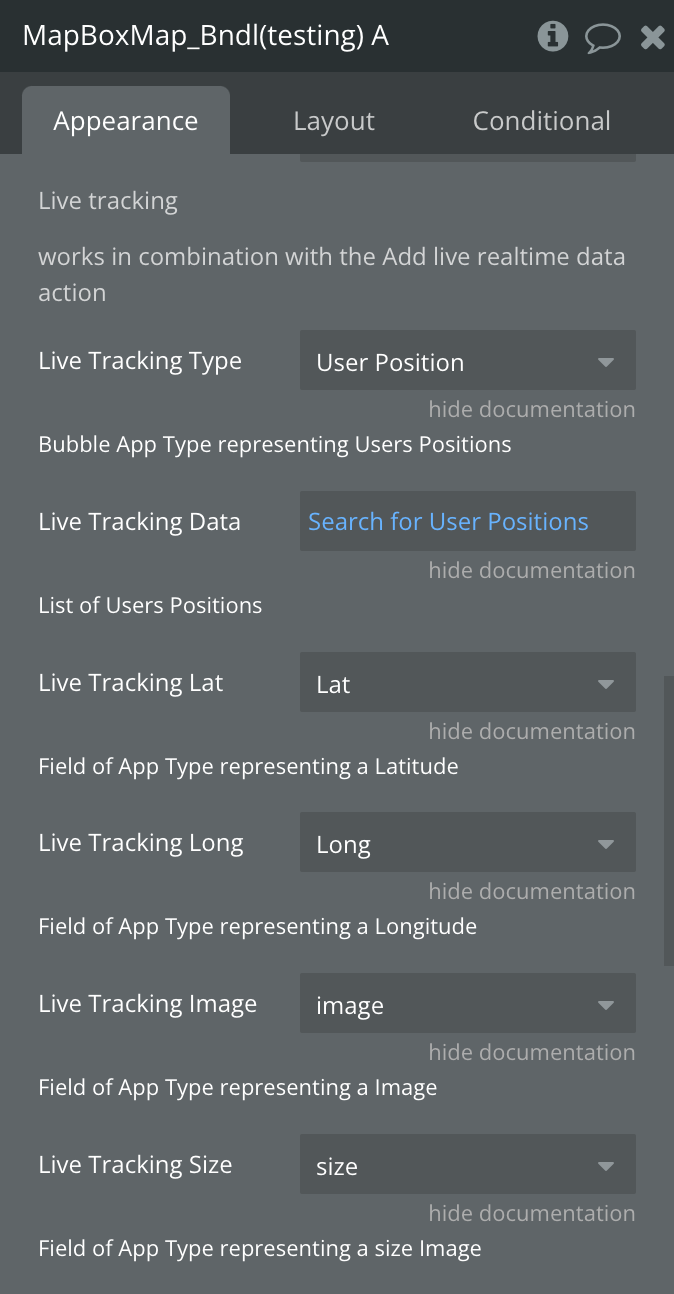
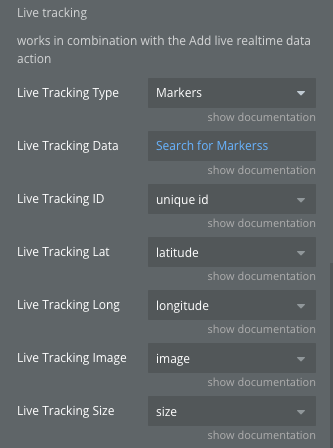
Add the MapBox Map element to your page and configure the Live Tracking settings in the element properties:
Live Tracking Type: Select your data type (e.g., "TrackedObject")
Live Tracking Data: Do a search for TrackedObject (or your data type)
Live Tracking ID: Select the "object_id" field
Live Tracking Lat: Select the "latitude" field
Live Tracking Long: Select the "longitude" field
Live Tracking Image: Select the "icon" field
Live Tracking Size: Select the "icon_size" field
Step 3: Start Live Tracking
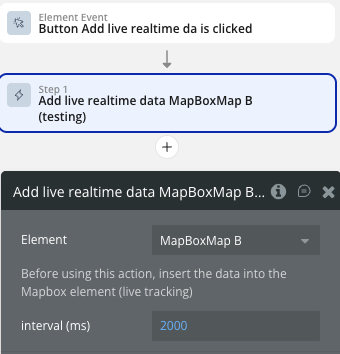
Create a workflow to start the live tracking when the page loads or when a button is clicked:
Workflow: Start Tracking
Trigger: Page is loaded (or Button is clicked)
Action: Element Actions → MapBox Map → Add live realtime data
interval (ms): 2000 (updates every 2 seconds)
This action will start polling the database at the specified interval and automatically update marker positions on the map.
Step 4: Stop Live Tracking
Create a workflow to stop the live tracking when needed:
Workflow: Stop Tracking
Trigger: Button is clicked
Action: Element Actions → MapBox Map → Remove live realtime data
This action will clear all intervals and remove the live tracking markers from the map.
Step 5: Update Tracking Data
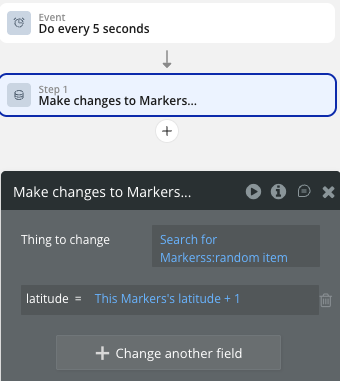
To move markers on the map, simply update the latitude and longitude values in your database. The plugin will automatically detect changes and update marker positions at each interval.
Example Workflow: Update Position
Trigger: Backend workflow or API call receives new coordinates
Action: Make changes to TrackedObject
latitude = new latitude value
longitude = new longitude value
Notes
The Live Tracking feature automatically handles adding new markers when new records appear in the database
Markers are automatically removed when records are deleted from the database
Icon and size changes are also detected and updated in real-time
For optimal performance, keep the interval at 2000ms or higher
Make sure your database query in "Live Tracking Data" returns only the objects you want to track
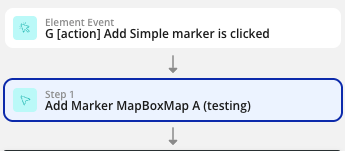
Adding a single marker
Add the MapBox Map element to your page
Create a workflow triggered by a button click or page load
Add the “Add Marker” action from the MapBox Map element
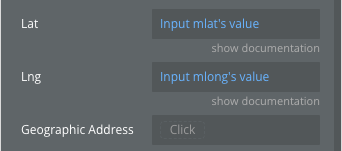
Set the Lat and Lng fields to the desired coordinates (or use Geographic Address)
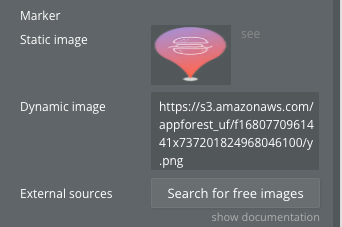
Upload or set a Marker image
Set a unique Marker ID (e.g., “restaurant-1”)
Optionally add a Description for the popup on click
Adding multiple markers from a database
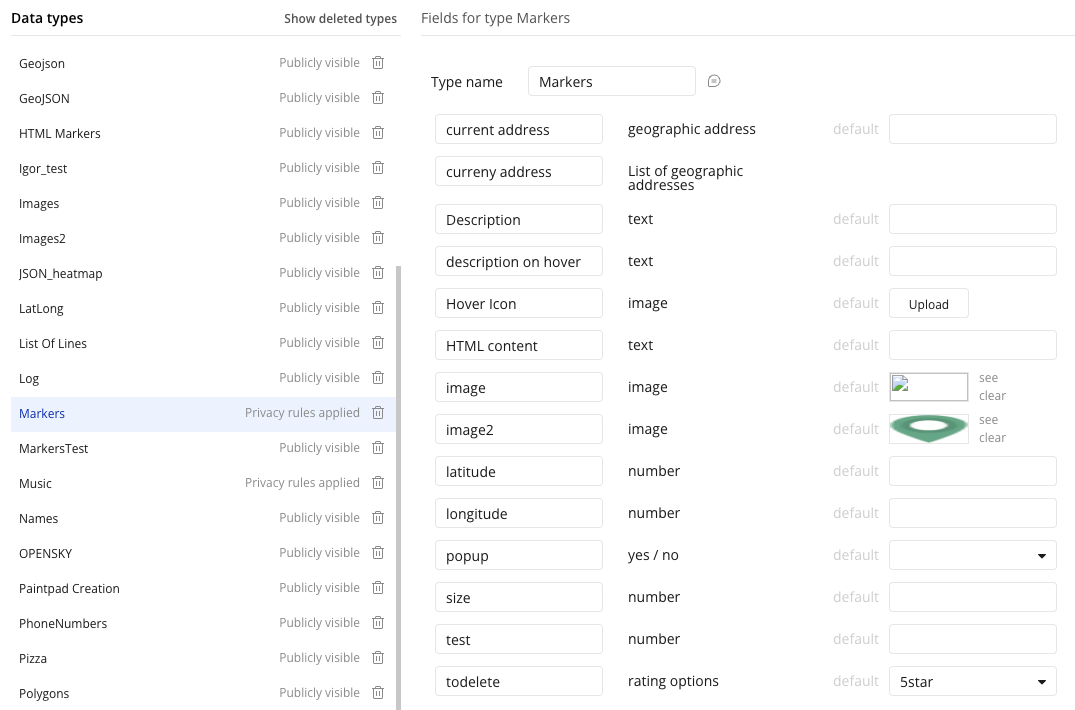
Create a Data Type in your database with fields for latitude, longitude, name, and optionally an image
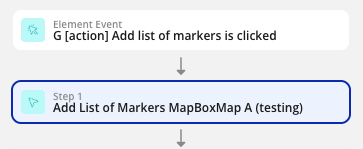
Add the “Add List of Markers” action to your workflow
Set Markers Type to your Data Type
Set Markers Source to “Do a search for [Your Data Type]”
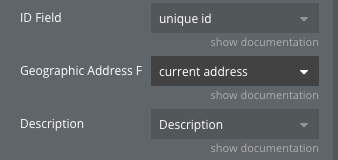
Map the ID Field, Latitude Field, Longitude Field, and Description fields
Set a Default Icon image
Use the “List of markers displayed” event to trigger follow-up actions
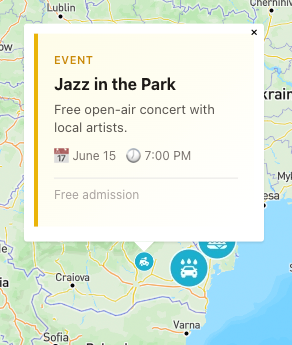
Adding a custom icon & popup as a marker
Add the “Add Marker” action to your workflow
Set the Lat and Lng to your desired location
Upload a custom image in the Marker field (e.g., a restaurant icon, pin, or logo)
Upload a custom image in the Hover Icon field
Select this checkbox, and the marker icon will change when you hover the mouse cursor over it.
Adjust the Icon Size (px) to control the image scale (e.g., 0.15 for a smaller icon)
Set the Icon anchor to control which part of the icon aligns with the coordinates (e.g., “bottom” for pin-style markers)
Set your own HTML code of the popup card in field HTML Popup Content to customize it.
Creating a draggable marker
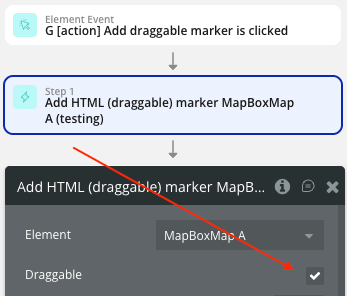
Add the “Add HTML (draggable) marker” action to your workflow
Ensure Draggable is checked
Set Default latitude and Default longitude to the initial position
Set a unique Marker ID
Configure the Icon Color and Icon Size
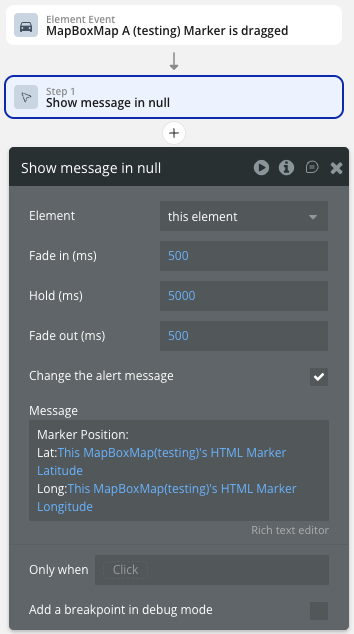
Use the “Marker is dragged” event to capture the new position
Read the HTML Marker Latitude and HTML Marker Longitude states to get the updated coordinates
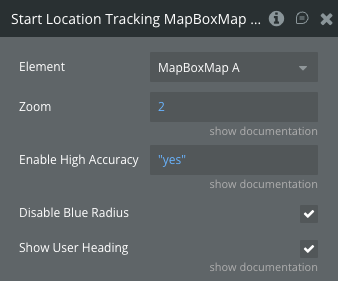
Adding geolocation tracking
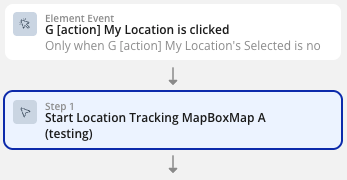
Add the “Start Location Tracking” action to a button workflow
Set Zoom to your preferred zoom level (e.g., 15)
Enable Enable High Accuracy for precise GPS (uses more battery)
Optionally check Show User Heading to display an arrow indicating device direction
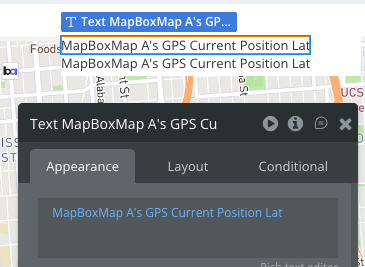
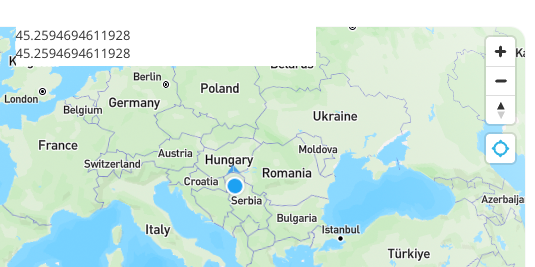
Use the exposed states GPS Current Position Lat and GPS Current Position Lng to access the user’s location
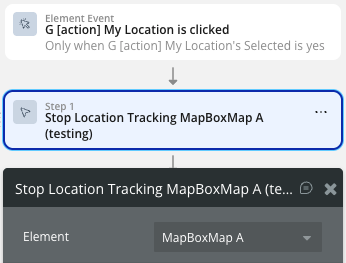
Add the “Stop Location Tracking” action to another button to allow the user to stop tracking
Adding clusters
Add the “Create Clusters” action to your workflow
Choose either Source GeoJSON (URL to GeoJSON) or App Data Type with Source Data (database search)
If using database: map the Lat, Long, and relevant display fields
Set Cluster max zoom (e.g., 14) to control when clusters break apart
Customize cluster colors: Color 1 (< 100 items), Color 2 (100-750), Color 3 (> 750)
Set a unique ID Cluster for later removal
Use the “Cluster marker clicked” event to handle interactions
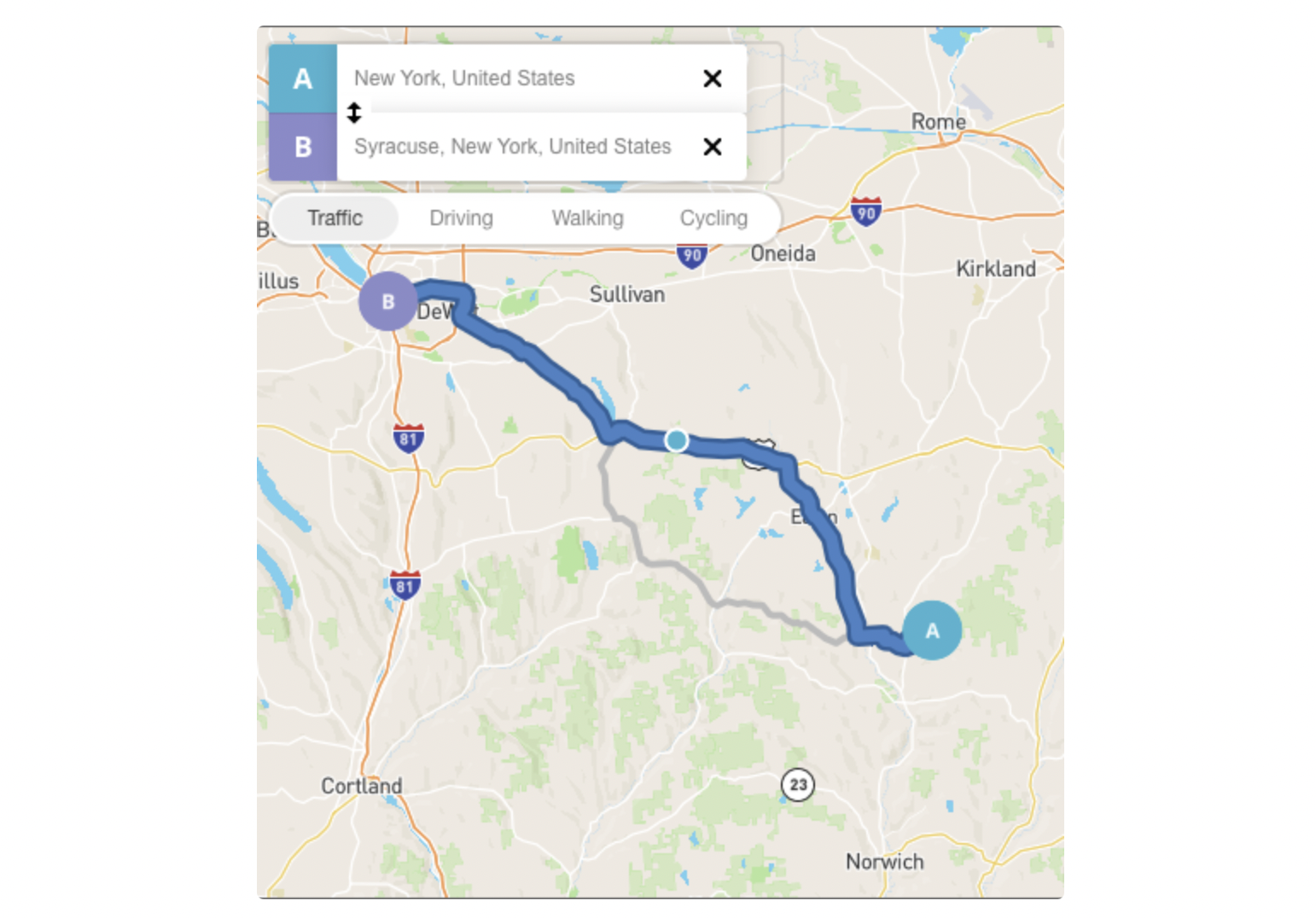
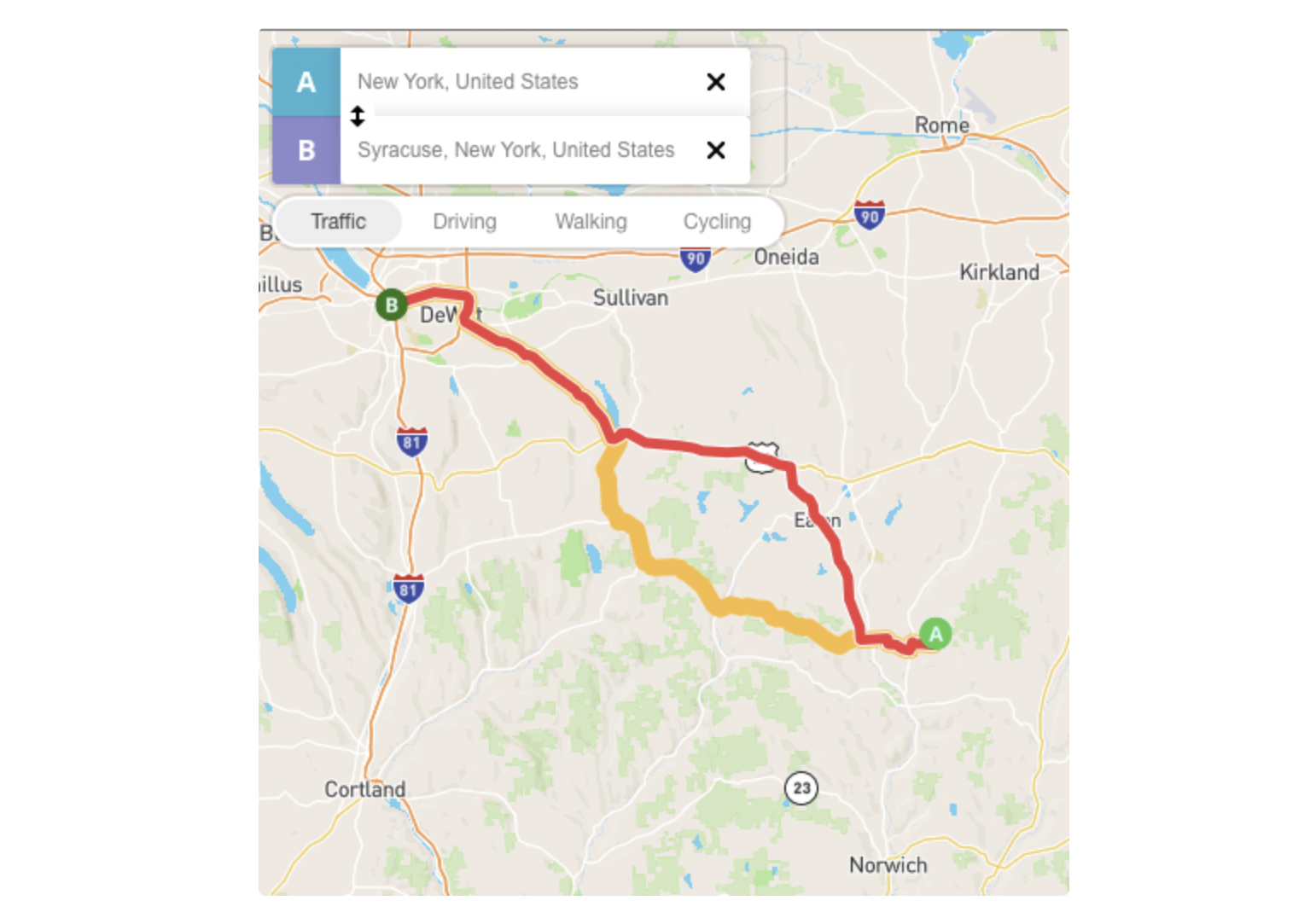
Added possibility to change the route’s color and reference points radius:
Before update:
After update:
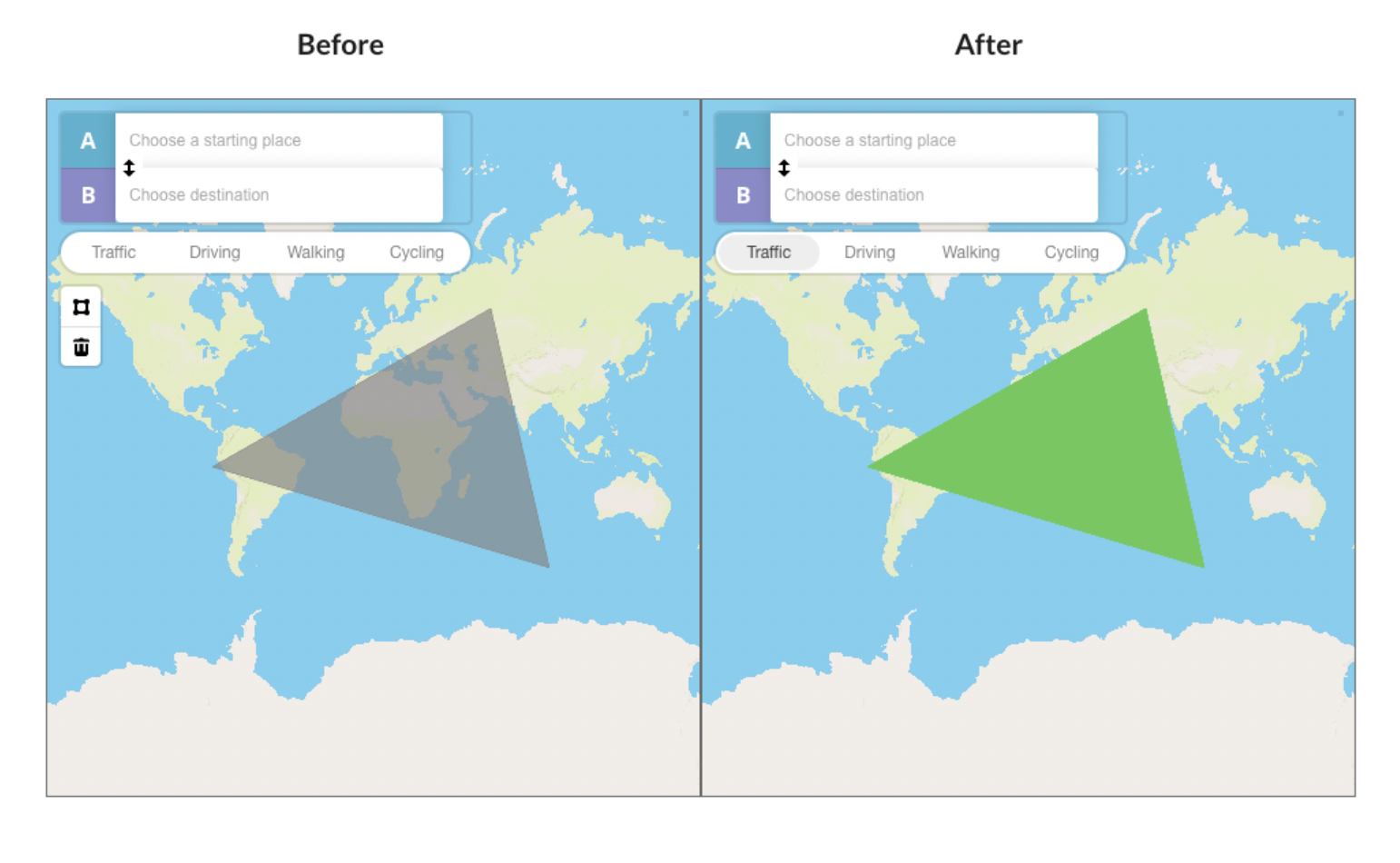
Create line customization
This feature colors the drawn area.
Geofence
This feature determines if the marker is in the geofence. Provides the possibility to check through a state (Clicked Line ID) if the clicked point is within geofence or not.
Update 15.12.21 - Version 1.41.0
fixed camera binding to the current location. Updated description in "Set Directions" action.
Update 18.11.21 - Version 1.40.0
Added an action to check the intersection of a point with a polygon.
Update 10.11.21 - Version 1.39.0
exposed state "Drawed polygon GeoJSON" now return only coordinates of polygon.
Update 19.10.21 - Version 1.38.0
find point in polygon fix.
Update 28.09.21 - Version 1.37.0
Updated description.
Update 17.09.21 - Version 1.36.0
fixed default map position from custom style.
Update 15.09.21 - Version 1.35.0
added new functions related to the polygon drawing tool.
Update 24.08.21 - Version 1.34.0
Fixed clipping of the value returned in 'Measure distance length' state.
Update 24.08.21 - Version 1.33.0
added posibility to set position of markers using geographic address.
Update 13.08.21 - Version 1.32.0
In list of markers removed popups from markers without description.
Update 29.07.21 - Version 1.31.0
Added a list of new actions. For reference please check the docs.
Update 19.07.21 - Version 1.30.0
Updated icon.
Update 04.04.21 - Version 1.29.0
Added new features. You can now add various icons for the marker list, add a heatmap layer, add a description for any marker, and more. See the documentation for details.
Update 15.03.21 - Version 1.28.0
Updated description.
Update 13.03.21 - Version 1.27.0
Updated plugin name.
Update 03.03.21 - Version 1.26.0
Updated description.
Update 23.02.21 - Version 1.25.0
Added the possibility for workflow action "add markers" to use API data as data source.
Update 16.02.21 - Version 1.24.0
Updated icon.
Update 24.12.20 - Version 1.23.0
Changed type of property 'type' in the Create Line Action.
Update 28.11.20 - Version 1.22.0
Added the ability to add waypoints to the route.
Update 08.09.20 - Version 1.21.0
Fixed display of mapbox size.
Update 10.08.20 - Version 1.20.0
Improvements:
Added GeoJSON Lines creation feature
Added GeoJSON Polygon creation feature
New action Create Line A MapBox
Update 14.07.20 - Version 1.19.0
Improvements and changes:
Added Marker Rotation propriety field for Add Marker Action
For Map Element added new propriety which Navigation Controls and it’s position on Map
Also added possibility to Create a Route on Map click, (see the demo for workflow setup).
Added possibility to choose the Language for Route Instructions
Update 10.07.20 - Version 1.18.0
Added custom marker rotation and position, display map navigation controls, and eight languages for turn-by-turn navigat.
Update 01.05.20 - Version 1.17.0
added real geographical addresses states, Live Tracking address, Map center address, Clicked marker address.
Update 18.03.20 - Version 1.16.0
Fixed bug with add list of marker..
Update 20.02.20 - Version 1.15.0
Update - Remove Route action, Zoom param. on Track Location action, not show popup if marker description is empty, clicked marker id state..
Update 03.12.19 - Version 1.14.0
Update and Fixes: added option for info window, fixed change style action on page load..
Update 14.11.19 - Version 1.13.0
Update - Added action togler for show/hide map controls.
Update 08.11.19 - Version 1.12.0
Update - Enable or disable map directions controls.
Update 06.11.19 - Version 1.11.0
Improvements - expose now speed state, added API call for retrieving route details..
Update 30.07.19 - Version 1.10.0
Update - Action added: Add List of Markers, also added possibility to remove from map an entire markers clusters..
Update 13.06.19 - Version 1.9.0
minor fixes.
Update 11.06.19 - Version 1.8.0
minor fixes.
Update 04.06.19 - Version 1.7.0
Minor fixes.
Update 15.05.19 - Version 1.6.0
Updated description.
Update 14.05.19 - Version 1.5.0
added a state with clicked marker's address 2. added workflow event "when a marker is clicked" 3. added a state that returns a list of markers 4. added a state that returns map's center address .