
Demo to preview the plugin:
Introduction
This plugin converts any group (element) to PDF and Image with a super high quality. Set the ID attribute of the element you want to convert and trigger the plugin action, and you will get an image or PDF.

How to setup
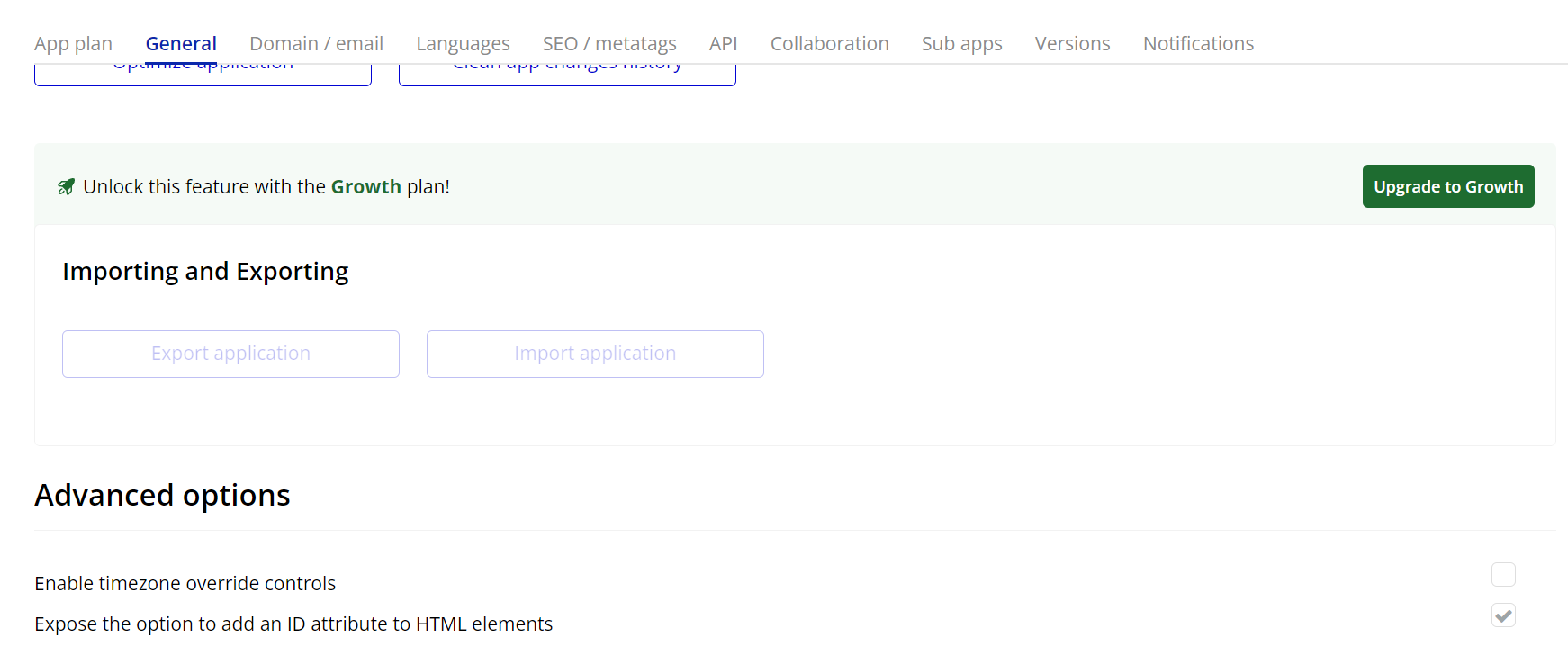
- Enable ID Attributes
Go to the settings page in your editor. Under the General tab click on the checkbox “Expose the option to add an ID attribute to HTML elements”
- Add the Plugin Element
- Insert the Group to PDF and Image elements into the page where you want to enable the conversion functionality.
- Configure the element’s properties according to your application requirements.
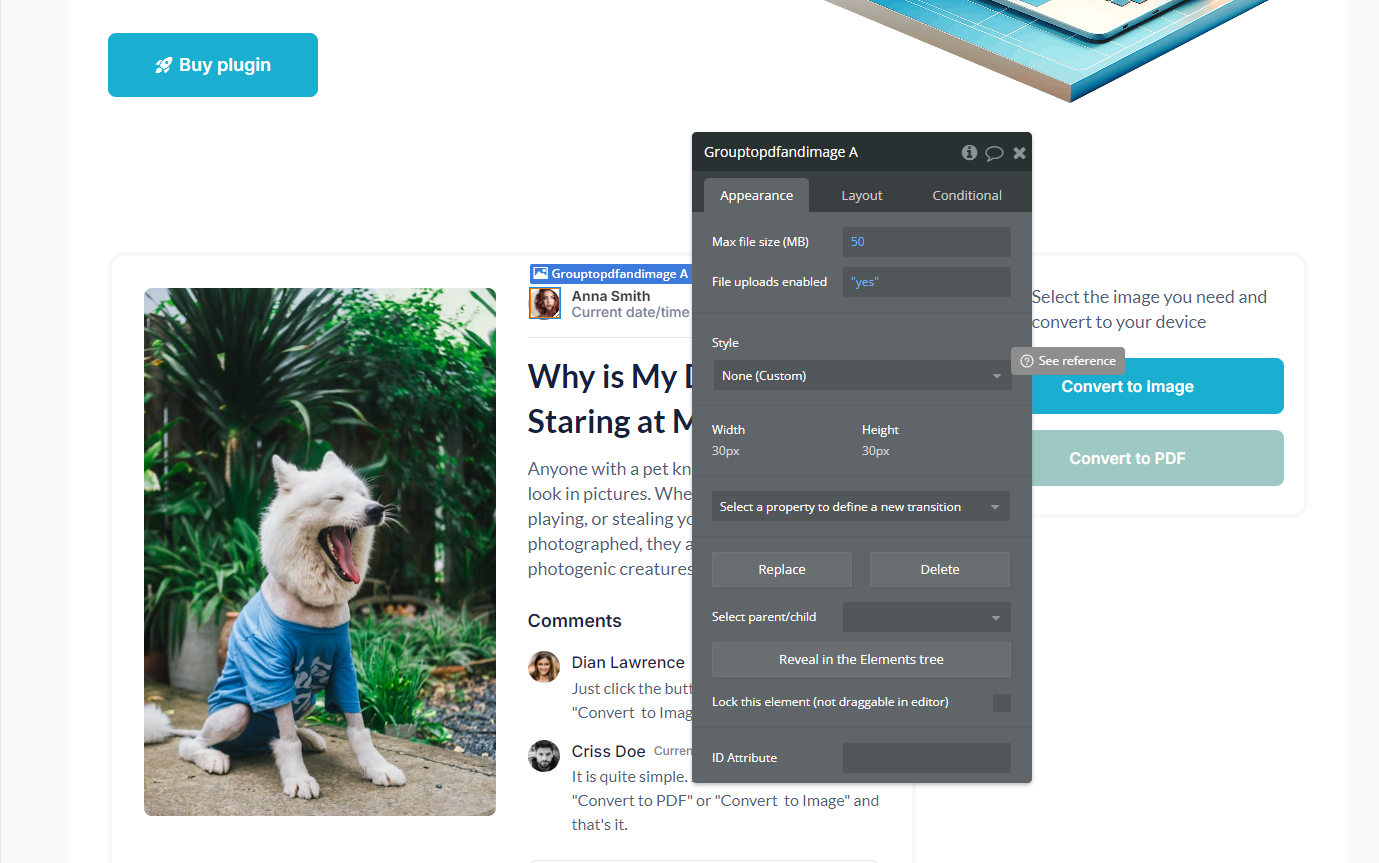
- Set up the Workflows
- Use the actions provided by the plugin to generate PDFs or images from groups.
- Select Target Element ID (the group to be converted).
- Configure events to handle success or failure cases in the workflows. See the details of available events and actions below.
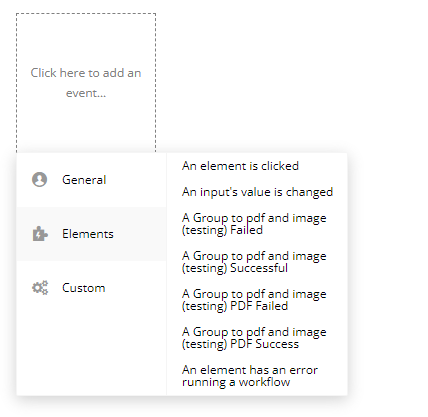
Plugin Events
- A Group to PDF and Image Failed
Triggered when the conversion of a group to an image fails.
- A Group to PDF and Image Successful
Triggered when the conversion of a group to an image is successful.
- A Group to PDF and Image PDF Failed
Triggered when the conversion of a group to a PDF fails.
- A Group to PDF and Image PDF Success
Triggered when the conversion of a group to a PDF is successful.
Plugin Actions
- Make Image A Group to PDF and Image
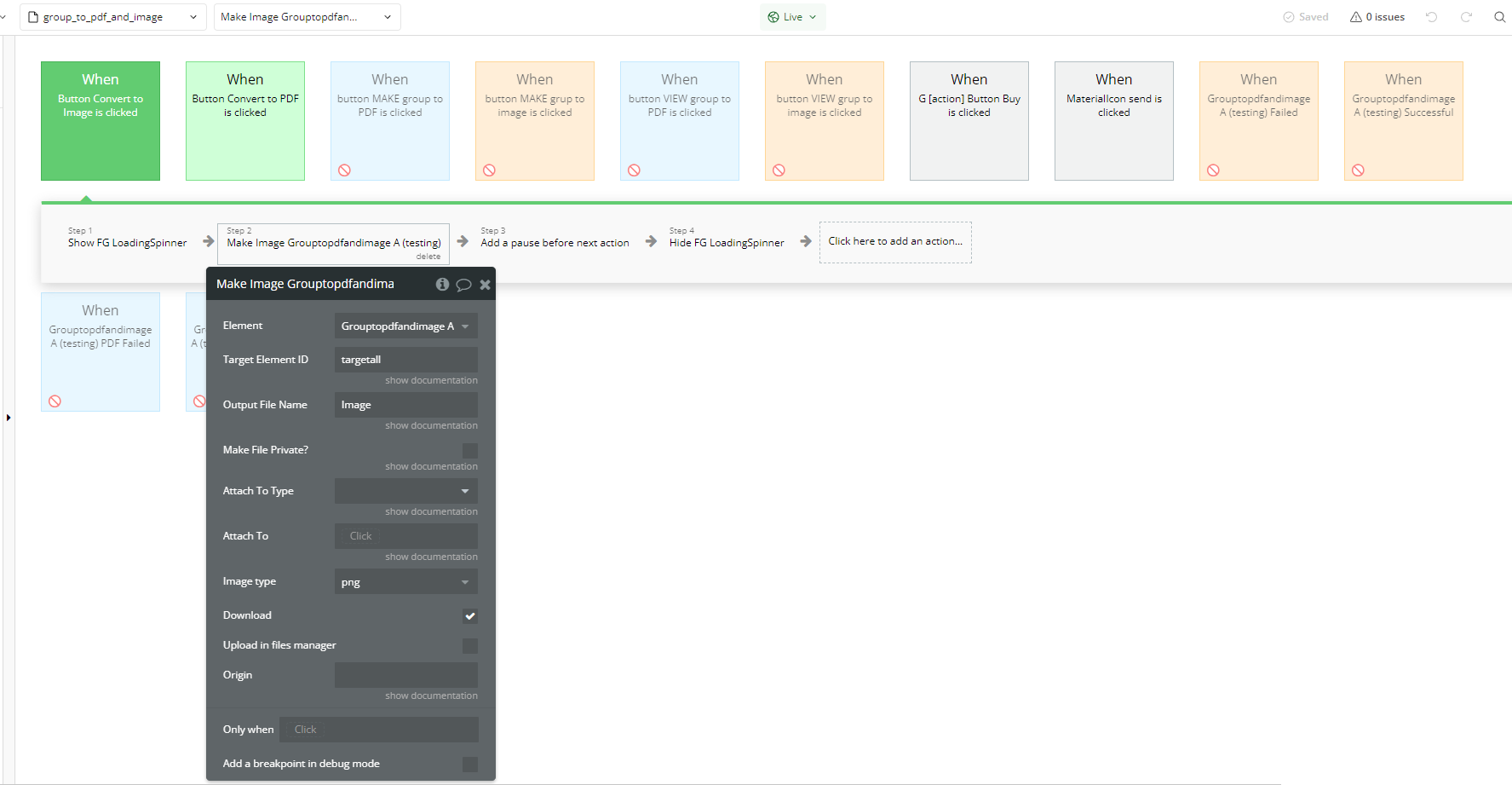
Converts a group into an image format. Use this action to generate a viewable or downloadable image from a group of elements.
- Convert to PDF A Group to PDF and Image
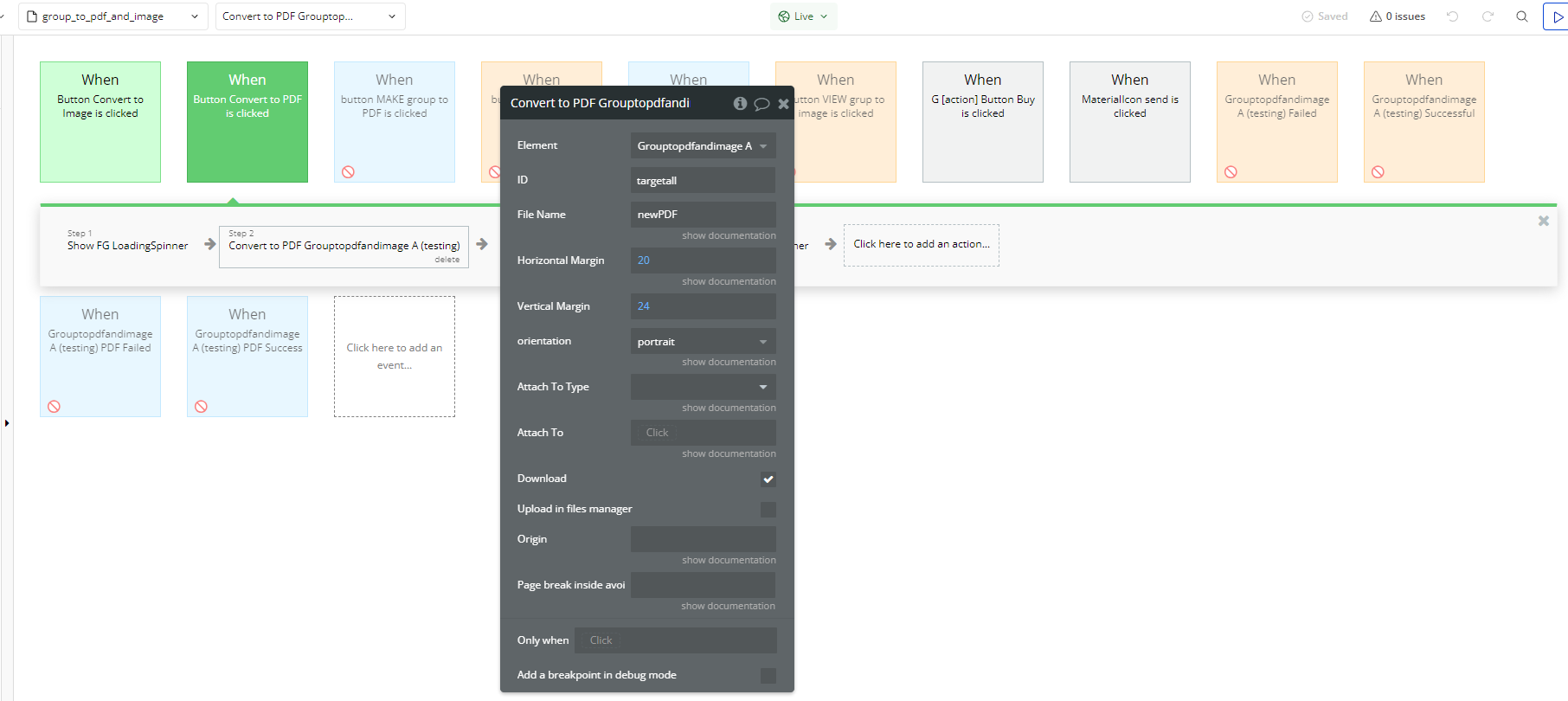
Converts a group into a PDF format. Ideal for generating documents such as receipts, contracts, or printable files.
- Reset PDF/Image States A Group to PDF and Image
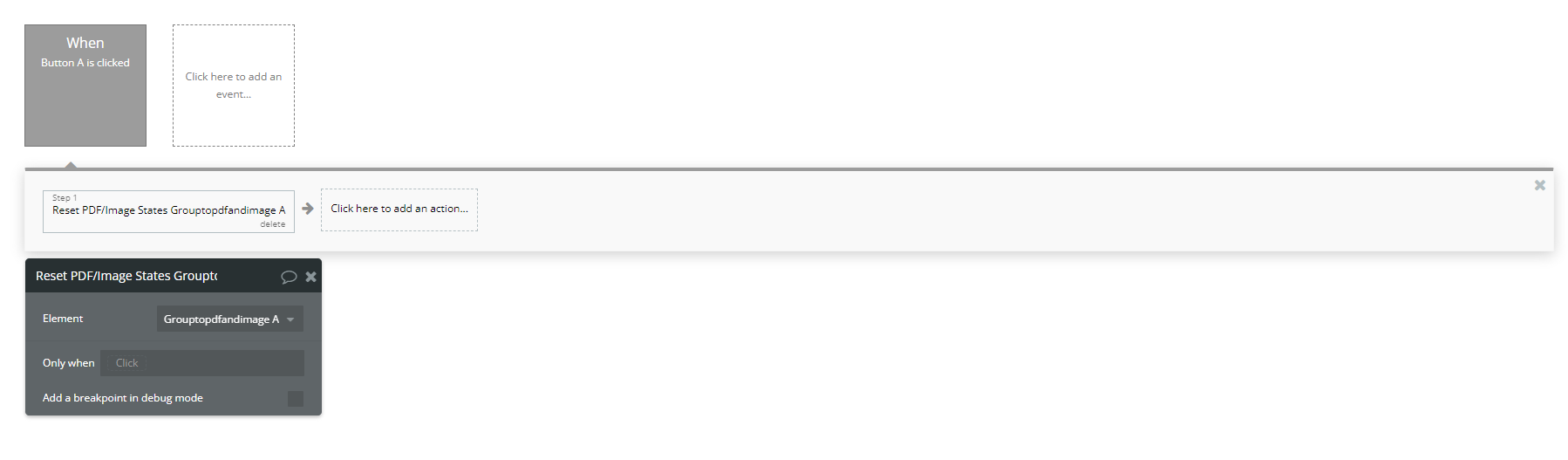
Resets the state of the PDF/image conversion. Use this action to clear previous conversions and prepare the plugin for a new one.
Plugin Element Properties
Group to PDF and image
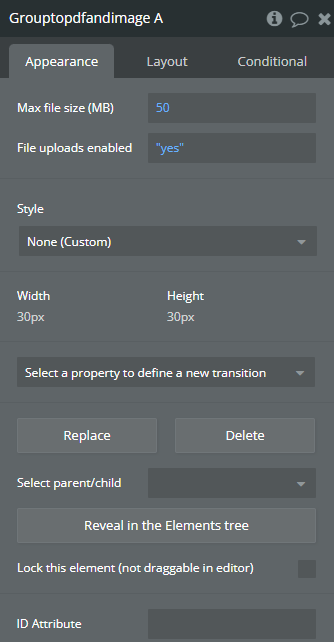
Element Actions
- Make Image - Make a new image.
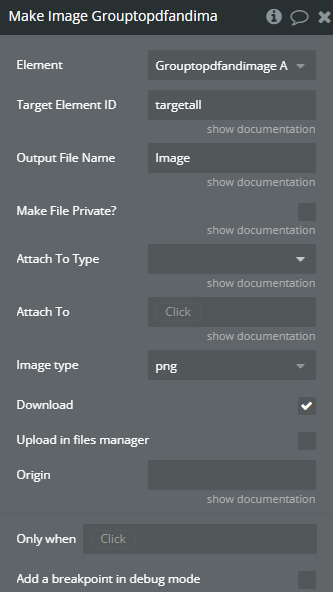
Title | Description | Type |
Target Element ID | The ID of the element you want to make an image of. | Text |
Output File Name | Name of the new image file. | Text |
Make File Private? | Make the new image private and attach to thing. | Checkbox (yes/no) |
Attach To Type | Type of thing to attach the new image to. | App Type (optional) |
Attach To | Thing to attach the new image to. | Item reperesenting Attach To Type (optional) |
Image type | Available options: png, jpeg, webp | Dropdown |
Download | Automatically triggers the download of the generated image after creation. | Checkbox (yes/no) |
Upload in files manager | Uploads the newly generated image to Bubble's file manager for later use. | Checkbox (yes/no) |
Origin | This is an essential attribute designed to manage access to private files. It provides information about the domain requesting access. | Text (optional) |
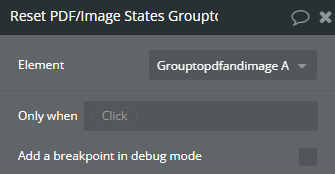
- Reset PDF/Image States - Resets the internal states of the plugin related to PDF or image conversions, clearing any previously saved data or configurations.
- Convert to PDF - Convert to PDF
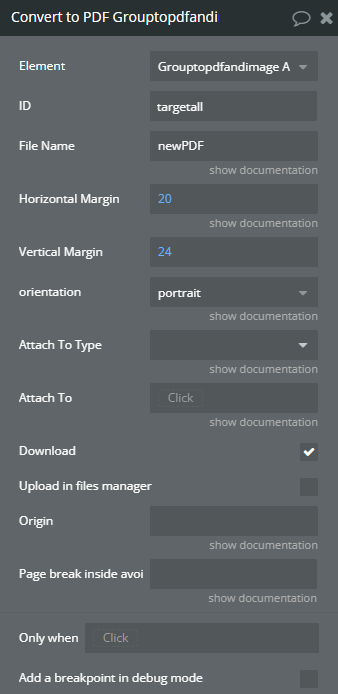
Title | Description | Type |
ID | The ID of the group or element you want to convert to PDF. | Text |
File Name | Name of the new pdf. | Text |
Horizontal Margin | Horizontal Margin | Number |
Vertical Margin | The vertical margin of the generated PDF (in pixels). | Number |
Orientation | Orientation of the first page. Available options: landscape, portrait | Dropdown |
Attach To Type | Attach To Type | App Type (optional) |
Attach To | Attach To | Item reperesenting Attach To Type (optional) |
Download | Automatically triggers the download of the generated PDF after creation. | Checkbox (yes/no) |
Upload in files manager | Uploads the newly generated PDF to Bubble's file manager for later use. | Checkbox (yes/no) |
Origin | This is an essential attribute designed to manage access to private files. It provides information about the domain requesting access. | Text (optional) |
Page break inside avoid | Put the ID of the elements you want to prevent from being split into two pages when printed. the field does not work for the old responsive | Text (optional) |
Exposed states
Title | Description | Type |
New Image | New Image | Image |
New PDF URL | New PDF | File |
Element Events
Title | Description |
Failed | Failed to upload image |
Successful | Successfully Uploaded Image |
PDF Failed | PDF Failed |
PDF Success | PDF Success |