Link to the plugin page: https://zeroqode.com/plugin/animated-gauges-plugin-for-bubble-1739576837459x487423917519088450
Demo to preview the plugin:
Live Demo: https://pluginrapidev11.bubbleapps.io/gauges
Introduction
This plugin makes use of the gauge.js library and allows you to add a wide variety of different gauges to your Bubble app.
You can heavily modify the look and feel of each gauge using this plugin and create a gauge according to your requirements.

How to setup
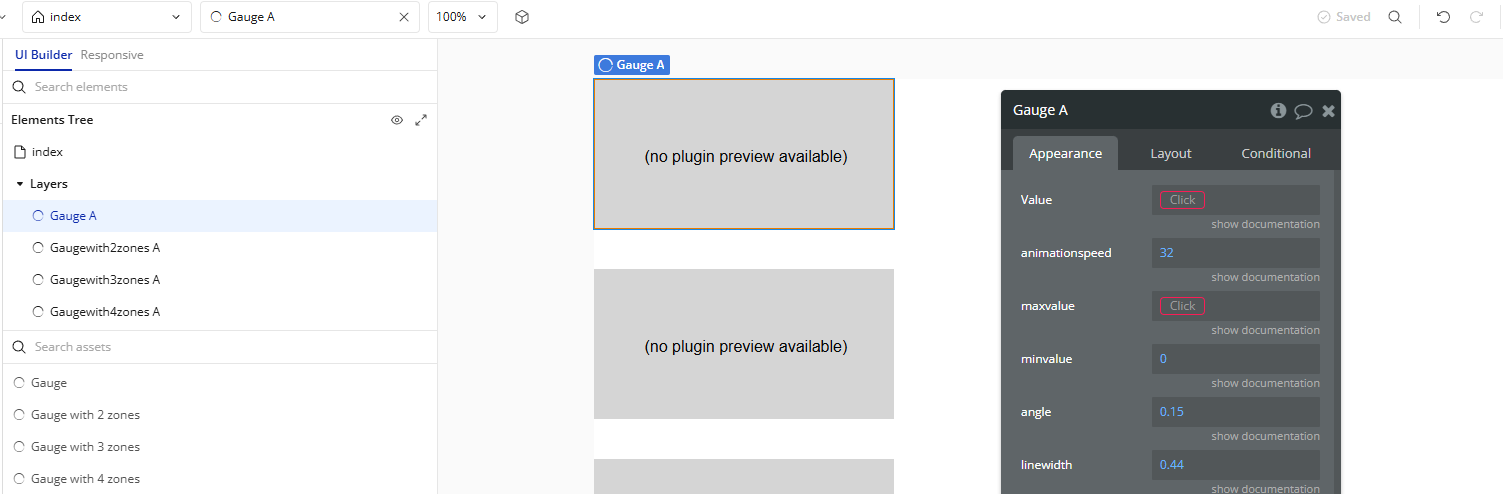
- Add a Gauge Element to Your Page
GaugeGauge With 4 ZonesGauge With 3 ZonesGauge With 2 Zones
In the Bubble editor, go to the Visual Elements tab and drag one of the following elements into your page:
Plugin Element Properties
Gauge
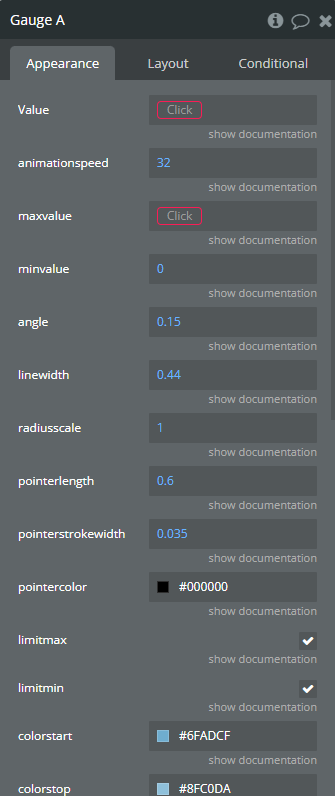
Fields:
Title | Description | Type |
Value | The value of the gauge | Number |
Animationspeed | The animation speed | Number |
Maxvalue | The maximum value of the gauge | Number |
Minvalue | The minimum value of the gauge | Number |
Angle | The span of the gauge arc | Number |
Linewidth | The line thickness | Number |
Radiusscale | The relative radius | Number |
Pointerlength | Relative to gauge radius | Number |
Pointerstrokewidth | Thickness | Number |
Pointercolor | Fill Color | Color |
Limitmax | If false, max value increases automatically if value > maxValue | Checkbox (yes/no) |
Limitmin | F true, the min value of the gauge will be fixed | Checkbox (yes/no) |
Colorstart | The starting color | Color |
Colorstop | The ending color | Color |
Strokecolor | The stroke color | Color |
Generategradient | Check if a gradient should be generated | Checkbox (yes/no) |
High resolution support | High resolution support | Checkbox (yes/no) |
Width | The width of the gauge | Number |
Height | The heigh of the gauge | Number |
TextFieldId | Specify the element Id of the text element that should be used to display the current value of the gauge. Go to Settings-> General of your App and check the option to expose html attributes to your elements. Drag a Bubble Text Element onto your page and position/style accordingly. In the bottom of the element inspector, enter a unique element id. Enter the same element id here. | Text (optional) |
Gauge with 4 zones
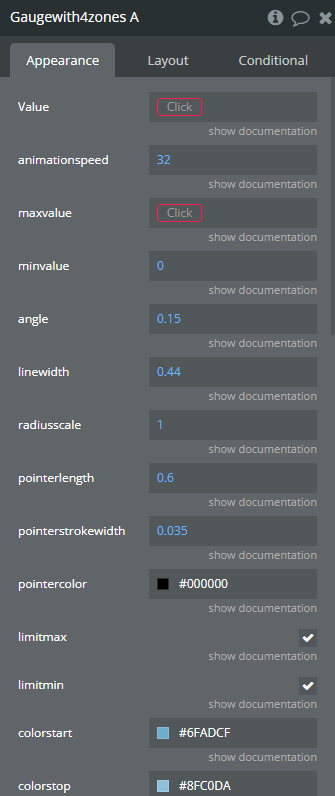
Fields:
Title | Description | Type |
Value | The value of the gauge | Number |
Animationspeed | The animation speed | Number |
Maxvalue | The maximum value of the gauge | Number |
Minvalue | The minimum value of the gauge | Number |
Angle | The span of the gauge arc | Number |
Linewidth | The line thickness | Number |
Radiusscale | The relative radius | Number |
Pointerlength | Relative to gauge radius | Number |
Pointerstrokewidth | The thickness | Number |
Pointercolor | The fill color | Color |
Limitmax | If false, max value increases automatically if value > maxValue | Checkbox (yes/no) |
Limitmin | If true, the min value of the gauge will be fixed | Checkbox (yes/no) |
Colorstart | The starting color | Color |
Colorstop | The ending color | Color |
Strokecolor | The stroke color | Color |
Generategradient | Check if a gradient should be generated | Checkbox (yes/no) |
High resolution support | High resolution support | Checkbox (yes/no) |
Width | The width of the gauge | Number |
Height | The heigh of the gauge | Number |
TextFieldId | Specify the element Id of the text element that should be used to display the current value of the gauge. Go to Settings-> General of your App and check the option to expose html attributes to your elements. Drag a Bubble Text Element onto your page and position/style accordingly. In the bottom of the element inspector, enter a unique element id. Enter the same element id here. | Text (optional) |
Zone1color | “zone1color” refers to a parameter or variable that defines the color associated with a specific zone or area within a software plugin or API. | Color |
Zone1min | “zone1min” refers to the minimum allowable value for a specific zone within the software plugin or API. | Number |
Zone1max | “zone1max” refers to the maximum value or limit set for a specific zone or area within a software plugin or API. | Number |
Zone2color | “zone2color” is a function in the software plugin or API that converts zone data into corresponding color values. | Color |
Zone2min | “zone2min” is a function or method that converts a time zone to its corresponding minute offset. | Number |
Zone2max | “zone2max” is a function in the software plugin or API that calculates the maximum value within a specified zone or region. | Number |
Zone3color | “zone3color” refers to the color property associated with the third zone in a software plugin or API. | Color |
Zone3min | “zone3min” refers to a parameter or setting in a software plugin or API that defines the minimum threshold or limit for a specific zone or area. | Number |
Zone3max | “zone3max” refers to the maximum allowable value or limit for a specific zone within a software plugin or API. | Number |
Zone4color | “zone4color” is a parameter or function in the software plugin or API that allows users to specify or manipulate colors within a defined zone or area. | Color |
Zone4min | “zone4min” refers to a function or parameter in a software plugin or API that calculates or defines the minimum value within a specified zone or range. | Number |
Zone4max | “zone4max” is a function or parameter that defines the maximum allowable zone in a software plugin or API. | Number |
Gauge with 3 zones
Fields:
Title | Description | Type |
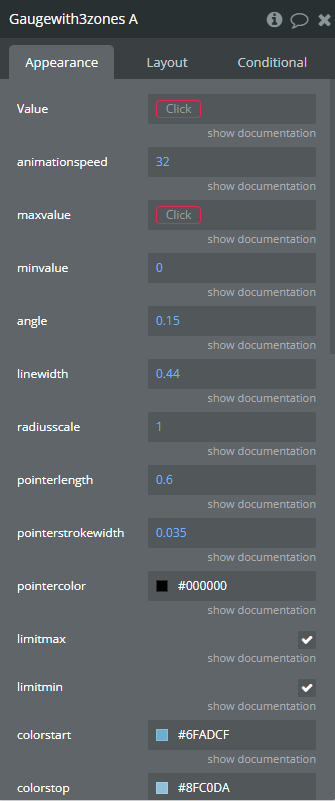
Value | The value of the gauge | Number |
Animationspeed | The animation speed | Number |
Maxvalue | The maximum value of the gauge | Number |
Minvalue | The minimum value of the gauge | Number |
Angle | The span of the gauge arc | Number |
Linewidth | The line thickness | Number |
Radiusscale | The relative radius | Number |
Pointerlength | Relative to gauge radius | Number |
Pointerstrokewidth | The thickness | Number |
Pointercolor | The fill color | Color |
Limitmax | If false, max value increases automatically if value > maxValue | Checkbox (yes/no) |
Limitmin | F true, the min value of the gauge will be fixed | Checkbox (yes/no) |
Colorstart | The starting color | Color |
Colorstop | The ending color | Color |
Strokecolor | The stroke color | Color |
Generategradient | Check if a gradient should be generated | Checkbox (yes/no) |
High resolution support | High resolution support | Checkbox (yes/no) |
Width | The width of the gauge | Number |
Height | The heigh of the gauge | Number |
TextFieldId | Specify the element Id of the text element that should be used to display the current value of the gauge. Go to Settings-> General of your App and check the option to expose html attributes to your elements. Drag a Bubble Text Element onto your page and position/style accordingly. In the bottom of the element inspector, enter a unique element id. Enter the same element id here. | Text (optional) |
Zone1color | “zone1color” refers to a variable or parameter within the software plugin or API that specifies the color associated with a particular zone or area. | Color |
Zone1min | “zone1min” typically refers to a parameter or variable representing the minimum value for a specific zone or area within a software plugin or API. | Number |
Zone1max | “zone1max” refers to a parameter or variable in a software plugin or API that defines the maximum value allowed for zone 1. | Number |
Zone2color | “zone2color” is a function or feature that assigns colors to specific zones or regions within a software plugin or API. | Color |
Zone2min | “zone2min” is a function that converts a time zone value to minutes in a software plugin or API. | Number |
Zone2max | “zone2max” is a function in the software plugin or API that calculates the maximum value within a specified zone or region. | Number |
Zone3color | “Zone3color” refers to a parameter or property in the software plugin or API that defines the color associated with the third zone or region. | Color |
Zone3min | “zone3min” refers to a parameter or function that calculates the minimum value within a specified zone or area in a software plugin or API. | Number |
Zone3max | “zone3max” is a function in the software plugin or API that calculates the maximum value within a specified zone or area. | Number |
Gauge with 2 zones
Fields:
Title | Description | Type |
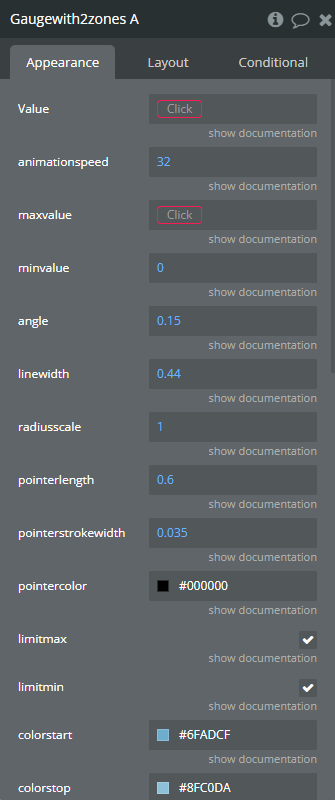
Value | The value of the gauge | Number |
Animationspeed | The animation speed | Number |
Maxvalue | The maximum value of the gauge | Number |
Minvalue | The minimum value of the gauge | Number |
Angle | The span of the gauge arc | Number |
Linewidth | The line thickness | Number |
Radiusscale | The relative radius | Number |
Pointerlength | Relative to gauge radius | Number |
Pointerstrokewidth | The thickness | Number |
Pointercolor | The fill color | Color |
Limitmax | If false, max value increases automatically if value > maxValue | Checkbox (yes/no) |
Limitmin | If true, the min value of the gauge will be fixed | Checkbox (yes/no) |
Colorstart | The starting color | Color |
Colorstop | The ending color | Color |
Strokecolor | The stroke color | Color |
Generategradient | Check if a gradient should be generated | Checkbox (yes/no) |
High resolution support | High resolution support | Checkbox (yes/no) |
Width | The width of the gauge | Number |
Height | The heigh of the gauge | Number |
TextFieldId | Specify the element Id of the text element that should be used to display the current value of the gauge. Go to Settings-> General of your App and check the option to expose html attributes to your elements. Drag a Bubble Text Element onto your page and position/style accordingly. In the bottom of the element inspector, enter a unique element id. Enter the same element id here. | Text (optional) |
Zone1color | “zone1color” refers to the designated color associated with a specific zone or area within the software plugin or API. | Color |
Zone1min | “zone1min” refers to a parameter or variable that represents the minimum value for a specific zone or area within a software plugin or API. | Number |
Zone1max | “zone1max” refers to a parameter or variable in the software plugin or API that sets the maximum value for a specific zone or area. | Number |
Zone2color | “zone2color” is a function or method that converts a specific zone or area into a color representation within the software plugin or API. | Color |
Zone2min | “zone2min” is a function or method that converts a time zone offset to minutes in a software plugin or API. | Number |
Zone2max | “zone2max” is a function in the software plugin or API that calculates the maximum value within a specified zone or region. | Number |