
✅
Demo to preview the plugin:
✅
Introduction
This plugin creates rich link previews by extracting metadata from any valid URL. Display ready-made preview cards with an image, title, and description, or use the exposed states to design your own custom layout.
Key Features
- Generate link previews from any valid URL.
- Extract metadata including title, description, favicon, and preview image.
- Validate URLs and detect invalid or unreachable links.
- Returns multiple exposed states for maximum flexibility.
- Supports optional built-in UI elements for fast implementation.
- Fully compatible with dynamic inputs and workflows in Bubble.
- Great for messaging apps, bookmarking tools, blogs, social feeds, and productivity apps.
How to setup
Step 1 – Install the Plugin
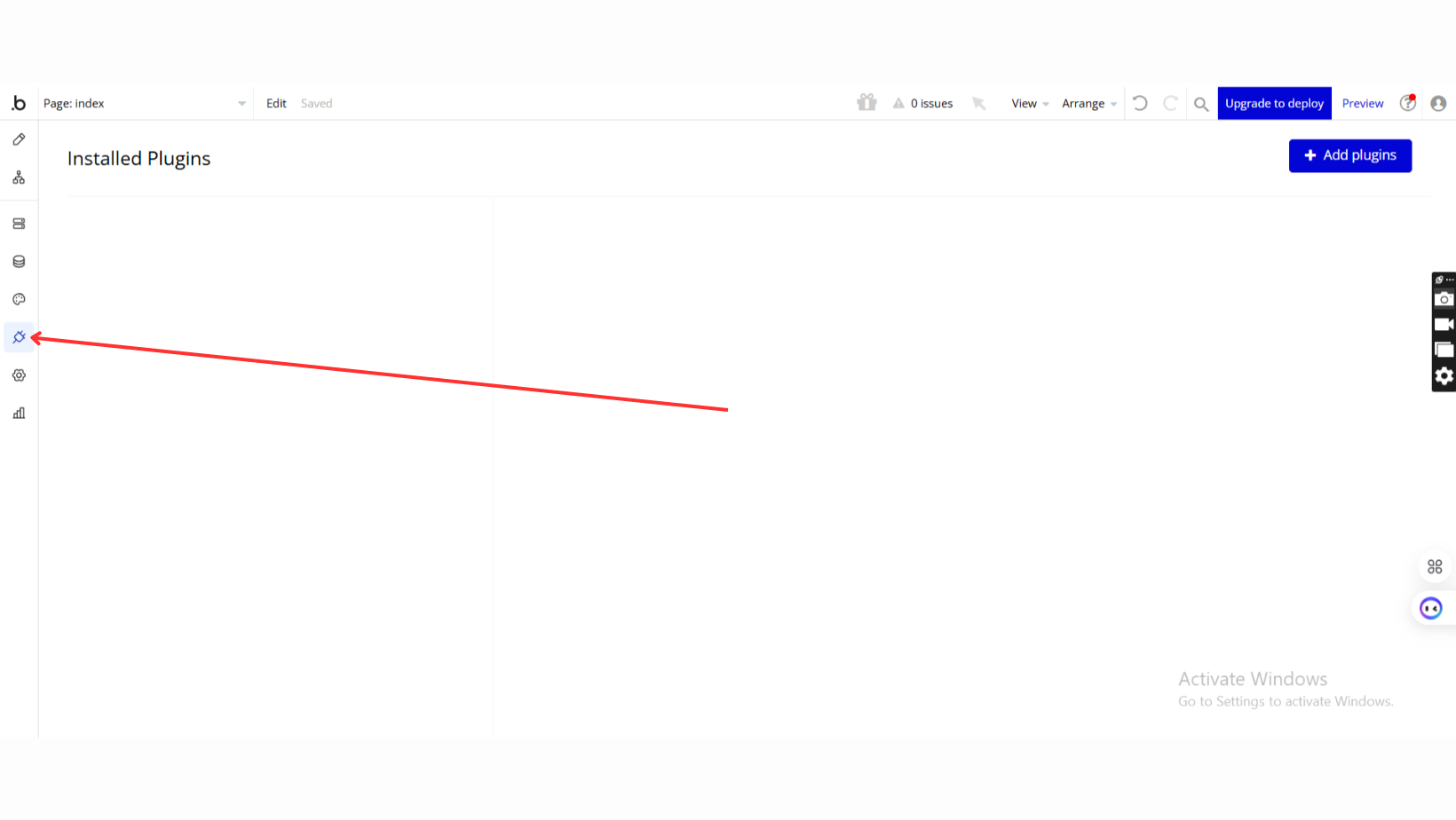
- Go to the Plugin Tab
- Open your Bubble Editor.
- Navigate to the Plugins tab on the left panel.
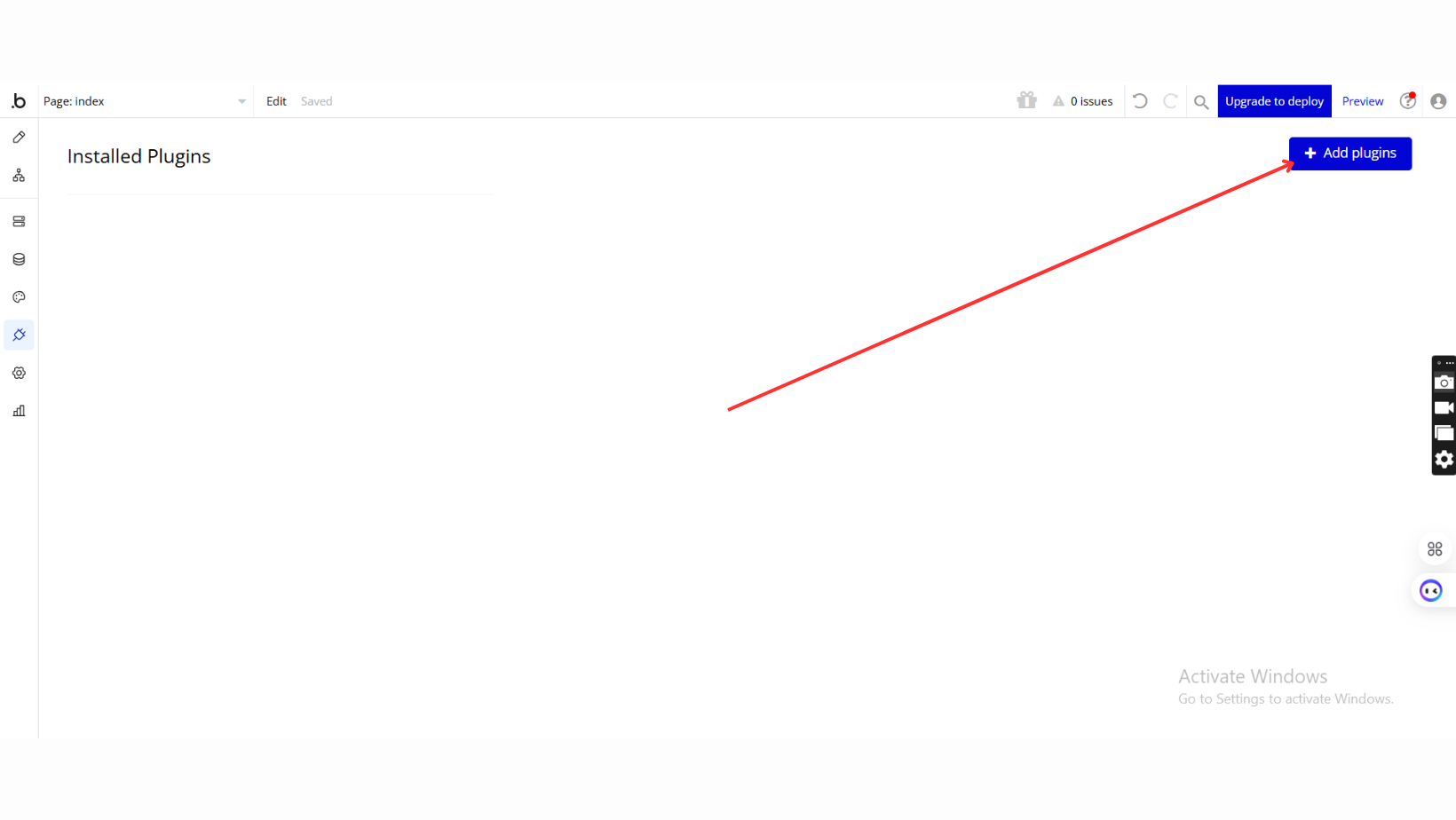
- Add Plugins
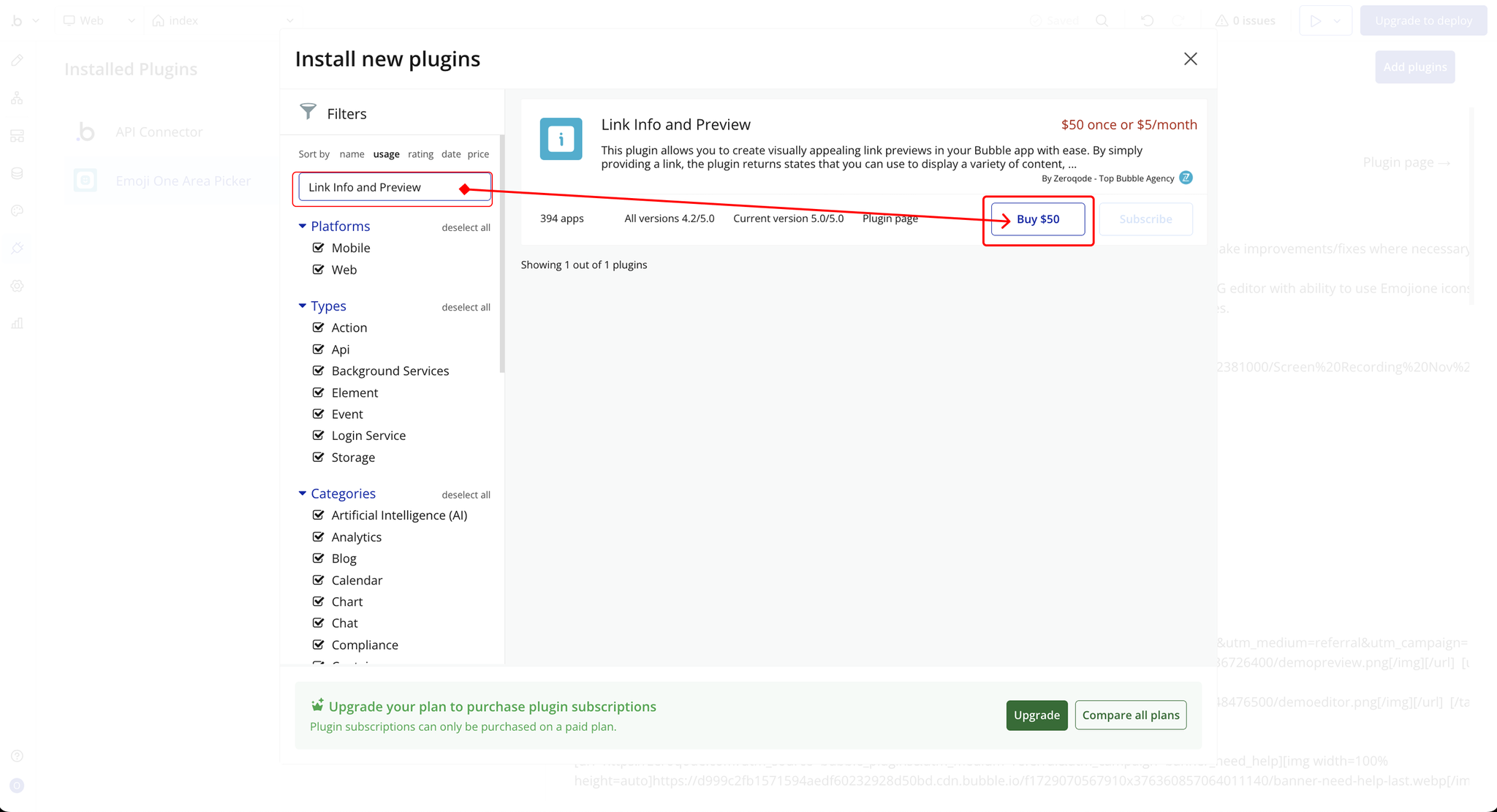
- Once in the Plugins tab, click the Add Plugins button.
- Search for the Plugin
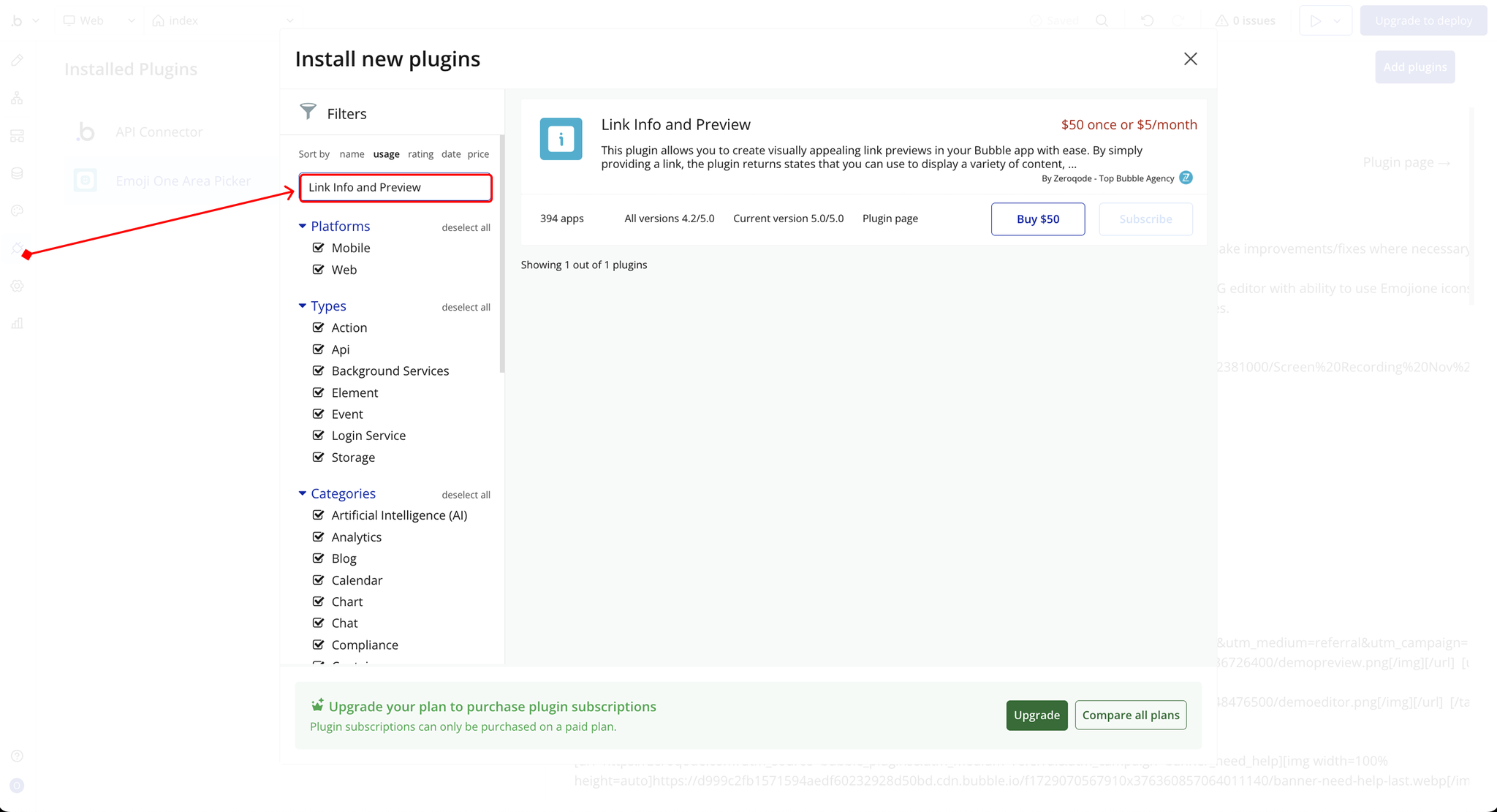
- Use the search bar to type Link Info and Preview.
- Locate the plugin in the search results.
- Install/Buy
- If the plugin is free, click Install to add it to your application.
- For a paid plugin, click Buy and follow the purchase instructions.
- Payment Information (For Paid Plugins)
- If the plugin is a paid one, fill in your payment details and make payment.
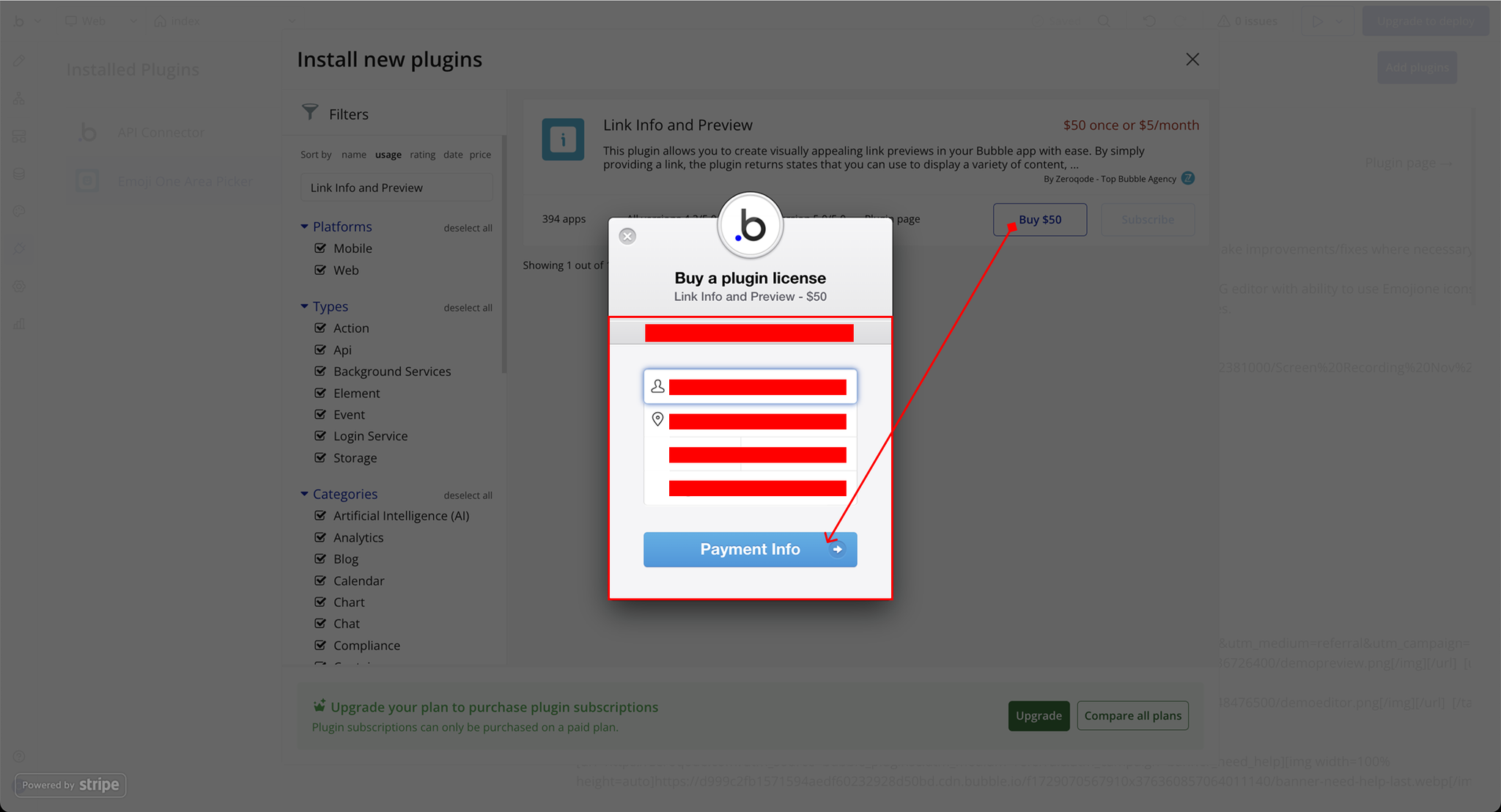
- Charges will be added to your Bubble billing account.
- Remember, if you unsubscribe from the plugin shortly after installation, charges will be prorated based on the days used.
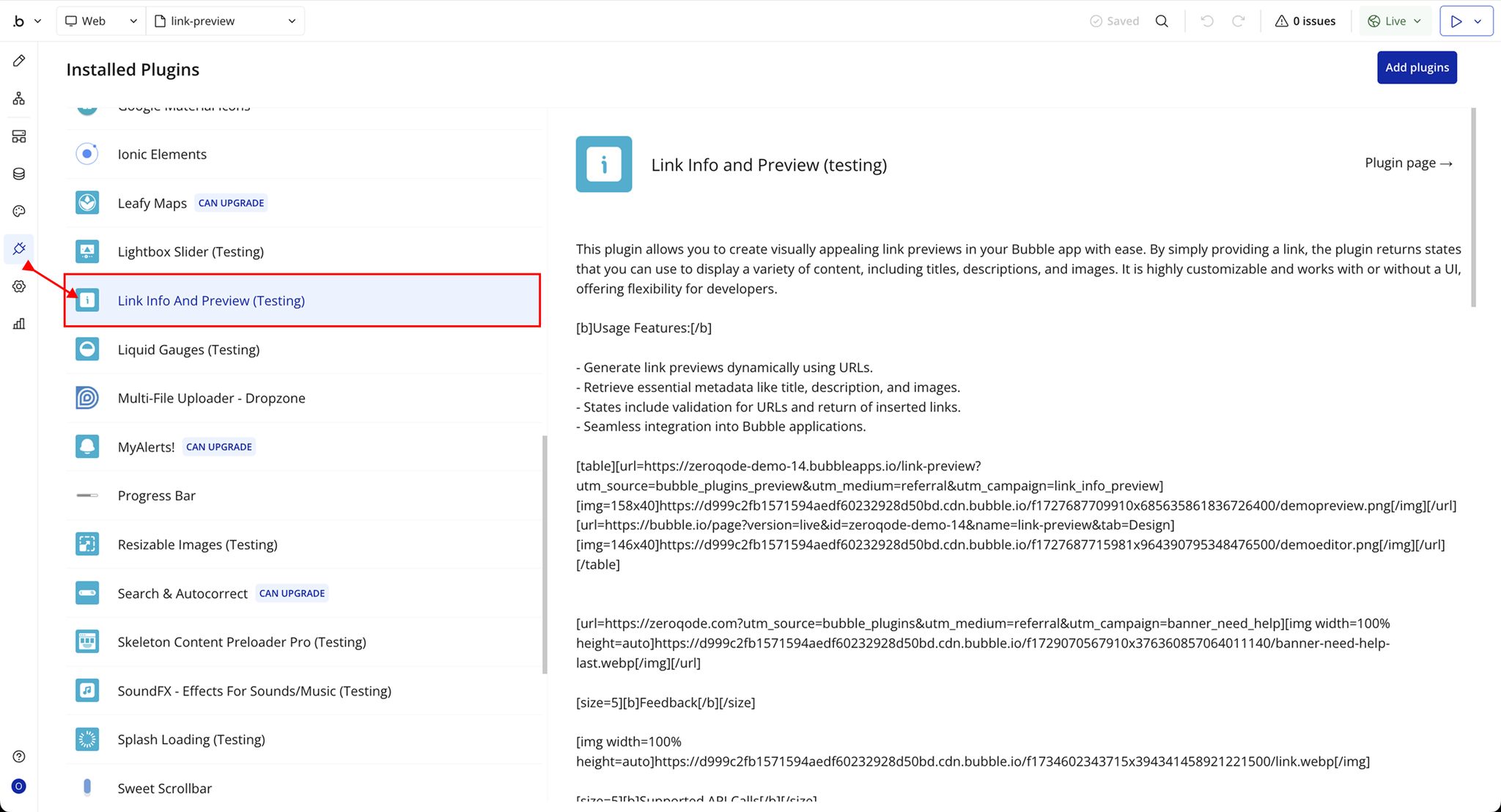
- Plugin Installed
- Once installed, the plugin will appear under the Installed Plugins list in your Bubble Editor.
Step 2 – Add the Plugin Element to Your Page
- Open the Design tab in your Bubble editor.
- Search for the Link Preview element in the Elements panel.
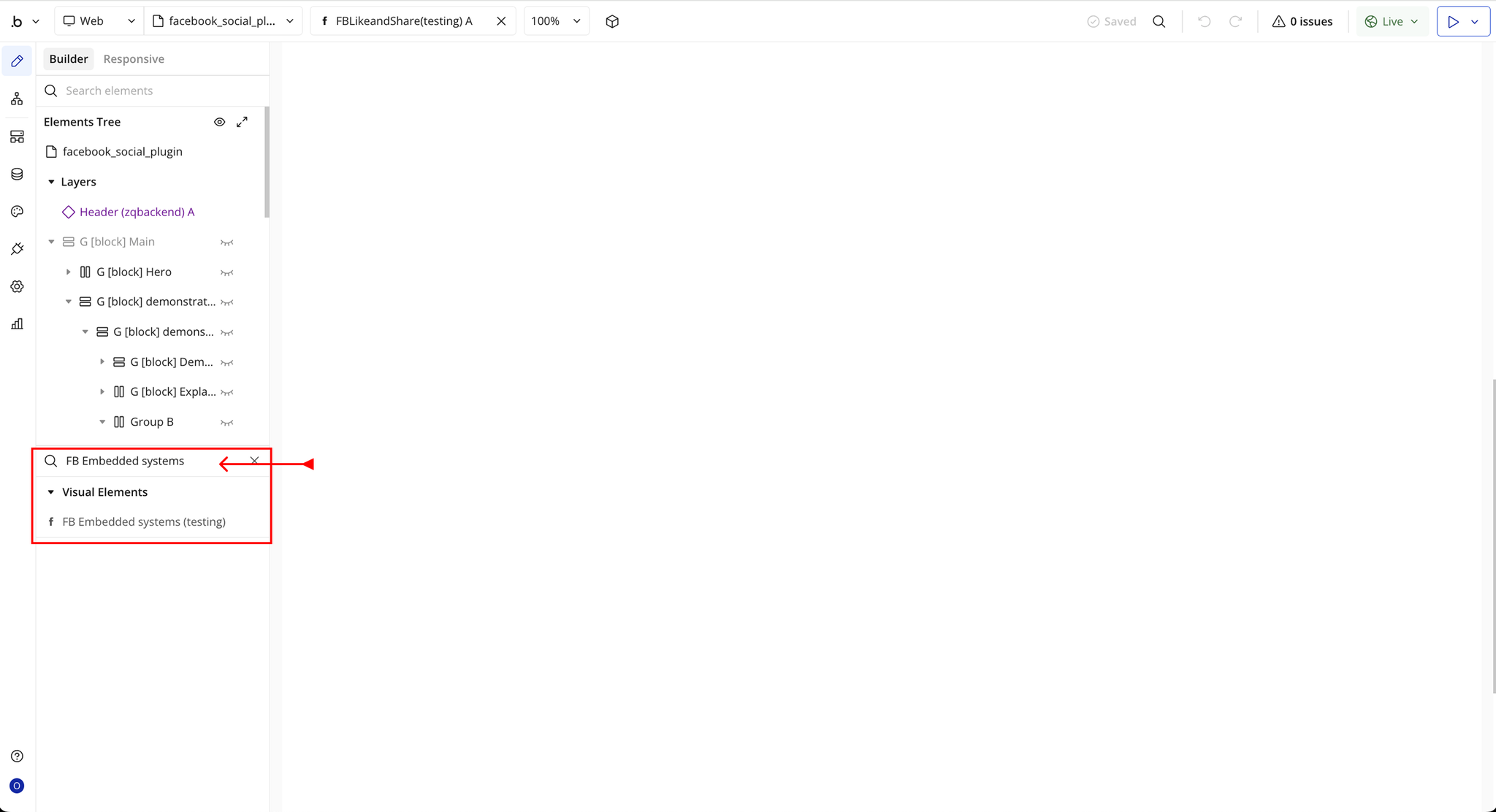
- You’ll see one option:
- Link Preview
- Drag and drop the element onto your page.
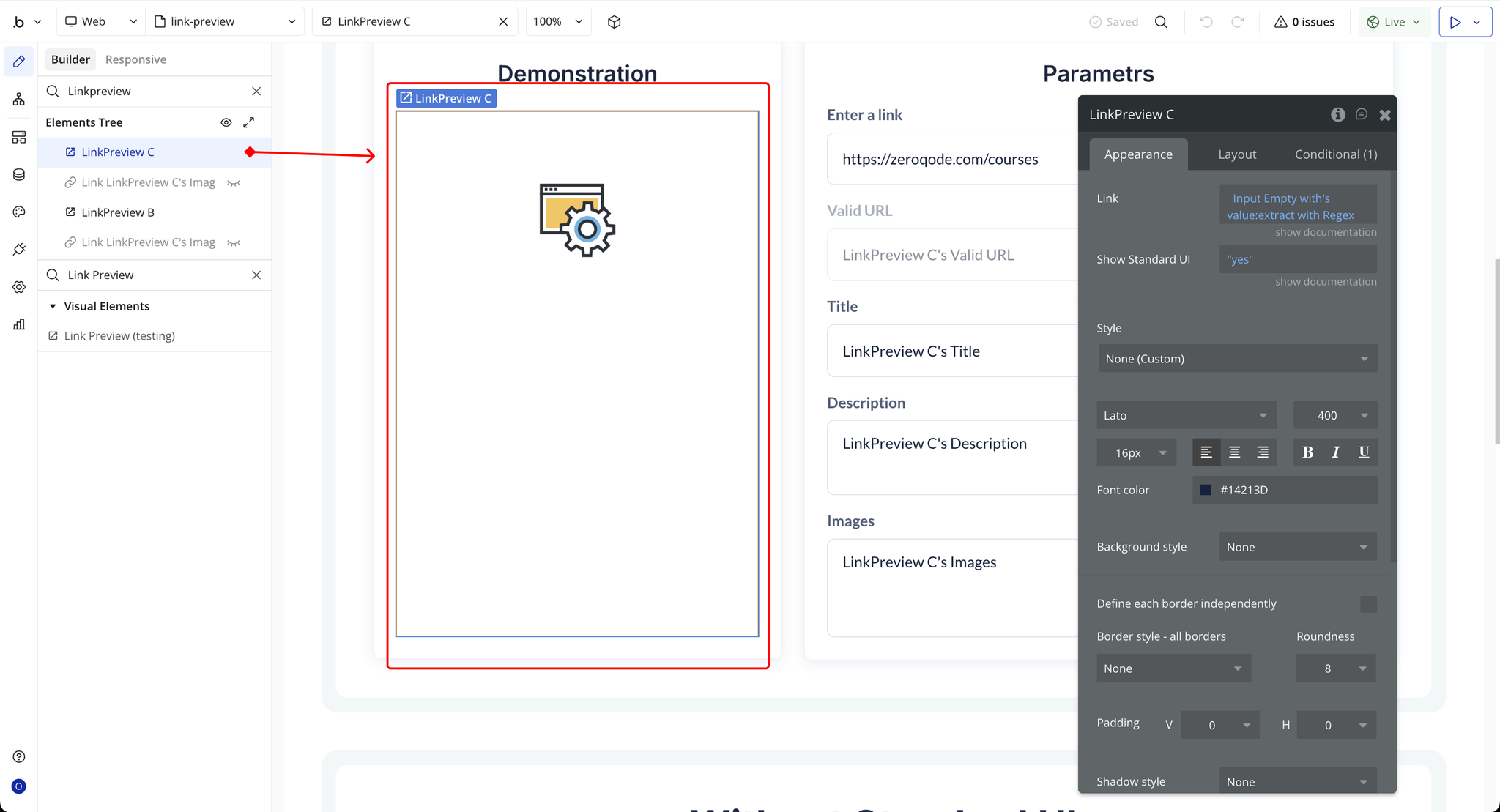
Step 3 – Configure Properties
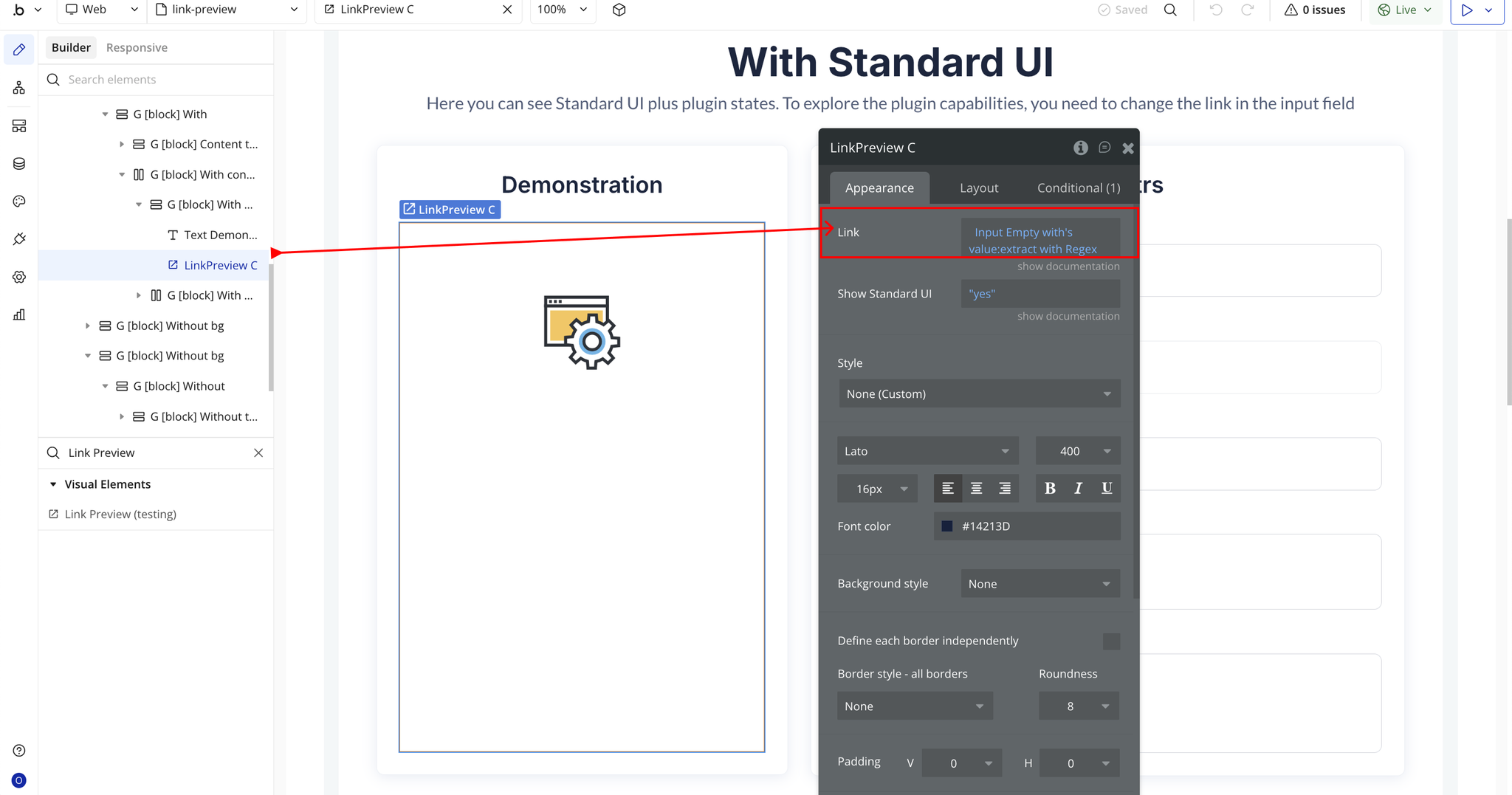
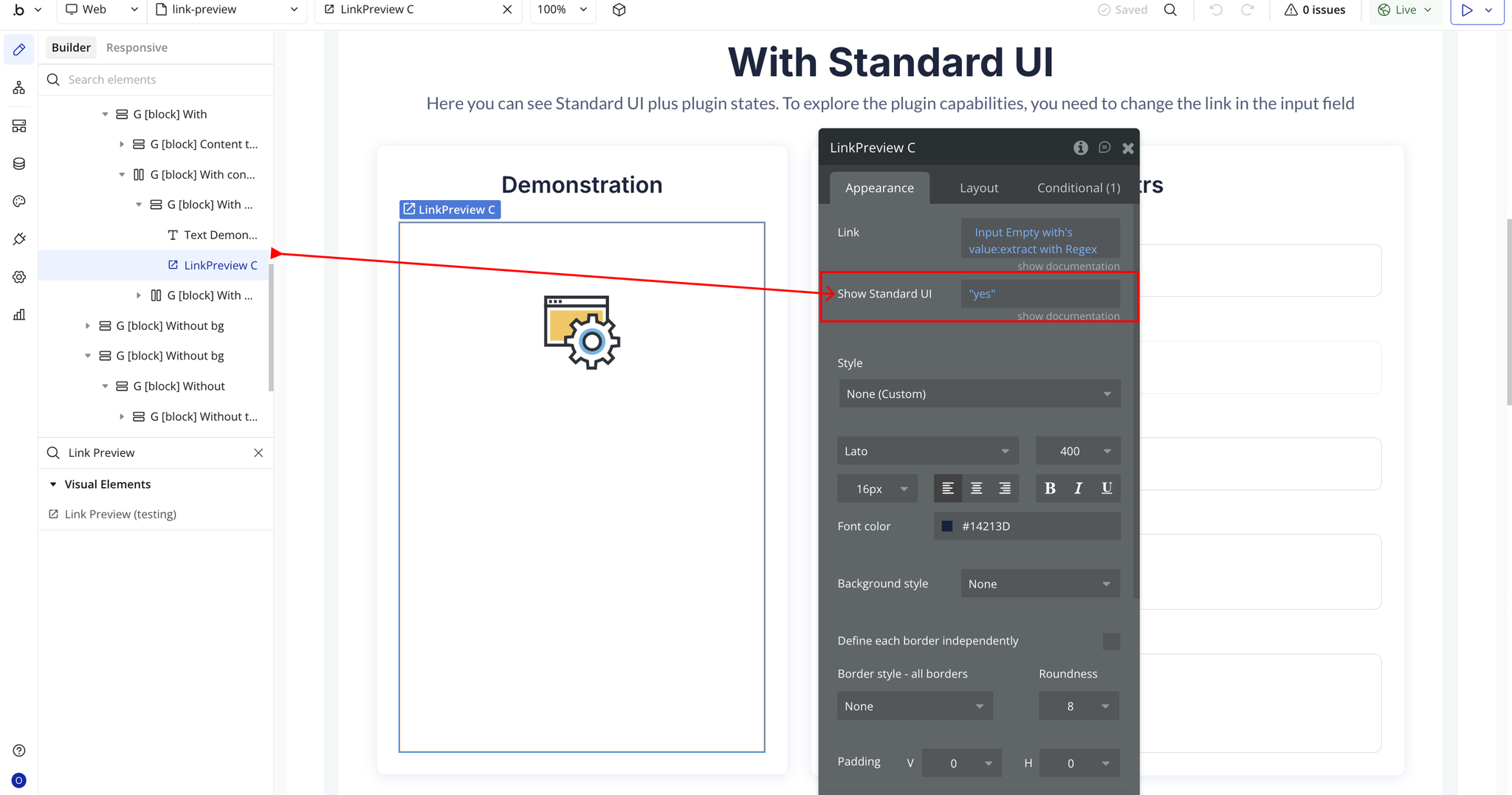
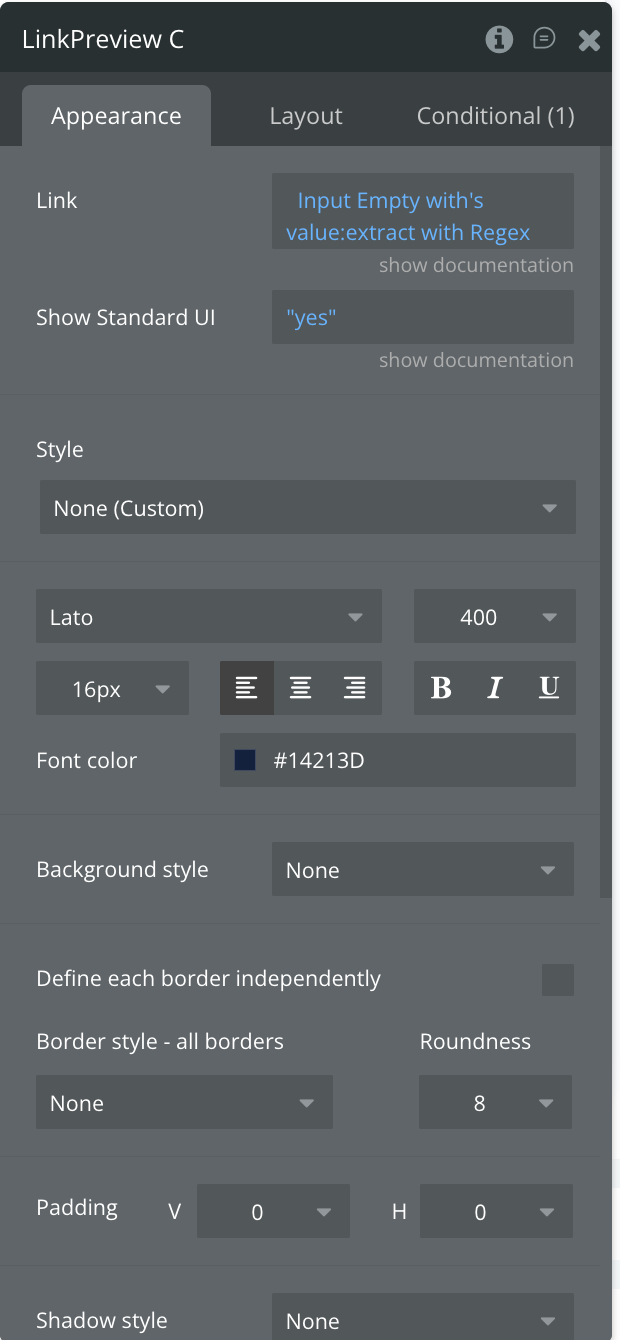
Select the element and configure its properties in the Property Editor.
- Link → The URL you want to generate a preview from.
- Show Standard UI → Enable to display the built-in default preview layout.
Step 4 – Workflow Setup
To configure and use the plugin in your Bubble app, follow these steps:
- Add an Input element to your page where users will enter a URL.
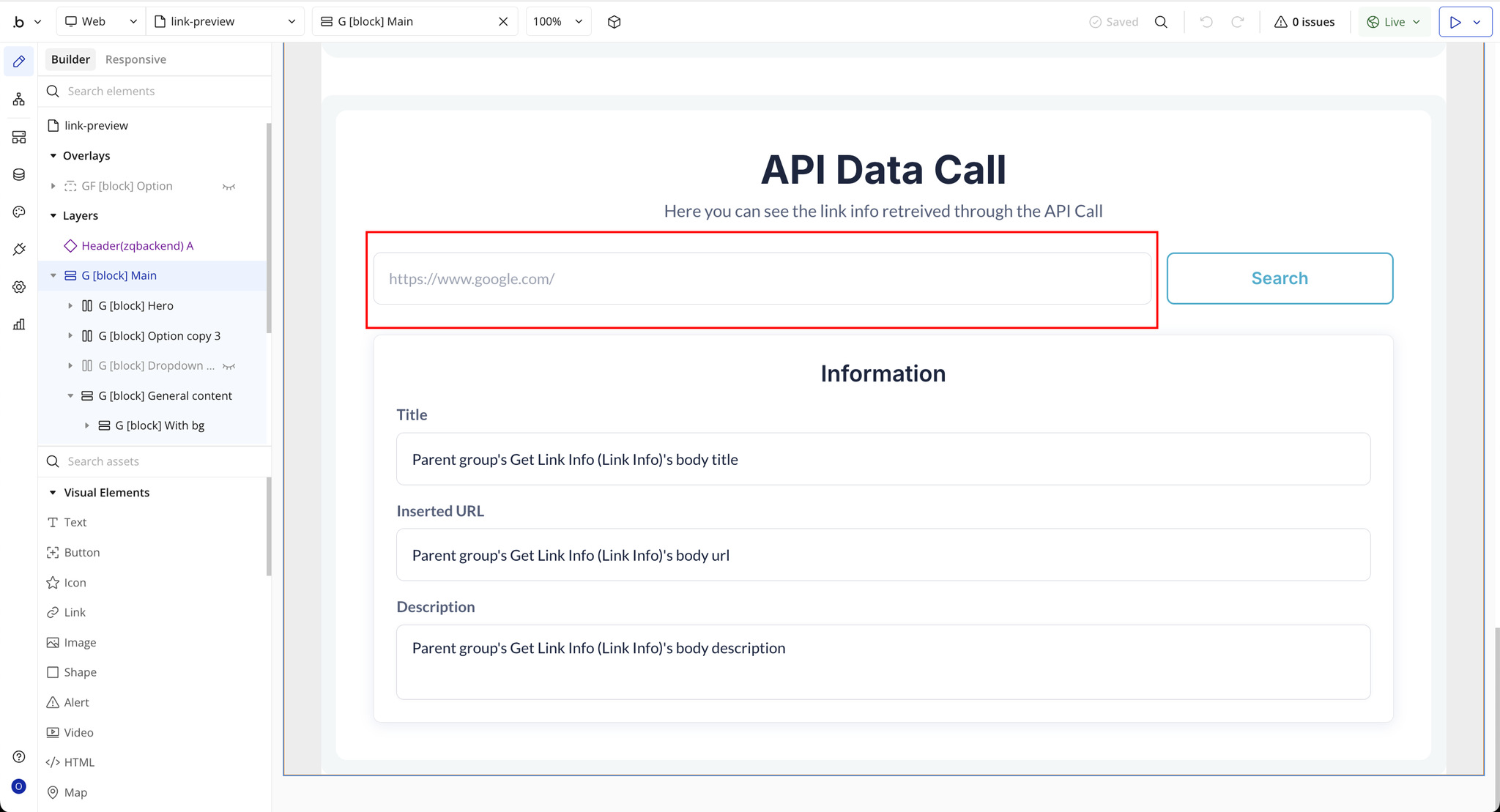
- Add a Button (for example: “Search” or “Preview”) that will trigger the link preview.
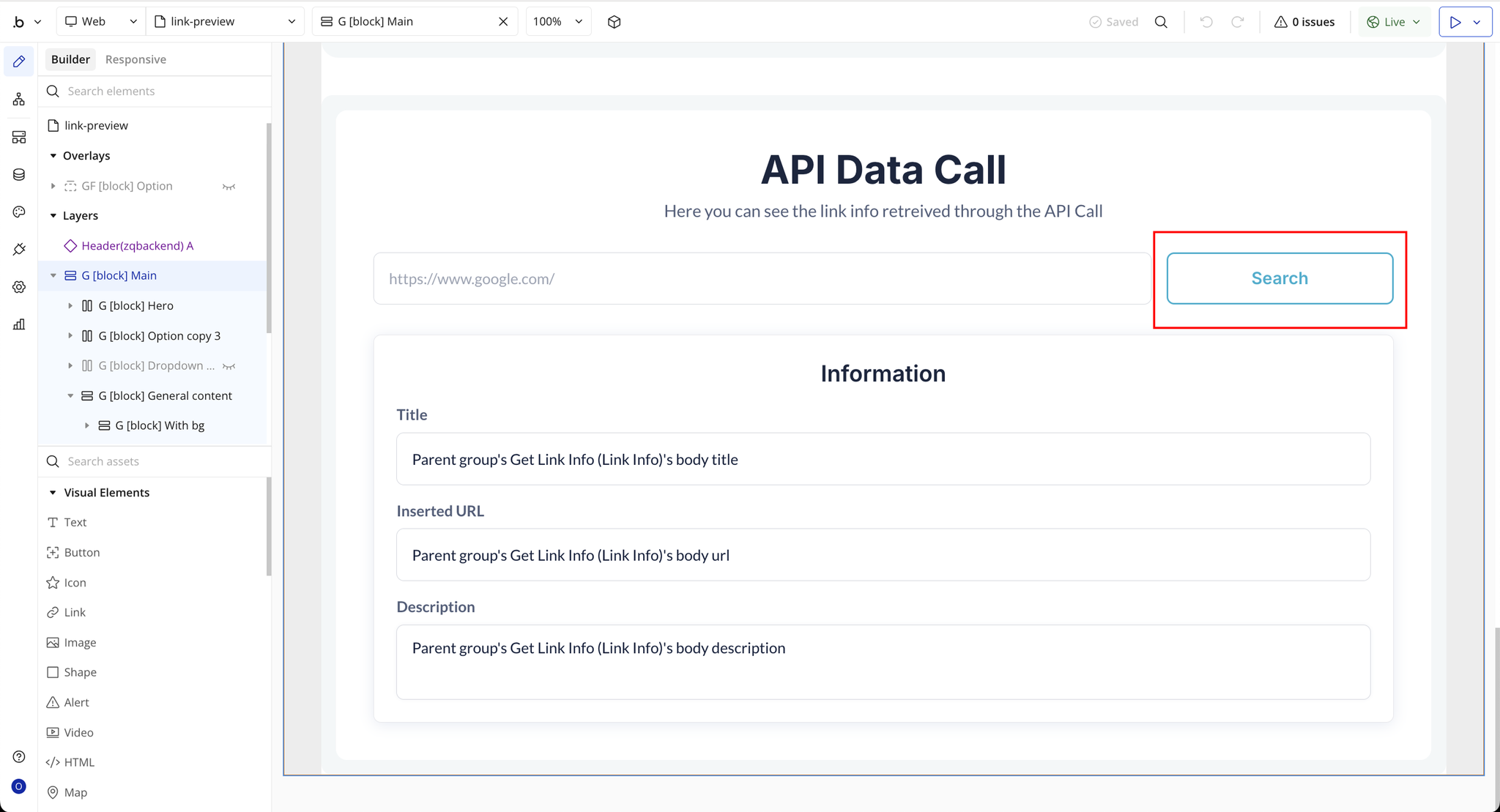
- Create a workflow:
- Make the plugin data call (Get Link Info).
When the search. button is clicked → Display Data in the group of your choice
- Once the data is returned, display the result in any text, image, or repeating group elements where you want the preview to appear.
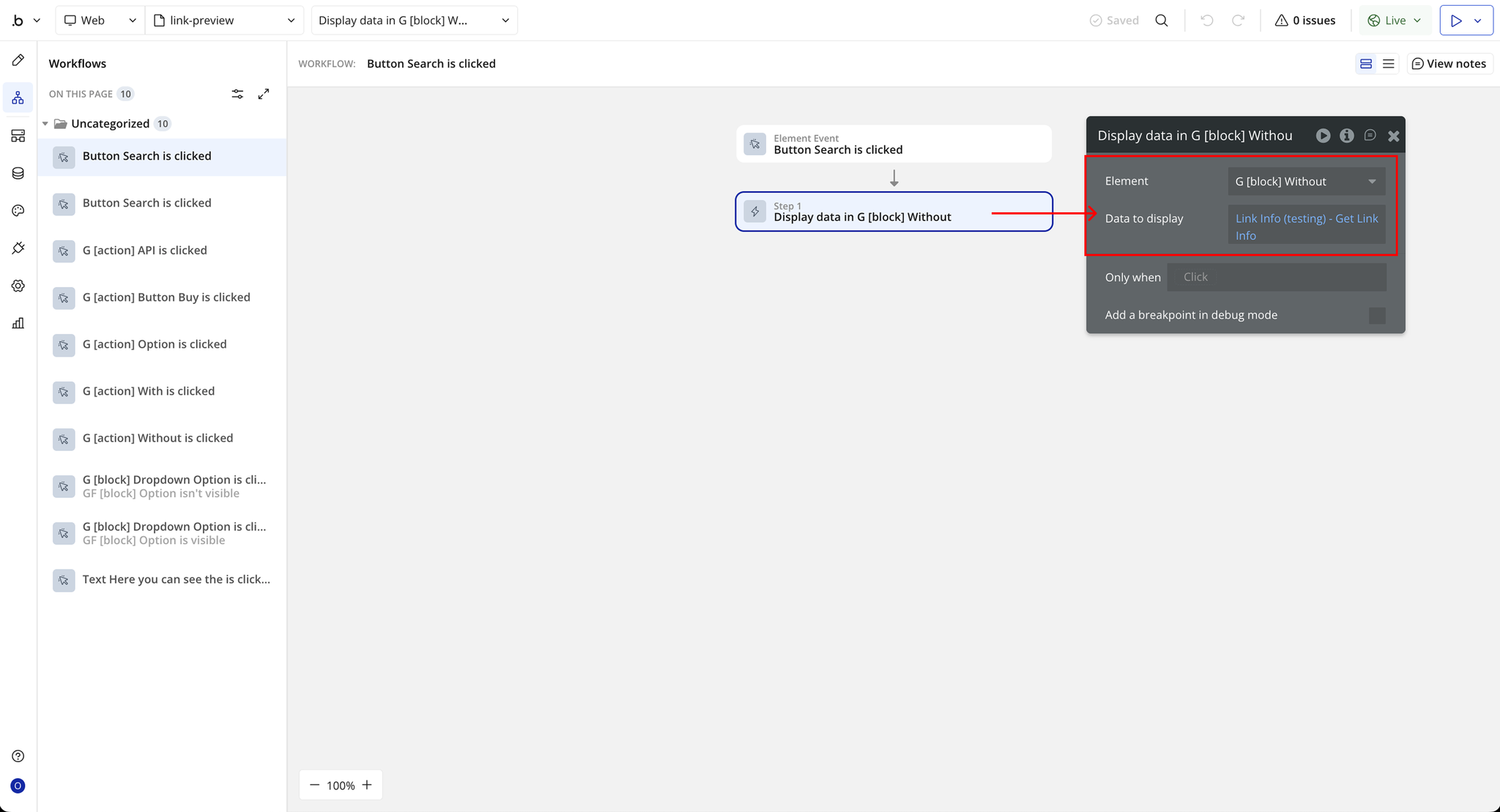
- You can use the exposed states or API response to show the link title, description, preview image, and validation status.
Plugin Element Properties - Link Preview
Fields
Field | Description | Input Type |
Link | The URL you want to generate a preview from. | Text |
Show Standard UI | Enable to display the built-in default preview layout. Disable if you want to build a custom layout using exposed states. | Checkbox (Yes/No) |
Exposed states
Field | Description | Type |
Valid URL | Indicates whether the entered URL is valid and successfully processed. Returns true or false. | Checkbox (yes/no) |
Inserted URL | Returns the exact URL that was provided to the plugin. | Text |
Title | The extracted title from the webpage metadata. | Text |
Description | The extracted description or meta description from the URL. | Text |
Images | A list of preview images found at the provided URL (e.g., Open Graph images). | Image List |
Plugin Data Calls
Get Link Info
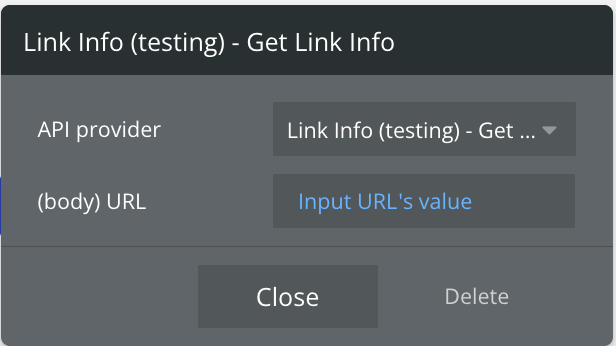
This API call retrieves metadata from the provided URL, including title, description, and images, which can then be used to generate a link preview.
Field | Description | Type |
URL | The link you want to fetch preview information from. | Text |
Return Values:
Return type: JSON
json{
  "body url": "text",
  "body title": "text",
  "body siteName": "text",
  "body description": "text",
  "body mediaType": "text",
  "body contentType": "text",
  "body images": "undefined",
  "body favicons": "undefined",
  "error status_code": "number",
  "error status_message": "text",
  "error body": "text",
  "returned_an_error": "yes/no"
}
Changelogs
Update 19.12.25 - Version 2.0.0
- Bubble Plugin Page Update (Docs).
Update 14.07.25 - Version 1.32.0
- Bubble Plugin Page Update (Logo).
Update 14.07.25 - Version 1.31.0
- Bubble Plugin Page Update (Logo).
Update 16.06.25 - Version 1.30.0
- Marketing update (minor change).
Update 23.12.24 - Version 1.29.0
- Minor update(Marketing update).
Update 23.12.24 - Version 1.28.0
- Minor update(Marketing update).
Update 29.10.24 - Version 1.27.0
- Upgraded to the latest version & removed "Image to show" field.
Update 23.07.24 - Version 1.26.0
- Minor update.
Update 13.06.24 - Version 1.25.0
- Updated demo/service links.
Update 09.04.24 - Version 1.24.0
- minor update.
Update 19.10.23 - Version 1.23.0
- Updated description.
Update 18.09.23 - Version 1.22.0
- updated description.
Update 12.09.23 - Version 1.21.0
- minor updates.
Update 06.09.23 - Version 1.20.0
- Obfuscation.
Update 08.08.23 - Version 1.19.0
- fixed the problem with images.
Update 11.07.23 - Version 1.18.0
- updated description.
Update 17.06.23 - Version 1.17.0
- Updated the description .
Update 22.05.23 - Version 1.16.0
- Change log: Added link validation..
Update 23.02.23 - Version 1.15.0
- deleted the icons.
Update 22.02.23 - Version 1.14.0
- updated the description.
Update 06.02.23 - Version 1.13.0
- Fixed display of links in preview.
Update 09.08.22 - Version 1.12.0
- Added check for empty link.
Update 04.08.22 - Version 1.11.0
- Added link validity output to console logs.
Update 07.07.22 - Version 1.10.0
- Updated description.
Update 27.10.21 - Version 1.9.0
- fixed API Call.
Update 03.09.21 - Version 1.8.0
- Fixed CORS error.
Update 19.07.21 - Version 1.7.0
- Updated icon.
Update 23.03.21 - Version 1.6.0
- Api migration to a new version.
Update 17.03.21 - Version 1.5.0
- Fixed problem with Arabic language.
Update 16.02.21 - Version 1.4.0
- Updated icon.
Update 06.11.19 - Version 1.3.0
- Change in Visual Element. .
Update 05.11.19 - Version 1.2.0
- Update - Added API call to retrieve given link information..
Update 02.08.19 - Version 1.1.0
- Update: Added field for chose which picture to show in preview mode from the page images list. Field name "Image to show".
Update 01.02.19 - Version 1.0.0
- Initial Release.