The Chat Bubble Mobile plugin is a powerful, feature-rich chat solution designed specifically for Bubble’s native mobile applications. This plugin provides a complete chat interface with support for text messages, image attachments, file attachments, reactions, replies, message editing, and deletion. Built with performance in mind, it offers a smooth, native-like experience for iOS and Android mobile apps.
Key features
Real-time message display with optimistic UI updates
Support for text, images, and file attachments (with customizable size limits)
Message reactions with customizable emoji sets
Reply functionality for threaded conversations
Message editing and deletion capabilities
Multiple pre-built themes (Light, Dark, and custom options)
Highly customizable appearance
Avatar display and user name rendering
Timestamp formatting options
Copy-to-clipboard functionality
Multi-room chat support with automatic state management
Prerequisites
This plugin is designed specifically for the mobile version of the Bubble editor. To test the plugin on your mobile device, use the TestFlight app available at: https://testflight.apple.com/join/j73hHPR6
⚠️
Please note that the testing app is currently available for iOS only.
ℹ️
Important Performance Note:
For optimal performance, it’s recommended to limit message queries to 300 messages per load. Use Bubble’s “Do a search for” with constraints like “created_date > some_date” or implement pagination.
How to setup
Step 1: Database Configuration
Create the required data types as described in Prerequisites. Here’s a detailed setup:
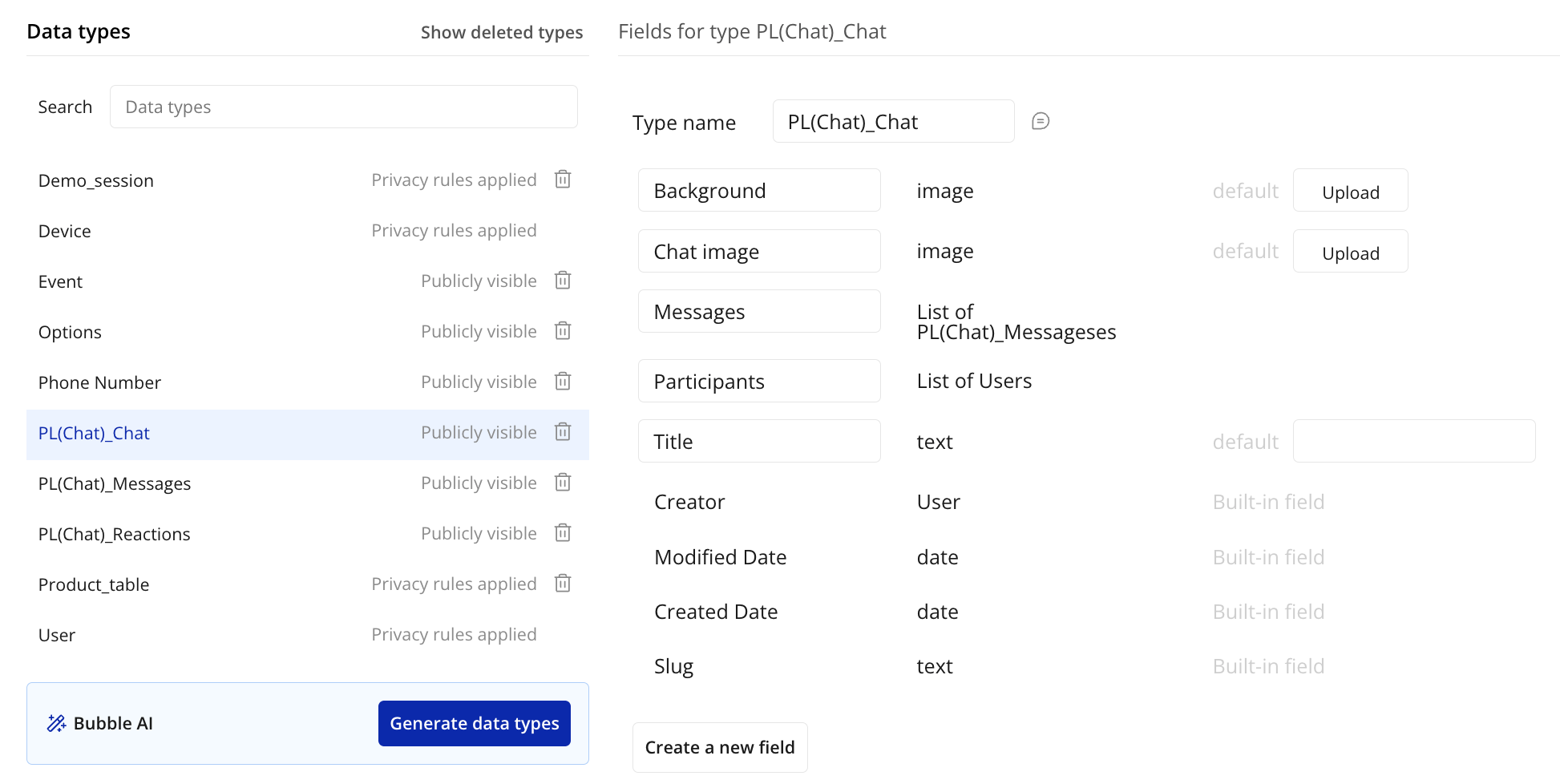
Chat Data Type:
plain text
Field Name | Field Type | Notes
--------------------|-----------------|------------------------------------------
Messages |Message(list)| List of all messages inthis conversation
Participants |User(list)| List of users with access to this chat
Background | image | Optional background image(set on parent element)
Title | text | Chat name/title for display in chat list
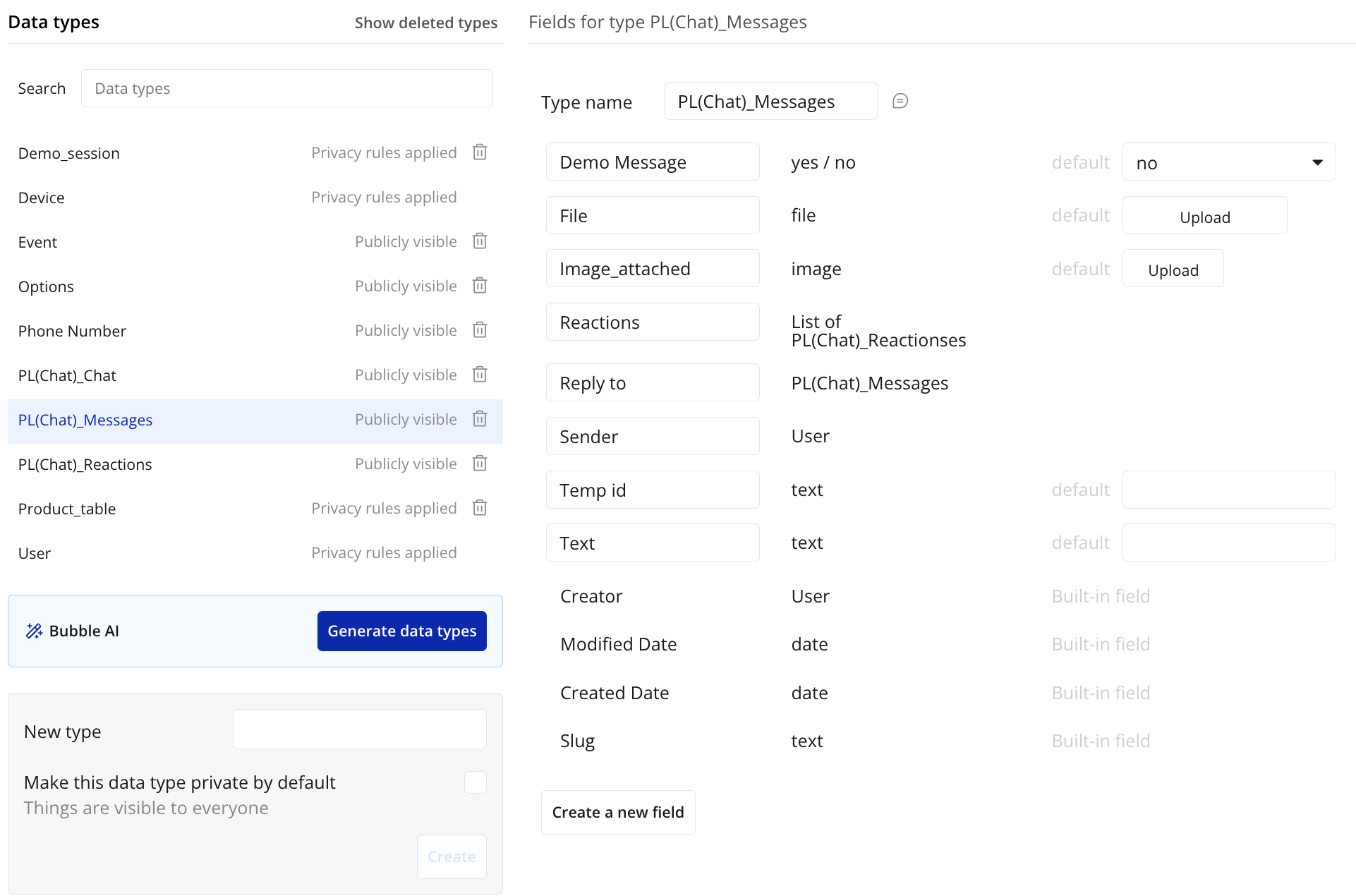
Message Data Type:
plain text
Field Name | Field Type | Notes
--------------------|-----------------|------------------------------------------
text | text | Message content
user | User | Creator of the message
created_date | date | Auto-set on creation
image | image | Optional attachment
file | file | Optional file attachment
reply_to_message | Message | Optional reply reference
temp_id | text | Used for optimistic UI update
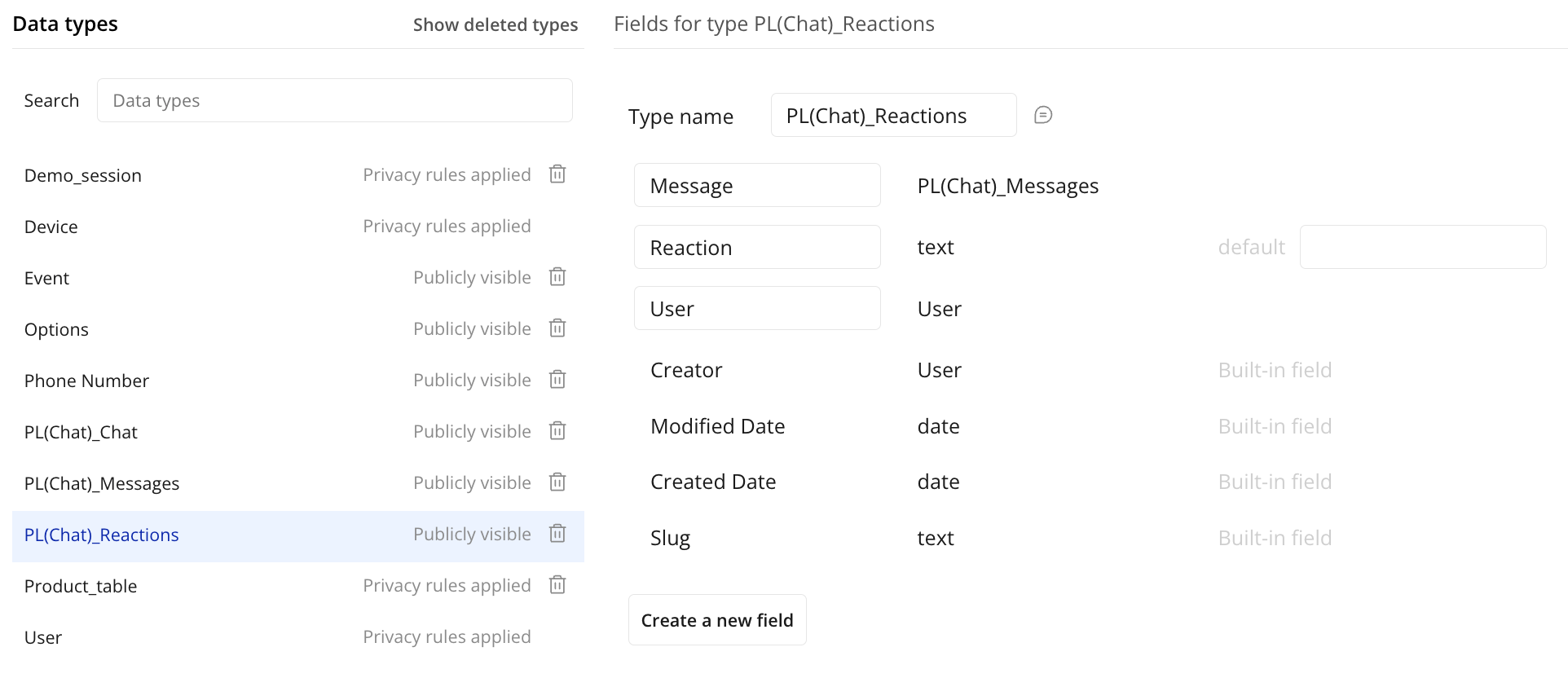
Reaction Data Type:
plain text
Field Name | Field Type | Notes
--------------------|-----------------|------------------------------------------
message | Message | Required reference
user | User | User who reacted
emoji | text | Emoji character(s)
Step 2: Add Chat Element to Page
In the Bubble editor, navigate to your mobile app page
Drag and drop the “Chat” element from the plugin section
Resize the element to fit your design (recommended: full screen or most of screen height)
Step 3: Configure Data Sources
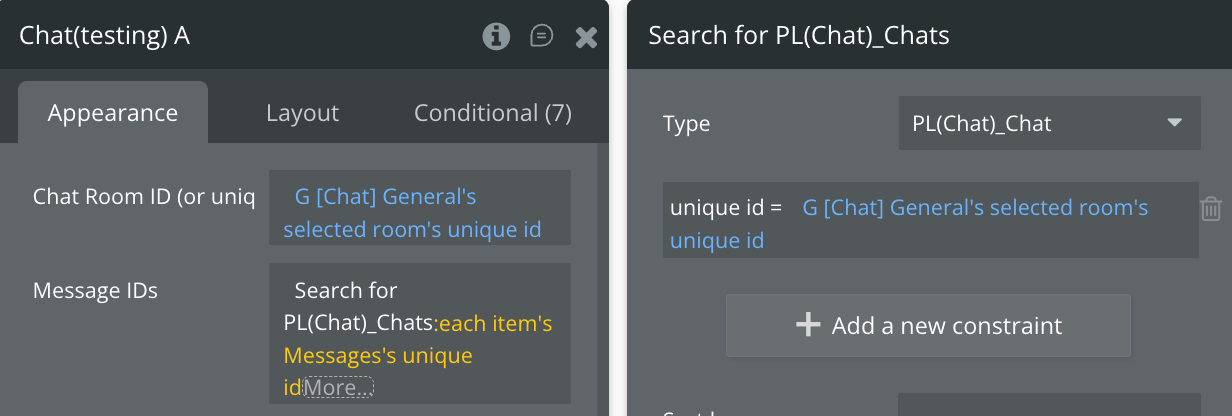
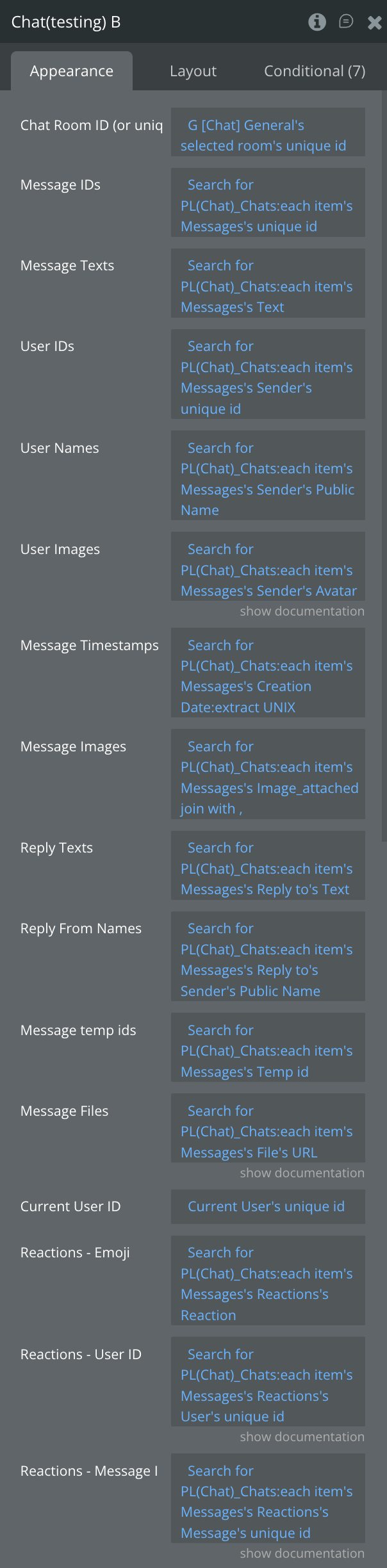
Connect your database to the chat element by setting up dynamic expressions for each property:
Essential Data Properties:
⚠️
Important Note: All data properties should reference messages through the Chat data type. Here’s the correct pattern:
plain text
Search forChat:filtered(unique id = selected_chat's unique id):each item's Messages :items until #300(recommended maximum)
Search forChat:filtered
unique id = selected_chat's unique id
:each item's Messages:each item's message_id:join with,
Message Texts:
plain text
Search forChat:filtered
unique id = selected_chat's unique id
:each item's Messages:each item's text:join with,
User IDs:
plain text
Search forChat:filtered
unique id = selected_chat's unique id
:each item's Messages:each item's user's unique id:join with,
User Names:
plain text
Search forChat:filtered
unique id = selected_chat's unique id
:each item's Messages:each item's user's name:join with,
User Images:
plain text
Search forChat:filtered
unique id = selected_chat's unique id
:each item's Messages:each item's user's profile_picture:join with,
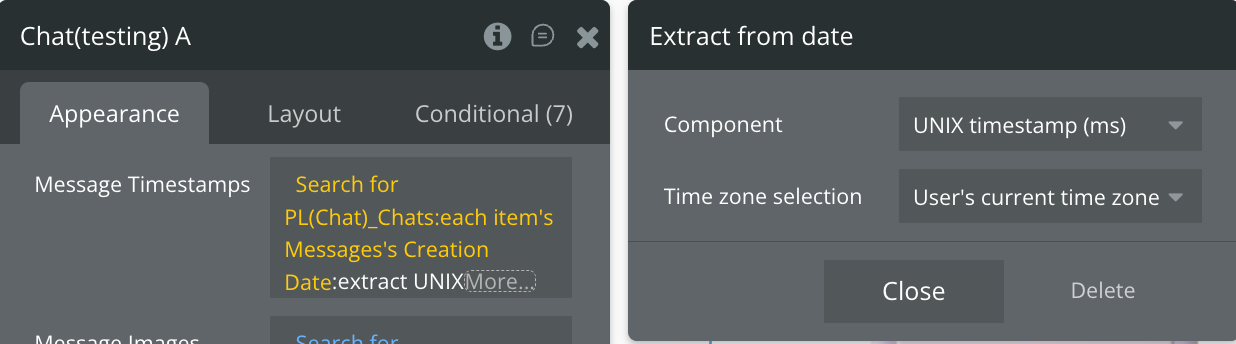
Message Timestamps:
plain text
Search forChat:filtered
unique id = selected_chat's unique id
:each item's Messages:each item's created_date:extract UNIX:join with,
Message Images:
plain text
Search forChat:filtered
unique id = selected_chat's unique id
:each item's Messages:each item's image:join with,
Message Files:
plain text
Search forChat:filtered
unique id = selected_chat's unique id
:each item's Messages:each item's file:join with,
Message Temp IDs:
plain text
Search forChat:filtered
unique id = selected_chat's unique id
:each item's Messages:each item's temp_id:join with,
For Replies:
- Reply Texts:
plain text
Search forChat:filtered unique id = selected_chat's unique id
:each item's Messages:each item's reply_to_message's text:join with,
Reply From Names:
plain text
Search forChat:filtered unique id = selected_chat's unique id
:each item's Messages:each item's reply_to_message's user's name:join with,
For Reactions:
Reactions - Emoji:
plain text
Do a search forReactions:each item's emoji:join with,
Reactions - User ID:
plain text
Do a search forReactions:each item's user's unique id:join with,
Reactions - Message ID:
plain text
Do a search forReactions:each item's message's message_id:join with,
Current User:
Current User ID:
plain text
Current User's unique id
Step 4: Setting Chat Background Image (Optional)
The Chat data type includes a Background field for storing custom background images. While the plugin doesn’t use this field directly, you can display it by setting the background of the parent element containing the Chat plugin.
Setup:
Place Chat element inside a Group:
Create a Group element on your page
Place the Chat element inside this Group
Set the Group’s width and height to fill the desired area
Set Group’s background image:
In the Group’s appearance settings
Set “Background style” to “Image”
Set “Dynamic image” to:
plain text
selected_chat's Background
Adjust “Image fit” setting (Cover, Contain, etc.) as needed
Adjust Chat transparency (optional):
To see the background through the chat
Set Chat’s “Background Color” to a semi-transparent value
Example: rgba(255,255,255,0.95) for 95% white with 5% transparency
This approach allows each chat room to have its own unique background image while maintaining plugin flexibility.
Step 5: Configure File Upload Endpoint
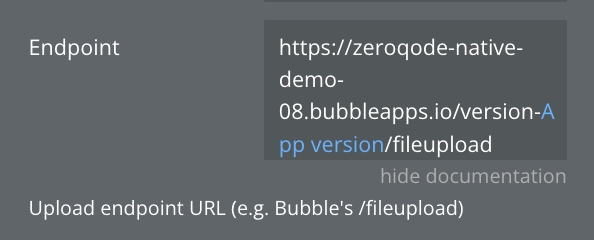
Set the Endpoint property to your Bubble file upload URL:
plain text
https://[your-app-name].bubbleapps.io/fileupload
Or use a dynamic expression:
plain text
[root domain]/fileupload
Step 6: Set Up Workflows
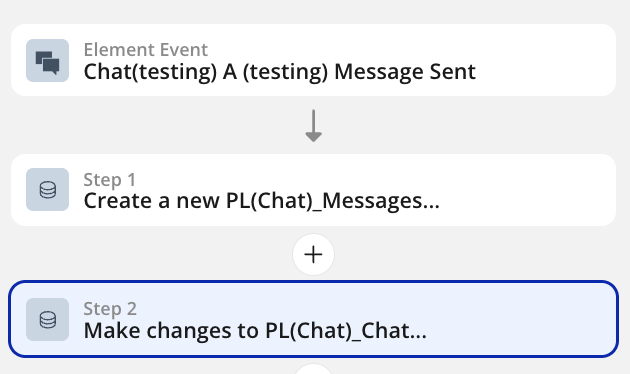
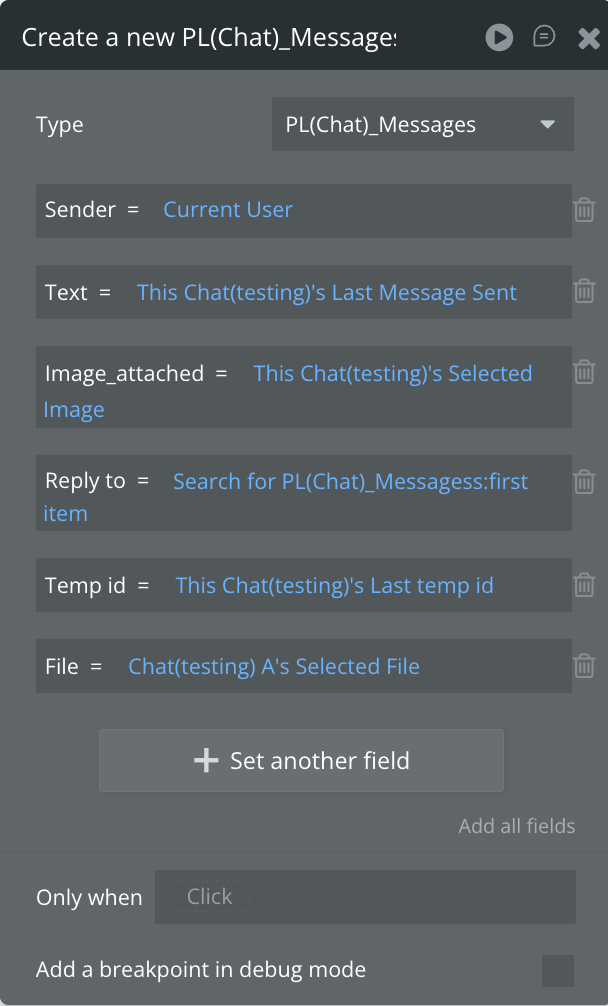
When Message Sent Event:
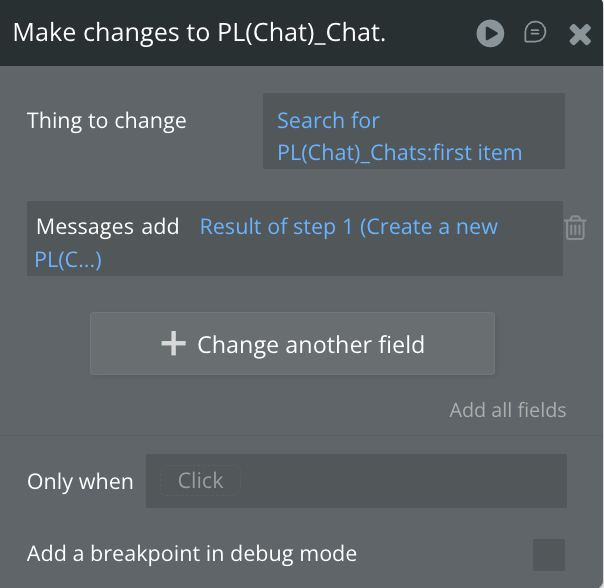
Create a new thing in database: Message
plain text   - Sender = Current User
   - Text = Chat's Last Message Sent
   - Image = Chat's Selected Image
   - File = Chat's Selected File
   - Temp id = Chat's Last temp id
   - Reply to = Chat's Reply To Message ID
Make changes to thing in database: Add created message from previous step to current chat.
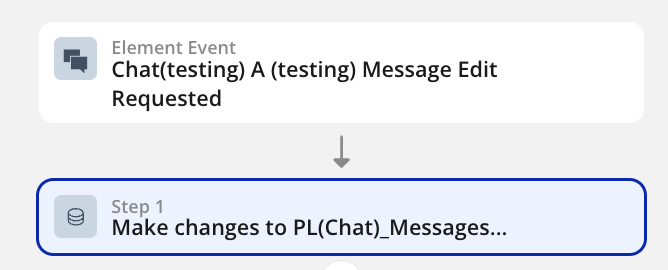
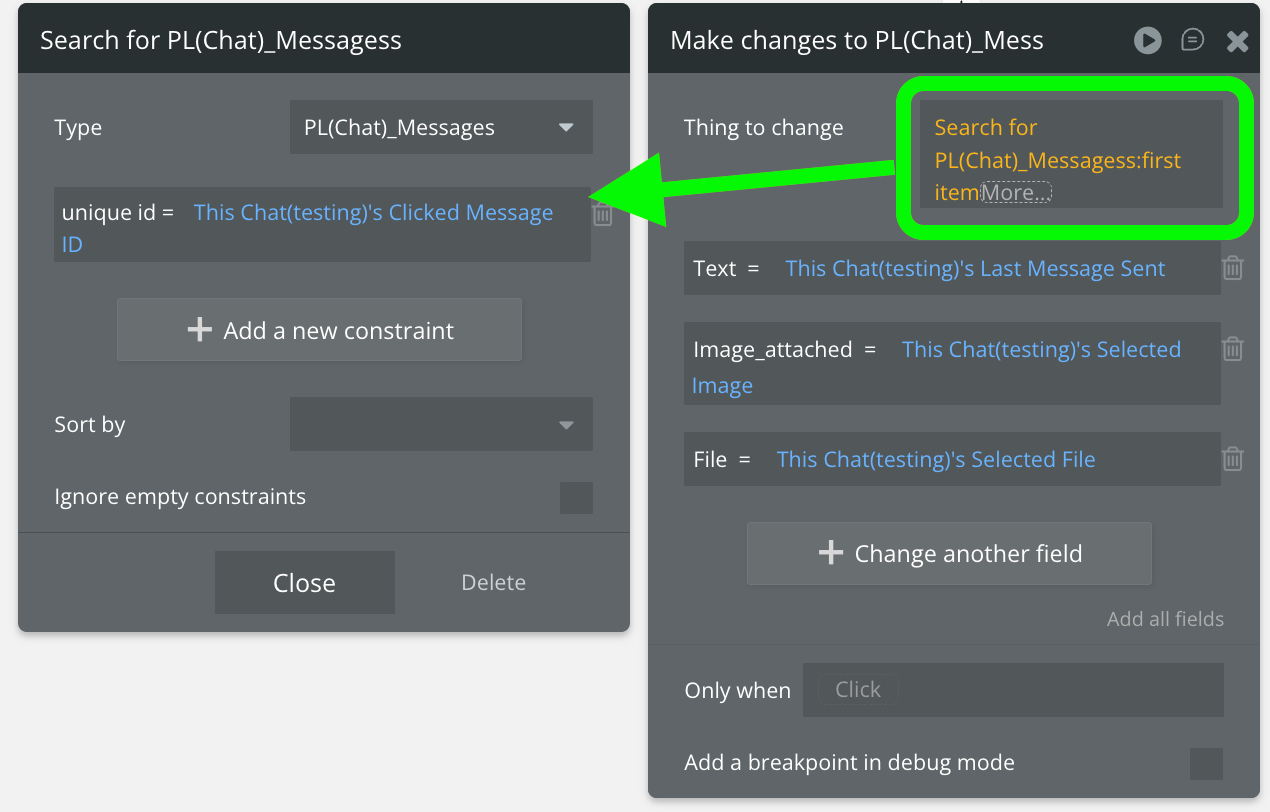
When Message Edit Requested Event:
plain text
1. Make changes to Message(find by Chat's Clicked Message ID):- text = Chat's Last Message Sent
- image = Chat's Selected Image(optional)- file = Chat's Selected File(optional)
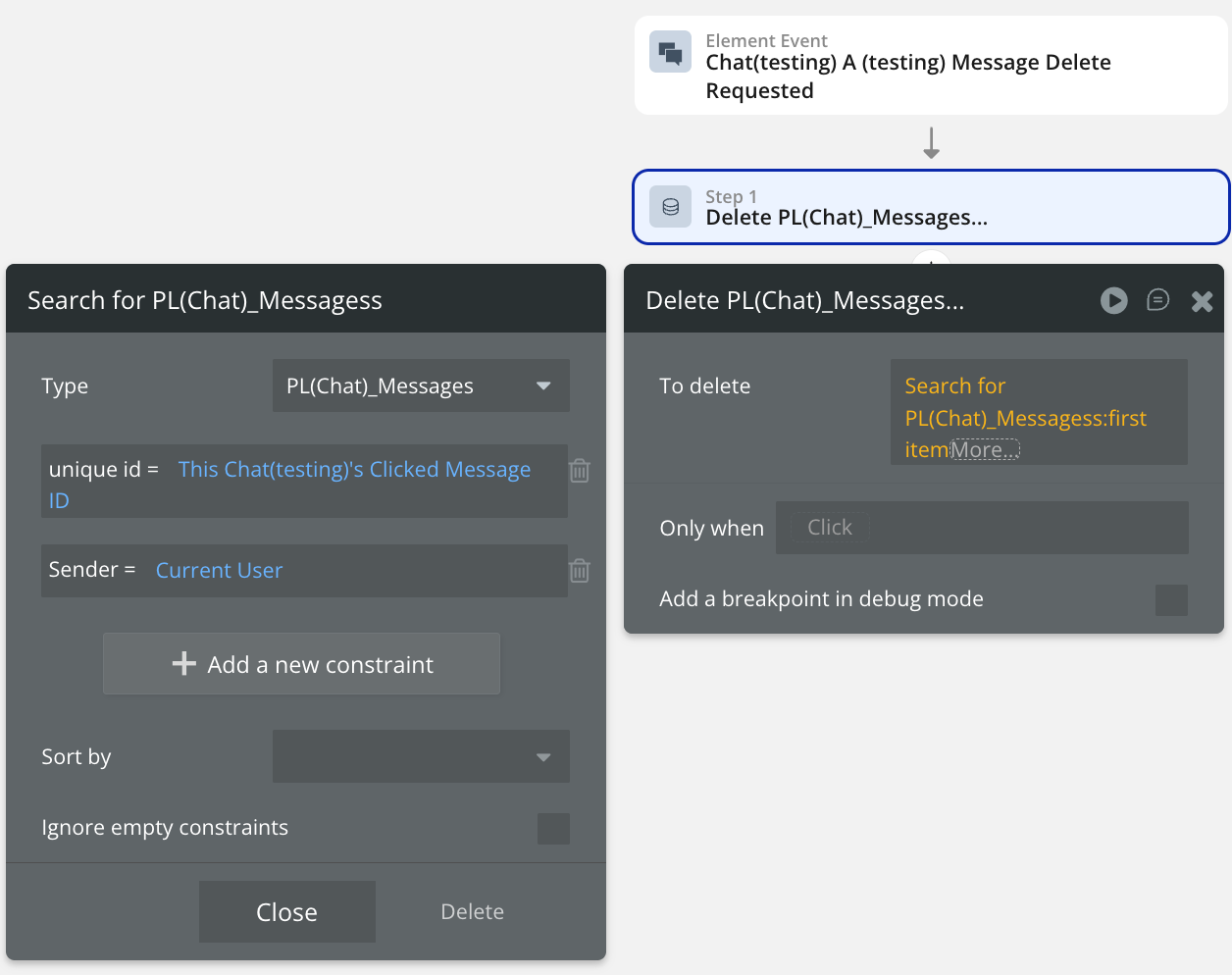
When Message Delete Requested Event:
plain text
Delete a thing(find by Chat's Clicked Message ID):
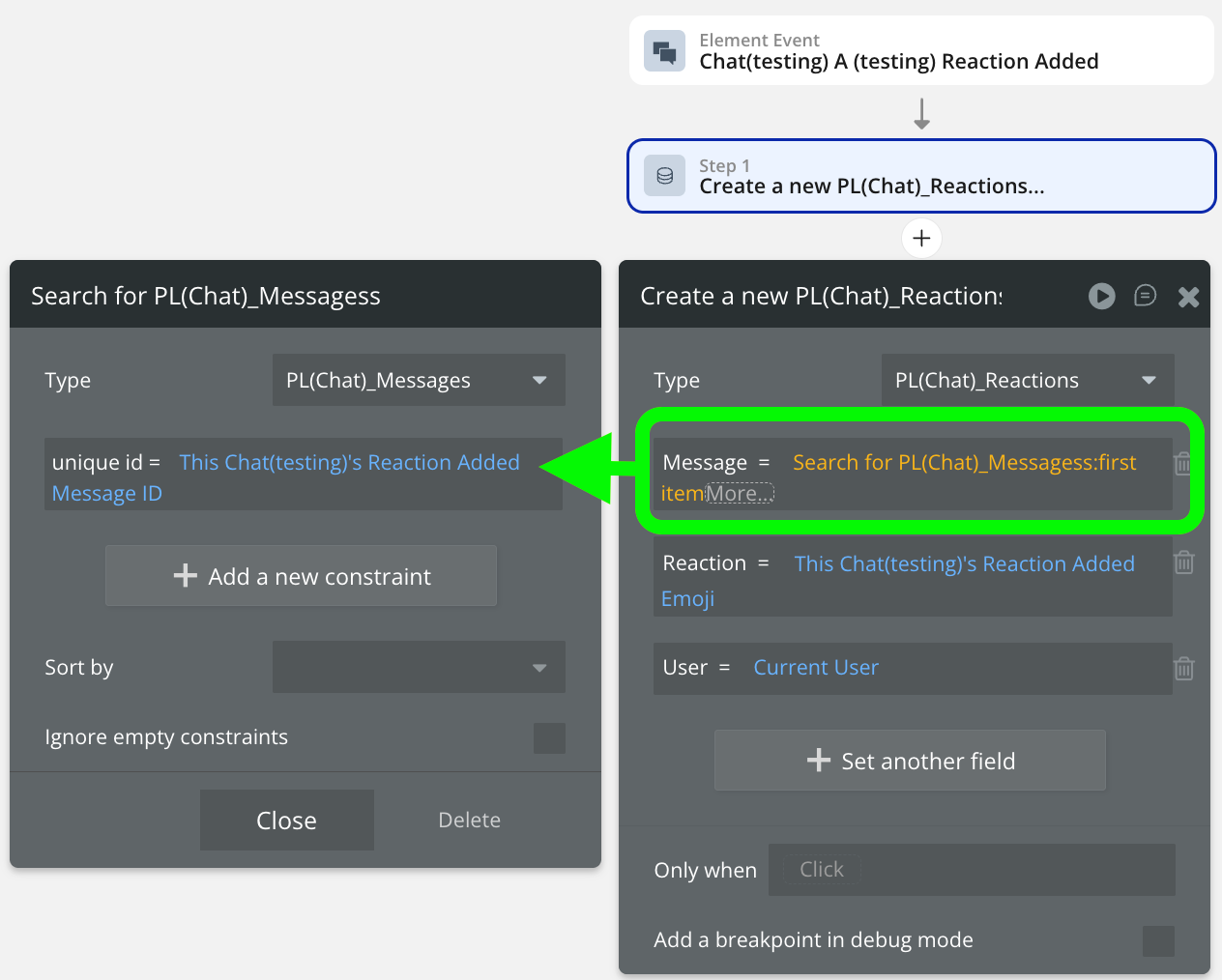
When Reaction Added Event:
plain text
Create a newReaction:- message = Do a search forMessages(message_id = Chat's Reaction Added Message ID)- user = Current User
- emoji = Chat's Reaction Added Emoji
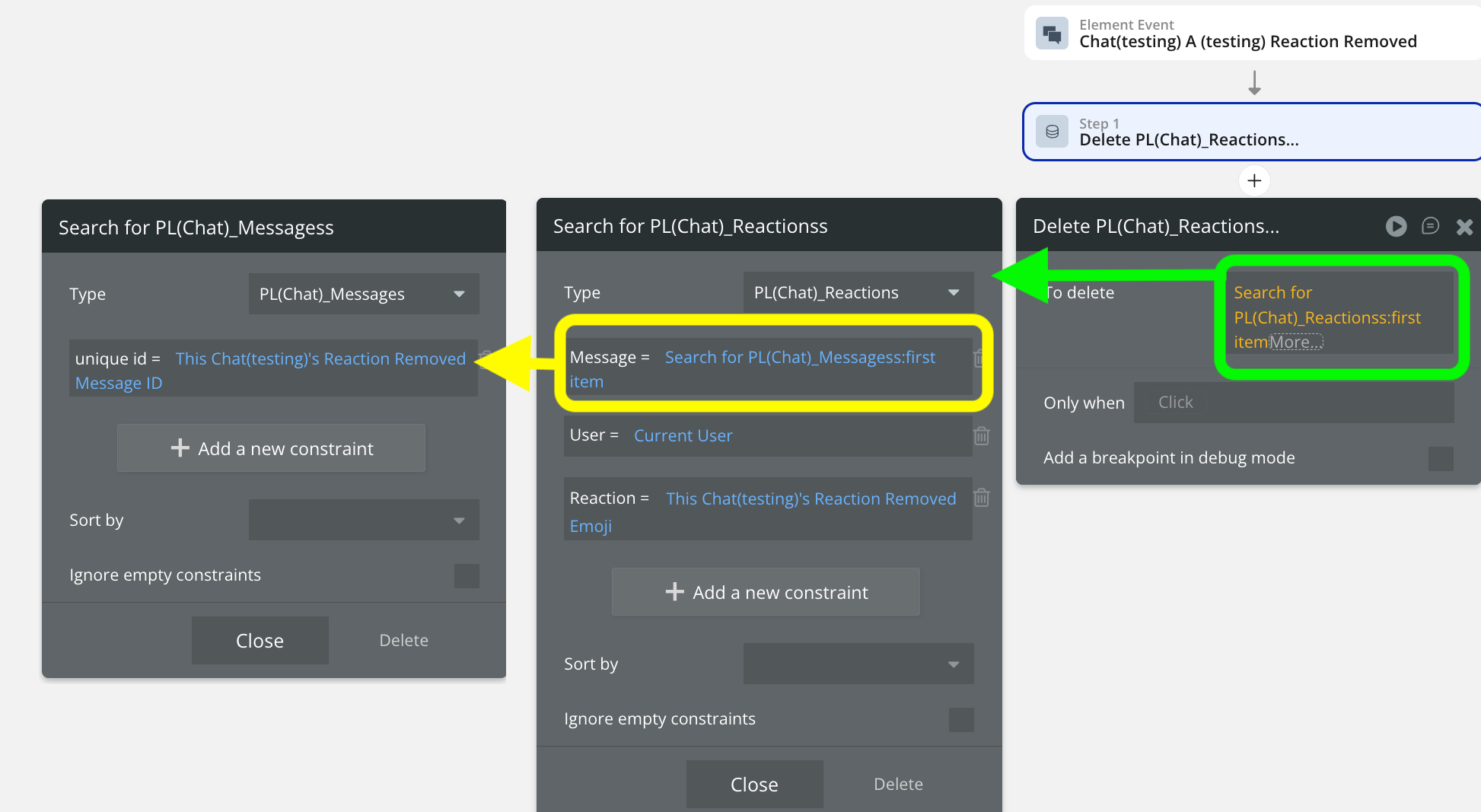
When Reaction Removed Event:
plain text
Delete a Reaction:Find: Reactions where:- message's message_id = Chat's Reaction Removed Message ID- user = Current User
- emoji = Chat's Reaction Removed Emoji
Step 7: Switching Between Chat Rooms
The plugin automatically handles room switching when you change the Chat Room ID property. Here’s how to implement multi-room chat:
Method 1: Using URL Parameters
plain text
1. Navigate to page with room_id parameter
2. Set Chat's "Chat Room ID" = Get data from page URL's room_id
Method 2: Using Custom States
plain text
1. Create a custom state on the page:current_room_id(text)2. Set Chat's "Chat Room ID" = Page's current_room_id
3. When user selects a different chat room:- Set state current_room_id = New room's id(Chat will automatically clear and reload)
Method 3: Using Database Field
plain text
1. Add a field to User data type:current_chat_room(text)2. Set Chat's "Chat Room ID" = Current User's current_chat_room
3. When switching rooms:- Make changes to Current User: current_chat_room = New room id
Important Notes on Room Switching:
- The plugin automatically clears all message state when room_id changes
- All local UI state (selected images, reply-to, editing) is reset
- This ensures clean separation between different conversations
Step 8: Customize Appearance
Choose from pre-built themes or customize individual colors:
Using Pre-built Themes:
Set the “Theme” dropdown to:
- Light
- Dark
- None: Use custom colors (see below)
Custom Color Configuration:
If Theme = “None”, you can customize:
- Background colors for sender/receiver messages
- Text colors
- Input bar colors
- Border colors
- Icon colors
- And more (see Element Properties section)
Plugin Element - Chat
The plugin contains a single visual element called Chat that provides a complete chat interface.
Fields
Title
Description
Type
Chat Room ID (or unique key)
Unique identifier for the current conversation. Changing this value will clear the chat and load messages for the new room.
Text
Message IDs
Comma-separated list of unique message identifiers from the database. Example: “msg1,msg2,msg3”
Text
Message Texts
Comma-separated list of message content. Example: “Hello,How are you?,Great!”
Text
User IDs
Comma-separated list of user IDs who sent each message. Must match the order of Message IDs.
Text
User Names
Comma-separated list of user display names. Must match the order of Message IDs.
Text
User Images
Comma-separated list of user avatar URLs. Must match the order of Message IDs. Can include data: URLs for base64 images.
Text
Message Timestamps
Comma-separated list of message creation timestamps in milliseconds. Example: “1701234567890,1701234568901”
Text
Message Images
Comma-separated list of image URLs attached to messages. Empty values for messages without images.
Text
Message temp ids
Comma-separated list of temporary client-side IDs used for optimistic UI updates. Should match server message IDs once saved.
Text
Message Files
Comma-separated list of file URLs attached to messages. Empty values for messages without files.
Text
Reply Texts
Comma-separated list of original message texts that each message is replying to. Empty if not a reply.
Text
Reply From Names
Comma-separated list of user names who sent the original messages being replied to.
Text
Current User ID
The unique ID of the currently logged-in user. Used to determine message alignment and edit permissions.
Text
Reactions - Emoji
Comma-separated list of emoji characters for all reactions across all messages. Example: “👍,❤️,👍,😂”
Text
Reactions - User ID
Comma-separated list of user IDs who added each reaction. Must match the order of Reactions - Emoji.
Text
Reactions - Message ID
Comma-separated list of message IDs that each reaction belongs to. Must match the order of Reactions - Emoji.
Text
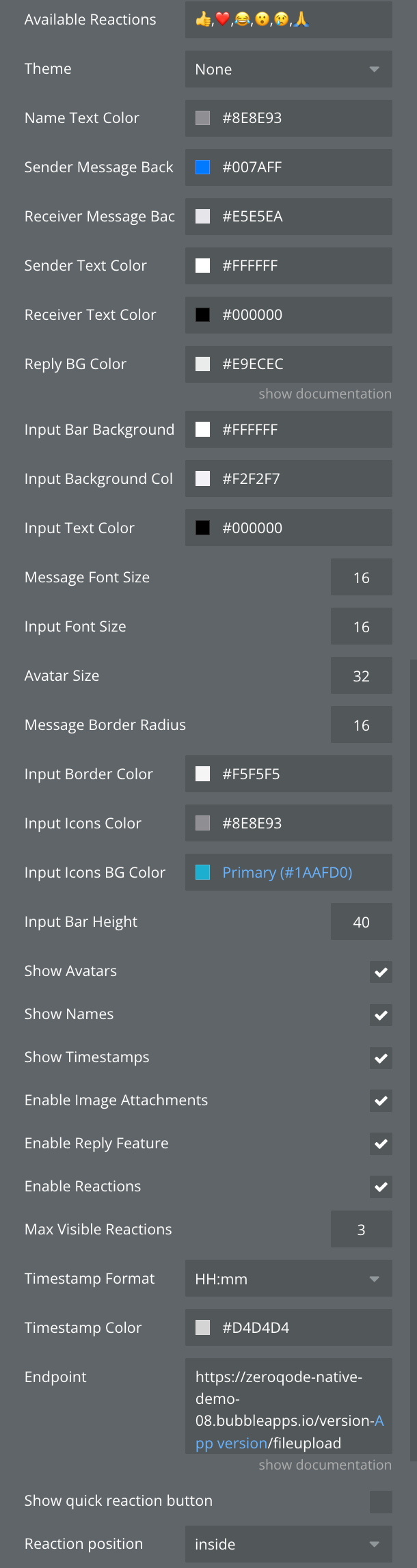
Available Reactions
Comma-separated list of emoji characters available in the reaction picker. Default: “👍,❤️,😂,😮,😢,🙏”
Text
Theme
Pre-built color theme. Options: None, Light, Dark. When set to “None”, custom colors are used.
Dropdown
Name Text Color
Color for user names displayed above messages (when Show Names is enabled).
Color
Sender Message Background
Background color for messages sent by the current user.
Color
Receiver Message Background
Background color for messages received from other users.
Color
Sender Text Color
Text color for messages sent by the current user.
Color
Receiver Text Color
Text color for messages received from other users.
Color
Reply BG Color
Background color for reply preview blocks in messages. Also used for timestamp text.
Color
Input Bar Background
Background color for the input bar at the bottom of the chat.
Color
Input Background Color
Background color for the text input field.
Color
Input Text Color
Text color in the input field.
Color
Message Font Size
Font size for message text in pixels. Default: 16
Number
Input Font Size
Font size for input field text in pixels. Default: 16
Number
Avatar Size
Diameter of user avatar images in pixels. Default: 36
Number
Message Border Radius
Corner radius for message bubbles in pixels. Default: 18
Number
Input Border Color
Border color for the input field.
Color
Input Icons BG Color
Background color for icon buttons in the input bar (send, attach, camera). Also used for left border in reply blocks.
Color
Input Icons Color
Color for icons in the input bar (send, camera, attach).
Color
Input Bar Height
Minimum height of the input bar in pixels. Default: 44
Number
Show Avatars
When enabled, displays user avatars next to messages.
Checkbox
Show Names
When enabled, displays user names above messages (for received messages).
Checkbox
Show Timestamps
When enabled, displays message timestamps below message text.
Checkbox
Enable Image Attachments
When enabled, shows the camera/image button in the input bar.
Checkbox
Enable Reply Feature
When enabled, allows users to reply to messages (shows Reply option in context menu).
Checkbox
Enable Reactions
When enabled, allows users to react to messages with emojis.
Checkbox
Max Visible Reactions
Maximum number of reaction emojis to display before showing “+X more”. Default: 3
Number
Timestamp Format
Format for displaying message timestamps. Options: HH:mm (24-hour), hh:mm A (12-hour), Relative (e.g., “5m ago”)
Dropdown
Timestamp Color
Color for timestamp text.
Color
Endpoint
URL for file upload endpoint. Should be your Bubble app’s /fileupload endpoint. Required for image and file uploads.
Text
Show quick reaction button
When enabled, shows a “+” button next to messages for quick access to reaction picker.
Checkbox
Reaction position
Position of reaction display. Options: below (under message), inside (inside message bubble), side (to the side).
Dropdown
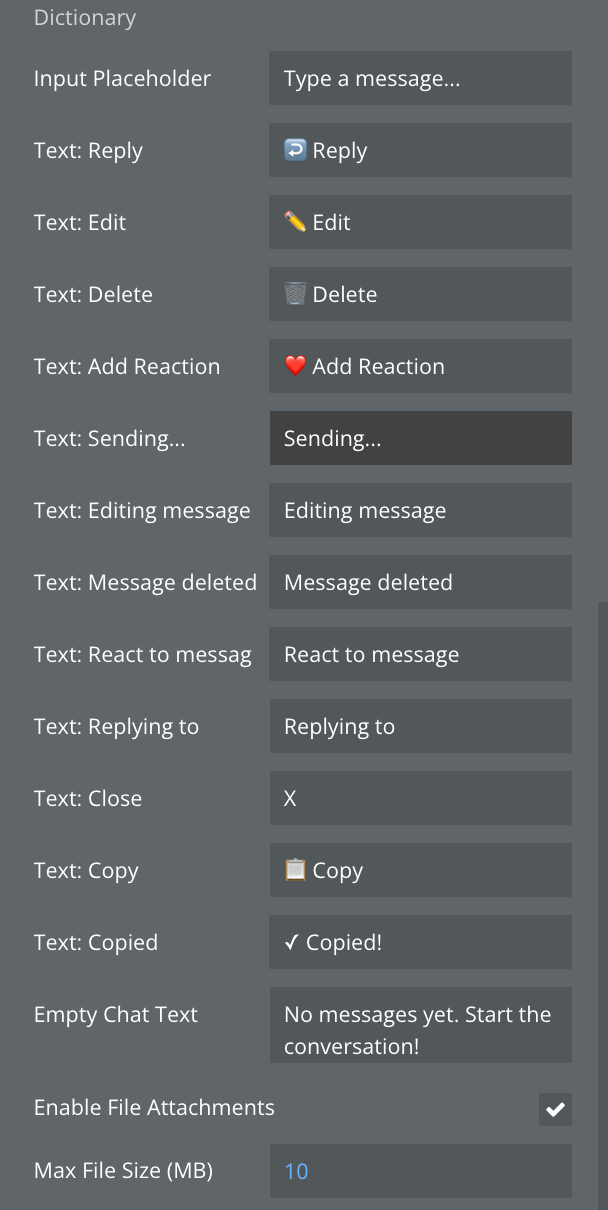
Dictionary Label for translation/localization section.
Input Placeholder
Placeholder text displayed in the input field. Default: “Type a message…”
Text
Text: Reply
Text for Reply option in context menu.
Default: “↩︎️ Reply”
Text
Text: Edit
Text for Edit option in context menu.
Default: “✏️ Edit”
Text
Text: Delete
Text for Delete option in context menu.
Default: “🗑️ Delete”
Text
Text: Add Reaction
Text for Add Reaction option in context menu.
Default: “❤️ Add Reaction”
Text
Text: Sending…
Status text shown while a message is being sent.
Default: “Sending…”
Text
Text: Editing message
Status text shown while editing a message.
Default: “Editing message”
Text
Text: Message deleted
Text shown in place of a deleted message.
Default: “Message deleted”
Text
Text: React to message
Header text in reaction picker modal.
Default: “React to message”
Text
Text: Replying to
Label shown when replying to a message.
Default: “Replying to”
Text
Text: Close
Text for close/cancel buttons.
Default: “X”
Text
Text: Copy
Text for Copy option in context menu.
Default: “📋 Copy”
Text
Text: Copied
Confirmation text shown after copying.
Default: “✓ Copied!”
Text
Empty Chat Text
Text displayed when there are no messages in the chat.
Default: “No messages yet. Start the conversation!”
Text
Enable File Attachments
When enabled, shows the attach button for uploading files (documents, PDFs, etc.).
Checkbox
Max File Size (MB)
Maximum allowed file size for uploads in megabytes. Default: 10
Number
Input Icons
Input Icons Size
Number
Send Icon
Custom image for send button. If not provided, default SVG icon is used.
Image
Image Icon
Custom image for image picker button. If not provided, default SVG icon is used
Image
Attach Icon
Custom image for file attach button. If not provided, default SVG icon is used.
Image
Custom Close Icon
Custom image for close/remove buttons (image preview, file preview). If not provided, default X icon is used.
Image
Close Icon Background
Background color for close/remove icon
Color
Start At Bottom
When enabled, the chat opens scrolled to the newest message instead of the oldest one.
Checkbox
Auto-scroll On New Message
Scrolls to the newest message when one arrives, but only if the user is already near the bottom — so reading history is not interrupted.
Checkbox
Avoid Keyboard
When enabled, the input bar automatically moves above the on-screen keyboard when the user starts typing. Disable it if your page already shifts its content when the keyboard opens, otherwise the input bar will be lifted twice.
Checkbox
Keyboard Offset
Extra space in pixels between the keyboard and the input bar when "Avoid Keyboard" is enabled. Use a positive value to add a gap, or a negative value if the input bar is lifted too high. Default: 0
Number
Sync Timeout (sec)
How many seconds the chat waits for your database to confirm a deleted or edited message. If the change does not appear in the data within this time, the message returns to its saved version (e.g. a deleted message reappears if the delete workflow failed). Increase it for slow workflows or poor connections. Minimum: 5. Default: 30
Number
Exposed states
The Chat element exposes the following states that can be accessed in workflows and conditions:
Name
Description
Type
Last Message Sent
The text content of the most recently sent message. Updated when the user sends a message.
text
Selected Image
The image selected by the user for attachment (as base64 data URL). Available after user selects an image from their device.
Image
Reply To Message ID
The unique ID of the message being replied to. Set when user initiates a reply.
Text
Reply To Message Text
The text content of the message being replied to.
Text
Reply To User Name
The name of the user who sent the message being replied to.
Text
Clicked Image URL
The URL of the image that was clicked. Triggered by the Image Clicked event.
Text
Clicked Message ID
The unique ID of the message that was clicked or interacted with (for edit, delete, etc.).
Text
Context Menu Target Message ID
The unique ID of the message for which the context menu was opened (long press).
Text
Is Uploading Files
Boolean indicating whether a file/image is currently being uploaded. True during upload, false otherwise.
Boolean
ㅤ
ㅤ
ㅤ
Reaction Added Message ID
The unique ID of the message to which a reaction was just added.
Text
Reaction Added Emoji
The emoji character that was just added as a reaction.
Text
Reaction Removed Message ID
The unique ID of the message from which a reaction was just removed.
Text
Reaction Removed Emoji
The emoji character that was just removed.
Text
Reaction Users Message ID
The unique ID of the message for which reaction users were requested (long press on reaction).
Text
Reaction Users Emoji
The emoji for which the user list was requested.
Text
Last temp id
The temporary client-side ID assigned to the most recently sent message. Used for optimistic UI updates.
Text
Selected File
The file selected by the user for attachment. Available after user selects a file from their device and press button to send message. Firstly the file is uploading to your storage, then use this state to include file into message thing when create a new message.
File
Error
Text
Element Events
The Chat element triggers the following events that can be used to create workflows:
Name
Description
Message Sent
Triggered when the user presses the send button. Access the message content via “Chat’s Last Message Sent” state.
Use this event to save the message to your database.
Message Delete Requested
Triggered when the user selects “Delete” from the context menu. The message ID is available in “Chat’s Clicked Message ID” state.
Use this event to delete or mark the message as deleted in your database.
Message Edit Requested
Triggered when the user finishes editing a message and presses the send/check button. The edited text is in “Chat’s Last Message Sent” and the message ID is in “Chat’s Clicked Message ID”.
Use this event to update the message in your database.
Image Clicked
Triggered when the user taps on an image in a message. The image URL is available in “Chat’s Clicked Image URL” state.
Use this event to show a fullscreen image viewer.
Reply Initiated
Triggered when the user selects “Reply” from the context menu. The original message details are available in “Chat’s Reply To…” states.
The plugin handles the UI automatically; you may use this event for additional logic.
Chat Initialized
Triggered once when the chat component first loads and initializes.
Use this event for any one-time setup operations.
Message Long Pressed
Triggered when the user long-presses (holds) on a message. The message ID is available in “Chat’s Context Menu Target Message ID”.
The plugin automatically shows the context menu; this event allows for additional actions.
Reaction Added
Triggered when the user adds a reaction to a message. The message ID and emoji are available in “Chat’s Reaction Added Message ID” and “Chat’s Reaction Added Emoji” states.
Use this event to save the reaction to your database.
Reaction Removed
Triggered when the user removes their reaction from a message. The message ID and emoji are available in “Chat’s Reaction Removed Message ID” and “Chat’s Reaction Removed Emoji” states.
Use this event to delete the reaction from your database.
Reaction Users Clicked
Triggered when the user long-presses on a reaction to see who reacted. The message ID and emoji are available in “Chat’s Reaction Users Message ID” and “Chat’s Reaction Users Emoji” states. The plugin automatically shows the users list; this event allows for additional logging or actions.
Element Action
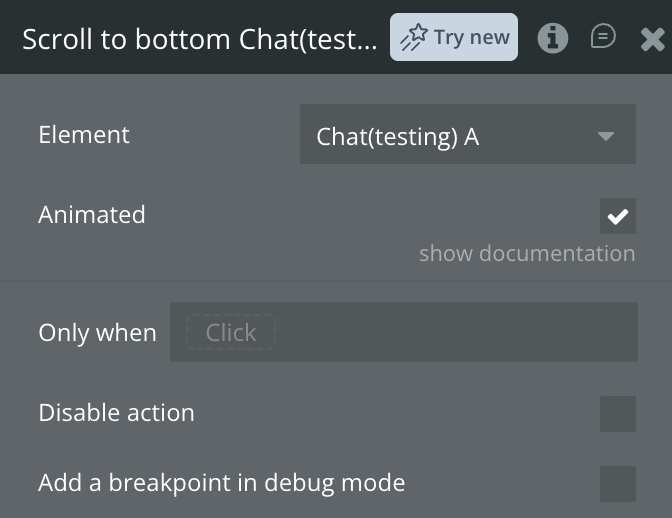
Scroll to bottom
Scrolls the chat to the newest message. Use it after loading messages, switching conversations, or whenever you need to bring the user back to the bottom of the list. The "Animated" checkbox controls whether the scroll is smooth or instant.
Fields:
Title
Description
Type
Animated
Whether the scroll is animated or instant
Checkbox
Example Workflows and Tips
Chat Data Structure and Best Practices
Using the Chat Data Type:
The recommended approach is to use a Chat data type that contains a list of Messages. This structure provides several benefits:
Benefits:
1. Better Organization: Each conversation is a distinct entity
2. Access Control: Easy to manage who can see which chats via Participants list
3. Metadata Storage: Store chat-specific data like Title and Background
4. Cleaner Queries: Search for one Chat, get all its messages
5. Scalability: Easier to implement features like chat archiving or deletion
Data Flow:
plain text
Chat(Container)
├── unique id(used as Chat Room ID)
├── Messages(list) → All messages inthis conversation
├── Participants(list) → Users who can access
├── Title → Display name for chat
└── Background → Optional background image
When creating a new message:
1. Create the Message thing
2. Add it to the Chat’s Messages list using :plus item
Optimistic UI Updates
The plugin implements optimistic UI updates, meaning messages appear immediately in the chat before being saved to the database. This provides a smooth, responsive user experience.
How it works:
1. User sends a message
2. Plugin immediately displays the message with a temporary ID (temp_xxx)
3. “Message Sent” event fires
4. Your workflow saves the message to database
5. When database returns the saved message with real ID, plugin replaces the temporary message
Implementation requirements:
- Set the Message’s temp_id field to Chat’s Last temp id when creating
- Include Message temp ids in your Chat element properties
- The plugin automatically matches temp IDs to real IDs
File Size Management
Control file upload sizes to prevent errors and manage bandwidth:
Set the “Max File Size (MB)” property (default: 10MB)
Plugin automatically rejects files larger than this limit
User sees an alert with the file size and limit
Consider setting different limits for different user tiers
Multi-language Support
Text in the plugin can be customized for internationalization:
Method 1: Direct translation
Set each “Text: …” property to translated values:
- Text: Reply = “Répondre” (French)
- Text: Delete = “Eliminar” (Spanish)
- etc.
Method 2: Dynamic translation using Bubble’s translation feature
- Set properties to dynamic expressions that check current language
- Example: Current User's language is "es" ? “Eliminar” : “Delete”
Custom Themes
While the plugin provides Light and Dark themes, you can create custom themes:
Set Theme = “None”
Customize each color property to match your brand
Save color values as option sets in Bubble for consistency
Use dynamic expressions to apply colors: Option BrandTheme's primary_color
- Check that all required properties are set (especially Message IDs, Message Texts, User IDs)
- Verify the Search for Chat constraint uses the correct unique id
- Ensure Messages are being added to Chat’s Messages list (use :plus item)
- Check that data format is correct (comma-separated, no trailing commas)
- Verify the Chat exists and has Messages in the database
Issue: Messages not saving to Chat
- Confirm workflow includes step to add Message to Chat’s Messages list
- Check: Make changes to Chat → Messages = Chat's Messages:plus item Result of step X
- Verify the Chat reference is correct (selected_chat, Current Page’s chat, etc.)
Issue: Background image not showing
- Ensure Chat element is placed inside a Group
- Set Group’s background image to selected_chat's Background
- Check that Background field in database has an image
- Verify Chat element’s background color allows transparency if needed
Issue: Wrong messages displaying
- Check Chat Room ID property matches the selected chat’s unique id
- Verify all message properties use the same Chat search
- Example: All should start with Search for Chat:filtered (unique id = selected_chat's unique id)
Issue: Images not uploading
- Verify Endpoint property is set correctly
- Ensure file upload API is enabled in your plan
- Check device permissions for camera/photo library access
Issue: Chat clears unexpectedly
- This is normal when Chat Room ID changes
- Ensure Room ID is stable and not changing unexpectedly
- Check that Room ID property uses a consistent source (custom state, URL parameter, etc.)
- Verify selected_chat custom state isn’t being reset inadvertently
Issue: Reactions not saving
- Verify Reaction data type exists with correct fields
- Check that “Reactions - …” properties are properly configured
- Ensure workflow has correct search constraints for finding message
Issue: Performance degradation
- Reduce message count (use 300 maximum with :items until #300)
- Add database indexes on frequently searched fields
- Check for other heavy computations on the page
- Consider implementing pagination for very long chat histories
Issue: Duplicate messages appearing
- Check that temp_id field is being set correctly
- Verify Message temp ids property includes all messages
- Ensure workflows don’t create duplicate Messages
- Check privacy rules aren’t hiding some messages
Changelogs
Update 15.09.26 - Version 1.2.0
Add scroll to bottom: Start At Bottom, Auto-scroll On New Message properties and Scroll to bottom action