
Link to the plugin page: https://zeroqode.com/plugin/drawboard-plugin-for-bubble-1688396493153x553933126629056100
Demo to preview the plugin:
Introduction
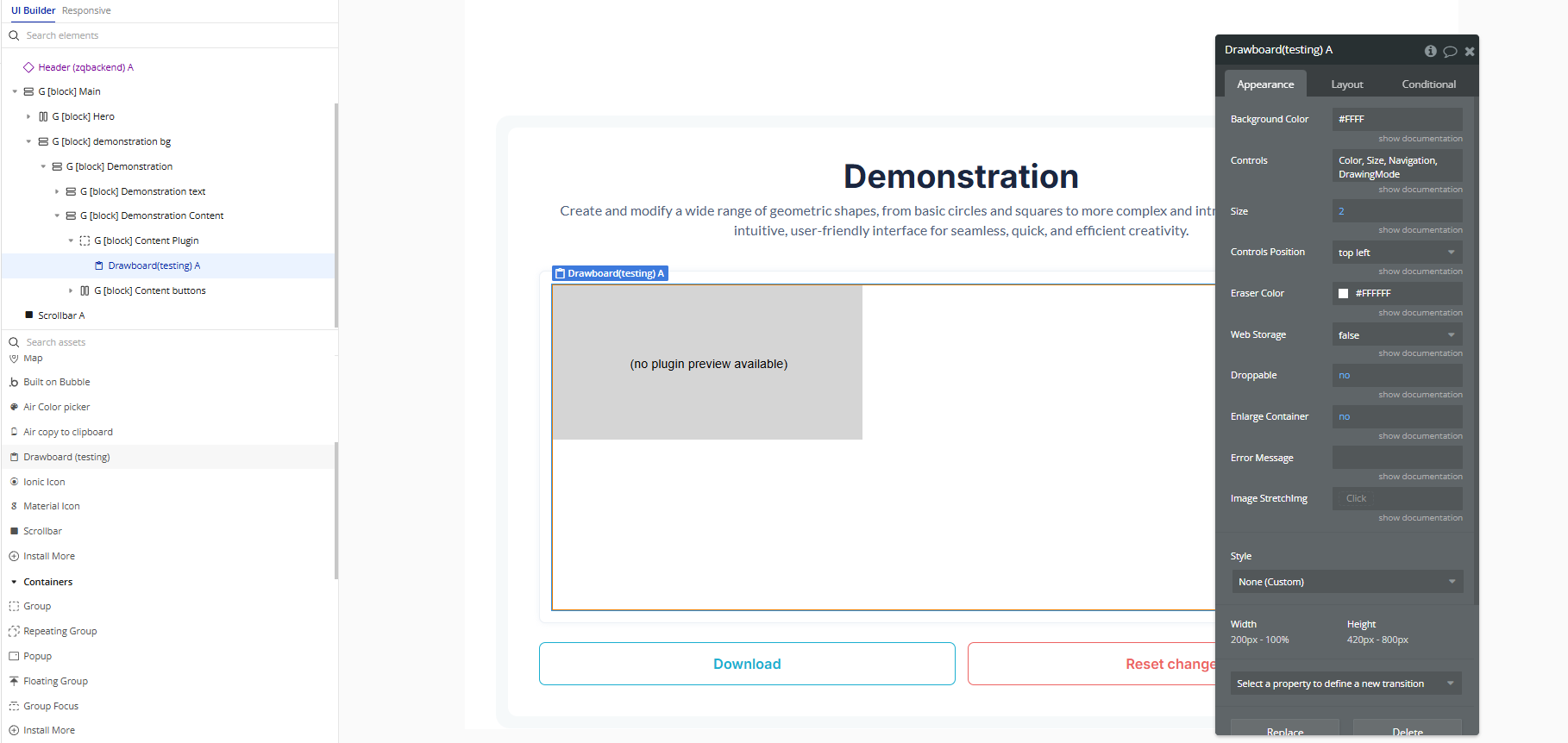
This no-code plugin allows to draw an assortment of geometric shapes. Whether it’s circles, squares, triangles, or more complex shapes, the tool provides a user-friendly interface.

How to setup
- Add the Drawboard element to your page.
- In the Bubble editor, find the Drawboard element in the Visual Elements panel.
- Drag the element onto your page.
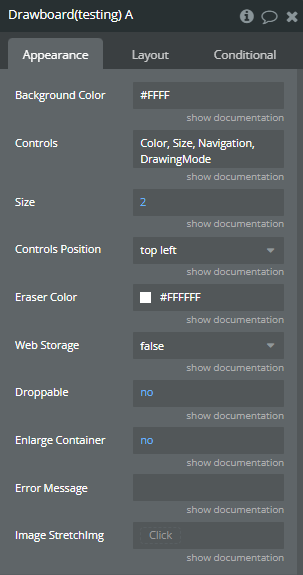
- Configure the main properties:
- Background Color → sets the background color of the drawing board.
- Controls → choose which control buttons appear on the board (e.g. Color, Size, Navigation, DrawingMode).
- Size → defines the thickness of the drawing line.
- Controls Position → choose where the control buttons appear on the board (e.g. top left).
- Eraser Color → color used by the eraser to remove drawings.
- Web Storage → if set to “true,” keeps the drawing even after refreshing the page.
- Droppable → defines whether you can drag and drop files onto the board.
- Enlarge Container → if enabled, the Drawboard expands to fill the entire size of its container.
- Error Message → message displayed if the Drawboard fails to load.
- Image StretchImg → controls how a background image stretches or fits into the board
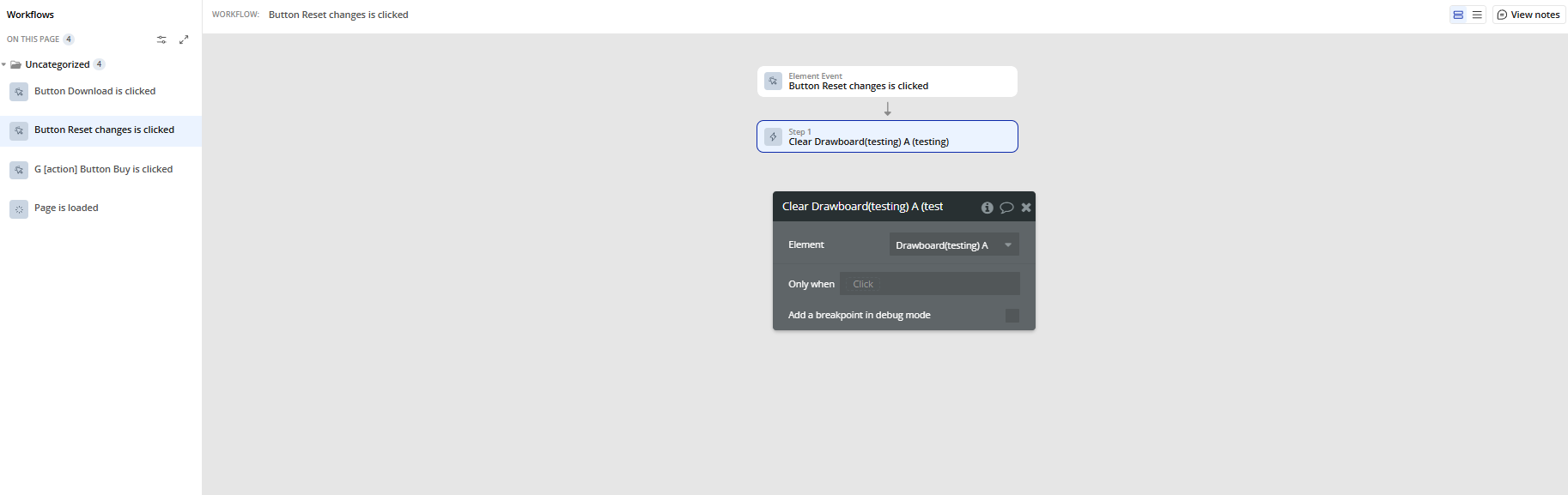
- To Clear the Drawing
- Create a workflow in Bubble.
- Add the action Clear A Drawboard.
- Choose which Drawboard element you want to clear.
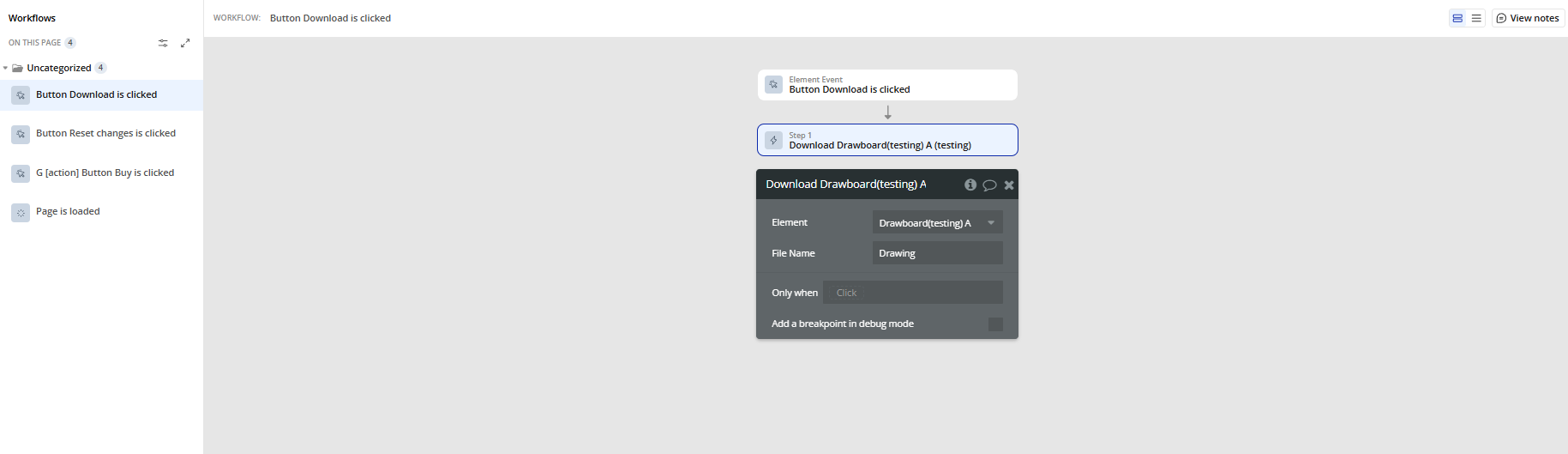
- To Download the Drawing
- Create a workflow in Bubble.
- Add the action Download A Drawboard.
- Set:
- Element → which Drawboard you want to download from.
- File name → the name of the downloaded image file.
Plugin Element Properties
Drawboard
Fields:
Title | Description | Type |
Background Color | Color that fills the background of the drawing board. | Color |
Controls | Choose which tools appear on the board, like Color, Size, Navigation, or Drawing Mode. | List of options |
Size | Defines how thick your drawing lines are. | Number |
Controls Position | Decides where the toolbar will appear — e.g. top left, top right, etc. | Dropdown |
Eraser Color | The color used when erasing parts of the drawing. | Color |
Web Storage | When true, keeps drawings saved in the browser even if you reload the page. | Yes/No (Boolean) |
Droppable | Allows users to drag and drop files onto the board. | Yes/No (Boolean) |
Enlarge Container | If enabled, makes the Drawboard expand to fit the size of its container. | Yes/No (Boolean) |
Error Message | Text shown if there’s a problem loading the Drawboard. | Text |
Image StretchImg | Lets you decide how the background image should fit or stretch inside the board. | Image / Click |
Element Actions
Clear
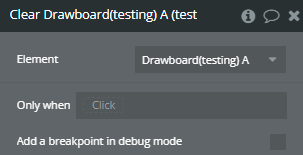
Title | Description | Type |
Element | The specific Drawboard element on your page that you want to clear. | Element |
Download
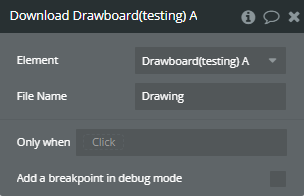
Title | Description | Type |
Element | The Drawboard element you want to export. | Element |
File name | The name of the image file that will be downloaded, including the extension (e.g. “my_drawing.png”). | Text |
Exposed states
Title | Description | Type |
Tool | The name of the currently selected drawing tool (e.g. pencil, rect). | Text |
Url | The data URL (Base64) of the current drawing, which you can use to display or save the image. | Text |
Error | Any error message generated by the Drawboard, useful for debugging or user feedback. | Text |
Element Events
Title | Description |
done | Triggered when an image save completes successfully. Useful if you want to show a success message or continue a workflow. |
error | Triggered if something goes wrong during drawing actions (like saving or loading). Helps you handle errors in your app logic. |