
✅
Demo to preview the plugin:
✅
Introduction
Create an animated spinning wheel to engage users, distribute prizes, coupons, or discounts, and add interactive gamification to your app. Fully customizable and compatible with all modern browsers and devices.
Key Features
- Animated spinning wheel for user engagement.
- Ideal for prizes, coupons, games, and discounts.
- Fully customizable wheel appearance (colors, segments, text, icons).
- Define dynamic fields for prize segments.
- Trigger spins via workflows or user interactions.
- Retrieve spin results for follow-up actions.
- Lightweight, stable JavaScript implementation.
- Works seamlessly across desktop and mobile browsers.
- Comes with detailed setup documentation.

How to Setup
Step 1 – Install the Plugin
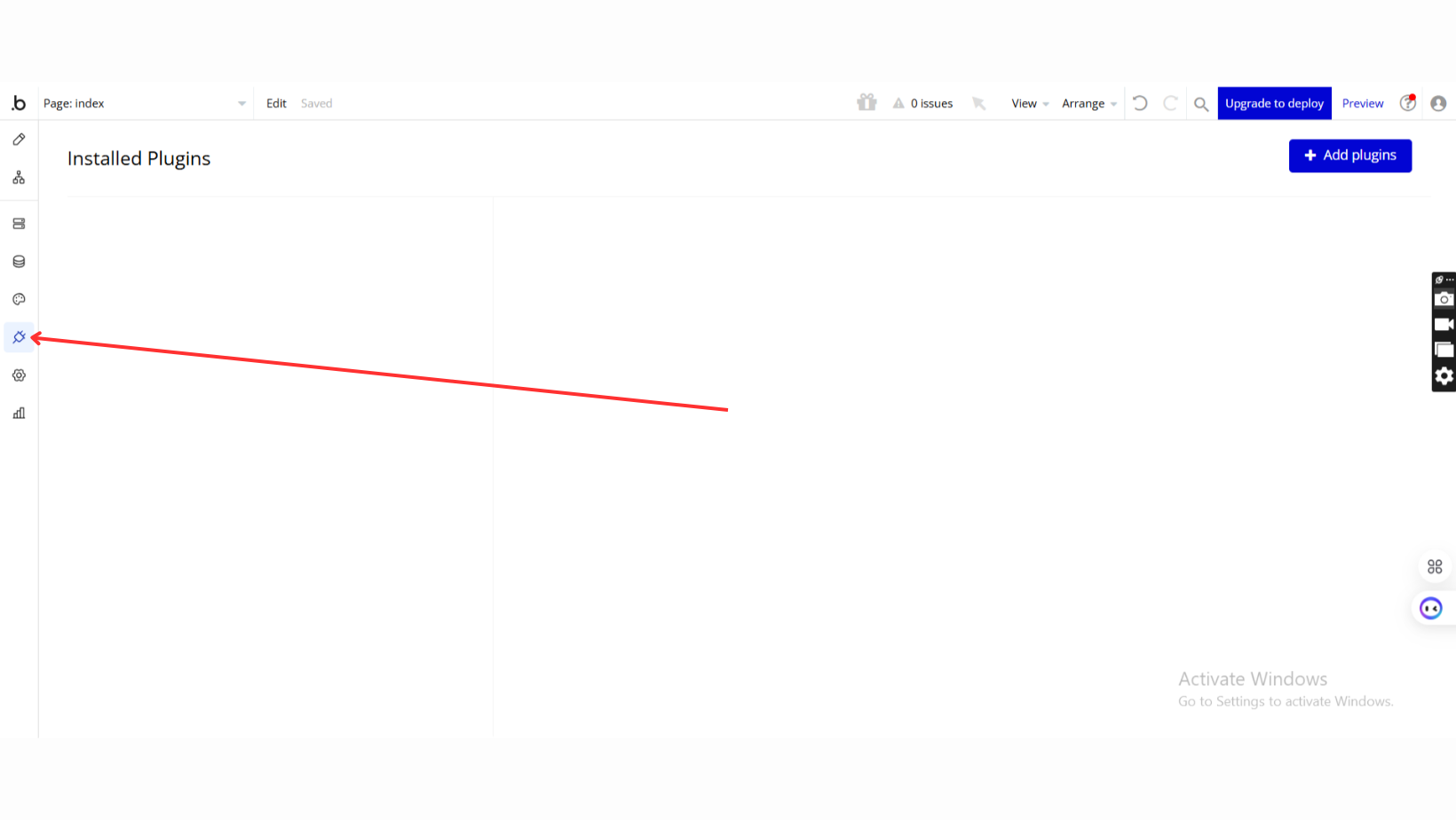
- Go to the Plugin Tab
- Open your Bubble Editor.
- Navigate to the Plugins tab on the left panel.
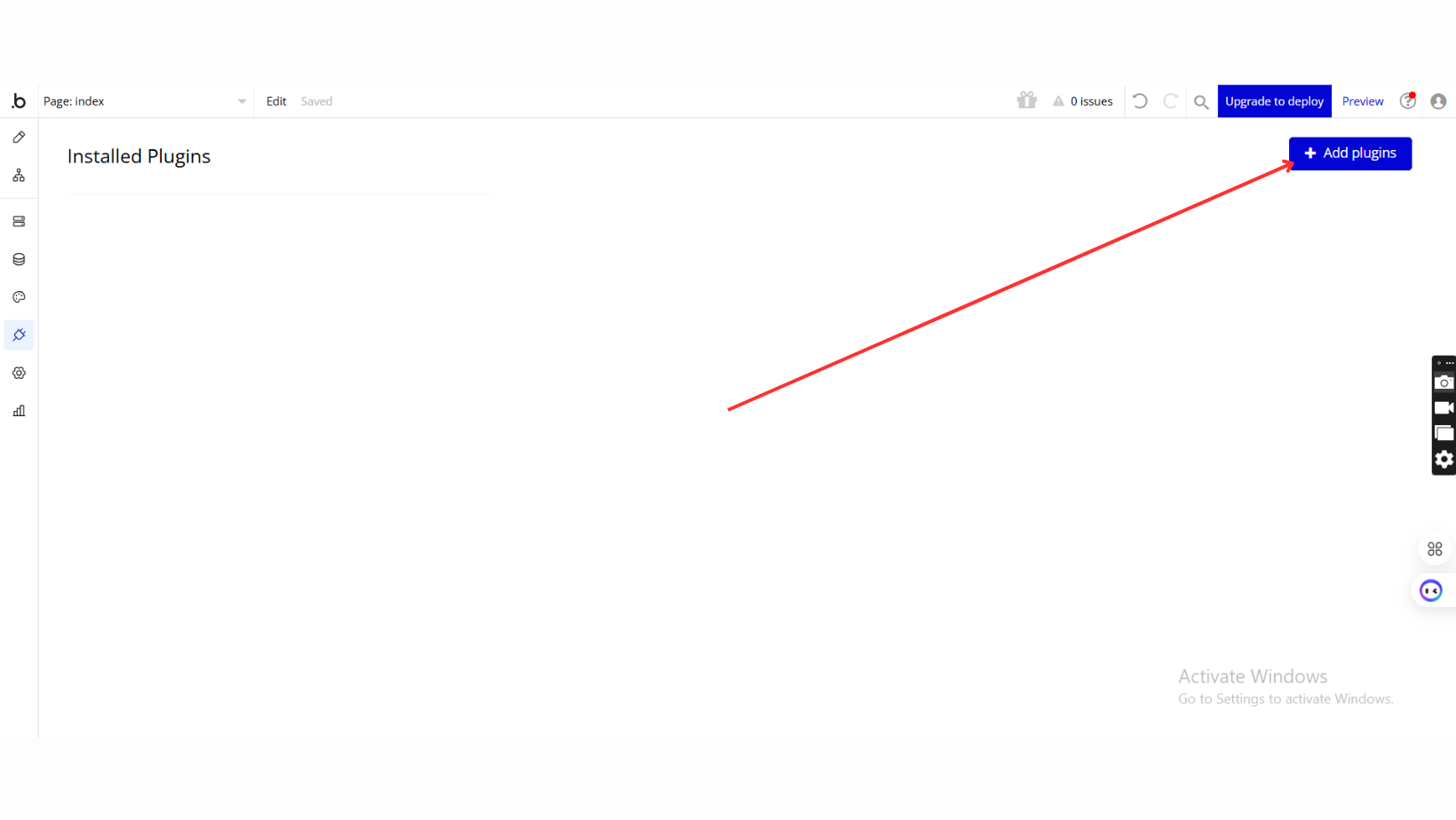
- Add Plugins
- Once in the Plugins tab, click the Add Plugins button.
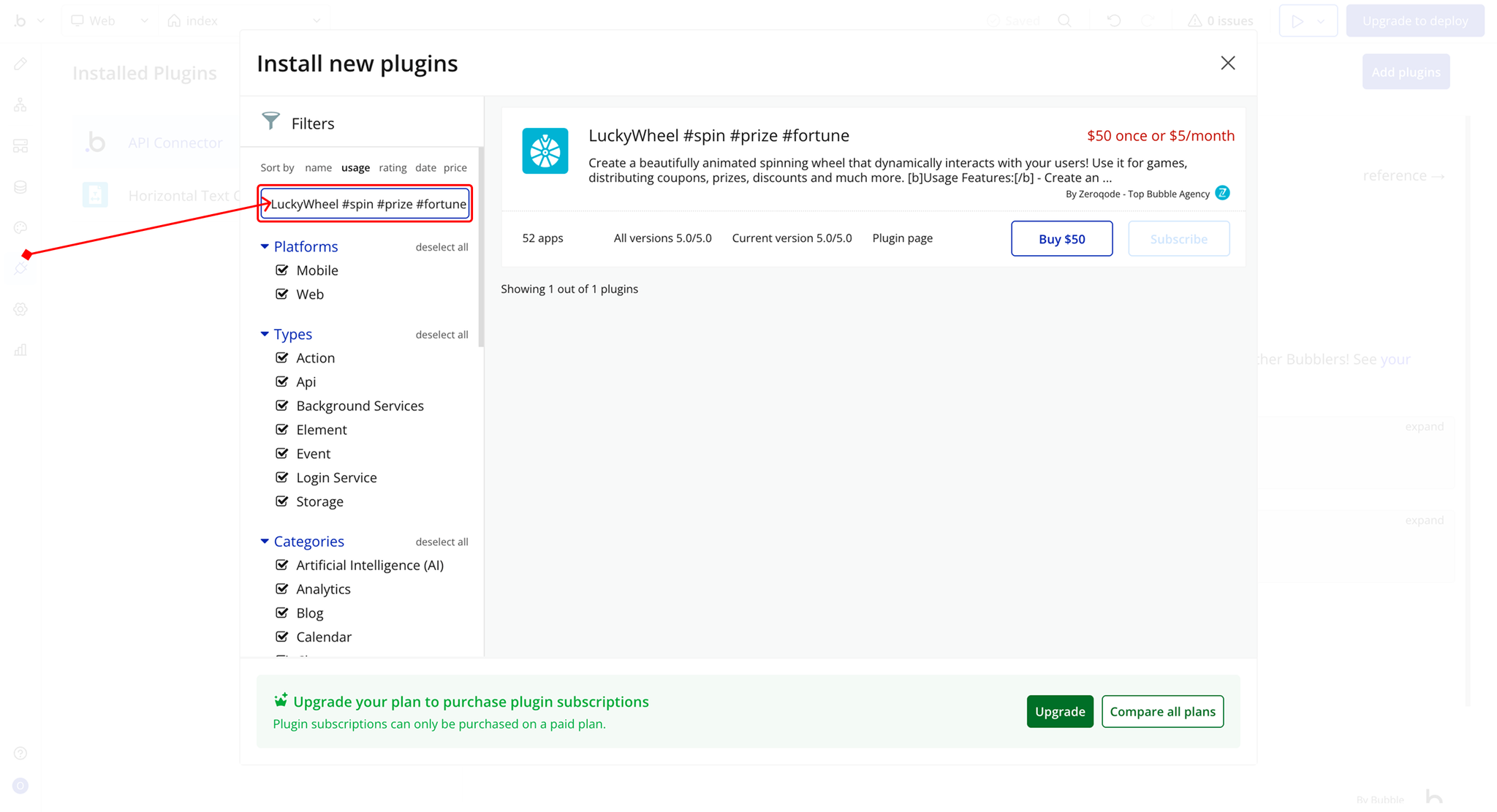
- Search for the Plugin
- Use the search bar to type LuckyWheel #spin #prize #fortune.
- Locate the plugin in the search results.
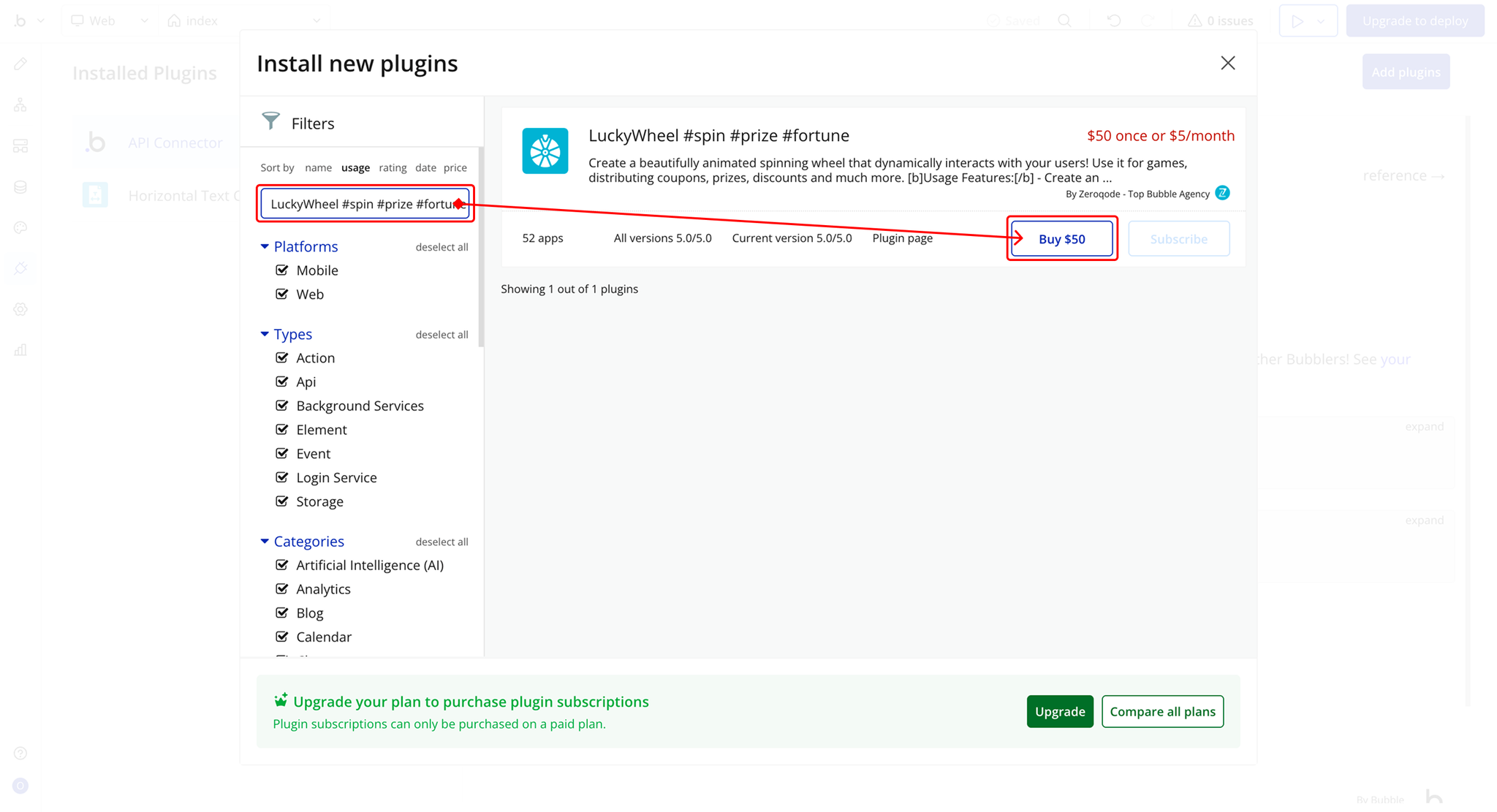
- Install/Buy
- If the plugin is free, click Install to add it to your application.
- For a paid plugin, click Buy and follow the purchase instructions.
- Payment Information (For Paid Plugins)
- If the plugin is a paid one, fill in your payment details and make payment.
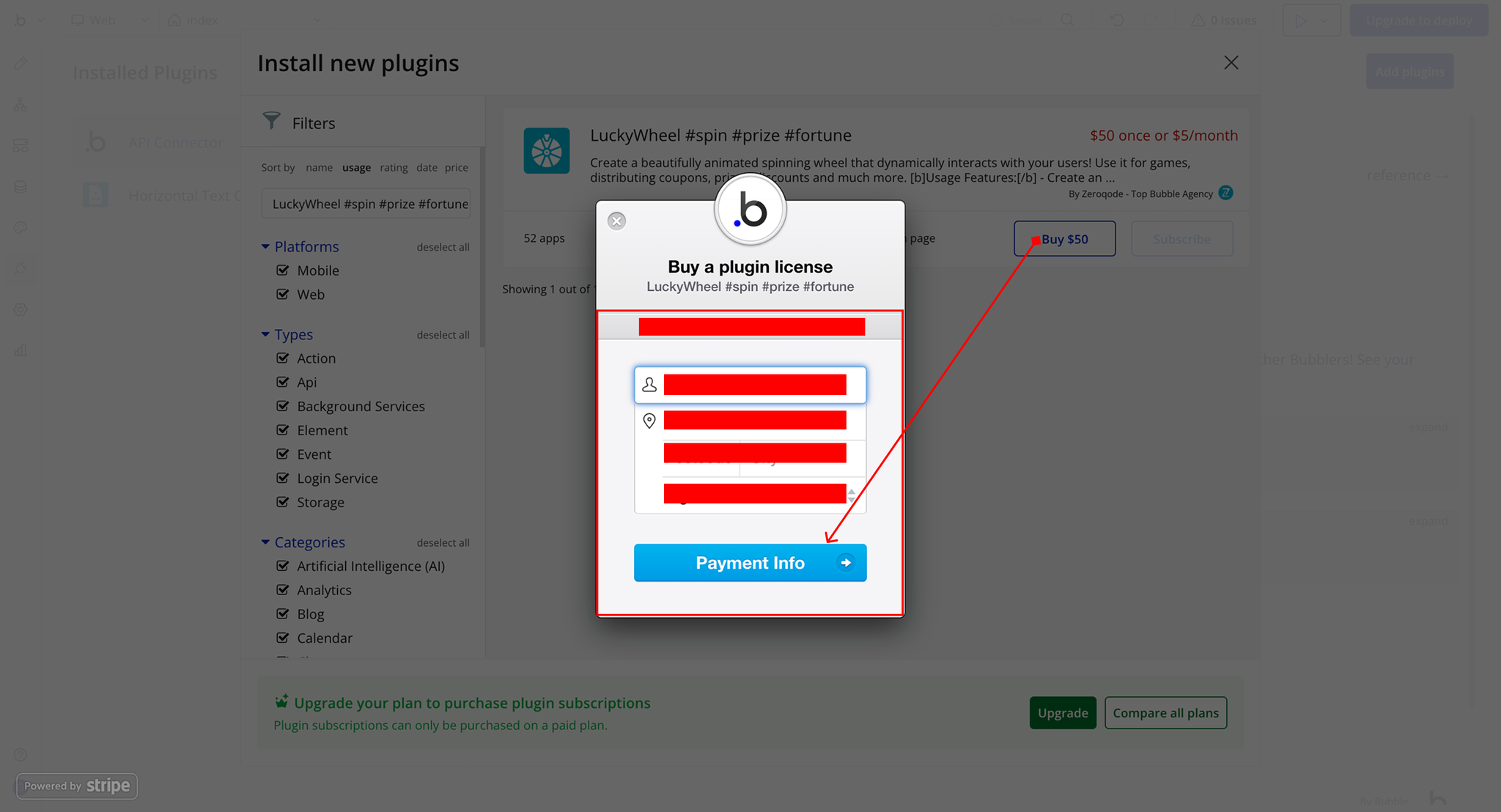
- Charges will be added to your Bubble billing account.
- Remember, if you unsubscribe from the plugin shortly after installation, charges will be prorated based on the days used.
- Plugin Installed
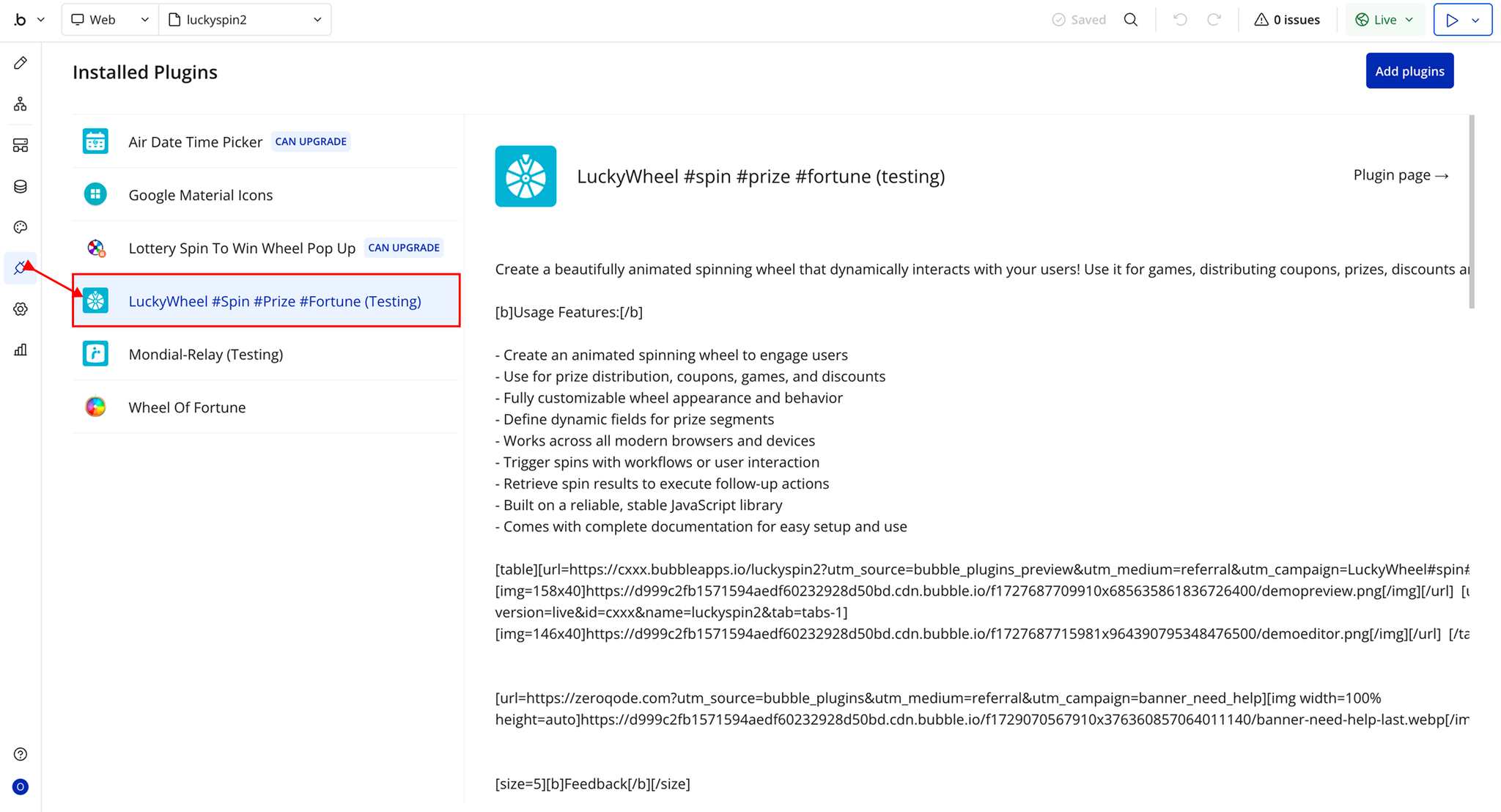
- Once installed, the plugin will appear under the Installed Plugins list in your Bubble Editor.
Step 2 – Add the Plugin Element to Your Page
- Open the Design tab in your Bubble editor.
- Search for the Prize Wheel element in the Elements panel.
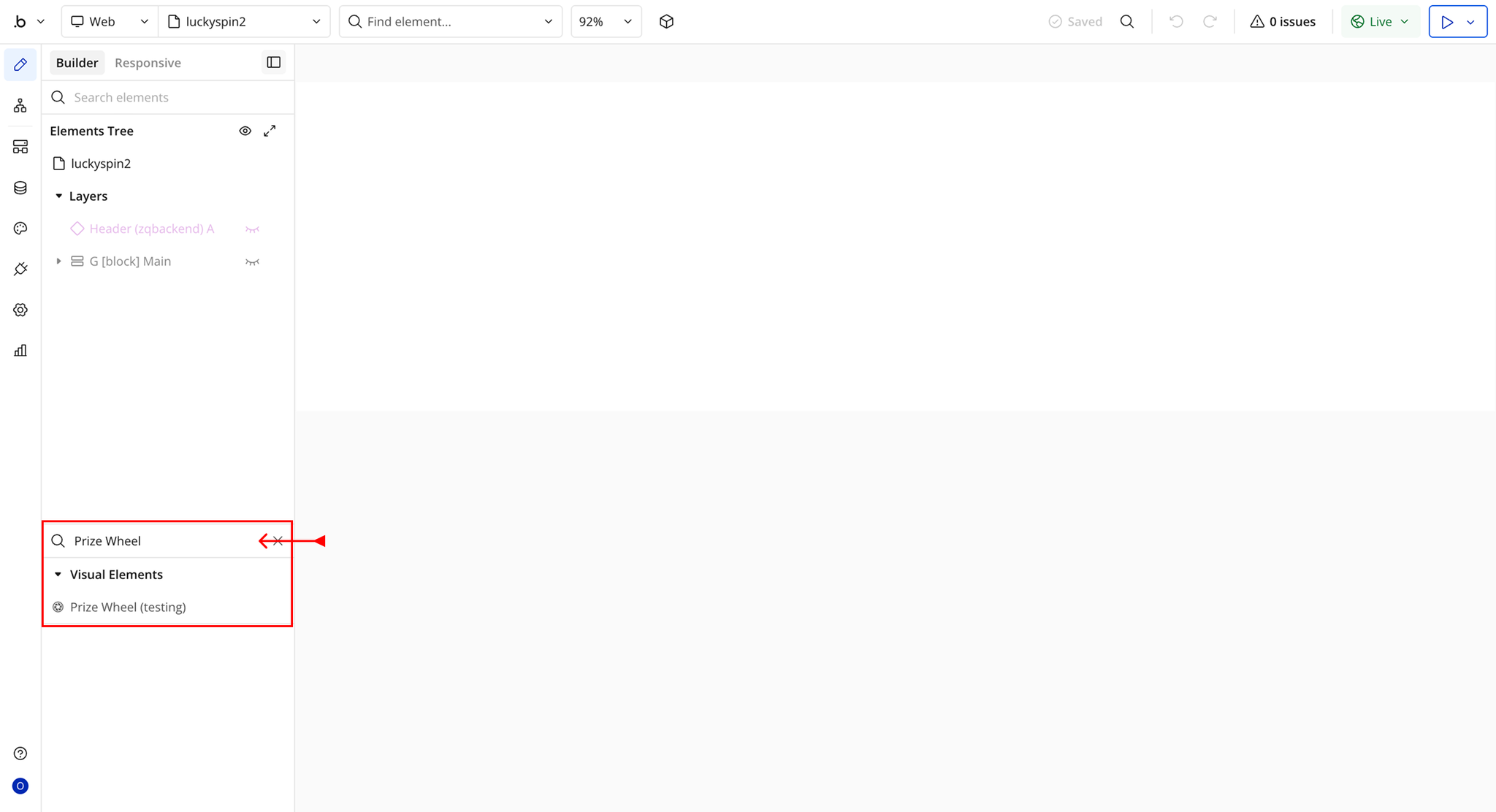
- You’ll see one option:
- PrizeWheel
- Drag and drop the element onto your page.
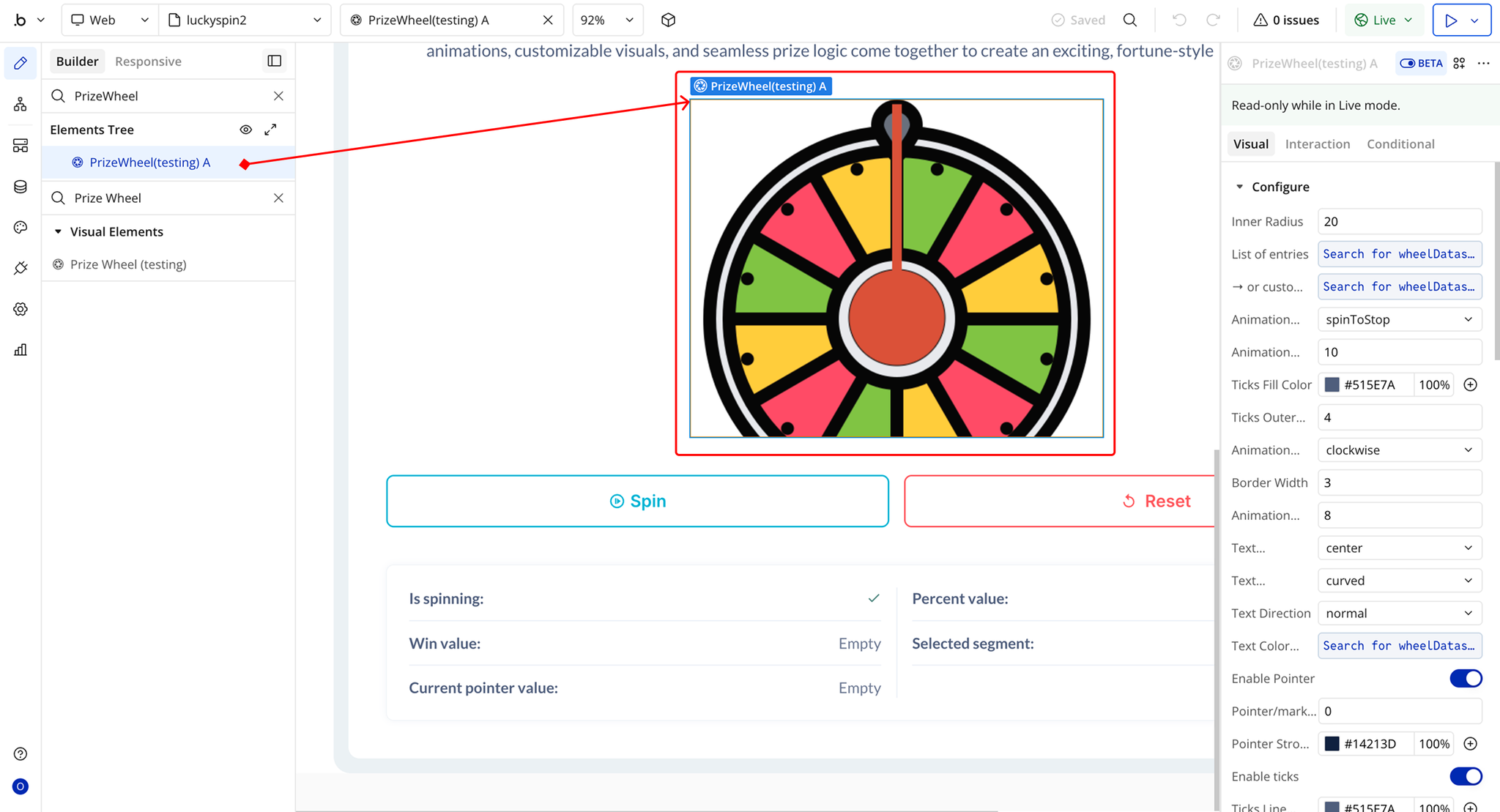
Plugin Element Properties - Prize Wheel
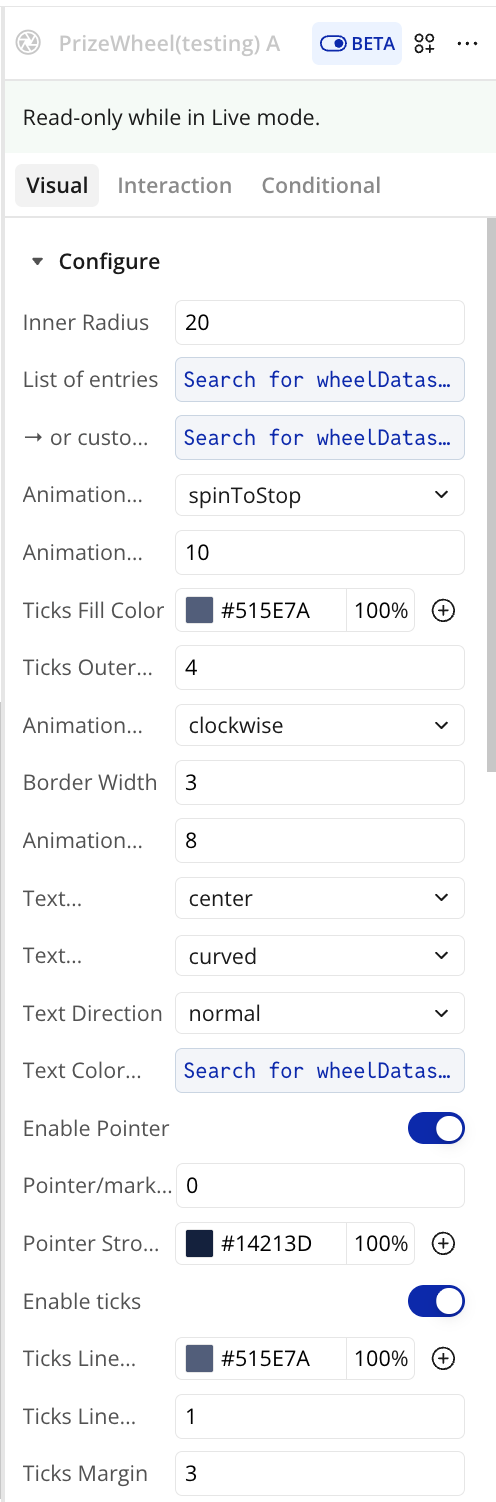
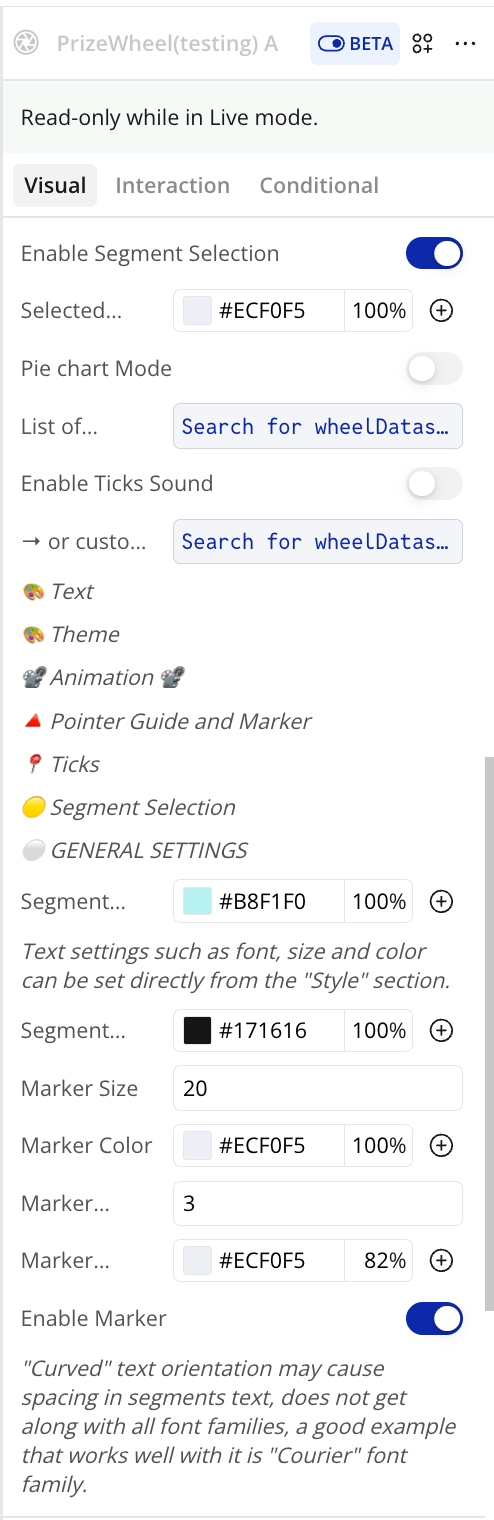
Fields
Title | Description | Type |
GENERAL SETTINGS | ||
List of entries | A list of text values representing each segment displayed on the wheel. Each entry corresponds to one wheel segment. | Text (optional) |
Pie chart Mode | When enabled, segment sizes are calculated using the percentages defined below instead of being evenly distributed. | Checkbox (yes/no) |
List of percentages | A list of numeric values defining the size of each segment as a percentage. Must match the number of entries and requires Pie chart mode to be enabled. | Number (optional) |
THEME | ||
Segment Color (default) | Default background color for all wheel segments. This is ignored if a custom color list is provided below. | Color |
→ or custom list | Optional list of colors (HEX, RGB, or valid HTML5 colors) applied individually to each segment in order. | Text (optional) |
Segment Border Color (default) | Default border color applied to all segments. Ignored if a custom border color list is provided. | Color |
→ or custom list | Optional list of border colors (HEX, RGB, or valid HTML5 colors) applied per segment. | Text (optional) |
Border Width | Width of the borders in pixels. Applies to both the outer wheel border and individual segment borders. | Number |
Inner Radius | Creates a donut-style wheel by defining an empty center radius in pixels. | Number (optional) |
TEXT | ||
Font family, font size, and basic text styling are configured from the element’s Style section. | ||
Text Color (custom list) | Optional list of colors applied to segment text individually, using HEX, RGB, or valid HTML5 colors. | Text (optional) |
Text Alignment | Defines where the text is positioned within the segment. Options: inner, outer, center. | Dropdown |
Text Orientation | Defines how text is rendered inside segments. Options: horizontal, vertical, curved. | Dropdown |
Curved text may cause spacing issues depending on the font used. Monospace fonts such as Courier work best. | ||
Text Direction | Controls text reading direction. Options: normal or reversed. | Dropdown |
ANIMATION | ||
Animation Type | Defines the spinning behavior of the wheel. Options: spinToStop, spinOngoing, spinAndBack. | Dropdown |
Animation Direction | Direction of rotation during spin. Options: clockwise or anti-clockwise. | Dropdown (optional) |
Animation Duration (s) | Total duration of the spin animation in seconds. | Number |
Animation Speed | Number of full rotations performed during the animation duration. Minimum value is 1. | Number |
POINTER GUIDE AND MARKER | ||
Enable Pointer | Displays a visual pointer guide to indicate the winning position. Intended for setup and alignment only. | Checkbox (yes/no) |
Pointer/marker Angle | Angle in degrees where the pointer is positioned. Default value 0 places it at the top of the wheel. | Number |
Pointer Stroke Color | Color of the pointer guide stroke line. | Color (optional) |
Enable Marker | Displays the default marker that visually indicates the winning segment to users. | Checkbox (yes/no) |
Marker Size | Size of the winning marker in pixels. | Number (optional) |
Marker Color | Fill color of the marker. | Color (optional) |
Marker outline width | Width of the marker outline. Set to 0 to disable the outline. | Number (optional) |
Marker outline Color | Color of the marker outline stroke. | Color (optional) |
TICKS | ||
Enable ticks | Displays ticks around the wheel circumference. | Checkbox (yes/no) |
Enable Ticks Sound | Plays a sound each time the wheel collides with a tick during rotation. | Checkbox (yes/no) |
Ticks Outer Radius | Distance in pixels from the wheel center where ticks are rendered. | Number |
Ticks Fill Color | Fill color of the ticks. Accepts HEX, RGB, or valid HTML5 colors. | Color (optional) |
Ticks Line Color | Stroke color of the tick lines. | Color |
Ticks Line Width | Thickness of the tick stroke lines in pixels. | Number |
Ticks Margin | Offset distance in pixels between the wheel edge and the ticks. | Number |
SEGMENT SELECTION | ||
Enable Segment Selection | Allows users to click and select a segment. The selected segment is exposed via the “Clicked Segment” state. | Checkbox (yes/no) |
Selected Segment Color | Highlight color applied to the selected segment. | Color |
Element Actions
Start/Spin
This action starts the wheel spinning animation. When triggered, the wheel rotates based on the configured animation settings (type, direction, speed, and duration) and stops to reveal the winning segment.
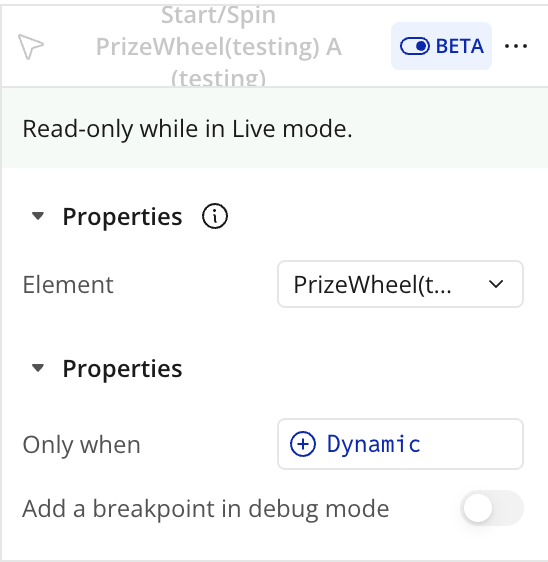
Reset
This action resets the wheel to its initial state. It clears any previous spin result, selected segment, and animation progress, returning the wheel to its default position so it can be spun again.
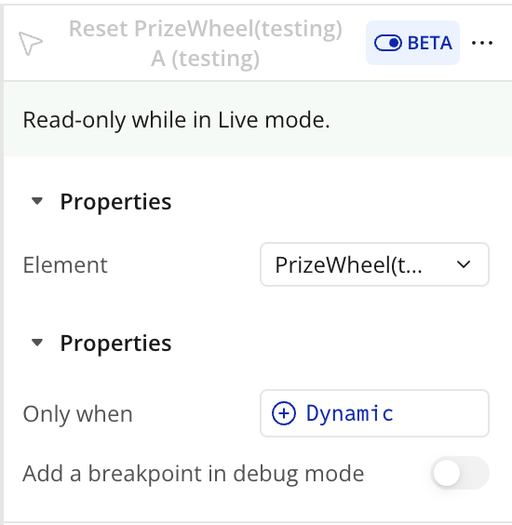
Exposed States
Title | Description | Type |
Is spinning | Indicates whether the wheel is currently spinning. Returns “yes” while the spin animation is in progress and “no” when the wheel has stopped. | Checkbox (yes/no) |
Win value | The final value of the segment where the wheel stops after a completed spin. This represents the winning result. | Text |
Current pointer value | The value of the segment currently aligned with the pointer. This updates in real time during the spin animation. | Text |
Selected segment | The value of the segment that was clicked by the user when segment selection is enabled. | Text |
Percent_value | The percentage value of the winning segment when Pie Chart Mode is enabled. | Text |
Element Events
Title | Description |
Spinning just ended | Triggered when the wheel finishes spinning and comes to a complete stop. At this point, the winning segment and related exposed states (such as Win value and Percent value) are finalized and available. |
Is spinning | Triggered when the wheel starts spinning. This event can be used to disable buttons, prevent repeated spins, or update the UI while the animation is in progress. |
A segment is clicked/selected | Triggered when a user clicks or selects a segment on the wheel, provided Enable Segment Selection is enabled. The selected segment value is exposed via the Selected segment state. |
Workflow Example
Start/Spin the Prize Wheel
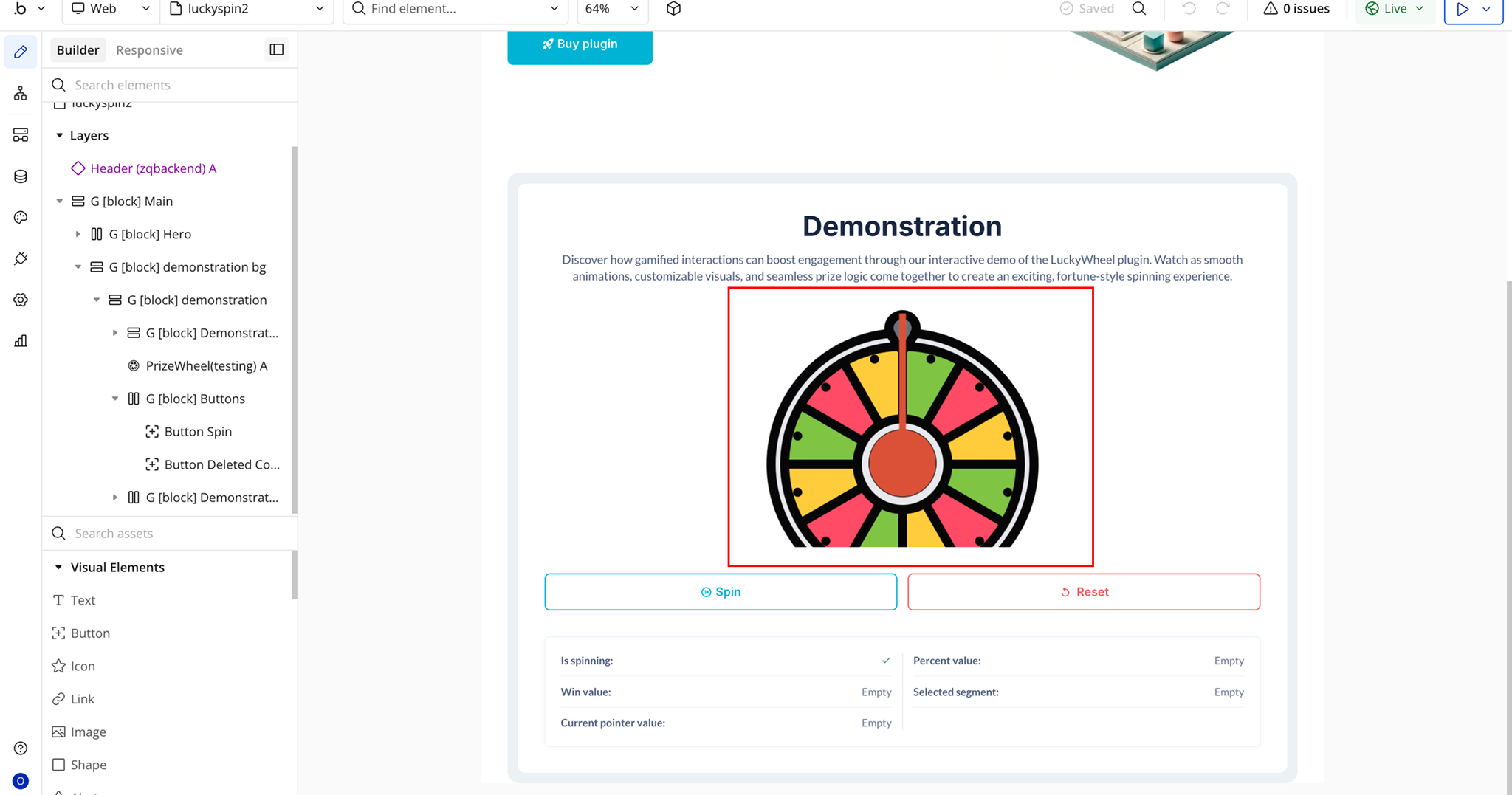
1. Ensure the Prize Wheel Element Is on the Page
- Add the Prize Wheel element to your page.
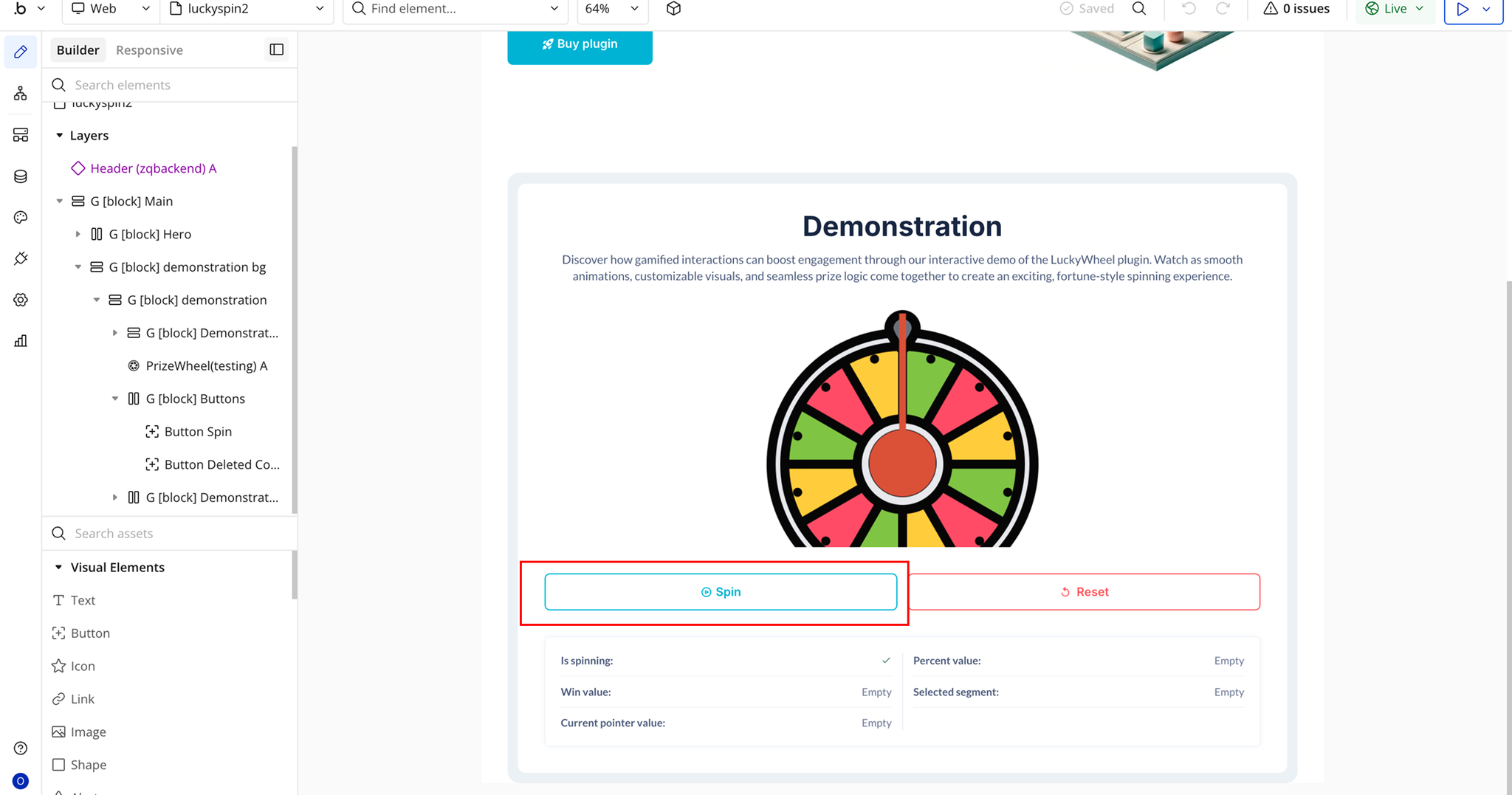
2. Add a Spin Button
- Place a Button element on the page.
- Rename it to Spin.
3. Create the Workflow
- Select the Spin button.
- Click Start/Edit Workflow.
- Choose the event:
- When Spin button is clicked
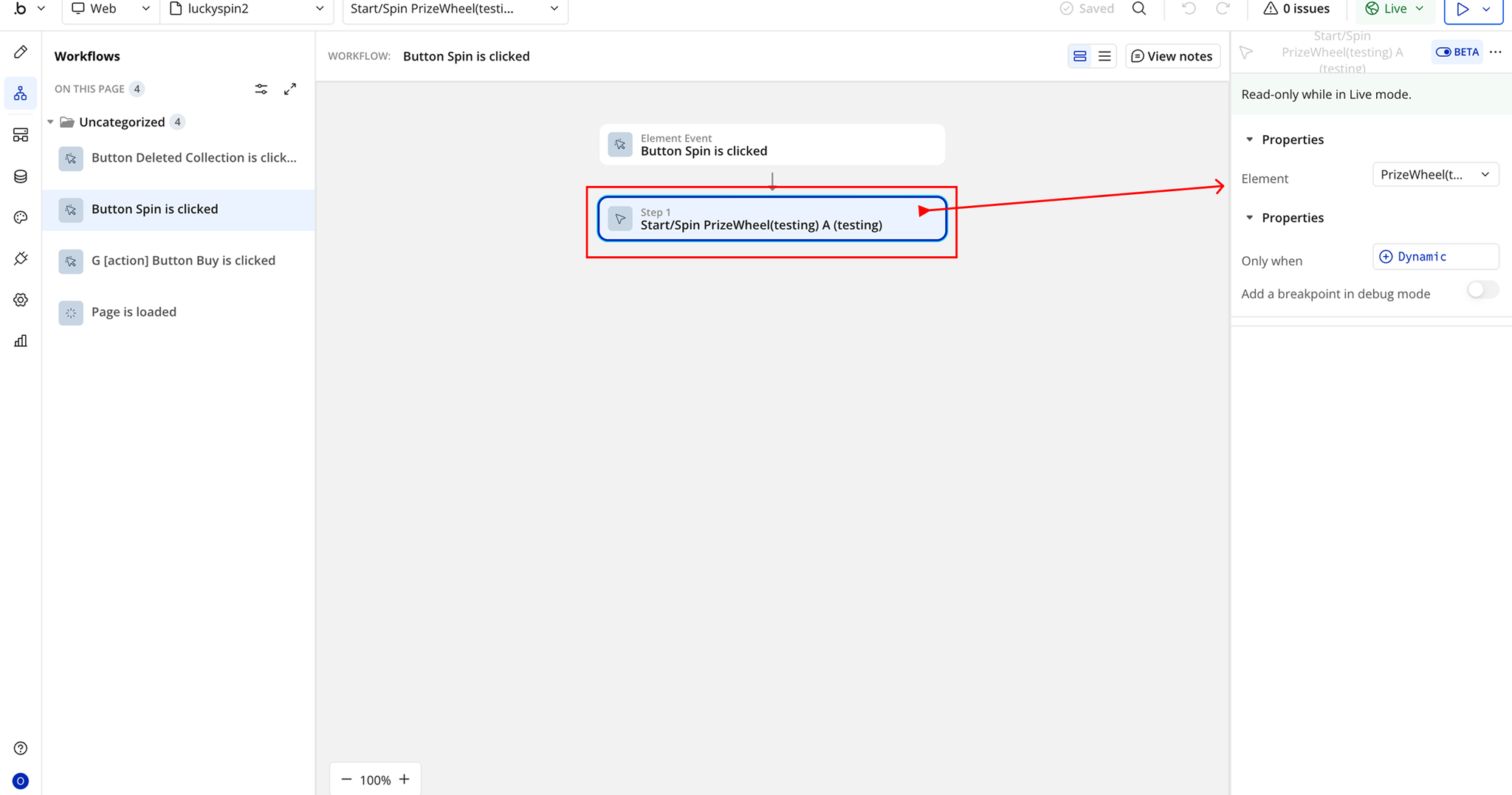
4. Add the Plugin Action
- Add an action:
- Plugins → Start/Spin PrizeWheel
Reset Prize Wheel
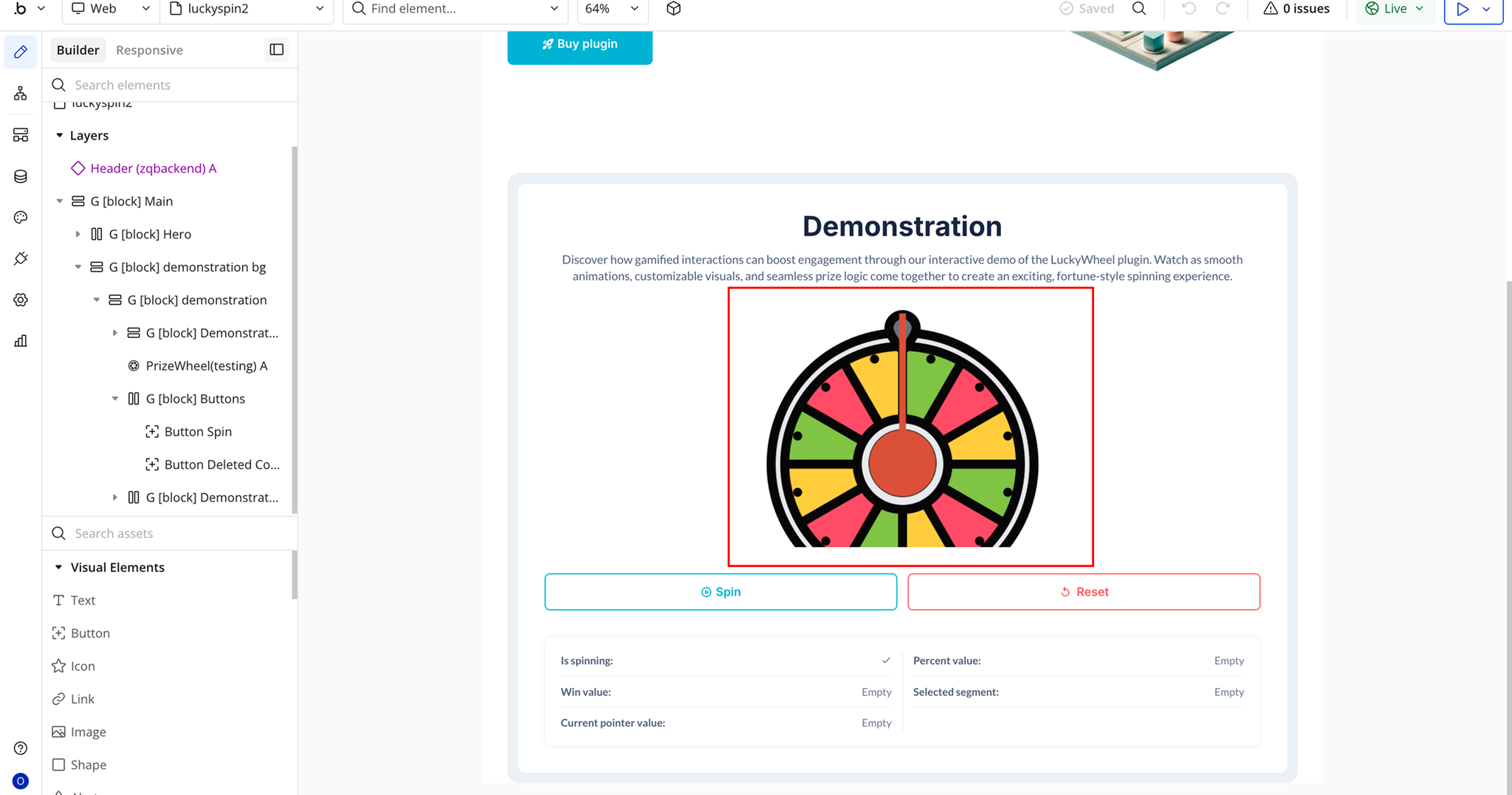
1. Ensure the Prize Wheel Element Is on the Page
- Add the Prize Wheel element to your page.
2. Add a Reset Button
- Place another Button element on the page.
- Rename it to Reset.
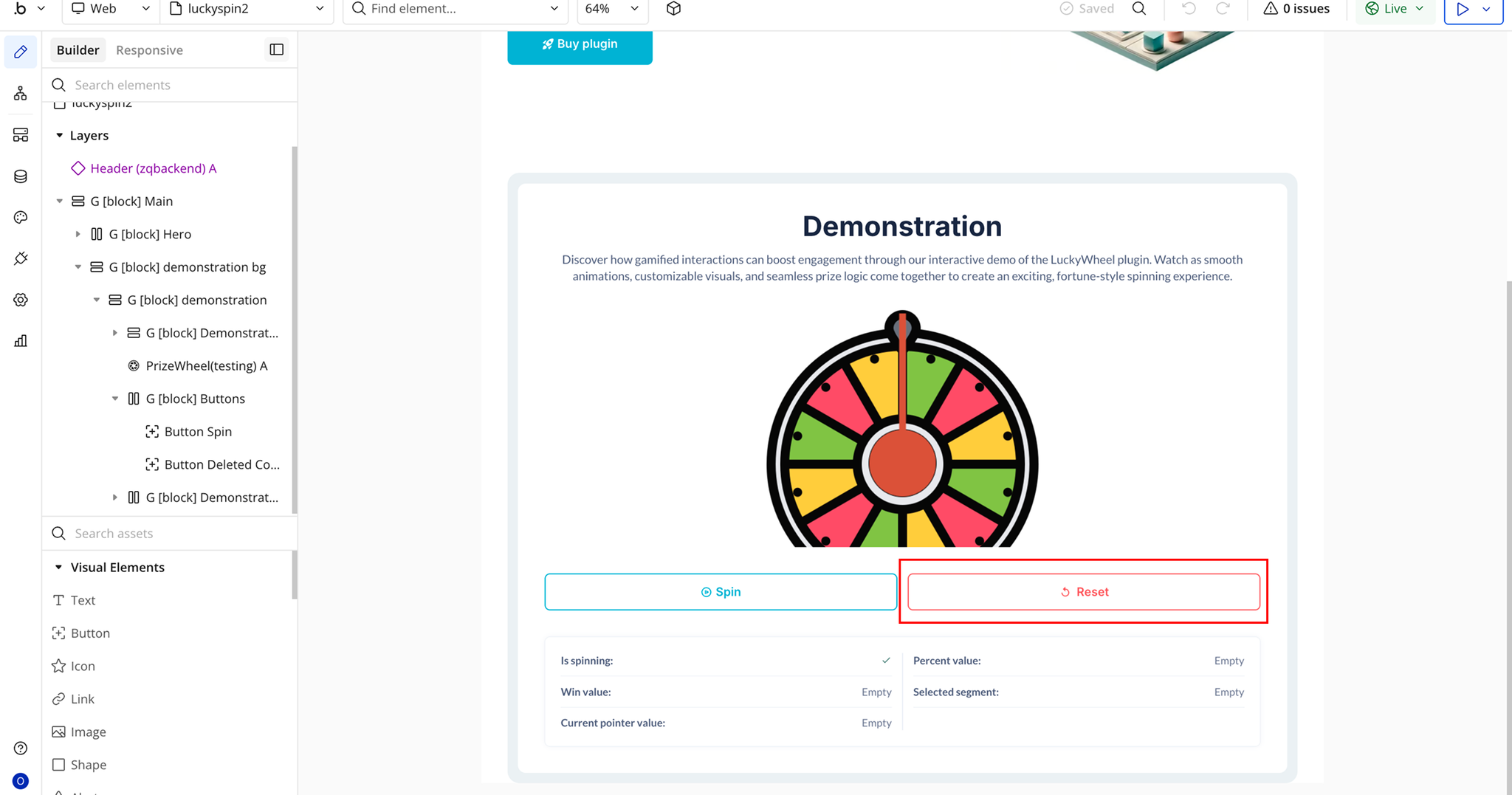
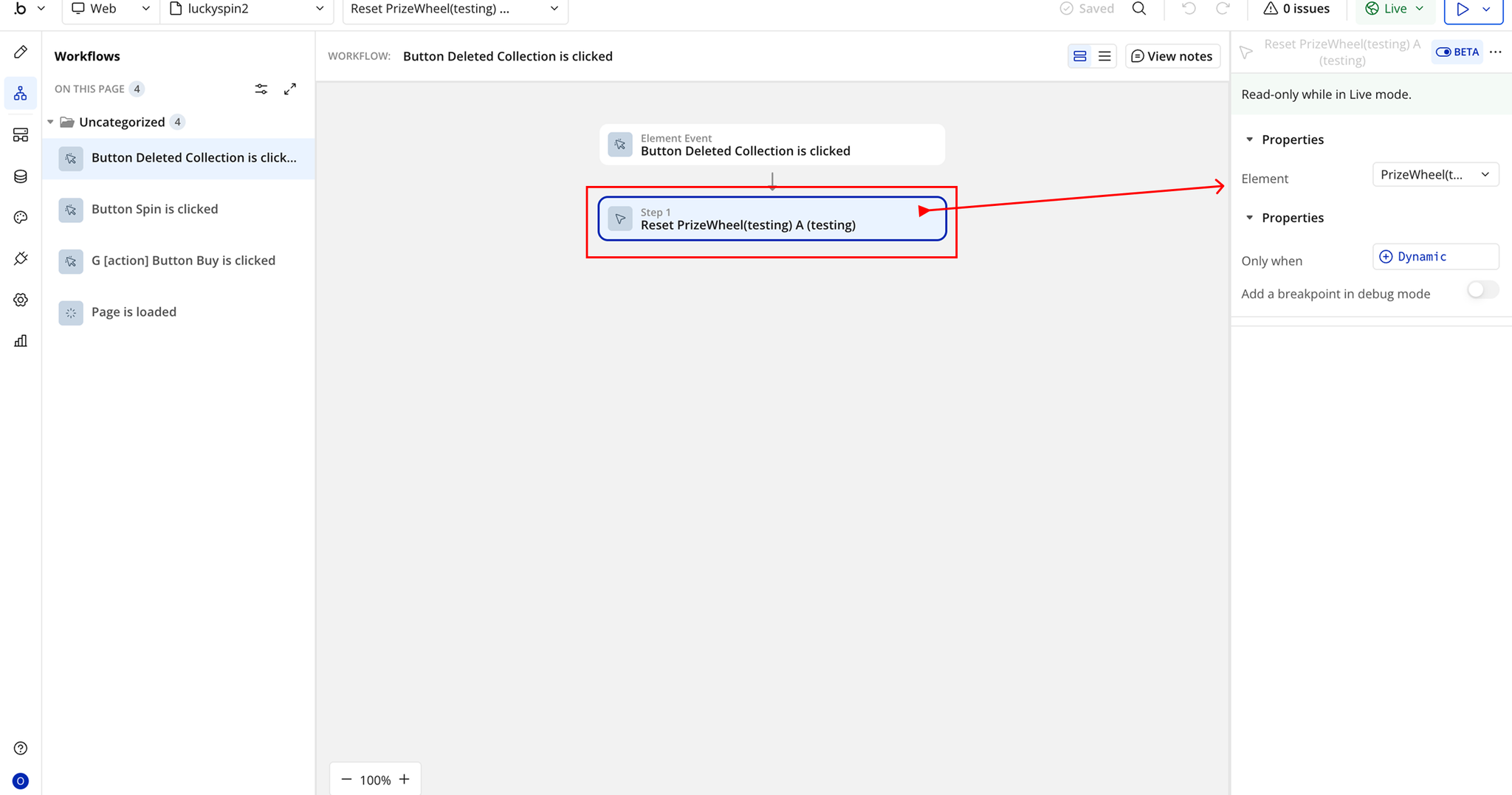
3. Create the Workflow
- Select the Reset button.
- Click Start/Edit Workflow.
- Choose the event:
- When Reset button is clicked
4. Add the Plugin Action
- Add an action:
- Plugins → Reset Prize Wheel
Changelogs
Update 03.08.26 - Version 1.13.0
- Bubble Plugin Page Update (Sorting).
Update 16.03.26 - Version 1.12.0
- migrated to v4.
Update 15.08.25 - Version 1.11.0
- fixed Reset action.
Update 18.07.25 - Version 1.10.0
- Bubble Plugin Page Update (Logo).
Update 27.06.25 - Version 1.9.0
- Bubble Plugin Page Update (Recommendations).
Update 17.06.25 - Version 1.8.0
- Marketing update (minor change).
Update 14.05.25 - Version 1.7.0
- Minor update (Marketing update).
Update 30.07.24 - Version 1.6.0
- Improved rendering quality, fixed marker rendering.
Update 23.07.24 - Version 1.5.0
- Fixed event "spinning just ended".
Update 13.06.24 - Version 1.4.0
- Updated demo/service links.
Update 29.03.24 - Version 1.3.0
- updated description.
Update 07.03.24 - Version 1.2.0
- minor updates.
Update 05.03.24 - Version 1.1.0
- Acquired by Zeroqode.
Update 08.12.23 - Version 1.0.2
- Update.
Update 19.10.23 - Version 1.0.1
- Updated pricing.
Update 22.08.23 - Version 1.0.0
- V1.
Update 21.08.23 - Version 0.0.1
- V0.1.