The Firebase Data Sync plugin provides a seamless solution for exporting and synchronizing data from your Bubble app across various applications. With features such as exporting Bubble data, syncing across different apps, offline persistent storage, and running data as JavaScript/jQuery, this plugin offers a robust toolkit for managing and utilizing your app's data effectively. Whether you need to integrate data with external platforms or ensure offline functionality, the Firebase Data Sync plugin streamlines the process with its powerful capabilities.
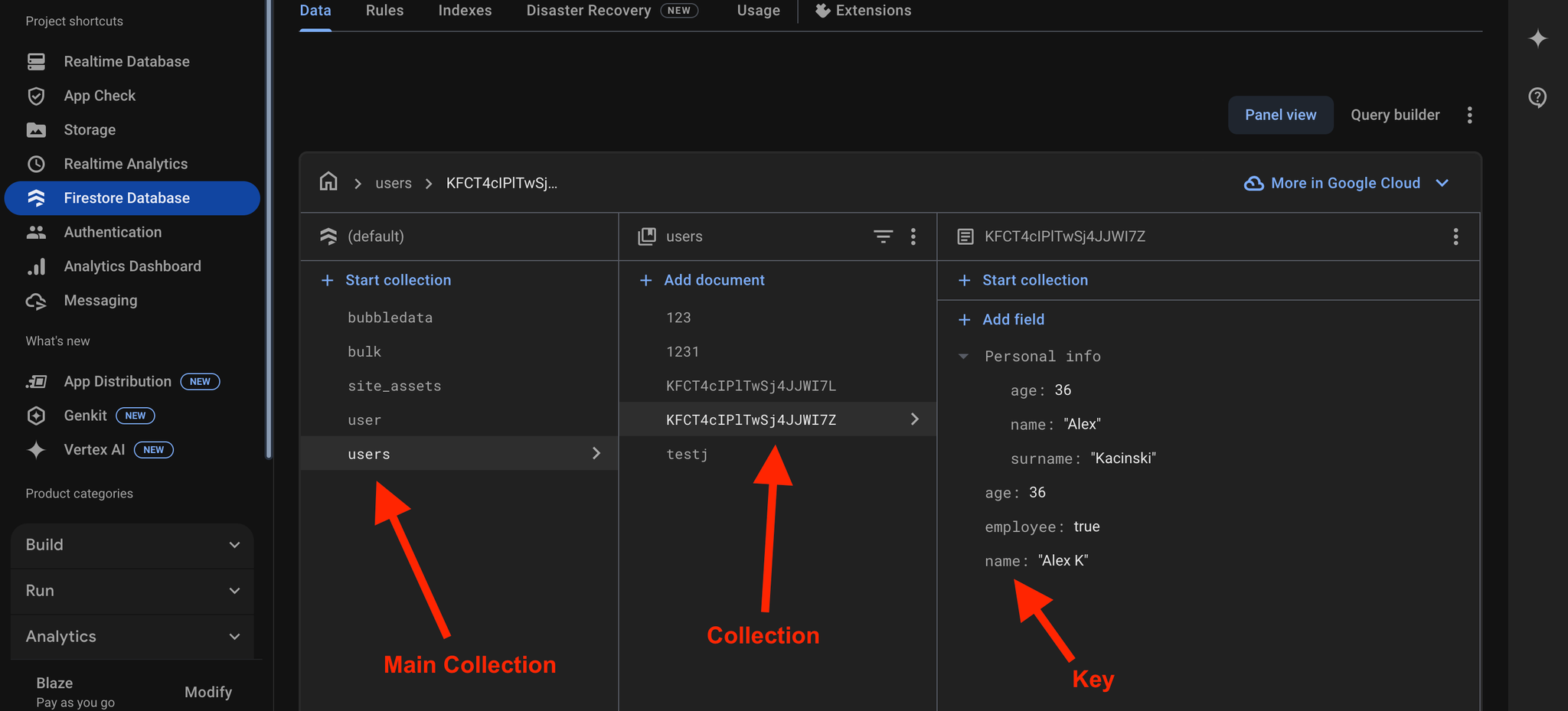
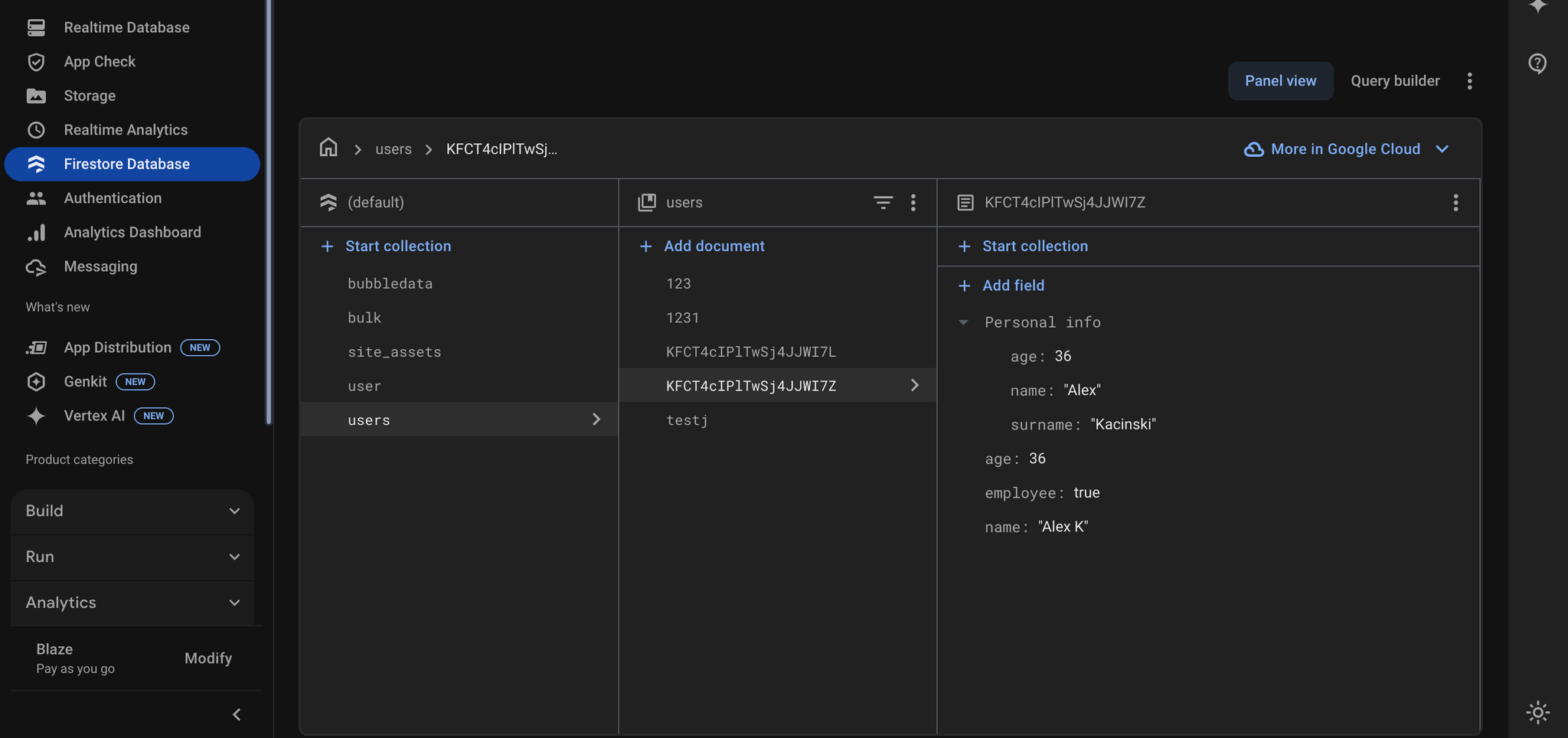
In Firebase, collections are containers for documents, and documents are individual records within those collections. A Firebase project can have multiple collections, each containing documents.
Collections are used to organize and query data in Firestore, which is Firebase's flexible, scalable database for mobile, web, and server development. Firestore collections can be thought of as similar to tables in a traditional relational database, but with some key differences. For example, Firestore collections don't require a predefined schema, and they can contain nested objects and arrays.
❗
The Firebase Data Sync plugin is compatible only with Firestore. To work with Realtime Database, please use the Firebase Realtime Database plugin.
Prerequisites
You must have an account with Firebase to interact with the Firebase. Create you development account at: https://firebase.google.com/
Follow the instructions and fill in all the necessary fields:
Or use the created one, if you have one.
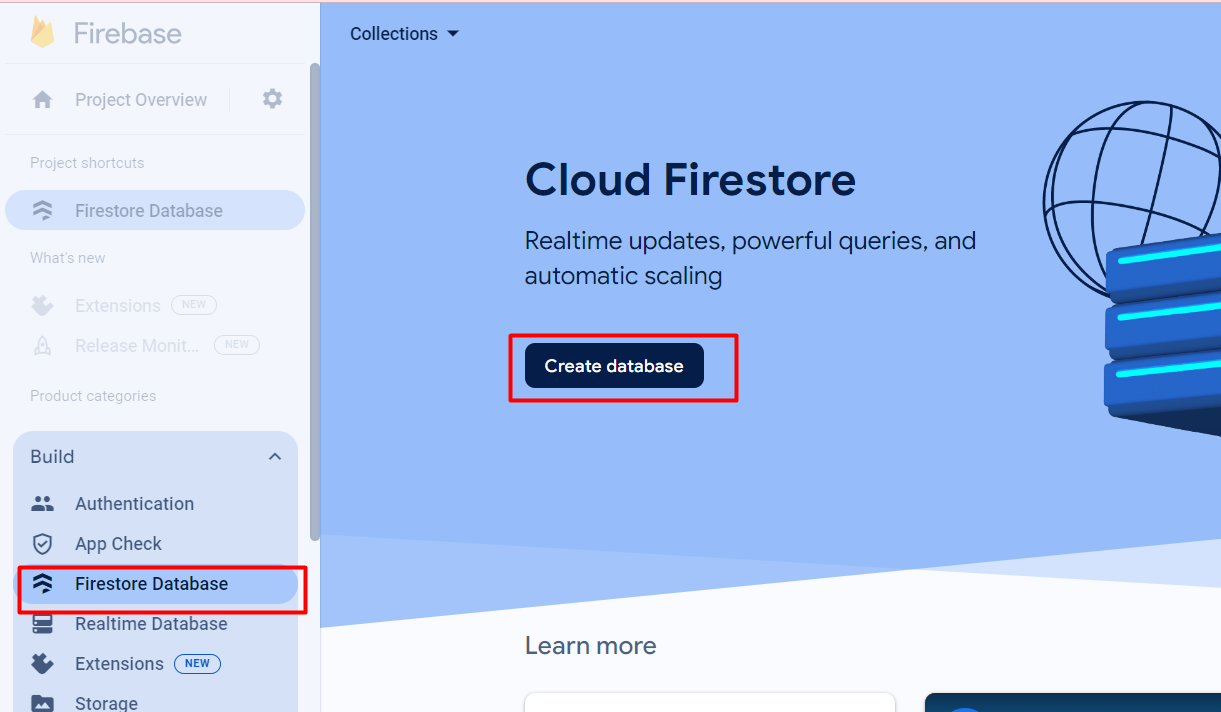
Create a Firestore Database.
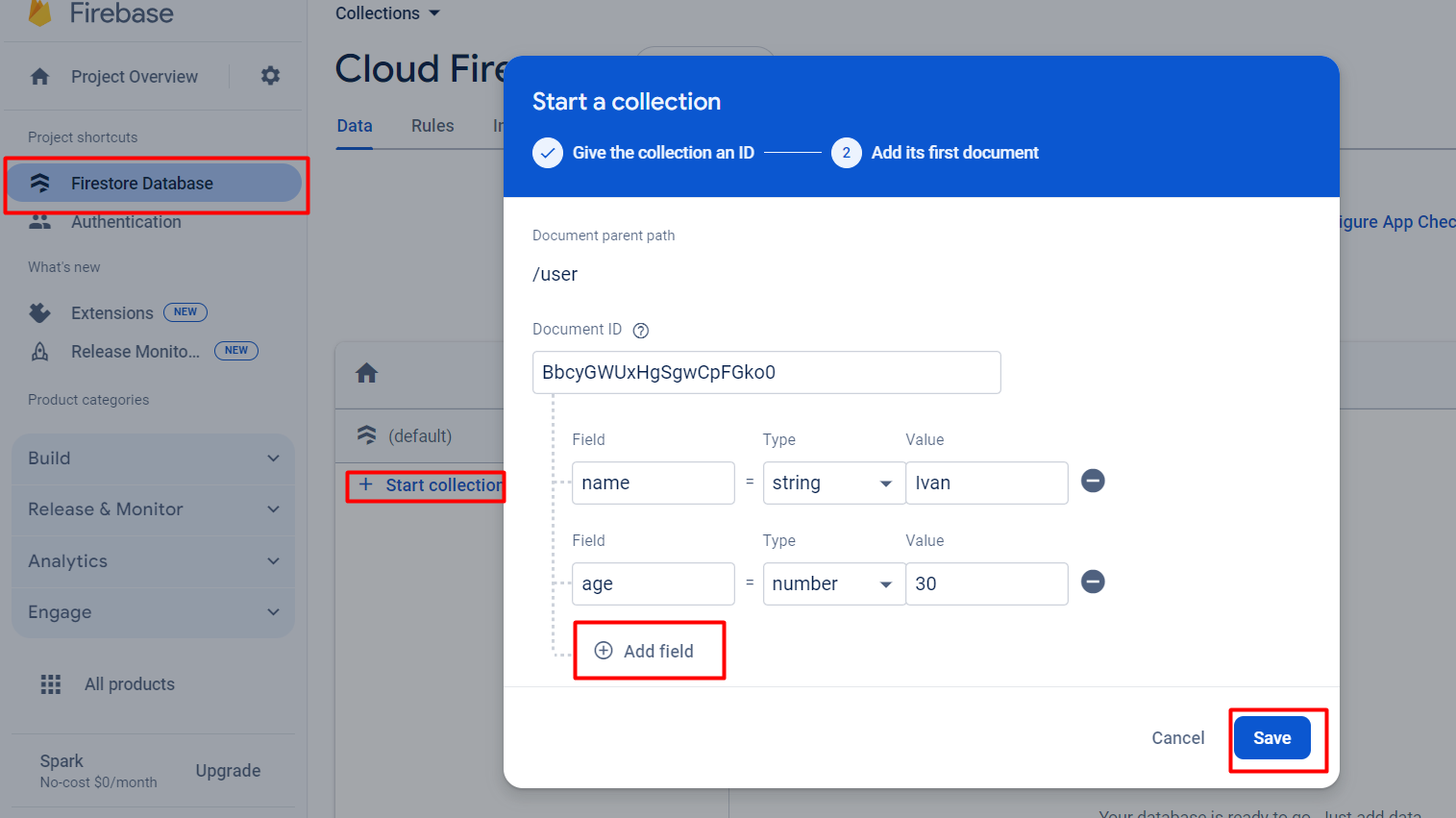
Create database collections you need for your app.
Configure Authentication
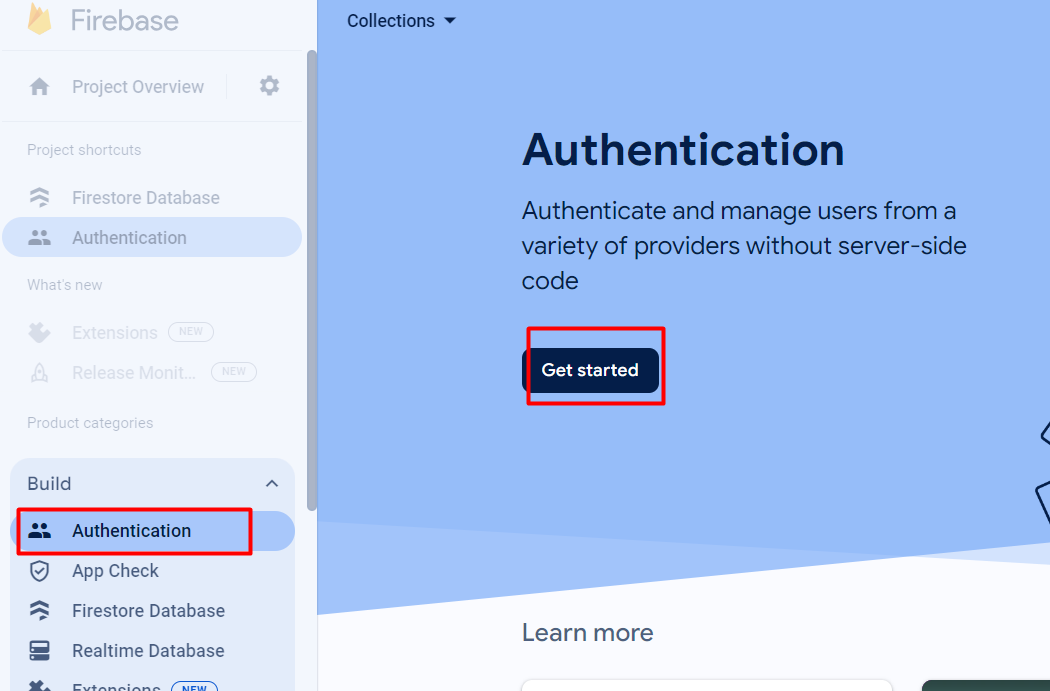
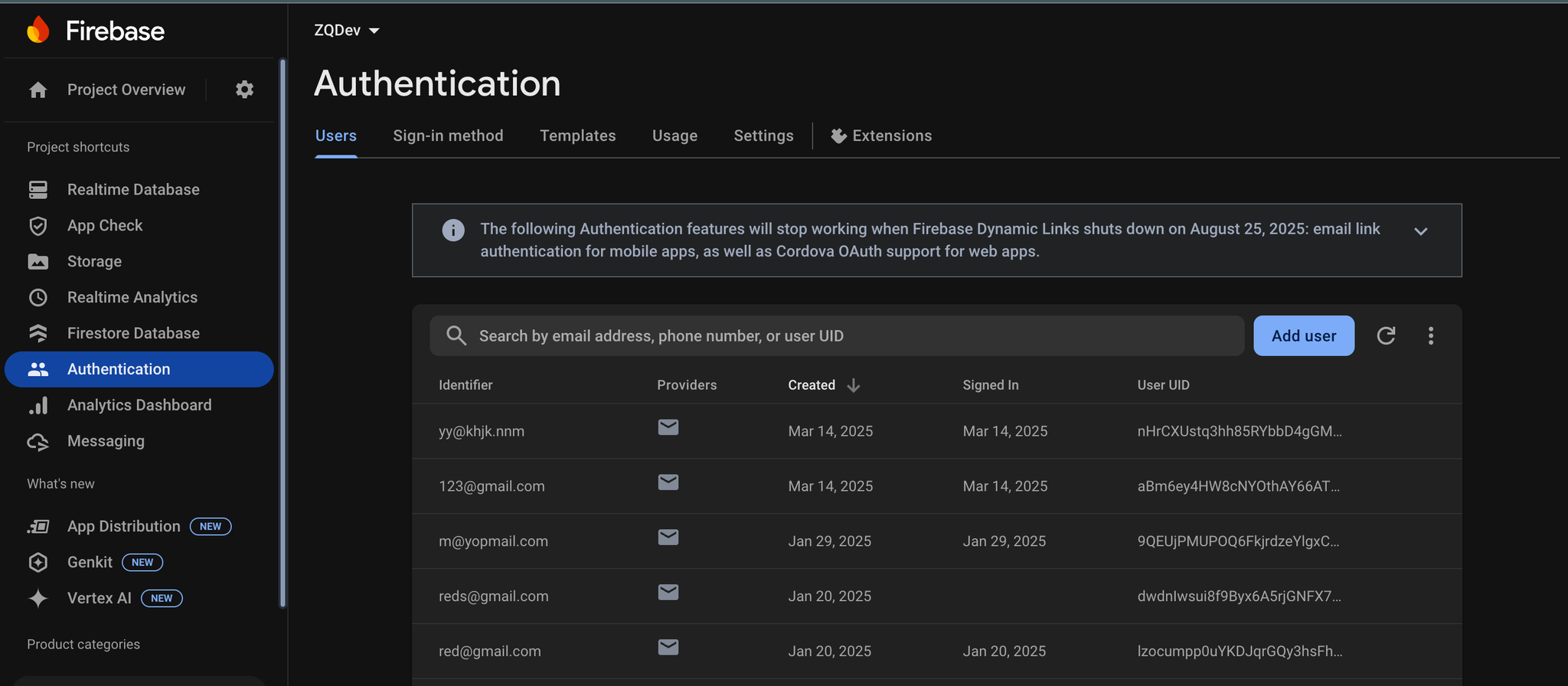
In your Firebase Console, choose your project, then navigate to 'Authentication'.
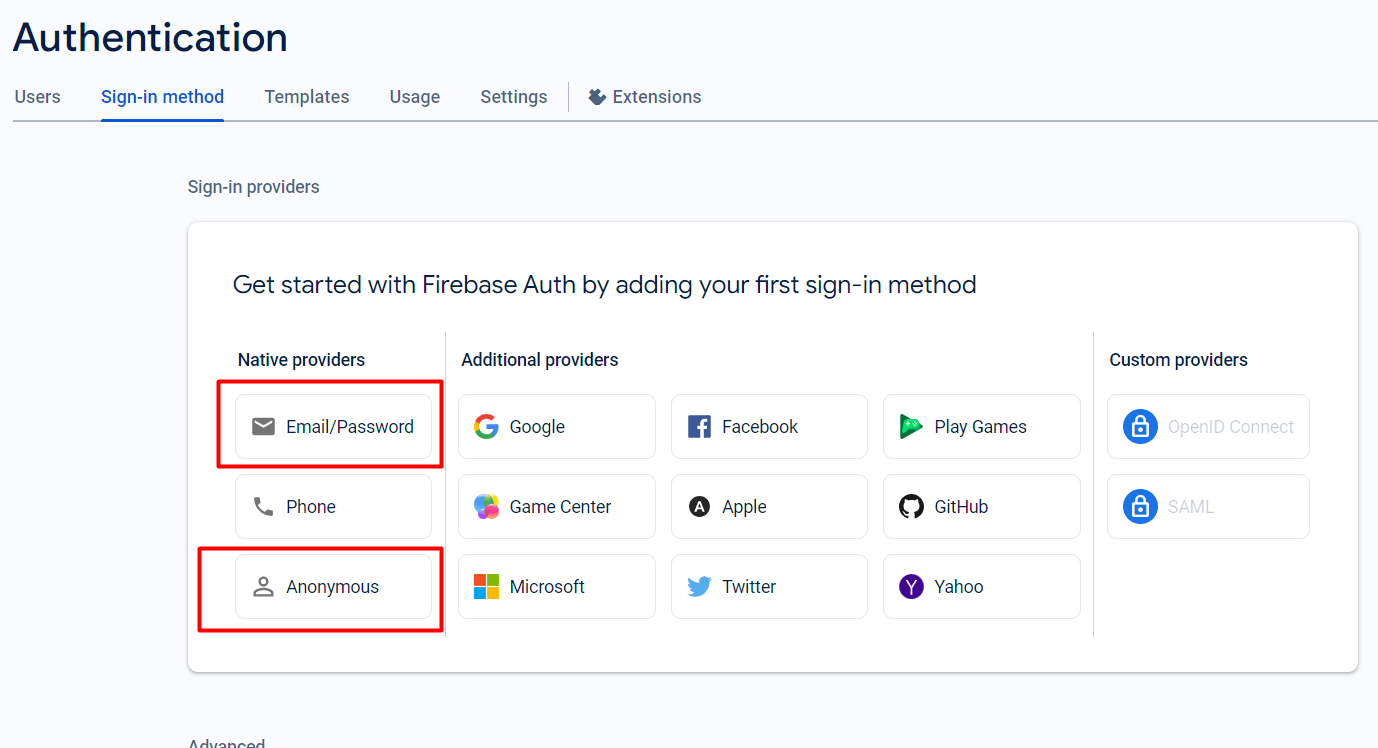
A good practice is to set up both authentication methods.
Set up Plugin Settings Fields
In the Firebase console open your app and go to project settings in the settings tab.
On the "General" tab, you will see all the necessary information for your plugin.
Copy the ”Web API Key” and paste it into the plugin settings “API KEY” field.
Copy the “Project ID” and paste it into the plugin settings corresponding field.
💡
If “Web API Key” is empty, just go to the “Authentication” section, click “get started”, configure Authentication and after that the key will be there.
☝
Note: Make sure you only copy the values without the quotes, for example this line,projectId: "my-firebase-project",
Would mean your ID is, my-firebase-project
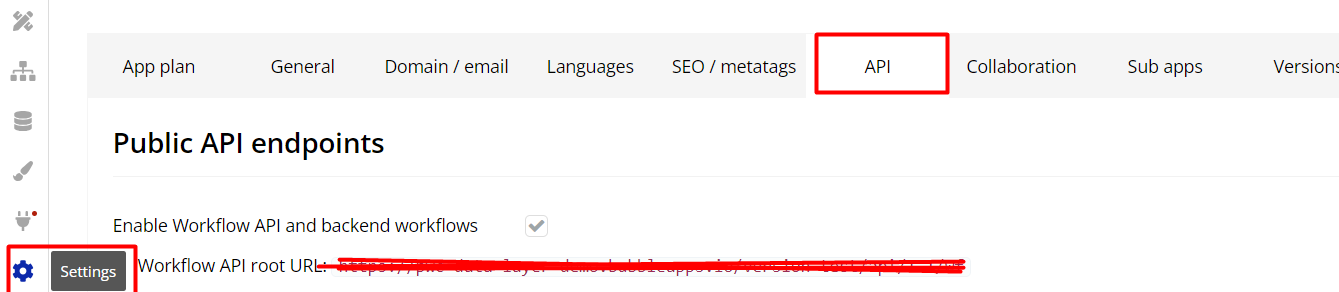
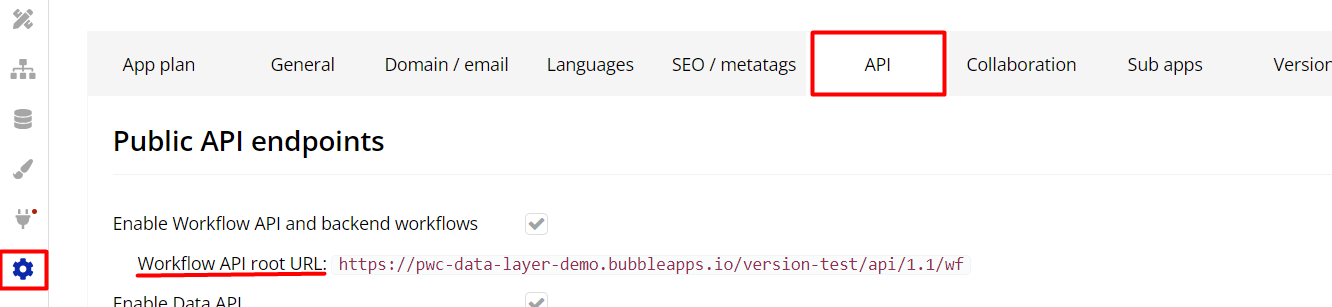
For plugin settings field “Bubble Data API Key” generate it in your bubble app Settings tab.
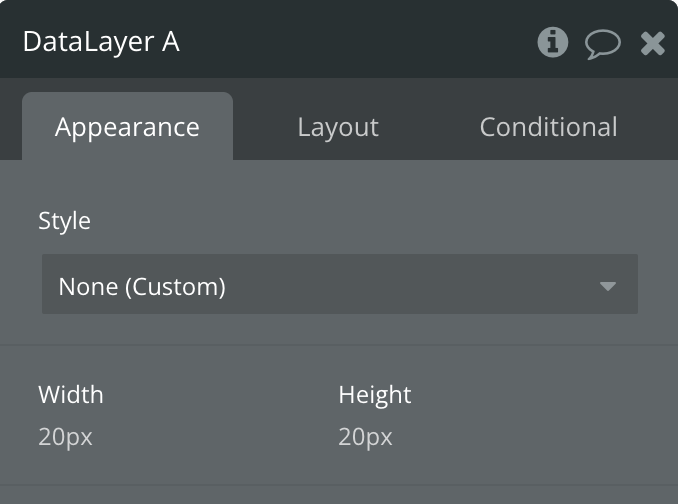
Paste plugin element “Data Layer” on your page and you are all done with setting up.
Once you have setup your Firebase Console & finished adding the required values into the plugin settings tab, your can place the 'Data Layer' element on each page its required on. Once this element is on a page you will then have access to its actions & states.
❗
Important: Ensure only ONE 'Data Layer' element is placed on each page.
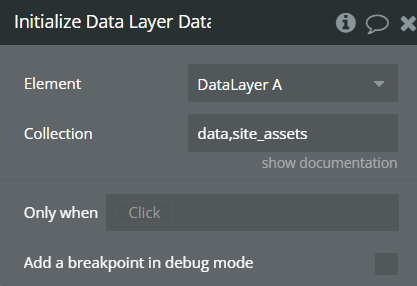
If you have public data you wish to use in your Firebase Database, you should add a 'Initialize Data Layer' action in an 'On Page Load' event and define the Main Collection name(s).
❗
Note: If you want to initialize more than one Main Collection, you can separate them with a comma.
Example:Site_Assets,Public_Data,JS
❗
Note: You can use the 'Initialize Data Layer' as many times as you like. This should be done in cases such as a user has signed in or out using the plugin events as such. This is because you may initialize on page load a Main Collection called public_data because the user is not yet signed in then once the 'Signed In' event fires you can initialize public_data, user_data. You must include the public_data again because calling 'Initialize Data Layer' also clears the Data Layer so that any Main Collection that is not included is no longer part of the Data Layer to prevent data remaining that should no longer be available.
:::
❗
Note: The events for 'Signed In' & 'Signed Out' fire on page load so if a user is logged in and returns to your site then the relevant event will fire automatically. This is also true for other events such as 'Data Offline', 'Data Online' & 'Data Layer Updated'.
Now that the Data Layer is setup you can start making use of the other element action's to read, write & delete data & also export your bubble data or post the Data Layer JSON to your apps workflow API.
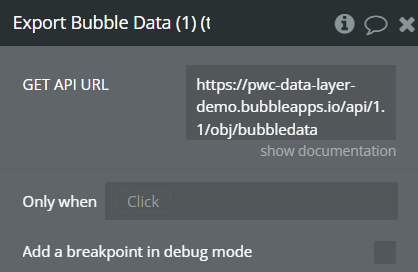
The 'Export Bubble Data' action comes in two parts, first you need to run the 'Export Bubble Data (1)' action followed by the 'Export Bubble Data (2)' action. To use the export actions you need to enable your apps Data API (GET), check all 'things' you want to export & generate an API key. The API Key is required in the plugin's settings in the field Bubble Data API Key.
Exporting is as simple as defining your Data API's URL for the thing your exporting, then using the resulting JSON in the 'Export Bubble Data (2)' action.
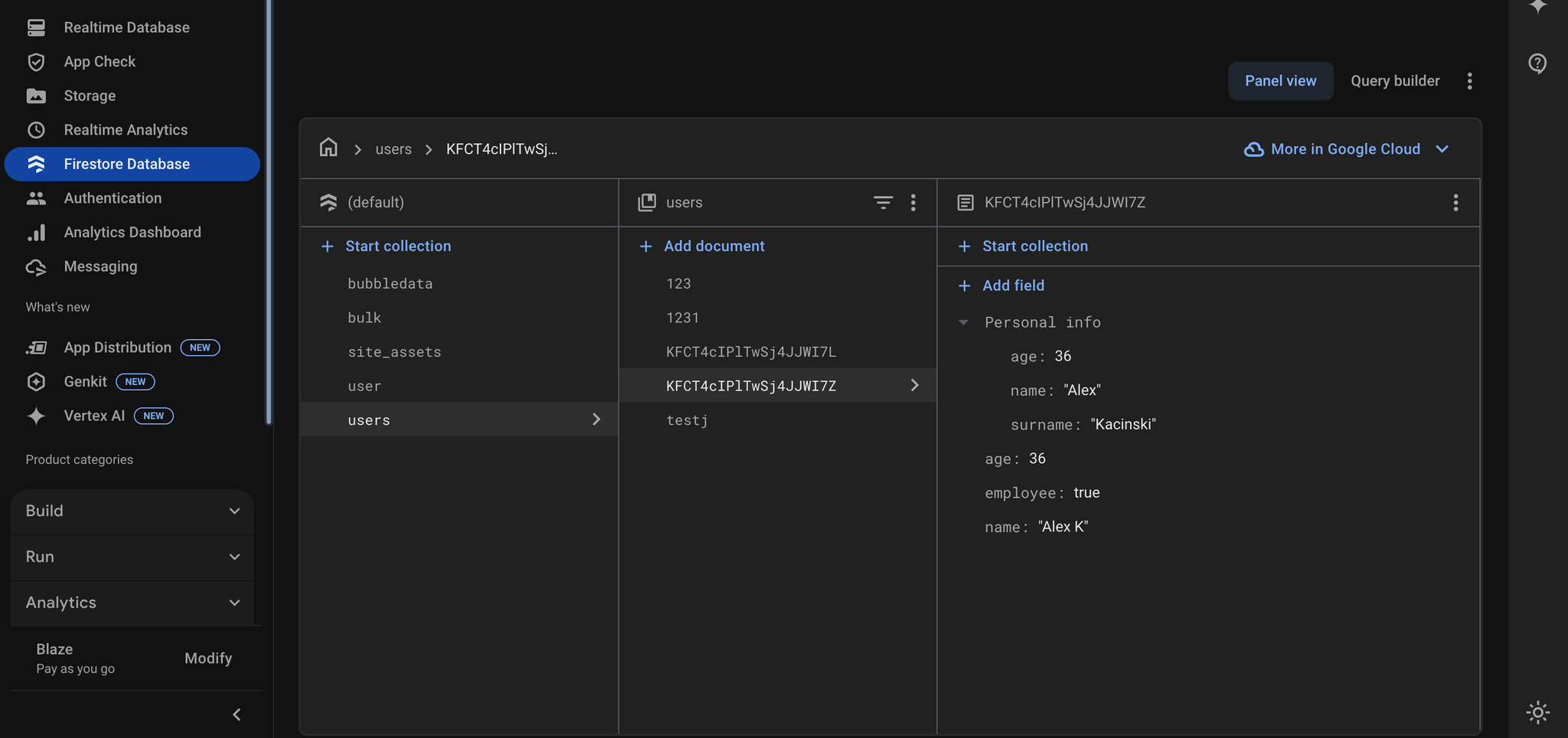
The resulting data in your Firebase Database will be structured as follows:
user (Main Collection) / unique_id (List of Thing's ID's) / this_users_data (JSON Data of this Thing)
Plugin element - Data Layer
Exposed States
Title
Description
Type
String Output
The data retrieved from the Firestore collection, but it's represented as a JSON string or just string. This allows for easy handling and display of the retrieved data within the Bubble application.
Returned from “Get Data” action.
Text
Logged In
Is the user logged into firebase.
Yes/No
Number Output
The data retrieved from the Firestore collection when it is of number type.
Returned from “Get Data” action.
Number
Boolean Output
The data retrieved from the Firestore collection when it is of boolean type(yes/no).
Returned from “Get Data” action.
Yes/No
Display Name
User's display name retrieved from Firebase authentication.
Text
Email
User's email address retrieved from Firebase authentication.
Text
Email Verified
State indicating whether the user's email address has been verified. This information is retrieved from Firebase authentication.
Yes/No
Photo URL
User's profile photo URL retrieved from Firebase authentication.
Text
Is Anonymous
State indicating whether the user is authenticated anonymously. This information is retrieved from Firebase authentication.
Yes/No
User UID
State of the user's unique identifier (UID) retrieved from Firebase authentication.
Text
Provider Data (JSON)
Refers to details about the authentication provider used by the user to sign in. Firebase supports various authentication providers such as Google, Facebook, Twitter, and email/password authentication.
Text
Data Offline
Reflects whether the Firebase data source is currently operating in an online or offline mode.
Yes/No
Search Results id
Document IDs where the search term was found.
Returned from “Search Data Layer” action.
Text List
Type of returned data
Represents the type of data retrieved from Firebase Firestore.
Text
Search Results field
Contains the names of the fields within the documents where the search term was found.
Returned from “Search Data Layer” action.
Text List
Search Results value
Stores the corresponding values of the fields where the search term was found.
Returned from “Search Data Layer” action.
Text List
Element Events
Title
Description
Data Layer Updated
Triggers when Firebase collections have been updated.
Signed out
Triggered when the user signed out.
Signed In
Triggered when the user signed in.
Data Offline
Event triggered when the Firebase data has transitioned to an offline state, meaning that it is currently disconnected from the server or experiencing network connectivity issues.
Data Online
Event is triggered in response to a server-side update of Firebase collections, indicating that the application is now connected and receiving updates from the server.
Data Deleted
Event is triggered when a document within a Firebase collection is deleted.
Search Finished
Search action has finished.
Login failure
Event triggered when login fails
Returned data is string
Event triggered when type of returned data is string
Return data is number
Event triggered when type of returned data is number
Return data is boolean
Event triggered when type of returned data is boolean
☝
Note: The 'Data Layer Updated' event is fired each time the Data Layer changes, this includes if another app was to update the Firebase database as any changes to the Firebase database will trigger this event while online. If the app is offline the event will fire when the app connects again.
Element Actions
Get Data
Get Data from a Firestore Database Collection.
Firestore Database Collection
Fields:
Title
Description
Type
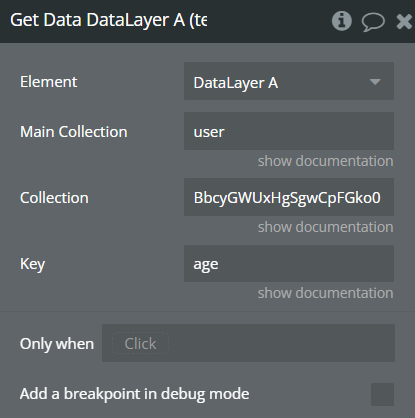
Main Collection
The main collection name.
Text
Collection
The document name in the selected collection.
Yes/No
Key
The name of the objects key your looking for, eg. data: { "color": "blue", "day": "Monday" }, here you could use "color" or "day" for example.
Number
Initialize Data Layer
Initializes Firebase collections based on the provided collection names.
Initializing Firebase collections allows your application to listen for real-time updates from those collections, enabling features like live data synchronization and dynamic content updates.
Fields:
Title
Description
Type
Collection
The collection name(s). Comma separate more than one main data collection. (no spaces)
Text
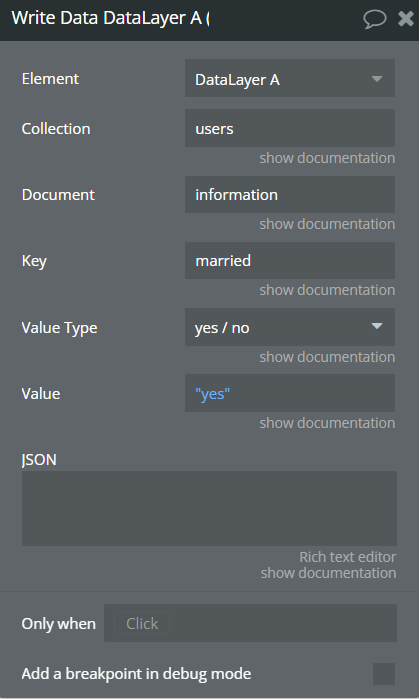
Write Data
Allows you to update or set a value in your Firebase database. You specify the collection, document, and key where you want to update or set the value. You can provide the new value directly or as JSON format.
Fields:
Title
Description
Type
Collection
Сollection name
Text
Document
The document name in the selected collection.
Text
Key
The name of the objects key your looking for, eg. data: { "color": "blue", "day": "Monday" }, here you could use "color" or "day" for example.
Text
Value Type
Type of the value you want to write into your key.
App Type
Value
(Optional) Any data to save to the database. Not JSON (if you want JSON leave it empty and fill the corresponding field)
As Value Type
JSON
(Optional) Your JSON Data, fill the field only if you want the value to be JSON type.
Text
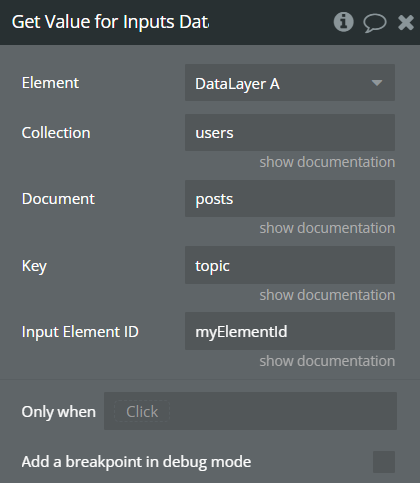
Get Value for Inputs
It fills a web page input with the specified it with data from a specific document in a Firestore collection.
Fields:
Title
Description
Type
Collection
Сollection name
Text
Document
The document name in the selected collection.
Text
Key
The name of the objects key your looking for, eg. data: { "color": "blue", "day": "Monday" }, here you could use "color" or "day" for example.
Text
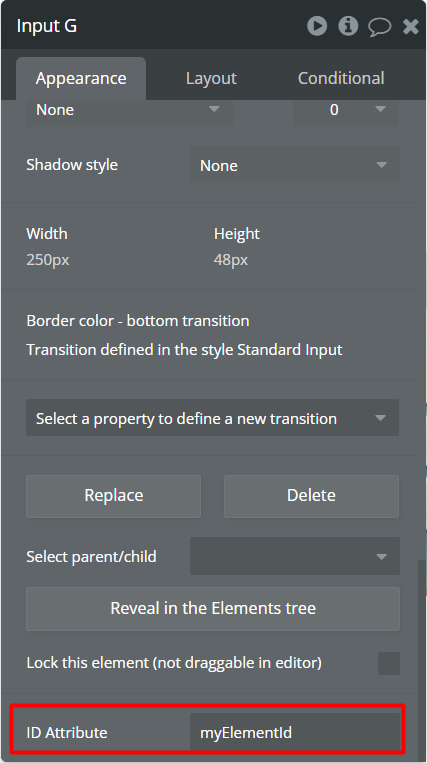
Input Element ID
The input's id you want the value to show in.
Text
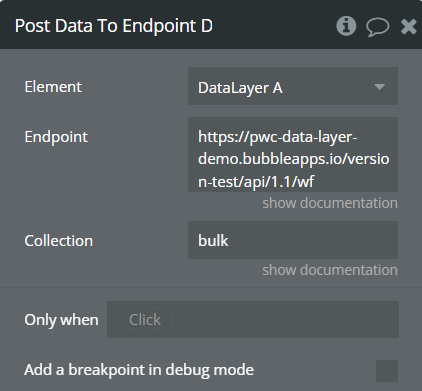
Post Data To Endpoint
This action initializes Firebase, retrieves data from it, and sends that data to a specified bubble endpoint using a POST request.
The endpoint:
Fields:
Title
Description
Type
Endpoint
Your app's workflow endpoint. Remember to remove the initialize after you have setup the endpoint.
Text
Collection
The collection name.
Text
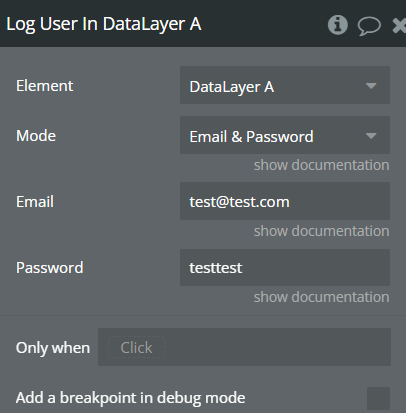
Log User In
This action handles user authentication for a Firebase database. It allows users to sign in either with email and password or anonymously.
Fields:
Title
Description
Type
Mode
Mode for login
Dropdown(Email & Password,Anonymous)
Email
Users email
Text
Password
Users Password
Text
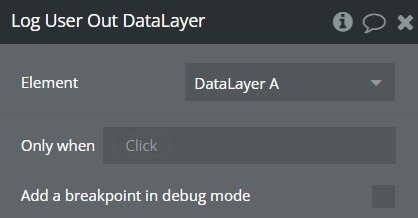
Log User Out
This action handles the sign-out process for a user authenticated with Firebase.
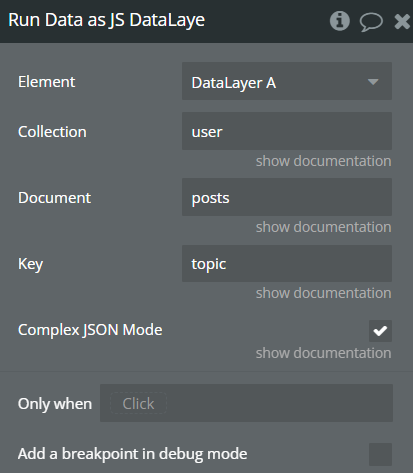
Run Data as JS
Action refers to a specific approach where the retrieved data from a database is directly executed as JavaScript code.
Using the 'Run Data as JS' action you can perform JavaScript tasks even while offline by saving the JS in your database. A good example of this is to have a Firebase Main Collection with a sub-collection called JS, now create a new string {Key: "Value"} pair and call the field offline & set the value to:
document.write("<!doctype html> Site Maintenance body { text-align: center; padding: 150px; } h1 { font-size: 50px; } body { font: 20px Helvetica, sans-serif; color: #333; } article { display: block; text-align: left; width: 650px; margin: 0 auto; } a { color: #dc8100; text-decoration: none; } a:hover { color: #333; text-decoration: none; } We’ll be back soon!")
Now in your Bubble app you can use the 'Data Offline' event to run the 'Run Data as JS' action and point the action to your above code stored in the Database. The result will be a nice offline page when the internet is disconnected.
Of course, you can expand on this and feature some code in the above snippet to listen for the connection and redirect back to your page, where as promised any data changes will be synchronized both to & from your Firebase Database.
Fields:
Title
Description
Type
Collection
The collection name.
Text
Document
The document name in collection
Text
Key
The name of the objects key your looking for, eg. data: { "color": "blue", "day": "Monday" }, here you could use "color" or "day" for example.
Text
Complex JSON Mode
If your value your returning is an array or object or nested, turn this on and you will receive the stringified JSON value.
Checkbox
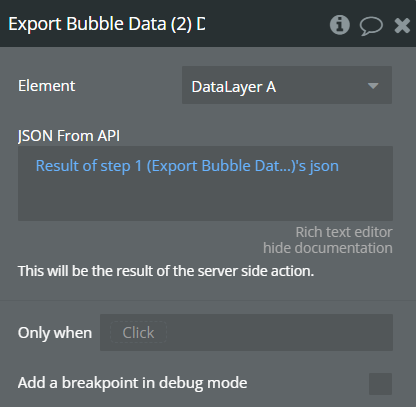
Export Bubble Data (2)
This action takes JSON data, extracts specific fields from it, and sends them to Firebase for exporting.
Fields:
Title
Description
Type
JSON From API
This will be the result of the server side action - “Export Bubble Data (1)”.
Text
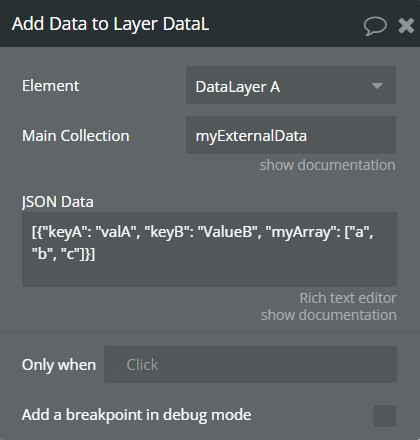
Add Data to Layer
Add some extra data to the layer.
This action is responsible for adding data to a Firebase collection
Fields:
Title
Description
Type
Main Collection
The main collection name.
Text
JSON Data
Your JSON body of data.
Text
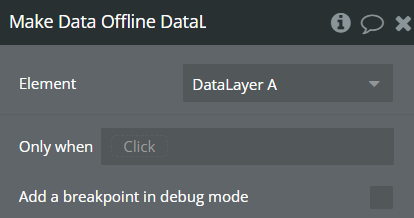
Make Data Offline
Sets Firebase to offline mode to use cached data.
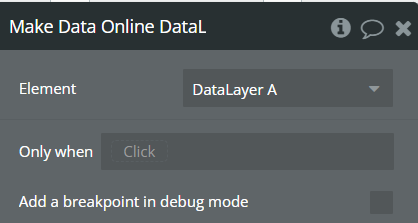
Make Data Online
This action enables network access for Firestore.
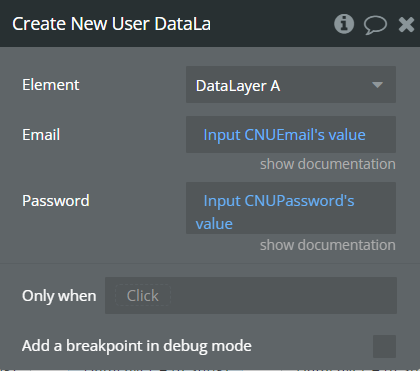
Create New User
This action attempts to create a new user account in Firebase Authentication with the provided email and password.
Fields:
Title
Description
Type
Email
The user’s email address.
Text
Password
The user’s password.
Text
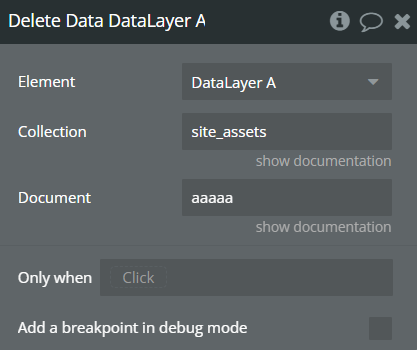
Delete Data
This action attempts to delete a document from a collection in a Firebase database.
Fields:
Title
Description
Type
Collection
This parameter specifies the name of the collection from which the document will be deleted in the Firebase database. In Firestore, data is organized into collections, and each collection contains a set of documents.
Text
Document
This parameter specifies the unique identifier, often referred to as the document ID, of the specific document to be deleted within the specified collection. Each document in Firestore has its own unique ID, which is used to retrieve, update, or delete the document.
Text
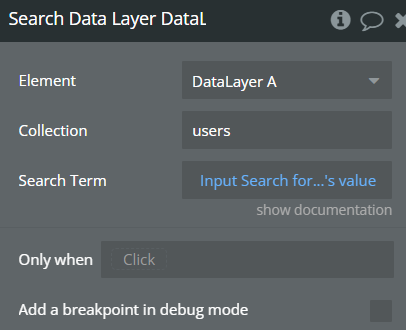
Search Data Layer
This action essentially performs a real-time search within a Firestore collection based on the provided search criteria and updates the application state with the results.
Fields:
Title
Description
Type
Collection
This parameter specifies the name of the collection within the Firebase Firestore database where the search operation will be performed. Firestore collections contain a group of documents, and this parameter determines the specific collection to search within.
Text
Search Term
This parameter specifies the search criteria or keyword to be used for searching within the documents of the Firestore collection. It is used to find fields in the documents that match this search string.
Text
Plugin Server Side Actions
Export Bubble Data (1)
This action fetches data from bubble database and returns it in a structured format.(for a better understanding check the Set Up section).
Fields:
Title
Description
Type
GET API URL
This property represents the URL from which data will be fetched. (explained better in Set Up section)
Text
Returned Value:
Title
Description
Type
json
This property represents the JSON object returned by the action. It includes an ID extracted from the URL and data retrieved from the response, both serialized into a JSON string.
Text
Workflow example
Here's a basic workflow example to get started with the Firebase Data Sync plugin:
Setup Initial Connection:
Add a Data Layer element to your page.
Use the "Initialize Data Layer" action on page load with your main collection names (e.g., "users,posts,settings").
User Authentication:
Create a login form with email and password fields.
Connect the login button to the "Log User In" action.
Handle successful login with the "Signed In" event.
Display user information using the exposed states.
Data Retrieval:
Once authenticated, use "Get Data" to retrieve specific information.
Display the retrieved data in your app using states like "String Output" or "Number Output".
Data Writing:
Create a form to collect user input.
Connect the form submission to the "Write Data" action.
Use the "Data Layer Updated" event to provide feedback.
Working Offline:
Implement "Make Data Offline" functionality for offline usage.
When connection is restored, use "Make Data Online" to sync.
Changelogs
Update 04.05.26 - Version 1.10.0
Bug fixes & stability improvements.
Update 03.07.25 - Version 1.9.0
Updated "Get Data" action to prevent trigger "Data Layer Updated" event when a collection is initialized.