
✅
Link to plugin page: https://zeroqode.com/plugin/qr--bar-code-reader-1530097456687x249120198975291400
Demo to preview the settings
✅
Introduction
This plugin enables smooth and seamless QR and Bar code reading functionality in your Bubble app.
For better quality scanning, please make sure there is sufficient lighting in the room and QR/Barcodes are of good quality.
How to setup
Place the required elements on the page and fill in the fields. You can find a more detailed configuration on the plugin demo page.
Plugin Elements Properties
This plugin has 4 visual elements which can be used on the page: GenerateQR V1, GenerateQR V2, Barcode/QR Live Scanner, and Barcode/QR Image Scanner.
Plugin Element - GenerateQR V1
This is element is used to generate a QR-formatted image from inputted values. The width and height of the generated QR can be customized in action.
Element Actions
- Generate QR code
This action is used to generate a QR Code.
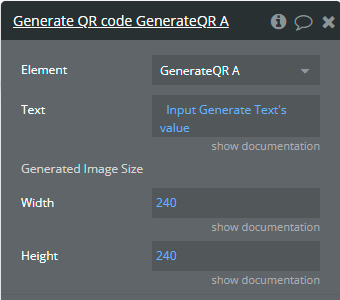
Title | Description | Type |
Text | This is the value that you want to encode. | string |
Width | The value that represents the output width, in pixels, of the QR code image. | number |
Height | The value that represents the output height, in pixels, of the QR code image. | number |
- Download QR Code
This action is used to Download to device the generate QR Code
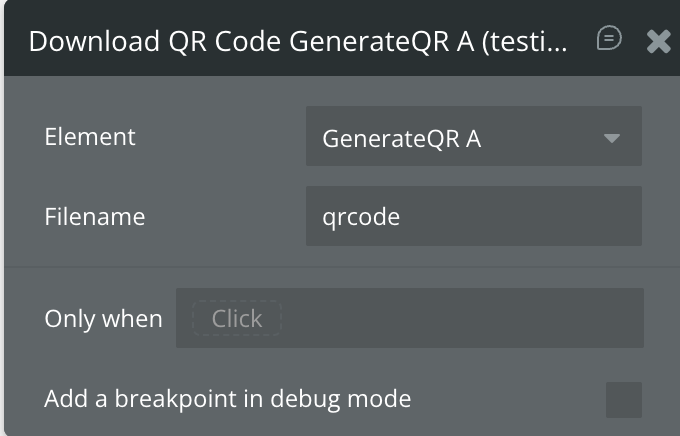
Title | Description | Type |
Filename | Name of the downloaded file without extension | string |
Element States
Title | Description | Type |
Generated Image | The generated QR code is in base64 format. | string |
Plugin Element - Barcode/QR Live Scanner
This is element is used to live scan Barcode by the camera. This element decodes 1D and 2D barcodes. It detects automatically the code and format of this.
Available format:
- Aztec
- Codabar
- Code 39
- Code 93
- Code 128
- Data Matrix
- EAN-8
- EAN-13
- ITF
- PDF 417
- QR Code
- UPC-A
☝
Ensure sufficient lighting in the room and QR/Barcodes are of good quality.
Element Actions
- Start Scanning - This action will start the live scanning.
- Stop Scanning - This action will stop the live scanning.
- Set Camera - This action is used to change the camera which is used for scanning.
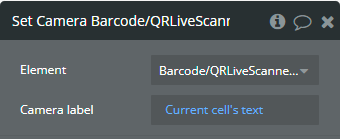
Fields:
Title | Description | Type |
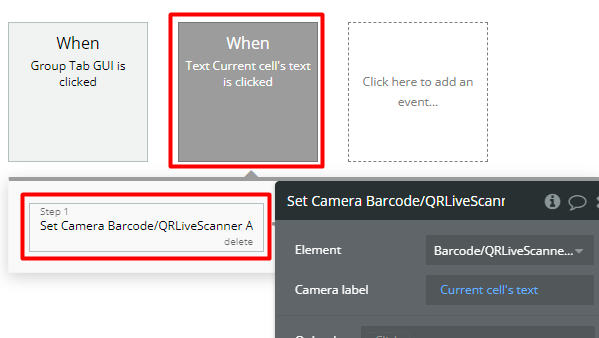
Camera label | The camera label which you want to use for live scanning. Every camera device has an individual label. A list of camera labels is provided with element. See the Workflow Examples below. | string |
Element States
Title | Description | Type |
List of cameras | Every camera device has an individual label. This returns all available camera labels for scanning. You can use one of these in the Set Camera action. | list of string |
BarCode Result | This represents the value that was encoded in the barcode. | string |
BarCode Type | This represents the type of barcode. | string |
Plugin Element - Barcode/QR Image Scanner
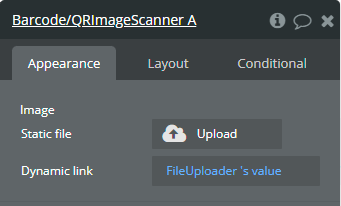
This is element is used to scan barcodes from images. This element decodes 1D and 2D barcodes. It detects automatically the encoded code.
☝
Use just the “.png”, “.jpeg”, “.jpg”, “.jpe”, “.jif” or “.jfif” file format for decoding when using this element.
Element Fields
Title | Description | Type |
Image | The image that should be scanned. This can be updated or inserted as a link. | file |
Element States
Title | Description | Type |
BarCode Result | This represents the value that was encoded in the barcode. | string |
Plugin Element - GenerateQR V2
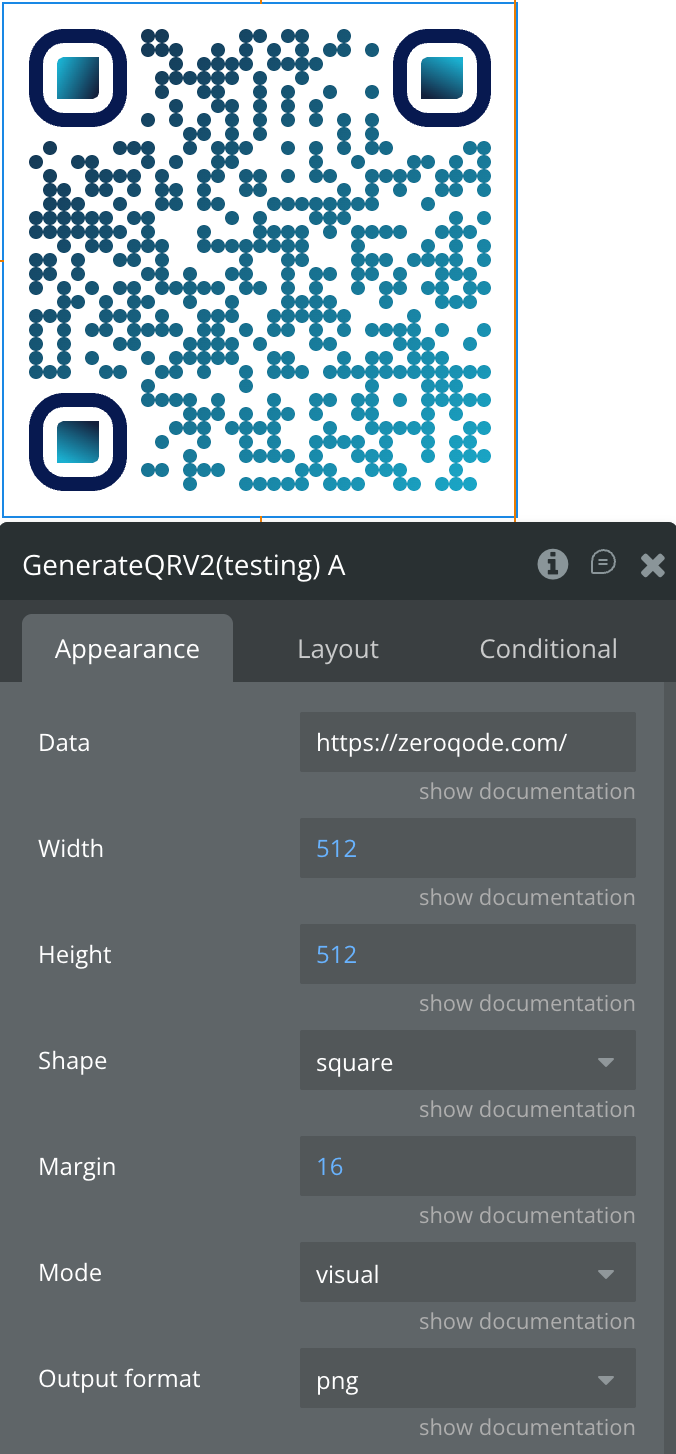
Renders a styled QR code with logo. It supports both visual and renderless rendering modes.
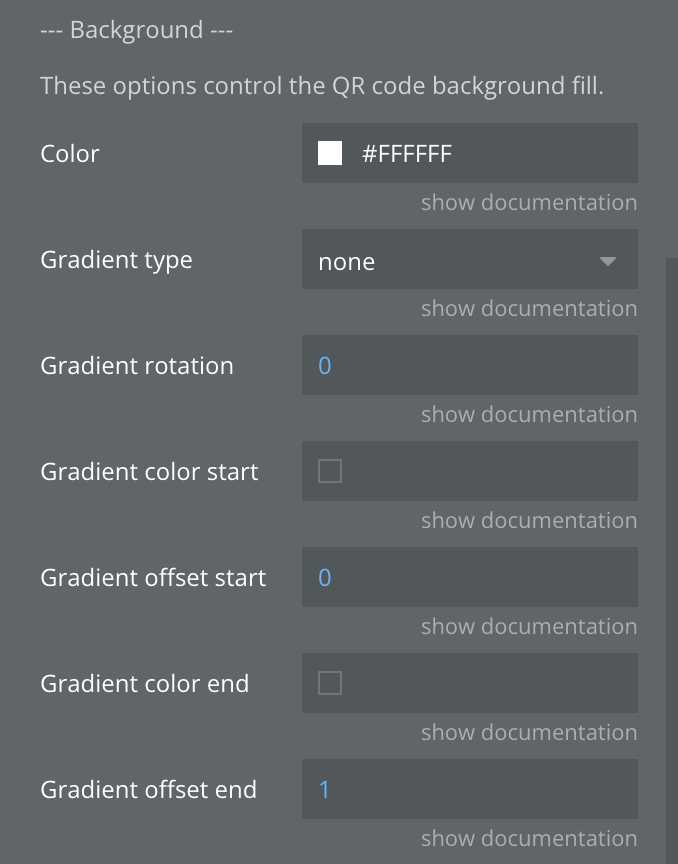
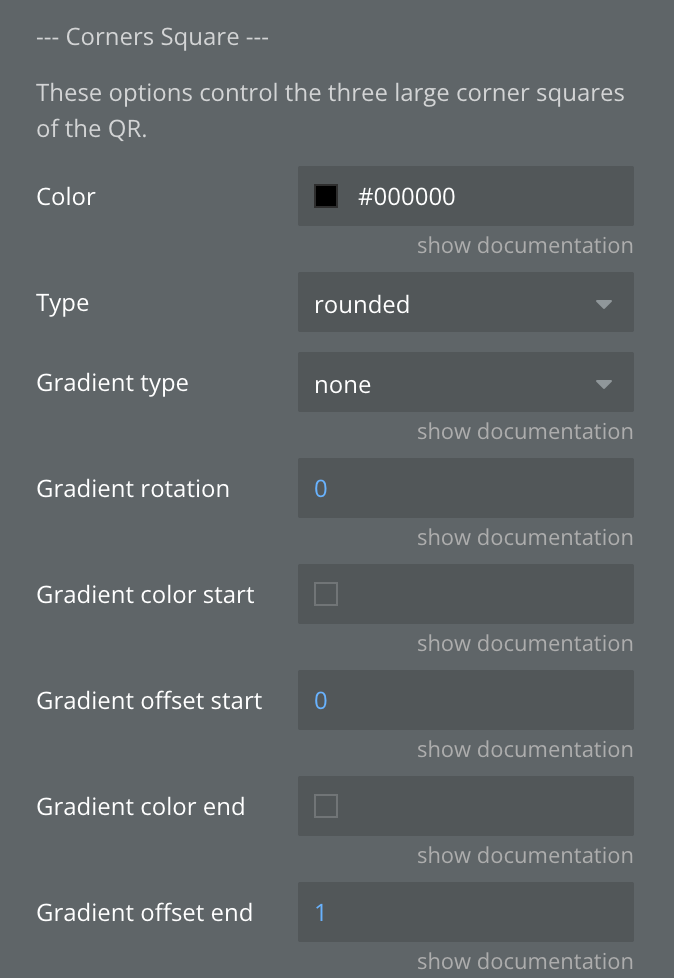
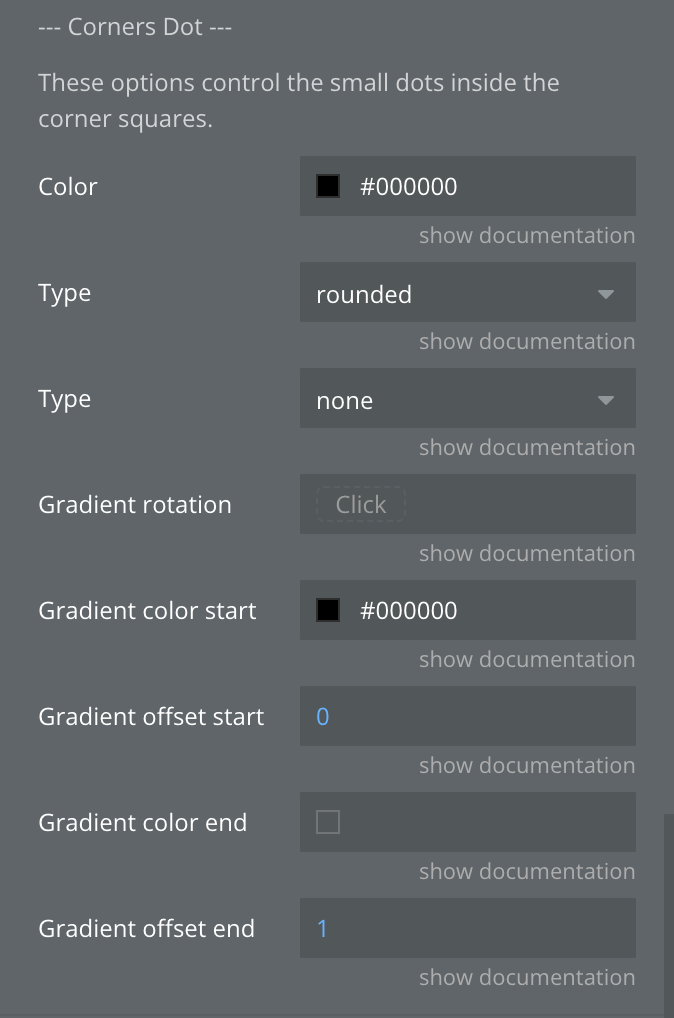
Fields:
General
Title | Description | Type |
Data | Content to encode (URL, text, email, etc.). Required for QR generation. | Text |
Width | Width of the QR canvas in pixels. | Number |
Height | Height of the QR canvas in pixels. | Number |
Shape | Overall QR shape: square or circle (adds decorative dots around the QR). | Dropdown |
Margin | Empty padding around the QR inside the canvas, in pixels. | Number |
Mode | Element visibility: visual (rendered on page) or renderless (hidden; use generated_image state). | Dropdown |
Output format | Output file format for the state and download action: png, jpeg, or svg. | Dropdown |
Image (logo)
Title | Description | Type |
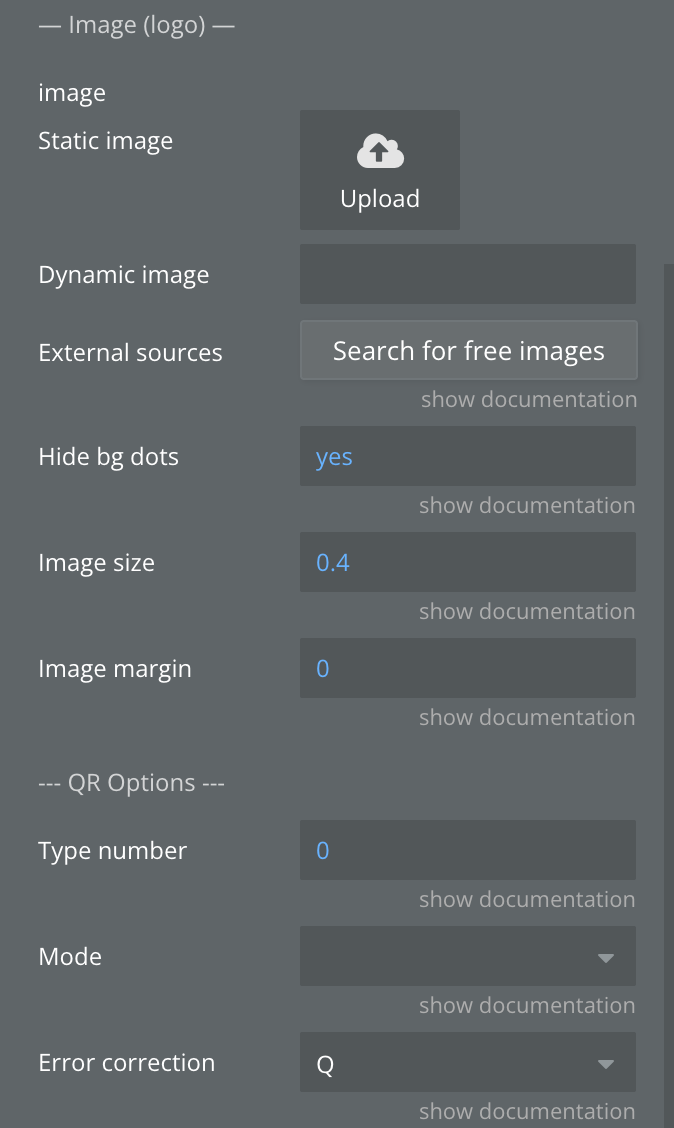
Image | Public URL of the logo image to place in the QR center. Leave empty for no logo. | Image |
Hide bg dots | Hide QR dots covered by the logo for a cleaner look. | Boolean |
Image size | Logo size as a fraction of QR size (0.0–1.0). Values above 0.5 may reduce scannability. | Number |
Image margin | Transparent spacing around the logo in pixels. | Number |
QR Options
Title | Description | Type |
Type number | QR version (0–40). 0 = auto. Higher values allow more data capacity but produce a denser code. | Number |
Mode | Encoding mode: Numeric, Alphanumeric, Byte, or Kanji. Leave empty to auto-detect. | Dropdown |
Error correction | Error correction level: L (~7%), M (~15%), Q (~25%, recommended with logo), H (~30%). | Dropdown |
Dots
Title | Description | Type |
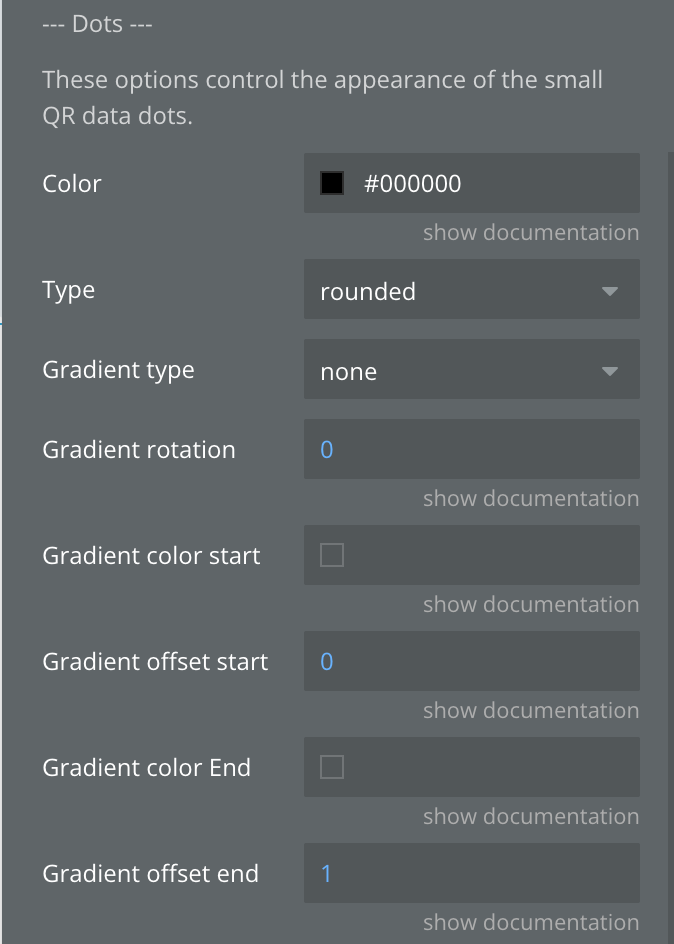
Color | Solid dot color. Used when gradient type is none. | Color |
Type | Shape style of the data dots: rounded, dots, classy, classy-rounded, square, extra-rounded. | Dropdown |
Gradient type | Gradient mode for dots: none, linear, or radial. | Dropdown |
Gradient rotation | Gradient angle in degrees (0–360). Used only with linear gradient type. | Number |
Gradient color start | Start color of the dots gradient. Required when gradient type is linear or radial. | Color |
Gradient offset start | Position of the start color along the gradient. Range: 0.0–1.0. | Number |
Gradient color end | End color of the dots gradient. | Color |
Gradient offset end | Position of the end color along the gradient. Range: 0.0–1.0. | Number |
Background
Title | Description | Type |
Color | Solid background color of the QR canvas. Supports transparent. Used when gradient type is none. | Color |
Gradient type | Gradient mode for background: none, linear, or radial. | Dropdown |
Gradient rotation | Gradient angle in degrees (0–360). Used only with linear gradient type. | Number |
Gradient color start | Start color of the background gradient. | Color |
Gradient offset start | Position of the start color in the gradient. Range: 0.0–1.0. | Number |
Gradient color end | End color of the background gradient. | Color |
Gradient offset end | Position of the end color in the gradient. Range: 0.0–1.0. | Number |
Corners Square
Title | Description | Type |
Color | Solid color of the three large corner squares. | Color |
Type | Shape style of the corner squares: rounded, dots, classy, classy-rounded, square, extra-rounded. | Dropdown |
Gradient type | Gradient mode for corner squares: none, linear, or radial. | Dropdown |
Gradient rotation | Gradient rotation in degrees. | Number |
Gradient color start | Start color of the corner squares gradient. | Color |
Gradient offset start | Position of the start color in the gradient. Range: 0.0–1.0. | Number |
Gradient color end | End color of the corner squares gradient. | Color |
Gradient offset end | Position of the end color in the gradient. Range: 0.0–1.0. | Number |
Corners Dot
Title | Description | Type |
Color | Solid color of the small dots inside the corner squares. | Color |
Type | Shape style of the corner dots: rounded, dots, classy, classy-rounded, square, extra-rounded. | Dropdown |
Gradient type | Gradient mode for corner dots: none, linear, or radial. | Dropdown |
Gradient rotation | Gradient rotation in degrees. | Number |
Gradient color start | Start color of the corner dots gradient. | Color |
Gradient offset start | Position of the start color in the gradient. Range: 0.0–1.0. | Number |
Gradient color end | End color of the corner dots gradient. | Color |
Gradient offset end | Position of the end color in the gradient. Range: 0.0–1.0. | Number |
Element Actions
- Download QR
Triggers a file download of the QR image in the user’s browser. The file format is taken from the element’s Output format field (
png, jpeg, or svg).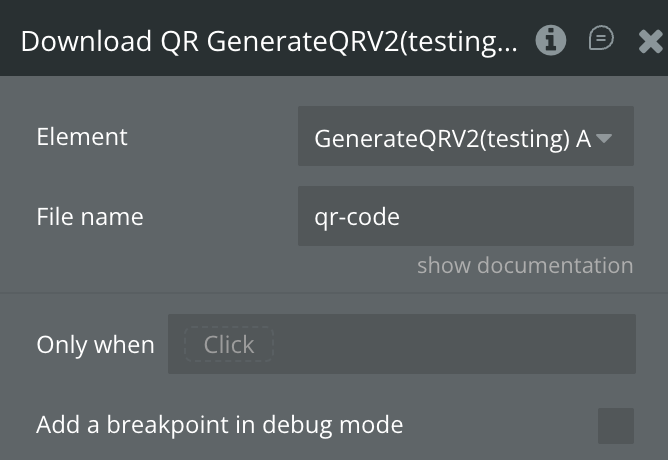
Title | Description | Type |
File name | The name of the downloaded file without extension. Defaults to qr-code. | Text |
Exposed States
Name | Description | Type |
generated_image | Base64 data URL of the generated QR image. Updated after each successful generation. | Text |
is_generating | true while the QR image is being generated asynchronously. | Boolean |
last_error | Contains the error message if generation failed. Reset to empty at the start of each generation attempt. | Text |
Element Events
Name | Description |
on generated | Triggered after the QR image has been successfully generated and the generated_image state has been updated. |
on error | Triggered when QR generation or download fails. Check the last_error state for the error message. |
Workflow example
Using GenerateQR
This workflow example represents how the GenerateQR element is used and its actions.
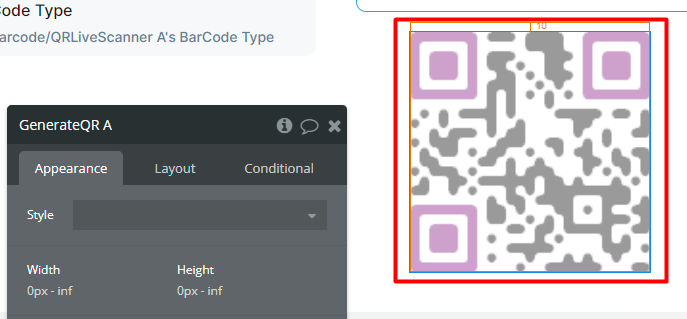
- On the page, it is placed the GenerateQR element. This element has no fields for completing.
☝
The element size is important because there will be displayed the QR code. the element size should be the same as the values in the actions, otherwise, the QR will be cropped.
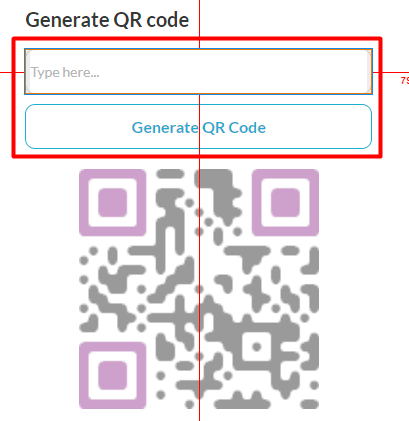
- Also, on the page, it is placed the Input and Button elements. The Input element is used for the message that will be encoded. The Button element is used to start the GenerateQR element action, Generate QR code.
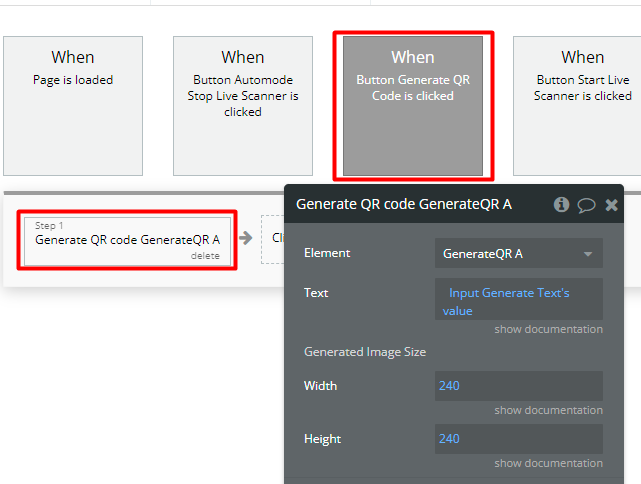
- In the workflow, when the Generate QR Code button is clicked then is called the Generate QR code action. After execution of this action, the Generated Image state will be available to use.
☝
For Generate QR code action should provide the output size of the QR code image. If the size values will be bigger than the size of the GenerateQR element on the page then the QR code image will be cropped.
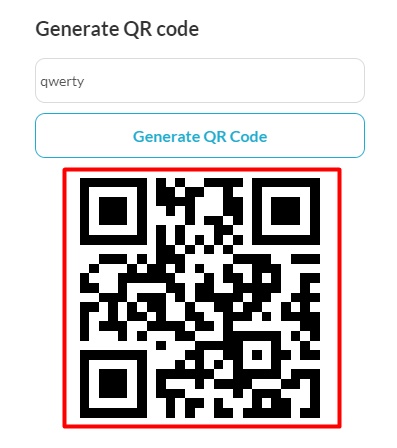
Also, on the page, will be displayed the QR code.
Using Barcode/QR Live Scanner
This workflow example represents how the Barcode/QR Live Scanner element is used and its actions.
- On the page, it is placed the Barcode/QR Live Scanner element. This element has no fields for completing.
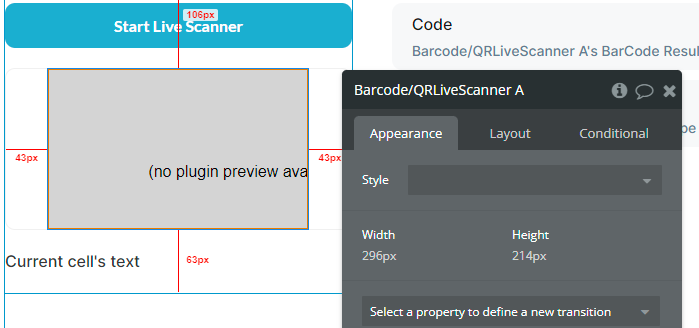
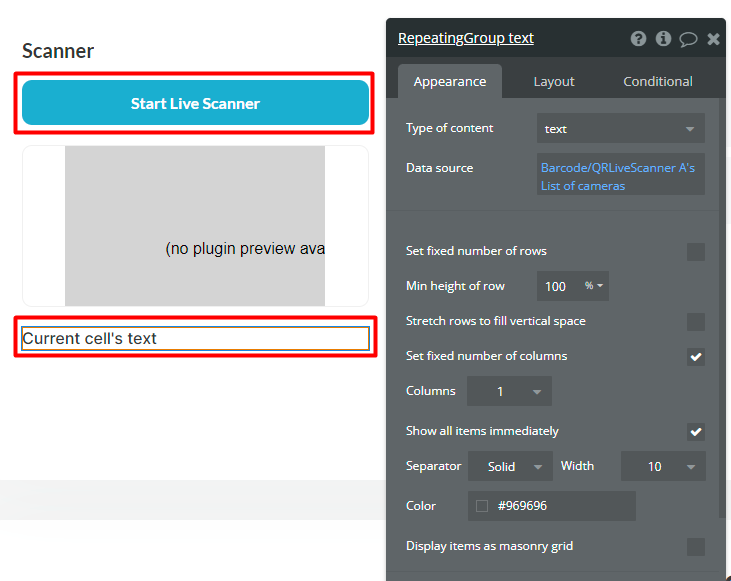
- Also, on the page, it is placed the Button and Repeating Group elements. The Button elements are used to start/stop the live scanning. The Repeating Group element is used to display all available camera labels.
- In the workflow, when the Start Live Scanner button is clicked then is called the Start Scanning action.
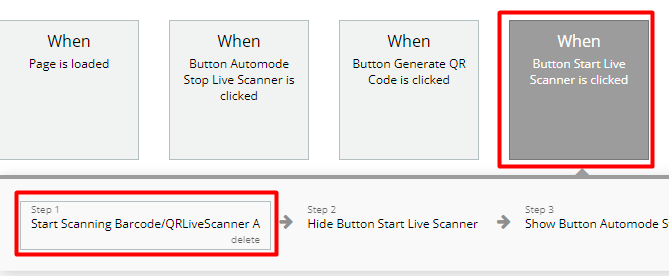
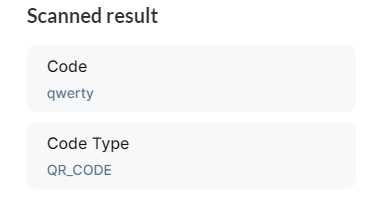
When the code is detected then the BarCode Result and BarCode Type will be available for use.
- When live scanning is in process, the Barcode/QR Live Scanner element will start streaming the camera.
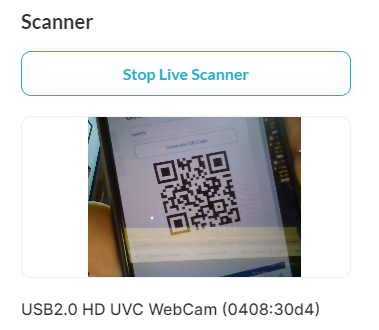
- When code is detected, the Text elements will display the results.
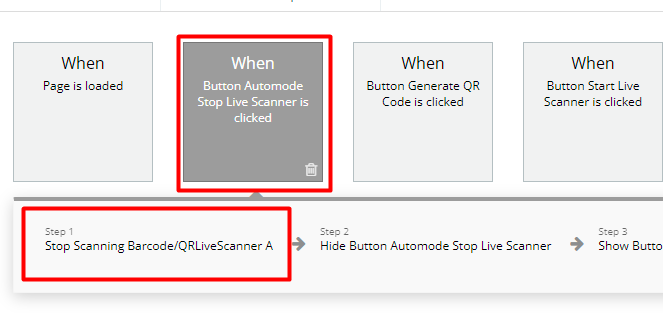
- In the workflow, when the Automode Stop Live Scanner button is clicked then is called the Stop Scanning action.
- In the workflow, when the Current cell’s text is clicked then is called the Set Camera action. This means when the camera label from Repeating Group is clicked then the clicked label will be send to Set Camera action like Camera label value. And, will be changed the camera for scanning.
Using Barcode/QR Image Scanner
This workflow example represents how the Barcode/QR Image Scanner element is used and its actions.
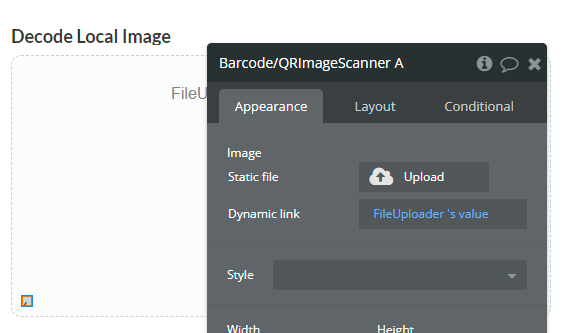
- On the page, it is placed the File Uploader element.
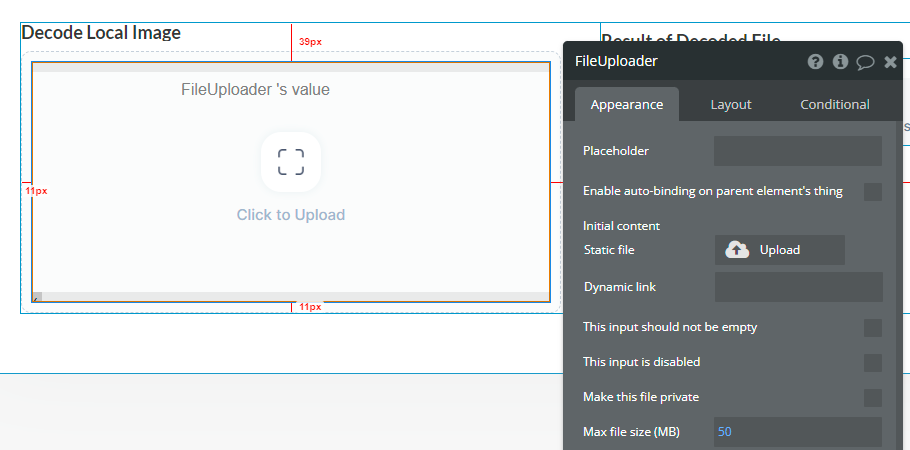
- Also, on the page, it is placed the Barcode/QR Image Scanner element. The Image field is completed with the value of File Uploader.
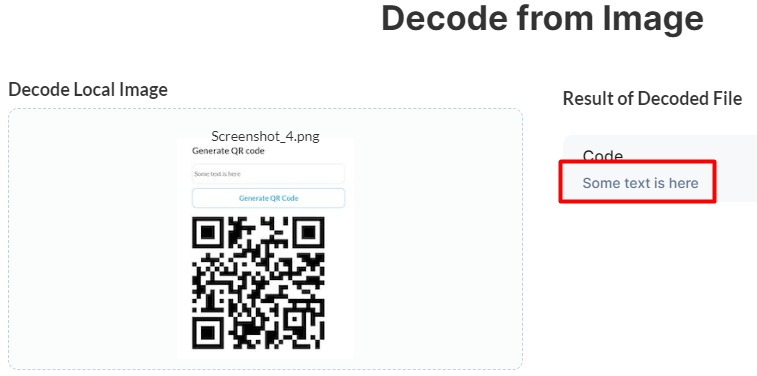
- When the file is uploaded in File Uploader element and the barcode is detected, the result will be displayed on the page.

Using GenerateQR V2
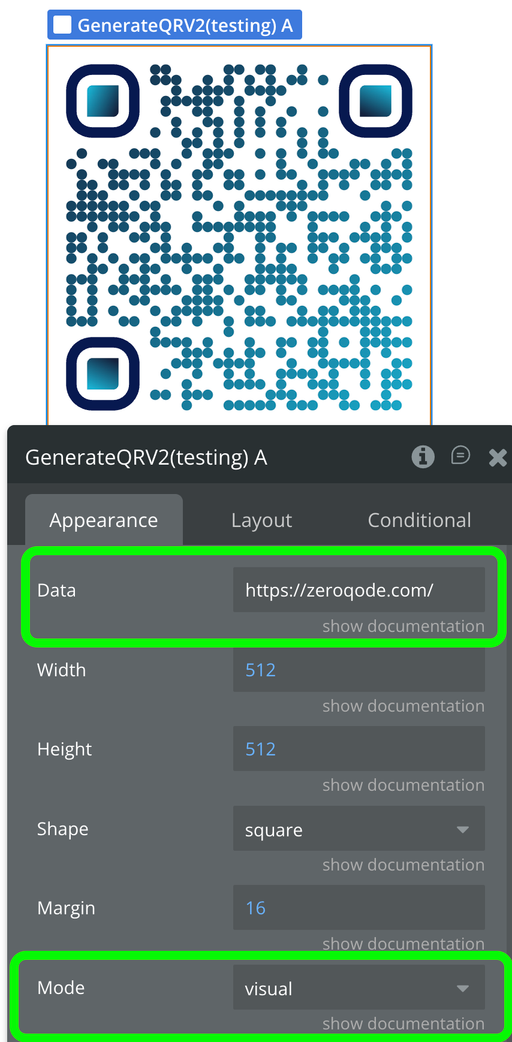
- Place the GenerateQR V2 element on your page.
- Set the Data field to the URL or text you want to encode.
- Set Mode to
visual— the QR code will render automatically inside the element.
- Optionally configure dot style, colors, and logo settings for branding.
Changelogs
Update 06.04.26 - Version 1.75.0
- Added GenerateQR V2 element.
Update 02.04.26 - Version 1.74.0
- Moved plugin header to elements.
Update 01.12.25 - Version 1.73.0
- Bubble Plugin Page Update (Description).
Update 31.10.25 - Version 1.72.0
- Bubble Plugin Page Update (Description).
Update 09.07.25 - Version 1.71.0
- Bubble Plugin Page Update (Logo).
Update 11.06.25 - Version 1.70.0
- Marketing update (minor change).
Update 09.04.25 - Version 1.69.0
- Removed RSS-14 formats and moved libraries to Bubble.
Update 02.04.25 - Version 1.68.0
- Fixed flipped camera.
Update 04.12.24 - Version 1.67.0
- Set camera not initializing on second run bug fix.
Update 25.11.24 - Version 1.66.0
- Fixed video layout.
Update 20.07.24 - Version 1.64.0
- Minor update.
Update 16.07.24 - Version 1.63.0
- Minor update (Marketing update).
Update 08.07.24 - Version 1.62.0
- Fixed inverted backcamera.
Update 01.07.24 - Version 1.61.0
- Fixed inverted camera.
Update 19.06.24 - Version 1.60.0
- Minor update.
Update 18.06.24 - Version 1.59.0
- Fixed bugs and removed аsk for microphone permission for Live Scanner.
Update 12.06.24 - Version 1.58.0
- Minor fix.
Update 10.06.24 - Version 1.57.0
- Updated demo/service links.
Update 06.06.24 - Version 1.56.0
- Minor update.
Update 20.05.24 - Version 1.55.0
- Added "Use back camera" field.
Update 09.04.24 - Version 1.54.0
- minor update.
Update 24.01.24 - Version 1.53.0
- updated description.
Update 18.01.24 - Version 1.52.0
- Added "Max width/height" fields for GenerateQR.
Update 16.01.24 - Version 1.51.0
- Fixed "result is detected" event for Barcode/QR Image Scanner.
Update 27.12.23 - Version 1.50.0
- updated description.
Update 31.10.23 - Version 1.49.0
- Updated to the new responsive & removed redundant logs.
Update 19.10.23 - Version 1.48.0
- Updated description.
Update 13.10.23 - Version 1.47.0
- Fixed recognizing cameras on IPhone.
Update 04.10.23 - Version 1.46.0
- Added "Code Type" state for Barcode/QR Image Scanner element.
Update 18.09.23 - Version 1.45.0
- updated descriptions.
Update 15.09.23 - Version 1.44.0
- Added a "Detection code types" field for the "Barcode/QR Live Scanner" element.
Update 13.09.23 - Version 1.43.0
- minor updates.
Update 06.09.23 - Version 1.42.0
- Obfuscation.
Update 10.07.23 - Version 1.41.0
- updated description.
Update 19.06.23 - Version 1.40.0
- Added "result is detected" event for "Scanner" elements..
Update 16.06.23 - Version 1.39.0
- Updated the description .
Update 14.06.23 - Version 1.38.0
- added a sound for a success scanning.
Update 24.04.23 - Version 1.37.0
- Fixed scan QR to ios.
Update 06.03.23 - Version 1.36.0
- Fixed compatibility with 21th Bubble Version.
Update 23.02.23 - Version 1.35.0
- deleted the icons.
Update 21.02.23 - Version 1.34.0
- updated the description.
Update 15.02.23 - Version 1.33.0
- Fixed "GenerateQR" element..
Update 08.02.23 - Version 1.32.0
- Replaced "Barcode Reader" & "QR code Reader" with "Barcode/QR Live Scanner" & "Barcode/QR Image Scanner".
Update 02.02.23 - Version 1.31.0
- Updated description.
Update 20.01.23 - Version 1.30.0
- Updated description.
Update 19.09.22 - Version 1.29.0
- Adjusted common part.
Update 29.08.22 - Version 1.28.0
- Updated common part.
Update 26.04.22 - Version 1.27.0
- Fixed issue on android for Generate QR.
Update 21.01.22 - Version 1.26.0
- Added forum thread in common part.
Update 27.12.21 - Version 1.25.0
- Added new action "Scan local image".
Update 08.12.21 - Version 1.24.0
- Fixed a problem with the uploaded local images.
Update 19.11.21 - Version 1.23.0
- Added a new action to turn on/off the flashlight on mobile devices, if any (not supported in iOS).
Update 19.07.21 - Version 1.22.0
- Updated icon.
Update 21.06.21 - Version 1.21.0
- Fixed a problem with the scanner on Android OS.
Update 01.04.21 - Version 1.20.0
- updated name.
Update 09.02.21 - Version 1.19.0
- Updated icon.
Update 22.12.20 - Version 1.18.0
- Divided one element into two new ones. QR and barcode readers now in separate elements. Fixed bug on iOS.
Update 20.07.19 - Version 1.17.0
- Fixed event Content Changed didn't triggers. Changed the state name from Result Format to Result Content..
Update 13.06.19 - Version 1.16.0
- Added event Code Detected Added feature to decode local images (Any barcode except QR Code ), added it in demo page .
Update 10.06.19 - Version 1.15.0
- updated description.
Update 22.05.19 - Version 1.14.0
- Updated demo page.
Update 04.05.19 - Version 1.13.0
- Minor Improvements.
Update 30.04.19 - Version 1.12.0
- Major update: the old library and elements are removed. The library 2 element is renamed to QR & Barcode Reader. Documentation is updated to reflect the changes.
Update 23.04.19 - Version 1.11.0
- Minor fixes.
Update 18.04.19 - Version 1.10.0
- Added action, Stop live Detector..
Update 09.04.19 - Version 1.9.0
- added a new element generateQR that returns a state Generated Image.
Update 05.04.19 - Version 1.8.0
- added Show location for QRcode mode.
Update 04.04.19 - Version 1.7.0
- added qr support to the new library.
Update 02.04.19 - Version 1.6.0
- added a new library - barcode_reader_2 element.
Update 20.03.19 - Version 1.5.0
- Updated description.
Update 12.03.19 - Version 1.4.0
- Updated description.
Update 02.03.19 - Version 1.3.0
- Added new settings: Success timeout - default 1000 (milliseconds) Frame rate - can be from 1 to 25 Gray Scale - Yes/No, plus parameters Flip vertical & Flip horizontal.
Update 14.01.19 - Version 1.2.0
- enabled sound on scan for safari, so should work well on iphones.
Update 10.10.18 - Version 1.1.0
- Added event on scan + option to change the successful code detection sound.
Update 20.07.18 - Version 1.0.0
- Initial Build.