
Link to the plugin page: https://zeroqode.com/plugin/simple-countdown-plugin-for-bubble-1739733078286x803796251287949700
Demo to preview the plugin:
Introduction
This plugin has been recently acquired by Zeroqode - please bear with us while we review the code and make improvements/fixes where necessary.
This is a simple countdown plugin that allows you to set a live countdown to a specific date.
You can choose the format of the countdown, set a date, define the font size and font color.
You can further modify the style by adding custom CSS and targeting the "countdownplugin" class.
Usage Features:
- Display a live countdown to a specific date directly in your Bubble app
- Customize the countdown format (days, hours, minutes, seconds)
- Easily set the target date and time for your countdown event
- Adjust font size and font color to match your app’s design
- Add custom CSS to fully style the countdown by targeting the .countdownplugin class
- Ideal for launch pages, event timers, flash sales, or coming soon screens
- Lightweight and easy to configure — no coding required
- Seamlessly integrates with Bubble’s visual editor and workflows
- Live updates in real time without needing page refreshes
- Built for flexibility and styled for clean, responsive display

How to setup
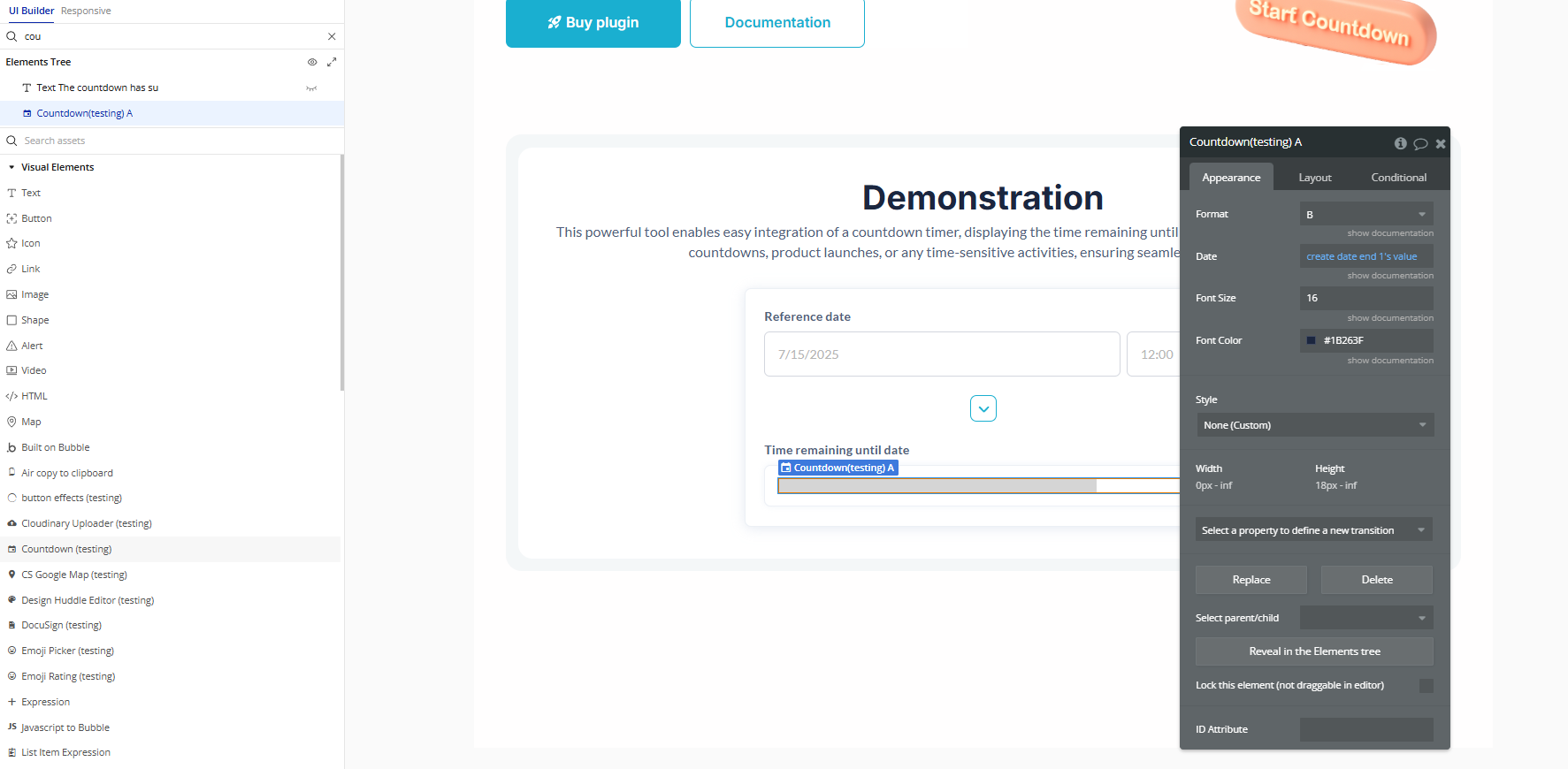
- Add the Countdown Element
- Go to the Design tab.
- Find the Countdown element in the Visual Elements panel.
- Drag and drop it onto your page where you want the timer to appear.
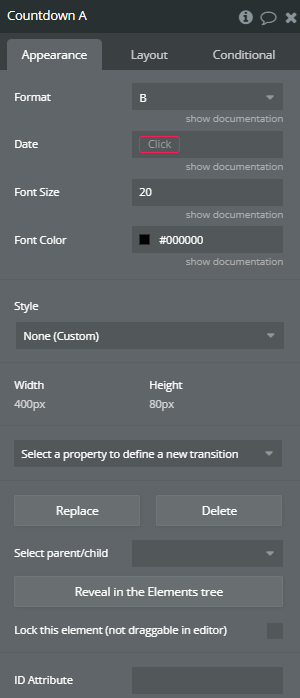
- Configure the Countdown Properties
- Format: Defines how the countdown will be displayed. For example, you might use:
- “DD:HH:mm:ss” → shows days, hours, minutes, and seconds.
- “HH:mm:ss” → shows only hours, minutes, and seconds.
- Date: Sets the exact date and time the countdown will count down to. Click this field and select the desired date and time using Bubble’s date-time picker.
- Font Size: Sets the size of the countdown text (in pixels). For example, enter “20” for a medium-sized display.
- Font Color: Changes the color of the countdown text. Click the color box and choose any color from the palette or enter a hex code.
Click on the Countdown element and set its properties as follows:
Plugin Element Properties
Countdown
Fields:
Title | Description | Type |
Format | Choose the Format of the countdown. Available options: A, B, C, D, E, F, G | Dropdown |
Date | Choose the date to which the countdown should count to. | Date |
Font Size | Specify the font size. Please enter a number. | Text |
Font Color | Choose the font color. | Color |