Demo to preview the plugin:
Introduction
The Sumsub Identity Verification plugin enables Bubble developers to seamlessly integrate enterprise-grade identity verification and KYC workflows into their applications.
Powered by Sumsub, a globally trusted identity verification provider, this plugin allows you to verify users’ identities, documents, and personal information directly within your Bubble app - without building complex verification logic from scratch.
The plugin is designed to help fintechs, marketplaces, crypto platforms, regulated services, and any compliance-driven application meet KYC/AML requirements, reduce fraud, and improve user trust through a secure and automated verification process.
Key Features
Prerequisites
Before using the Sumsub Identity Verification plugin, ensure you have:
- An active Sumsub account.
- Access to the Sumsub Dashboard.
- Your Sumsub API credentials:
- App Token
- Secret Key
- A selected Sumsub environment:
- Sandbox (testing)
- Production (live)
How to Set Up
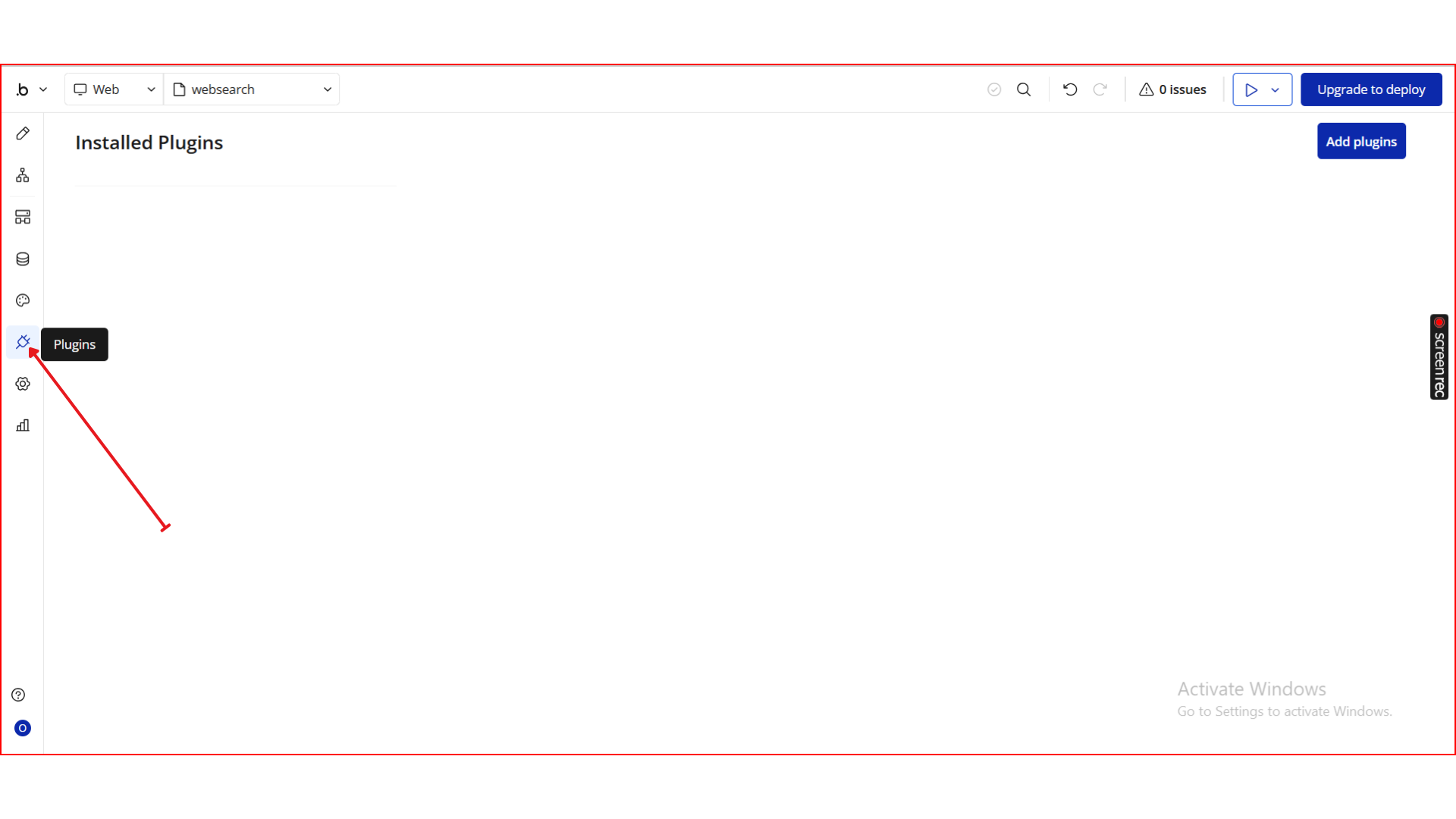
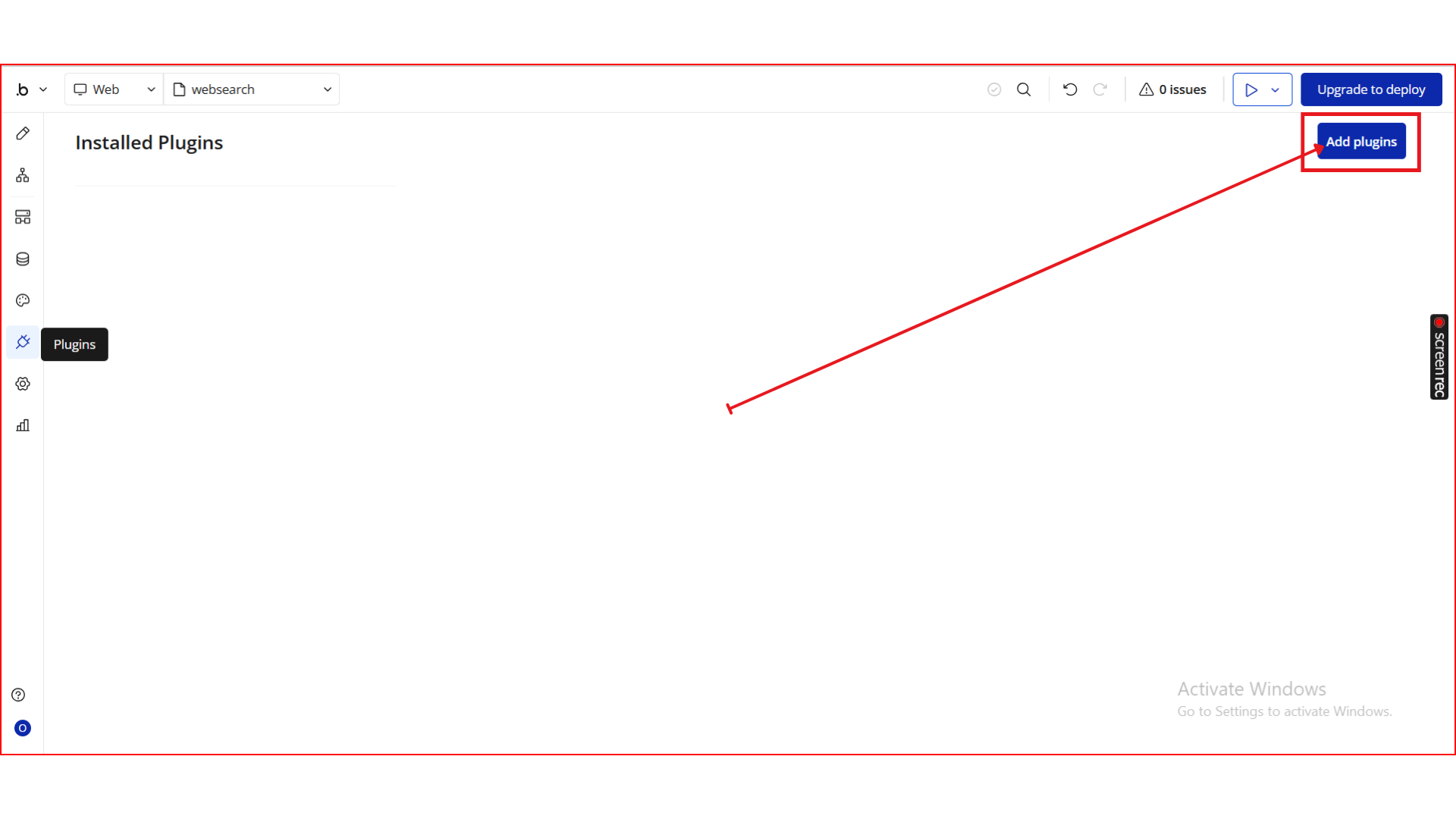
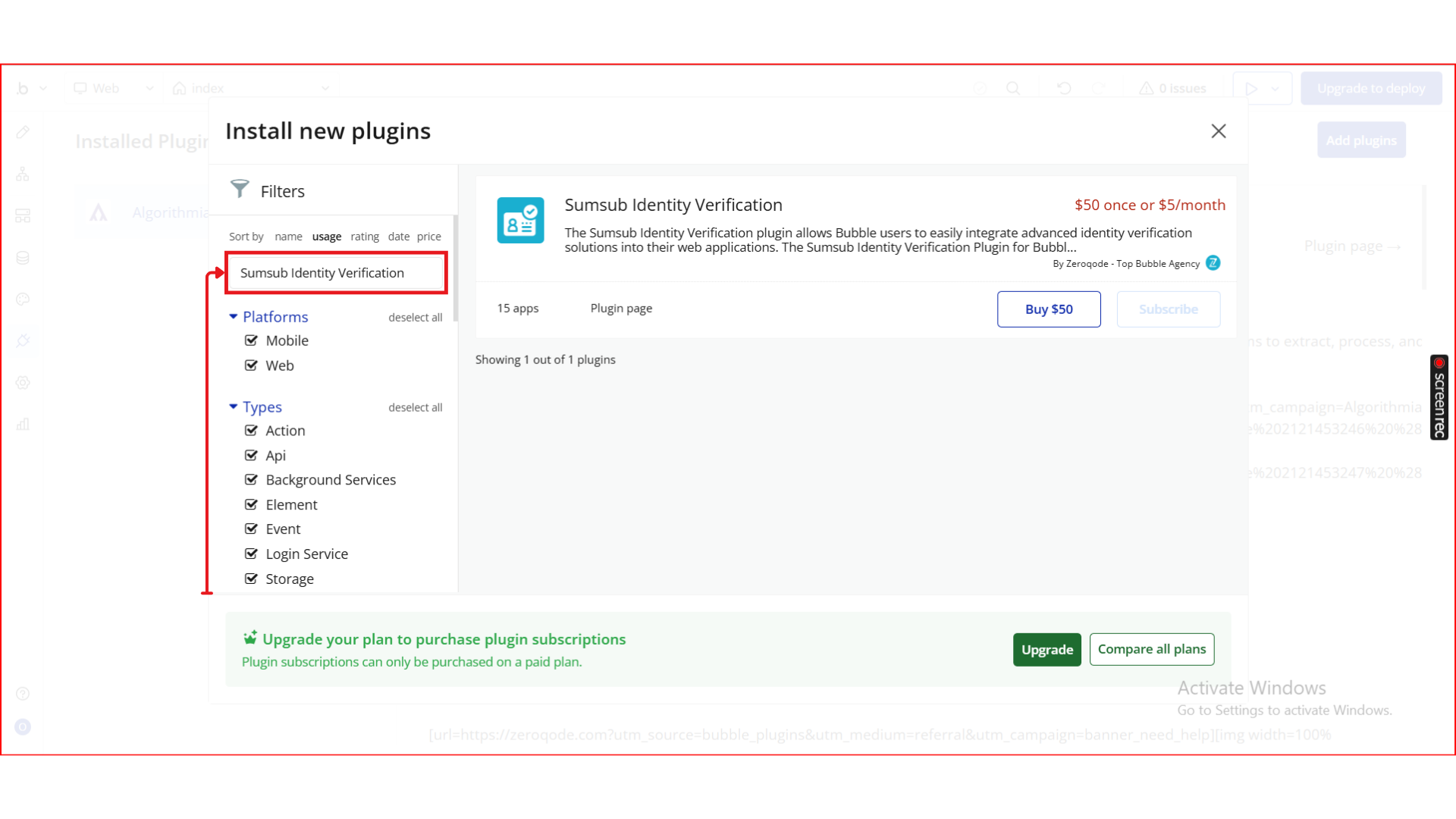
Step 1. Install the Plugin
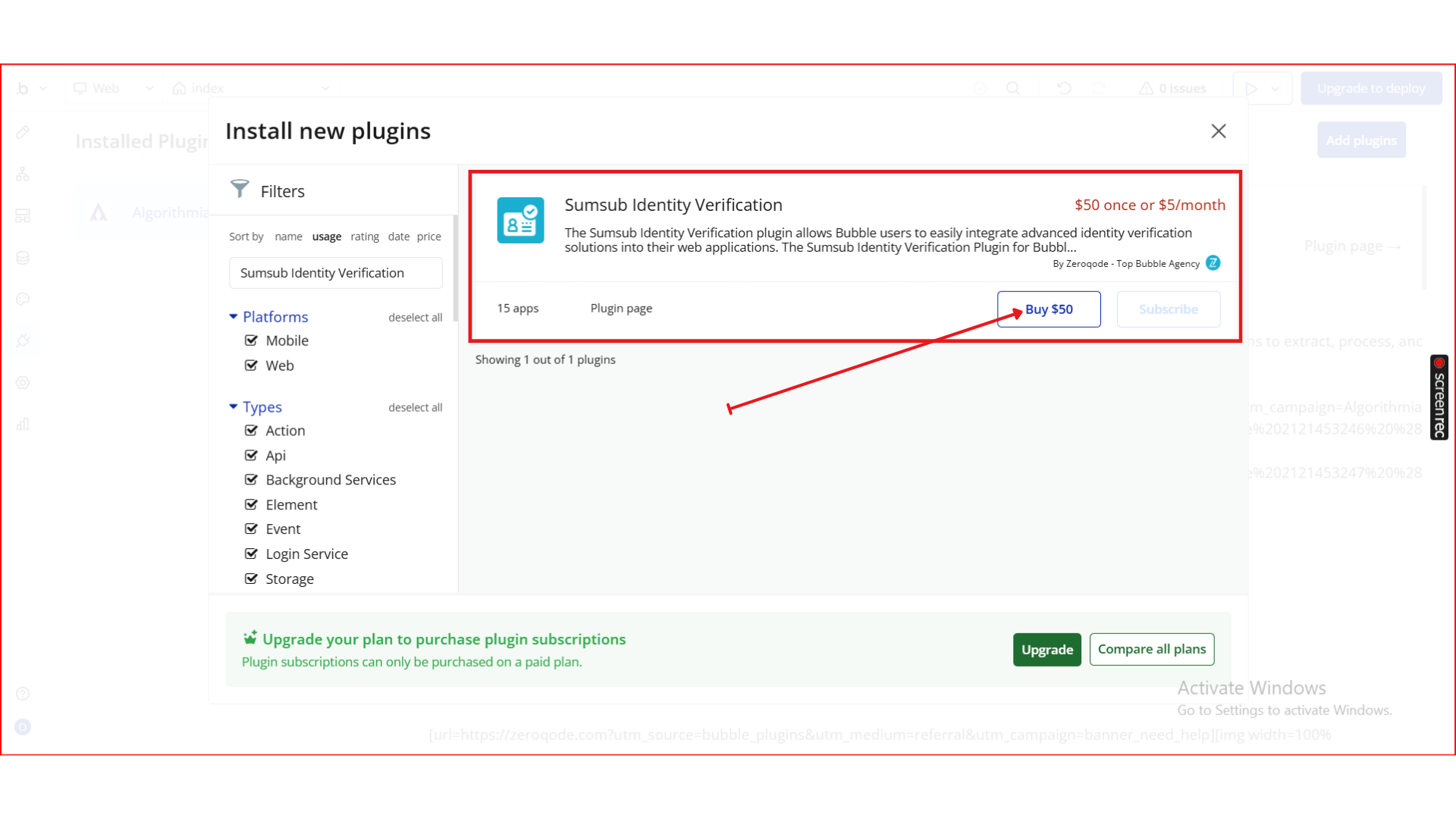
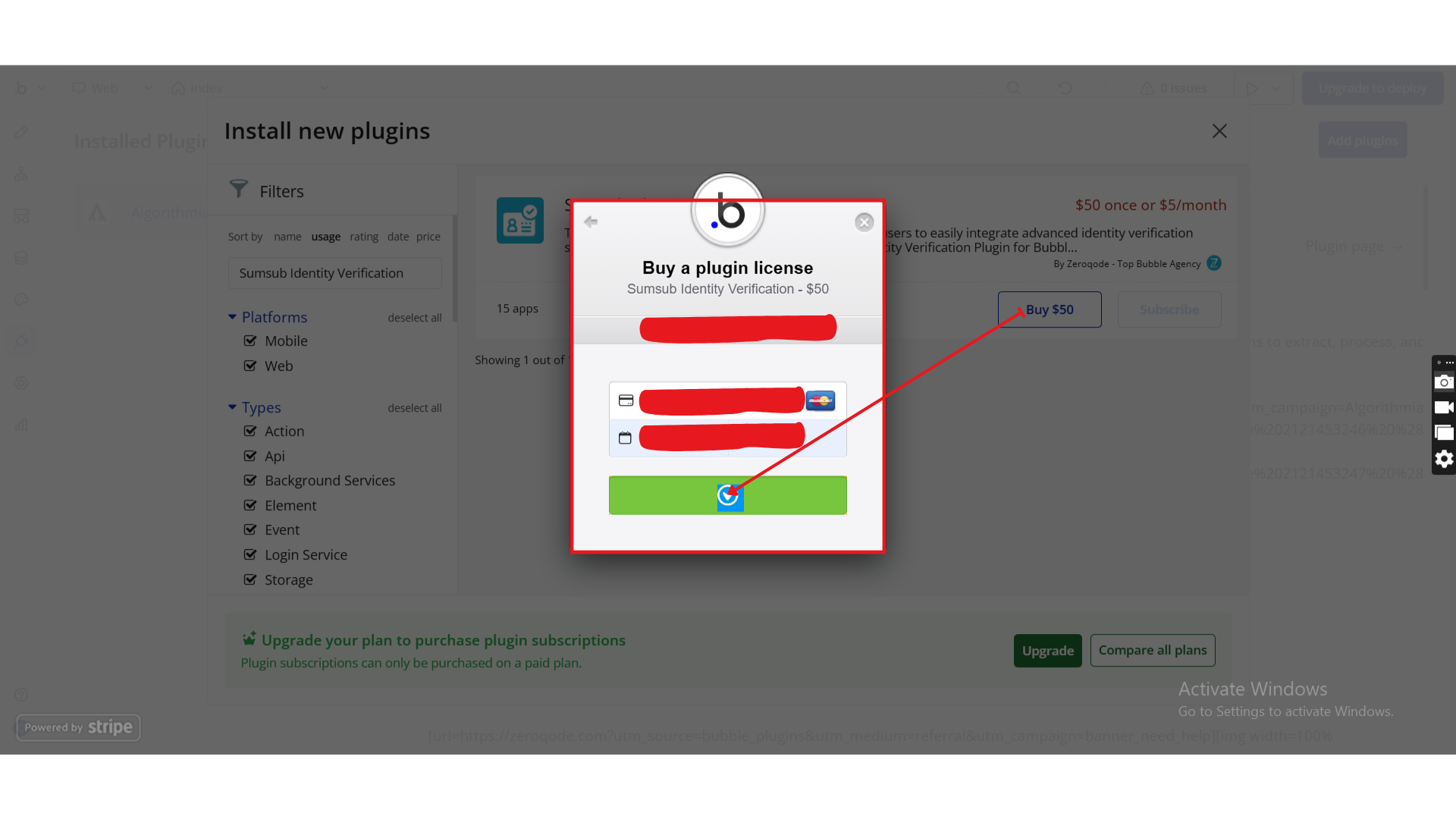
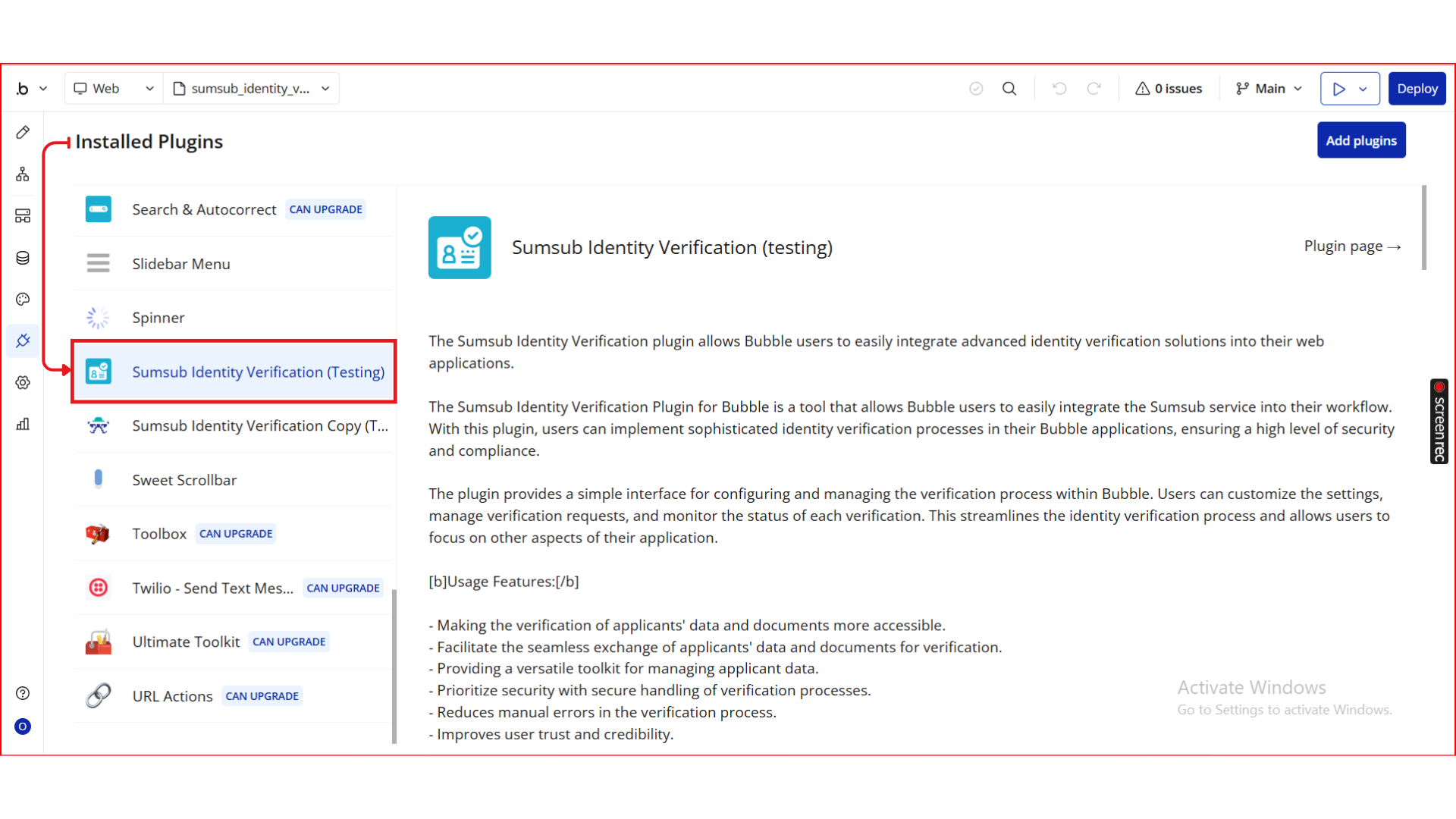
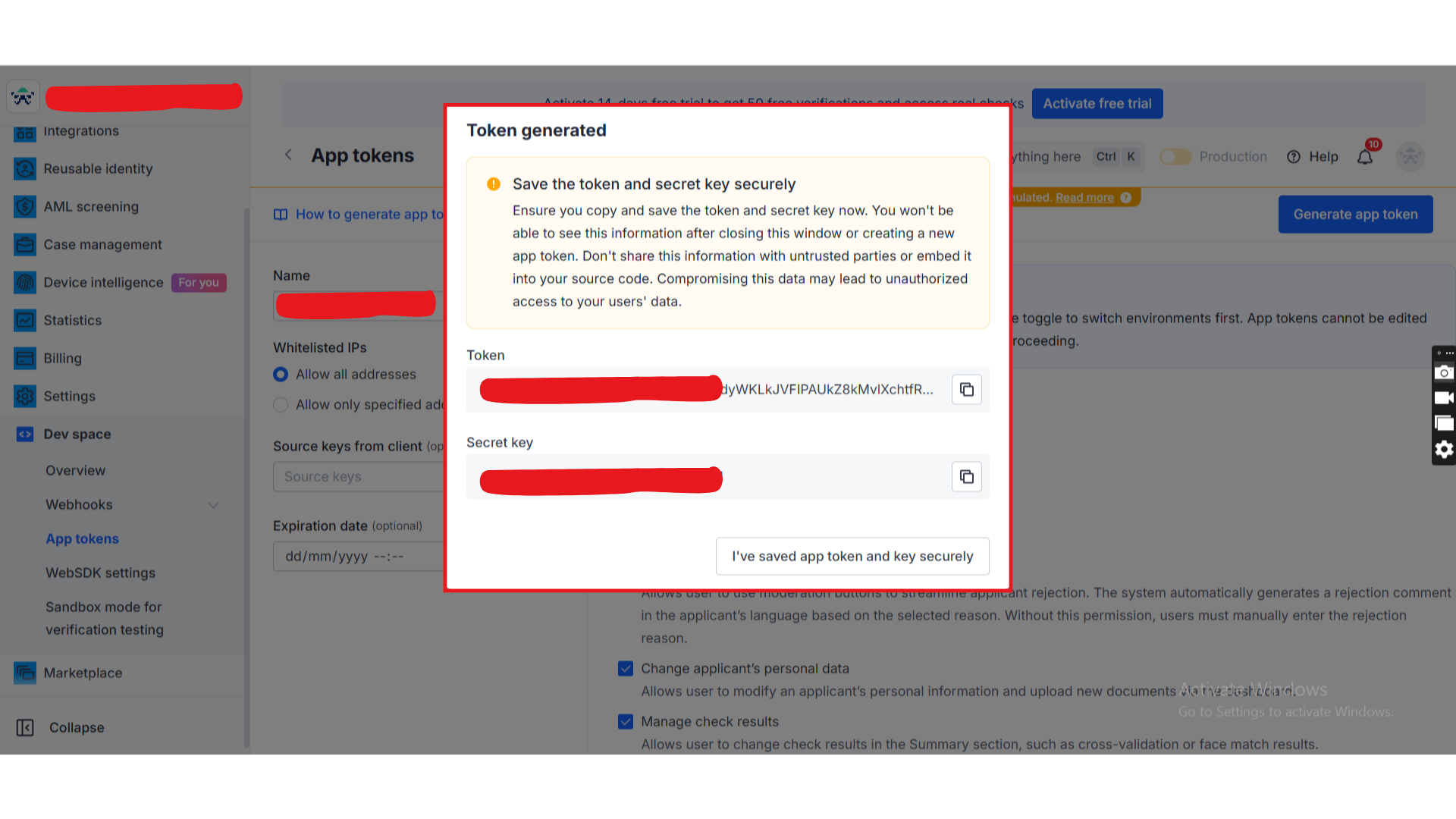
Step 2. Generate App Token from the Sumsub Dashboard
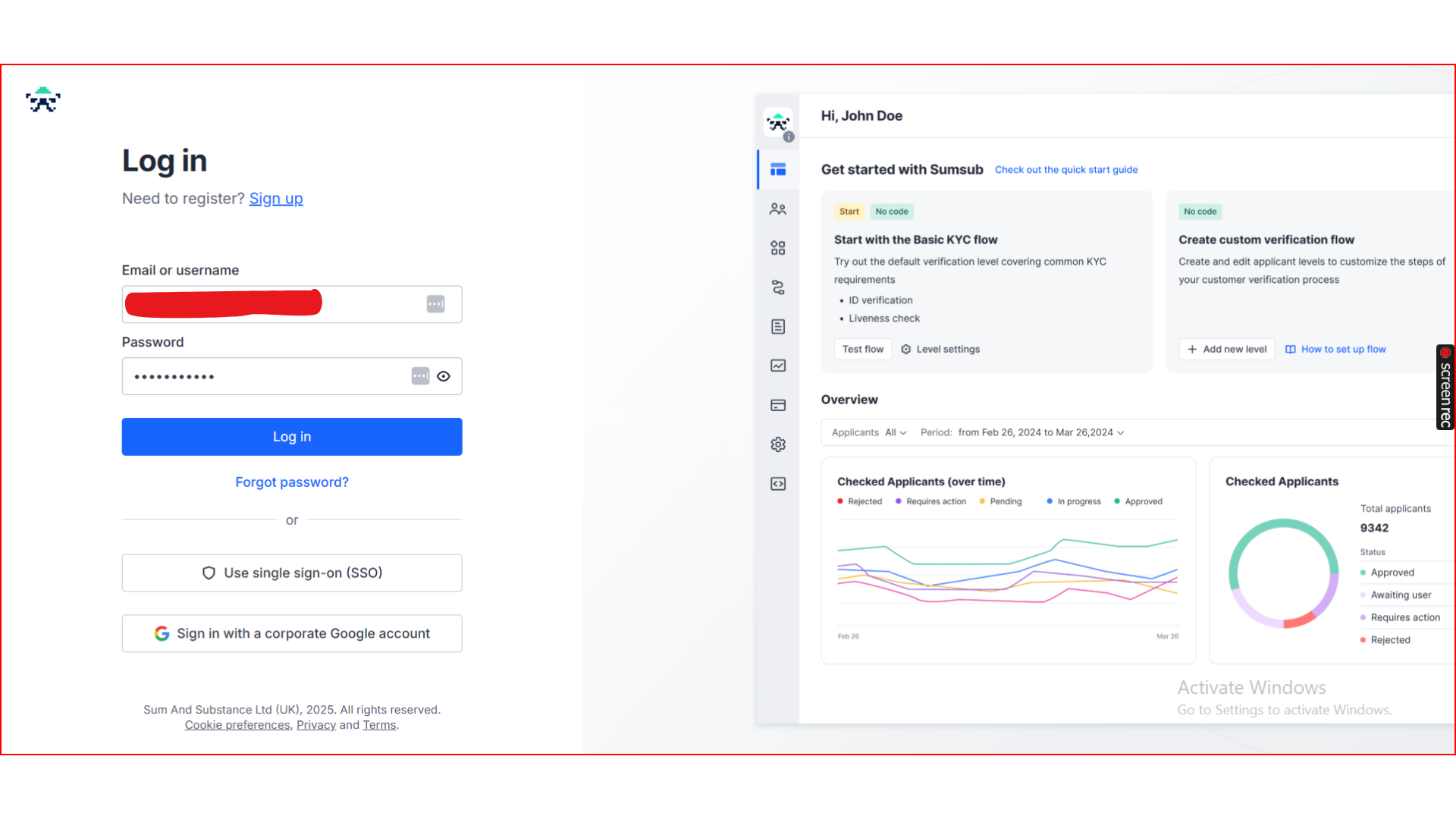
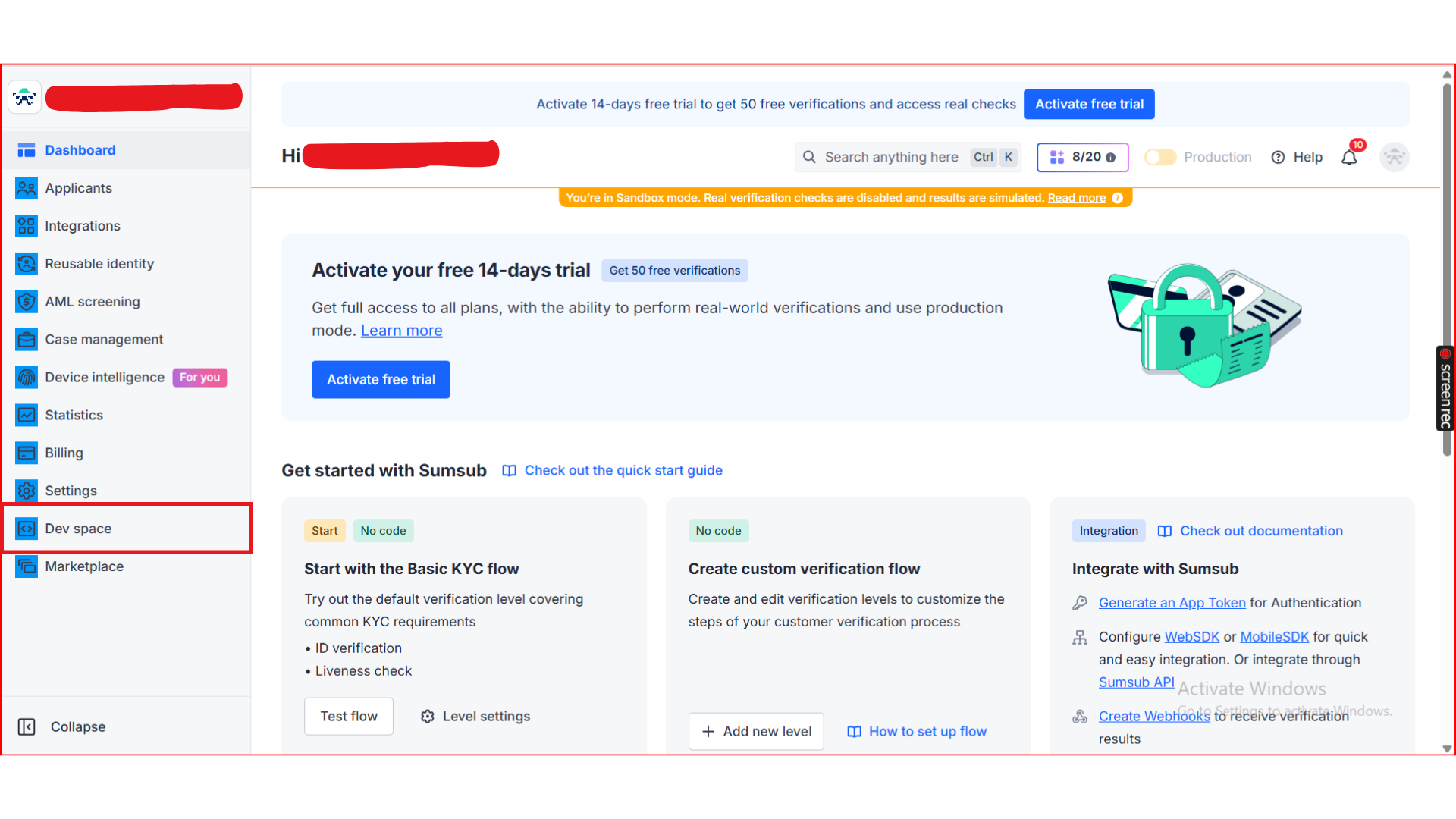
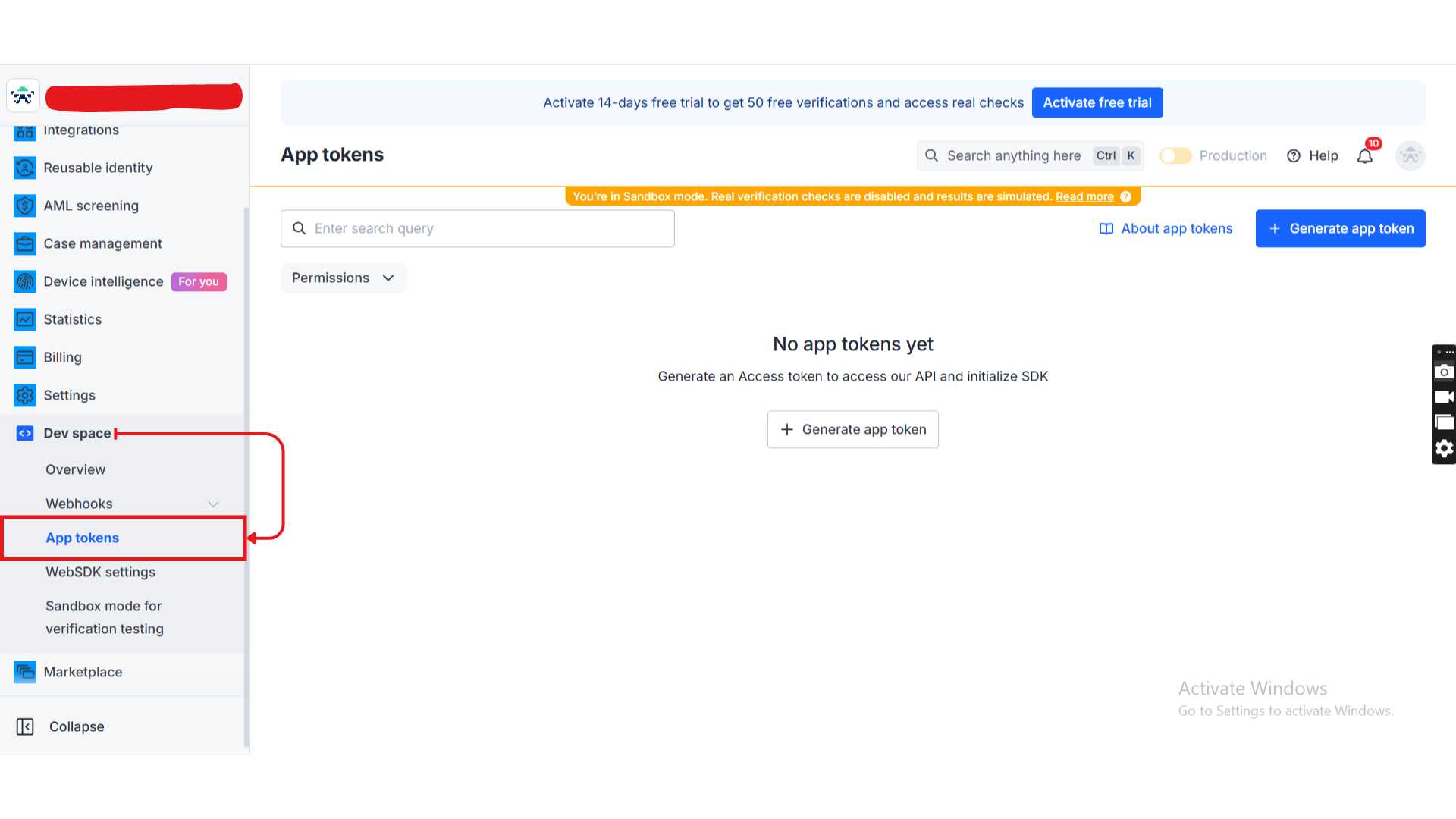
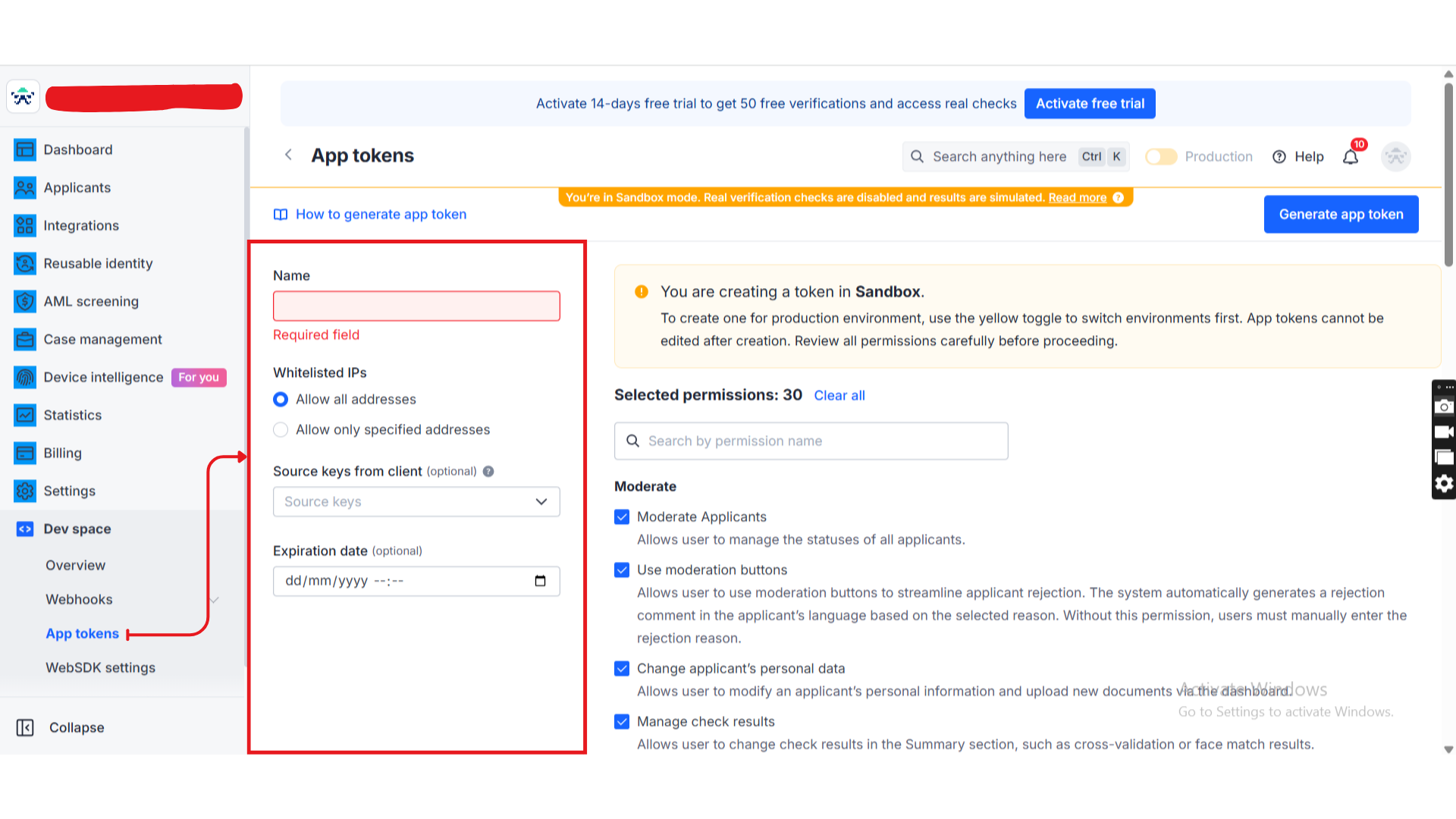
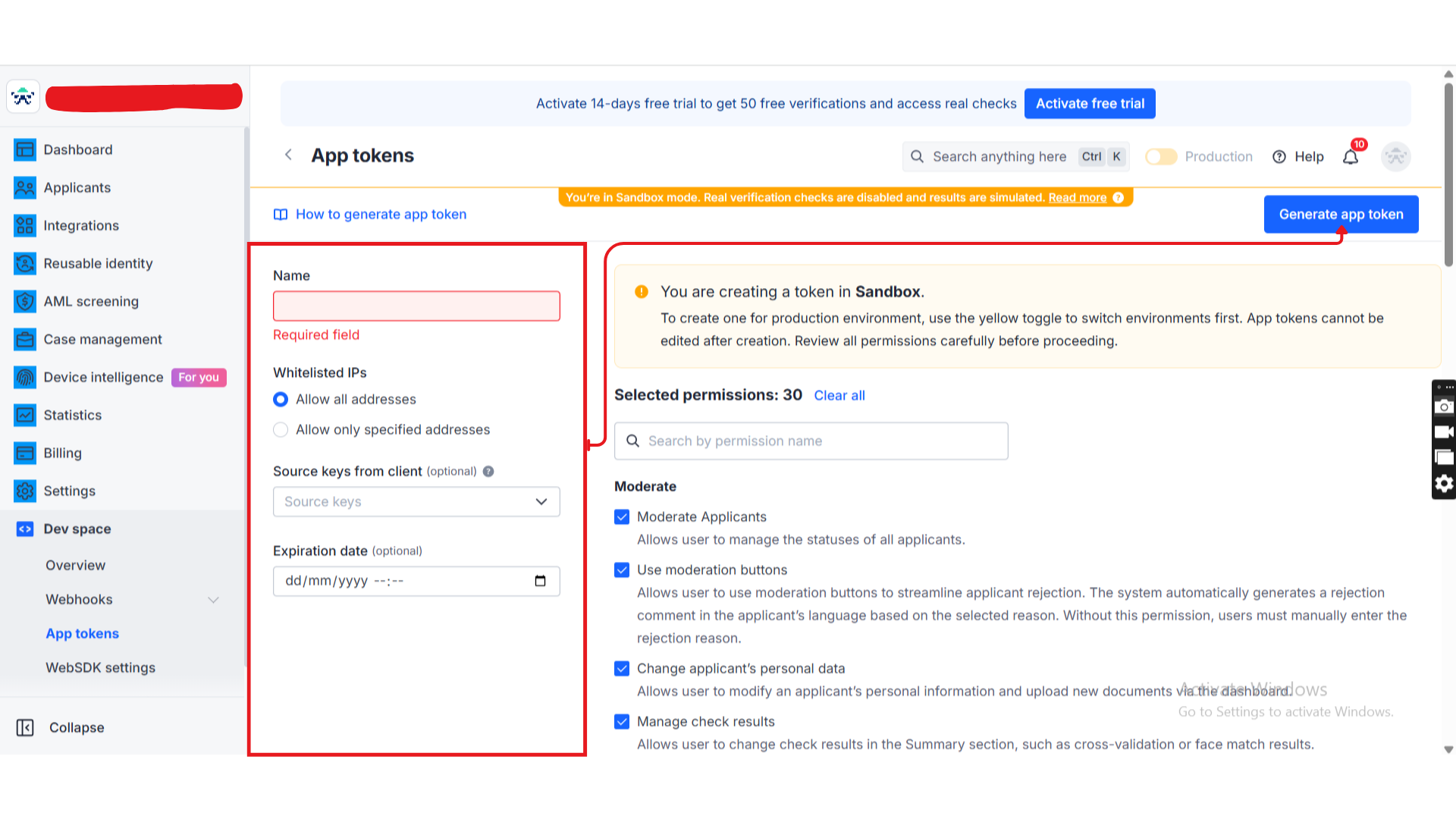
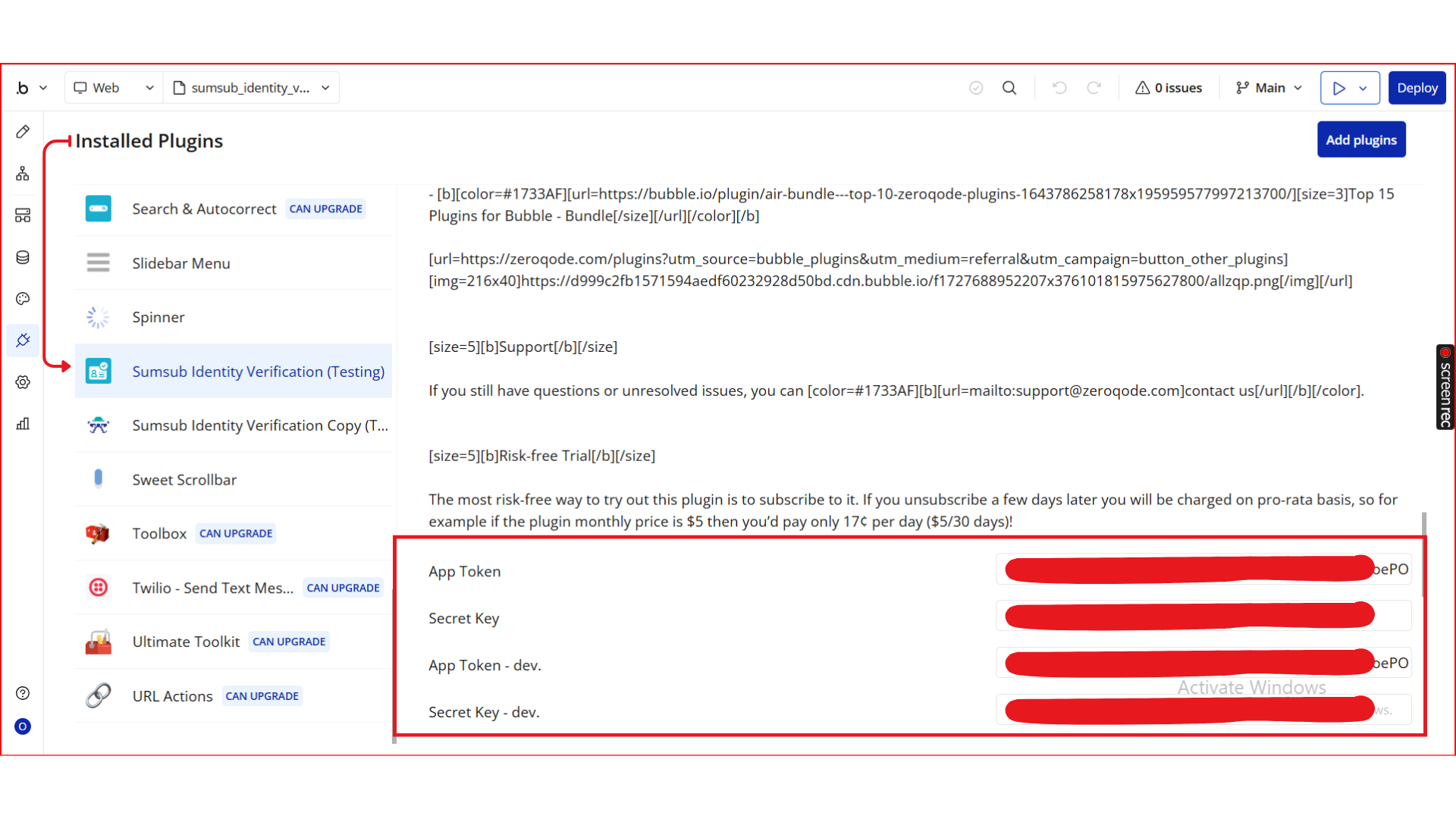
Step 3. Configure API Keys & Settings
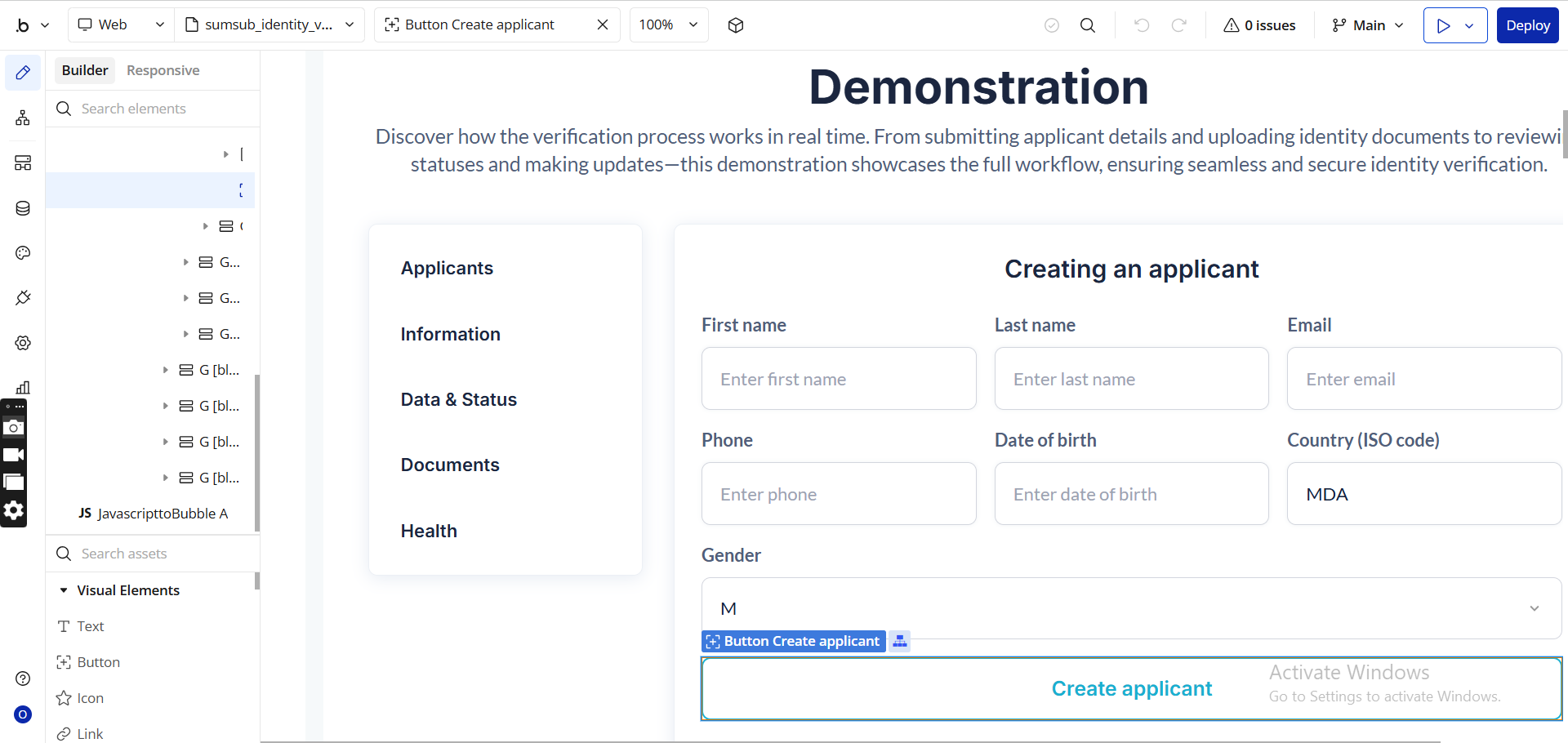
Step 4. Use the Plugin (Demonstration)
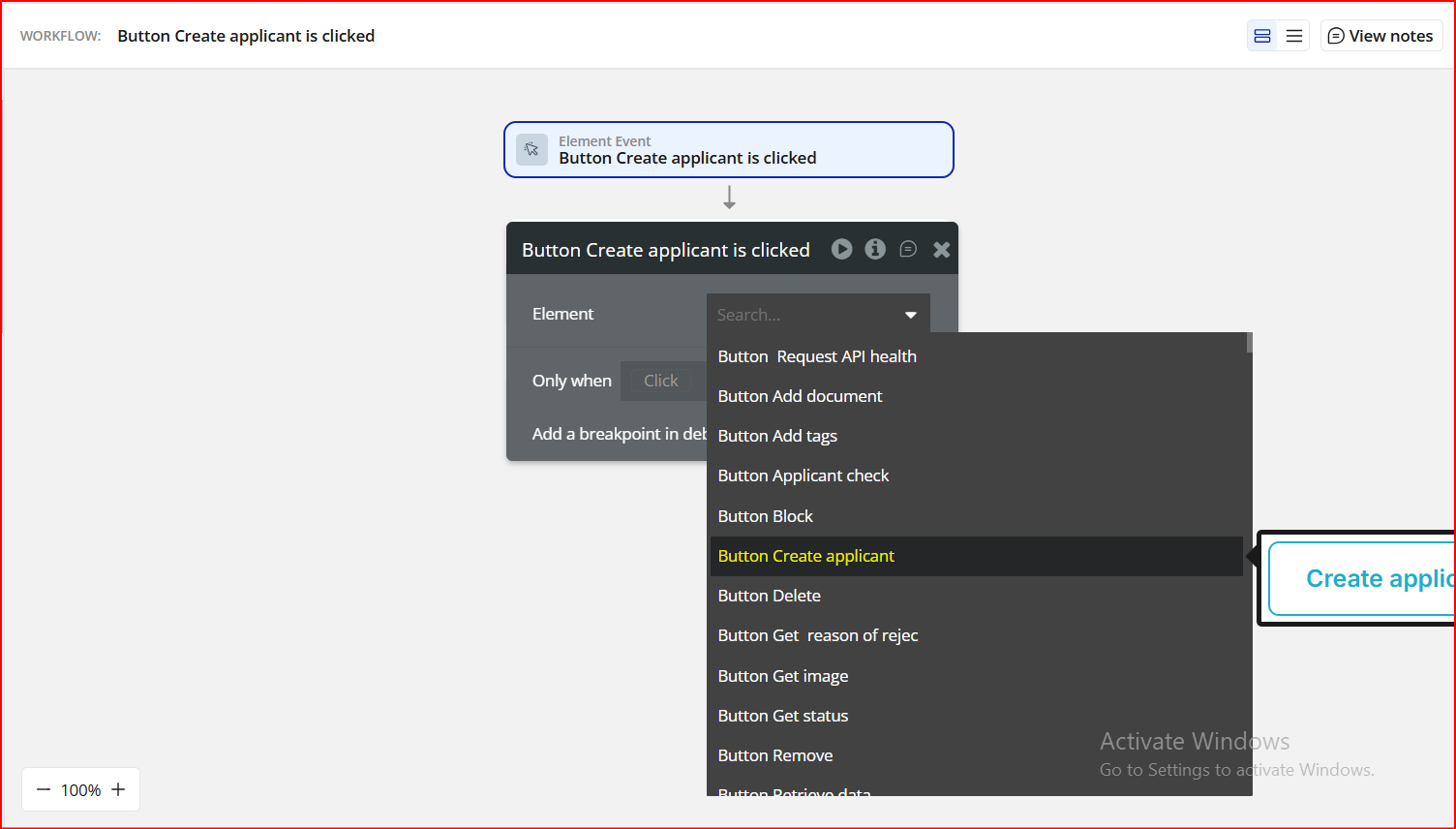
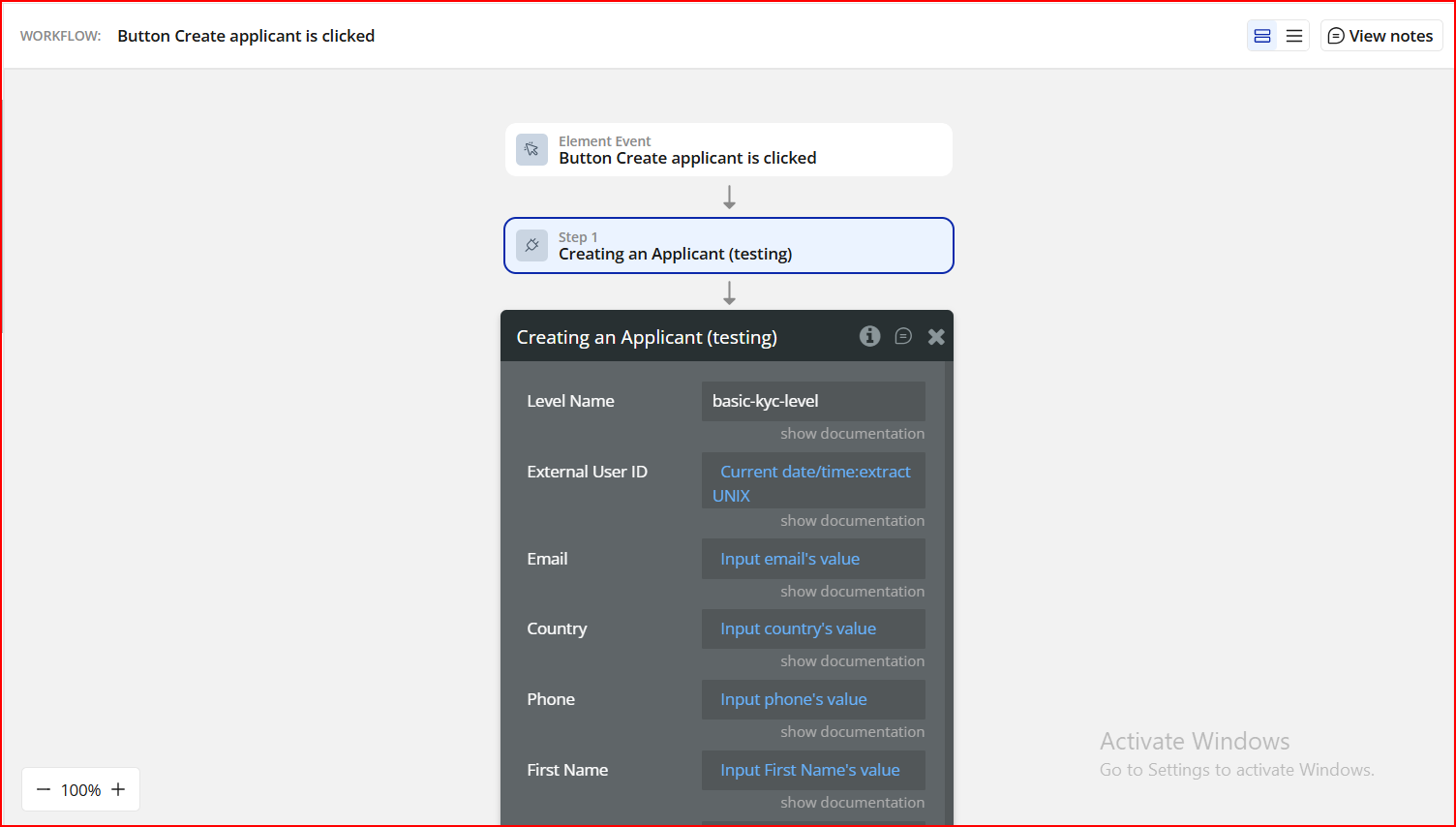
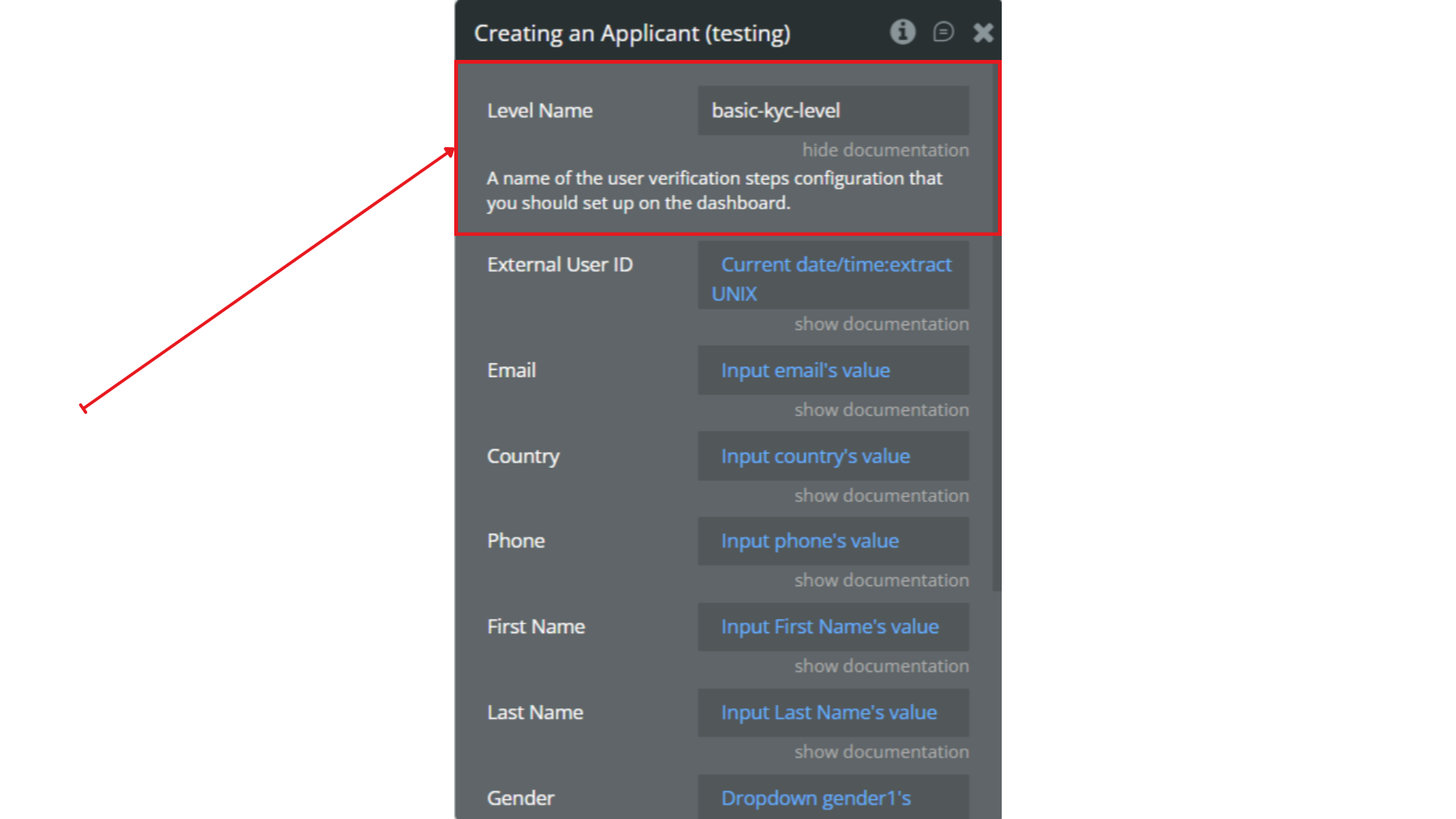
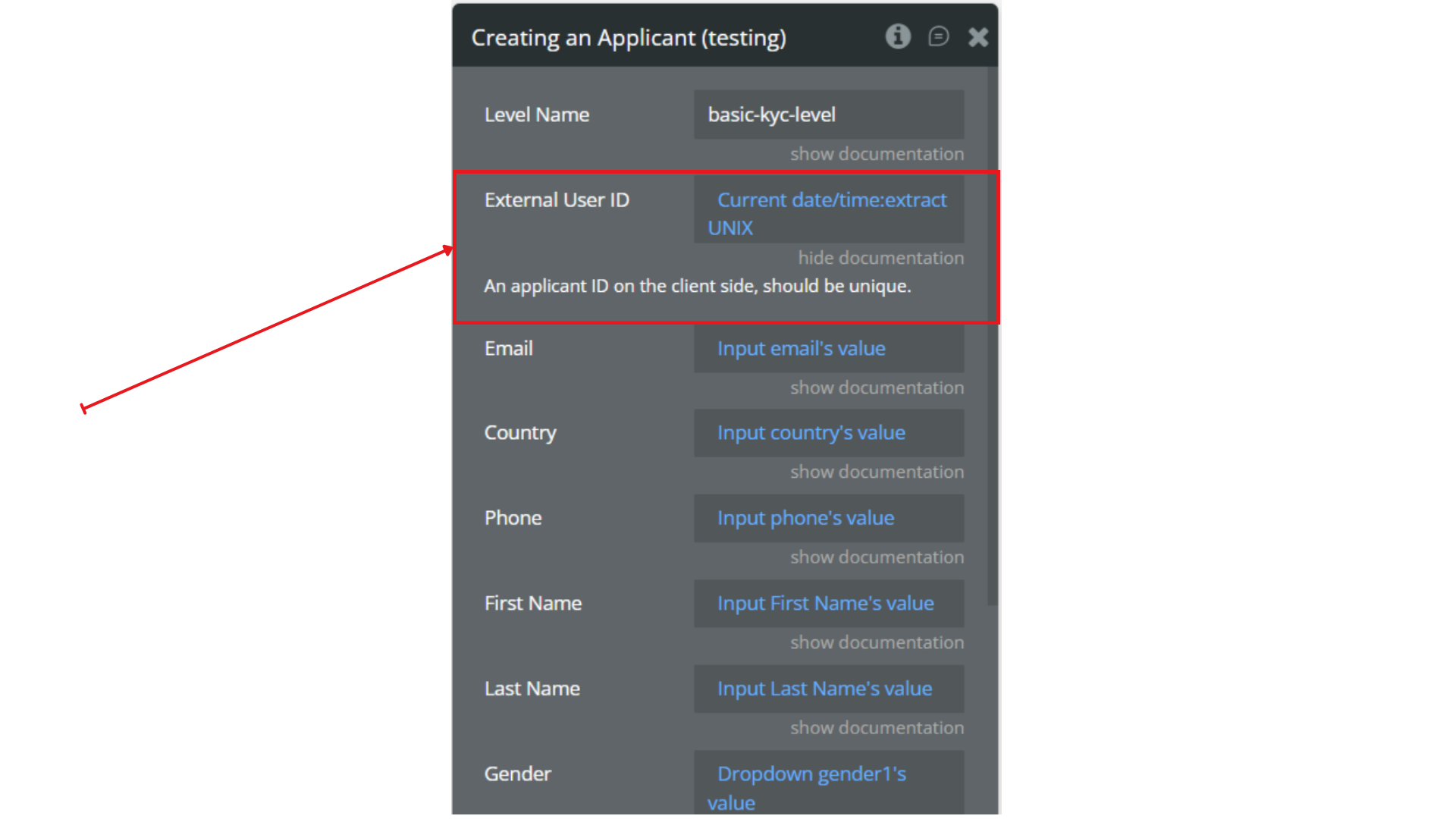
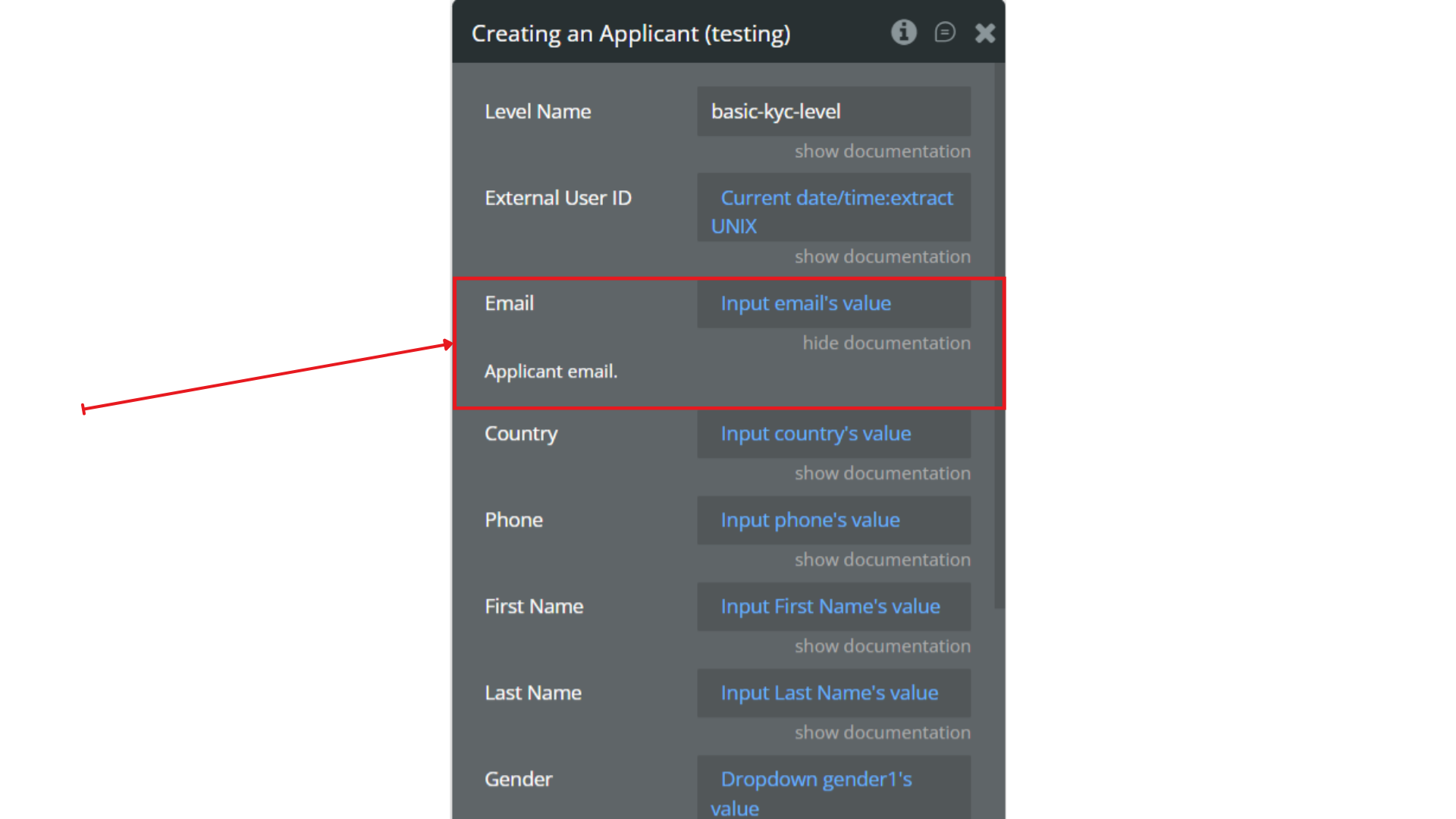
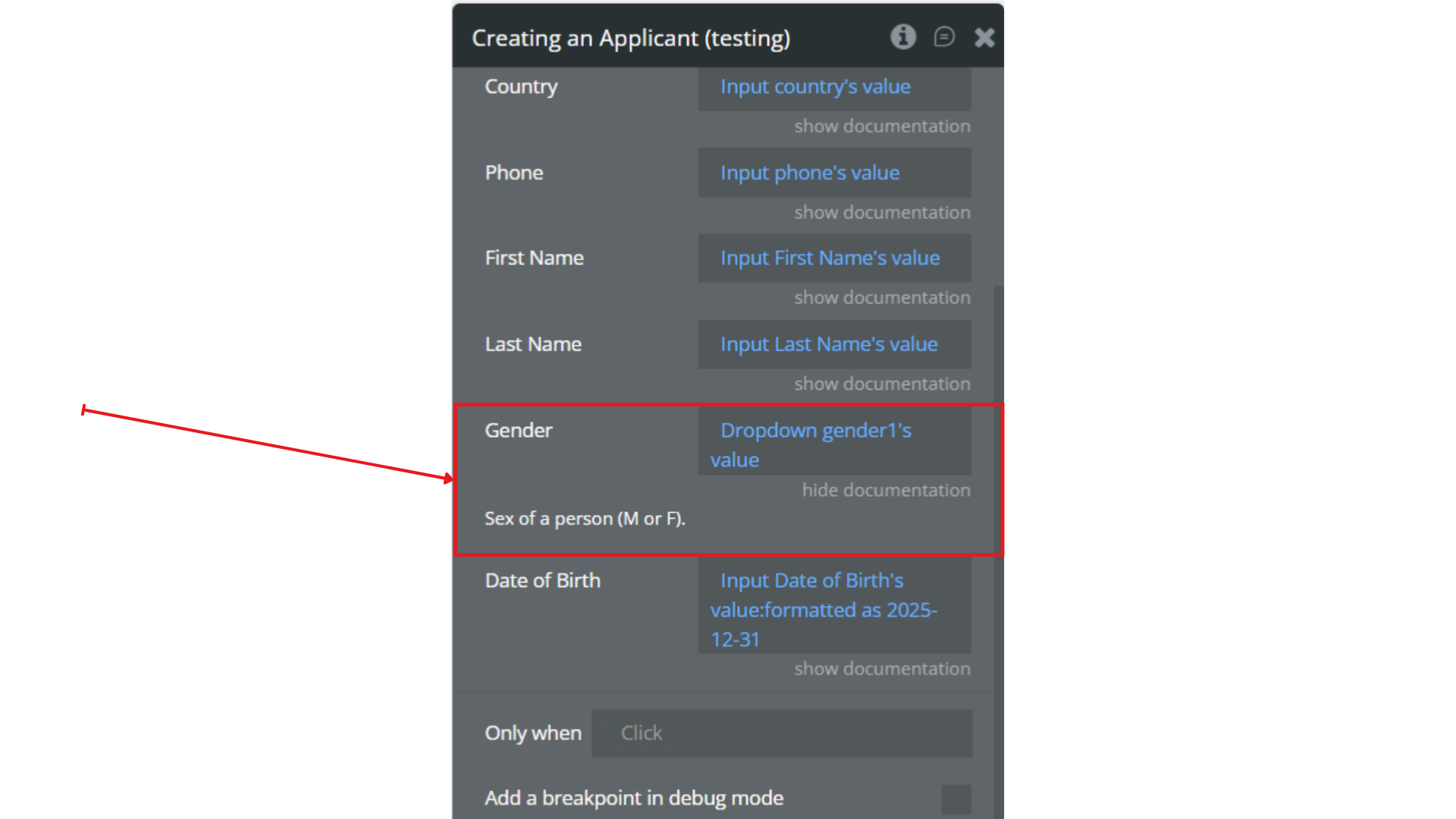
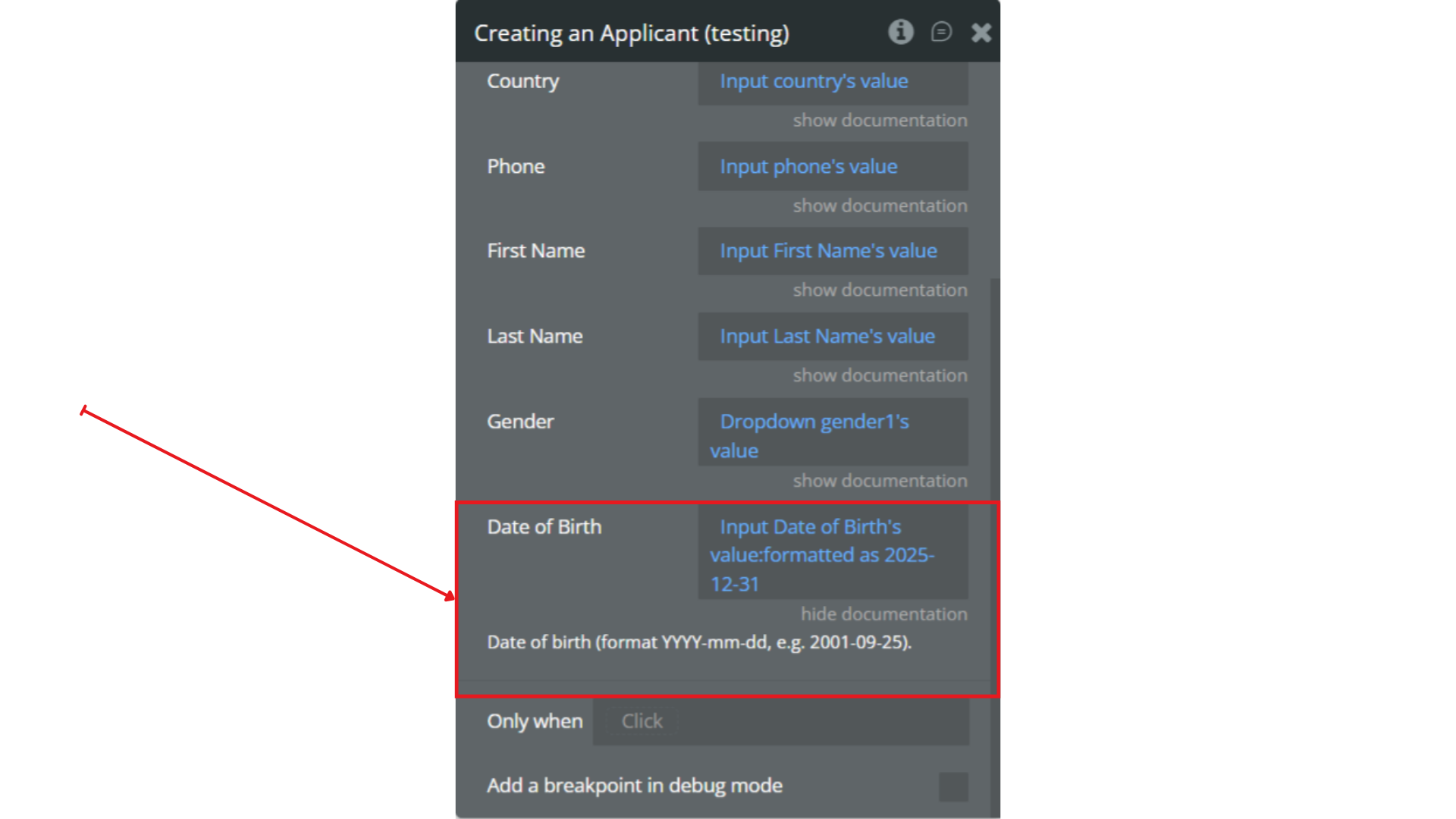
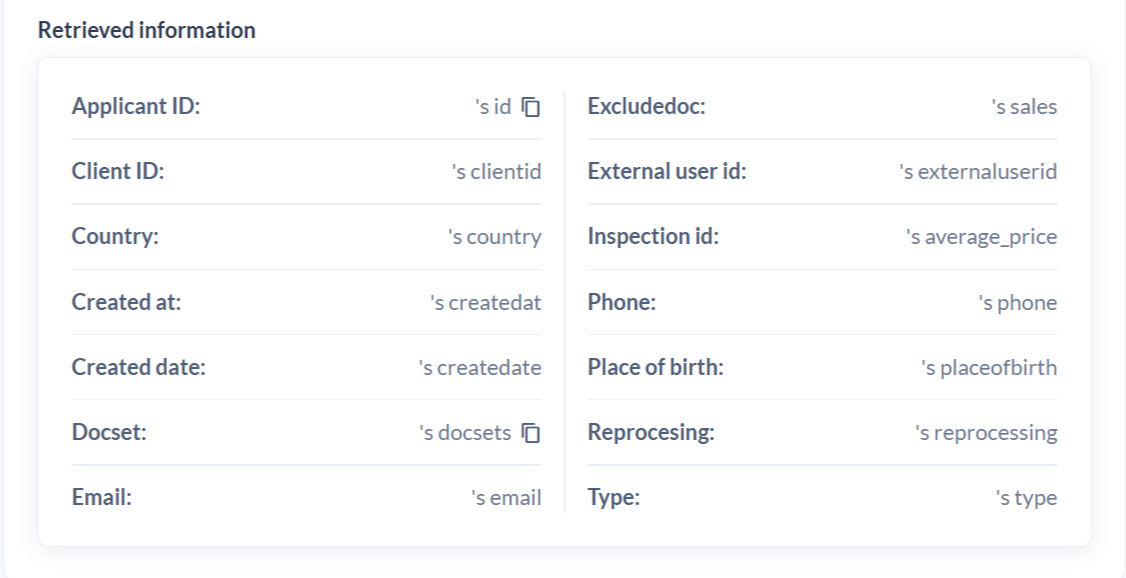
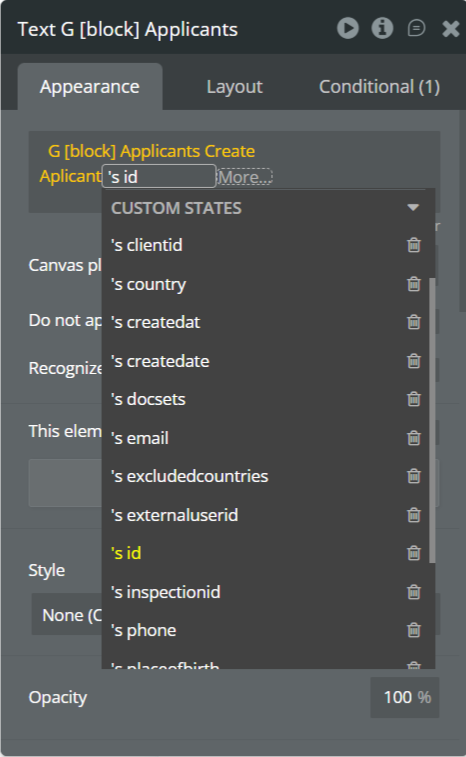
Step 5. Preview & Test
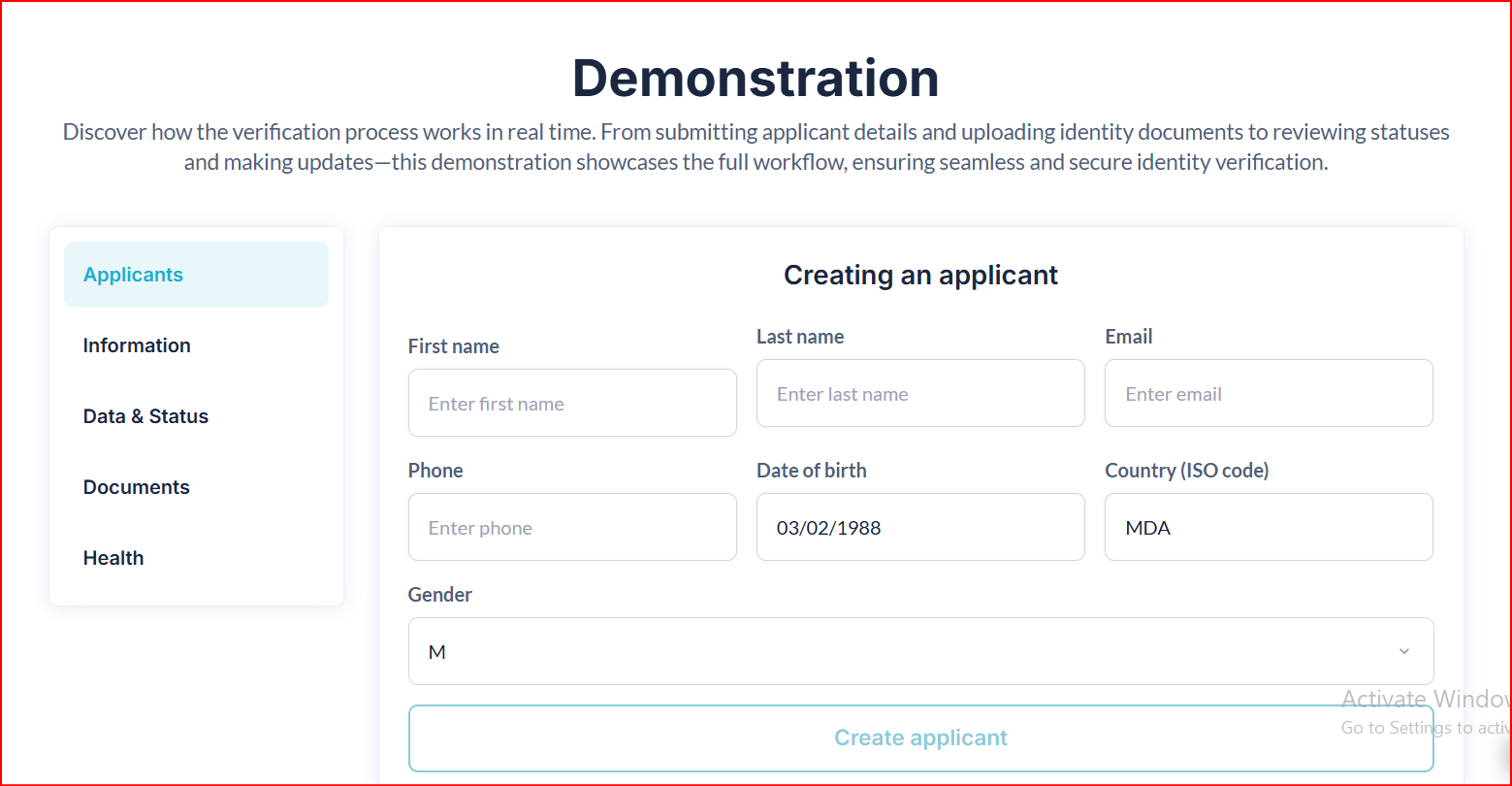
Plugin Data Calls
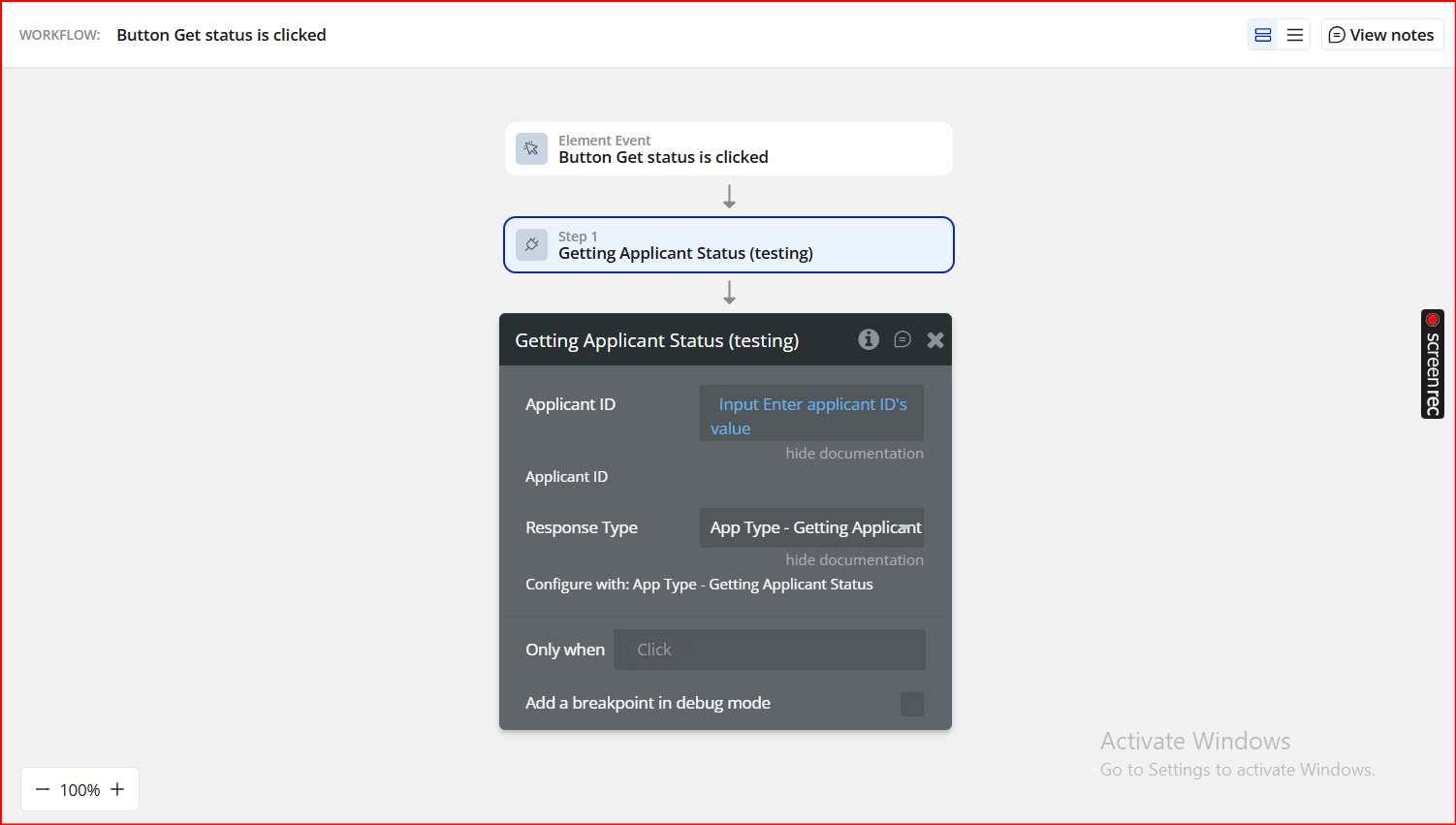
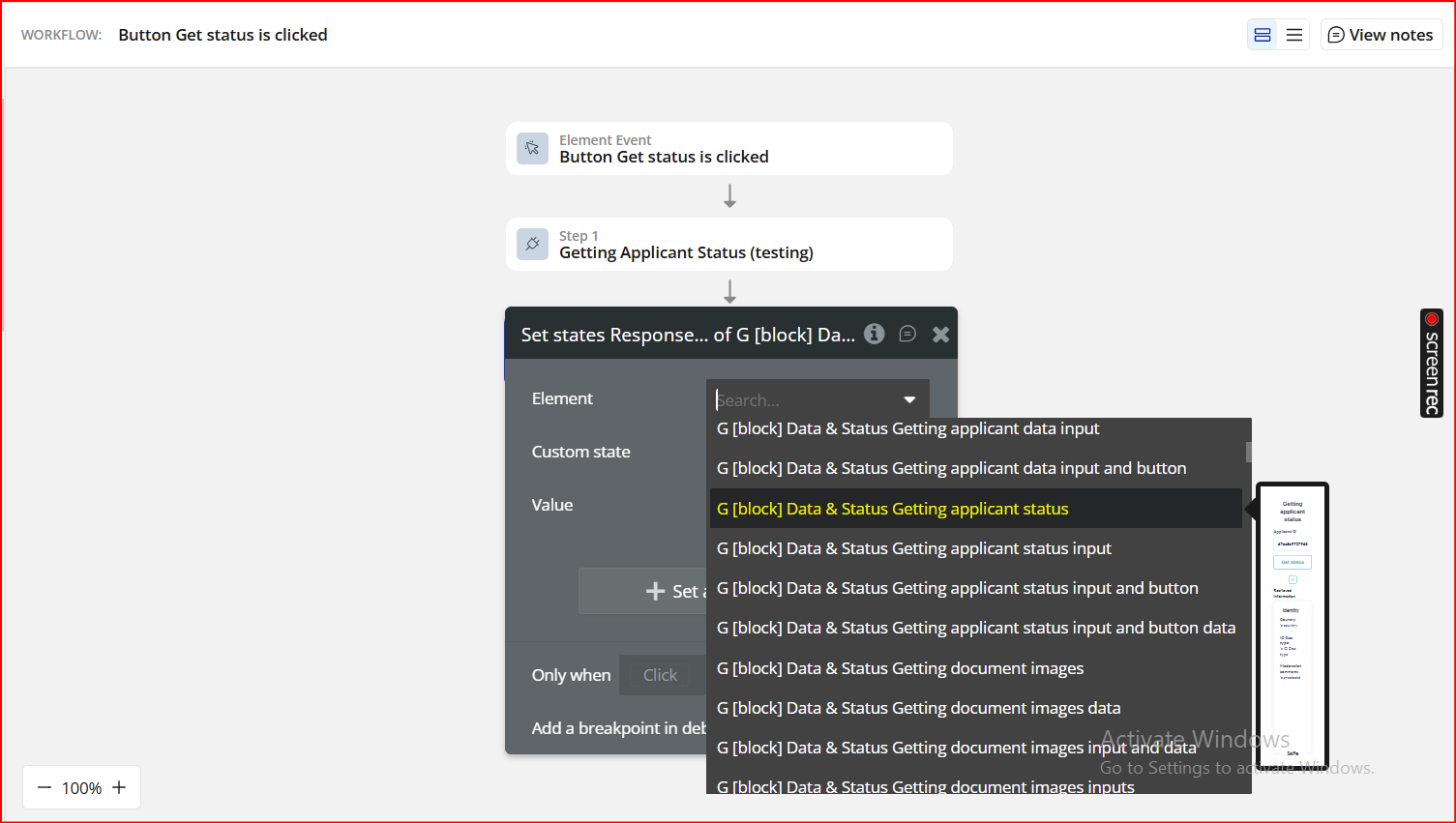
Getting Applicant Status – This Data Call retrieves the current verification status of an existing applicant in Sumsub. It does not trigger or restart verification.
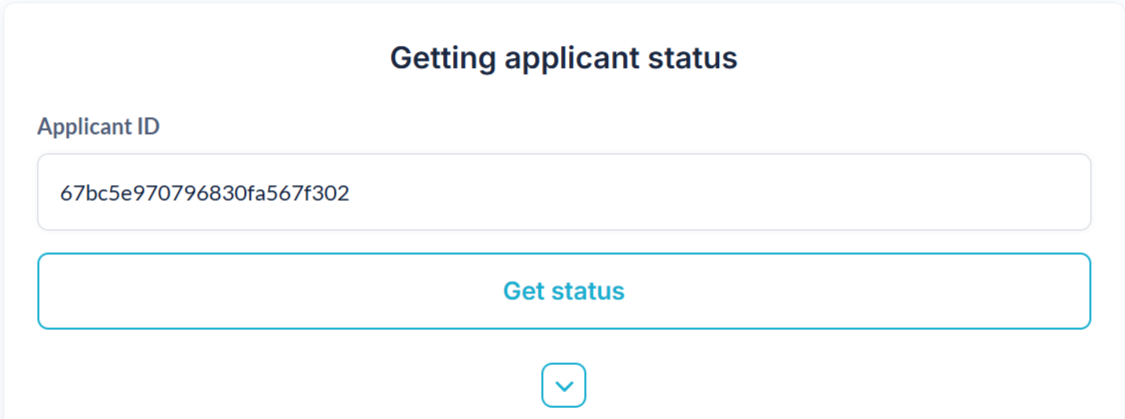
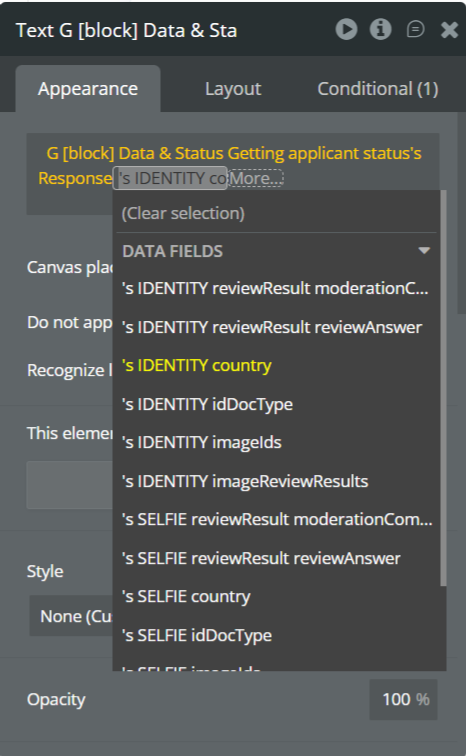
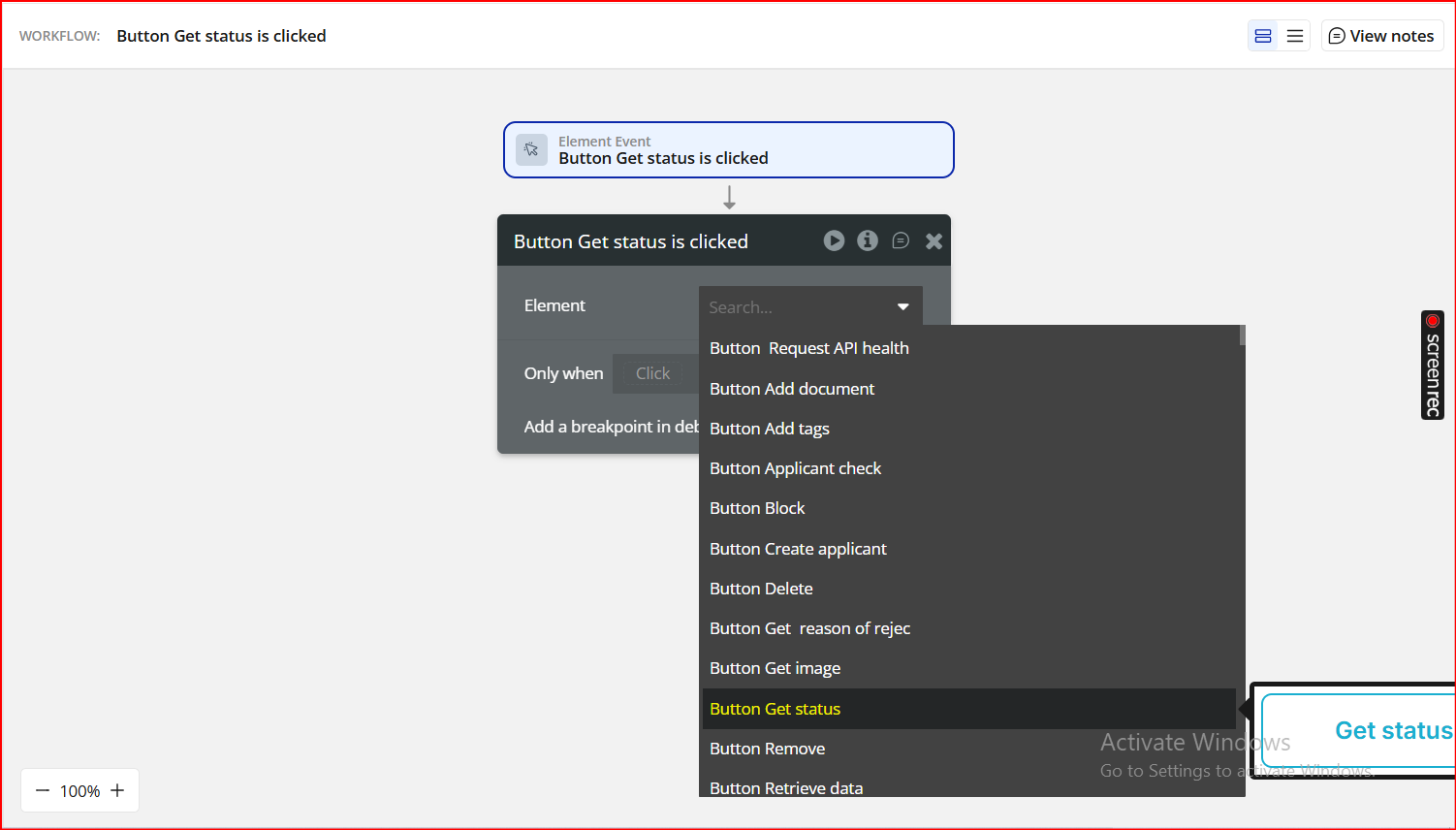
Plugin Actions
API Health – This action checks the keys' validity and the server connection status.
Adding ID Document – This action is used to add an ID document for an applicant.
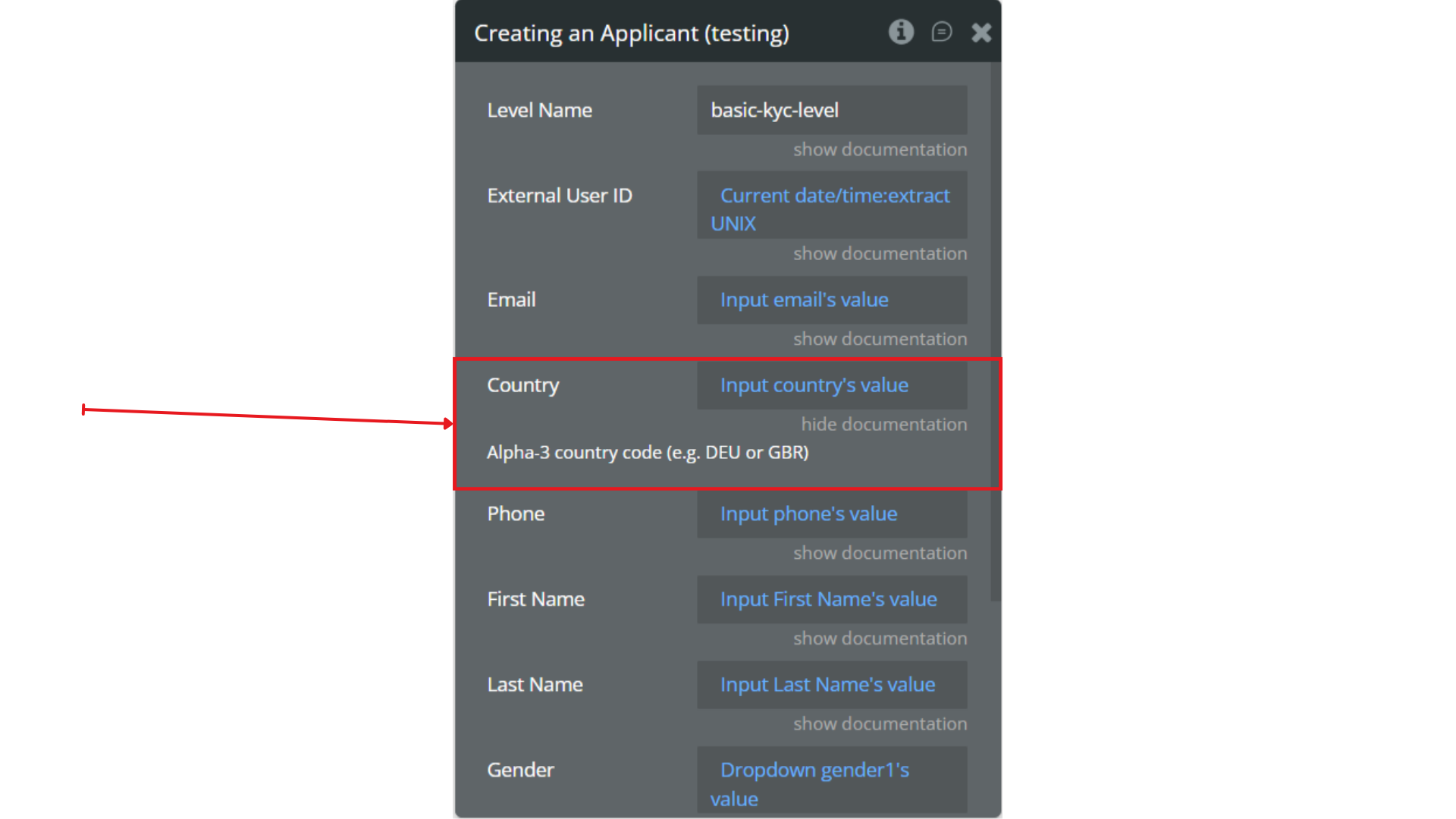
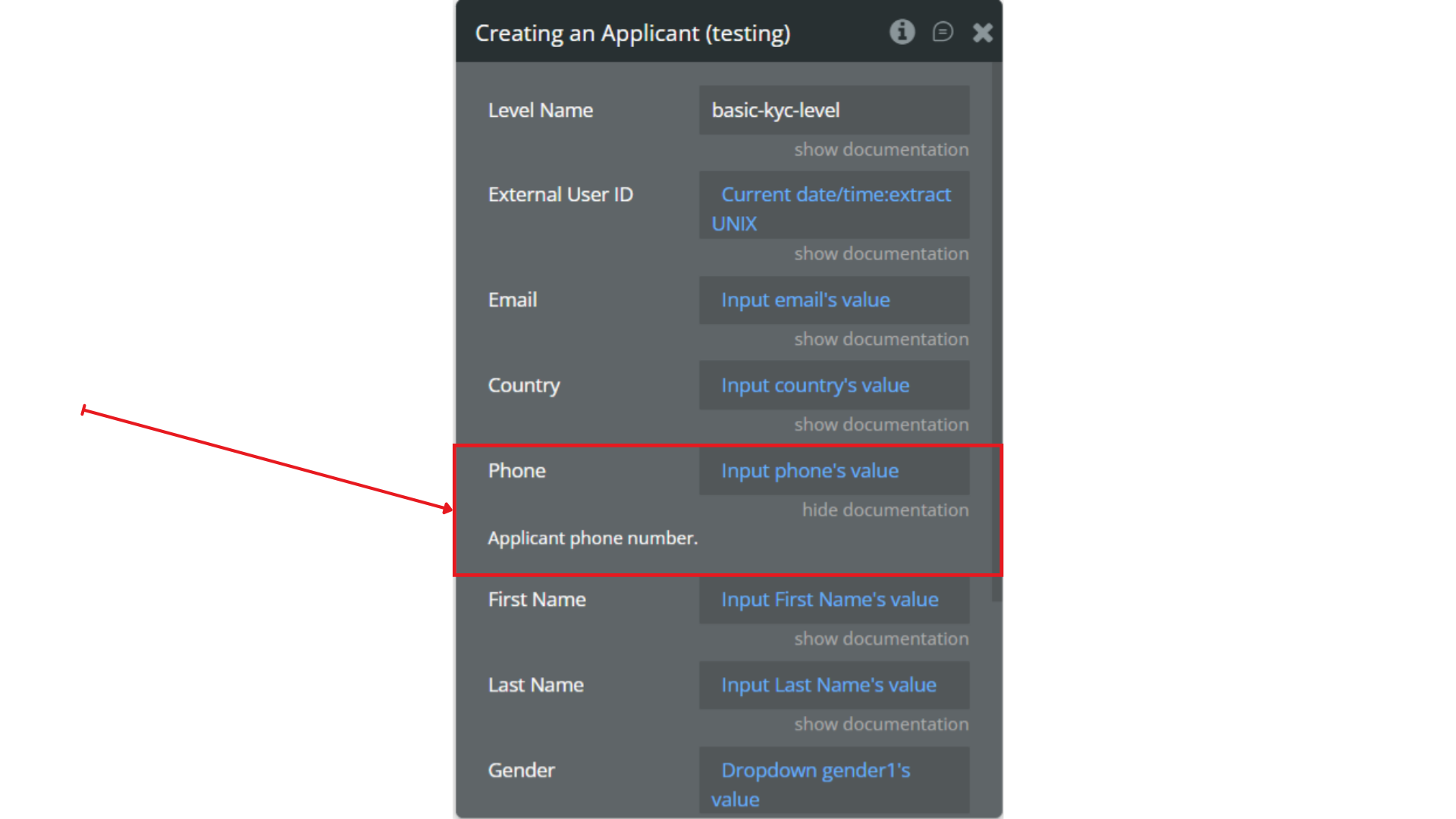
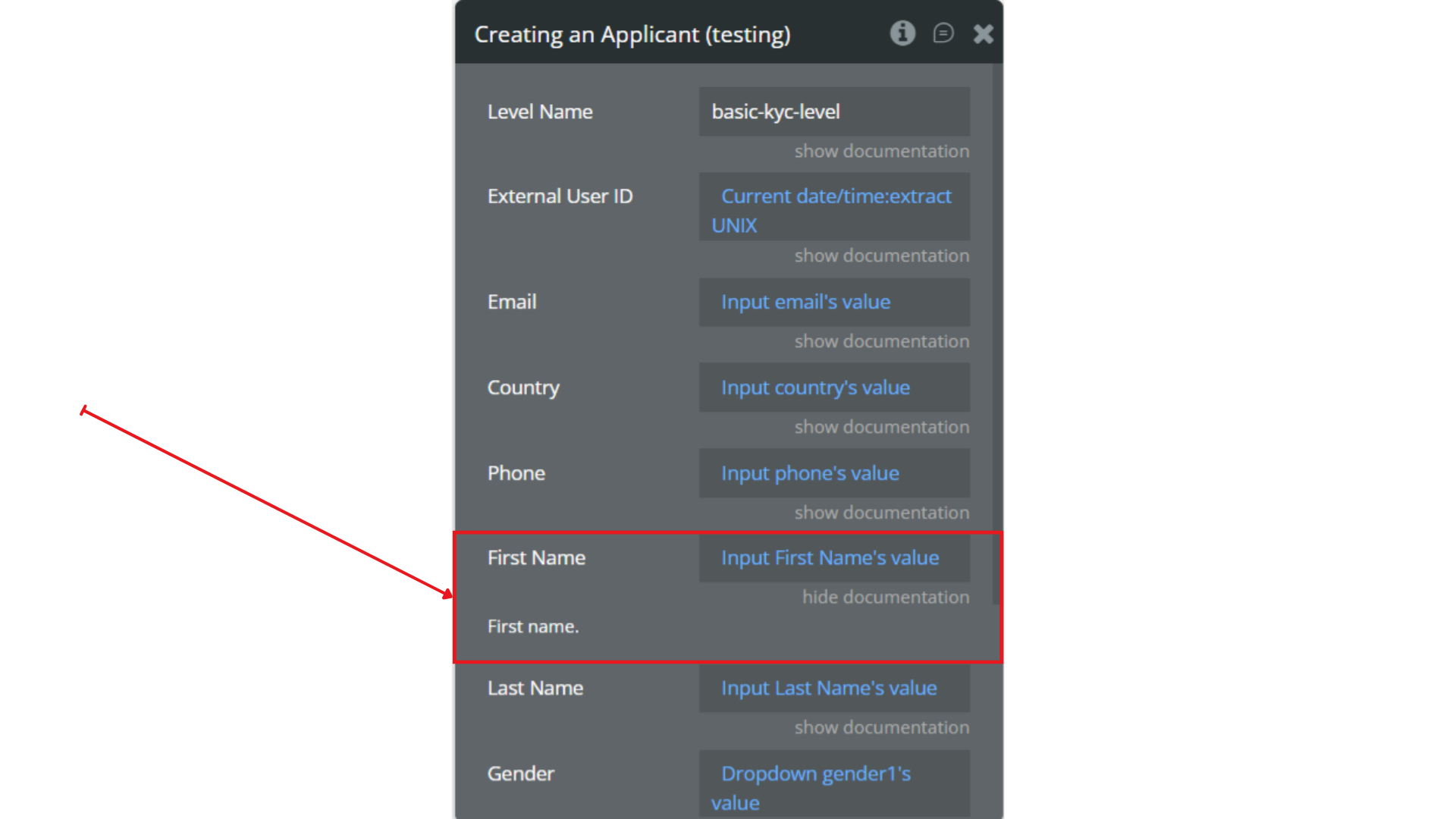
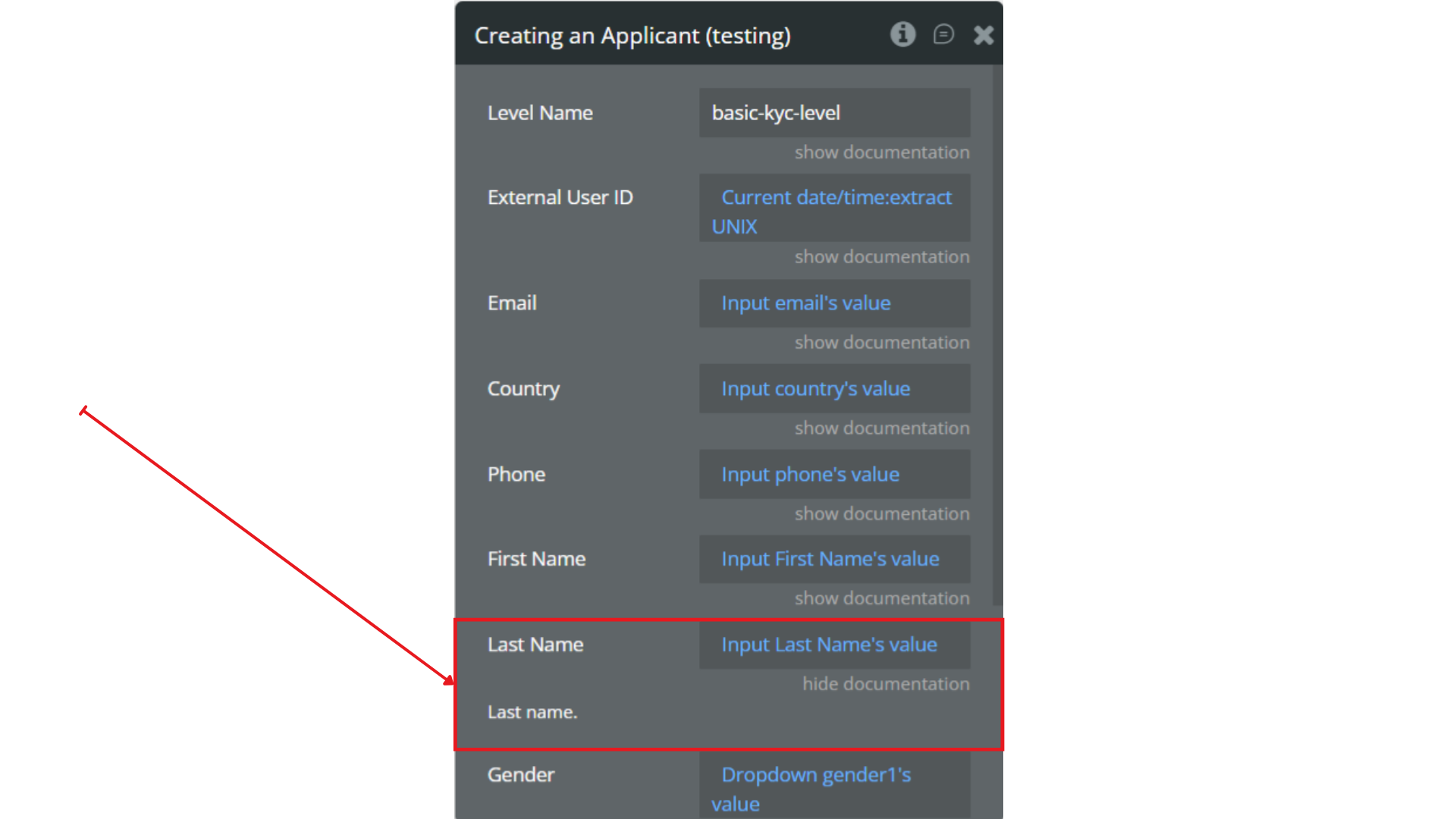
Creating an Applicant – This action creates a new applicant for verification.
Getting Applicant Data – This action retrieves data of a specified applicant.
Changing Provided Info - Update the applicant’s personal details such as name, gender, date of birth, place of birth, and nationality. Useful for correcting or completing KYC data before verification.
Getting Applicant Status - Use this action to check the current status of an applicant in the Sumsub system. It helps determine if the user has passed verification, is under review, or requires additional documents.
Clarifying the Reason of Rejection - Get a detailed explanation of why an applicant was rejected.
Requesting an Applicant Check - Trigger the verification check manually for an applicant.
Getting Document Images - Retrieve image files for specific documents uploaded by the applicant.
Adding an Applicant to Blocklist – Adds an applicant to your blocklist with an optional note explaining the reason.
Resetting an Applicant – Clears the applicant’s verification history, allowing them to start over.
Changing top-level info – Update applicant’s contact information or language preferences.
Set Risk Level For The Applicant - Assign a manual risk level to an applicant.
Marking Image as Inactive - Deactivates a specific image from an inspection.
Adding Custom Applicant Tags - Attach predefined or custom tags to an applicant profile.